
When actively working with chats, it’s important not only to see new messages but also to hear them immediately. That’s why Uspacy provides sound notifications for both internal and external chats. To ensure they work correctly, you need to configure sound in your workspace and check the relevant browser permissions.
Sound notifications in internal chats
Uspacy supports sound notifications for new messages in internal chats. To hear them, you need to allow sound playback for your workspace in the browser.
For example, in Google Chrome:
1. Click the site settings icon next to your Workspace URL in the browser.
2. Make sure sound is enabled for the site.
3. If needed, open Site settings and set Sound to “Allow”.

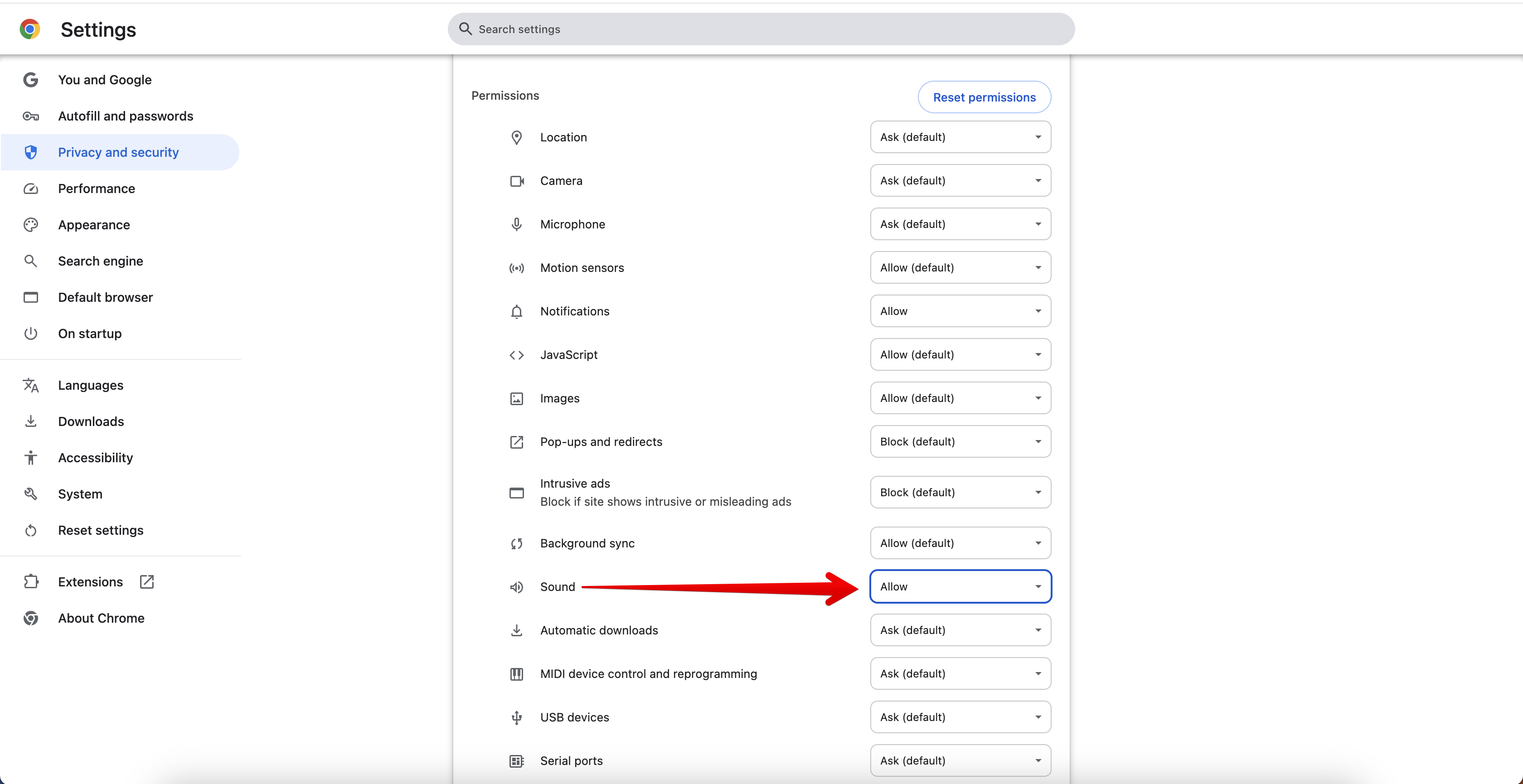
After that, new messages in internal chats will be accompanied by a sound notification.
🔍 You can learn more about configuring push and sound notifications in different browsers in the article "Features of configuring notifications through the browser".
Sound notifications in external channels
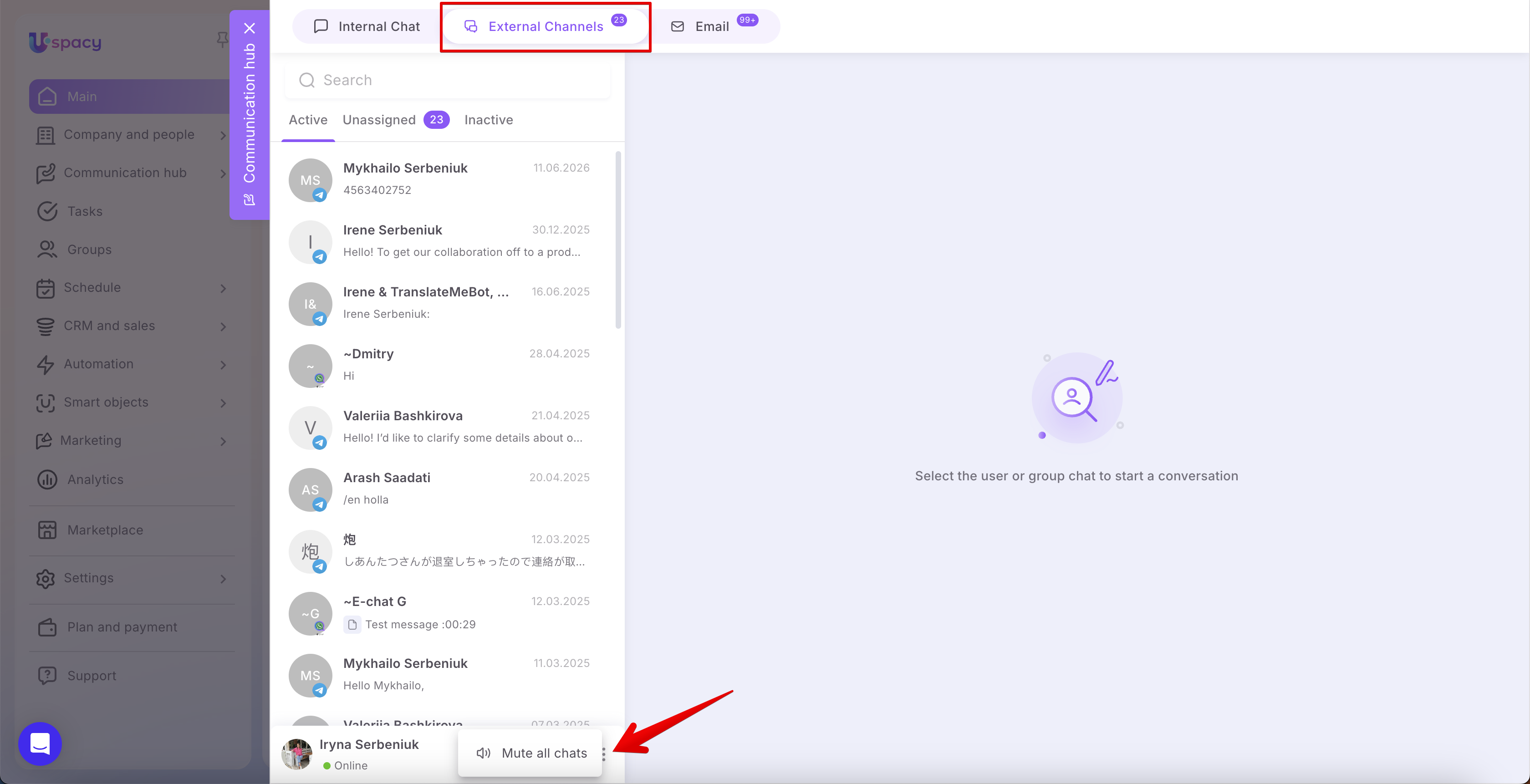
Sound notifications also work in external chats. The principle is the same: to hear new message alerts, sound playback must be allowed in your browser for your Workspace.
Once enabled, new messages in external channels will also come with a sound notification.
Managing chat sound settings
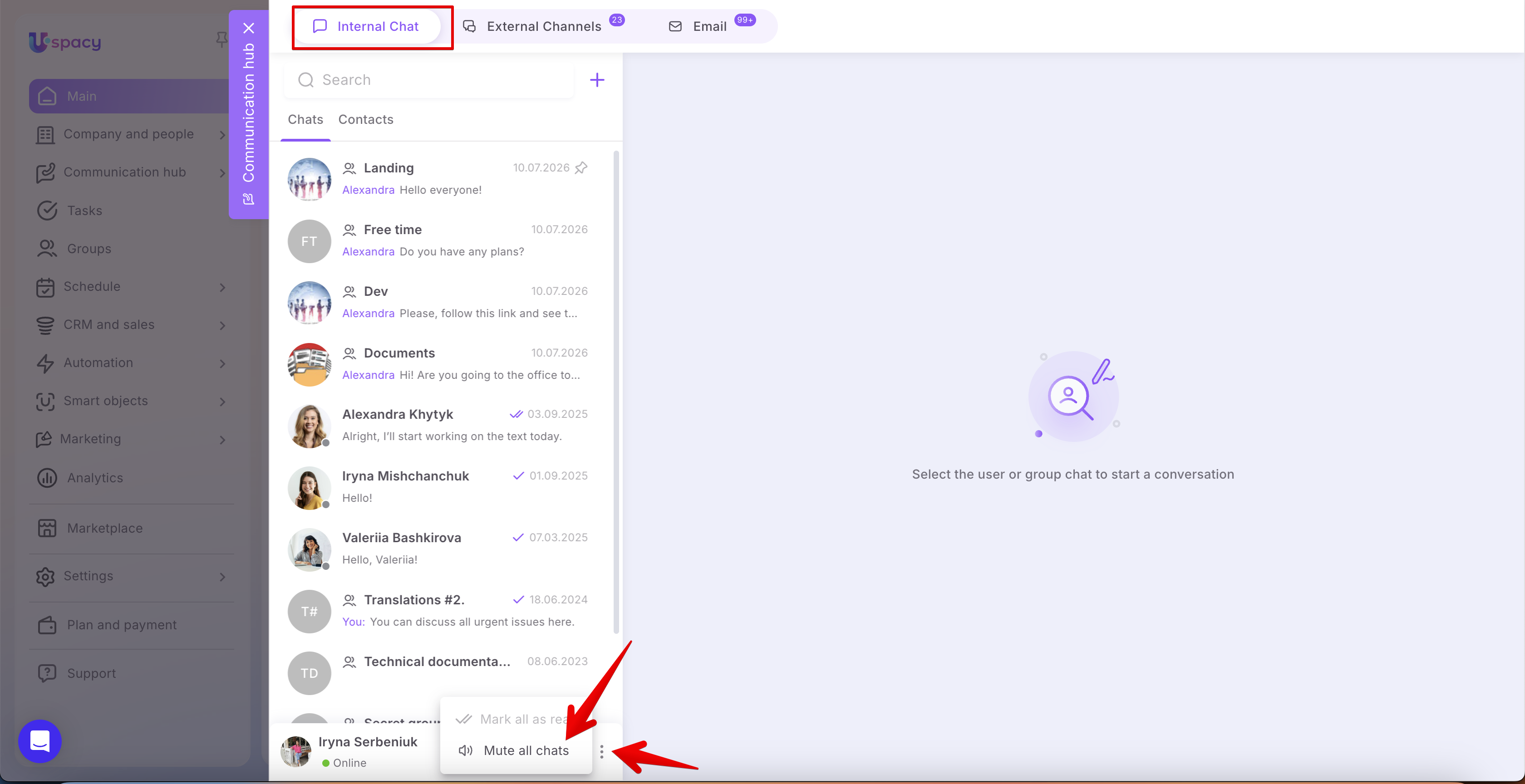
At the bottom of the chat panel, click the interaction menu and select the appropriate option to quickly enable or disable sound notifications separately for internal and external chats directly within the Uspacy interface. If sound notifications are disabled here, new messages in the selected chat type will not play a notification sound, even if sound is enabled for your Space in your browser.
☝🏻 Please note: even if sound is enabled in both the browser and your Workspace, notifications will not play for a specific chat if the “Do not notify” mode is enabled for that conversation.
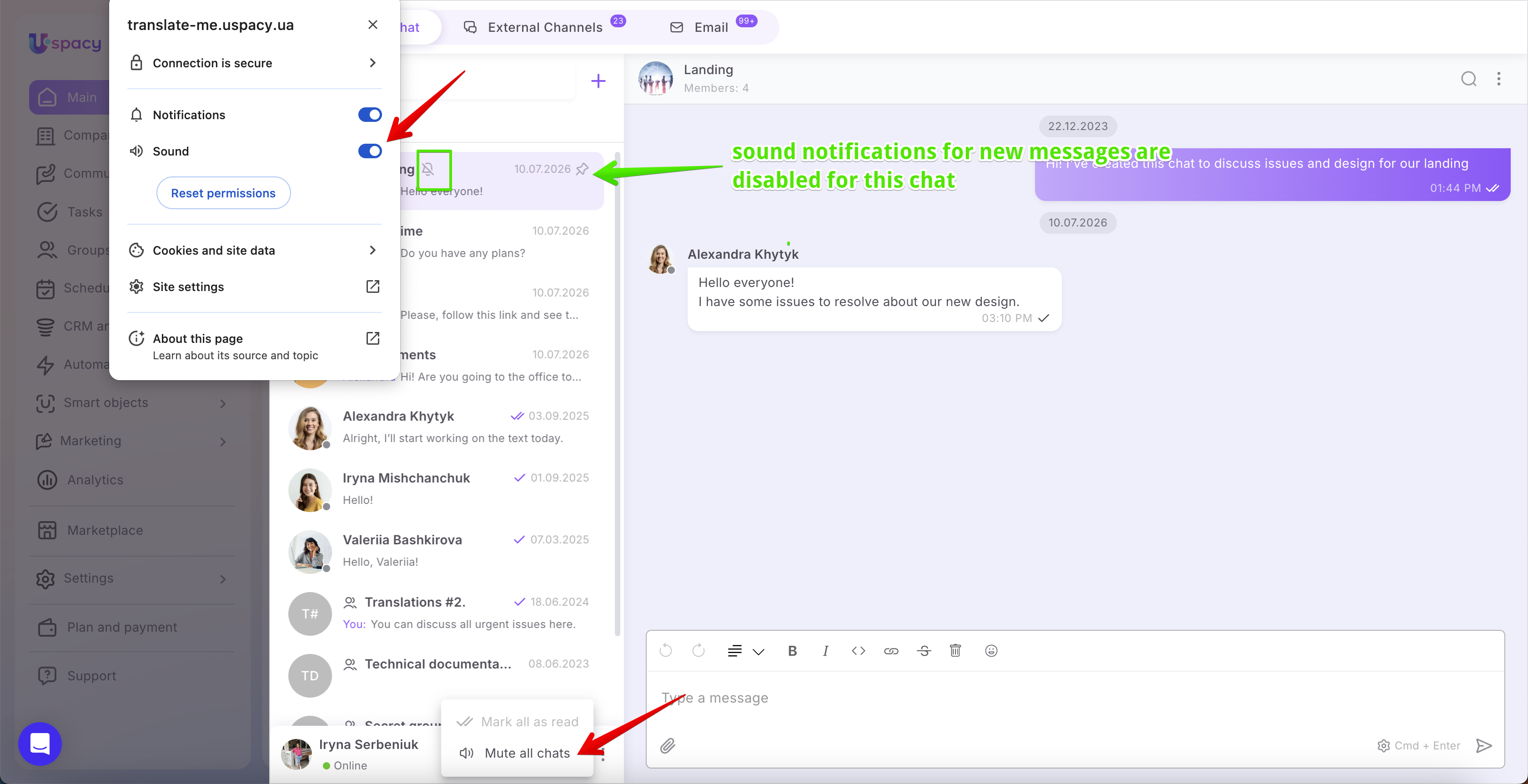
Sound notifications in Uspacy are a simple way to stay on top of new messages. Just make sure sound is enabled in your browser, turned on for the relevant chat type, and not muted for individual conversations.
If you have additional questions or you need to contact the support, send a request to this email [email protected]
Created: April 29, 2026 / Updated: July 12, 2026