Uspacy Knowledge Base
All materialsUspacy user profile Notifications

Features of configuring notifications through the browser

Features of configuring notifications through the browser

We will tell you what settings you need to configure in the browser and on your personal computer in order to see all Space notifications

At Uspacy, you can manage notifications about certain changes while working with Space tools.

AD_4nXcbgE5pc3IWqy4rIpNAtH26JdW4ms9wcuDd8itxaKNcb01QHOmaxzUEh4ruTGfkterAVqzoBnkWU9Ocd45m9i1hOTg82AmK3Yld68eczXwseIhdqrzSwrvUf-wJMVmLvMM4DZo6dpB8SrGWGJ0NMC4Pu2k

The first way to receive notifications is through your browser. It is a standard one for informing about new messages in chats. But, of course, you can enable receiving notifications about changes in other tools through the browser as well.

AD_4nXd9zXUM9z_fPMmKe9VxytdtS6o4zFaJFEaaiiUrBXoq41k48SCbQkVEd9j6aW_O8J4E3CuPVq8ha11utAabS5uDe5h3akHF1Kz6L99RkdMYzut8dAltDccTx5e9SDjMIBiRJDsdggeQGbgunIp4QBT93kX6

But in addition to checking the box in the settings and saving these changes, you need to perform a number of other actions.

In order not to miss anything, you also need to enable sound and push notifications. This must be done in the browser you are working as well as in the settings of your computer.

About everything below.

Browser settings

First, in the browser you are working with, grant permission to receive notifications from the site of your working Space.

Google

AD_4nXeEMnkrt2AmtyWd_XAHWJDHECmU2OKrxGNK4GECefXHf8FGJb1UF9A5dAIXwRypq_YQixkwf-ISDWuZSUHv8V47GCNTP8ly3sciA6FSLqOueXL-Ge4kPF4G3zlQH1surpea6gYs8_pYR-MggdNKdeWJQS3UAD_4nXemU1bZYxdc0HdgAv0sllkzW6bMwzV88d_mqEU55ST3qhA_5mJXrVzoaoggA6shmX9wR1_g0g_BfwtK-J5C0pP0qyIFOxEA7ULkXrNP54_qmm3ipL0rBOPS1OFf8WbO7Zf6FdJoqsIiqgeSiKNKou6K6Ruq

Sound settings:

Monosnap translate-me.uspacy.ua 2026-04-30 14-57-31.png

If the Sound option is not available in this window, open Site settings and set it to Allow.
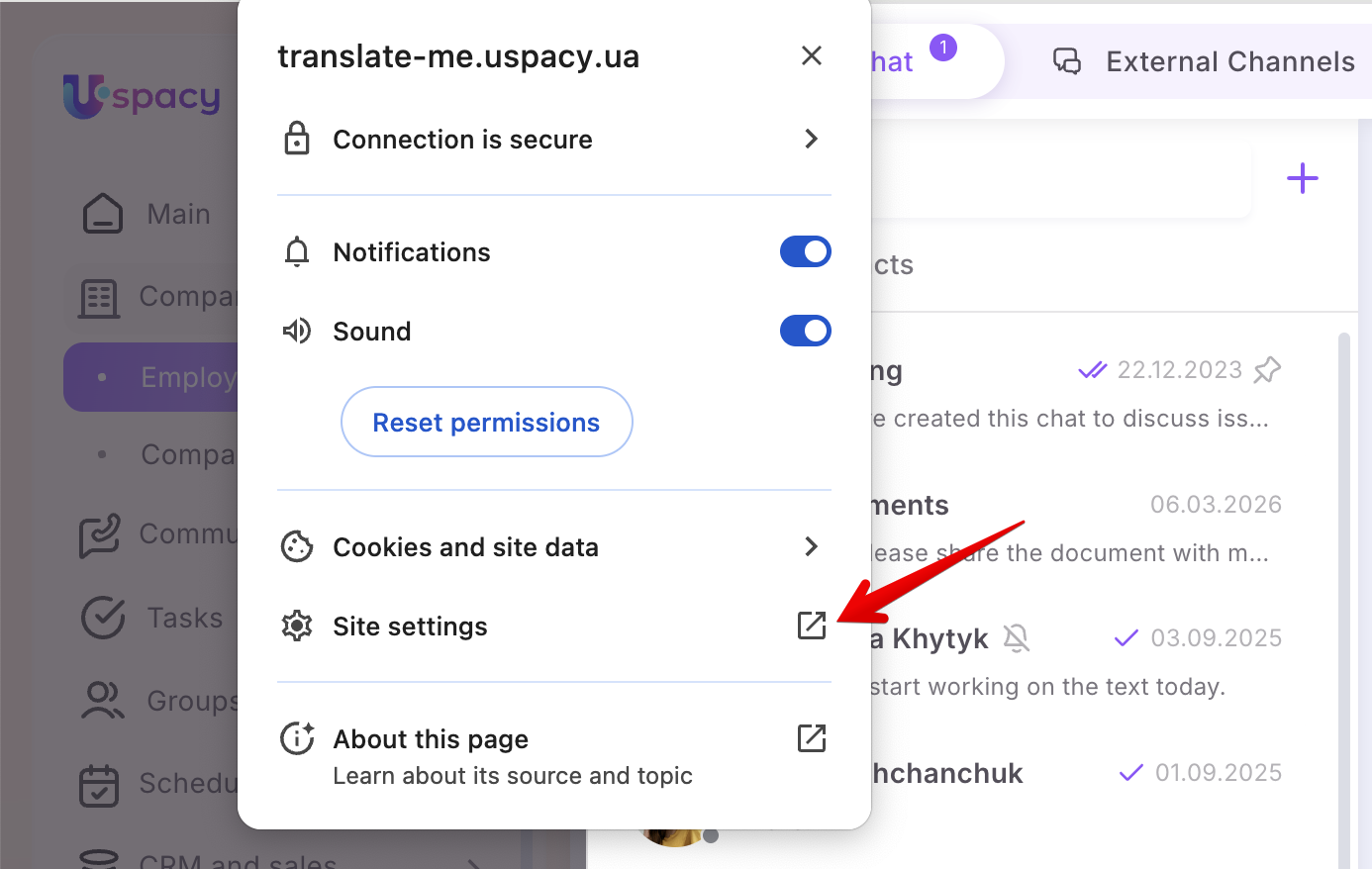
Monosnap translate-me.uspacy.ua 2026-04-30 14-58-18.pngMonosnap Settings 2026-04-30 14-27-39.png

🔍Learn more about notification permissions in the Google Knowledge Base.

Firefox

AD_4nXepOe34WqSNewWtYZgttWDToHNcRjIQ7VugSUnuzQzhfVUDM8Pec6282q9gYMBj42ToJPX1cd62-MiKbMUrz_AegjMhEVQkuuCJWJkN1asFcNSUDAbnHfhxmZuQBzrRP8ap_K0JiU_oVqmWA-mRrYgAwsBDAD_4nXdbzpO0FAnxZpXmIAu6Fw6ty55cJOwX7dEOhAuOiCqfs1KzDSztg8_k5YLbelQ2auL6S3G54uNF7PQXoRiQ_cnTNI5IFPc6hms5R5tOfmWFMcYtIeqxEDsk2NEcOdHt6kzxDRwHQoEPpMImTzH43-zJibM

Sound settings:

Make sure sound is NOT muted in the Workspace tab.

Monosnap Uspacy — єдиний робочий простір для організації щоденних процесів компанії 2026-04-30 15-05-43.png

🔍Learn more about notification permissions in the Support Mozilla Knowledge Base.

Opera

AD_4nXe-TIkwIGdCkKabRfOjfc3SW1VkTmm1SihJmQfRVOF7I_0zZXdQfOlZb9W8J9RtpIbK0G4qia7nDbUDQv4KdmHsAMazao5Jbt0mg_hhspti3uoZk8k9byFjosXUs11c32cLGrmwXtM_L6kSOU8d9MMKt7bkAD_4nXcYVmoIZsqPTERUcwqOdPr5bkOna0XfmLXv3bvfwO01_u3Ki6v_fp0rUMpXBIM7DSc5wuB1qBNcSDPxe132Ae1-0ZZ0B8hbexg0ZBKFOk--utkcbfCk4S-Kcmmy_FEFNzv0jIsOrhDjIvSWzMtZ0finqPI

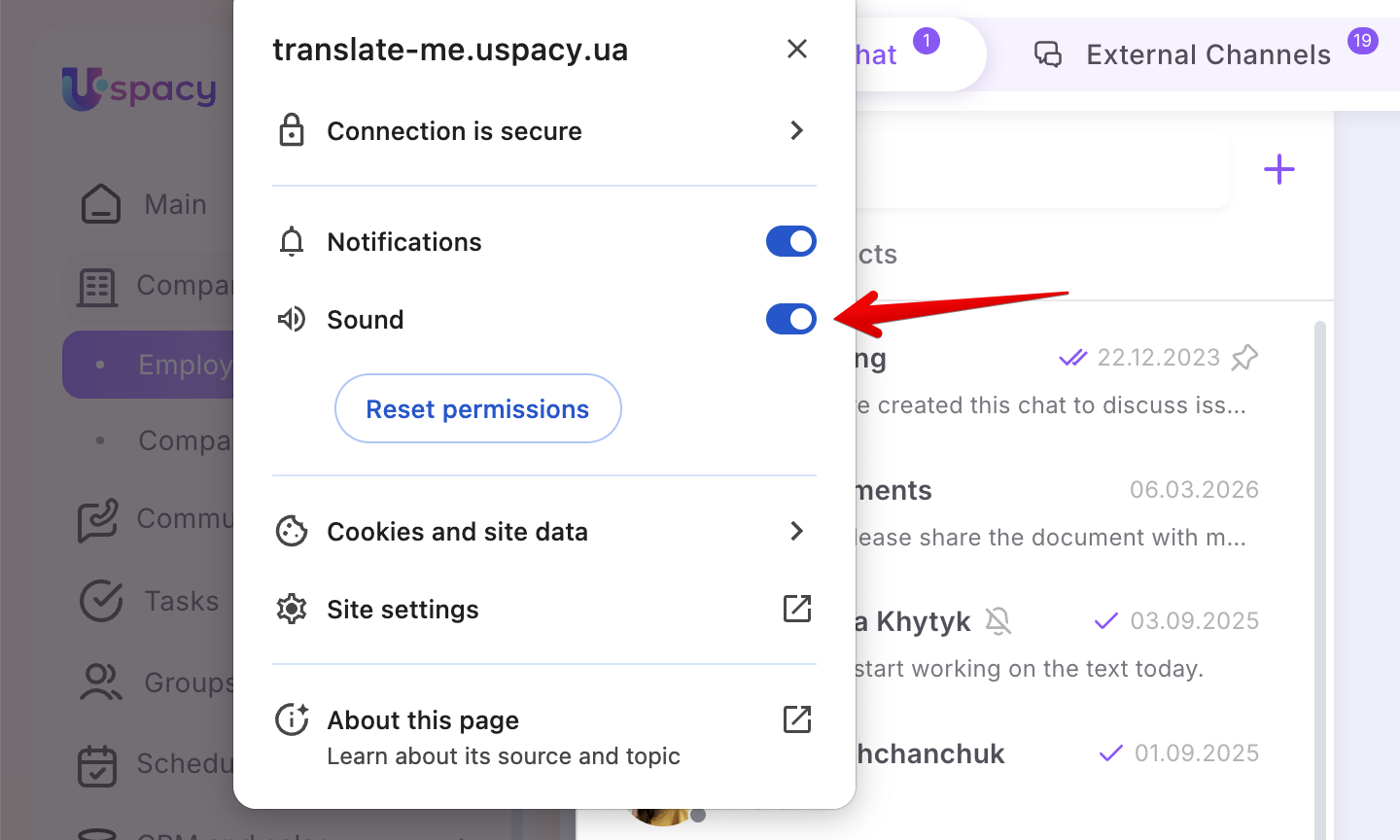
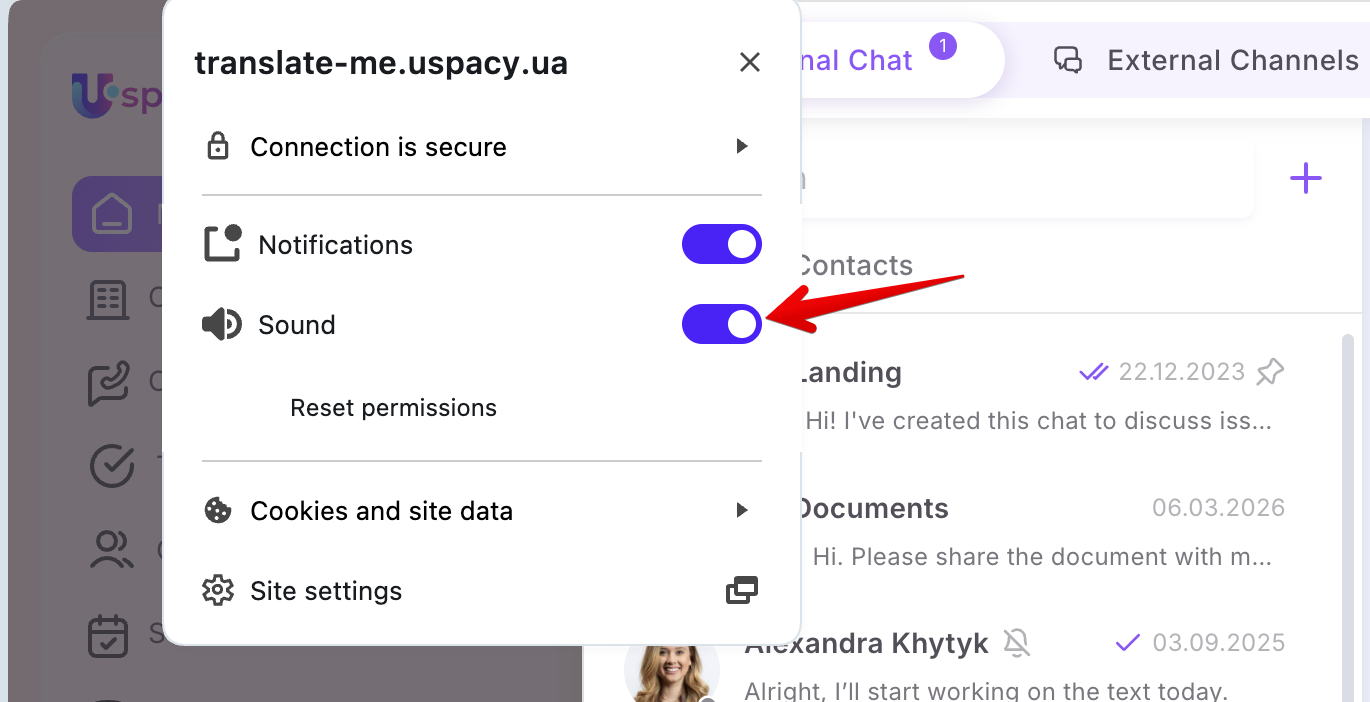
Sound settings:

Monosnap translate-me.uspacy.ua 2026-04-30 15-11-02.png

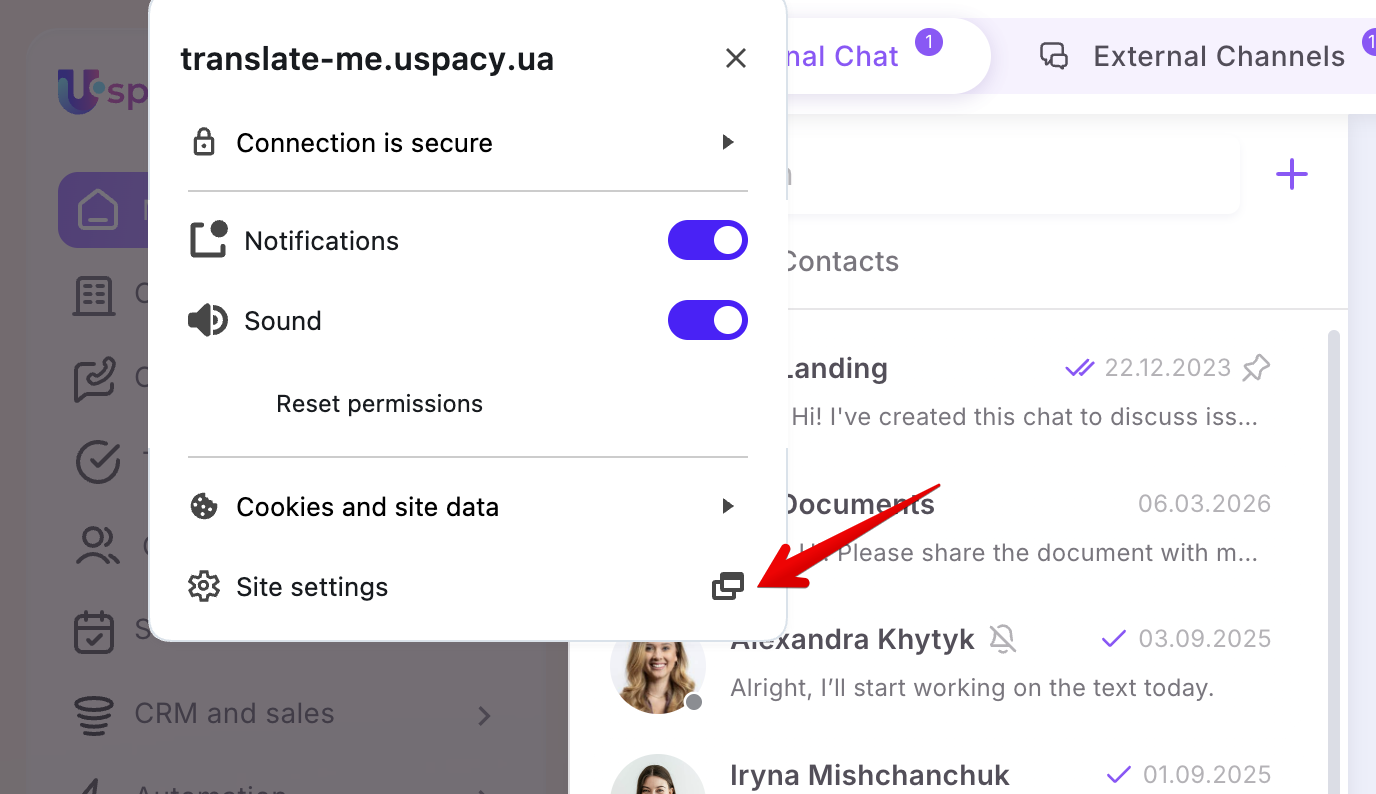
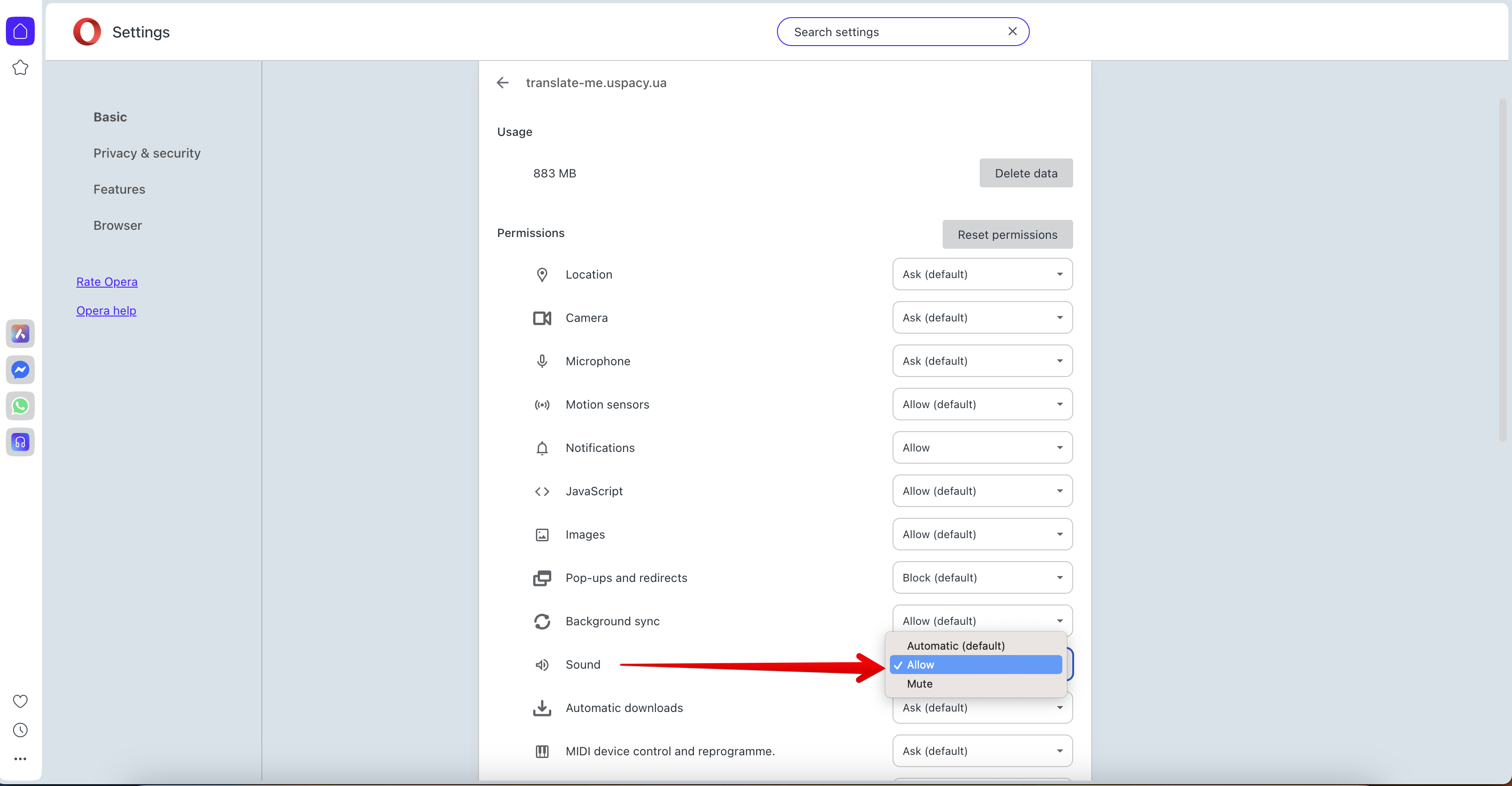
If the Sound option is not available in this window, open Site settings and set it to Allow.
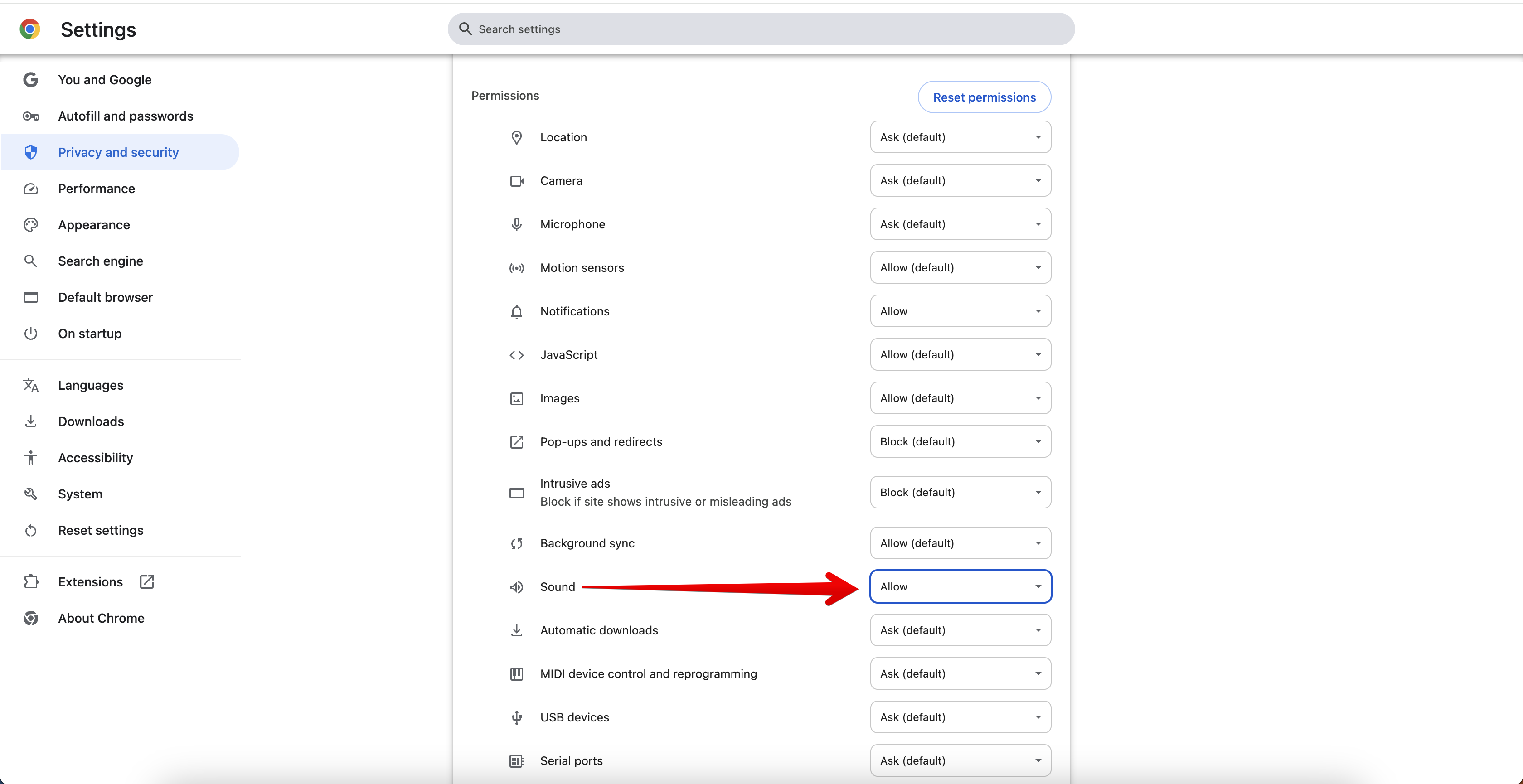
Monosnap translate-me.uspacy.ua 2026-04-30 15-11-50.pngMonosnap Settings 2026-04-30 15-12-23.png

🔍 Learn more about notification permissions in the Opera Help Knowledge Base.

Further settings depend on the type of operating system you are using.

Safari (Mac iOS)

AD_4nXfu1MCsABl8lttaiAjNSn0zlguYLxgm1pSk--5JjusPVjaNwa-6XroG_YGVywgUdpFuLbex58F3_eBUsTvB6t2bawpYtsaf6OcJqT01_k0e4vsn2HN0oigvocLSGG-C19lBCz-VZJ58ZmGgc2dT0eHwUrLZAD_4nXdcFV93tY-YTshVX6wlYgw0RXooNW-_GWAmbLxpBhLI7oRg7CSVvuirIuNGuQqJvvfpXS17mVocA6Liq0f6bw6DvmNO8dZESYr8Pw8WCsqL2xqgJlv1T9fWxl4blzTLmGUxicQ4oCpmkTGp1j9g2ZOQHo8

Sound settings:

If chat sound notifications are not working in Safari, check the Autoplay settings for your Workspace site. To ensure sound notifications work correctly, set it to Allow All Auto-Play.
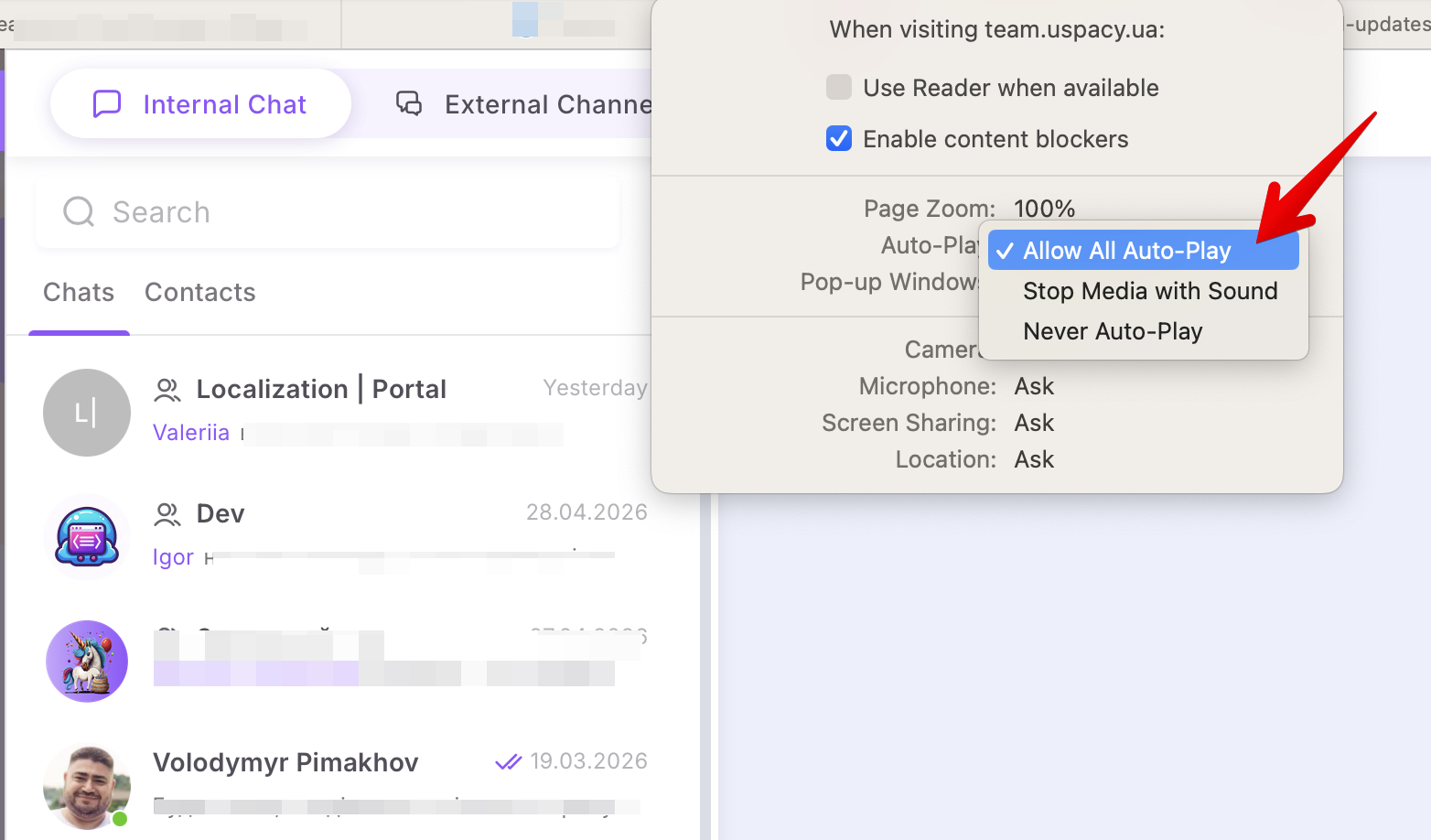
Monosnap Monosnap 2026-04-30 15-16-00.png

🔍 Learn more about notification permissions in the Support Apple Knowledge Base.

Edge (Windows)

AD_4nXee4iztTZ_D6oudx6e4Oa5e2kTQTu82S-FJ3HhRMYgbAJ4OXLF6jQZtBh0xVnUeDN1im_Ew8BxvSDIic-2_2j_IC45shs9H4sQWpiaQcGylJ4pynRJ5ooHheZ6yXOpNqsIL056eMLKaf4V_1oJnpqU6vM4AD_4nXcysXn2_JyZSZvLviTSO2MbHzuqBRpiLr8Mhy32ZF6GwVBlfQLR1cuzIYmDqfam4C6jsVz7jf5QVAnsIkmIrQMtbgVU9IWQmiNXdVmzm3IbbZh1MBYj82BN33f6MkgWWwCnXDMdVEPVbb8Fz-eujlvDb8s3

Sound settings:

Make sure the Workspace tab is NOT muted.

🔍Learn more about notification permissions in the Microsoft Knowledge Base

Further settings depend on the type of operating system you are using.

macOS settings

Ventura macOS 13, Sonoma macOS 14

In the System Settings of the device on macOS, go to the Notifications section. In the list, select the browser (Google, Firefox, Opera Safari) that you use for work.

AD_4nXeOSbyd5Q7MZKXL9em00QLoQ6Hzu0l4-2mBUaBGU-IOvbF76nF6RvNo_SRYWu410sg5A0McY2PrcuUvBRqea0CrEdNIzWacf0i1jkeQqiwLg3SOkwYhMmIVn-jNeHNk66c6jtnBtExunQzsPb8pqg4P7oyn

Then activate the option Allow notifications. Banners should be specified as the notification type.

AD_4nXc_lV1JWDnZL_XHoZbavb9qCMgwUs-khxS-8Ou9OH8fmZrnLulDHmEyR3MDuOxuAsbIJLo41zcqlMdjYKoBiB_ANfV8a1z5oeTmkHkzSgtJJ5WG9CEsDT_Ayr1RkipTzURjKFageu8-gDZuMSbRVO_UqLk

After these settings, you will not miss a single message from your colleagues. New chat messages will be accompanied by a sound notification.

AD_4nXeHpWrvz-u8zA5-wjbYoi7ENZRfJ4Ozh5SfRHFUV0ykXnDJnFuWFjwWxPYadNYkNLfKwmpMwCrwwxg6APWkil5jVJwNvJFvlwK8NWFLHeGbMAu8ObfmzuhmQ1DB48xrJ3YxXm4UR_fI7V8DAQedn41ht1w

Windows settings

In Windows Parameters, go to the System section.

AD_4nXdERBX10xfIKLNFiflCqf9hUsiOZZdVLTgrqwT-5UyS1Vor-5nyzHWesftrqB8_anvlBCSxoY9W-BAN2NDdJZKtuO2oY7-1tUu9WM2ZSAyxTKlqib8skJlQeJIBDZbTE_2GlR9R23tQw7ek6LApsEihkyli

Next, open the Notifications and actions item, and then activate the option that is responsible for receiving notifications from various programs.

AD_4nXe-AFnj20gD3HqUUVETiztKilQb9I-G-znZPaqQrQH1CUi8Sdivgdm3QPVGZolmnOz_0trIJl2X4MEiR5ivKPLC_ldeLv516eDx_shc-NhryabNvDOEiHtRAw1mpjRrN-JAEooNdJSuCHsguaAuaFKMWkY

Scroll down and find the browser you're using in the list (Google, Firefox, Opera, Edge).

AD_4nXc5mVlmck2S35PcwAkeaf4tD8QCChxHNBbz2kDp3rMn12YwyyvGlW9PloW0kIj19Ju6BJMB9yUyQGoXbbuK2WZBRX_YrAVsRH-6RvNEAYSquPj_m67JdCoXZ4J2w_hLChvchQy6biW8ztMZg41PFW4FJ5Py

Go to the advanced settings and make sure that the option to receive notifications is active, that banners are allowed, and that the sound signal is turned on.

AD_4nXdffFmIIZgcoDOiUW1EcAmbF1kJDODm3S-u1ZEk2XjmE0i4HcbLro3dHMPid-h3cXIO7EMOL93KIF8HbWPBRFAJ3NLovxz1d2-WWUkl32-u_7EtCqYG0Ne8l8jPlilO1Fzv0tqVOdjizUhUfZTCeH6Mn0ms

After these settings, you will not miss a single message from your colleagues. New chat messages will be accompanied by a sound notification.

If you have additional questions or you need to contact the support, send a request to this email [email protected]

Created: March 1, 2023 / Updated: June 10, 2025