Uspacy Knowledge Base
All materialsTasksWork with tasks

Work with tasks on the Kanban board

Work with tasks on the Kanban board

We will tell you what the task board is and how to configure it, what actions you can take with tasks here and how filters and search work

A task board is a task management tool that helps you visualize work and divide it into specific stages that you can define yourself. This is a kind of interactive map of the employee's work.

Work with Kanban board is similar to the work with the list, you can create new tasks, edit or complete existing ones.

🔍 You can read more about work with tasks in the list in the following article.

Also, the Kansan board is not just an interactive planner, but a tool that helps keep track of deadlines ⏰.

At Uspacy, we took this into account 😉 That's why the Board mode has two views: My Kanban and Deadlines.

AD_4nXcibgcecF6C36y3QM9iroWKdFuAbOBA_4TcGy_hY5qPIvOUoVYOHcW4CYc-3I8m_q53lK_F-XeNJ5y9ORLdD0Kx4iz3TdNJXfjzTDs_BPzRYtkJuwhlRbbfS2vRRY8Tb8lqvlIw

🔍 You can read more on the features of working with tasks on the Deadlines board in this article.

Here, we’ll show how to work with your Kanban board.

Board views

The Kanban board is a virtual planner for working on tasks, which consists of certain stages that are created independently by users. Or you can use the ones provided by the system.

💡There are 6 standard stages:

AD_4nXcW-6_7uV-1fZCTTN4nsei9DZoZDStC8OUvtUoUQsFgqDlQ0nbJ-syAyfZ4jhMgCgSXAKFjGg_lZCBbpNmu6BrlvweezyLywOlMIw9-fDC9c1Osotv1i4fK67RF9IdS6o8S1go1Fw

Each stage is a separate column, where tasks are placed and where they are fixed as a result.

AD_4nXcCOR_CieYY26czE7oH5lzaSBm5cXgT6DXOit9DU_lBTrSwk9z0du8Zu3WZvmwZCwC-TpfZy9VTt7wvVf9JmzszZrv9lHT6Dh0C5hr8rOU5cSmdF_jk5XuV12tz-g7NCHcO6cXldQ

You can also see how many tasks are included in each of the stages.

AD_4nXfzwfCtRo1z6U34Nl2R1qaHeAdefTLkkk1ijOJv00TwrU6JQbSBtqHr55VIxirsEMelGKhsh9zxq5JnEMRHlbjtyojd5P6U4IBeN_rIBQhO3vDqBr4yhotqWK7AC_owDpPsxKnC

Tasks can be easily moved between stages. To do this, just pinch and drag it.

AD_4nXejjAui9Uq3j0-mH-WDbINgDknV6ujVwyZcInFtSoSuO8Atm3GNliijEDWQfutUy9-XXytwXJ_XtgnZeuRaJVTAS0xIGVX-zRqS2fiiw6h58TMbyRvG1zFyNpjX1CnaEqfcbwWGIw

Similarly, you can also change the order of the stages themselves.

AD_4nXciEHMBgyk5dlr_50FmljxzyX50zvUL79Q-ruSNxNBAdsH79wQRAubMT32uSxQwYyx99c_jtR1exaJ-YPDDAT8IWDy2AtmzLiXz2YEHb6UCMbz9B3Qu3US1Isj55D90FvMJ71jMAD_4nXdZJV-rQ9C_OxEOjfi1n6ztTJappdDp0A9ltN0QvODbQXc2BZorITfRG5DbZZ2qmlhH3MenMeAoUiUWXdRJdA9wsRApsr1E8c6-uH8jA-YK69aSOytpNH0JFw84oOadXLRfSRhG

Task card

A task on the board is a separate block-card placed in the stage you need. It contains brief information about the task itself:

  1. Name.
  2. Description, if available.
  3. Image, if it is inserted directly into the description.
  4. Interaction menu with the task.
  5. Deadline indication.
  6. Status and priority.
  7. Complete button (for users in the role of task creator, participants, and person responsible) or Do not observe button (for users in the role of observers) or Accept button (for users in the role of task creators if the task is ready for review).
  8. Button for restoring a completed task, i.e., to return to work.
  9. Number of subtasks.
  10. Number of comments.
  11. The number of scheduled activities for the task.
  12. Task creator and person responsible.
AD_4nXczj8L_RGIGFjIO1iKc5czKhXtnAAPI4yZ8dcIHwqZrirwM66HjU_8wkHhJdEMrszM3NJPbJRIK987JTCmX1JN74waep69e9dLkDw5NKUvSQPWcyNeqG31sKdpFEuraAu4RnfJBKA

All these elements of the card are interactive, meaning they can be interacted with. We discuss this in more detail in another part of the article.

How to create a new stage?

To do this, click on the three dots icon next to the stage where you plan to create a new one. Then, in the menu, select the Add stage to the right option.

AD_4nXcGPUXXuF7uNrpEX_eYuWsKOWUV_T8ZPQhR-3lokvm17aOQD1j1Fg_AfDMNwLVDD1SXkhO93q-rdM6bZHgwU0wwfcmxSQfnkY0wHddxsZdZhGKXFBUN0NVkPinKhQ-YN2R6lVqAJg

Next, specify its name and select a color. You can pick from the suggested standard colors, or customize your own using the palette or by entering a HEX code.

AD_4nXfXGE2P-oSVWSLH0tRnE7qKdfnlVdPMQ4wcznAHT3aIefbcMm4kpKg9sEtKMND4-t-OtpSSv9zryaL4t52Lsz8LL0nNzJRVEOdkP9k7pE9xnDzjUcmELxSM3SplKFbr7fMkSiRwAD_4nXcRifRfP4huVwhc4Fe3eNn5OF863b-OcT3woyiYEoqQ-_QjUPeqJO8zgZLJETw8_Ed6wuaiMS9XCQM7N3fGBuGnWXBfFICKLDch9AhkpZjpJ-zv_RUCEHHaPFDLGslsY1b6pQ2xDA

To make sure the stage is added to the board and saved, be sure to click on the checkmark.

AD_4nXe9egrlpJIGGOqLUdnfs783TVdiPTMbrs8Z7p_TEimLf5OQWMFyhYP4_uI8wAodBfXe7lFIBtJuBGIbxYU6GRm0ak1l1Is5N-TgXZbCN9HRwmtqiBFIthTXnYiwR2LBP6pqg4KrwQ

Now the stage is active, and you can use it to plan your work on tasks.

AD_4nXechzV_UBN9g662kdRlDI-ZJiZC5RlkGnJIX2PcuGCuLhOoX8K9s9AsT0CSYxRFWeJUUzfdh2d2E3ab-kYDJjHAZQ6C6rWypDpY80ytV-Wzz06XGjZvhc7p0XM3zx91wLTRrZp-

How to hide a stage (collapse) it?

To do this, click on the arrow icon in the desired stage.

AD_4nXfMWe0W60vgbh7l4oASOFEdDWTV45CPf17CIRXGBpn6P_yt9RGX_dbnBdSlKol4QvTt_yNM4thjoPgyWJywCcXR0cTVul8W7khF8my65CbWa1_VxCJRYN78emZOg6sjELQKp6a56w

As a result, it will collapse and save space on your board.

AD_4nXetbNYvQbGDQtLrzmyfVd6ItHe-fCS77DtfwdJF_V56oDSGIvNd68j7VlPtIYFY2gjj_s-1eObI3UVw5EvRXcRN53Up_GEwa9io58CGnWRwfDpPS0R8yaszB5gtmeza0mjDgzTtJw

Of course, at any time, you can return the stage to its standard view. To do this, click the arrow again.

AD_4nXdWVtuLprCptfGj7-8QYD3fRrE8imZuyTzea_yRDmYgIlxHPE0QZG7-fdDqk-6kOYQYrHp_KgXxGKQb7tDgbBZKK-CcWiRlOFwW2-hfyBbGBEZ1PSdSb9YpZ45ZHp2vCvOUTQtq

You can collapse a stage whether it contains tasks or not.

AD_4nXdHy80hdaEw66uxwTnIWxO6BIyPGe8BGaEXe4oHp4NzYlQFSASxJcrAimrZ0FNnrCiStSI0w1qY-465_Q8lKzkbh4EWeHnQi9I8OuOcsQ8L0r8v-uAxC6lFC5q1MHe6M8mO721Q2A

How to edit a stage?

To do this, click on the three dots icon next to the stage you want to edit. Then, in the menu, select the Edit option.

AD_4nXdovQQhIJiR26fTZqO_3DqvBdEMOJYCQ4W28embRdzQOh0nf5FLizaITs1n2b5Ya3Skoi4b93pmifdran2Y3xAMsFRClSGX8rP6rKiJRrcxiQbMJWy-My3u05elLiJGbybOEo9Fgw

Next, make the necessary changes to the stage's name and/or color.

AD_4nXfQaebRYBus00mElVipdCbfhbAyiIZk_W8sYMWIpFljruTjRVzrGcTqSIja_YvUuG_BV6V0E6q_RAj7rxkDDCX2alNPxUmuc8LpXmTtsmvLJX3dAeCUPb6ruvS-EhnY1fT1ePo_

And click the checkmark to save the changes.

AD_4nXcGhoGY-Sc4lSqh9t0V0OvZj-xPwYNfA7PwOxBsZFnZNnr9voEjN6NiIHyMBKLS2xQZDJCx6hS75MVpX_C9e1-h-TES3eYo3Mwt7l5Tp_VWkEnGlOeDDB-8tgE3tIec8N4LBCGswQ

How to delete a stage?

To do this, click on the three dots icon next to the stage you no longer need. Then, in the menu, select the Delete option.

AD_4nXdQ64STk-5Lpx5EJd6Wbs_ShyhSDahVDeIk-NST3axMwM6-Dg9MYsXXfAlLcwwk7-mf5BFgLxK2wPiHbuFTNjVM28nkSgE7wN1Gd5rjY6MCLrJfxHnYE6y2qsjSt9CDXttSzsebVg

However, you cannot delete a stage that has at least one task attached to it.

AD_4nXcVAXoJJt-7AaNNEpzdfiuppDLC-I51Gi6vSCJeGGDuAM0uN6r7pOQ8NZnV1lqQMY8q0isbFnDJoPa5Sv4aTZSeWOiTR97vTSKrW_8oAut_bEDR5rgT7a4jTcdfuBgjvfOz1qoOEg

So, first, clear the stage of tasks. Then, proceed with deleting it.

AD_4nXeOcCx-EOkWxawQi_6c4ft-iRsrjcfODWCMNUE3eAzPsCCfJsSSPDWlNi3FAjIN3yPZpE0QUCORwJFQ452V05UfsTjNTcVVRe3yIzZfpw8L1B5xxw9UDQm_dzv72UY_k3Bz8F2U7w

❗️Note! Make sure to check the filters when deleting an empty stage to ensure no tasks are still assigned to it.

For example, you want to delete a stage that appears empty at first glance, but actually it isn’t.

AD_4nXdFYINw8TA2i_vMN2bgUQCE_Or3suUAz8m4AvA__ZTyBumxUFFgjpEcRMJXCIyOxDZL9DSLnOggFHHmqDOQVFVNJJc7GywPd0IkvZjkQ_kX5iaJ-y6j3-UG28mIp2UxKyYfB0oZ

The system will even ask you to confirm your action. But, in the end, a message will appear saying that deletion is not possible because the stage contains tasks.

AD_4nXfN8Cp22dzMqwpPdxg0WX4gRv6iVjouCV_tBygHdREcb4mY4ay9XkUp40gnvxfBqWNyTHBdH_IQ15i4yLIqvmDkygBVIBgwTzMPUAWFIHqALJRGskNN7amDx8HXYDx_7fxi2hxgAD_4nXcgYy0seUlmSv5MBS6OEeRWsY8kzBjMGpP4dbjlHLmAdkpgXO_udEKBQtfwoHD57ixYiSUvA302c96hnoZp7cnmqf855BKt6UtRpjMke9DuCDpq06uvbhg155sKrRZzAdMfrfmS

However, if you reset or adjust the filters, you might see that the stage is not empty.

AD_4nXe-1j5U_WxJ4TOKp7xbbcxAxzqQv3abU4pLCRcfSyJXnwHpoGNV4XMlyWL5Hve4SbaWMPKimvfMIbOcEpRZNJtOGNZd7NIepXXacVYy9a5rEy4uF0KkoIAsWO8Y14-tzJ_wR9kQTA

Actions with tasks

When clicking on three dots, a menu of interaction with the task appears. It contains the following items: Edit, Copy link, Duplicate and Delete.

AD_4nXeZp6lglvidWHLg1igpjs8QmJWVWNdflSfwcjTYx_LHdpC3dfVohp2gnTwS-r3AruqQNz-5tkD1mHvTEFO7uI_wHVCbfCFQd480OEhOaX0_bqZT-Ukce2CcuoaQ1fbs_a0wlEfFyA

When you click on the Edit item, an active task editing form will open. You can make changes to the necessary fields at once.

AD_4nXeVhEcWsFfhyn2-wzdk4CivTrNfafNilMRMvzKjap_vulxHPgetY7HkyKzqtGYFLq9e-ikEFCN4krI002rt7dak4E7-9zIQ9RvVE2WflWNK41EmZgnCYrNC6AJOttGmyepuvWh6sA

Afterward, click the Save changes button for the changes to take effect.

AD_4nXeACA0Hk0-hEl-dEbUUAaZKgKw07M3ergfKtI2mpD-JOIubfX9gW7xN9rn8nU98qthTK6diOcGE54Yqf5Y24y7cb8Z91iXMEENCjJxIAEBM1m-HsmNYPLpExryPPTeKZzjYG1XM5g

When you click on the Copy link item, the system will notify you of the successful action with a special notification.

AD_4nXeZGKWP3--YUC73v5fL5fPx-5AcW6MxRUpohKaIAPqFiFdGvEiLXY3gRqwSKMhr5DY5tj0yFgbeIXQB5-r-0zx-5Gdq3peQZeBKTOOVhc5U-XbkQaKegLJRvVKFNLljjI6Ch9Emkw

You can forward this link to colleagues in a chat or paste it into the browser's address bar to open the task in a new tab.

AD_4nXcCxh1HrS_2Glqn2wREHy4F6YCkVoRprrHZmxuPTRv2j_pRHFe99D3k1mkgQQCPyz0aQJxuQXXNy8HCgxskE7mWzeb9s_sJoTKKPWeoi0UnsKZXtMpAC4XXebzRg3haOm74vr4kUA

After clicking on the Duplicate item, the full task creation form will open. However, the fields will already be filled with information. In other words, the form will look the same as the task whose copy you are creating.

AD_4nXd8nboJQBWB1_-_X1uR4Hmvvfj3cu_E4uYmsTxxKpDyspKJJ70PqzZC37ZJUZt54VL7-hdcUSS8VNy-_pzluDGeDKP_a__XahHC8pDzg_Pr64v1WWW_pUq-Au42lOZyHFh0JoG6Pw

Of course, you can make the necessary changes. Then, click the Create a task button.

AD_4nXeszYbAIOO0UaHhpM6IHDucLpt-3WXBsZ0AM2baAwuNXhq2-MfN28JiBfGb8refuaBH7tPPGg1FBFQDF1TajuVKbSkn3ImkYGLAQIhsZYJ4u9g6URa5DJWyJj0kfo17l1dpBBcvHw

As a result, the new task will be placed in the first stage of your board (no matter its name). You can move it to another stage that fits it best.

AD_4nXfZ7eT7Nlxc3bkU2OdeIHU0tItB7plz6iPuhe72W2s2Aeija9f4mEknAlWSmR0P3qADtQheIbJD0u2iyeDh-qS_Jm-3Z4cQPFxIInFk448t5rTeT-GlzOnTR-5upZfAjSoJnl2QBA

After clicking on the Delete button, a confirmation form will appear.

AD_4nXckiCefqPNYUBSuyqd6mhDPF9kHgT7ZOiS8JIGM2RYMZZBy_33D3jmaAZBhjXy5c5demtzcFSaY4kPnYcpu512hD5g4PSlXn4Fxf9wVYjSa5aoSrb1fmVzRyjJwQS3GzNRnjJiE_w

☝🏻 Note! It will be impossible to restore the deleted task and its data.

Quick task editing

It’s not necessary to go to editing mode if you only need to change the deadline, priority, task creator, or person responsible.

AD_4nXdqQ-oBEU3eTsMvL0Q1Q8VsKOrf9muPqNtyWyhCqJEhhckLgfV9dSbJM9yKL2RKcj_XRc0iPR-7UCzIYxytWYkrCBvEhOtvjHAhgZ_Yq2wMgySO5Rr4PvfwTFict3llBqCtT7Js

To set a new deadline for the task, just click on the current one and select a new value.

AD_4nXdPIMqL4Wez82OGMBTRl7hD_LvQqDttUETHJOy-aA-AGi-2F7-PVCtpV1-1QXmyPXNMCuYYSA7wHB7fuRjOzz-X6dQNkRQg5XkKOKaRz-GLRH9V0QfI_Jbn5VX8ldXdzz2Y1HayWw

To set a different priority for the task, click on the current priority and select the desired value from the list.

AD_4nXf6xWdr83dHPrR4bINHQIoHf8l5HV4Pi_Hw58QNWBGSYUPkTZKgX-mCZI7TJum06eSn4cNNDdja0-9LNT7Rcrsha6BL9RkSGWMPSj0uoLRgIm2h-fJNfJqHY1N3amyhPRDdGcqCpQ

To assign a new person responsible or task creator, click on the photo icon. Select a user from the list or use the search bar.

AD_4nXdZXEilYI40vR3DVWSjd0BKZzhElD1Y4GLSyELpdl8LsQBiFikgmZ58TkevW0X4ljMVpbIVHkDogf0J8GGaJhFh0hgpYR-56YGOowm9Aobm9kLPFbO4xAGUnX05weBxKzdkyz2Erw

As a result, all changes will be immediately displayed.

AD_4nXcCuUGsdQIuKHbdigOTQa-7mtzV21g5HA_FzrMzIixz8S3rHFkBuTYt_YNxMaooSbzvRaQdJBW75P2u7ex1W3ymf5jnIm9o3rEuKc0lHXdfF9ZHJIN5iGXXzbloiV4IduElsZbn

Creating tasks

You can add a task to the board in two ways. The first is to use the full task creation form. To do this, click on the corresponding button.

AD_4nXe6AKknEOEQeS_4PwjvP-TEQbxYetiI-FG0zPeAkxhoUCdG1wV_08BLq6fSQeSU1632DW0eivL-8BWURli-BnT6NzOeV1oV6Qrg2TOlXoIyq3GZq5Fg-Q8tHxrPPnF8NfVreyexXw

After that, the task creation form will open. Here, you need to fill out all the necessary fields.

AD_4nXcJET6i6m-sqVNU5hV5C3nyEHglbDcHeYjExnRi0sYxuQd0HhiJKuRmakw4PruqTXtNfvYrcEQHbUO3oOKfJQ4axsDEMOn69r7k1R2Y-QmVZ1tXiCPB5Z-LHZSBPRG9uHO3Skx6Nw

🔍 You can read more about creating tasks in the following article.

The second way is to use the quick task creation form. To do this, click on the plus sign located under the name of each stage.

AD_4nXfYY3KQ_JeKkKKnadl3ZcIQ7WbzKpo53KTcGNXm7KKnLR3bfwCnKNlE-Z0ml10CGw4dQO6pGXL3Tjh8L52tiO4HR8mrSa4tGVsvLJQwVv8RRX7gR3aobY8sNgi_iiemQ4XWjK9Evg

In this form, you need to enter the task name and description.

AD_4nXdxfMXB5iGvwjEQB9iXb9rNvAH4mYcTu7_4jrh5qqROLrcvCsahe9I4vDMr1p9FiKrbxnXq8IywREVRrECyz_qT27Shii5Rkq3a05ei2B25k_HM9uBTH5CIkiZylnZIsn5Vlw5y1w

🔍 You can read more about quick form of tasks creation on the board in the following article.

Task completion

You don’t need to enter the task viewing form to complete it. Just use the special flag button located in the task card block on the board.

AD_4nXeS_3xQBdtlXT8FVztU23ayZXTsgagJU1NrdzNC-iIFKM7OebL_t-epZyrN1roc2qMGnfJnTCuAL4iT8hqpZREx-8Ns9hDxXK8J_HxwqkeHX_f9rwtYyALPo7u9d21CZ4UAhFQ_hg

After that, the task is considered completed and receives the Completed status. If needed, you can return this task to active work.

AD_4nXfPXcerh7fa9dvRf3-s9FlfMakEmsJdcaqilypyNfuQnDd55Ts6BbmZfbivcyi0kFMdWJV1ObKBprQO3Y_2kszDFmyz-R4c9KtQ4KRjhlCSd0KoBUVv8MuIuPZsobi2AtWcLPzO

💡If you’ve set filters so that completed tasks are not displayed on the board, they will disappear after being completed. In fact, they just fall under a different filter value, namely the Done status.

AD_4nXecaSfBpI2bkMhWGRN_HVHl593BvS92gOVE78SY42Cj1Jj_WnpkQwnBSBfgh0AUvcuN74-kXiW5ErxrrjM4a8qXkFRMJjxCqqGPLBLOnFgFb-FifDh7MmnBnzMY3KBFVVH-zcbW7AAD_4nXcXItOZG9-jtKrePLgdjzdEev7_mlO3Cmqe5tZU_a_55FC5hJG8qjRyMEIg0EQgj62uzzwt-Cl7ub67kzWZZ6rEVxvopA5z9NozAO8DF3EupgcODZtxeEM0kv11kH1Zoy2RfYa8Rw

Subtasks, activities and comments

As already mentioned, on the board in the task cards, there is a special indicator that shows whether there are any subtasks created for the task.

AD_4nXeDiy2tzm-LMIY8kCPcHQr-gWNWxPDqvS2rW8iUyXUvVOtDk9PoQmChz6JLqXZQKLJLP7_JD0s7q7sUMpK9tTPv7CCtQp6gEBvU680iAFbYAM3dOciZoxiPRkZByCwAgy0LTttZ3A

If you click on it, an additional tab will open. This tab contains the list of subtasks.

AD_4nXfIvNIFveUQP_OSf2dOGtjobRPajSpSNcoeeDjyCil20uRDEcARHB-MagtmE6Y54sMB2RfM19xtg7HYT1bLYyuwBC6T7DXJwgvOPrzrngrARoBtfiqaJ8MI2QvHqS6wsCIp5TZvEg

If you click on the name of the required subtask, its card will open. And if you click on the priority marker, you can quickly edit that parameter.

AD_4nXfaoy0L51oa3NRbEPrQbKeOuakNYPHOA0d7h952zeF8hKFoqfaqaRy0f5lo363hmPJj1SJXQWZk2kBISls-jVL5bM2vdRW789uG56-Q0ex0junK3geNJc1JqHKTiNiN16kpFCYiQQ

There is also a special indicator in the task cards that shows whether there are scheduled activities related to the task.

AD_4nXdoz5mvXe0gKz3_wAx1R-x6avevkYakmfSTtxI1FcNMVUG9FcctavkoFpxdhkys-Rey_8EVWJiaSpZr6ptbxE9ebCDFvdPHuZUgcoL5KVN2m1YDfYH0lPjP35OYN7XoYaTR5TMJyg

If you click on it, an additional tab will expand. It contains the list of activities.

AD_4nXdZ_vkgmeNXBVelvK5dN5bxlDLk6LINIrpAT6yMxjEJxVi0pW-kkjuVZCl2wxTRV5ayYZT2DSqfLNQ1kHMQYrZwIaL-uB5IL0Q2LDQ3lBBgL2bGMCAWRjj7AsH11djHKYMXlIlFhw

If you click on the name of the desired activity, its card will open. If you click on the priority marker, this parameter can be quickly edited.

AD_4nXf7Vcwfm9G4M9F4PXothLtR8_Z3170U1n1kgmsfwaSPg4Fmam06ZHWs8rzOg97_gtJA2A5-3kFR7muSJ-CLBFD9iuRDnXqG8Mcna-9rRv48DDjAeRNhNpKxs_-qDZyUq3PeUqlv7w

There is also a special indicator for the number of comments left in the task.

AD_4nXcLvZlUX8075diLQwc_2GF1zcRGtb6ByhpONdQhjnoHLG4v4ZrTr4orqd8jymUfa7UCm4UIUG716sJgzIAPppmMTGfpHXAdqNw5Ht3wWFF3fL9-l92zyyJOI0Fq0iAzzuTKLhOC

Task search and filters

Above the task board, there is a search bar and filters.

AD_4nXdykpC1T-JFazqRTH-lzTxFx5GgP15CYArYZmisM-S8MmKwaIr_IPIo2Zi0yAh3iDCE_NcwtsIn588r02fMxpCIkTo6N3W7H5ezz9cqB3lTUgaEp_EfkwMtrTYr7alYwzir9Lme6w

Filters help find a task or a specific group of tasks that share common characteristics. For example, you can set the display of tasks with an unspecified deadline.

AD_4nXc3w3AeAPf9n3ZDtLwbUmmcvQPViwfema_gaBa28MHwj5YpW0AoyiWZ02bCnCtTgmwNK2BT7JNLZxKgFmXY8KgjS0CYPpfQ9rDbSumA0YeO7RpFJ16SZXwBRaBwmpMKkxdM7cHN

Or find all tasks where you are the task creator and the priority is very high or high.

AD_4nXezy9CgJsRVIXCfIcA0UXiHELTTV7F_pjTxZle2KxKlDpLwFqjD1Ag8fVbRBqNicAdi42a6cYTAfALQaofwAbSU09hMFPYMuKGg5Oy7wufjU4Y3U9zTYH_28p2iERc4x7_zBdhgQg

By using the search bar, you can find tasks by their name.

AD_4nXfpwjn-lF190CPEokC44qefeqGBYEOadhCPmwUtuf9EwlDzPqwpzEVMPFUJCgv_Vr9V8h1BJGo6FJ9hn4lileTDhv72YhQTfvEf6o4Fnhy_aer4ltAebNqOxXtirH3pAMa9PaG2rg

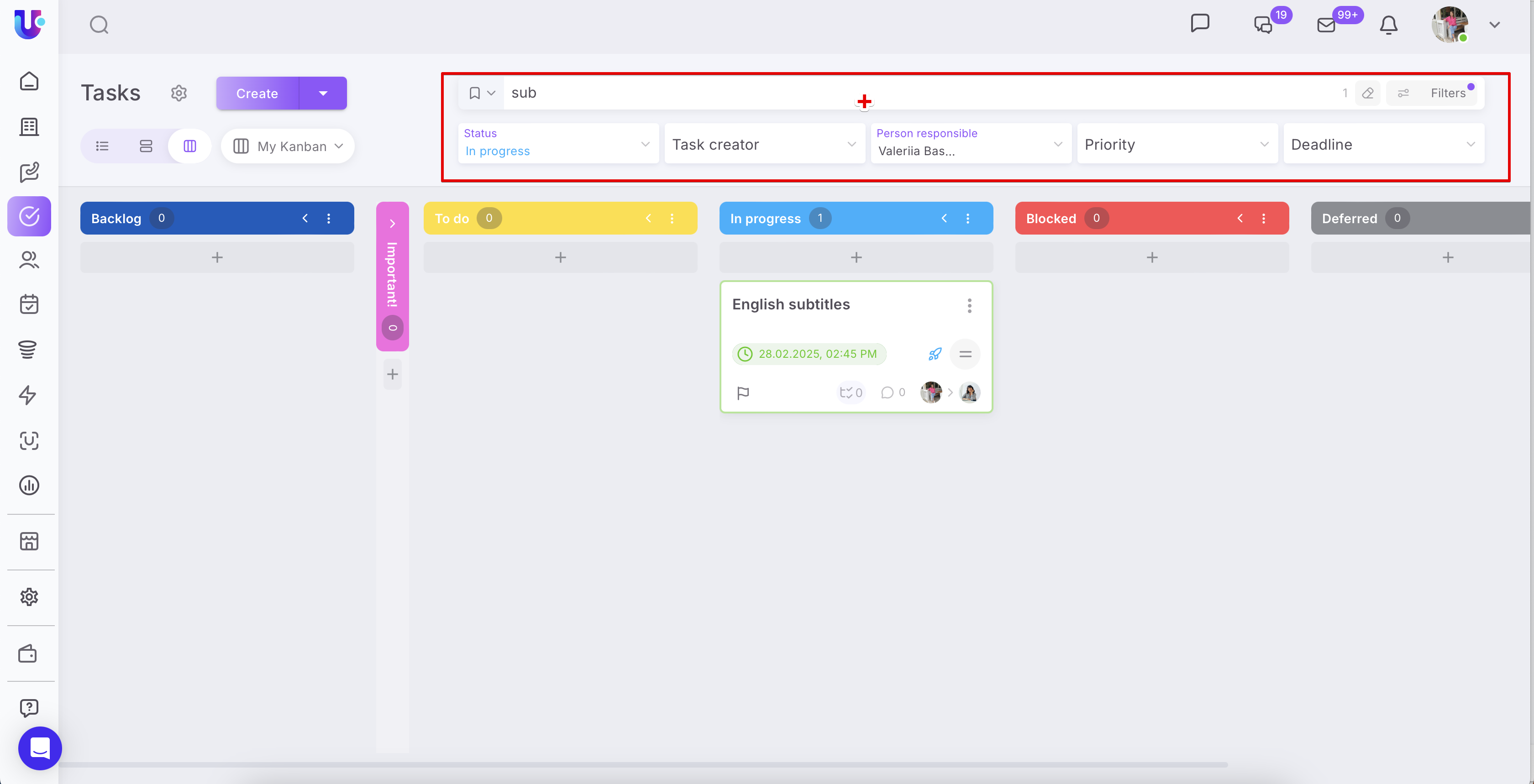
❗️Note that the search always takes the filter settings into account. The values set in each of the filters will affect the search results.
Monosnap+Uspacy+—+єдиний+робочий+простір+для+організації+щоденних+процесів+компанії+2025-02-24+12-14-08.png

🔍 You can read more about the work of filters and search in tasks in the following article. It will be available soon at this link.

If you have additional questions or you need to contact the support, send a request to this email [email protected]

Created: March 31, 2023 / Updated: March 17, 2025