The task list is a table of data, a list of all tasks that the user has.
Here you can start creating new tasks, edit or complete existing ones.
The list displays certain information that may be useful and help you quickly navigate and plan your work in this section.

Appearance
The list of tasks has the form of a table consisting of rows and columns. A row is an individual task. And the column is a component that characterizes the task, for example, its name, person responsible or deadline.

You can configure the display of these characteristics in the list. To do this, you need to click on the gear and activate or deactivate the desired ones in the list. It’s also possible to change their display order.

So, for default tasks, the table has the following columns:
- Number.
- Task name.
- Deadline.
- Person responsible.
- Priority.
- Status.
Only the Name of the task is required, it is not possible to disable the display of the name. All other characteristics can be either hidden or, on the contrary, configured so that they are visible.
In addition, it is possible to change the display order of columns directly in the list. To do this, click the special icon (six dots) with the left mouse button.

Just drag it to the right place.

As a result, the column will be located where it is more convenient for you.

You can also change the column width. Press the left mouse button on the vertical separator.

And drag it in one direction or another.

☝🏻An administrator or the Space owner can also configure the optimal table view and apply these settings for all users at once. This ensures a unified approach to working with tasks within the team.
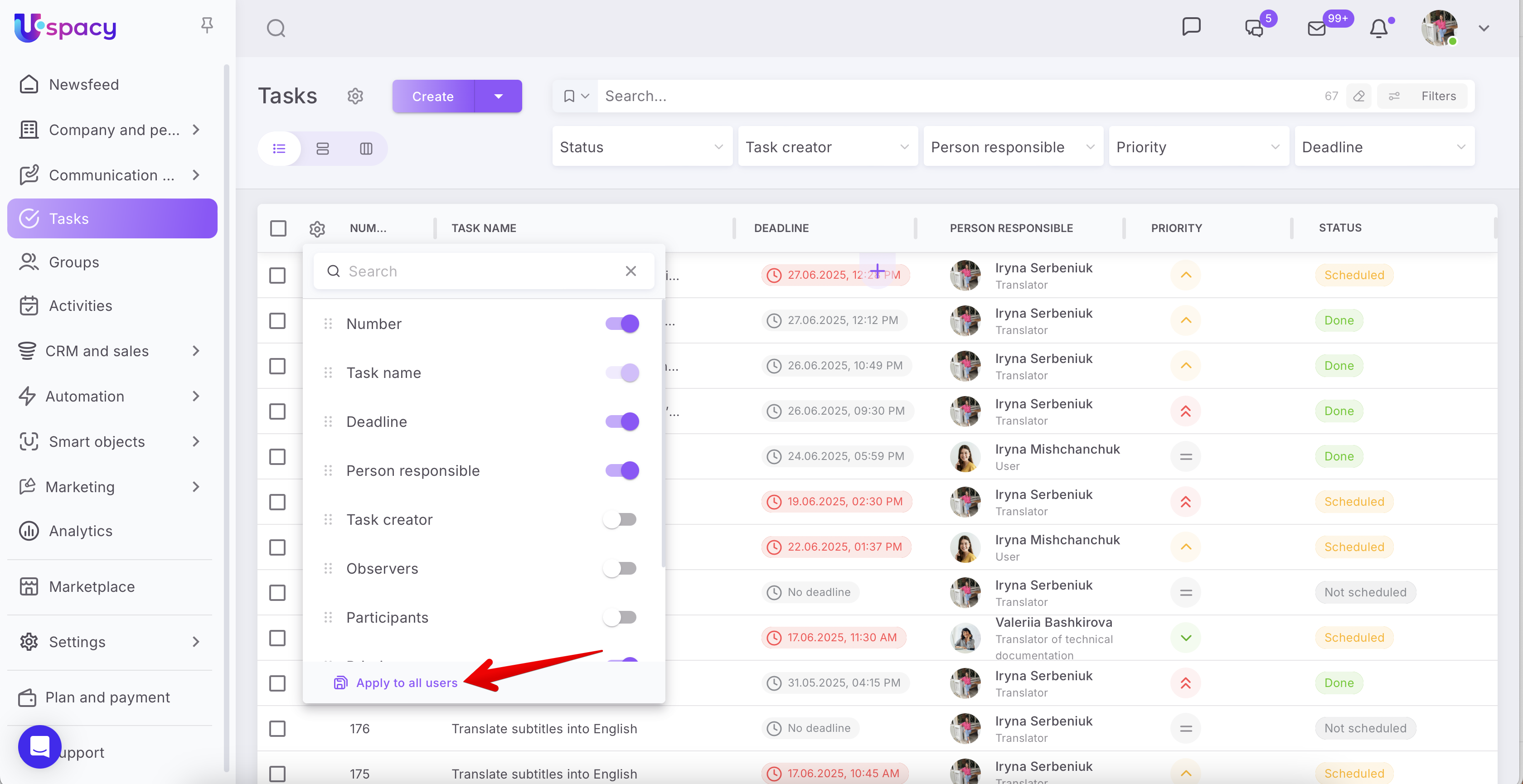
So, with the help of such simple actions you can quickly set up a list of tasks that will meet your requirements.

🌟 The possibility to configure columns for the task list is only available on commercial plans. You can read more about the possibilities of all plans on this page
❗️Please note that in case of switching from Standard or Professional to Free plan, all settings in the task table will be reset. Only those columns that are displayed by default will be available for work.

In the list, you can specify how many rows of tasks will be displayed on the page at once.

❗️The minimum number of them is 5, and the maximum is 100. By default, the system shows 10 tasks per page. And you can also see the total number of tasks in this list.

It is possible to sort the table data in each column in forward order (descending) or reverse (ascending).
When you move the cursor over the column name, a content sorting arrow appears.
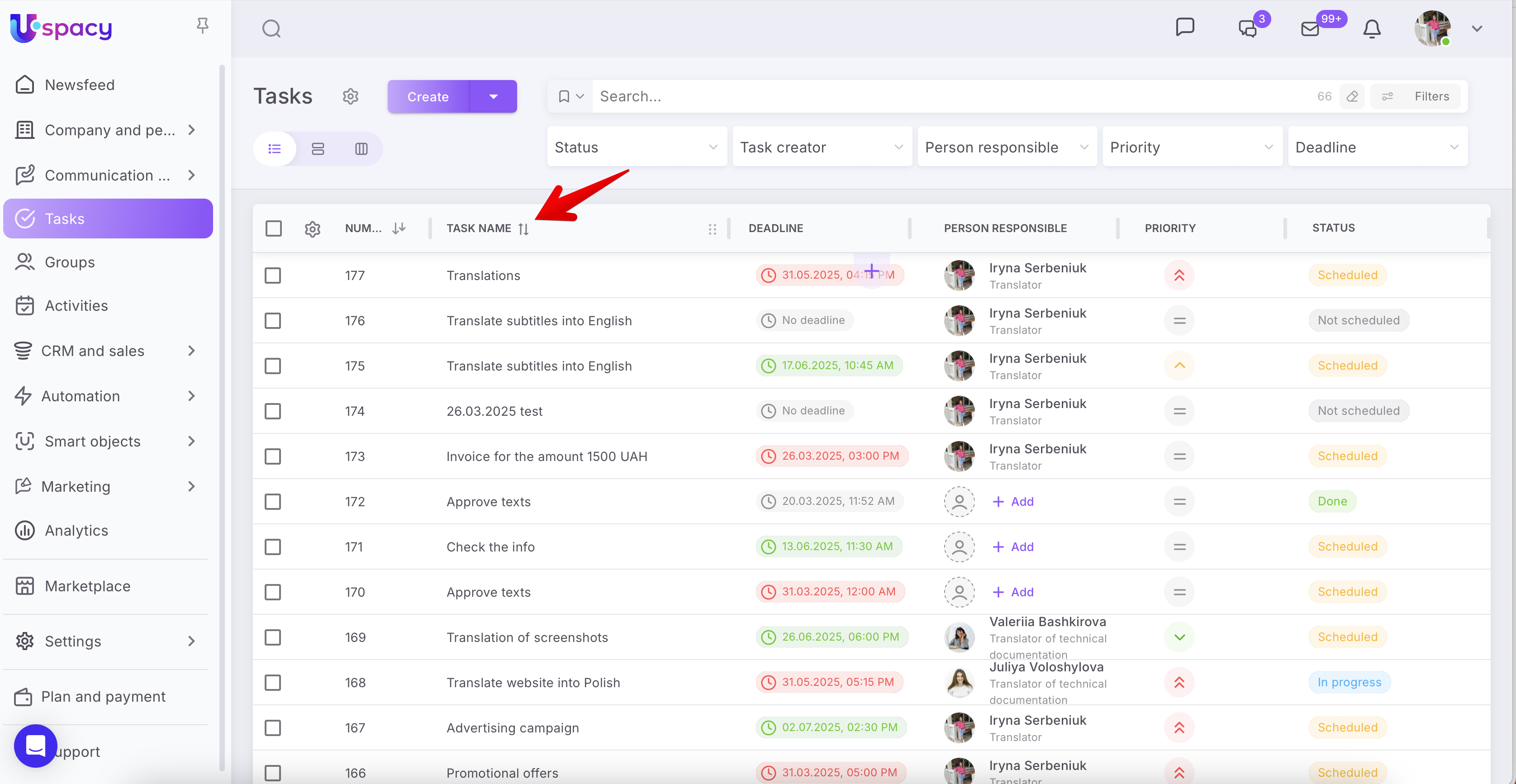
When it is first clicked, the data will be displayed in direct order.
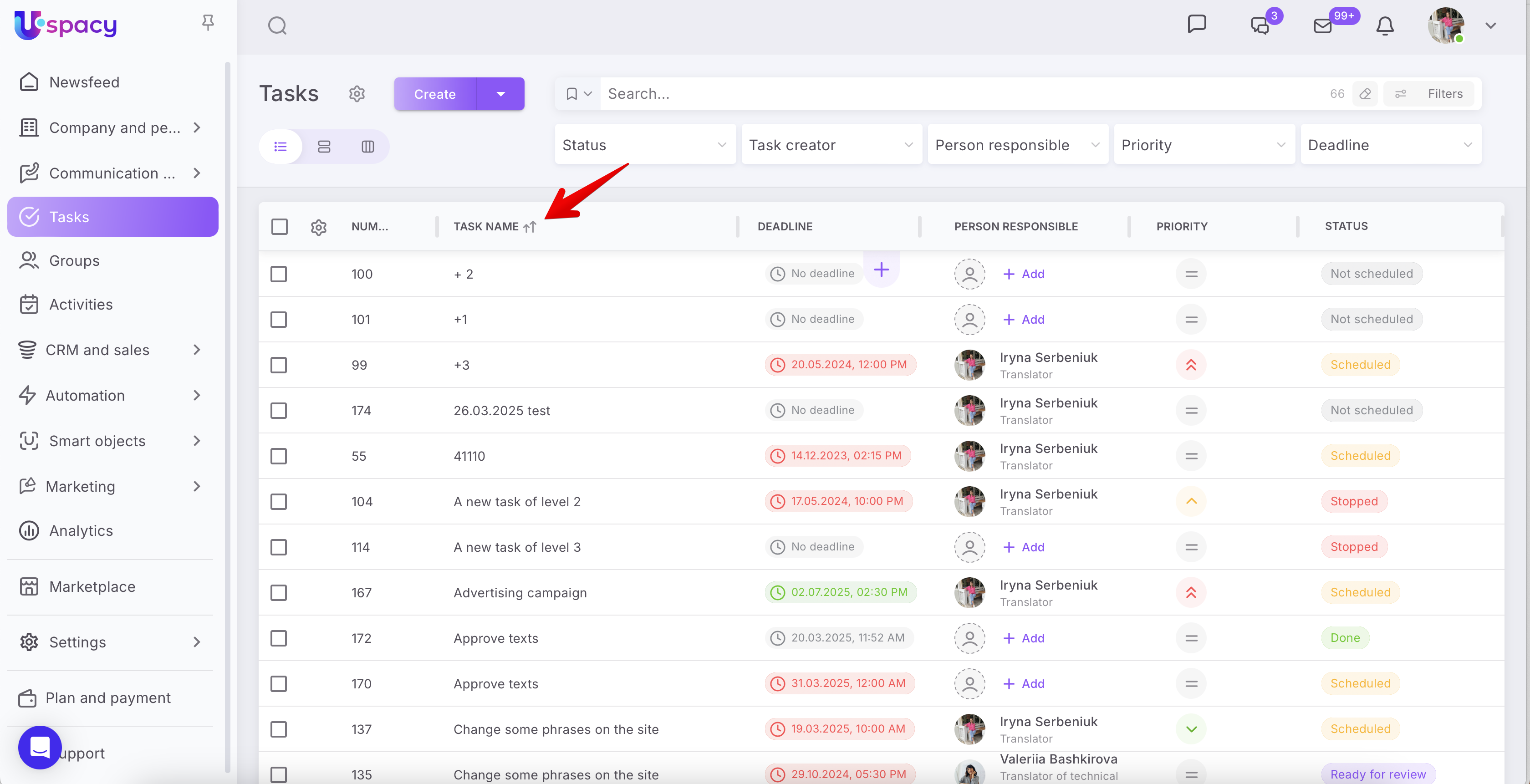
When it is clicked a second time, the sorting takes place in the reverse order.
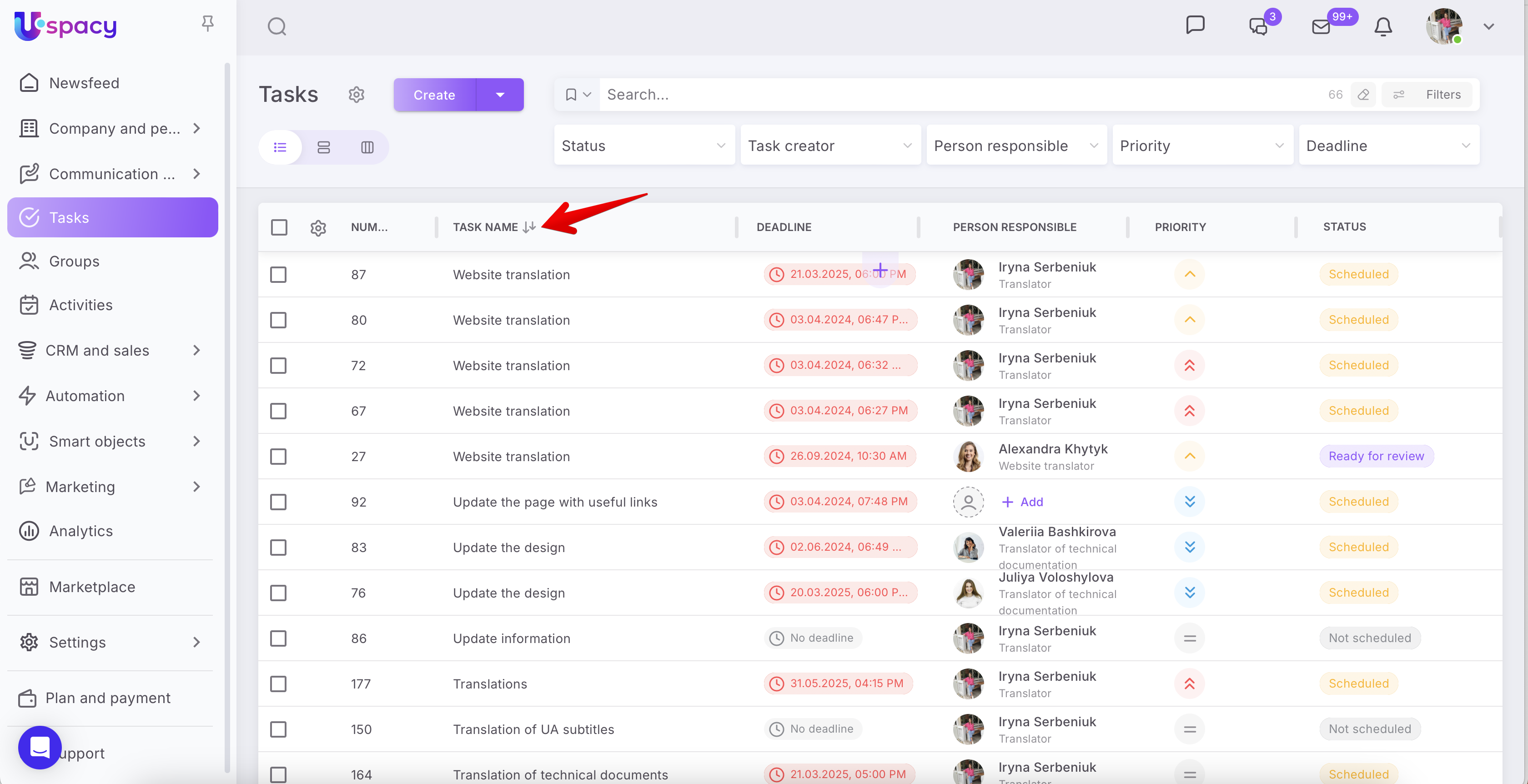
Clicking a third time resets the sorting in the selected column and returns to the default list display.
*In each column of the table where such sorting is logically possible. For example, it does not work for the person responsible, Participants, and Observers.
*Sorting is applied separately for each parameter (column).
*The ascending sorting order by status is as follows:
(1) Not scheduled, (2) Scheduled, (3) In progress, (4) Stopped, (5) Ready for review, (6) Done.
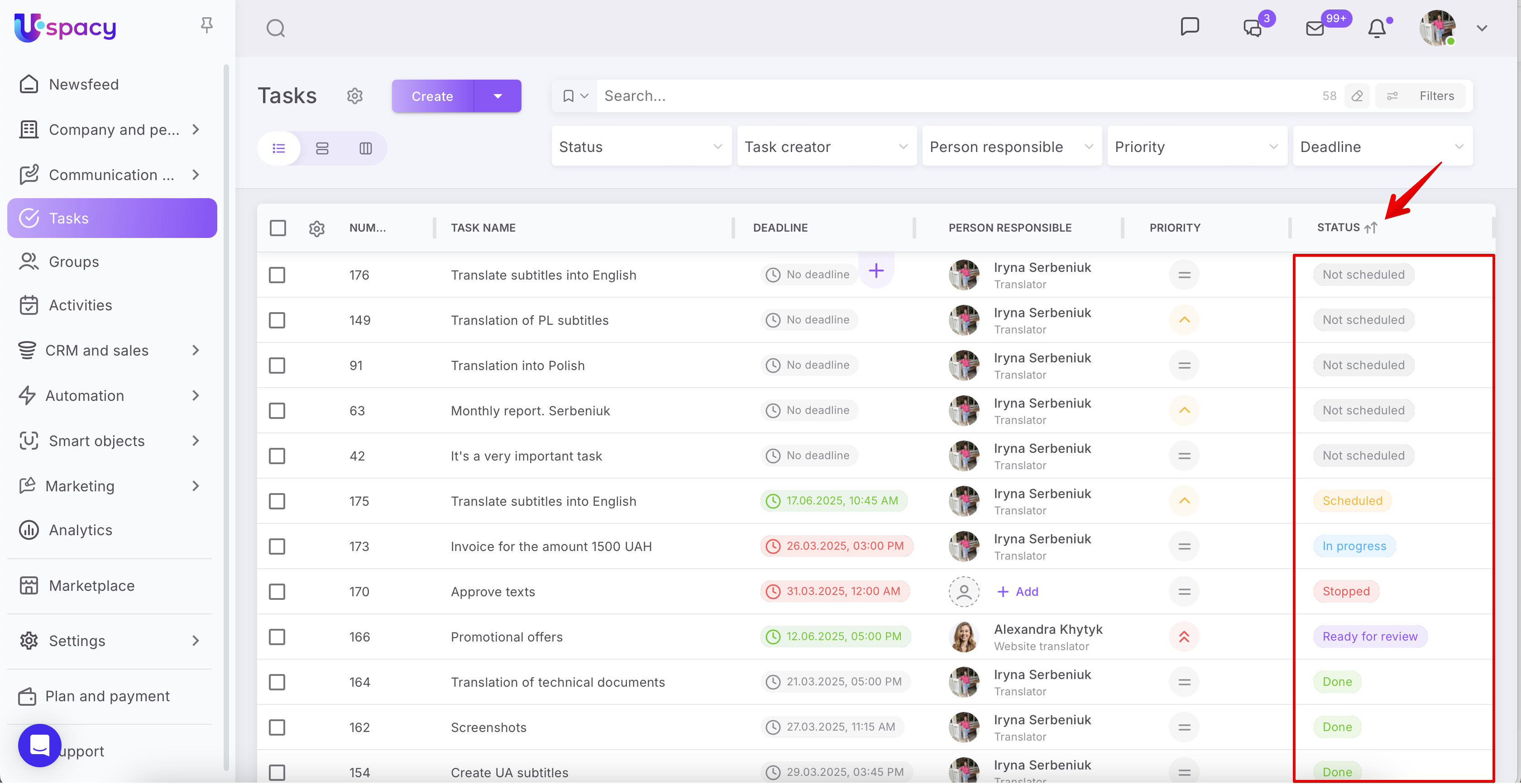
Accordingly, the descending order is from the end: (1) Done, (2) Ready for review, (3) Stopped, (4) In Progress, (5) Scheduled, (6) Not scheduled.
The ascending sorting order by priority is as follows:
(1) Low, (2) Not high, (3) Neutral, (4) High, (5) Very High.
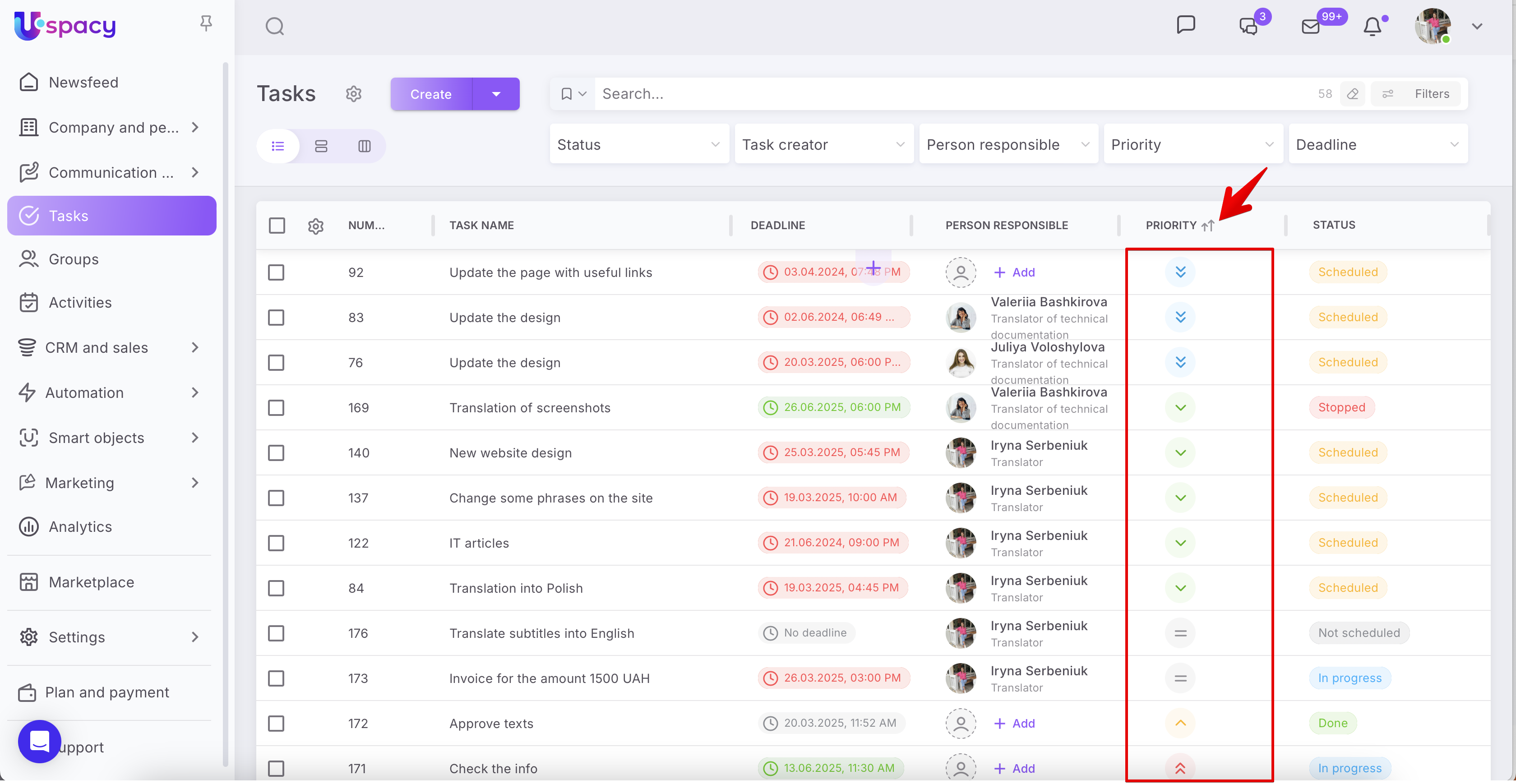
The descending order is from the end: (1) Very High, (2) High, (3) Neutral, (4) Not high, (5) Low.
Actions with tasks
When you move the cursor over the name of the task, you can see the functional button for copying the task link (1), as well as the button for calling the interaction menu (2).

So, you can copy the task link to the 🔗 icon. The system will inform you about successful coping with a special notification.

This link can be sent to colleagues in the chat or inserted into the browser bar and can open the task in a new tab.

The task interaction menu contains four items: Complete, Edit, Duplicate and Delete.

When clicking on the Complete button, the task gets the status Done and disappears from the general list. You can easily find it using the filter.

💡 If necessary, you can return this task to work.

If you click on the Edit button, the already active task editing form opens. You can make changes to the required fields at once.

After that, you need to click on the Save changes button so they take effect.

After clicking the Delete button, a confirmation form will open.

☝🏻 Pay attention! It will be impossible to restore the deleted task and its data.
Mass actions
If there is a need to complete, delete or edit not one task, but several at the same time, mass actions will come in handy.
To use them, first check the required tasks, and then select what exactly needs to be done.

🔍 You can read more about mass actions in the task list in the following article.
Editing tasks directly in the list
You can skip editing mode if you want to change the person responsible, the deadline, or the priority.

To specify a new deadline for a task, just click on the current one and select a new value.

After that, the changes will be displayed in the list.

To assign a new person responsible for a task, just click on the photo icon. Select a user from the list or use the search field.

The changes will be displayed in the list at once.

To specify another priority for a task, click on the current one and select the desired value from the list.

All the changes will be displayed in the list at once.

Creating tasks
There are two ways to add tasks to the list. The first is to use the full task creation form. To do this, you need to click on the appropriate button.

After that, the task creation form will open. Here you need to fill out all the necessary fields.

🔍You can read more about the full form of task creation in the following article.
The second way is to use the quick form of task creation. To do this, click on the purple plus icon in the middle of the list.

After that, a new row will be added, in which you only need to enter the name of the task and save it. And after that proceed to editing and enter all the necessary data.

This method can be useful when you need to create a task urgently so as not to forget. And later return to specifying its details.
🔍 You can read more about the quick creation of tasks in the list in the following article.
Task search and filters
There is a search field and filters about the task: Status, Task creator, Person responsible, Priority, Deadline.

Filters help to find a certain group of tasks that is united by common features. For example, you can configure the display in the list of tasks with an indefinite deadline.

Or find all tasks where you are the task creator, and the deadline for their completion has already expired.

And using the search field, you can find tasks by their names.

❗️Please note that the search must take filter settings into account. What values are specified in each of the filters will affect the search result.

🔍 You can read more about the work of filters and search in tasks in the following article. It will be available soon at this link.
If you have additional questions or you need to contact the support, send a request to this email [email protected]
Created: March 31, 2023 / Updated: July 1, 2025