A contact is a client, a natural person who contacts you for products or services. Unlike the lead, he/she has already fully formed his/her desires and is ready to collaborate.
In CRM, a contact is all the information you have collected about the client, which is added and stored in the database. It's also an important part of the deal because it allows you to personalize it.
How to add a contact?
Now you can add a contact to CRM manually. To do this, click on the corresponding button. It is available both in the List and on the Kanban board (if there are scheduled Activities for these contacts).

The form for creating a contact will open. First, you need to specify the name of the contact, as well as assign a person responsible.

❗️But the name can be automatically pulled from the Last name and First name fields from the standard About contact block after saving the element.

The system will report an error if you try to save a contact without filling out any of these fields.

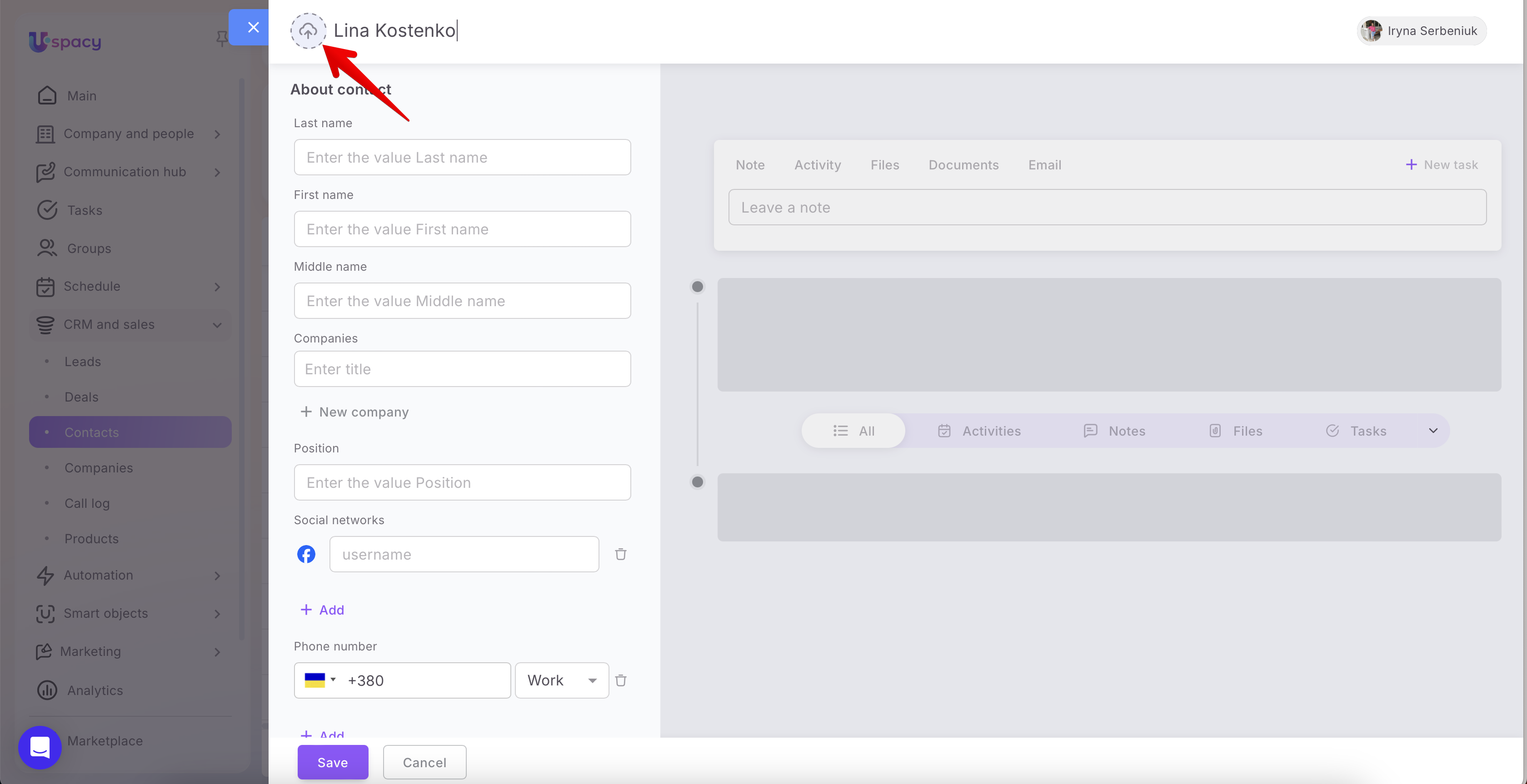
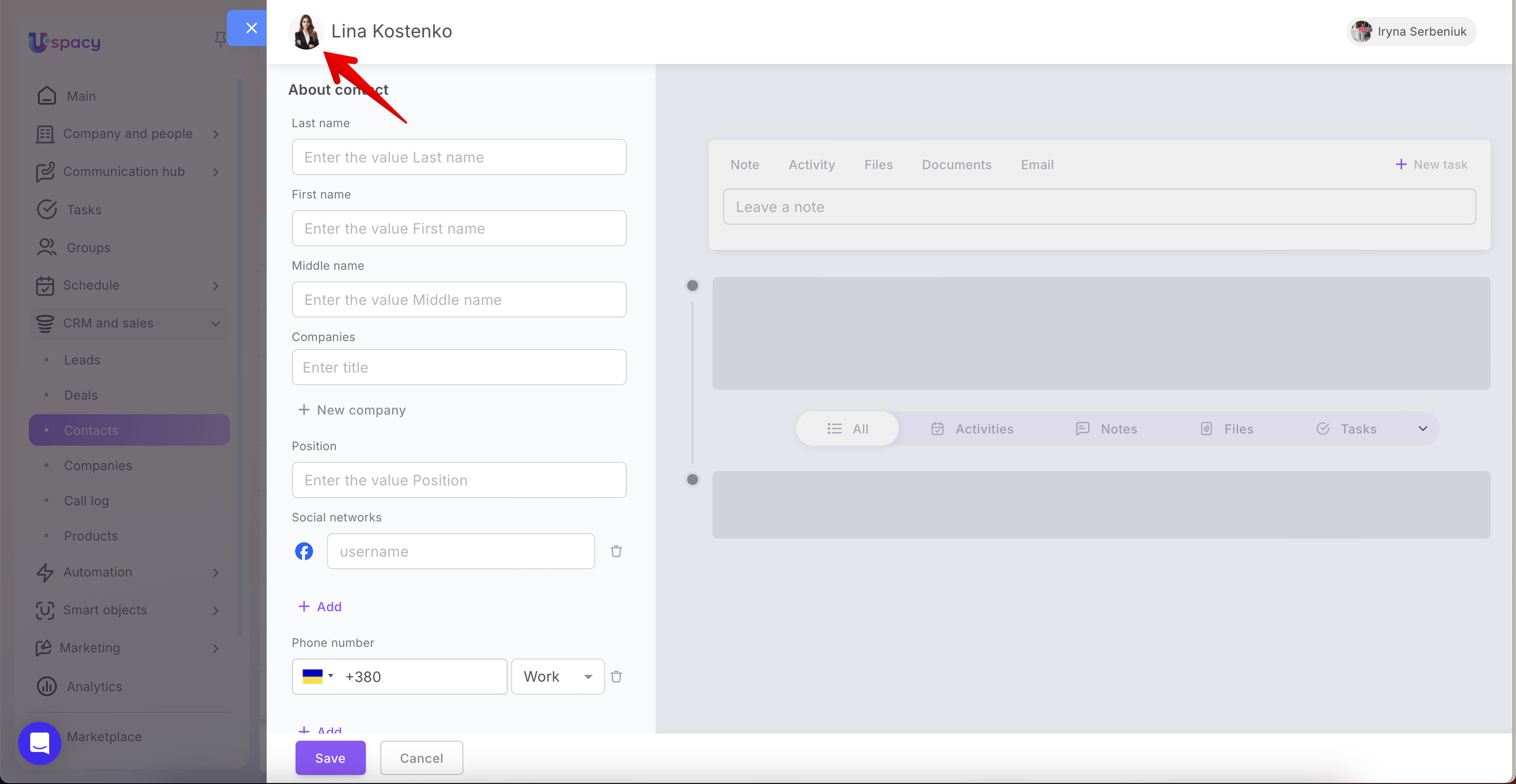
There is also an option to upload a photo for a contact — a visual enhancement that makes working with the CRM more personalized and enjoyable. It also helps you navigate the client database more quickly.
Next, you need to fill out the fields that different sections of element card contain.
☝🏻Please note that by default a contact has its own standard set of fields. But every user of Space who has access to work with this CRM entity can customize their own appearance of the contact card.
It means to arrange the fields in the desired order, remove unnecessary ones from the section and replace them with other fields. Or create new sections and delete existing ones.

Therefore, how the form for creating a contact will look depends on the CRM card appearance settings for the contact.
You can read more about this in the following article.
We will show how to fill out the fields for the standard appearance of the contact card.
Next, you need to fill out basic information about the new contact. Enter all the contact details you have.

To match a contact to a company, start entering its name in the corresponding field.

Or just create a new one at once.

🔍For more details on how to create a company in the cards of other CRM elements, go to the following article.
If you know the position in the company, add this information as well.

You can also specify social networks. For example, Facebook, Instagram, Telegram, Twitter, Viber, Whatsapp, LinkedIn.

Click Add and select the desired one from the list.

Specify the contact phone number and select its type: Work, Mobile or Home.

If you need to change the country code, click on the check box and select the desired option from the list.

If you know several phone numbers and want to specify them all, then click Add.

You can also specify an email address. And similarly, as for the phone field, select its type. It can be Additional, For mailings or Work.

You can also specify several email addresses.

If necessary, you can leave a comment in the Additional block. The text in it can be formatted using the built-in editor.

Also, if you know where the client "came" to you from, specify the Source. It can be a Call, Link, Email, Advertising, Partner, Recommendation and Other.
And also specify a Contact Type to characterize and outline it in your database. You can select from the following options: Unknown, Active client, Prospective client, Former client, Partner, Contractor, Competitor, Spam.

When all the fields you need are filled out, click Save.

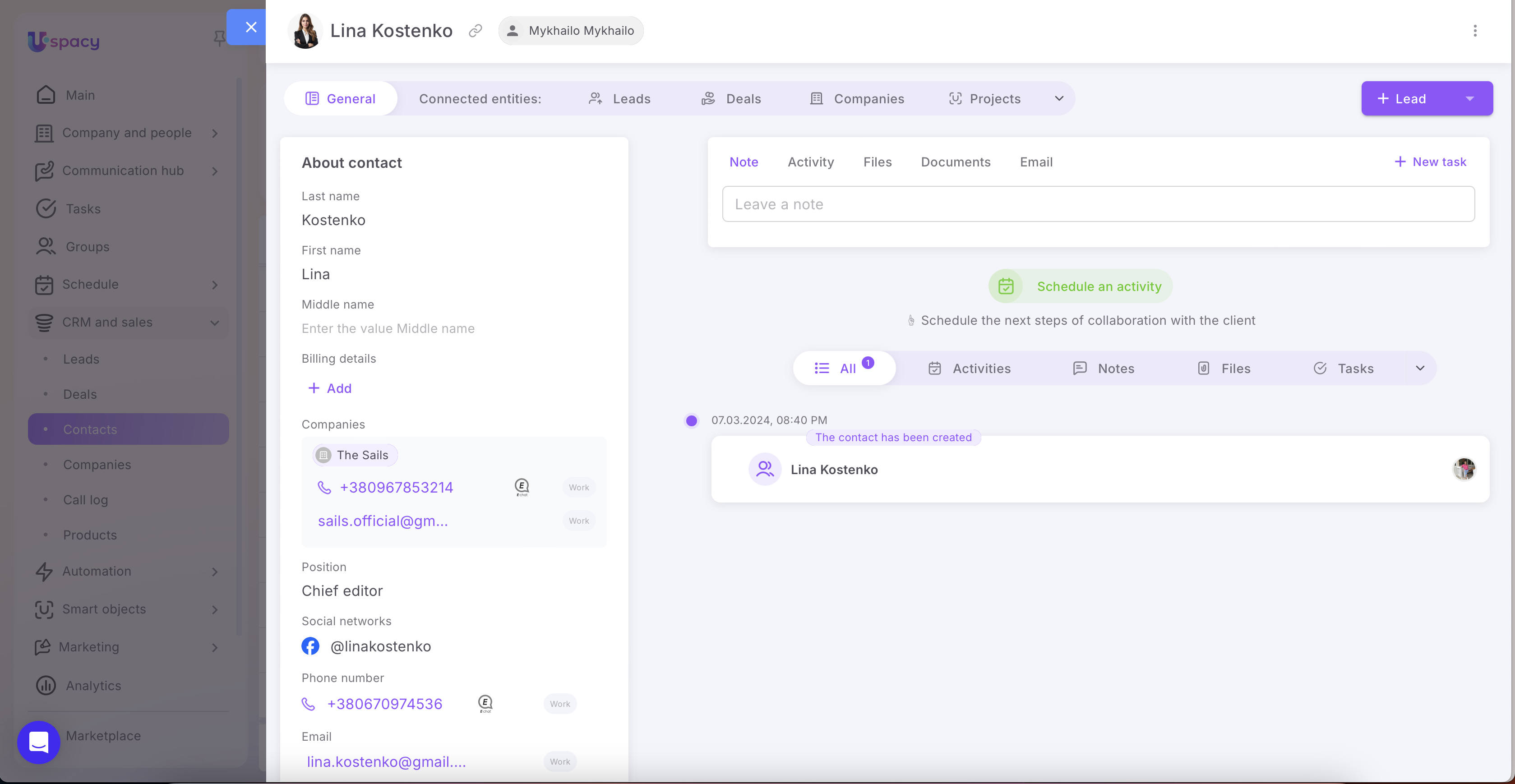
After that, the contact will be available to work with.
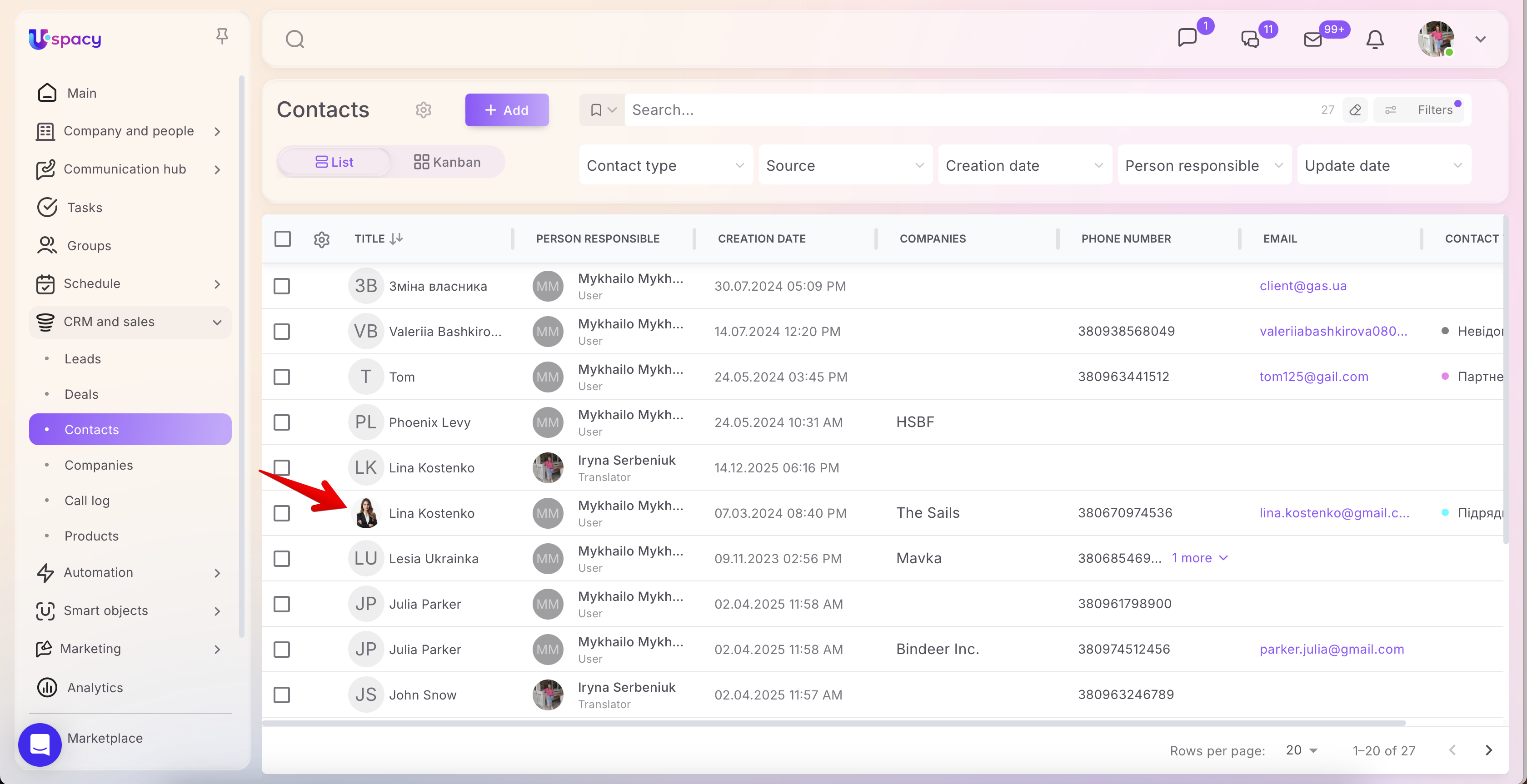
It will also be displayed in the List.
Quick adding in the deal card
You can create a new contact directly in the card of the deal you are working with. To do this, in editing mode, simply click on the corresponding button and fill out the form.

🔍 You can read more about creating contacts in the deal card in the following article.
Lead conversion
You can also add a contact by converting the lead. It is enough to select from the list which option will be the result of its processing.

🔍 You can read more about converting leads in the following article.
If you have additional questions or you need to contact the support, send a request to this email [email protected]
Created: April 20, 2023 / Updated: December 12, 2025