Once created, either using a full form or a quick adding to a list or board, the task is ready to go. Users who have access to it can view and edit it at any time.
Viewing tasks
To find full information about a task, you need to open it. To do this, just click on the name in the list or on the board.
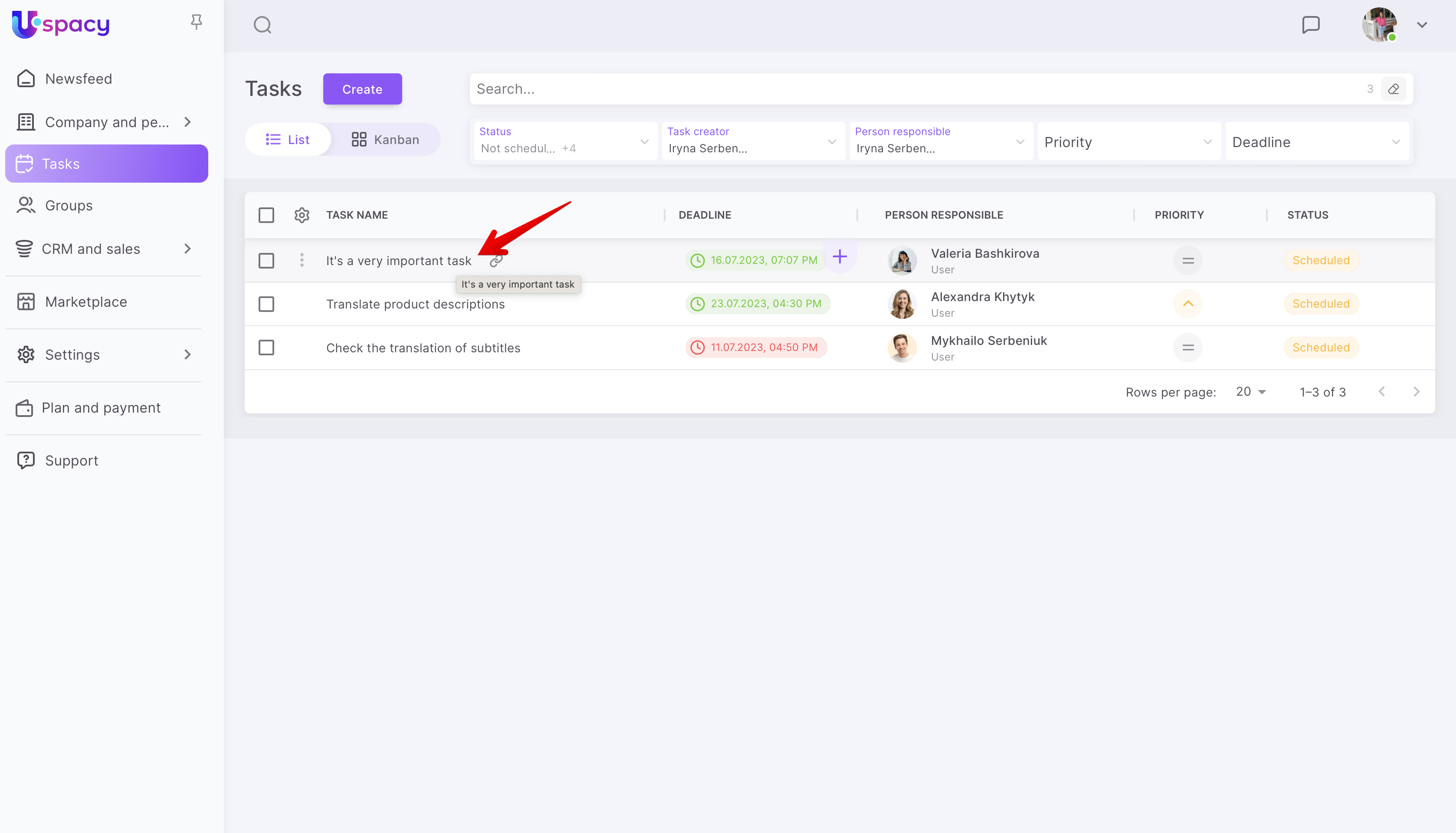
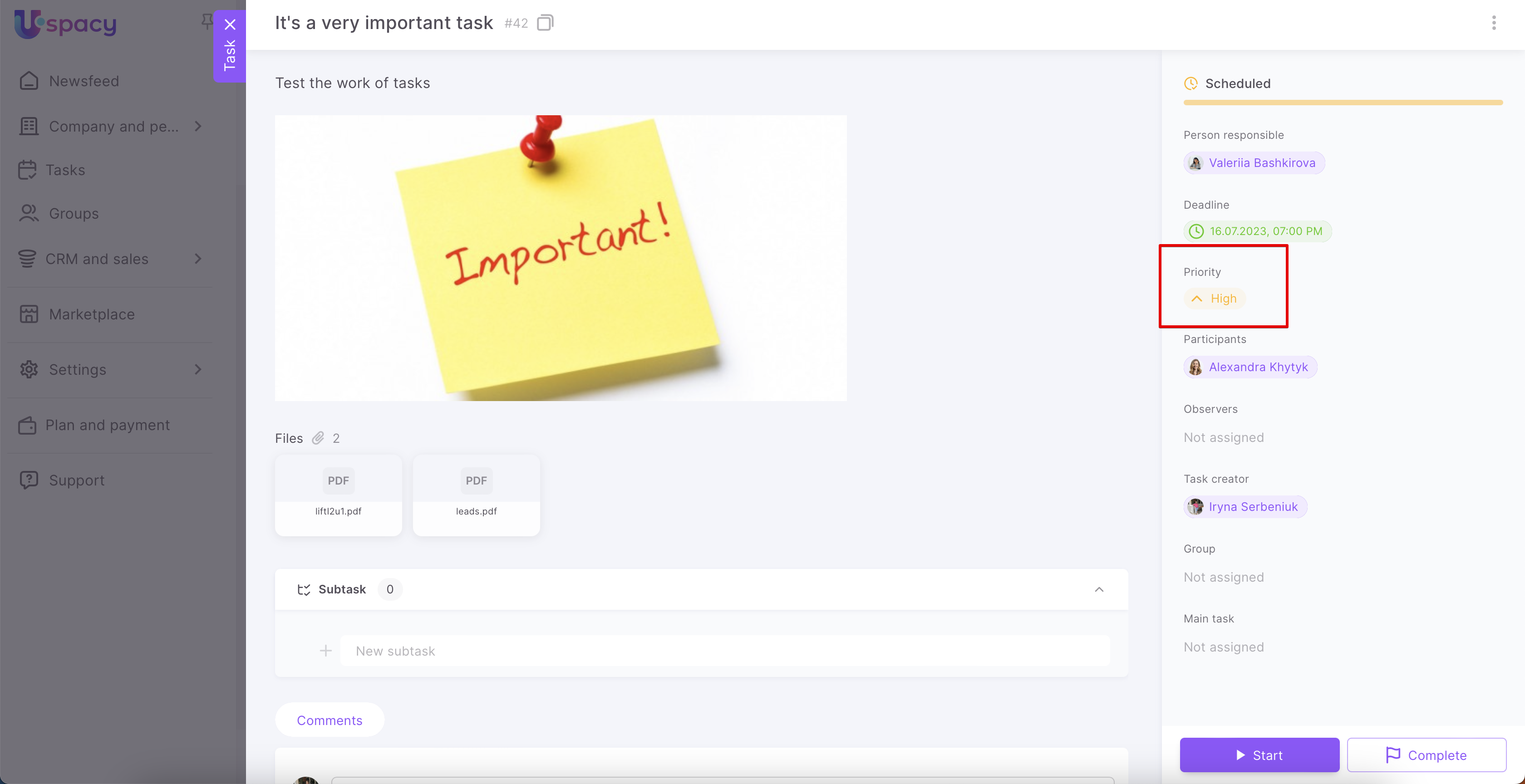
The task viewing form will open, where you can find the data you need to complete the task.
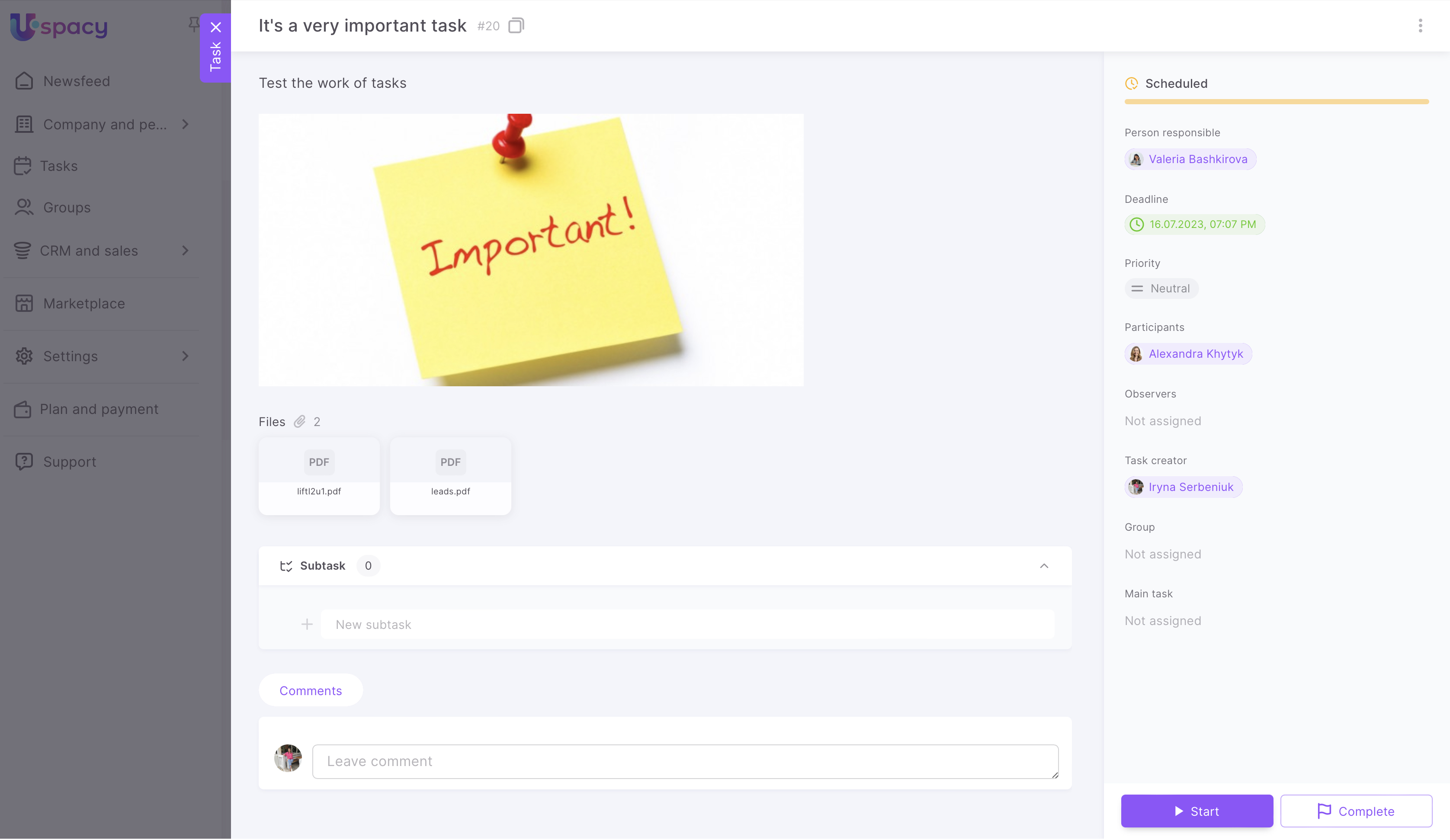
In addition, it is possible to start (1) or complete (2) it, as well as to interact with the participants of the task by writing comments (3) or create a subtask (4).
🔍 You can read more about how to work with subtasks in the following article.
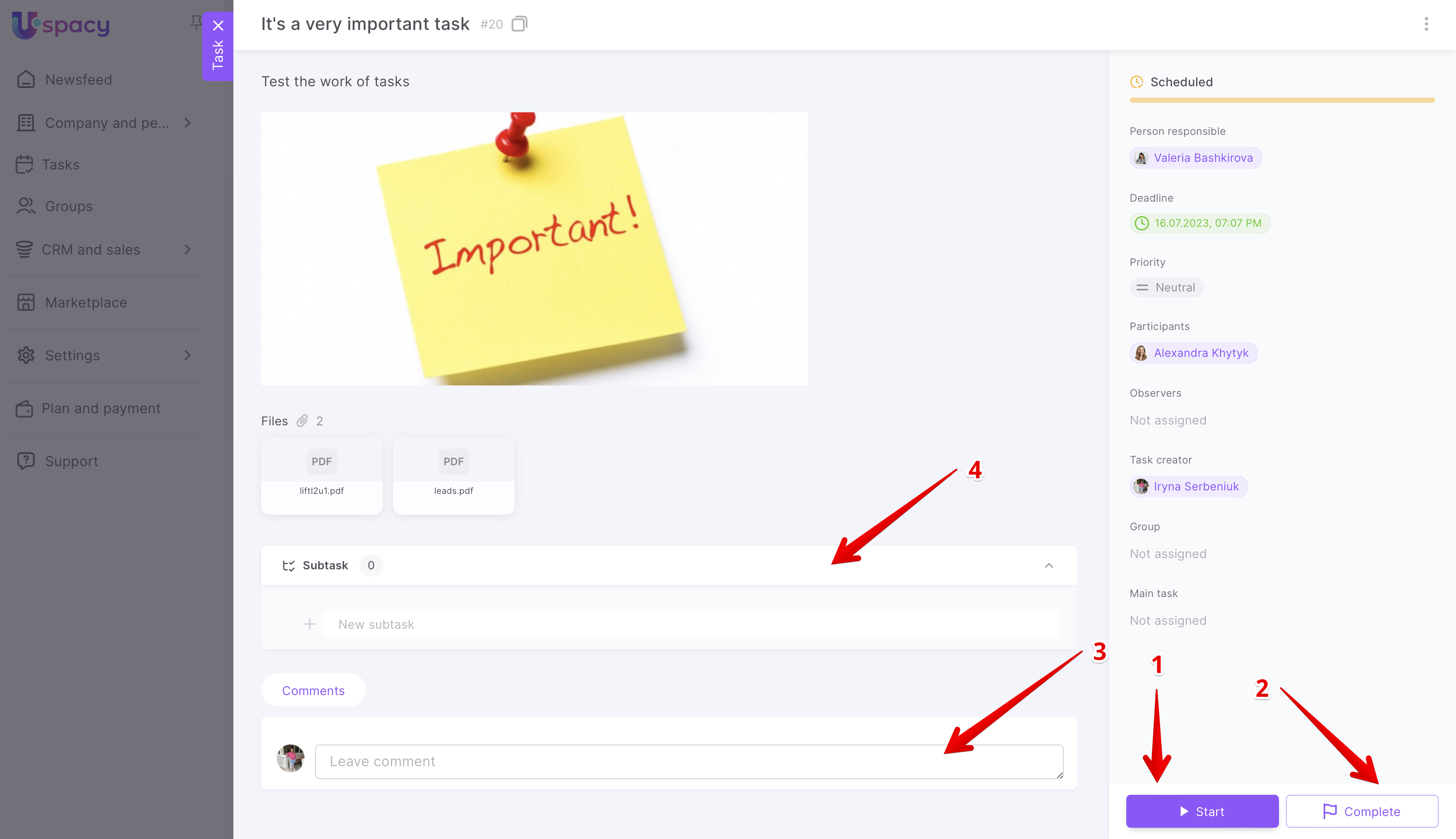
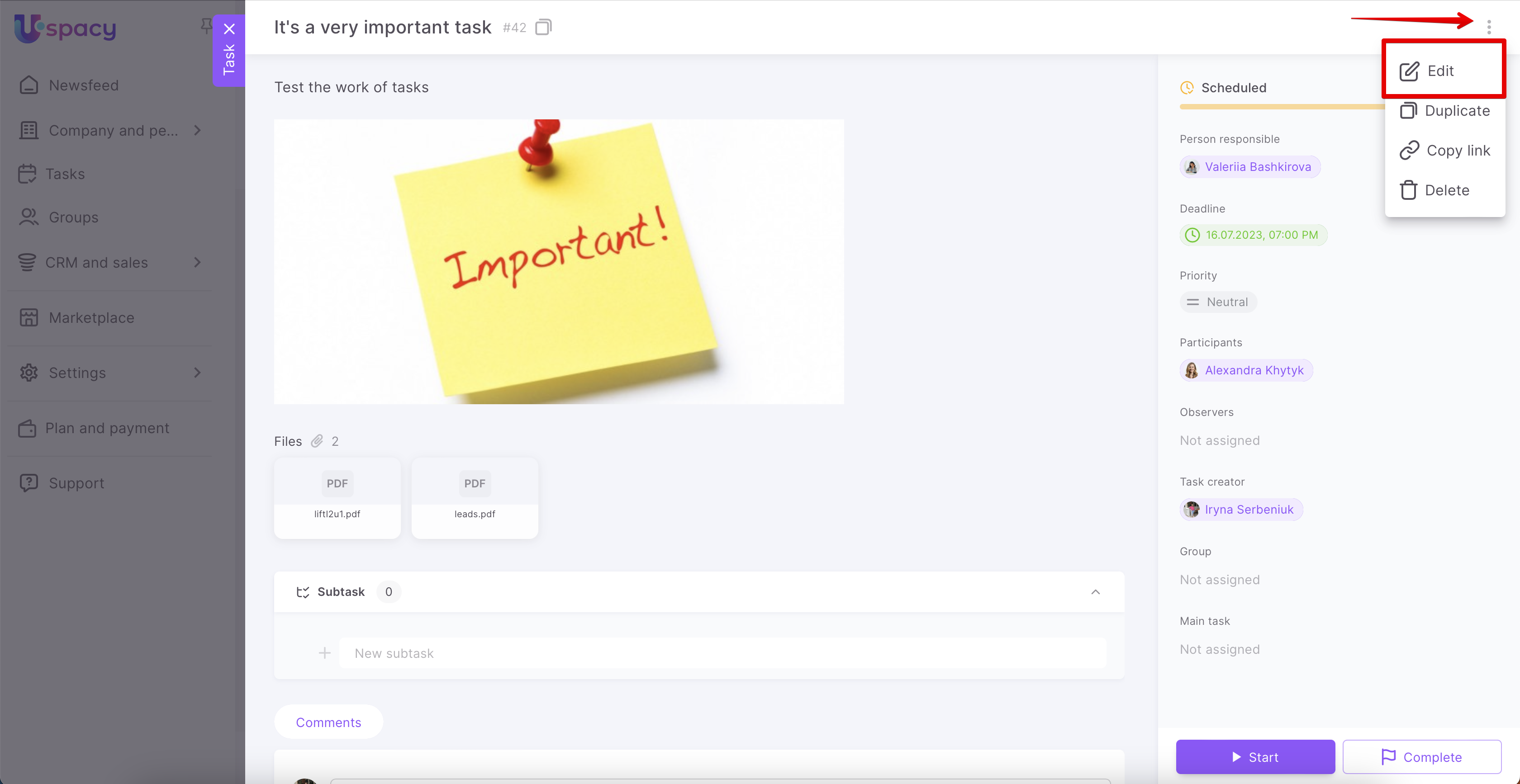
In the upper left corner there is a button to close1 the viewing form. And on the right is the interaction menu2. It provides the possibility to edit the task, duplicate, copy a link, or delete it. Next to the name there is a button to copy the task number.
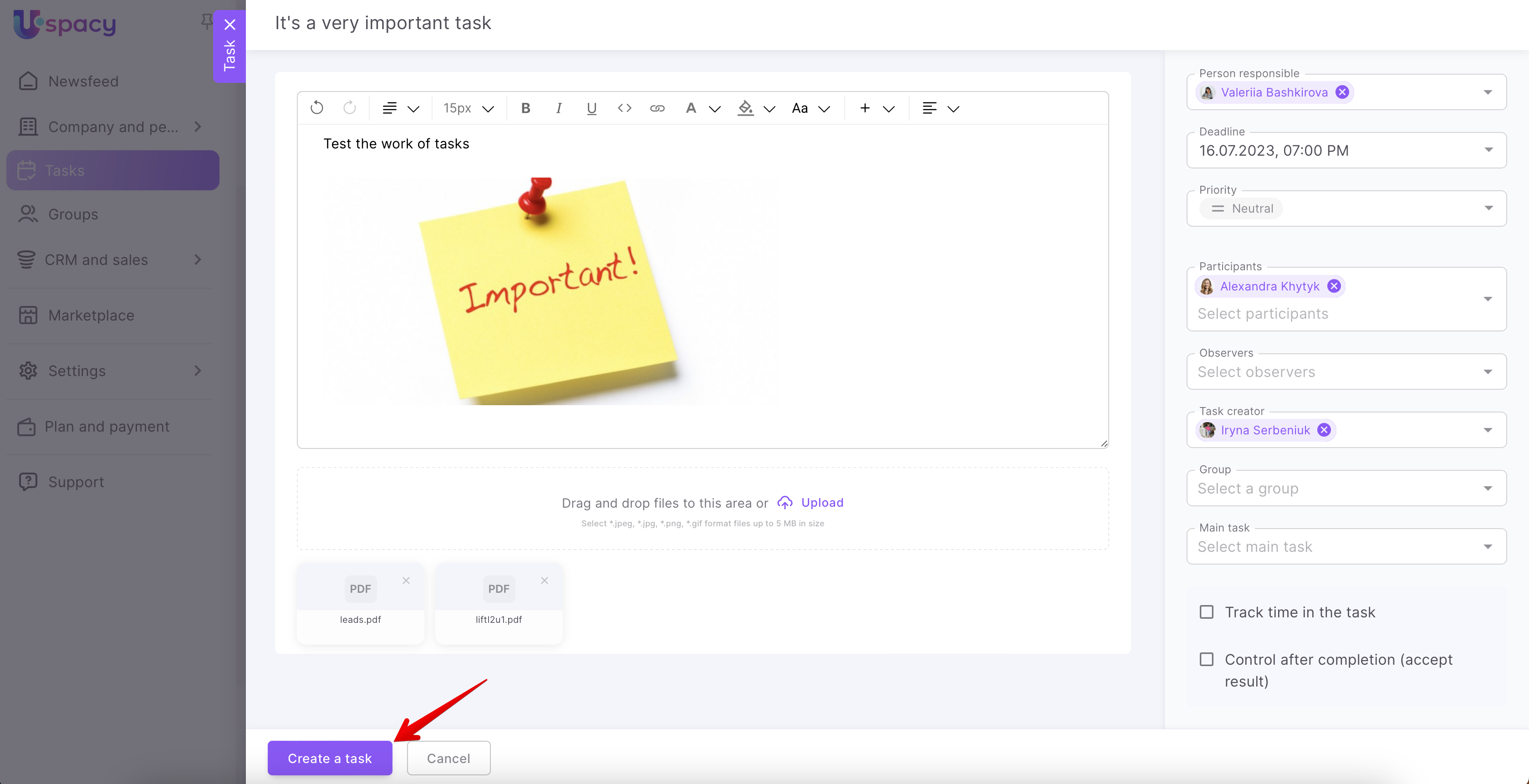
When creating a copy, the task is completely duplicated. A new card opens with already filled fields. If necessary, you can make changes and save everything. To do this, click Create a task.
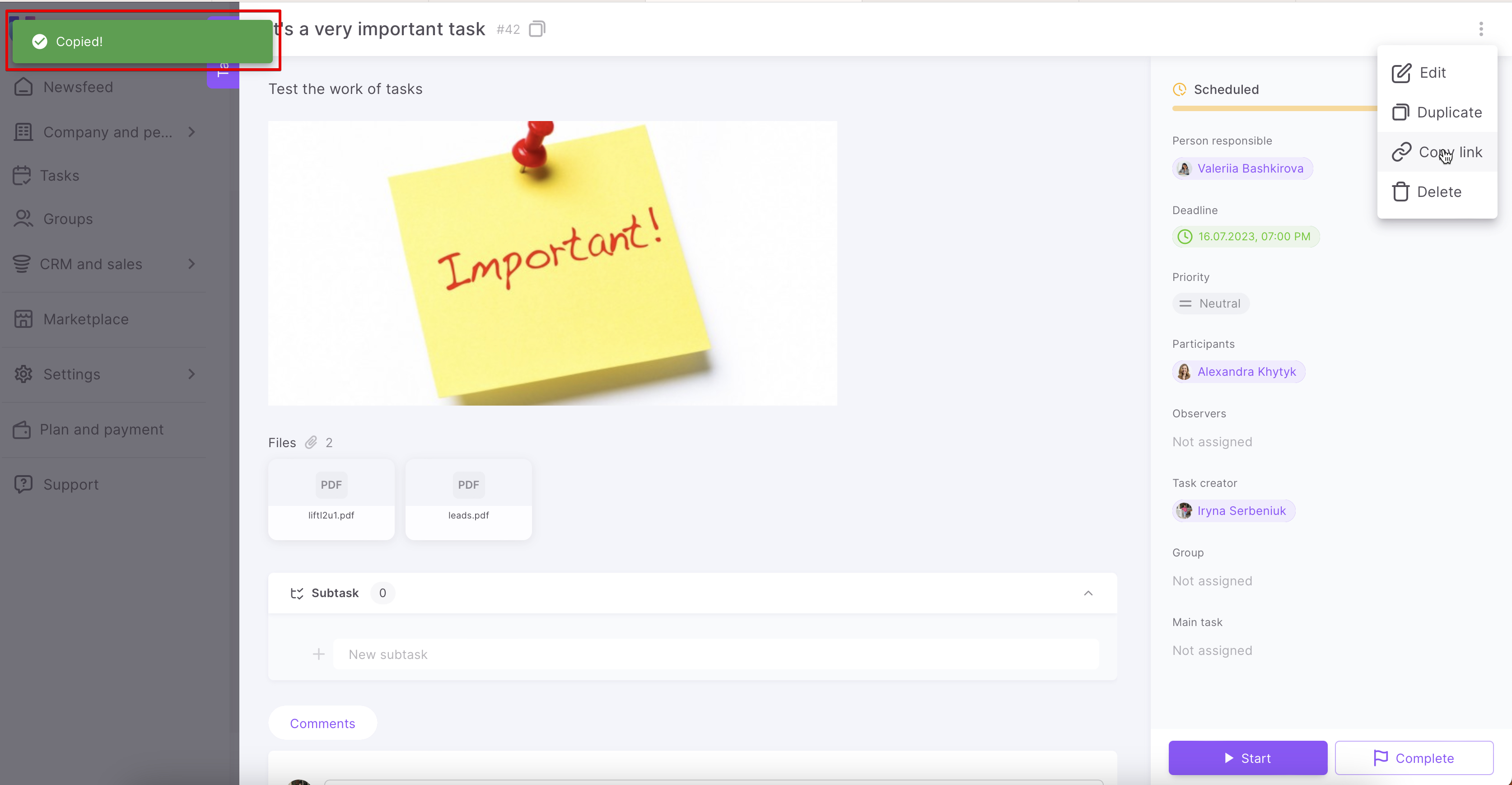
The system will notify you about the successful copying of the link with a special notification.
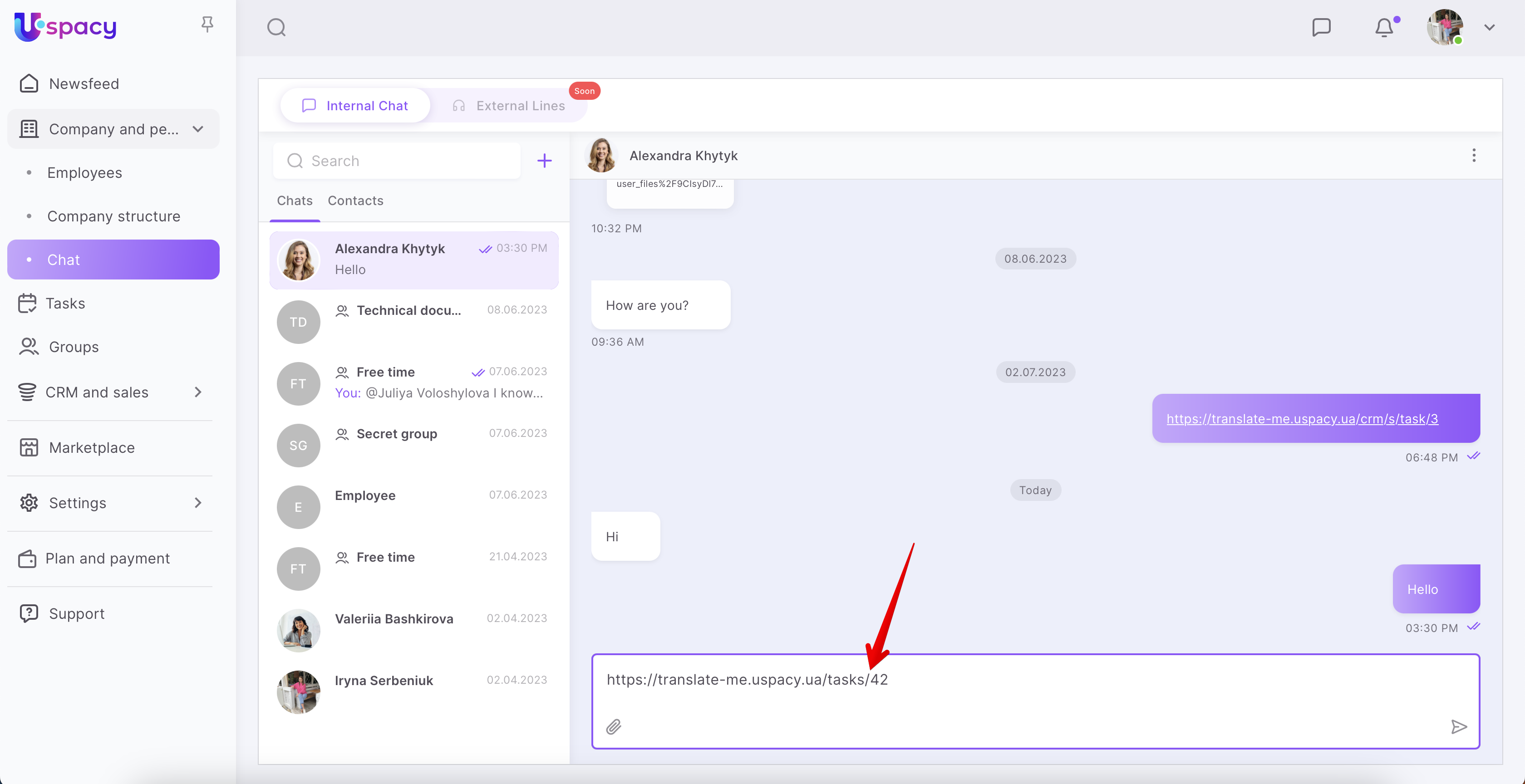
Then you can send it to your colleagues in the chat or insert it into the browser bar and can open the task in a new tab.
And deletion requires confirmation of actions.
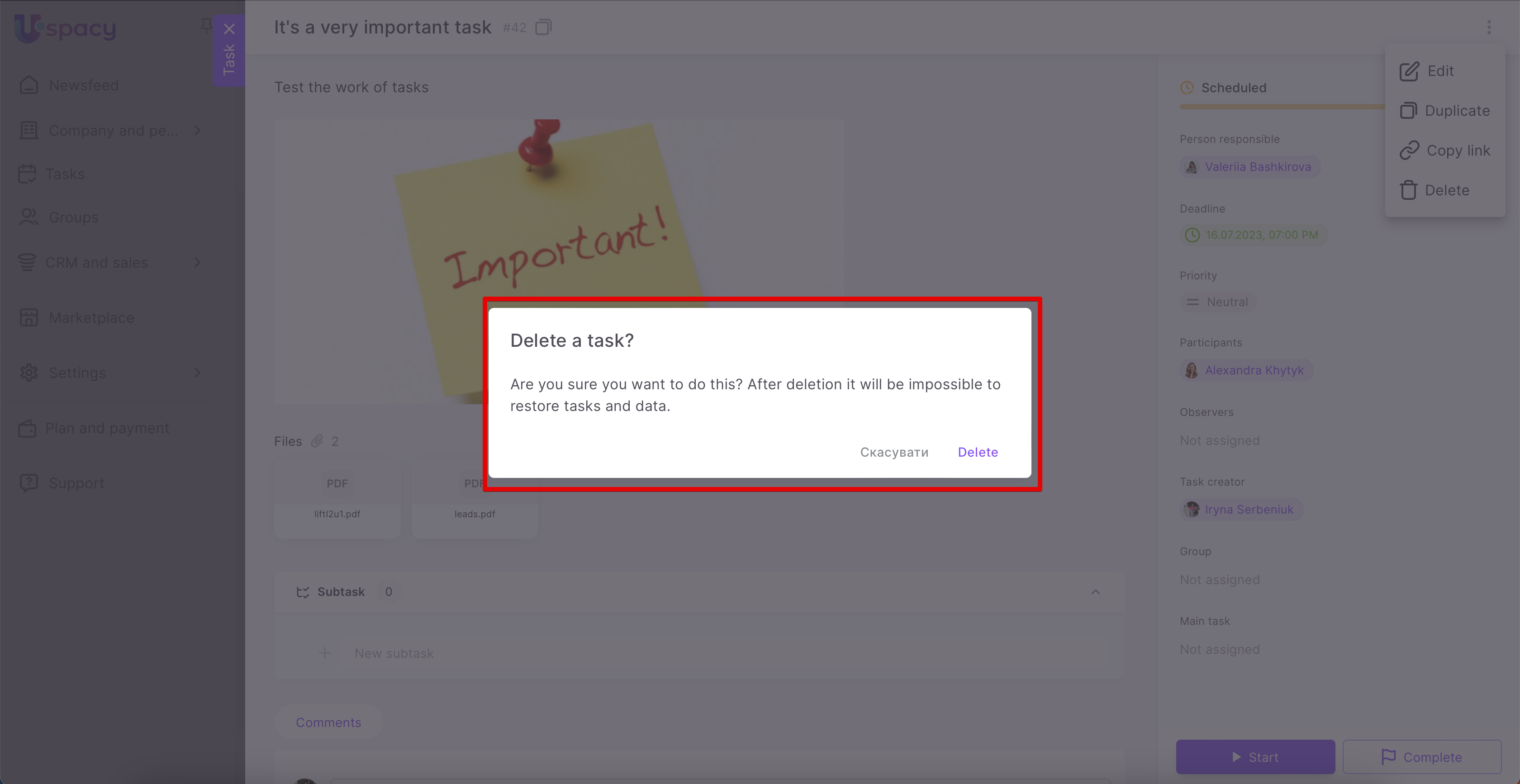
☝🏻 Pay attention! It will be impossible to restore the deleted task and the data in it.
Editing a task
To change certain characteristics of a task, you need to go to its editing.
🔍 Some data can be changed directly in the list. You can read more about this in the following article.
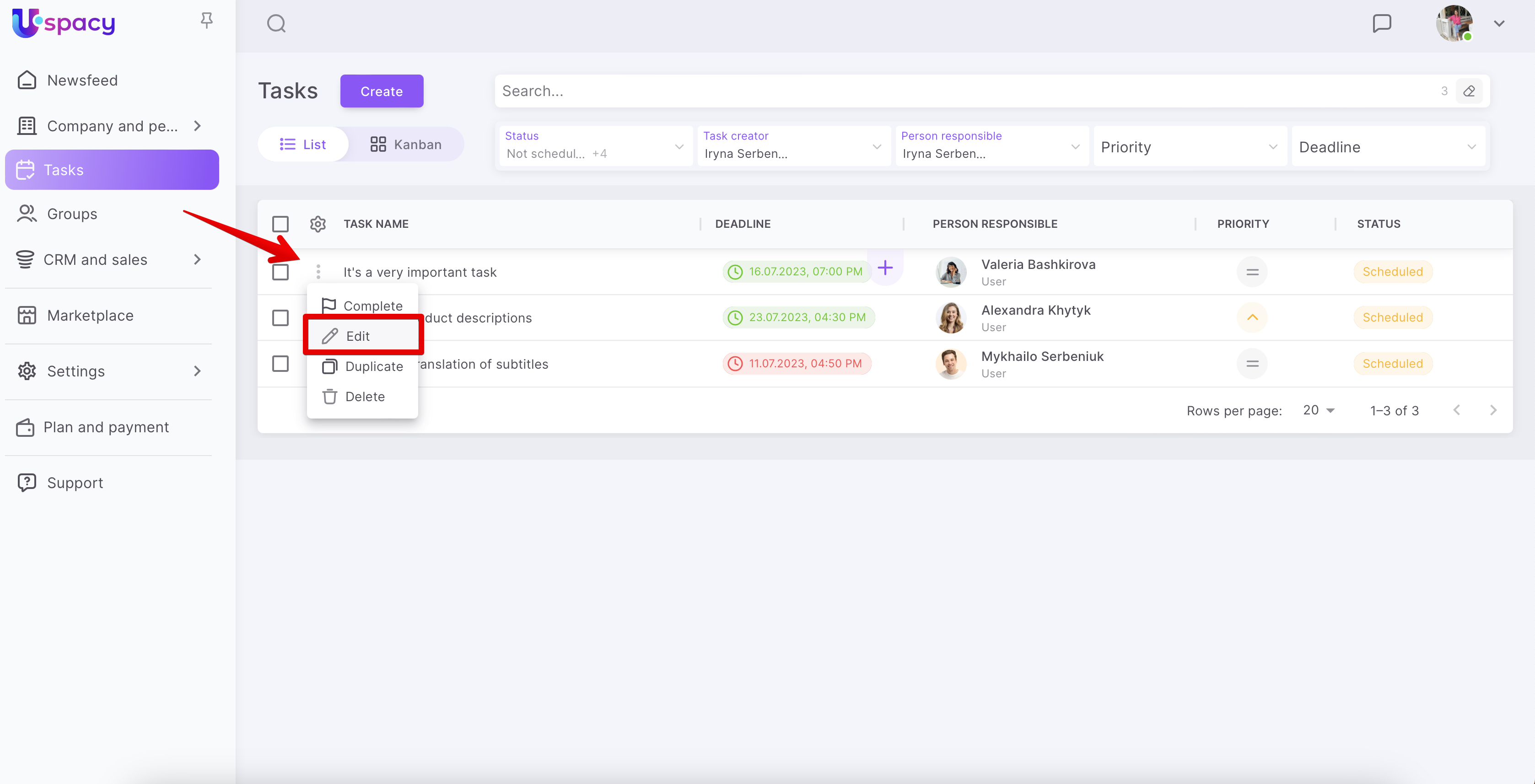
You can go to the editing form in two ways. The first is to open the task interaction menu in the list and select the Edit item.
The second is by using the viewing form. Also click on the interaction menu button and select a similar item there.
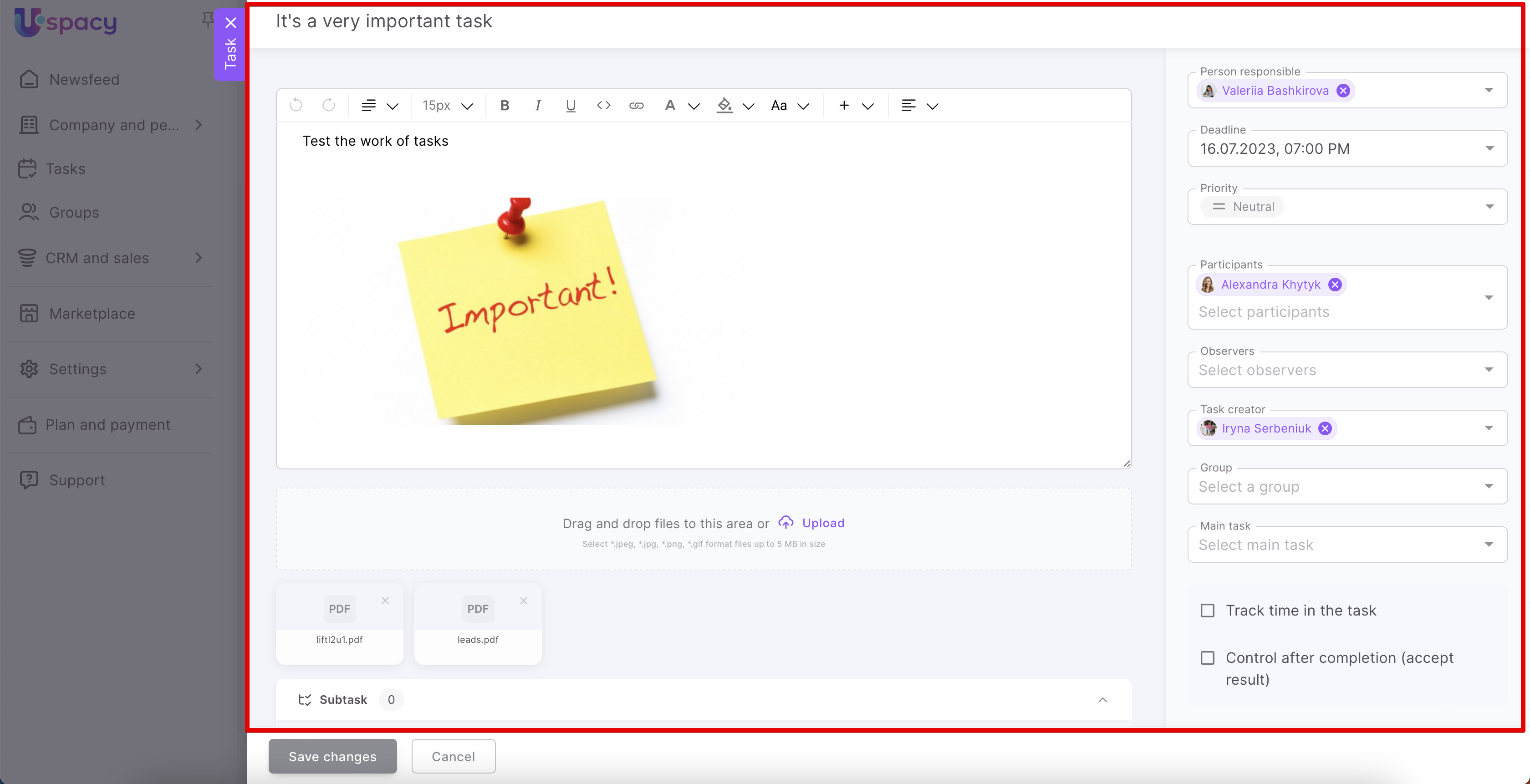
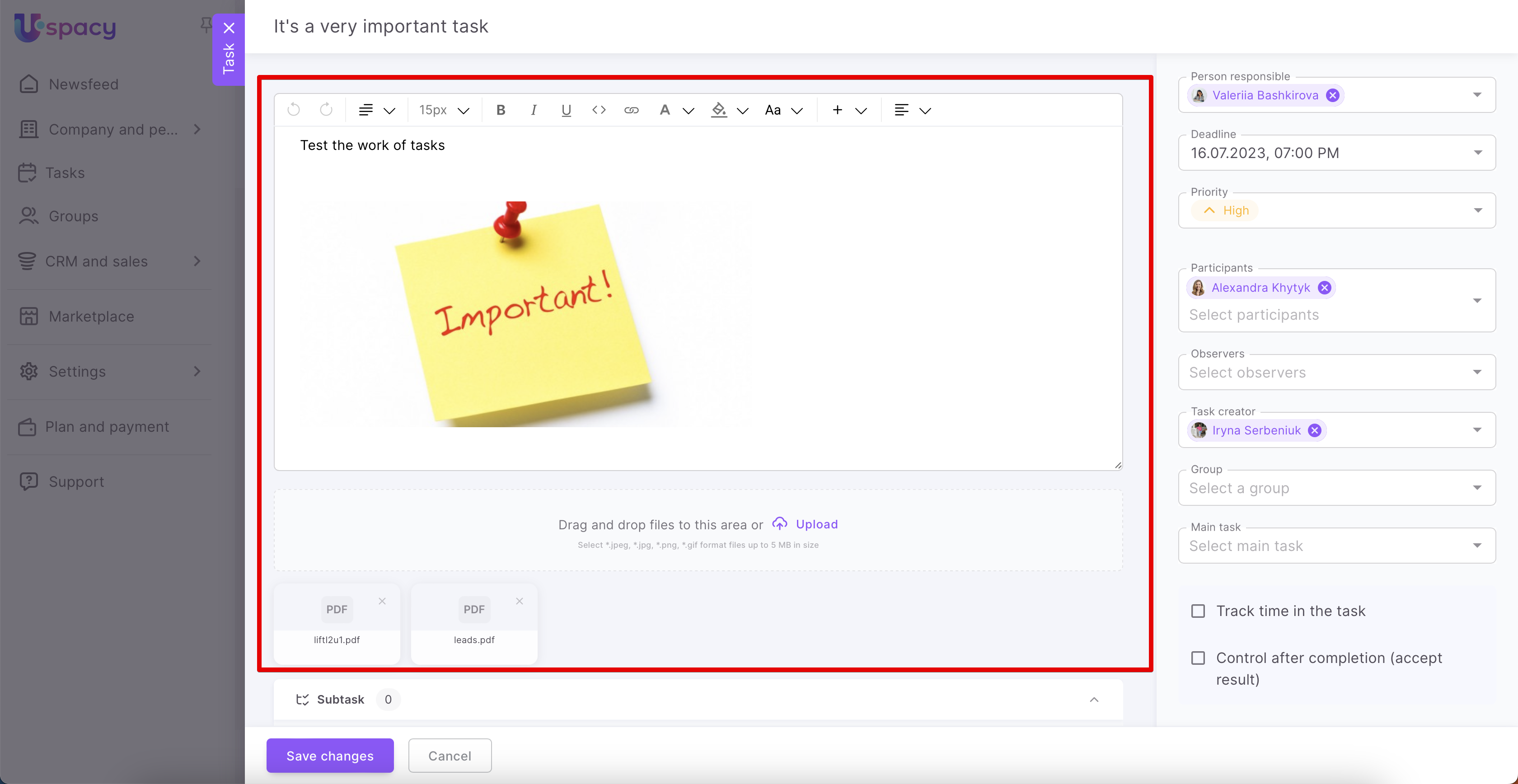
When the editing form opens, you can make changes to any task field.
After the necessary changes have been made, you must Save them.
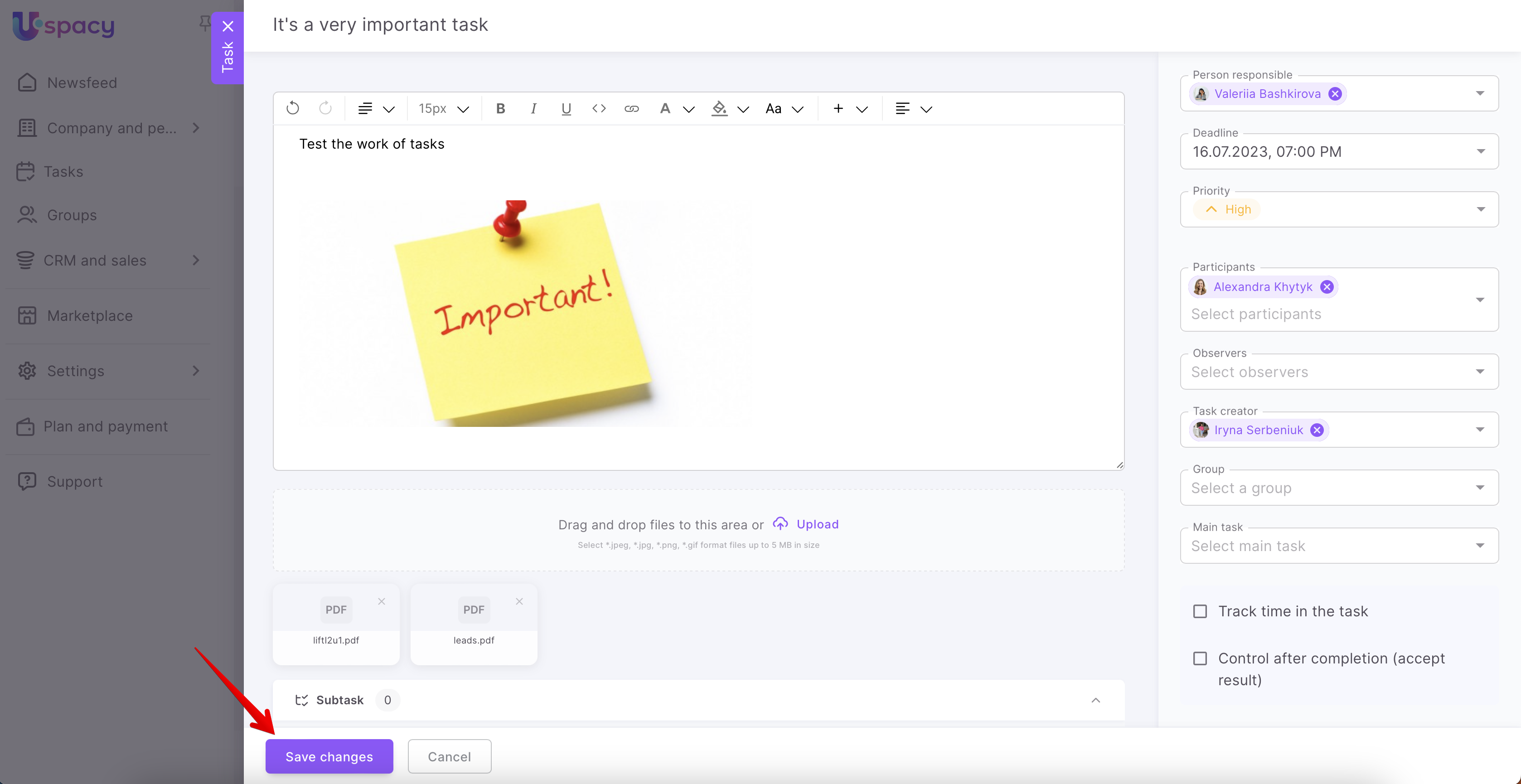
All changes will be displayed in the task viewing form at once.
❗️ If you try to close the editing form, click outside it or click Cancel, the system will inform you that the changes made to the task will not be saved in this case.
In addition, it is possible to make changes to each specific field without going to editing mode. Just click on the desired option, for example, a deadline or description.
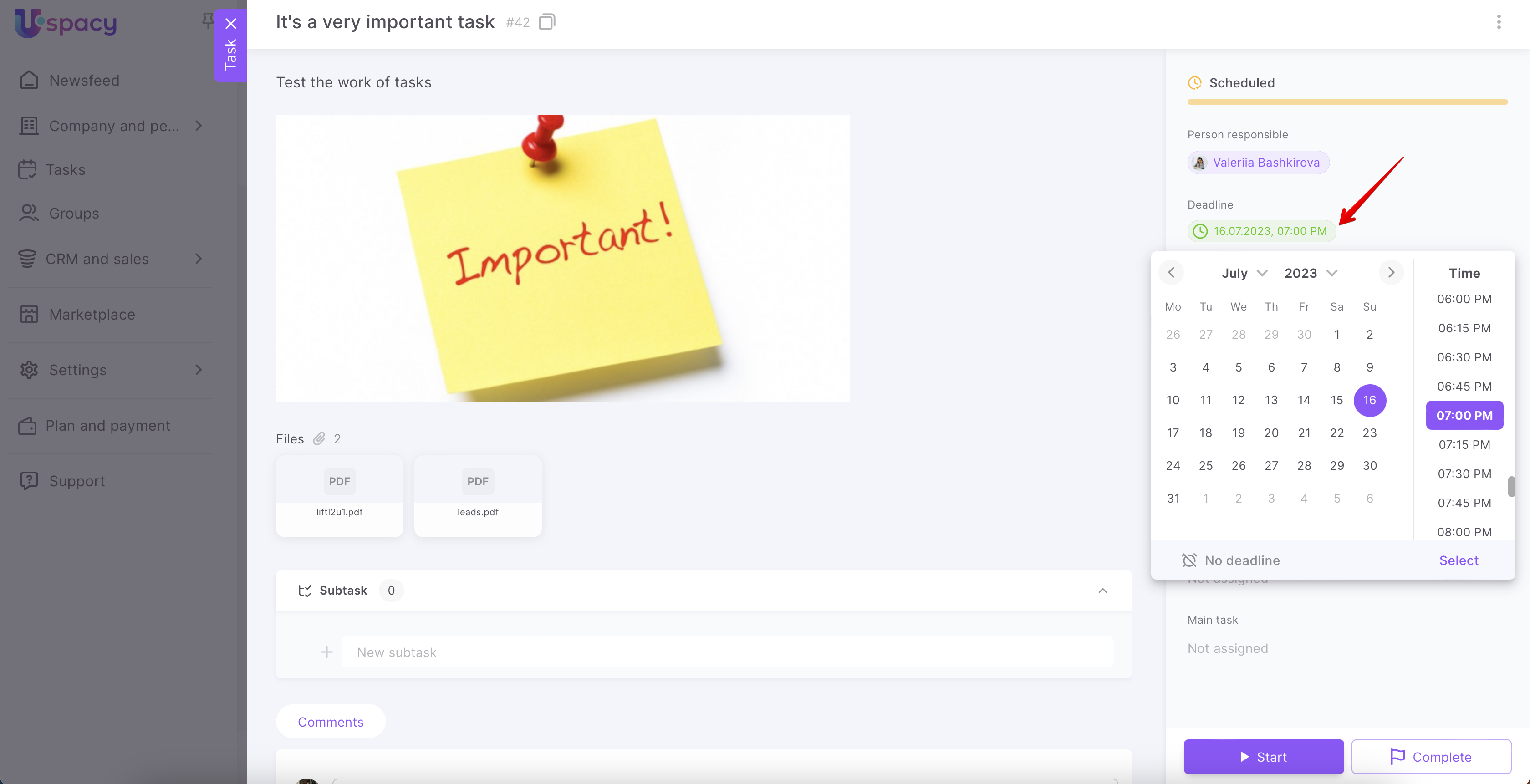
🔍 You can read more about the quick editing mode in the article about functional task card updates.
If you have additional questions or you need to contact the support, send a request to this email [email protected]
Created: March 31, 2023 / Updated: February 8, 2024