
Activity statuses help your colleagues understand what you're currently doing and when you'll be available again. For example, you can let your team know that you're in a meeting, traveling, on vacation, or working remotely.
Your status appears next to your name throughout Uspacy. This allows teammates to quickly check your availability before assigning you work, adding you to a task, or reaching out to you.
🌟 Activity statuses are available only on commercial subscription plans.
How to set a default status
To set an activity status, open your profile and click Set status next to your name.

The following built-in statuses are available for common situations:
- In a meeting — for 1 hour.
- Lunch — for 1 hour.
- On the way — for 30 minutes.
- Sick leave — for today.
- Day off — for today.
- On vacation — for this week.
- Working remotely — remains active until manually removed.

Select the status you need, and it will immediately appear in your profile. The corresponding emoji will be displayed next to your name, and the status name will appear on the status button.

When the selected time period expires, temporary statuses are removed automatically. The Working remotely status remains active until you manually change or remove it.
💡 If you change the name or emoji of a default status, it will be saved as a separate temporary custom status. Once it expires, it will be removed from the status list, while the original default status will remain available.
How to create a custom status
If none of the default options fit your situation, you can create a custom status. Open your profile, click Set status, and then select Set your status.

In the Status name field, enter the text you want, such as Business trip. Then click the emoji icon and select the emoji that best represents your status.
❗ Emoji appearance depends on the browser and operating system. Some emojis may not be supported, so other users may see an empty square instead of the selected emoji.


Next, specify how long the status should remain active in the Clear status after field. You can select one of the predefined durations:
- 30 minutes
- 1 hour
- 4 hours
- Today
- Tomorrow
- This week
- 1 week
- 2 weeks
You can also select a specific date and time or indicate Do not clear. If you select Do not clear, the status will remain active until you remove it manually.


After you apply for the status, it will appear in your profile. The selected emoji will be displayed next to your name, and the status name will appear below it as a button.


When the specified duration expires, the custom status is automatically removed from both your profile and the status list. If you need to use it again later, you'll need to create it again.
Where activity statuses are displayed
Activity statuses are displayed throughout Workspace, including in tables, task cards, CRM element cards, and user selection fields. This makes it easy to check a colleague's current availability when assigning a responsible person, task creator, participants, or completing other user-related fields.
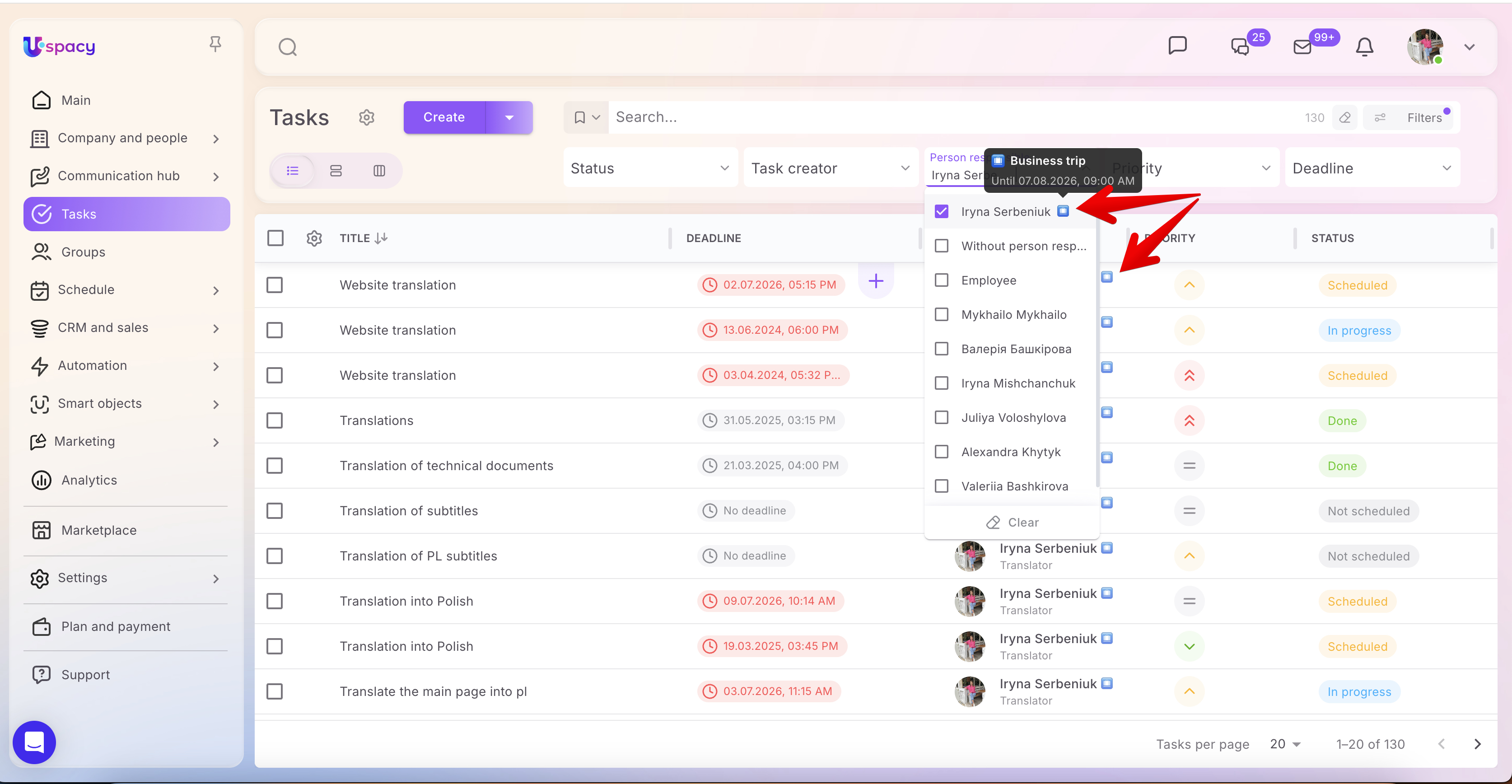

Hover over the emoji to view the status name and its expiration time. If a specific end date and time were selected, they will also appear in the tooltip.

💡 Activity statuses are not displayed in the Analytics, Automation, or Marketplace sections.
How to edit or remove a status
To change your current status, open your profile, click the button displaying your current status, and either select another option from the list or create a new custom status.
If your current status is no longer relevant, select No status. The status name and emoji will no longer appear next to your name anywhere in Space.
💡 If your current status is a custom one that you created, selecting another status or No status will also remove it from the status list. To use it again later, you'll need to create it again.

Activity statuses help your team quickly understand each other's availability and plan collaboration more effectively. Select one of the built-in statuses for common situations or create a custom status with the name, emoji, and duration that best fits your needs.
If you have additional questions or you need to contact the support, send a request to this email [email protected]
Created: July 28, 2026 / Updated: July 28, 2026