A price type is a specific version of a price for a product or service used in the CRM for different situations or client categories. For example:
- Wholesale price for partners
- Special price for loyal clients
- Individual price for large contracts
This is convenient because you can add several different price types for the same product in the same currency. Then, during the sales process, you can select and use the appropriate price type.
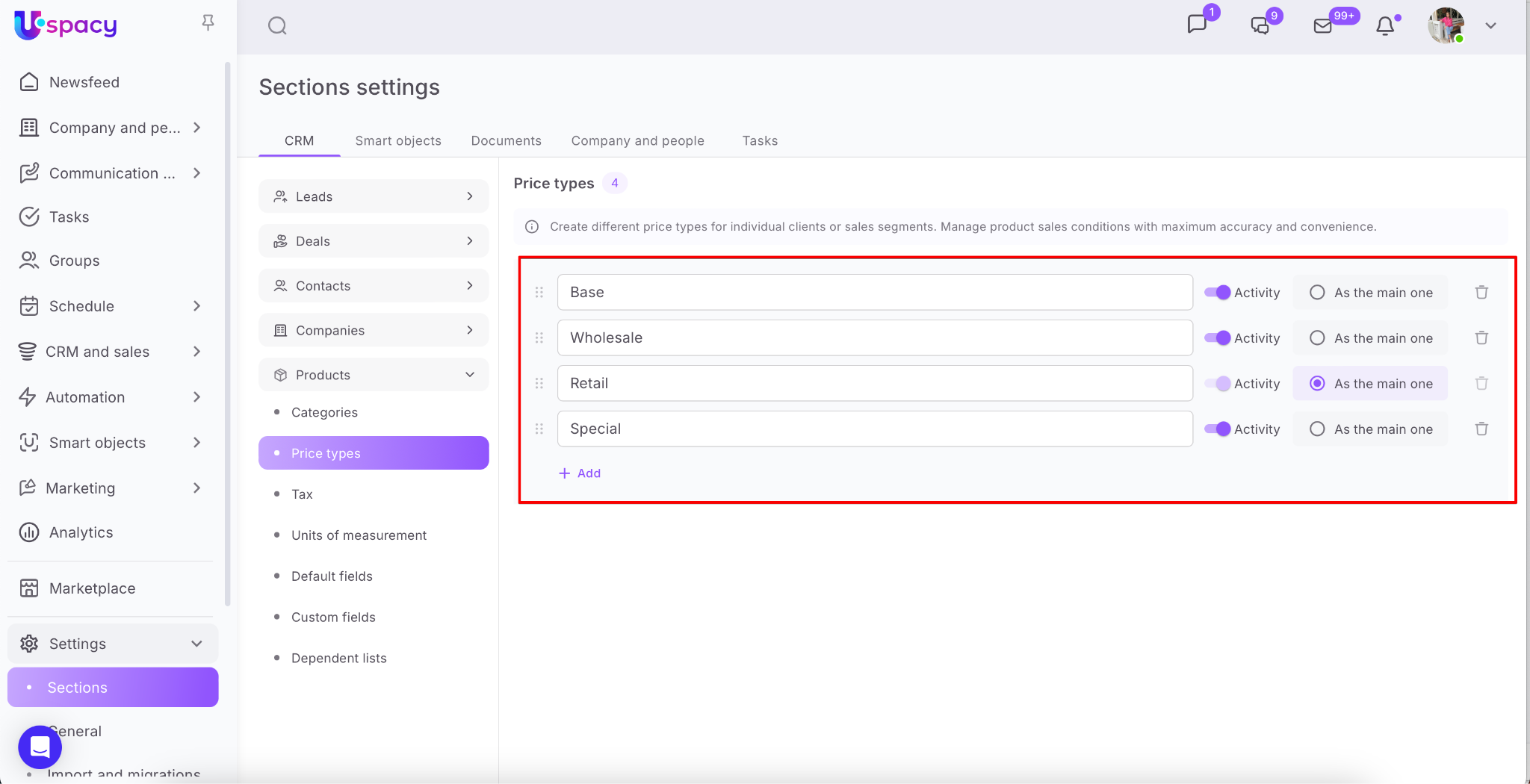
By default, the CRM includes a Base price type. This is used as the main price for all products. However, you can also create your own custom price types if needed.
How to add a new price type?
Go to Settings → Sections → CRM. Open the Products section and expand the Price types menu.
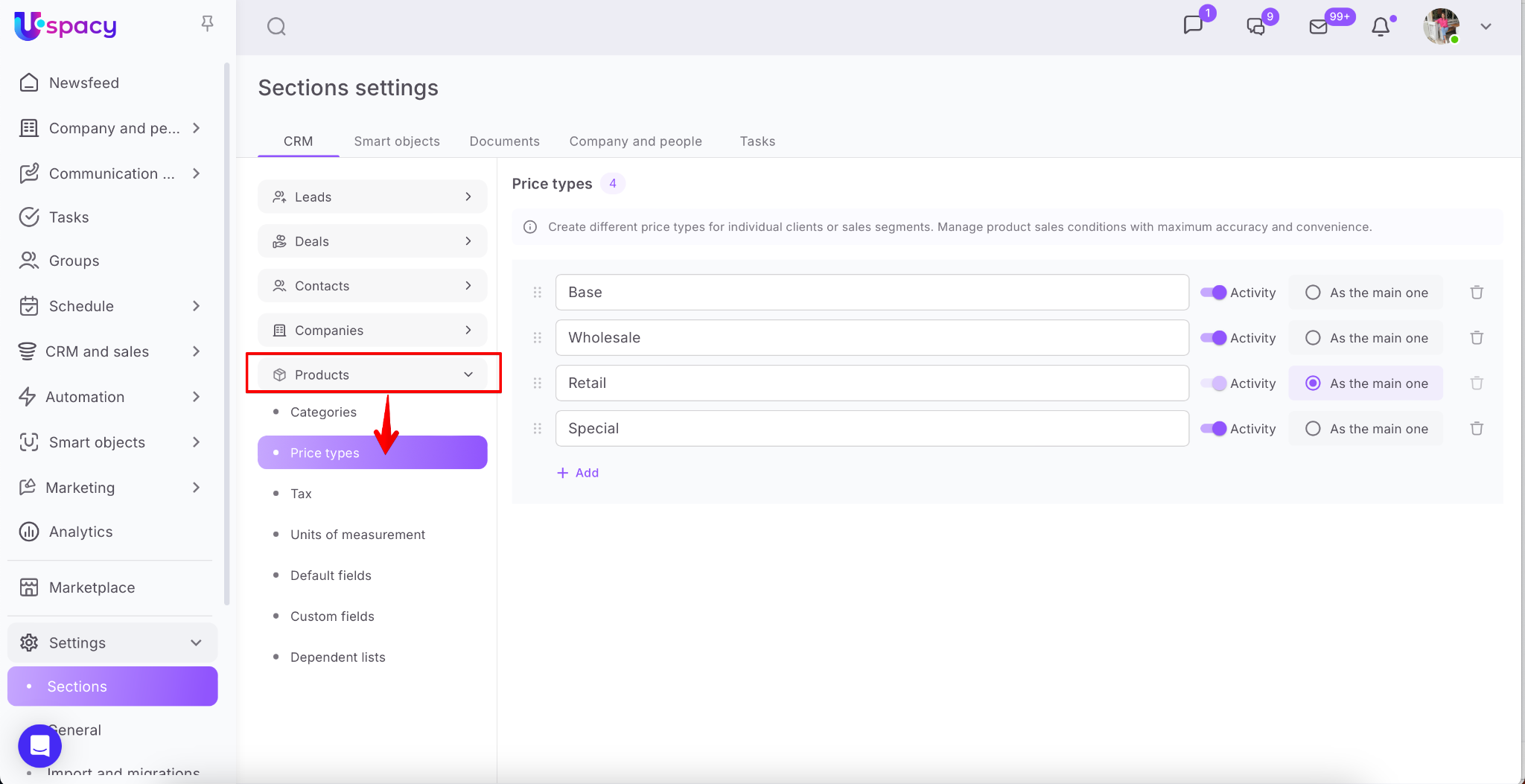
🌟 Only administrators or Space owners can add new price types.
Other users can only use the existing price types in sales-related CRM tasks.
🌟 Price types are only available on the commercial plans:
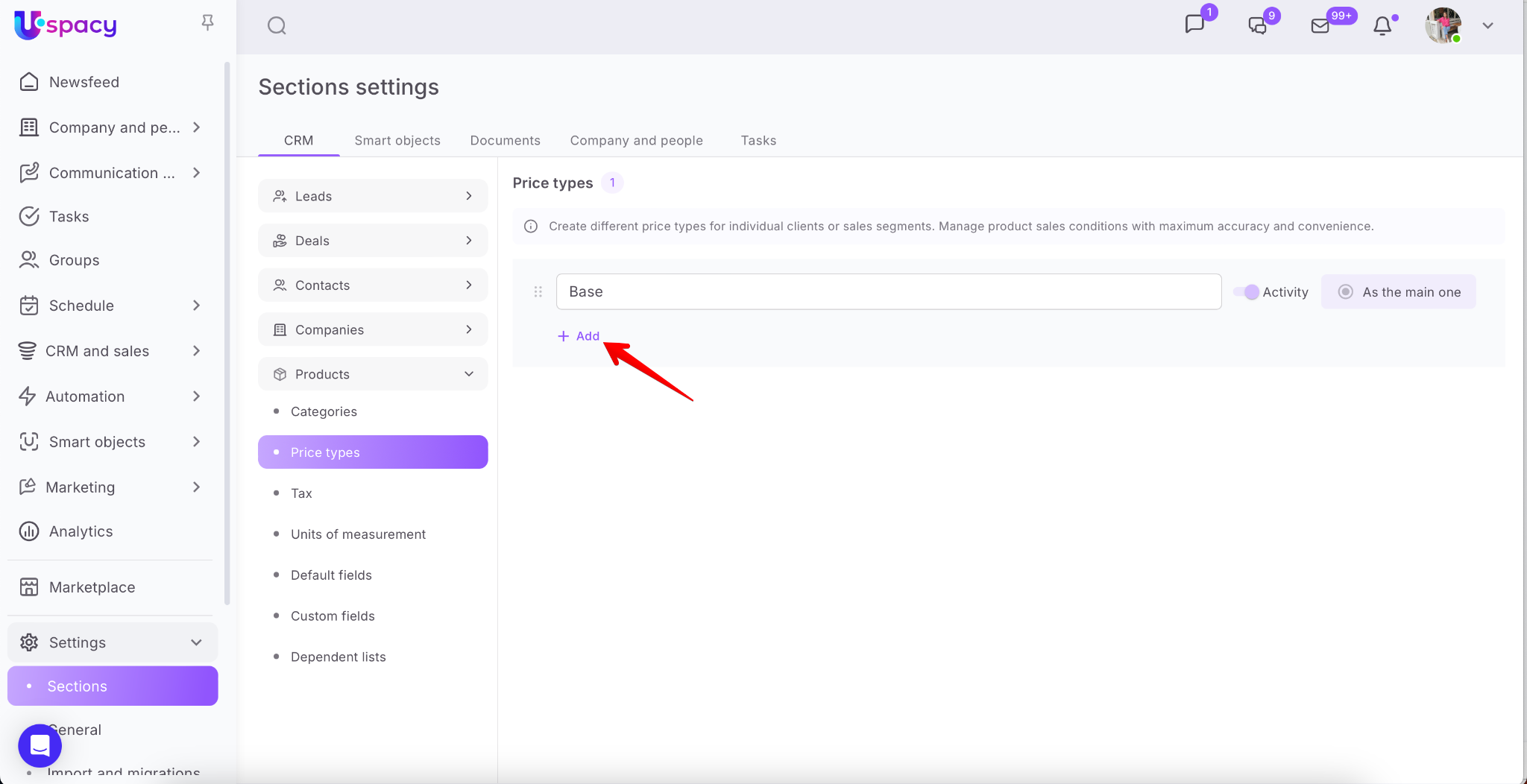
Then, just click the + Add button.
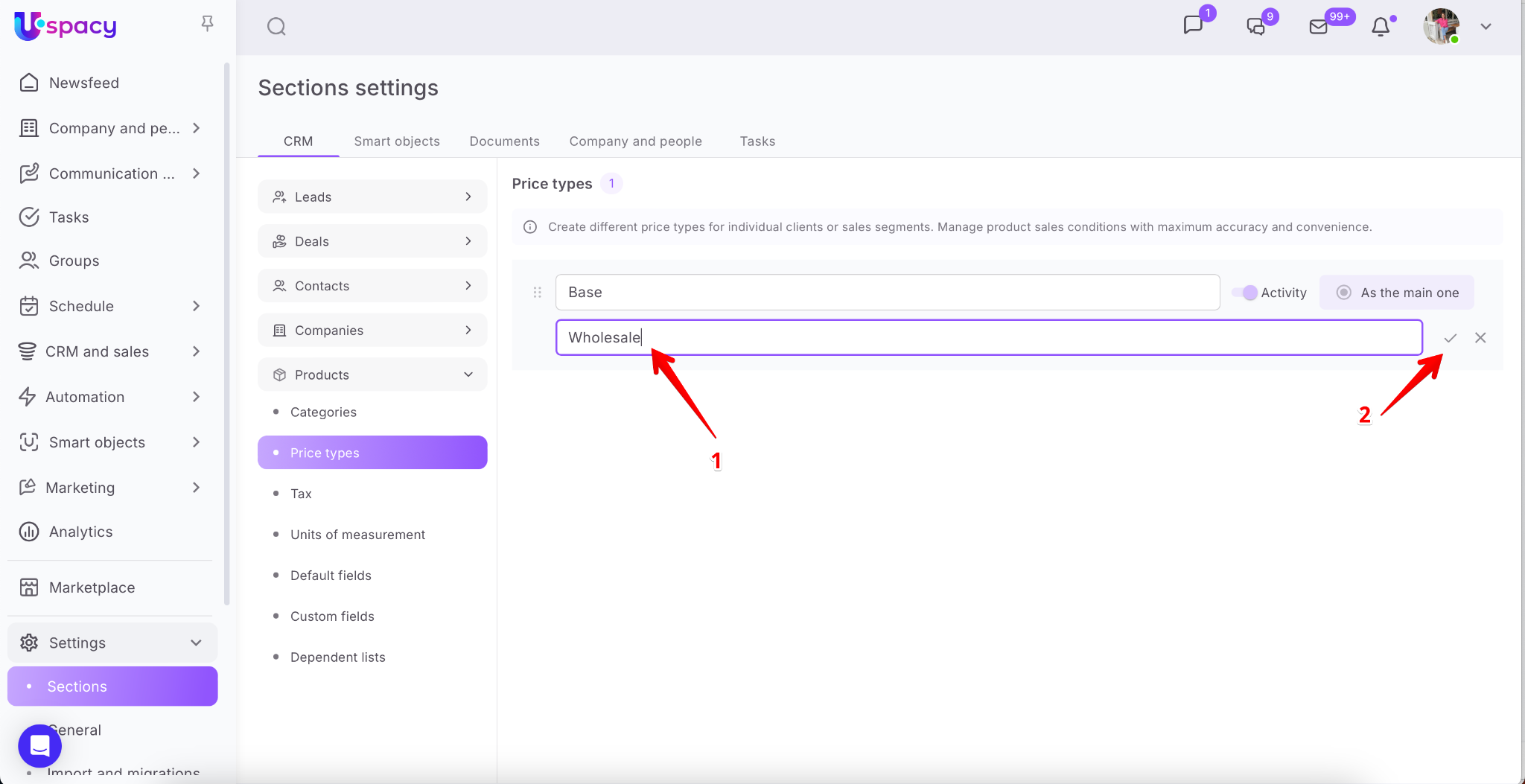
Next, enter the name (1) and click the check mark (2) to save it.
Once created, the new price type will be added to the list and become available for use in the CRM.
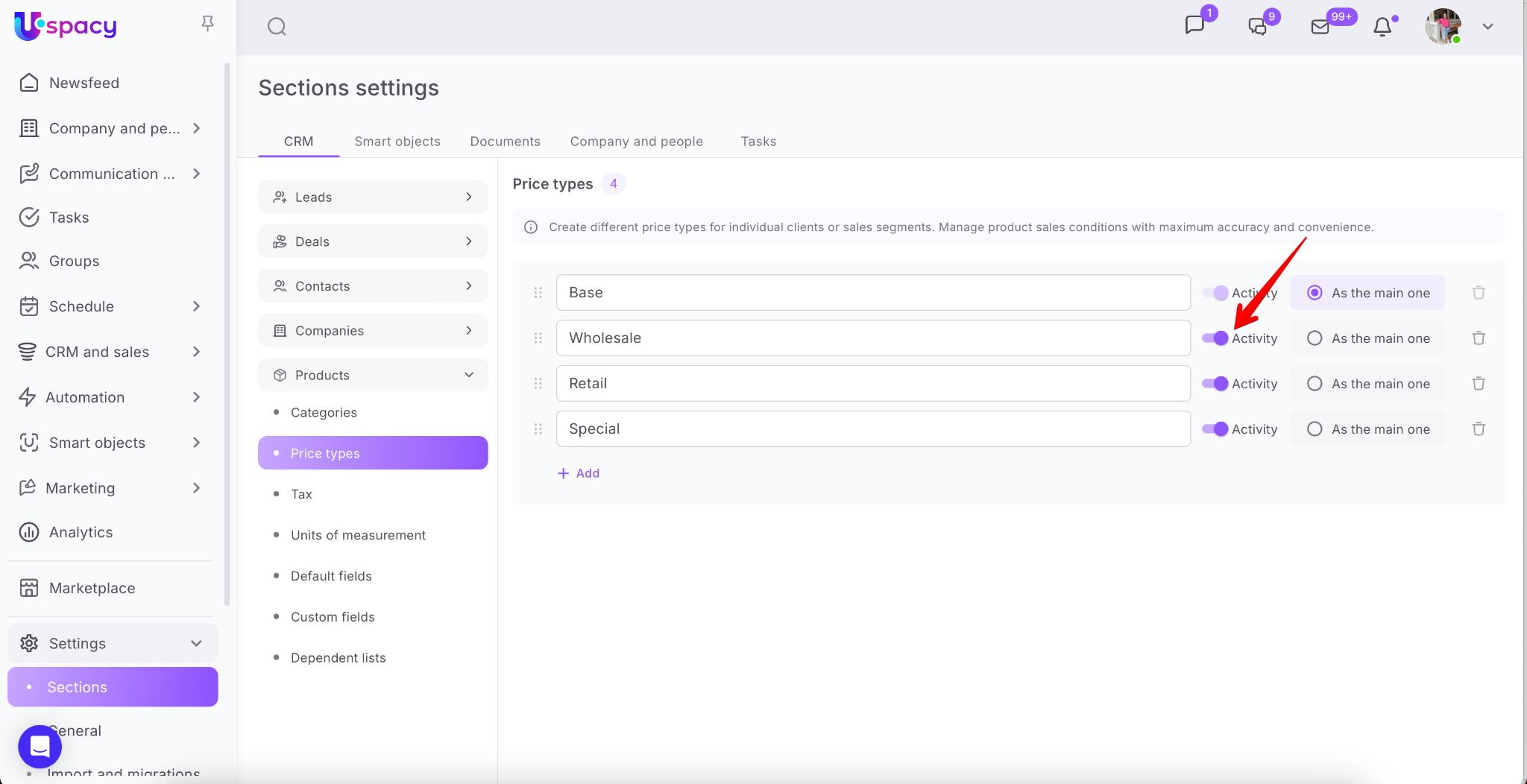
How to edit a price type?
After creation, the price type becomes active, meaning it can be selected when filling out a product or service card in the CRM.
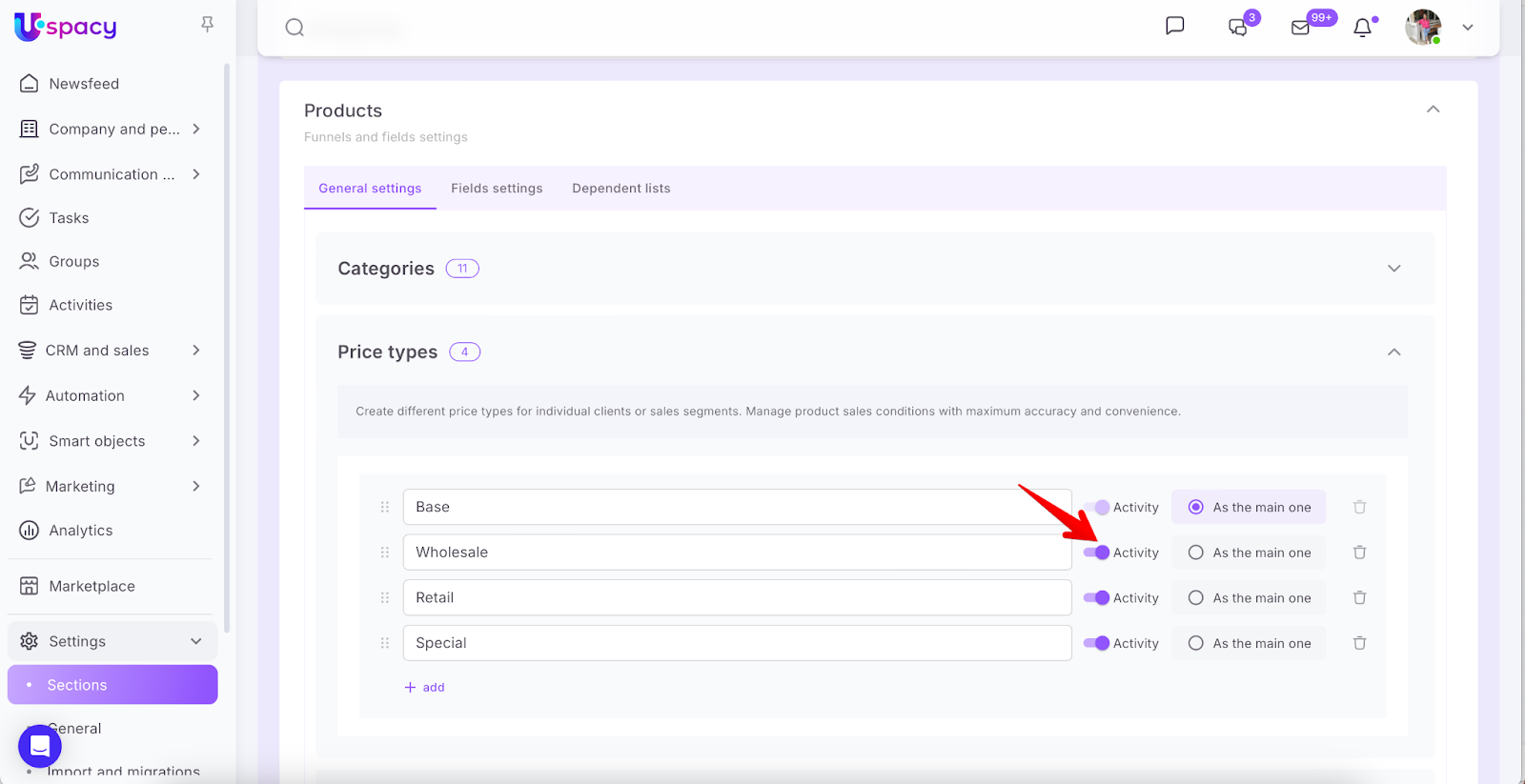

If you deactivate a price type, it can no longer be used in the CRM.
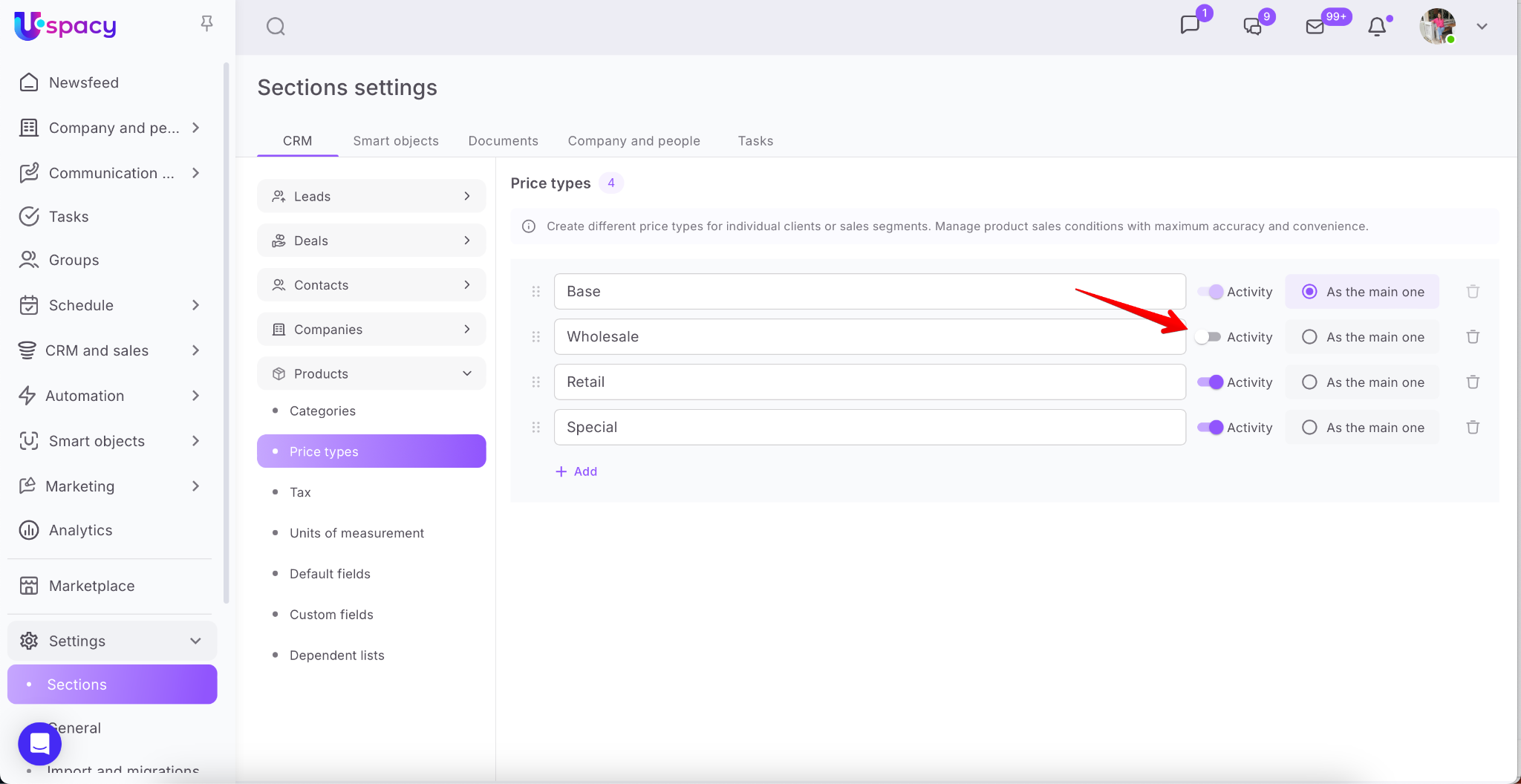
However, it will remain visible in product cards where it was previously applied.
☝🏻It will also remain in all deals, leads, or Smart Object elements where the product was linked to the deactivated price type.

You can also set any created price type as the main one. Just mark it.
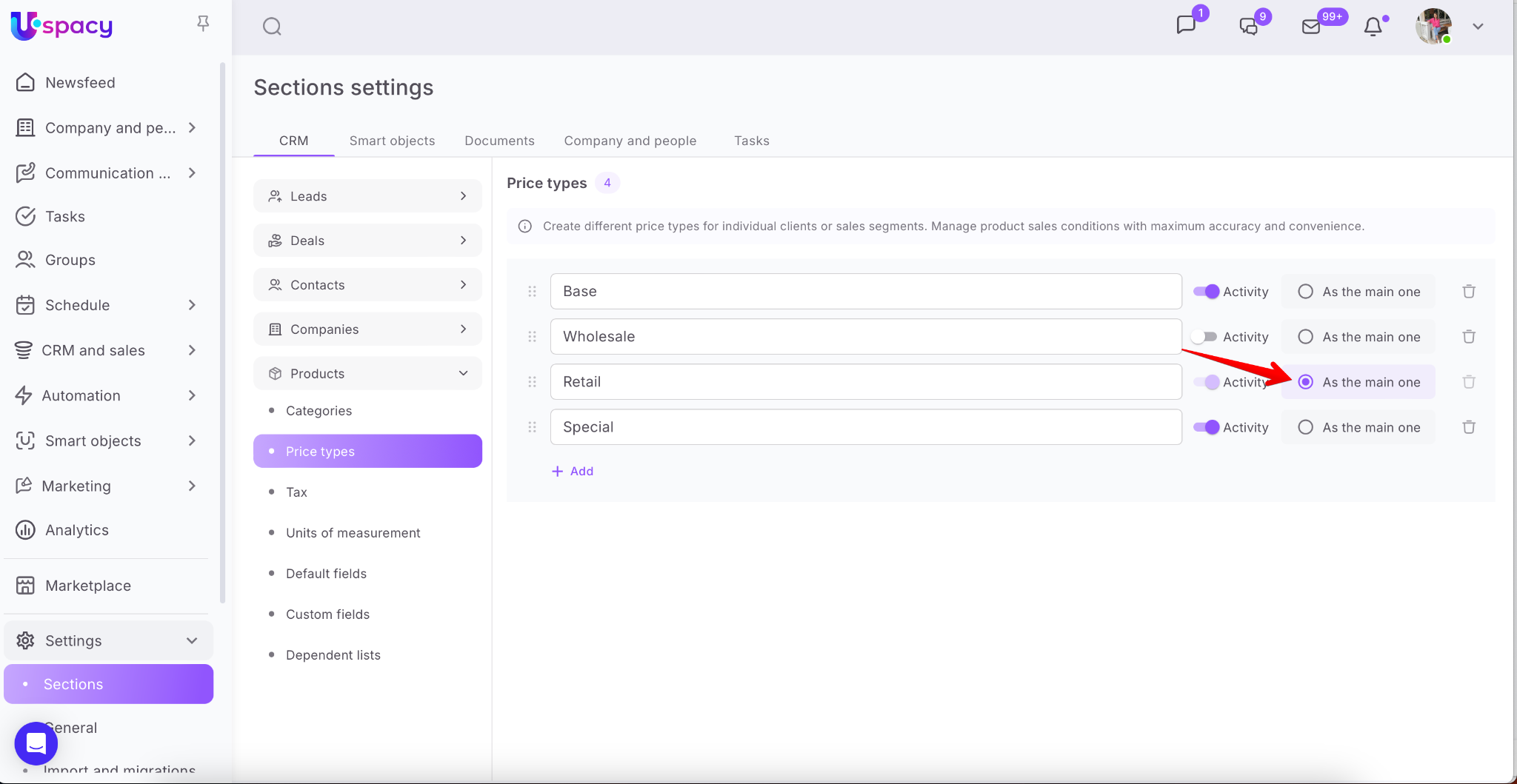
💡 Note: If a price type is set as the main one, you cannot deactivate it.
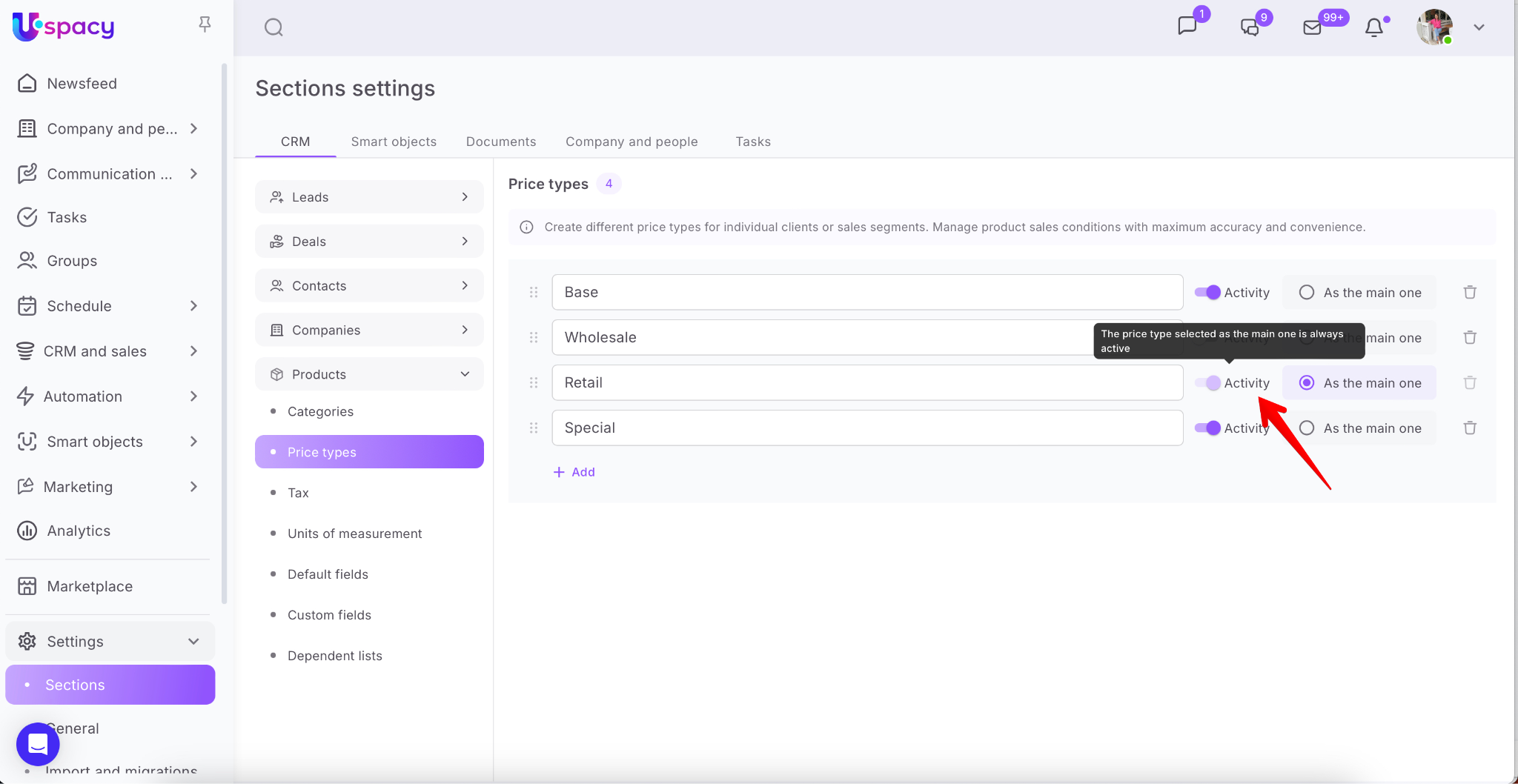
As a result, when creating a new product, the main price type will be automatically filled out in the Price type field.

Similarly, when adding products or services to a deal, lead, or Smart Object, the main price type will be automatically applied.

Of course, you can rename any price type at any time.
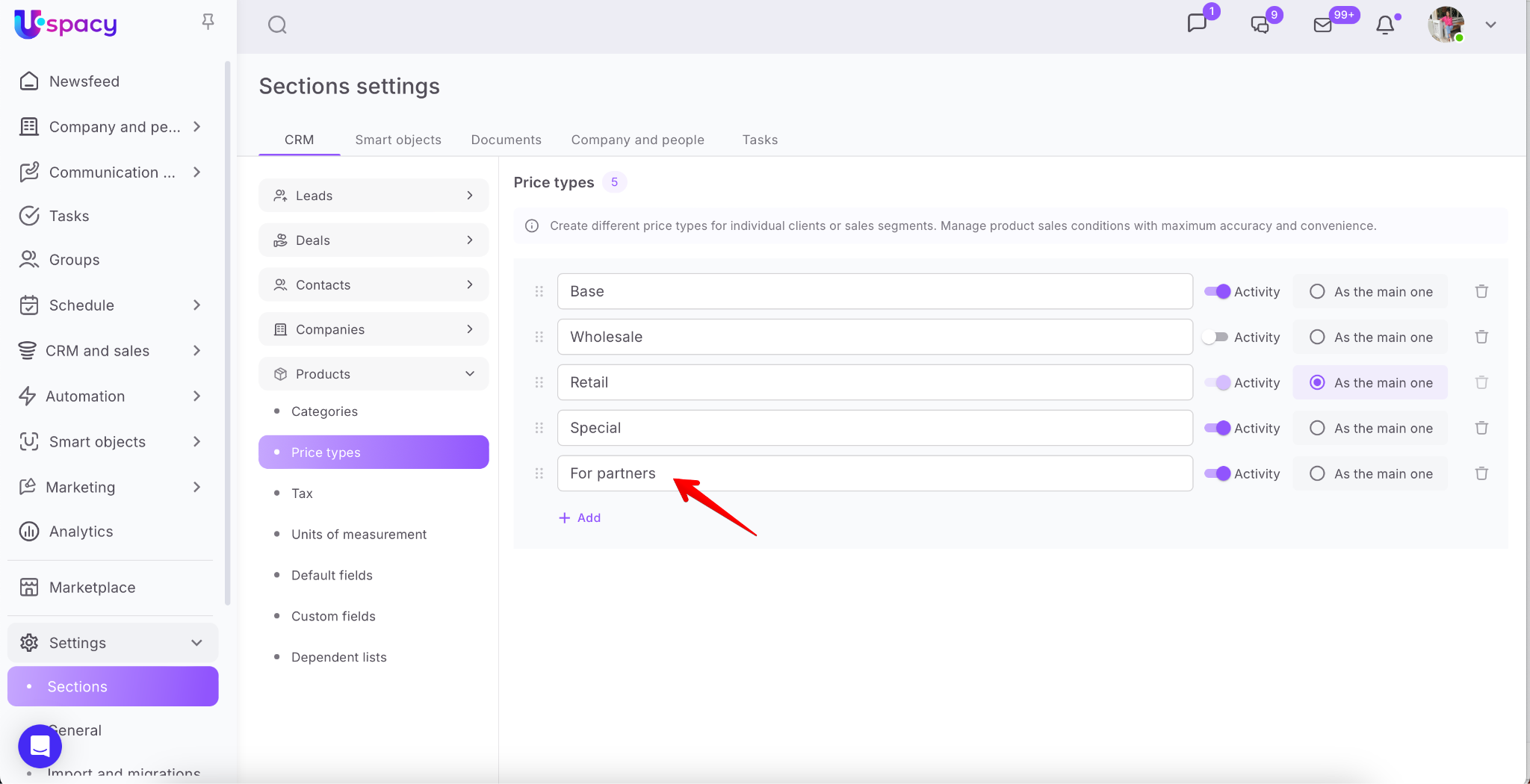
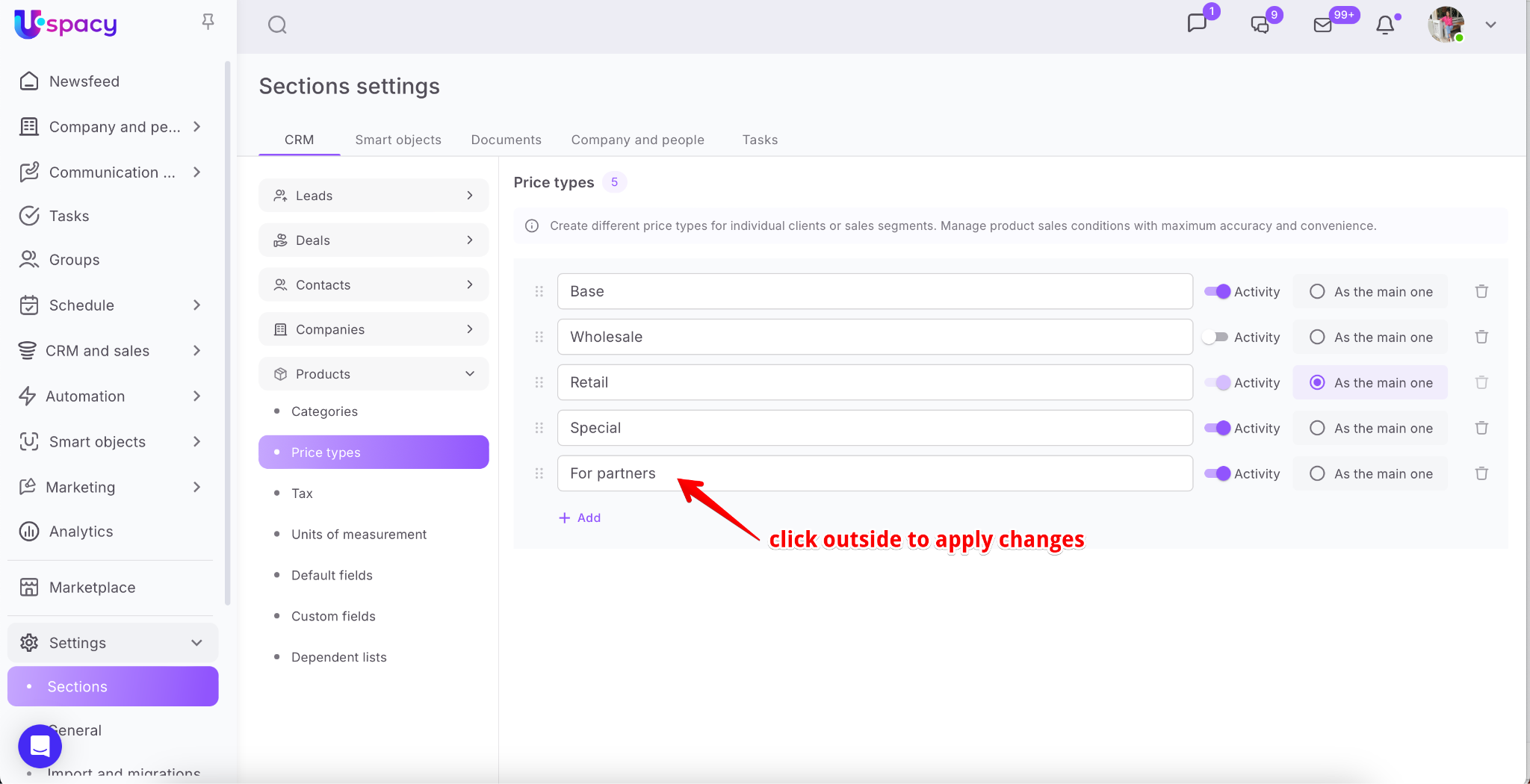
After editing, just click outside the field to save.
How to delete a price type?
To delete a price type, click the trash icon next to the type you want to remove.
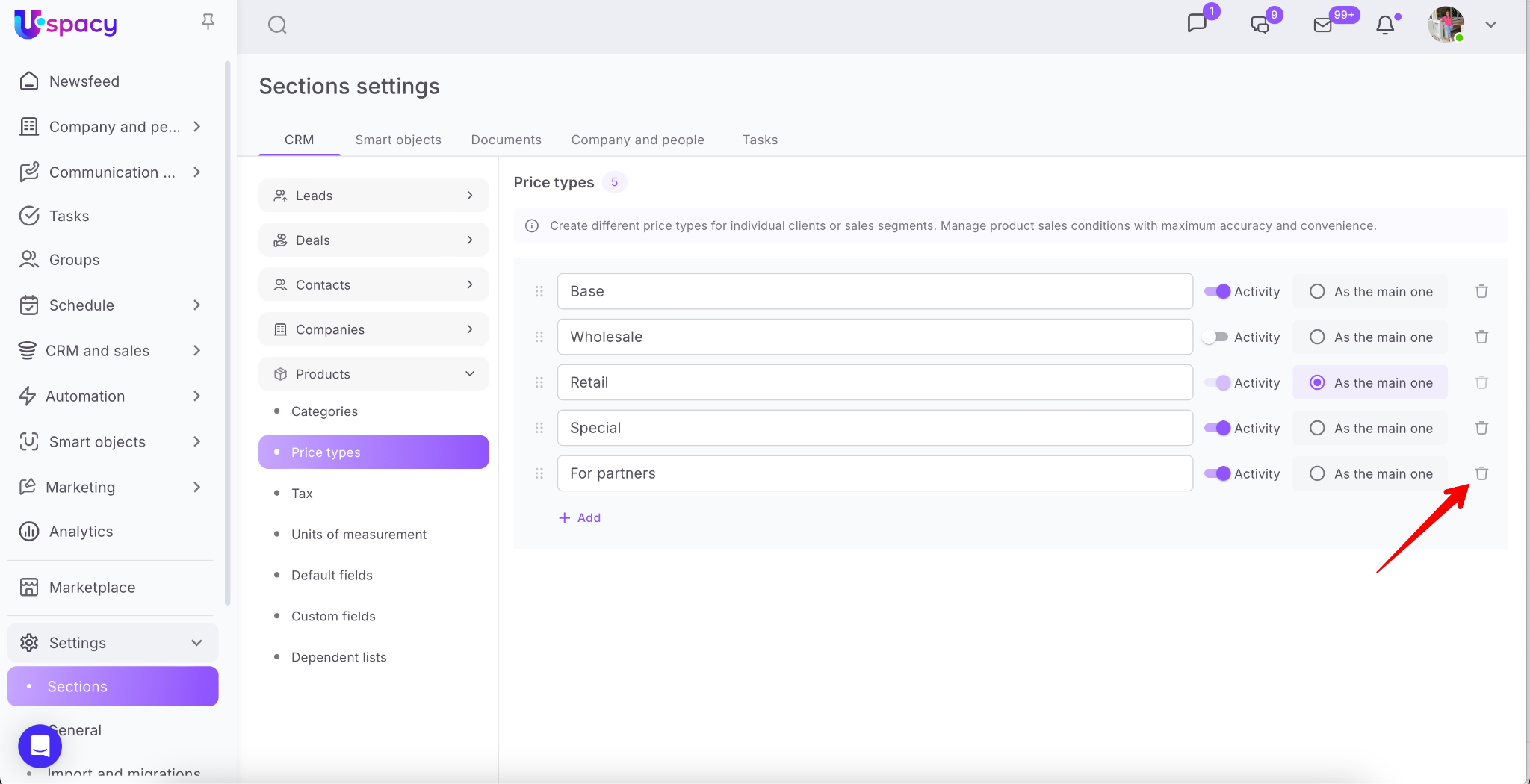
A confirmation window will appear — confirm your action to proceed.
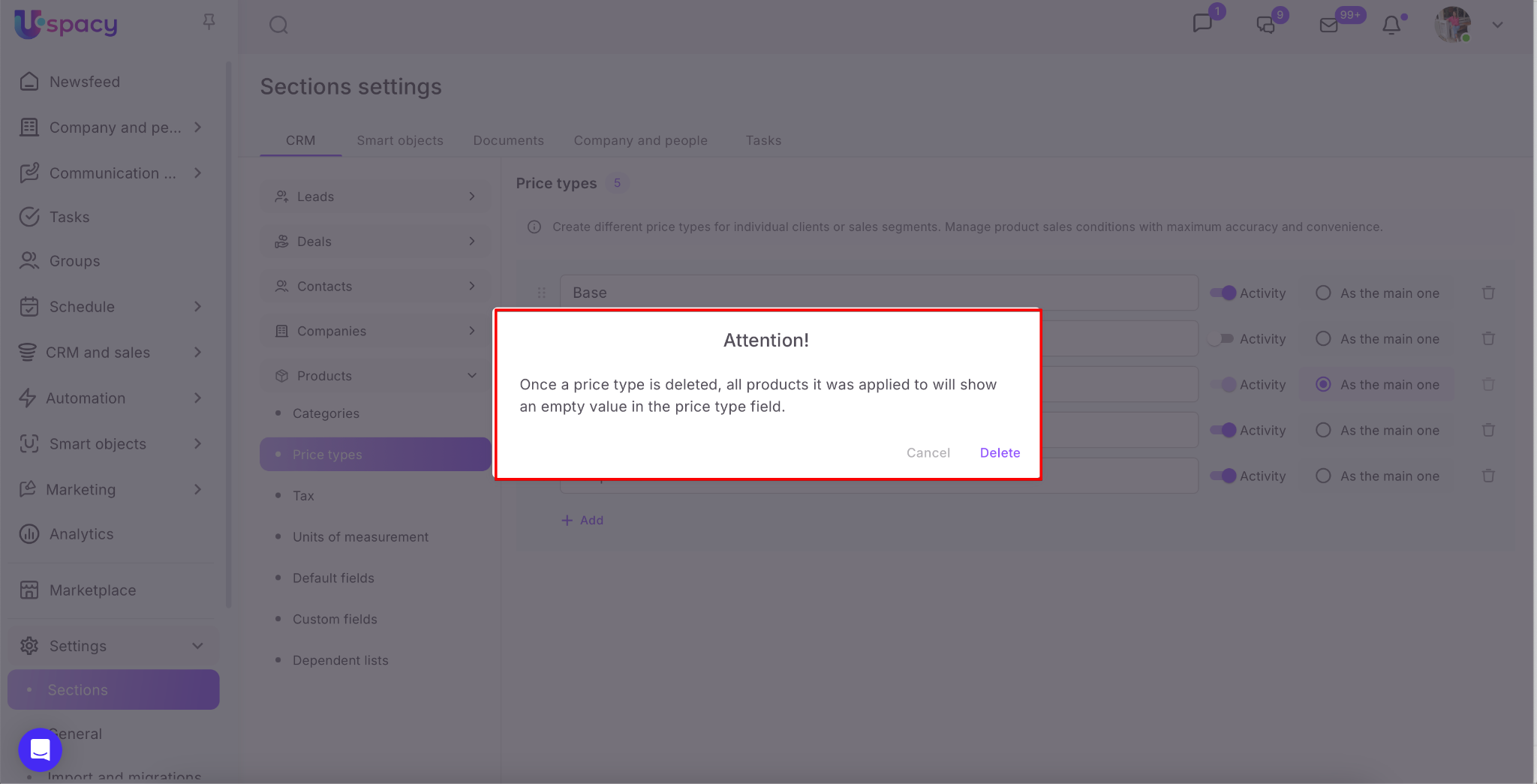
Once confirmed, the price type will be deleted and can no longer be used in the CRM.
However, for all products where this price type was previously applied, the price type field will become empty in their cards.
☝🏻 This also applies to any deal, lead, or Smart Object element where the product was linked to the now-deleted price type — the field will show an empty value there as well.


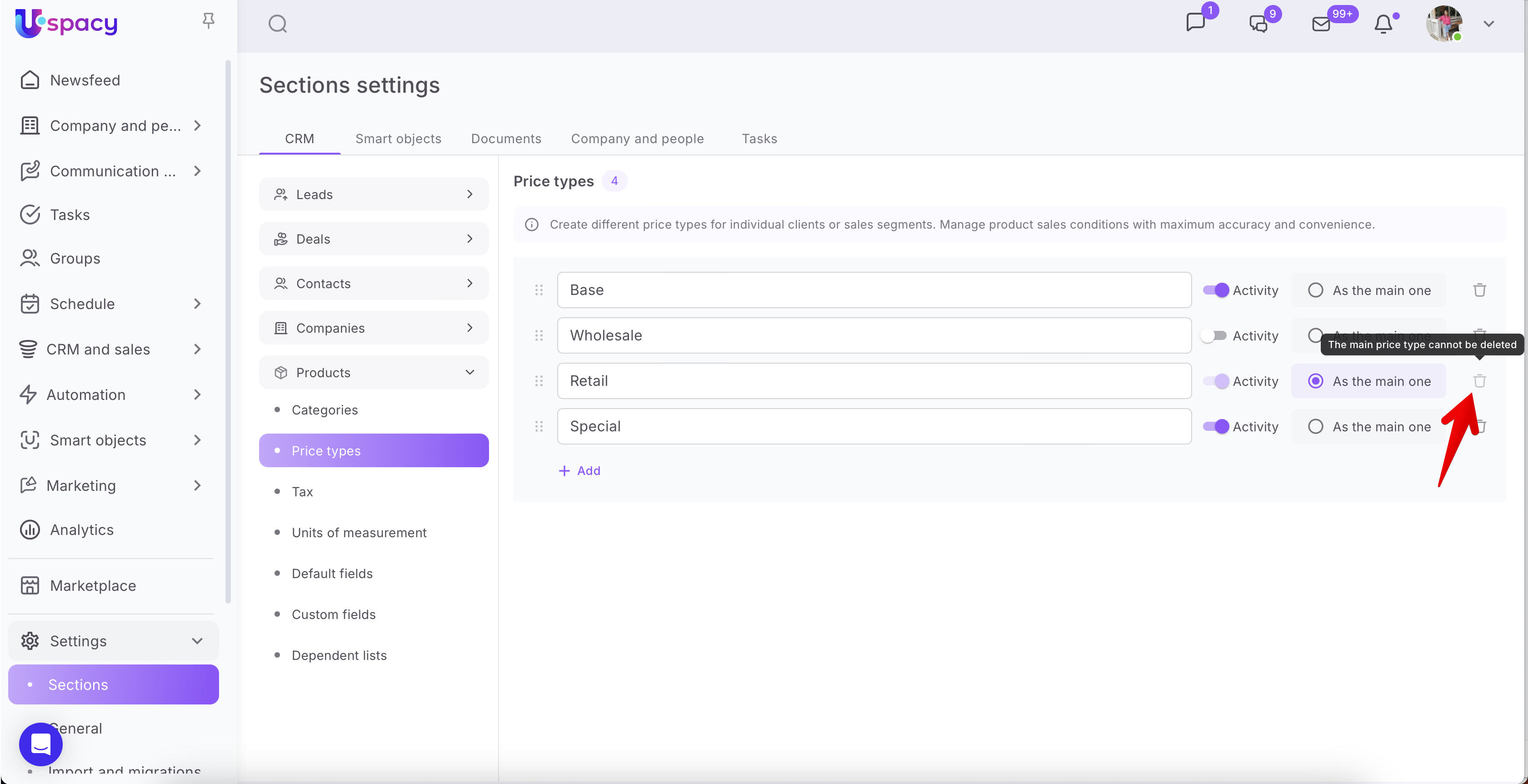
💡 Note: If a price type is set as the main one, it cannot be deleted.
How are price types used?
All price types can be used in CRM sales workflows:
🟣 When creating or editing a product in the catalog, you can set any necessary price types to a specific product or service.

💡 Each product can only have one combination of a specific price type and currency.
For example, if you’ve already added a retail price in UAH, you cannot add another retail price in UAH(even with a different amount) for the same product.
So, you must either:
In other words, you cannot specify two base prices in UAH (e.g., 90 UAH and 70 UAH) to a single product.


🟣 When adding a product to a deal, lead, or Smart Object — the price type specified as the main for that product or service will be pulled in automatically.

Of course, you can change the price type manually depending on the conditions of a specific deal. When you change the price type, the price itself will update.

All price types added to the system will appear in the dropdown list for selection.

If you select a price type that was not specified to the specific product, the price value will default to 0.

You can manually enter the correct price in that case.

☝🏻 However, this manual change will only apply to that specific deal.
It will not update the product's price or price type in the main catalog.

Likewise, if a price type is assigned to the product and already has a value, but you manually edit the price during a deal — the change will affect only that deal.

☝🏻 The product card and catalog will remain unchanged.

If you have additional questions or you need to contact the support, send a request to this email [email protected]
Created: June 17, 2025 / Updated: January 26, 2026