
Task reminders help participants stay on top of upcoming deadlines and return to their work before a task is due. In Uspacy, you can select exactly when a reminder is sent and how it's delivered: as an in-app notification, an email, or both.
You can add reminders either while creating a new task or later by editing an existing one.
💡 A reminder is delivered only to the user who created it. Other task participants, regardless of their role, won't receive that reminder unless they create one of their own.
Each user can see only their own reminders in the task card. Reminders created by other participants are not displayed.
How to set reminders when creating a task?
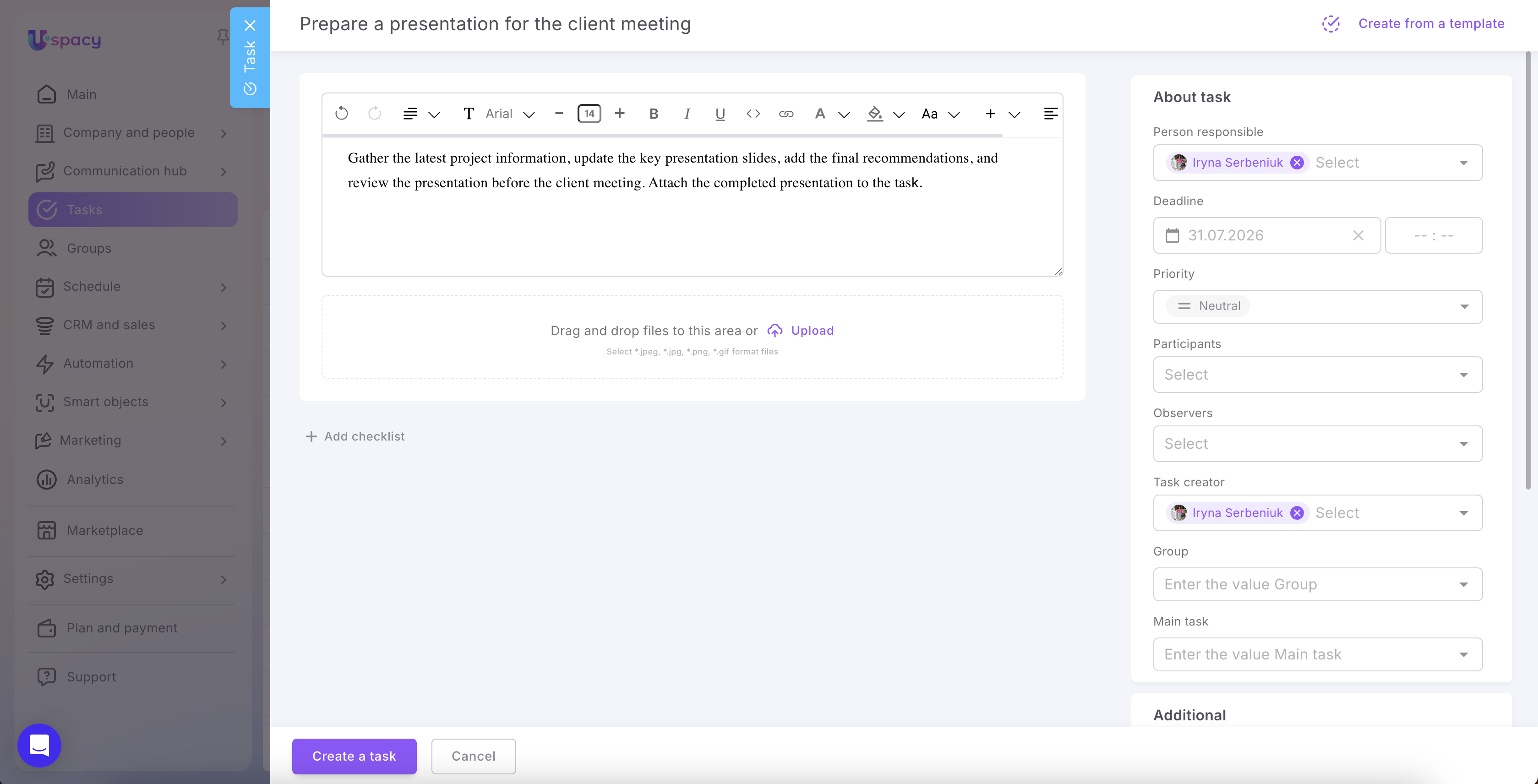
First, fill in the task details and make sure to specify a Deadline. Once it is set, the Add a reminder option becomes available.
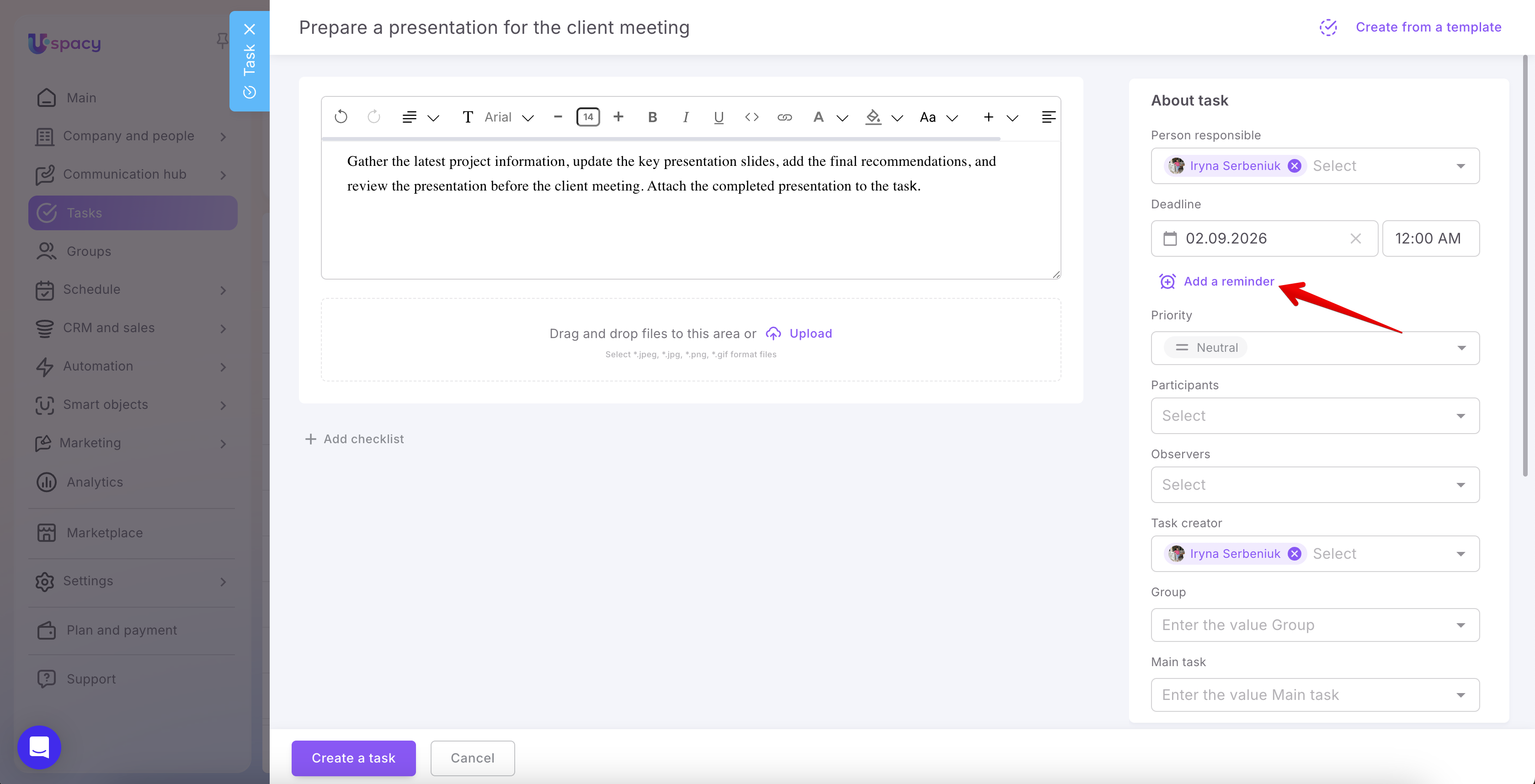
💡 If no deadline is specified, you won't be able to add reminders.
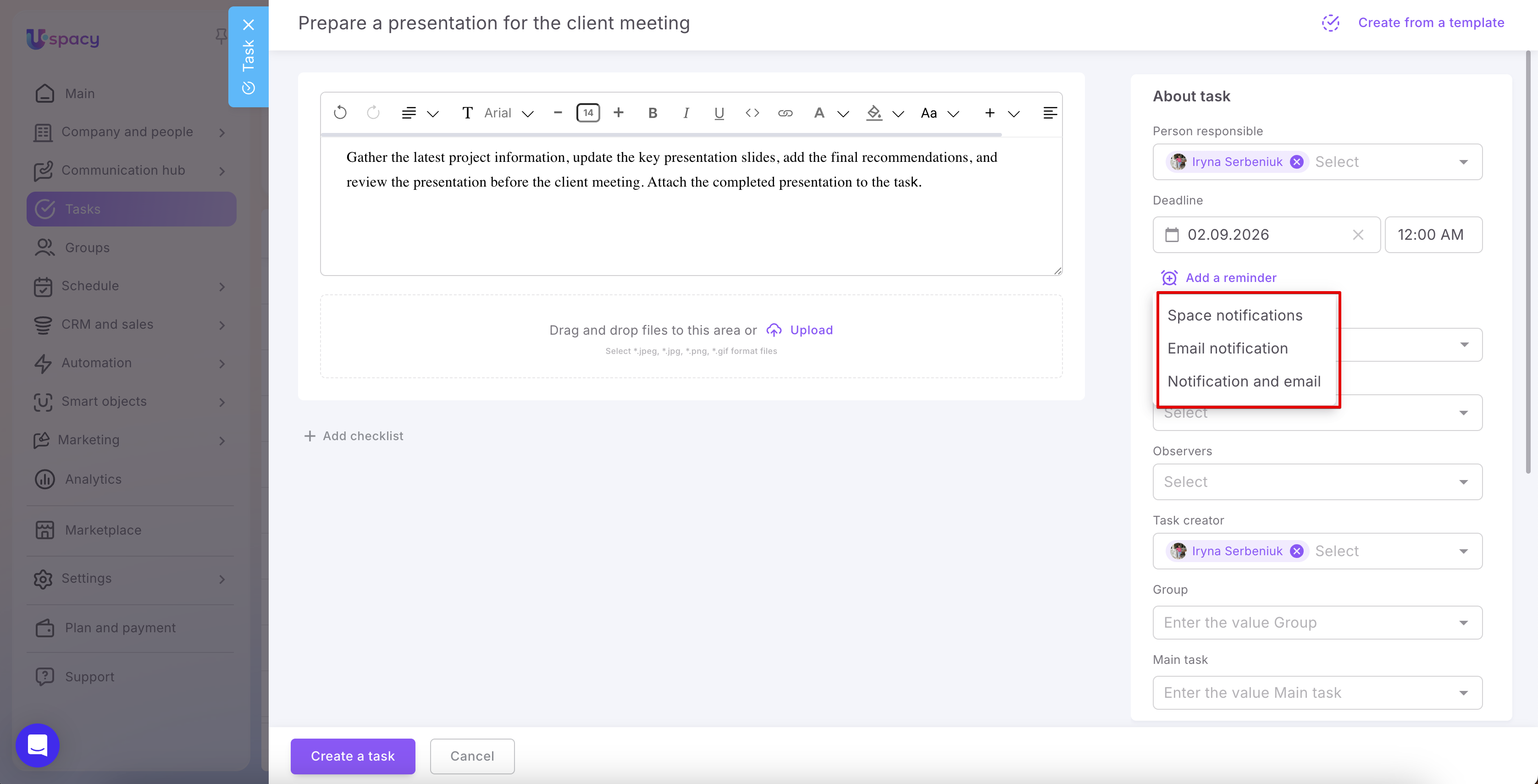
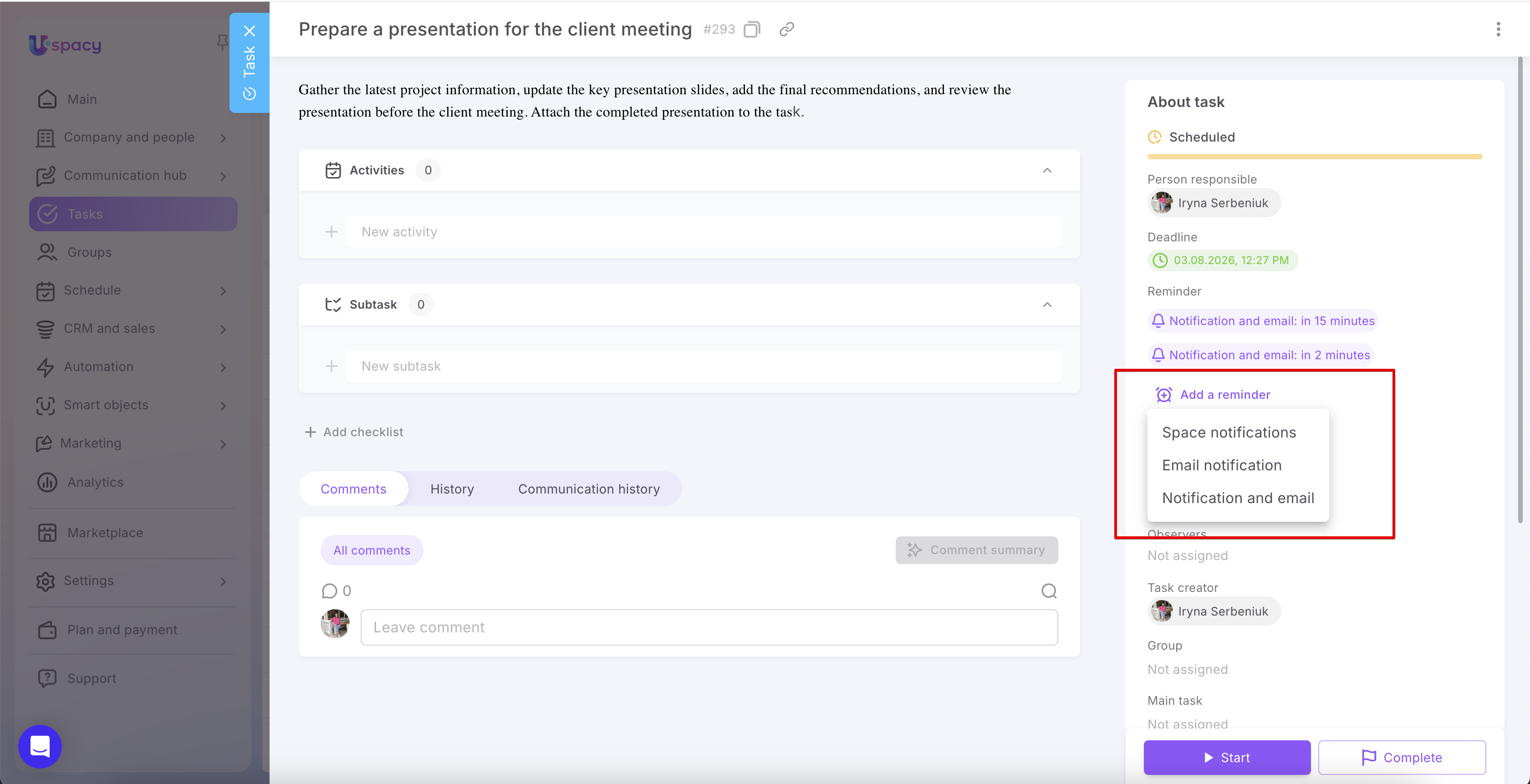
Next, select how you want to receive the reminder:
- Space notification — The user who created the reminder receives an in-app notification in Uspacy.
- Email notification — The reminder is sent to the email address specified in the user's profile.
- Notification and email — The reminder is delivered through both channels.
Then select when the reminder should be sent. You can choose one of the predefined options:
- At the time of the event
- 5, 10, 15, or 30 minutes before
- 1 or 2 hours before
- 1 or 2 days before
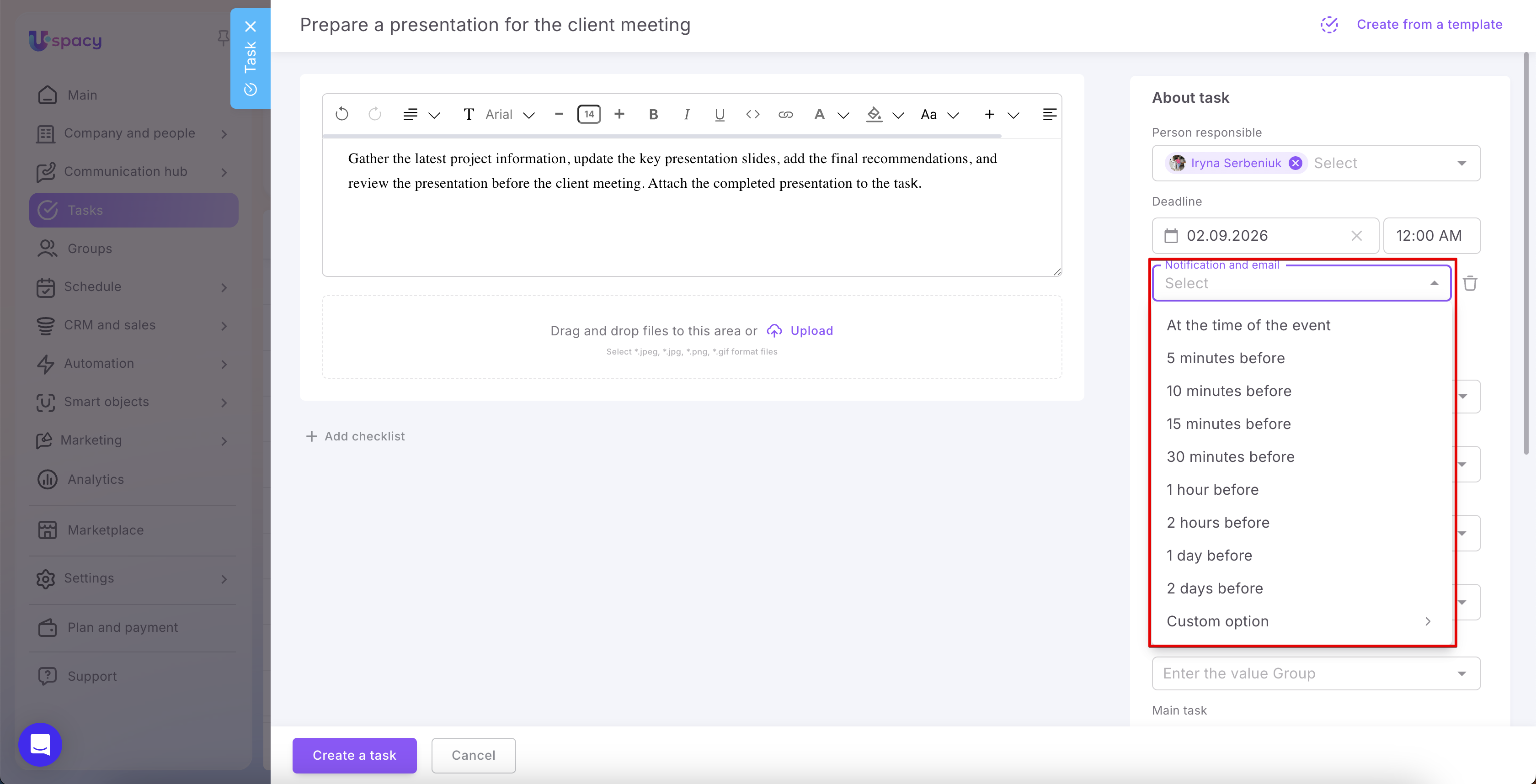
If none of the predefined options fit your needs, select Custom one. Enter a numeric value and select whether the reminder should be sent a certain number of minutes, hours, or days before the due date.
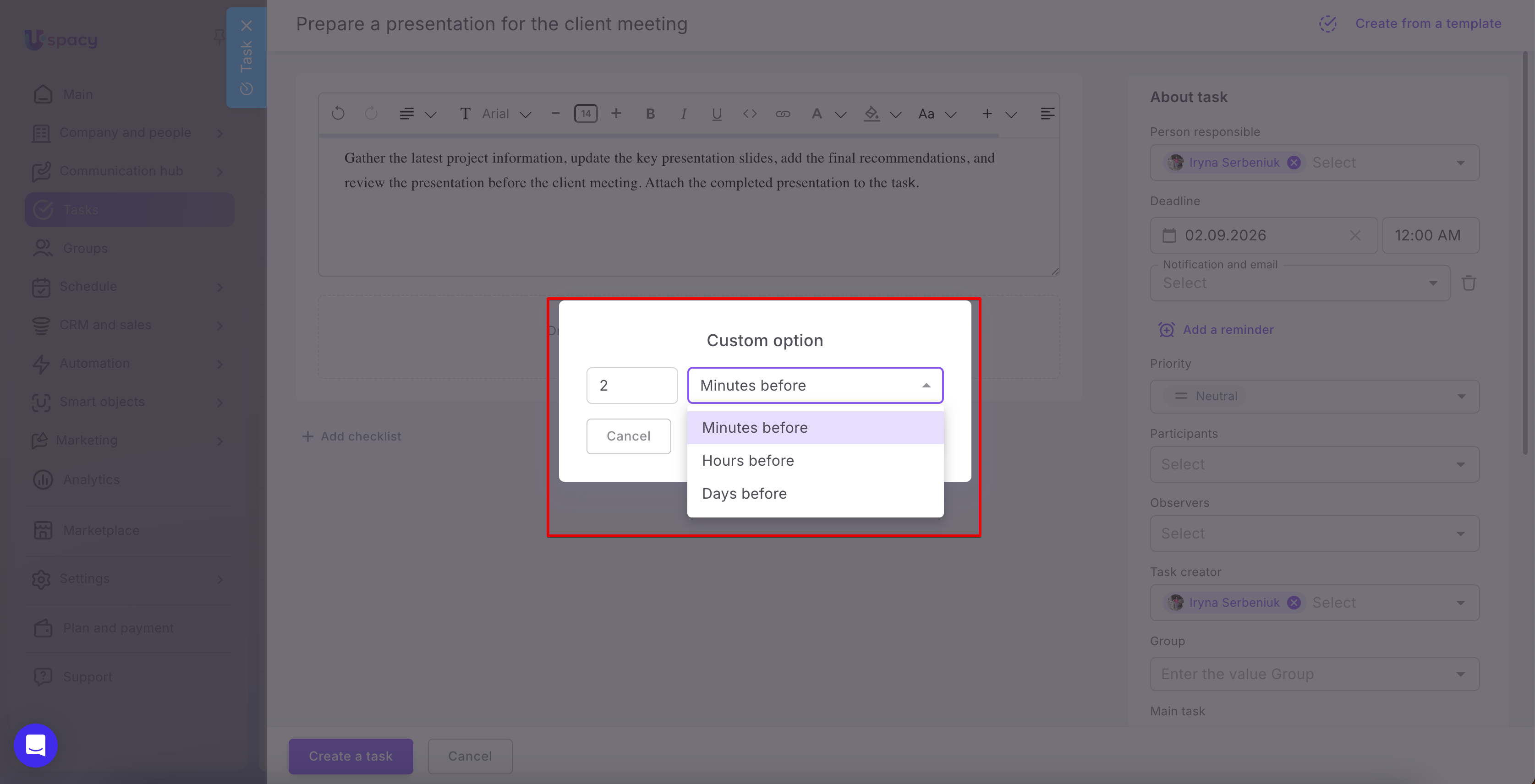
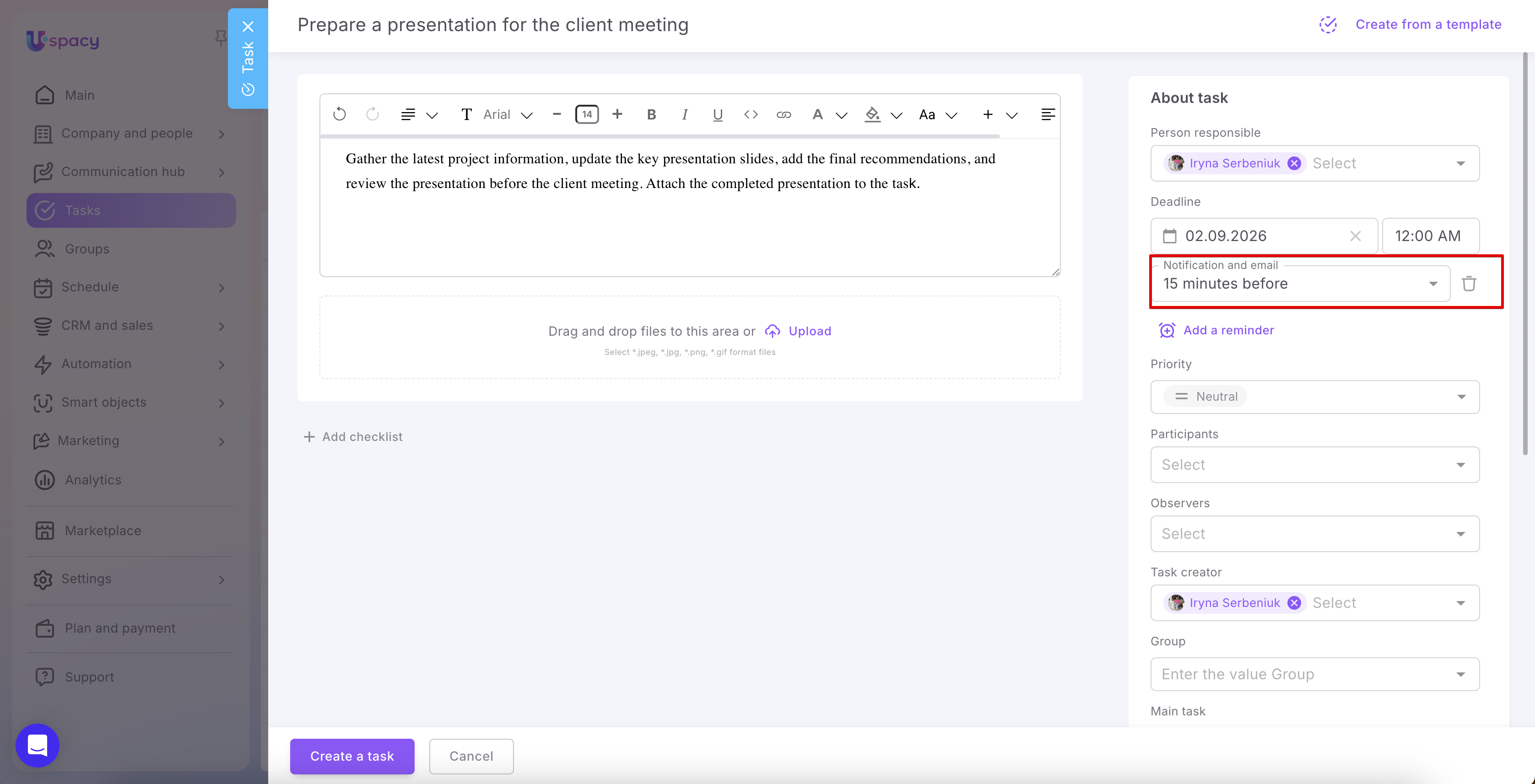
After you select the reminder time, it immediately appears in the task being created.
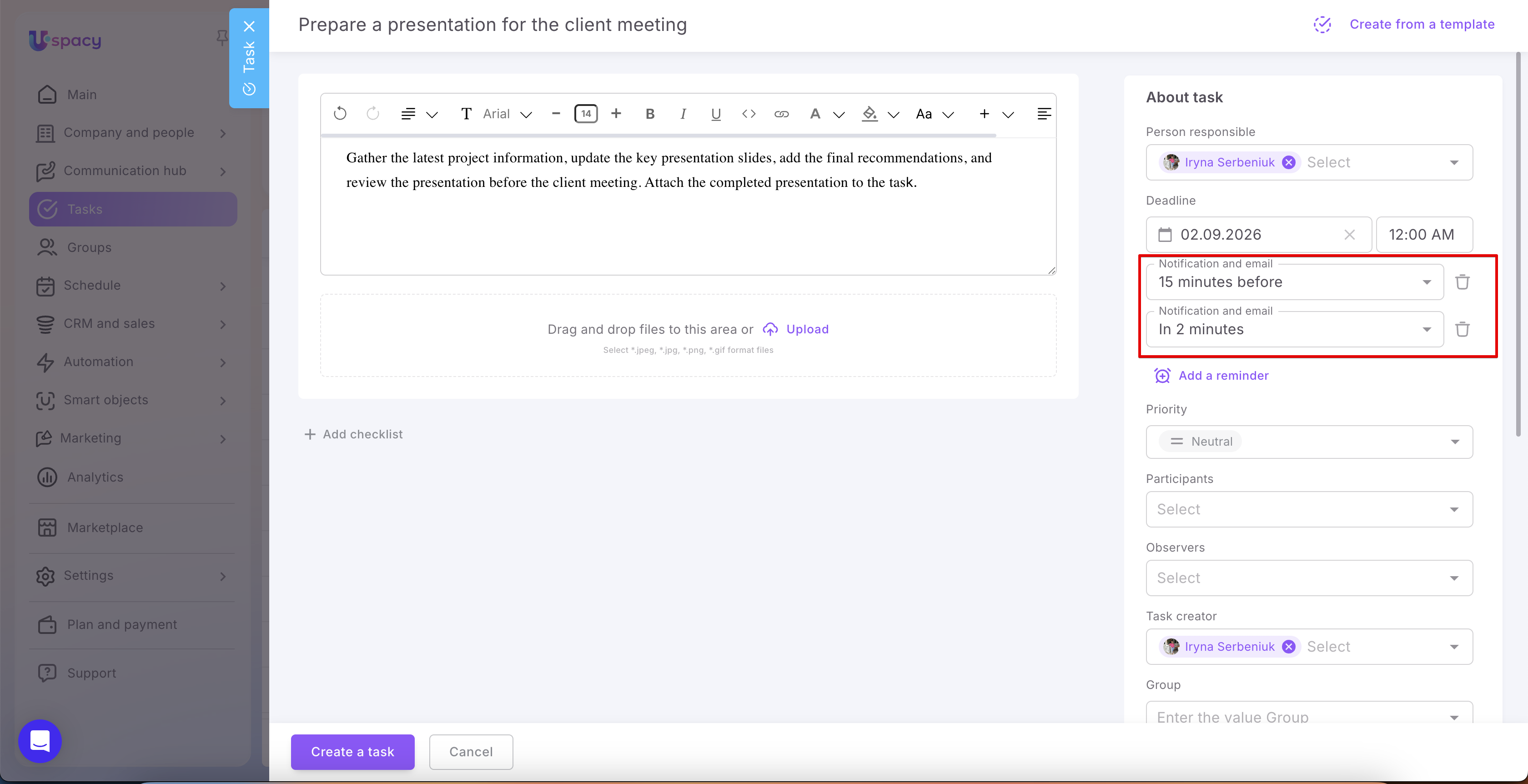
Each participant can create multiple reminders for the same task.
🌟 The number of reminders each user can create for a single task depends on the subscription plan:
- Free — Reminders are not available.
- Standard — One reminder per user, per task.
- Professional — Unlimited reminders per user, per task.
To add another reminder, click Add a reminder again and repeat the configuration. Each reminder appears on a separate line, and you can remove any reminder by clicking the Delete (trash) icon.
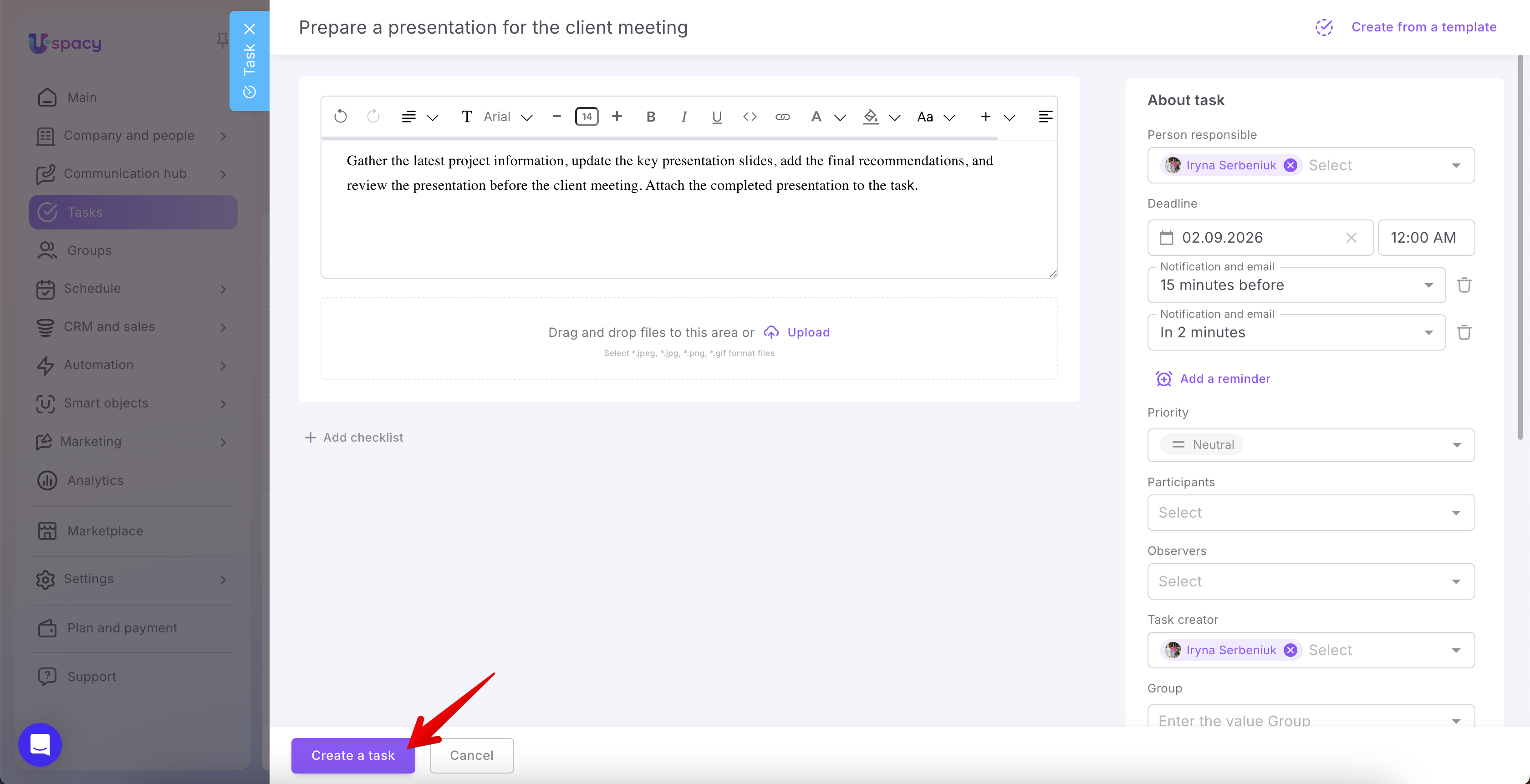
When you're finished, click Create a task.
How to add reminders to an existing task?
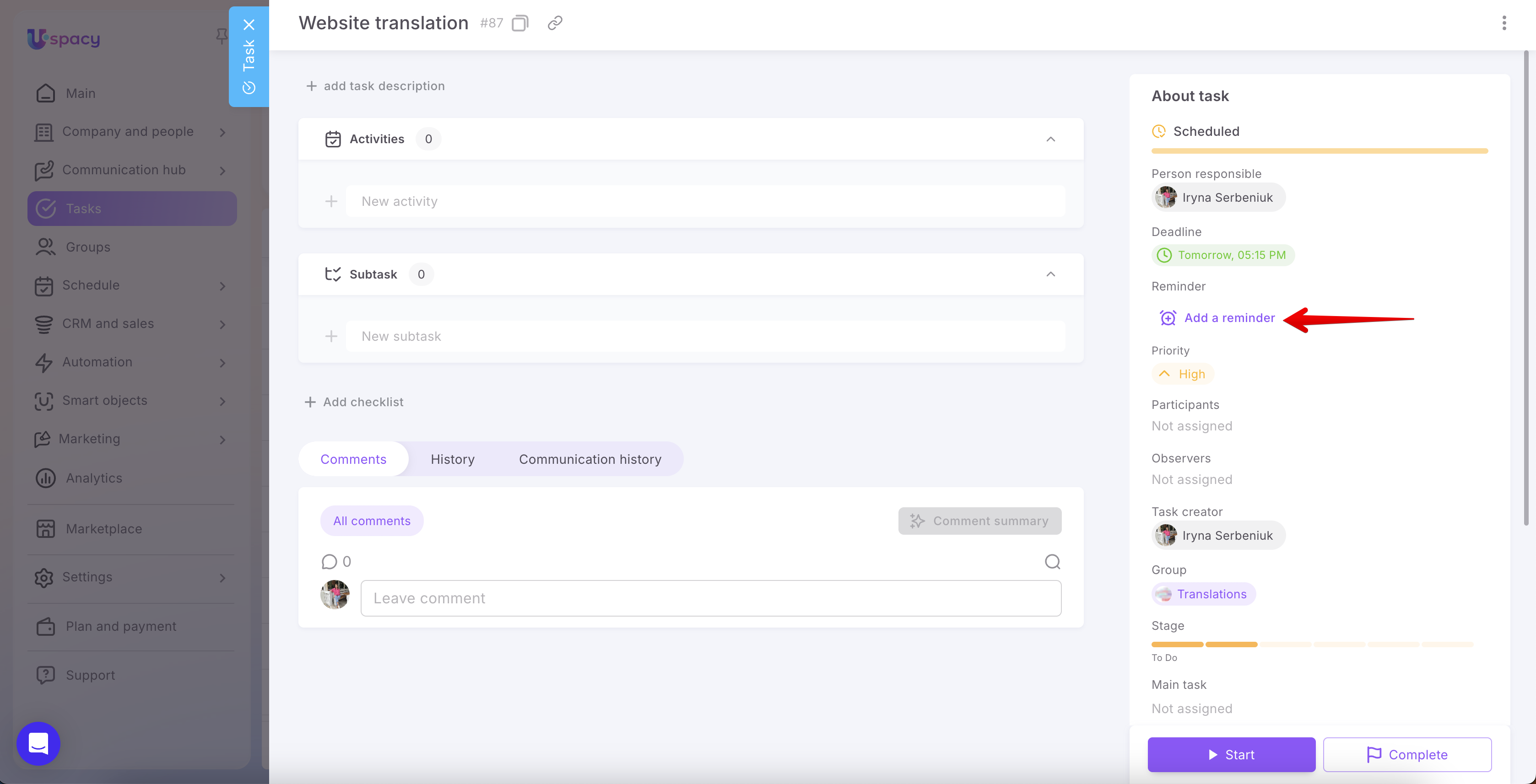
You can also add reminders after a task has been created. Open the task card and locate the Reminders section on the right. Click Add a reminder, then follow the same steps as when creating a task: select the delivery method, specify when the reminder should be sent, and add additional reminders if needed.
💡 The Add a reminder option is available only for tasks that have a future deadline. If no deadline is set or the task is already expired, this option won't be displayed.
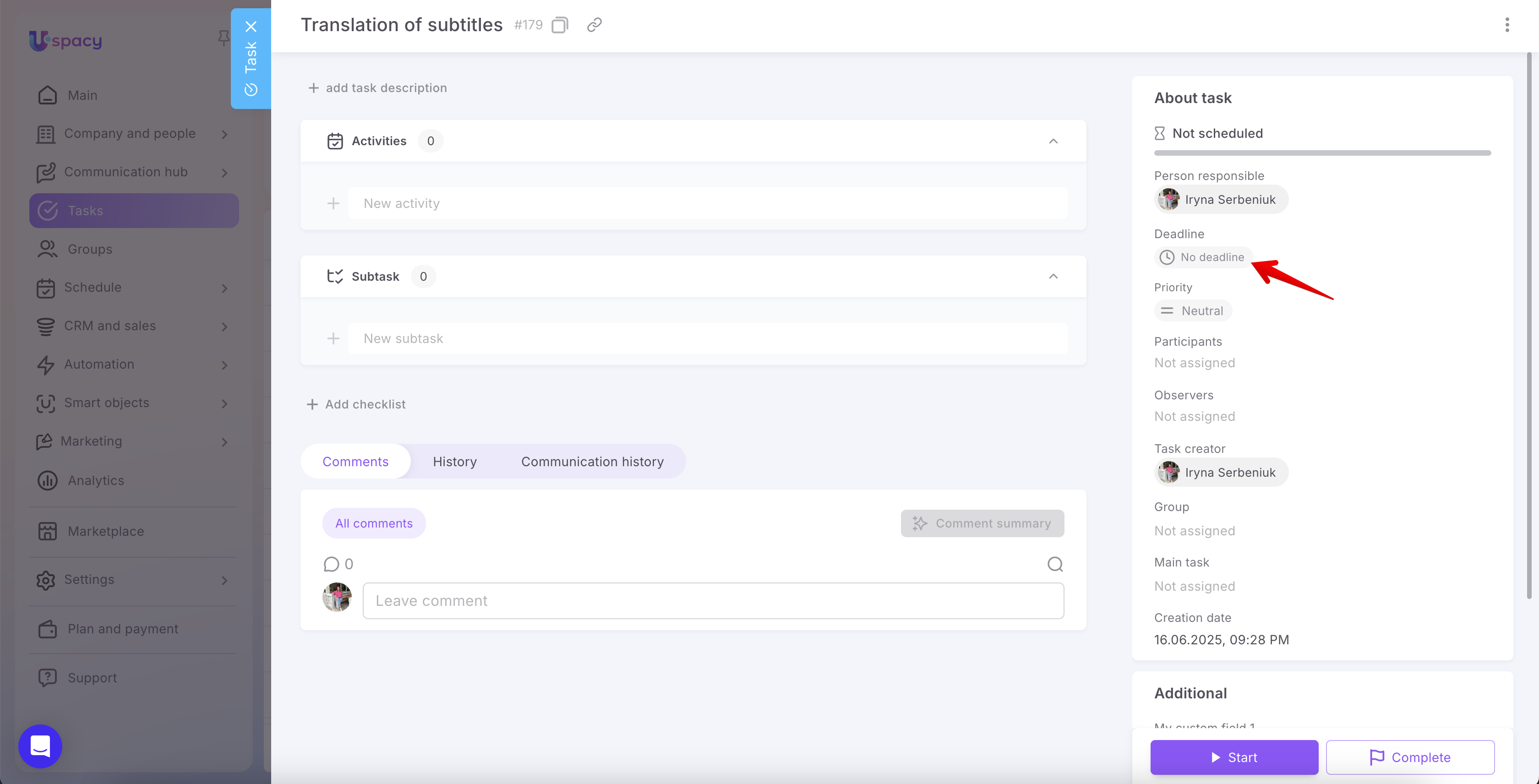
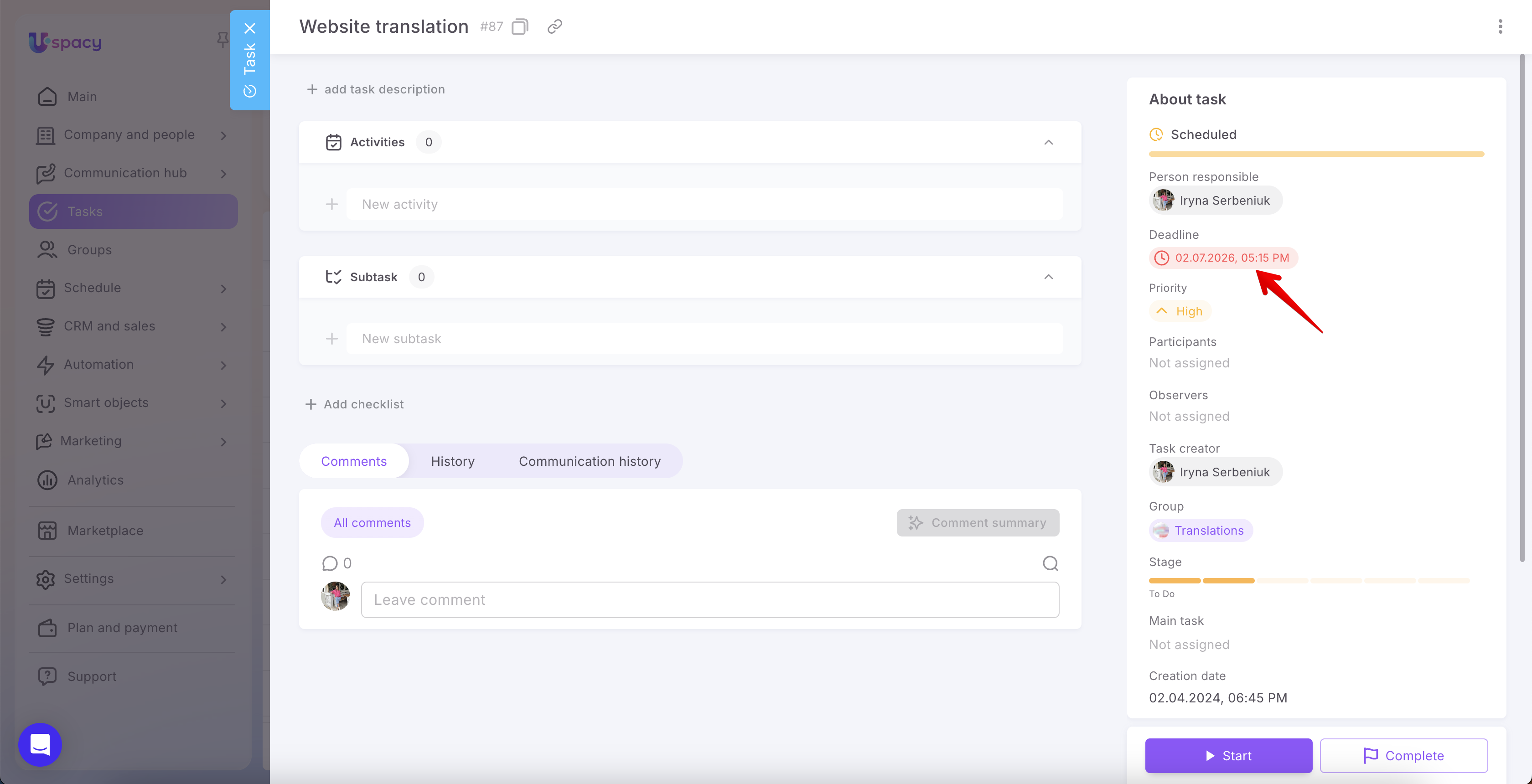
To add a reminder to a task without a deadline, first set one. If the task is expired, update the deadline to a future date and time.
What additional settings are required to receive reminders?
To receive reminders through the appropriate channels, open Profile → Notifications → Tasks.
Under Task reminders, you can select to receive notifications through:
- Space
- Desktop app
- Browser
- Mobile app
These settings determine which Uspacy notification channels are used for task reminders.

If you select Email or Notification and email when creating the reminder, a message will also be sent to the email address marked as Main in your profile.

What do reminders look like?
At the scheduled time, Uspacy automatically sends the reminder using the delivery method you selected.
If you select Space notification, a Task reminder notification appears in the notifications panel. From there, you can open the corresponding task card directly.
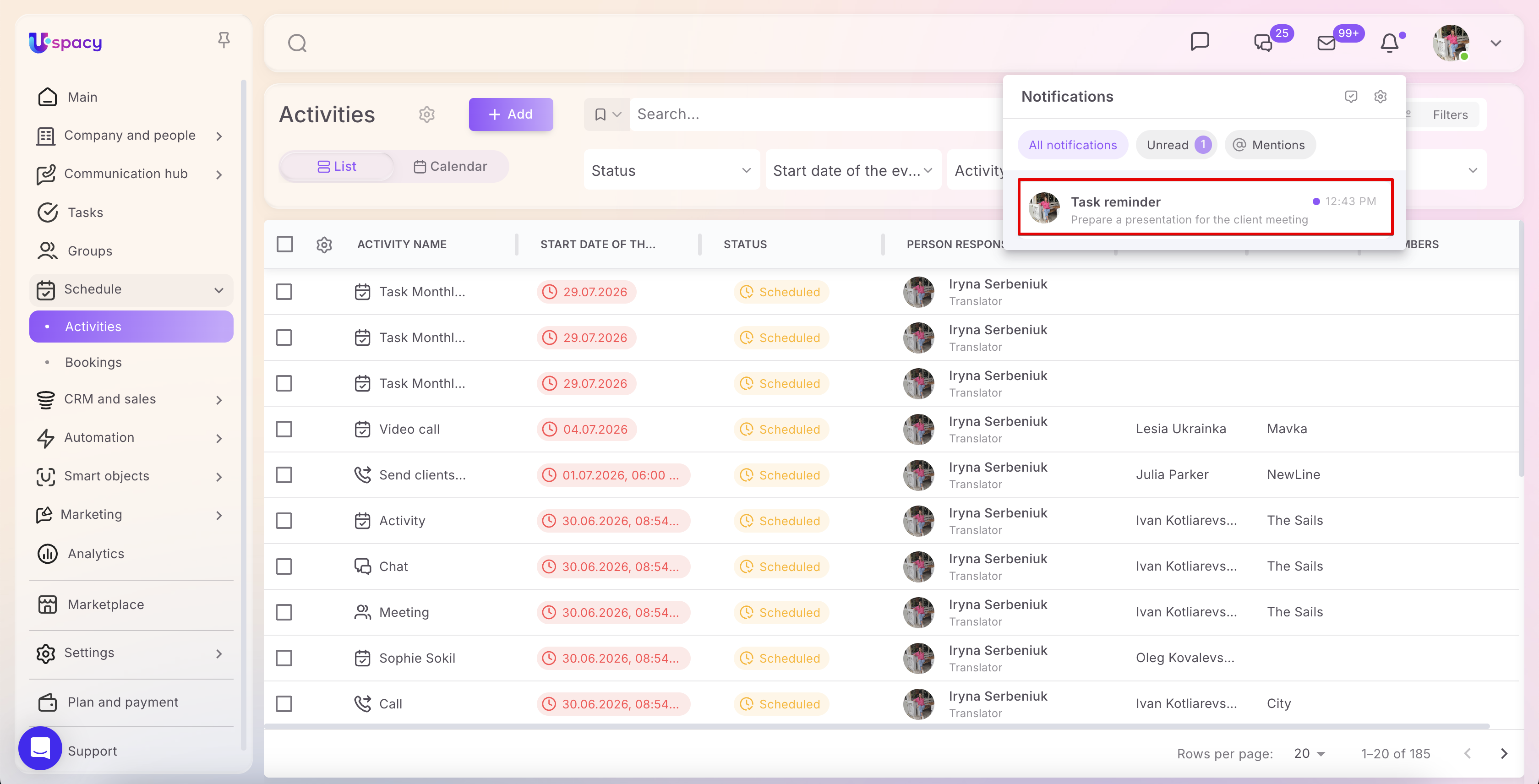
If you select Email or Notification and email, you'll receive an email containing the task name, deadline, and a Go to task button.
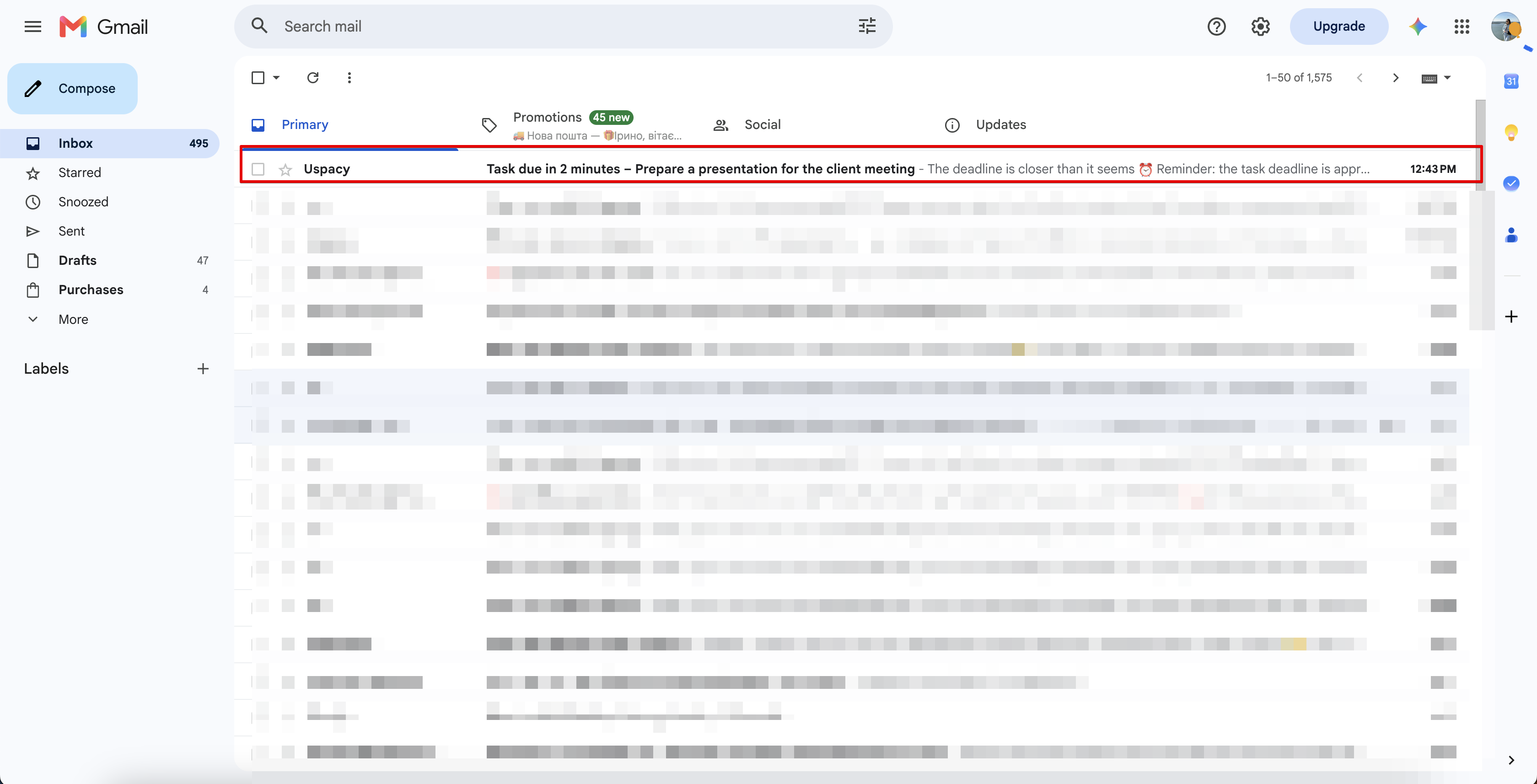

💡 If you select Notification and email, you'll receive both an in-app notification and an email at the same time.
Task reminders help you stay on top of deadlines and return to important work on time. You can configure one or multiple reminders, select how they're delivered, and update or remove them at any time before the task's deadline.
If you have additional questions or you need to contact the support, send a request to this email [email protected]
Created: July 30, 2026 / Updated: August 14, 2026