
You don't have to enter your email address and password every time you sign in to Uspacy. If your Uspacy account is associated with the same email address as your Google account, you can sign in using Google.
Who can sign in with Google?
Google sign-in is available only for existing Uspacy users. The email address used to sign in to Uspacy must exactly match the email address of the Google account you select.
For example, if you sign in to Uspacy with [email protected], you must select the Google account associated with that same email address.
💡 Note: Signing in with Google does not create a new Uspacy account or automatically register a user. It only provides access to an existing Uspacy account.
How can users sign in to Uspacy with Google?
On the Uspacy sign-in page, click Sign in with Google.

The Google sign-in page will open. Select the appropriate Google account. If it isn't listed, click Use another account and enter your Google credentials.
Make sure the email address of the selected Google account matches the email address used to sign in to your Uspacy account.
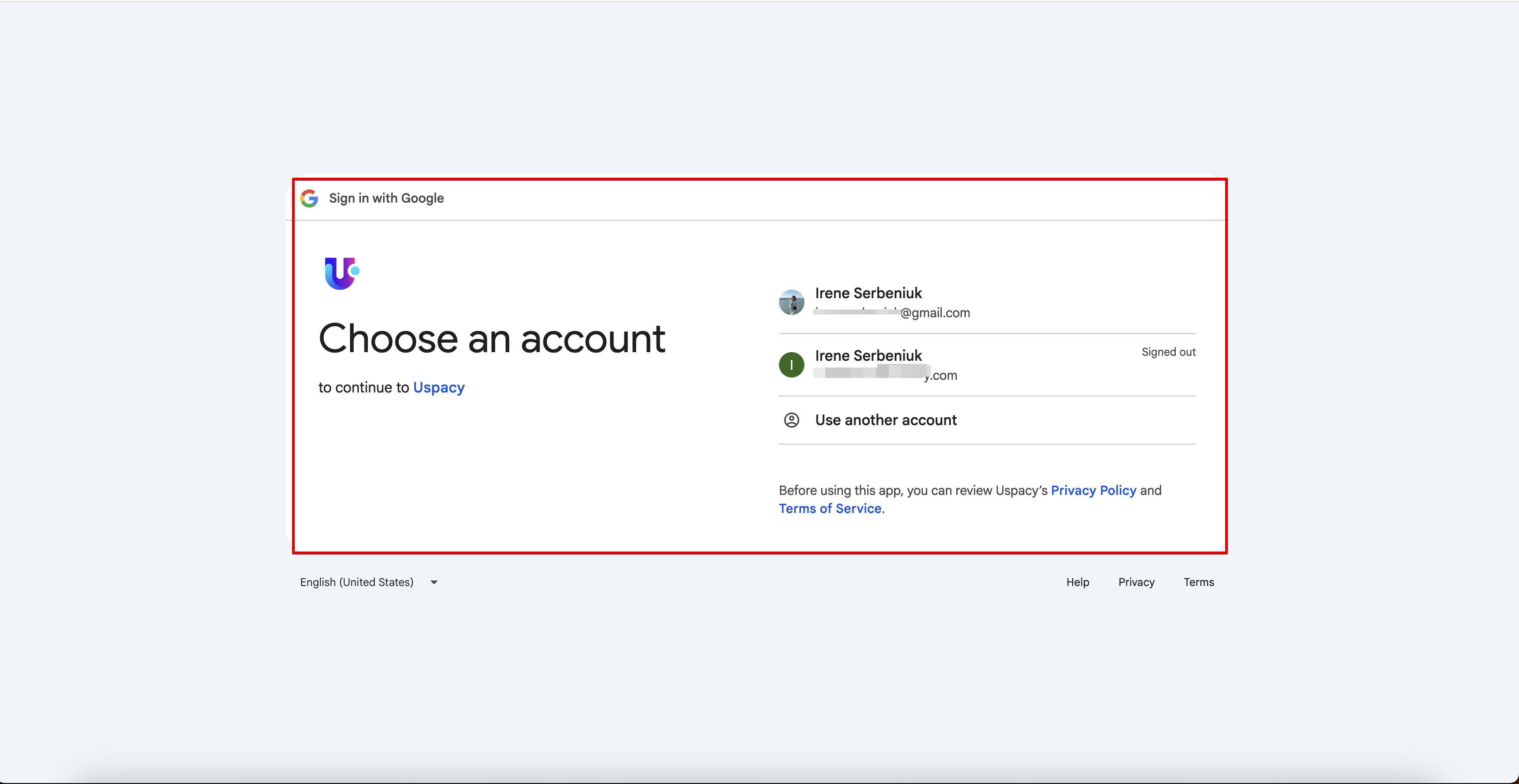
The first time you sign in, Google may display the information that Uspacy will access to verify your identity:
- Name
- Profile picture
- Email address
Verify that you've selected the correct account, then click Continue.
After successful authentication, you'll be signed in to your Uspacy account automatically. You won't need to enter your Uspacy password.

💡Note: Google sign-in is used only to authenticate your Uspacy account. It does not connect your Gmail mailbox to the Communication hub or provide access to your email messages.
What can be done if sign-in fails?
First, verify that the email address of the selected Google account matches the email address used to sign in to Uspacy.
If the email addresses don't match:
- Return to the account selection screen and select a different Google account.
- Sign in to Uspacy using your email address and password instead.
If you don't yet have a Uspacy account associated with the required email address, you'll need to register or be granted access to the appropriate Workspace first. After that, you'll be able to use Google sign-in for future authentication.
Google sign-in provides a faster way to access Uspacy without entering a separate password. Simply select the Google account whose email address matches the login email of your existing Uspacy account.
If you have additional questions or you need to contact the support, send a request to this email [email protected]
Created: July 16, 2026 / Updated: July 16, 2026