
When clients frequently ask similar questions, writing a response from scratch each time can be inconvenient. That’s where Uspacy quick replies come in—they are pre-written email subjects and messages that you can reuse. Select the template you need while composing a message, add any necessary details, and send it to the client.
Email quick replies are stored in a separate tab under Communication hub → Quick replies. Here, you can create new templates, edit existing ones, and manage their active status.
How to create a new quick reply?
🌟 Only Workspace administrators and the owner can create quick replies.
The number of quick replies you can create depends on your subscription plan:
- Free — This feature is not available.
- Standard — Up to 5 quick replies.
- Professional — Unlimited quick replies.
Go to Communication hub → Quick replies and select the Emails tab.

Click Create. If you don’t have any quick replies yet, you can also click + Quick reply in the center of the page.

In the form, complete the following three fields:
- Name — Helps you find the template in the list of quick replies. For example, “Order details confirmation.”
- Subject — Will be automatically inserted when you create a new email using the template.
- Message — The main body of the email. You can format it using the built-in editor and attach a file.

When you’re finished, click Create. The quick reply will appear in the list with an Active status, so you can start using it in emails right away.


How to add variables to the email subject and body?
Variables allow you to automatically insert data from your Workspace into a template, such as an employee’s name or information from a related CRM record. You can add variables to both the email subject and message body. To do this, click the {+} icon next to the desired field.

A list of available variable groups will open: Employee, Space billing details, Lead, Deals, Contacts, and Company.

🟣 Employee — Information about the user who is using the quick reply. Available fields include first name, last name, middle name, and position. For example, you can add these variables at the end of an email to automatically include the manager’s name and position.

🟣 Space billing details — Company information from its registered details, such as its legal name, address, payment details, and other information, such as a signature or stamp. This allows you to create a reply containing payment details or automatically add the company’s full legal name to the email.

🟣 Lead / Deals / Contacts / Company — Information from CRM records related to the email. Each entity has its own available fields. For example, you can insert a client’s name, company name, or deal information. This helps personalize emails and use information that your team has already entered into the CRM.


You can view the available fields in each group and select the ones you need for your template. Once added, a variable appears as a separate element in the email subject or message.
For example, you can add an employee’s first and last name, as well as the company’s full legal name from the Workspace details, at the end of the message. When you use the template, Uspacy automatically replaces the variables with the corresponding values.


💡 Important:
- The values inserted from the CRM depend on where you are composing the email. If you create an email from a deal record, Uspacy can use information from that deal and its related records. For example, the name of a contact associated with the deal will be inserted into the quick reply even if the new email has not yet been created and does not have a separate association with that contact. If the selected field contains no data, the variable will remain blank.
- If an employee does not have permission to access a related CRM record, Uspacy cannot retrieve data from its fields. In this case, the variable will also remain blank.
How to deactivate a quick reply?
If you don’t need a template temporarily or need to update its content, you can deactivate it. To do this, open the Actions menu next to the quick reply and select Deactivate.

The quick reply will remain in the list with a Deactivated status, but it will no longer appear among the templates available when composing an email.
To use it again, open the same menu and click Activate.

How to edit a quick reply?
Open the Actions menu next to the template you want to modify and select Edit.

In the form, you can change the name, subject, message, or added variables. Once you’ve made your changes, click Save.

How to duplicate a quick reply?
If you need a similar template, open the Actions menu next to the existing quick reply and select Duplicate.

The new form will already contain the subject and message, and (copy) will be added to the name. Update the fields you need and save the copy as a separate quick reply.

How to delete a quick reply?
If you no longer need a template, open its Actions menu and click Delete.

Confirm the action.

❗ Important: Deleting a quick reply cannot be undone. If you may need the template again later, it’s better to deactivate it instead.
Search and filters
When your team has created a large number of quick replies, the search bar and filters help you avoid scrolling through the list manually and quickly find the template you need.
Search bar (1) — Helps you find a quick reply by keywords in its name.
Filters (2):
- Created by — Shows replies created by a specific user.
- Creation date — Helps you filter replies by a specific date or creation period.
- Status — Separates active templates from deactivated ones.

How to use quick replies?
You can select a quick reply when composing a new email or replying to a client’s message in Email.
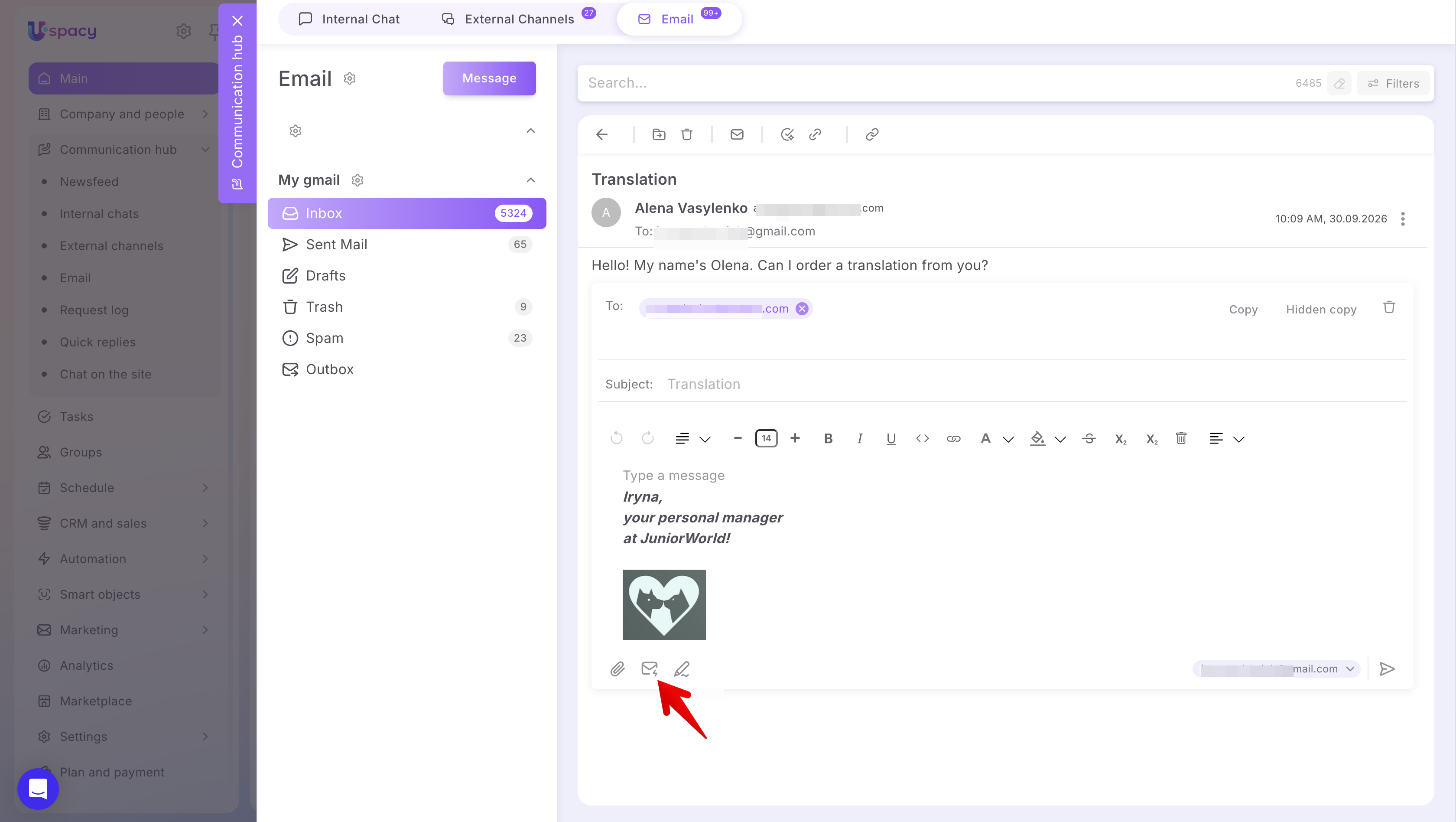
Quick replies are also available when composing an email from a CRM record.
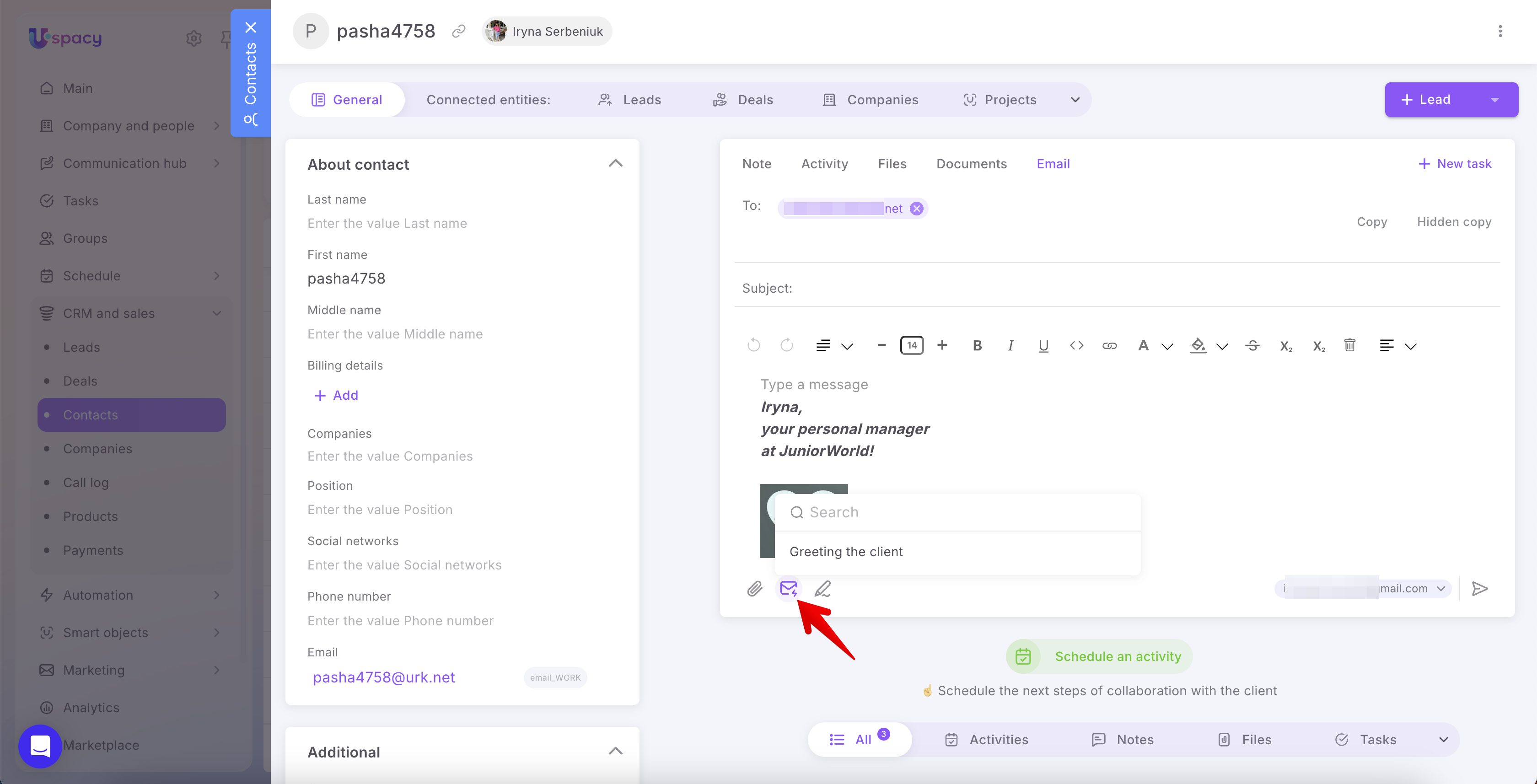
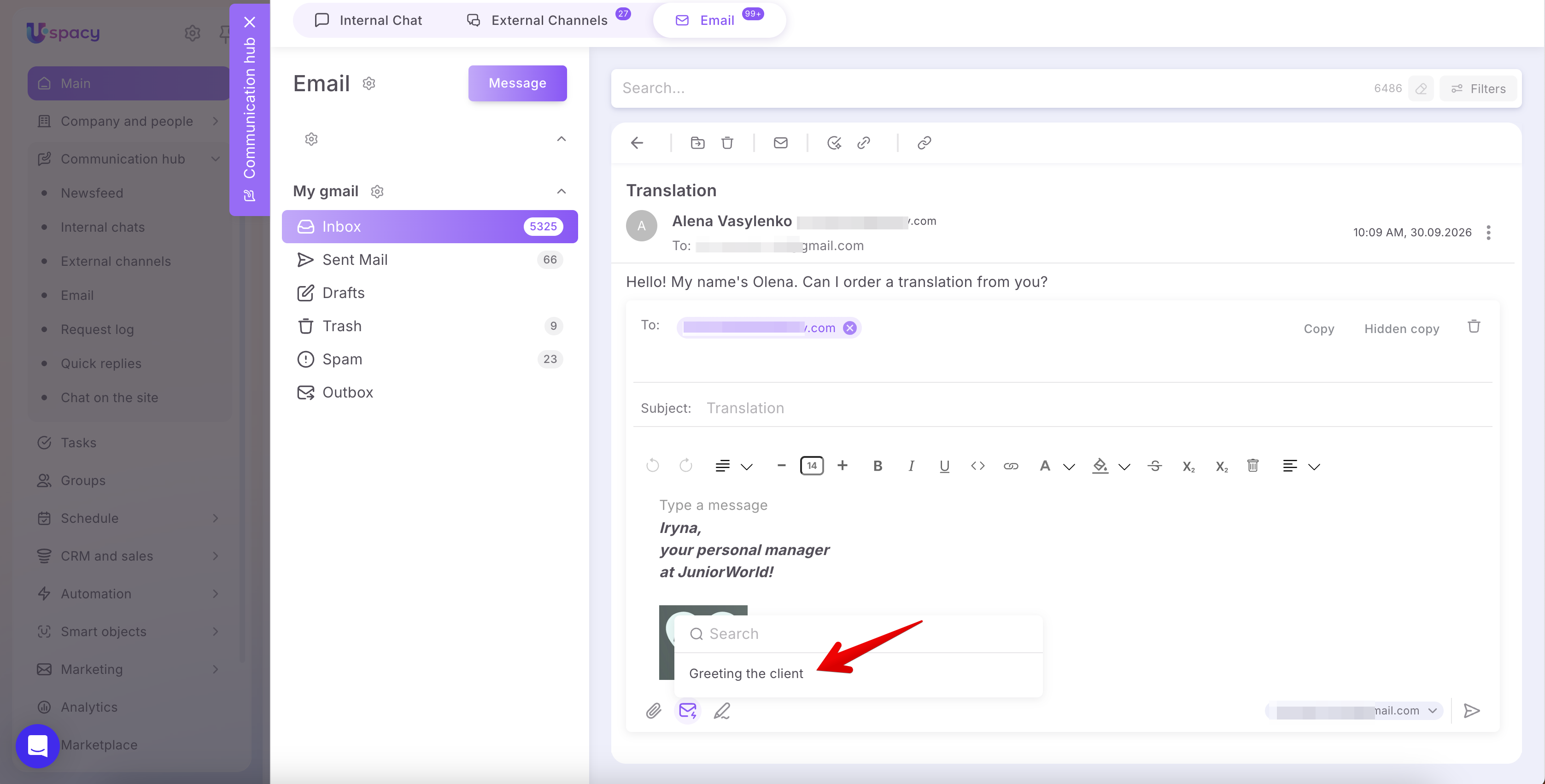
Find the template you need in the list.
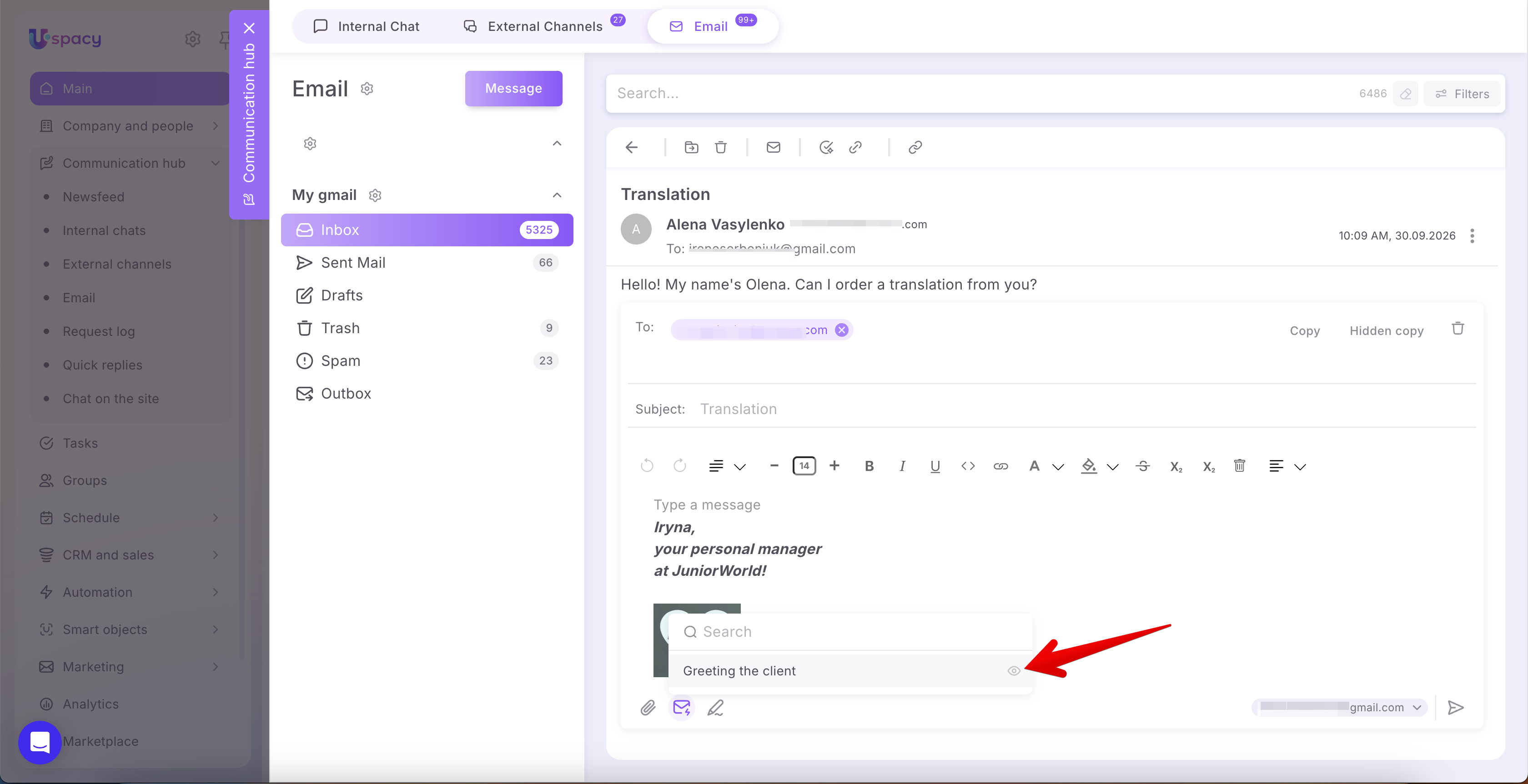
If you want to review its content first, click the eye icon to open a preview of the subject and message with the variable values filled in.
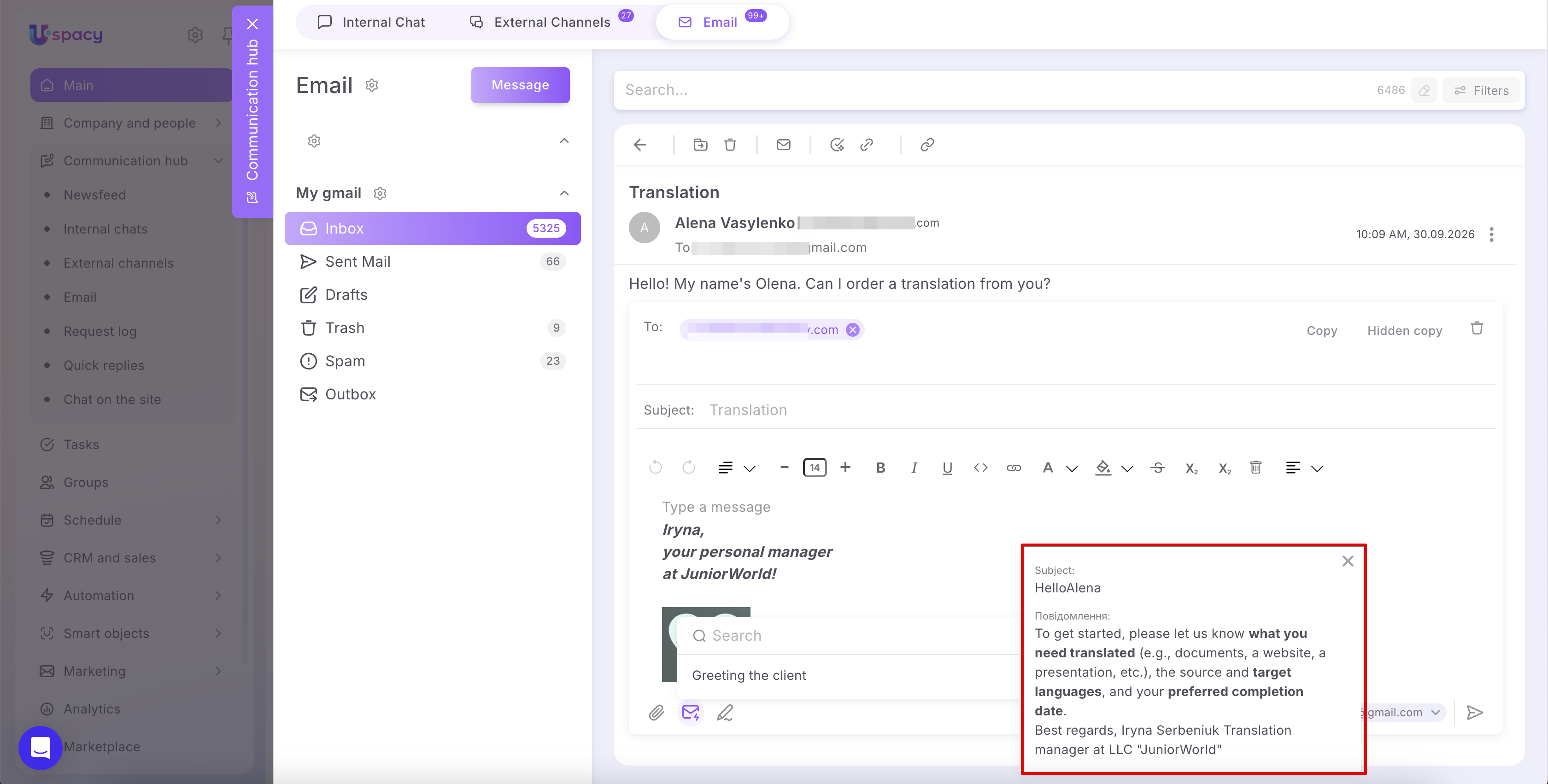
Click the quick reply’s name to add it to the email. Review the subject and message, make any necessary changes, and only then send the email.
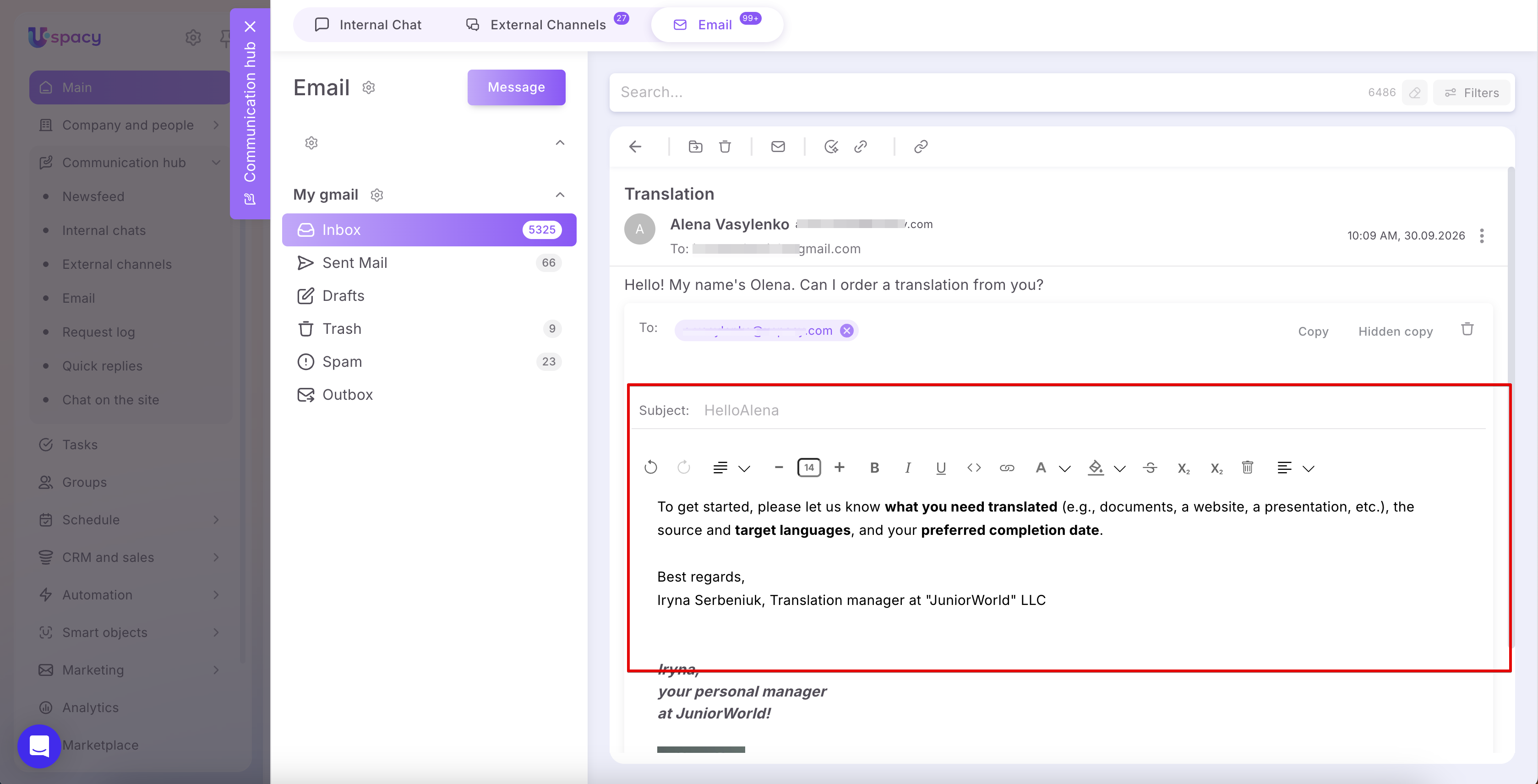
💡 If you select one quick reply and then select another, the text from the second quick reply will be added to the text already inserted into the message rather than replacing it.
If you want only the new text to be inserted, manually delete the previously inserted text from the message field before selecting another quick reply.
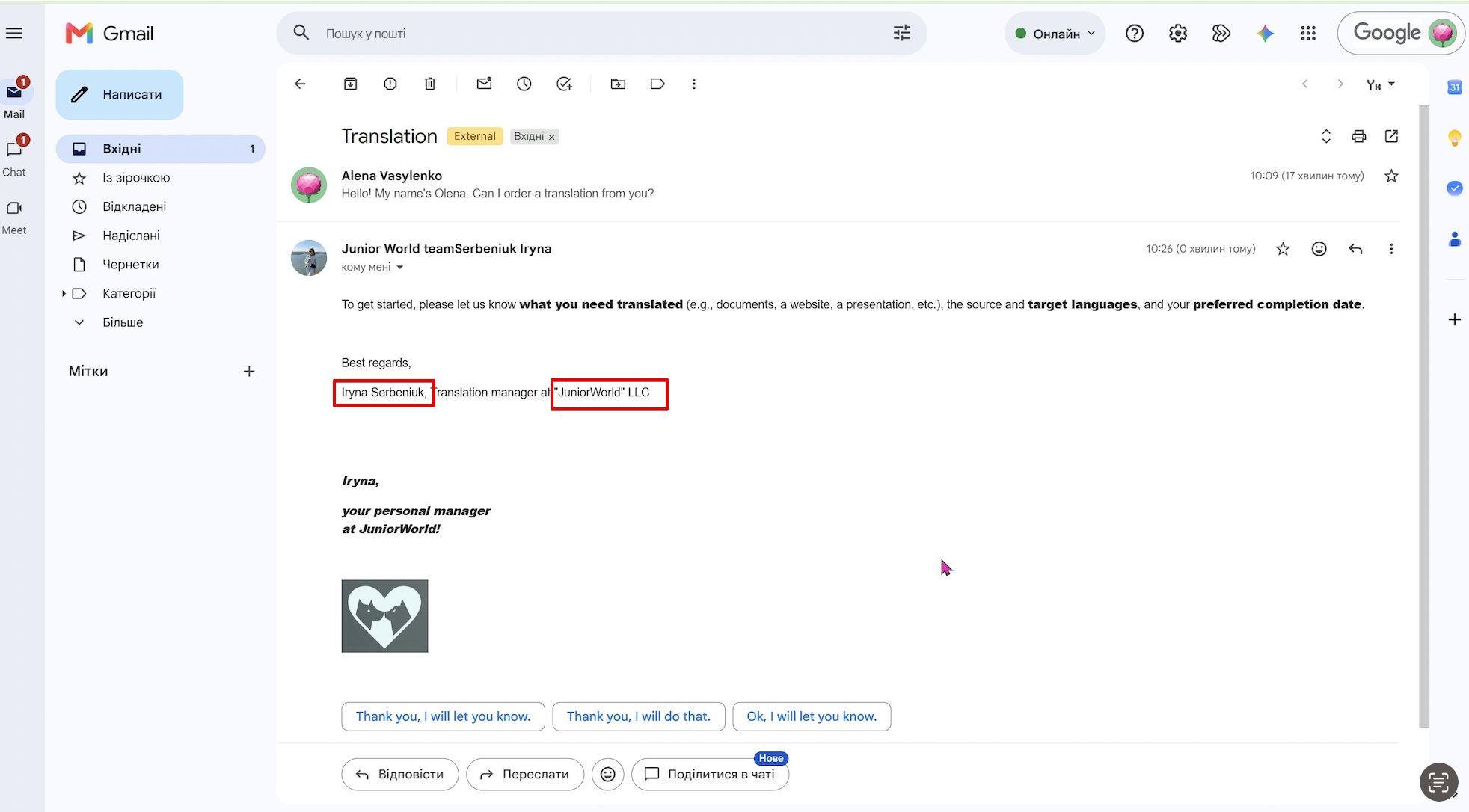
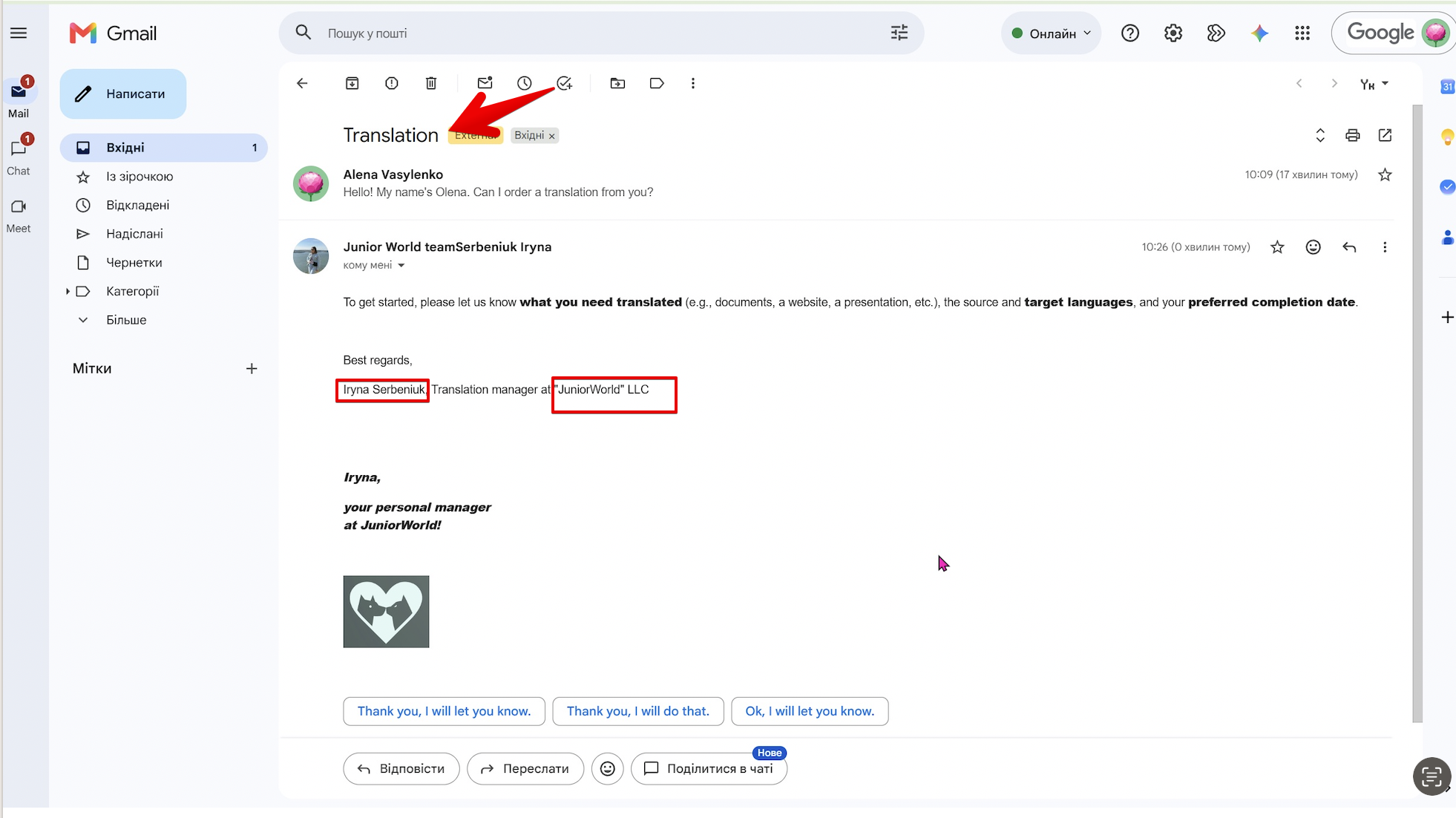
💡 If you’re composing a new email, the subject from the quick reply will be inserted into the Subject field. If you’re replying to a client’s email, the template subject will be displayed in the Uspacy composer. However, the sent reply will remain in the same email thread under the subject provided by the client.
For example, a client sends an email with the subject “Translation,” while the quick reply has the subject “Hello, Alena.” After you send the reply, the conversation in the mailbox will continue under the subject “Translation.”
Quick replies save you from having to write common emails from scratch every time. Prepare the subject and message, add the variables you need, and your team can use the template while working in Email or from a CRM record. Before sending, check the inserted information and add any details that are relevant to the specific client. It’s a fast and convenient way to save time and streamline your workflow.
If you have additional questions or you need to contact the support, send a request to this email [email protected]
Created: September 29, 2026 / Updated: September 30, 2026