
Pabbly Connect allows you to connect different services and automatically transfer data between them. Each workflow consists of a trigger—the event that starts the process—and one or more subsequent actions.
For example, after receiving data from a website form, Pabbly Connect can automatically create a CRM element or task in Uspacy, or add a comment or note.
How to install the integration app
In the Marketplace, find the free Pabbly Connect app and click Get.

After installing the app, open its settings.

Here, you'll find a token (secret key) required to connect your Space to Pabbly Connect.

💡 The token is unique, so do not share it with third parties. If necessary, you can revoke the token and generate a new one. After that, you'll also need to update the connection details in Pabbly Connect.
How to set up the integration
Sign in to your Pabbly Connect account, create a new Workflow, and configure the event (trigger) that will start it.
Then click Add Action and find the Uspacy Connect app.
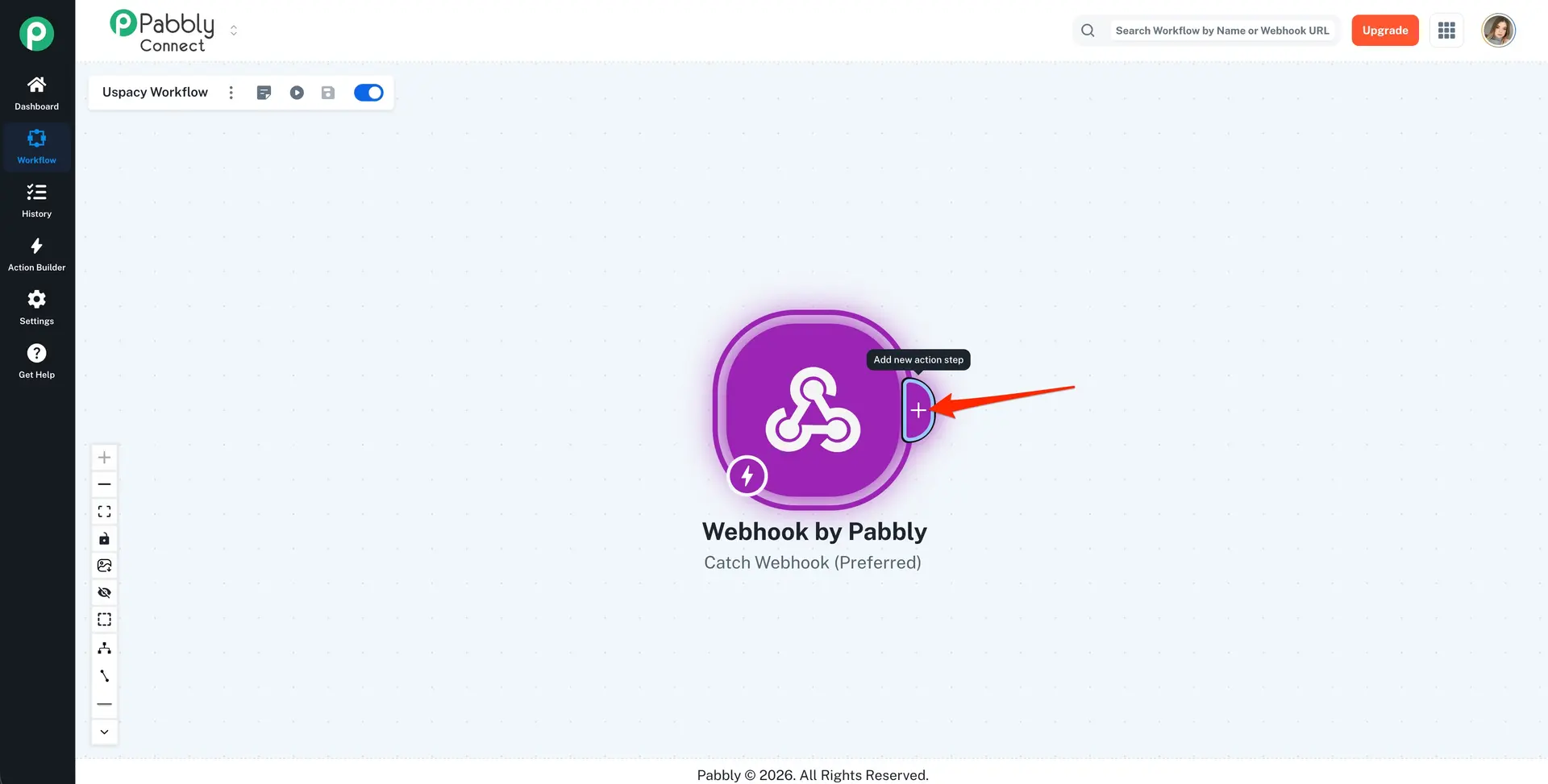
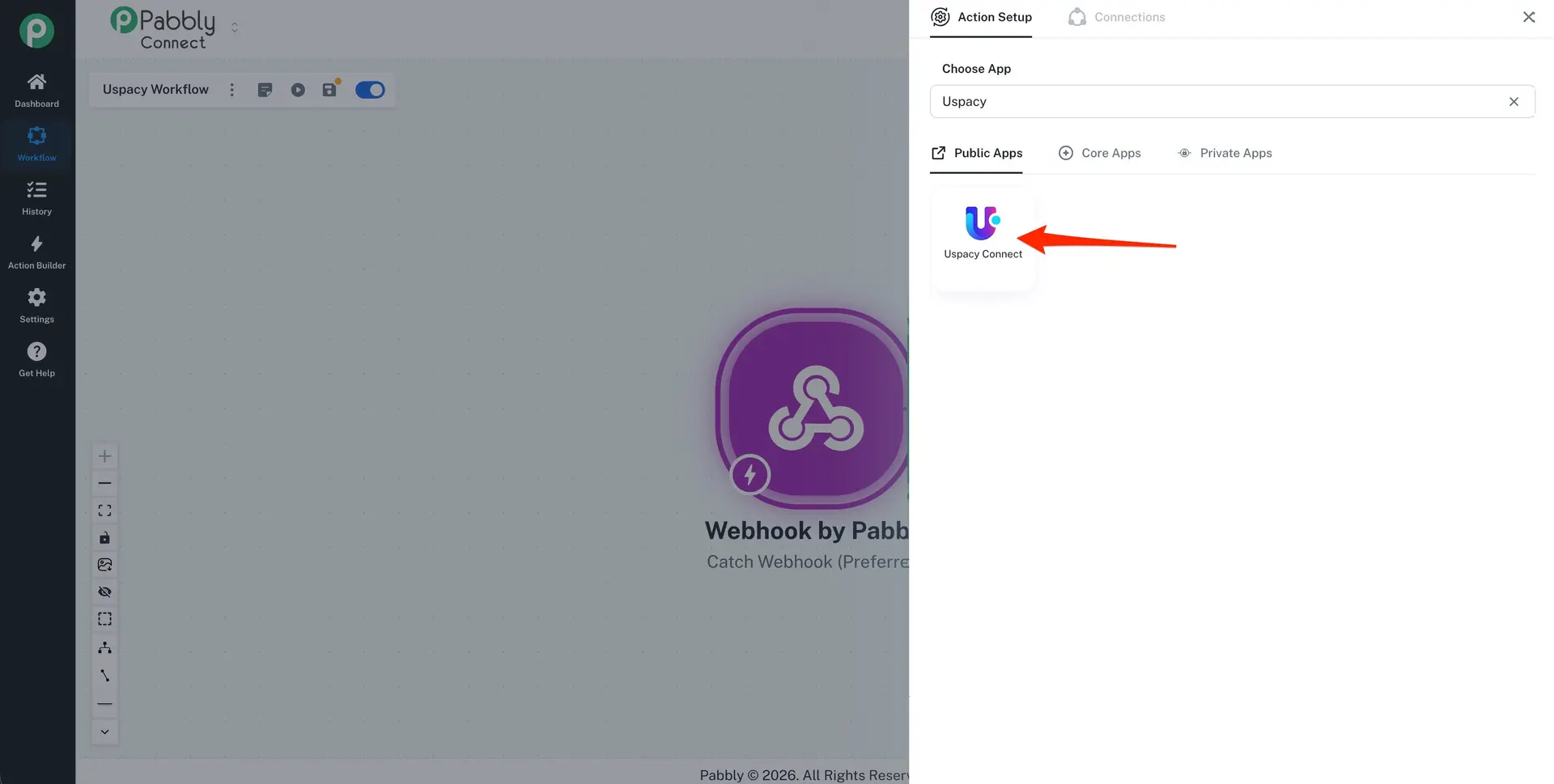
Select the required event in the App Event field.
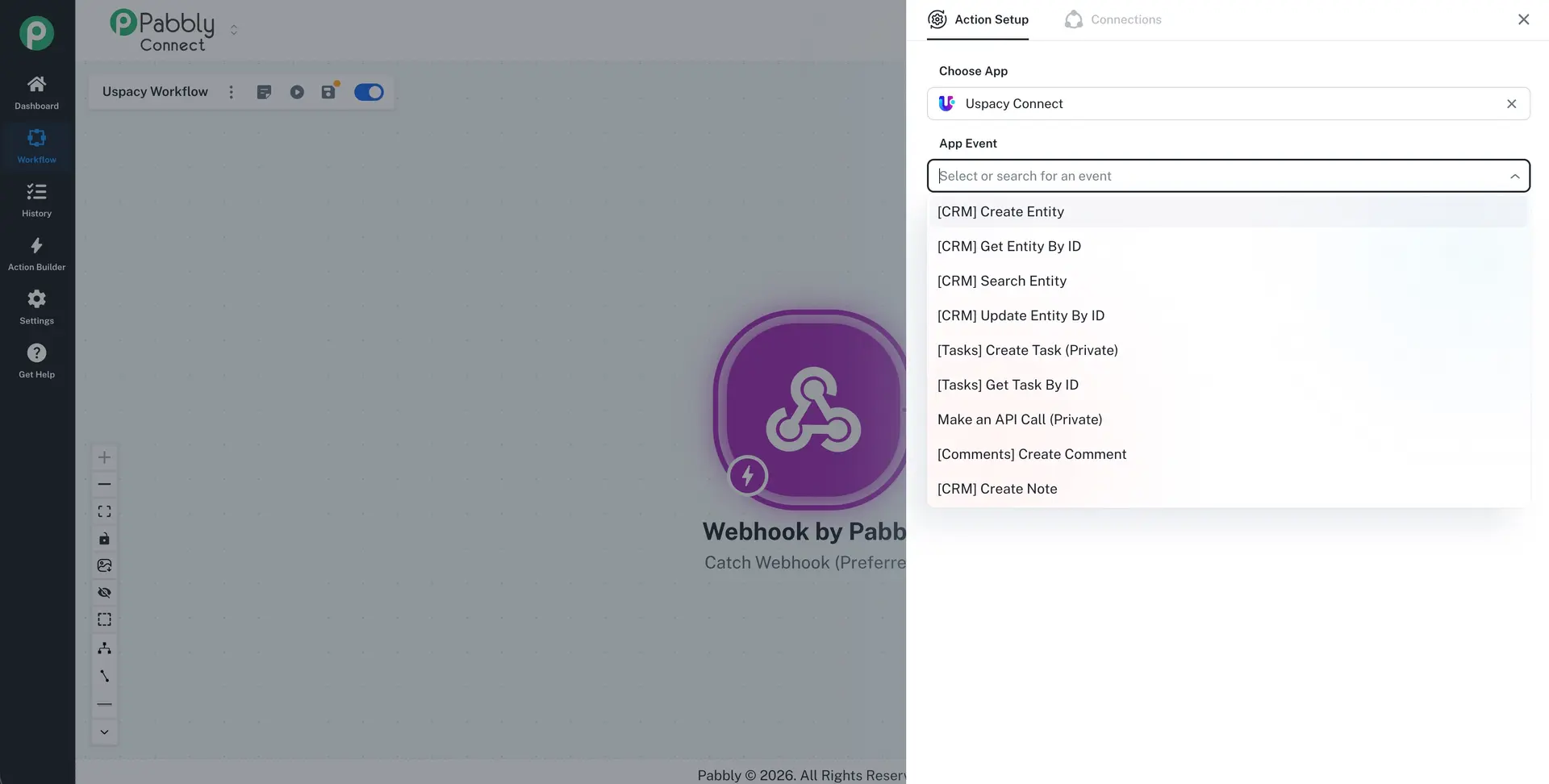
The available actions allow you to:
create CRM elements;
retrieve a CRM element by ID;
search for CRM elements;
update CRM elements by ID;
create tasks;
retrieve tasks by ID;
add comments;
create notes in CRM;
make API requests.
After selecting an action, click Connect.
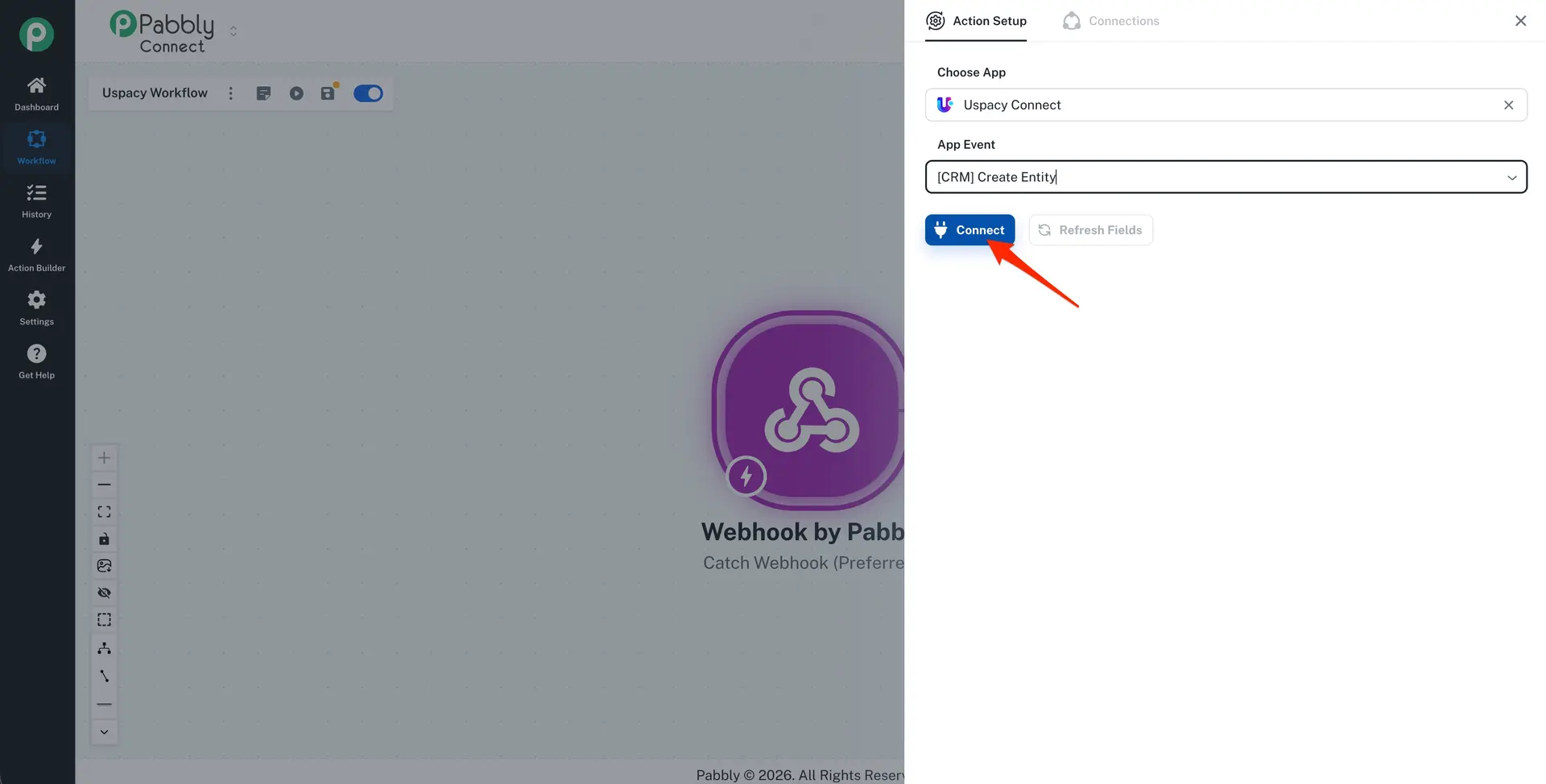
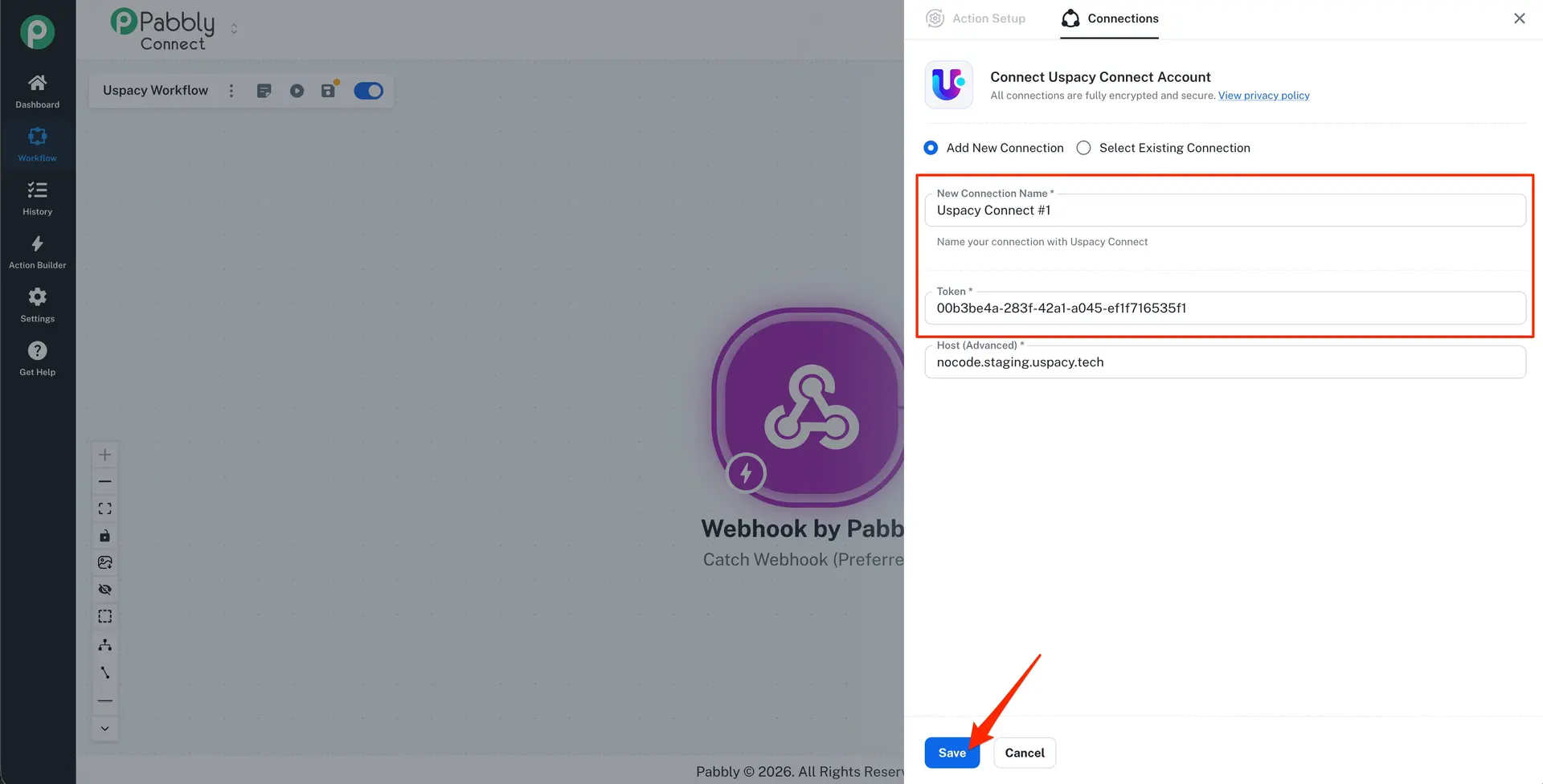
If you are connecting this Space for the first time, select Add New Connection and complete the following fields:
- New Connection Name — enter any name that will help you identify the connection.
- Token — enter the token from the Pabbly Connect app settings in the Uspacy App Store.
The Host (Advanced) field is populated automatically.
Click Save.
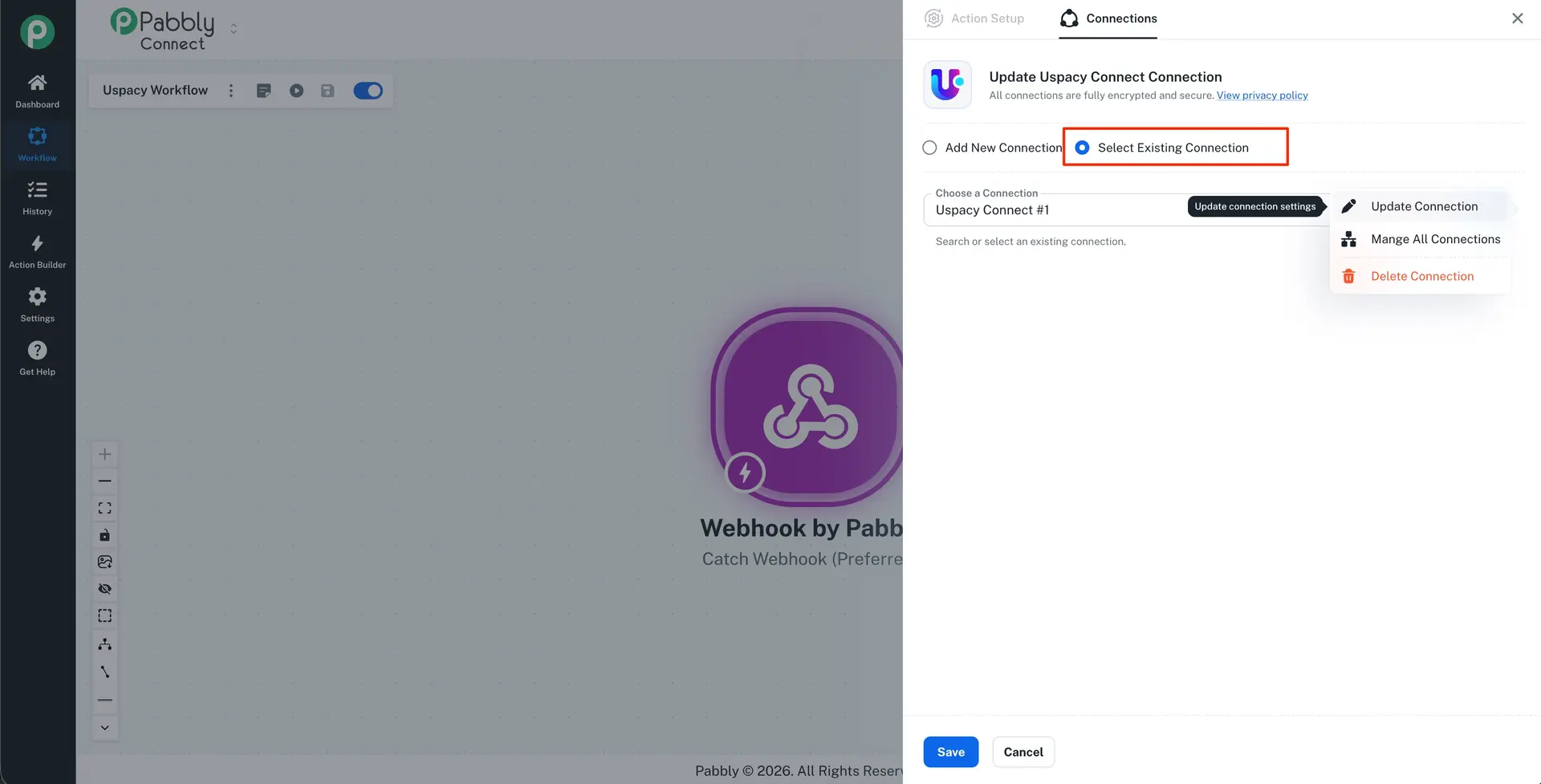
💡 If the required Space is already connected, select Select Existing Connection and choose it from the list.
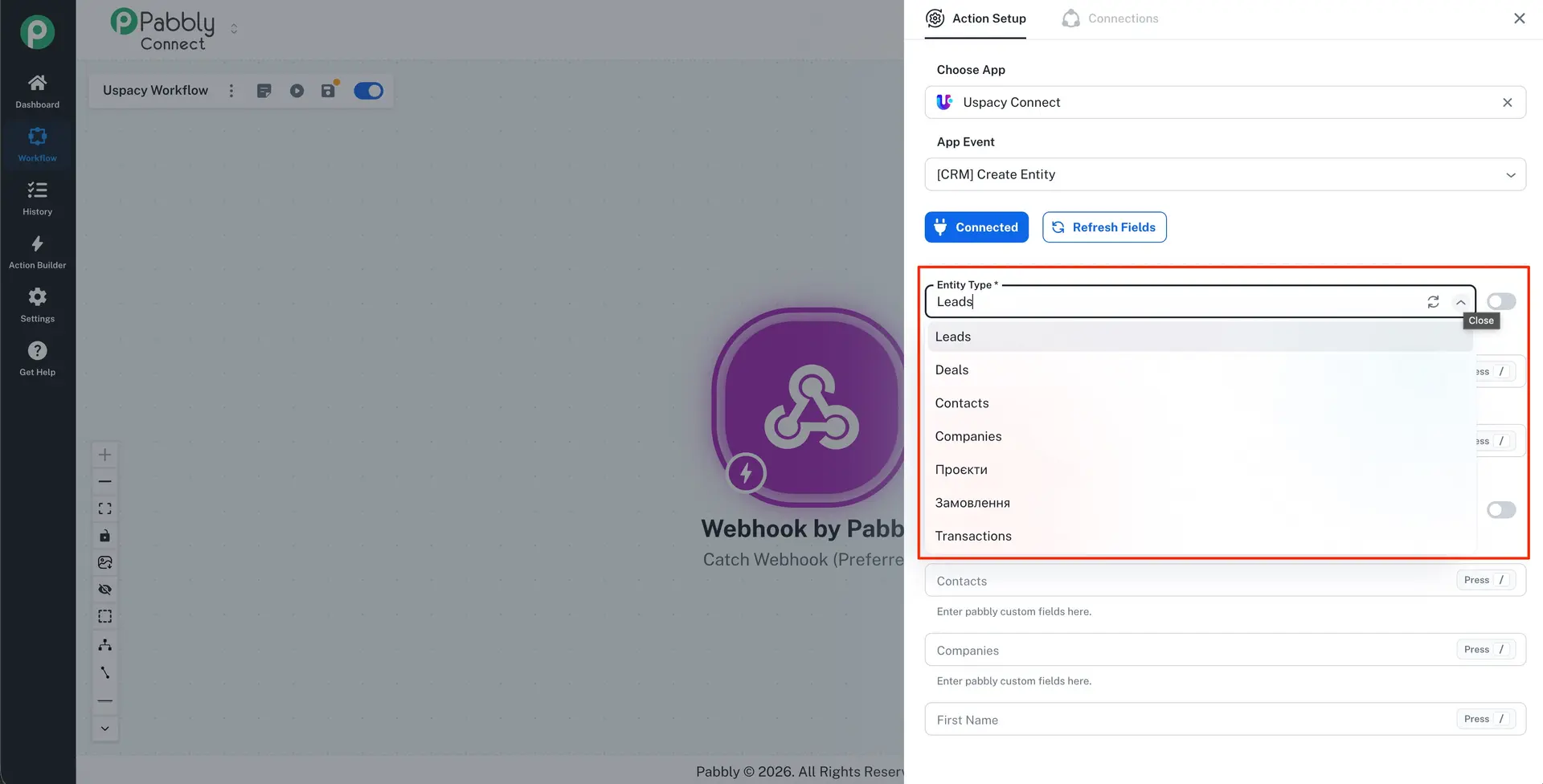
All that's left is to select the required entity and start working.
If you have additional questions or you need to contact the support, send a request to this email [email protected]
Created: August 11, 2026 / Updated: August 27, 2026