
Notes help you keep important agreements, discussion summaries, and internal comments directly within the relevant chat. This makes it easy for members to find key information without searching through message history or using third-party tools.
How to add a note
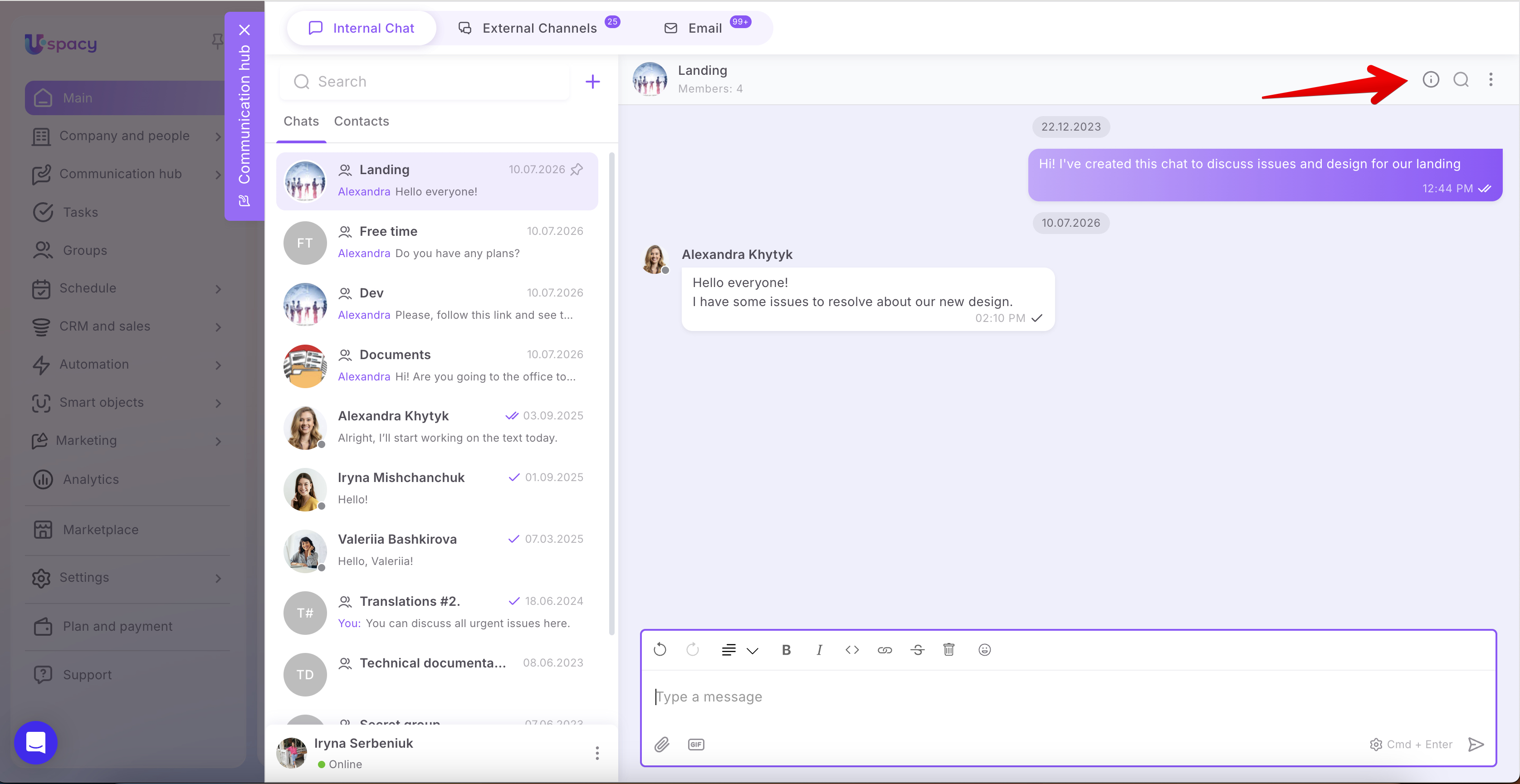
To access notes, open the desired conversation in the Communication hub and click the information button in the upper-right corner.
🌟 This feature is available only on commercial subscription plans.
In the Detailed chat information panel, open the Notes tab.
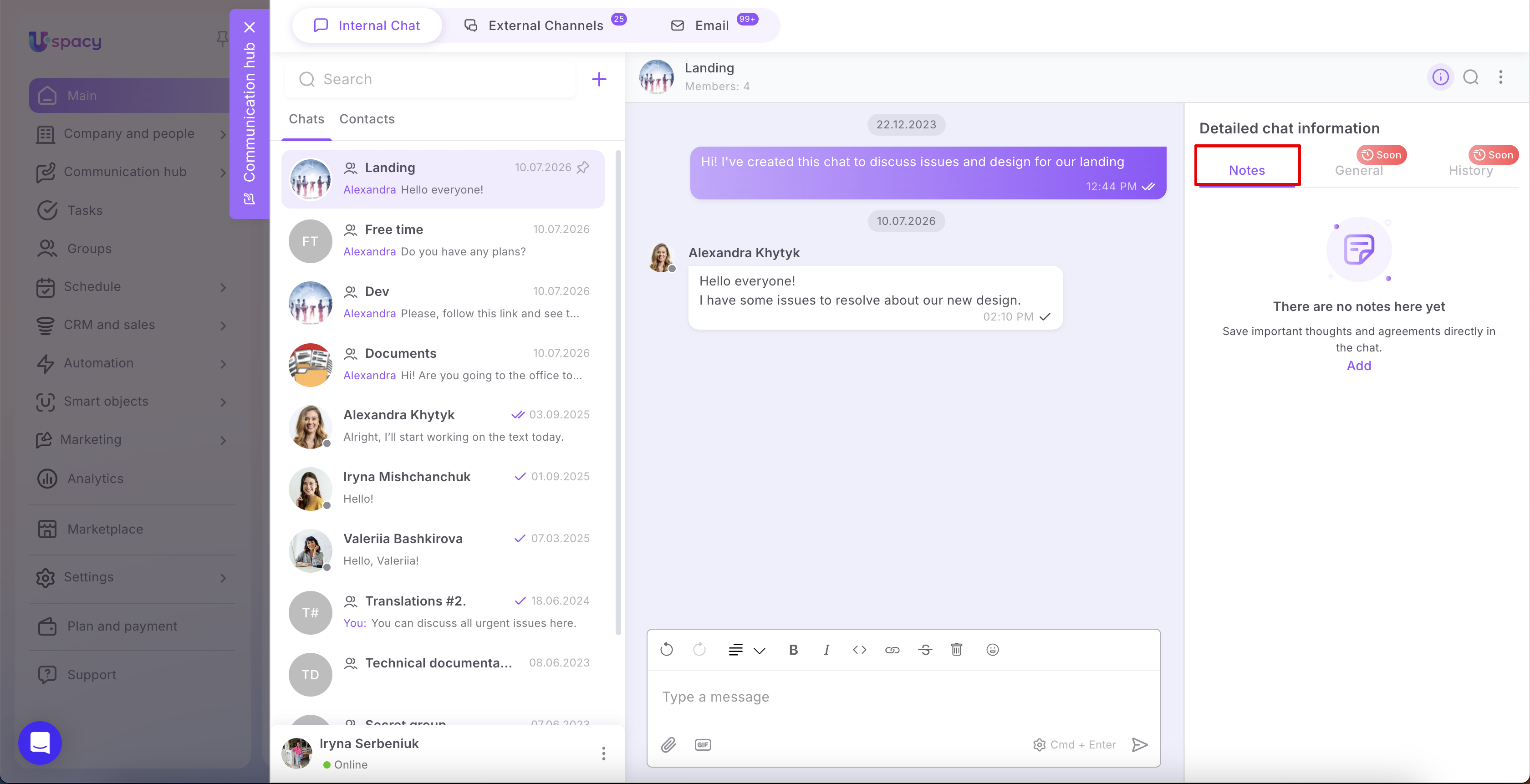
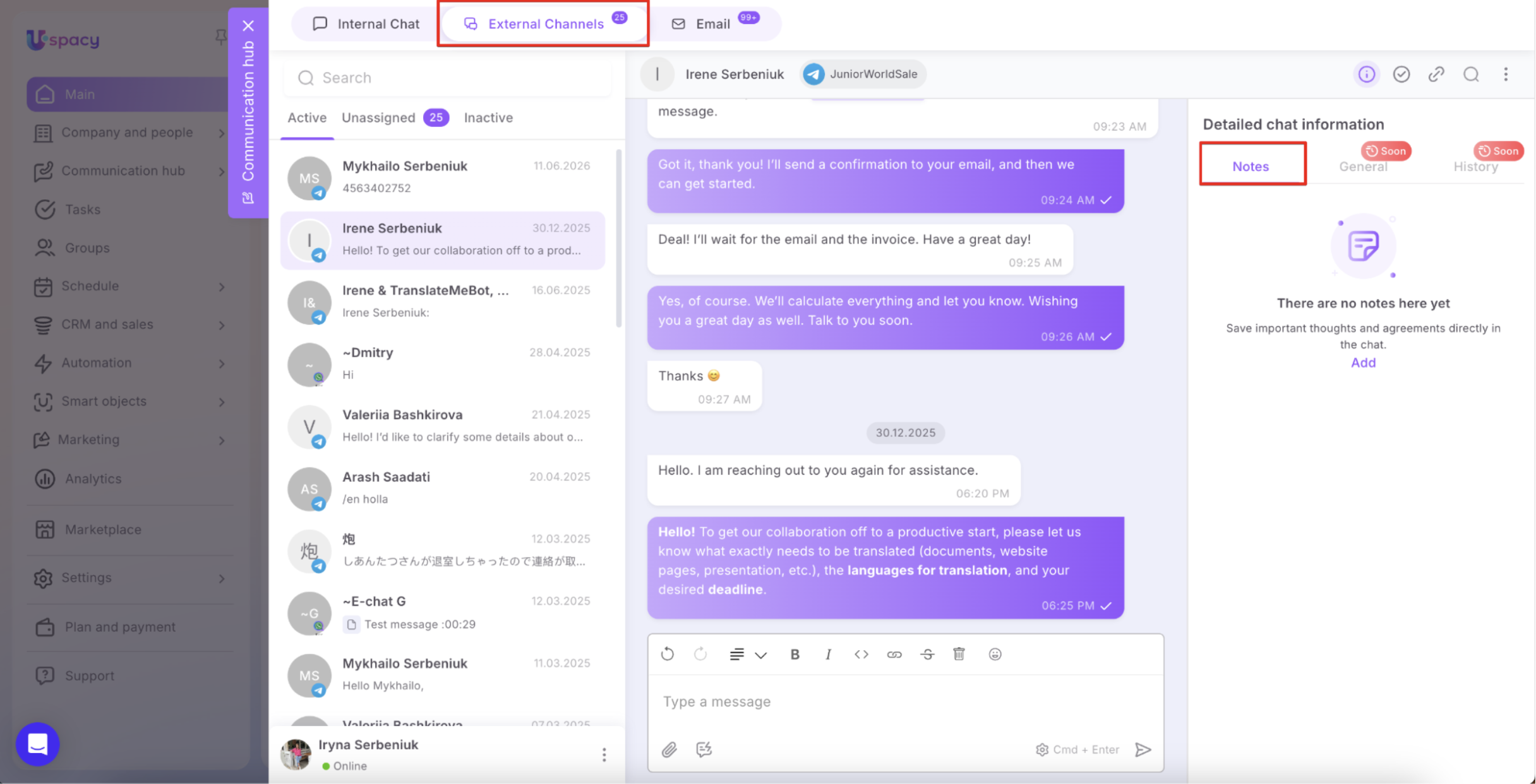
💡 Notes are available in internal chats and External Channels conversations. All chat participants can create and view notes.
In External Channels, notes are intended for internal team collaboration only and are never visible to the clients.
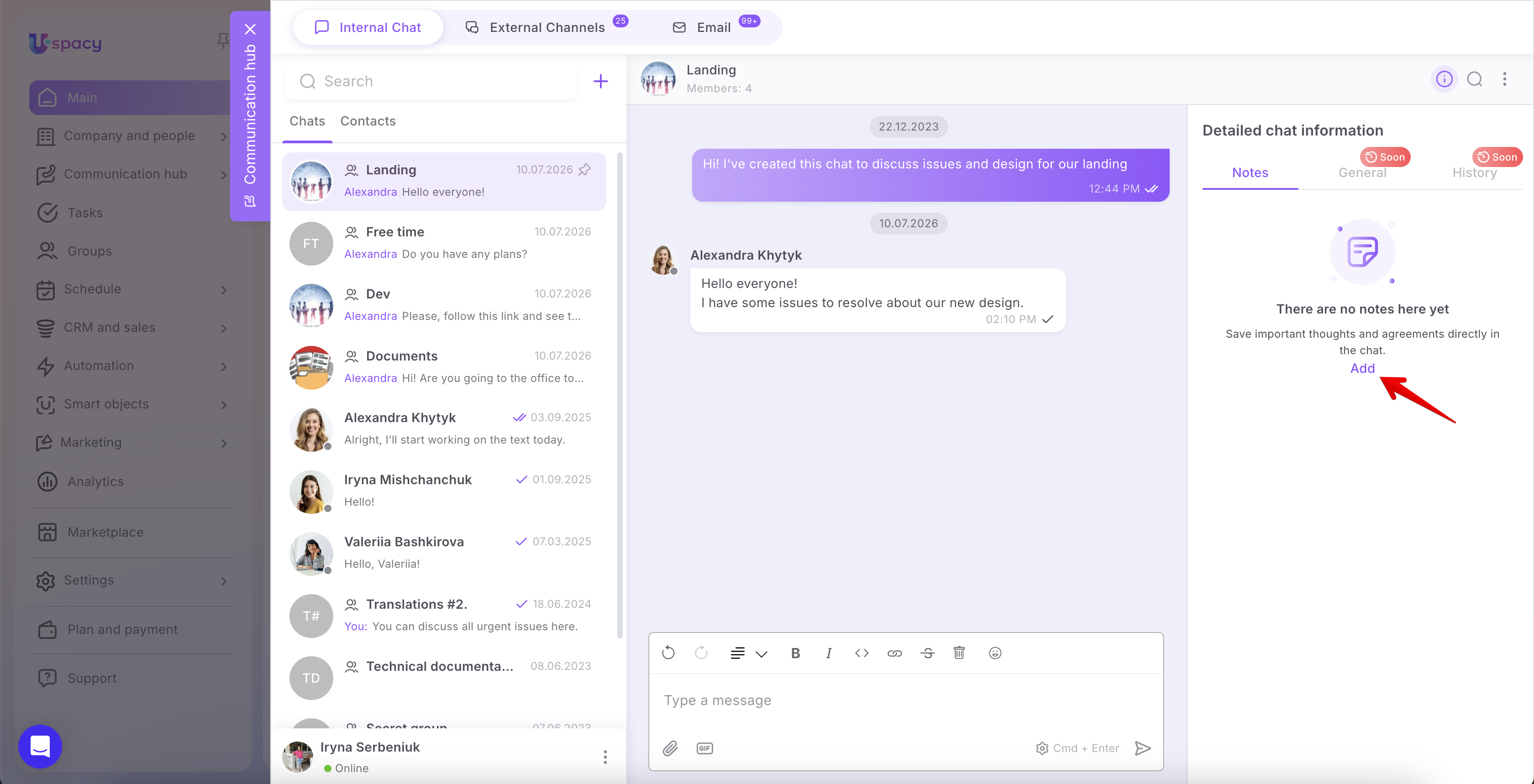
If the conversation doesn't contain any notes yet, click Add. If notes already exist, click Add note.
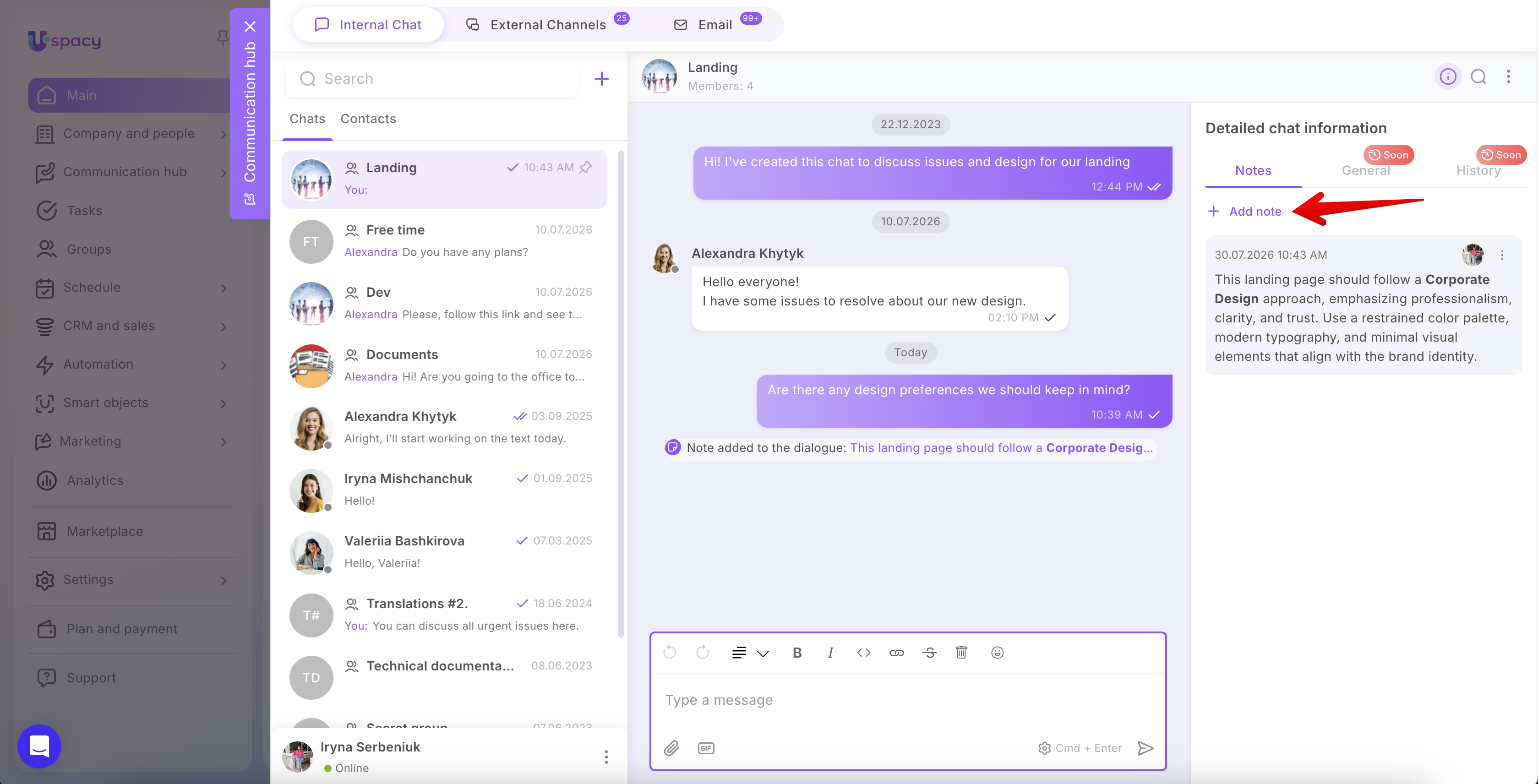
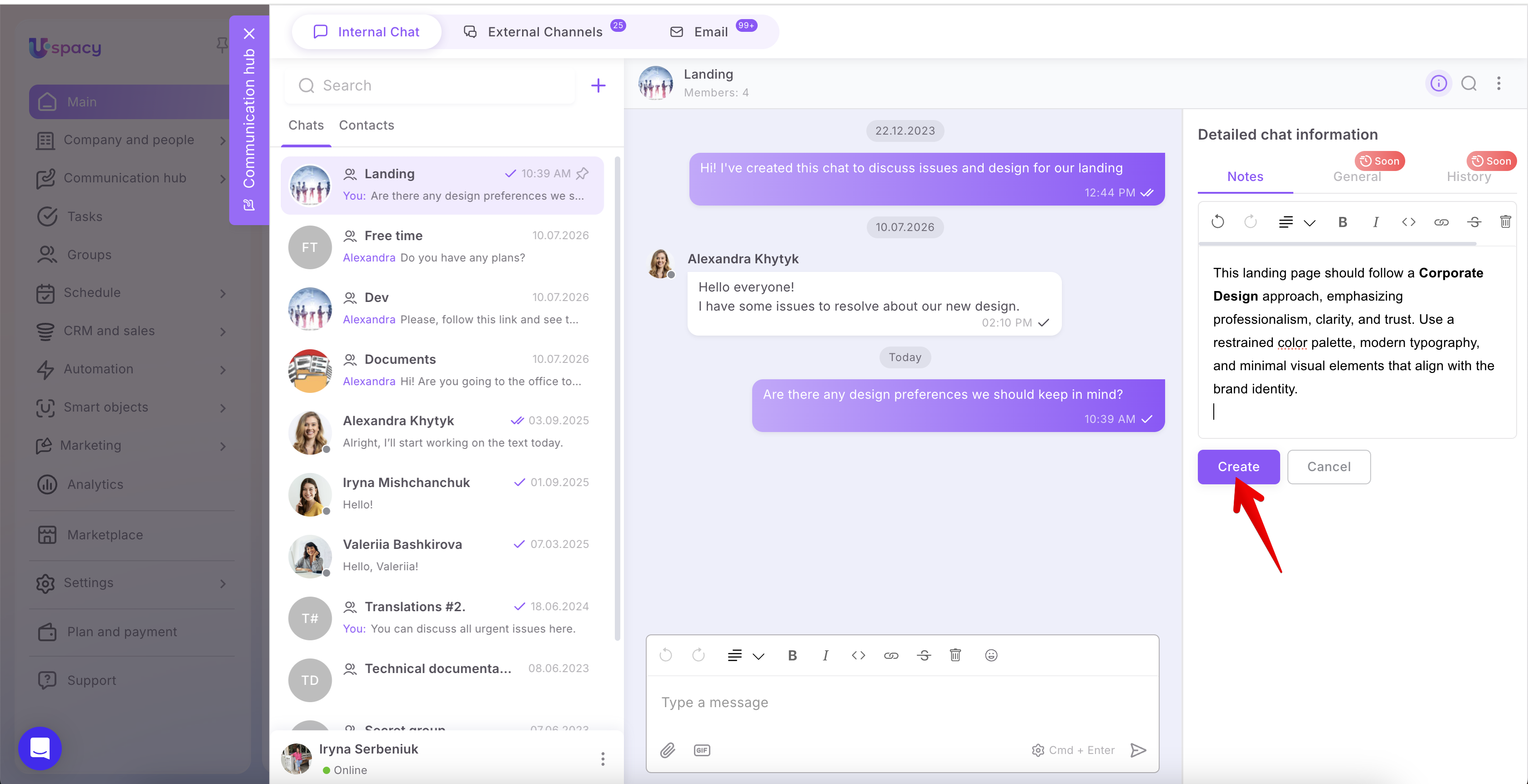
In the window that opens, enter the note text. You can use the editor to format the content by applying bold or italic formatting, creating lists, inserting links, and more. When your note is ready, click Create.
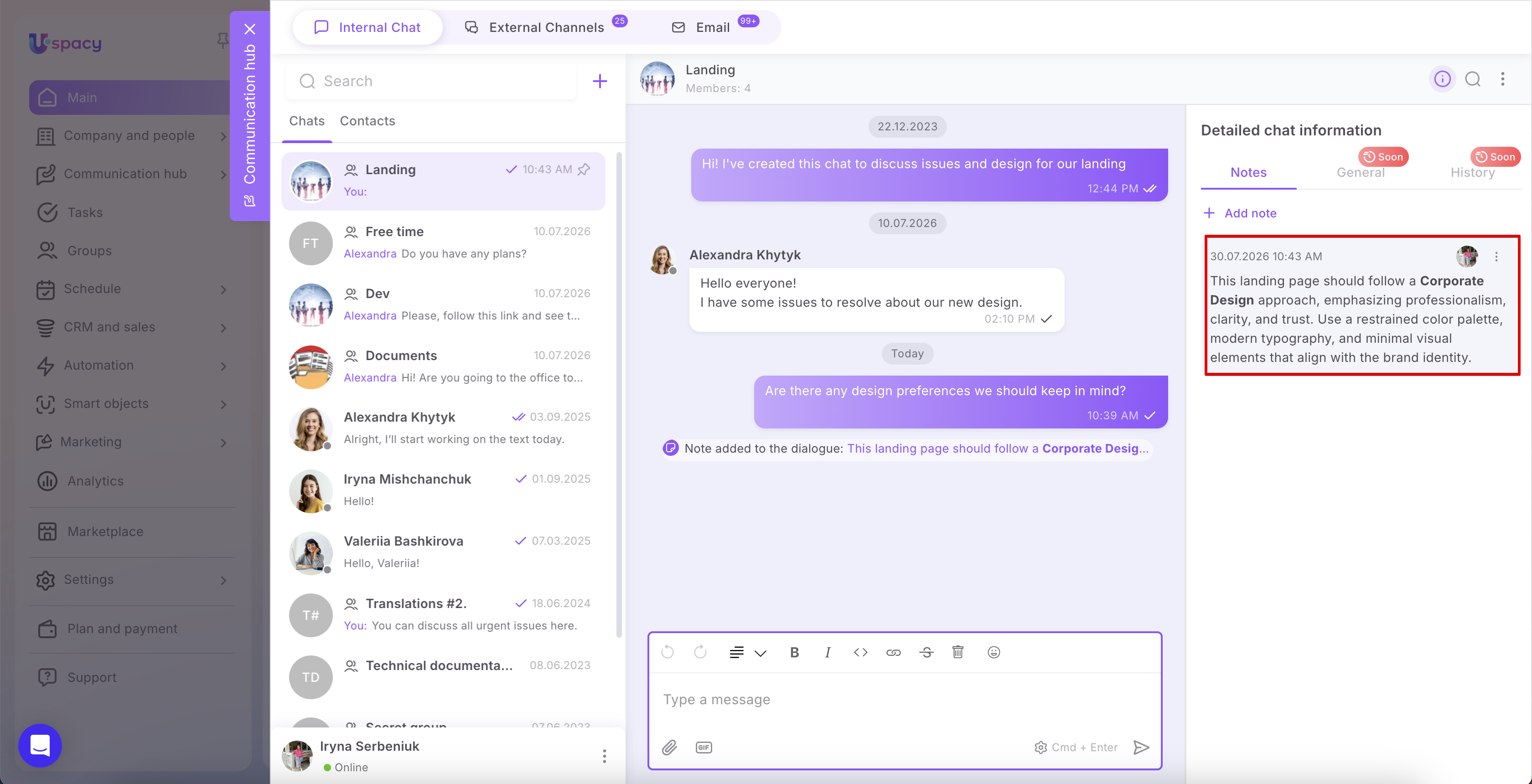
The note will appear on the Notes tab. Each note displays the author's avatar along with the date and time it was created.
How other members work with notes
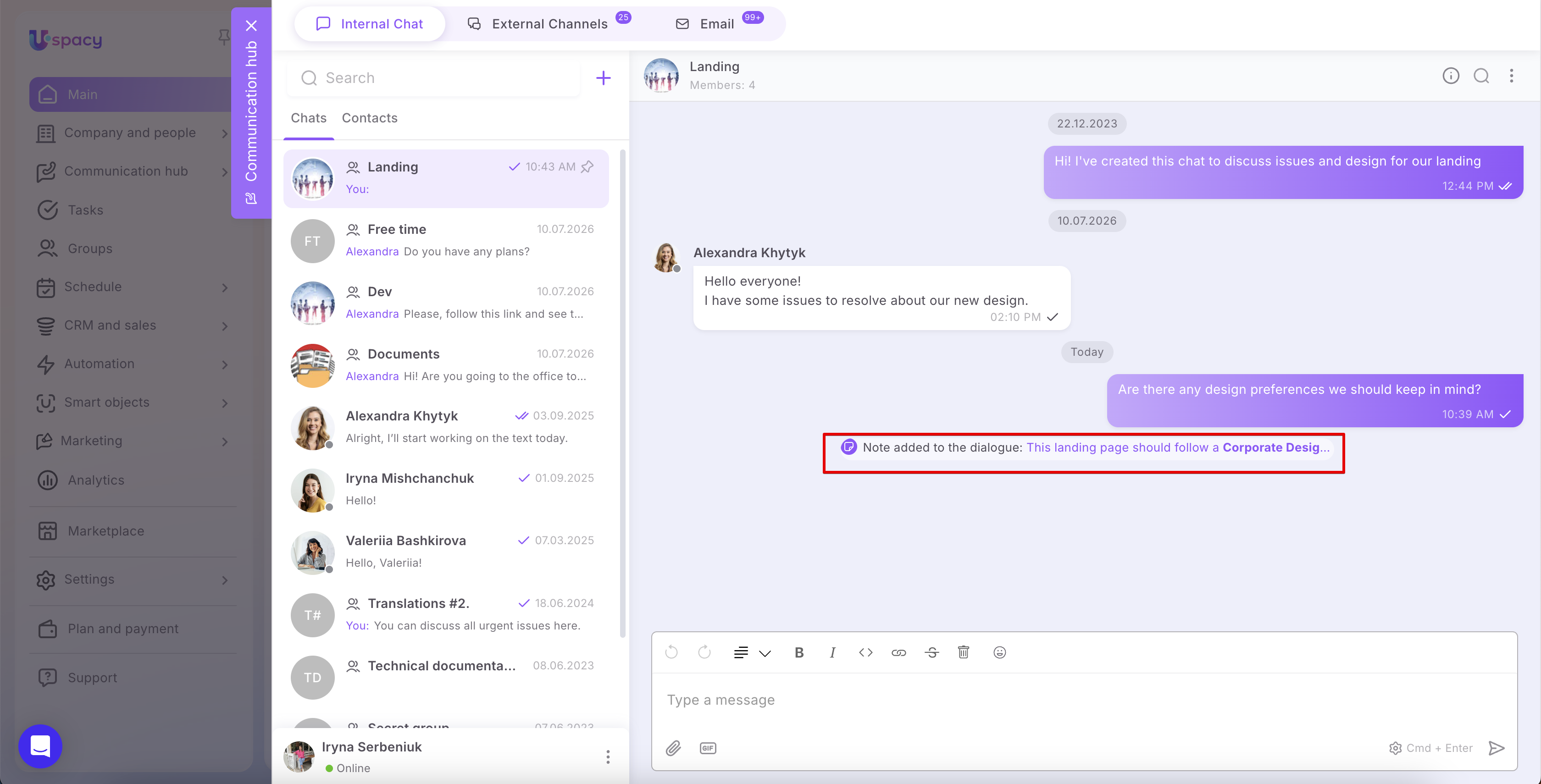
When someone creates a note, all chat members see a system message in the conversation stating Note added to the dialogue. The message includes a preview of the note's content. To read the full note, simply hover over the system message. You can also click it to automatically open the notes panel, where the corresponding note is briefly highlighted.
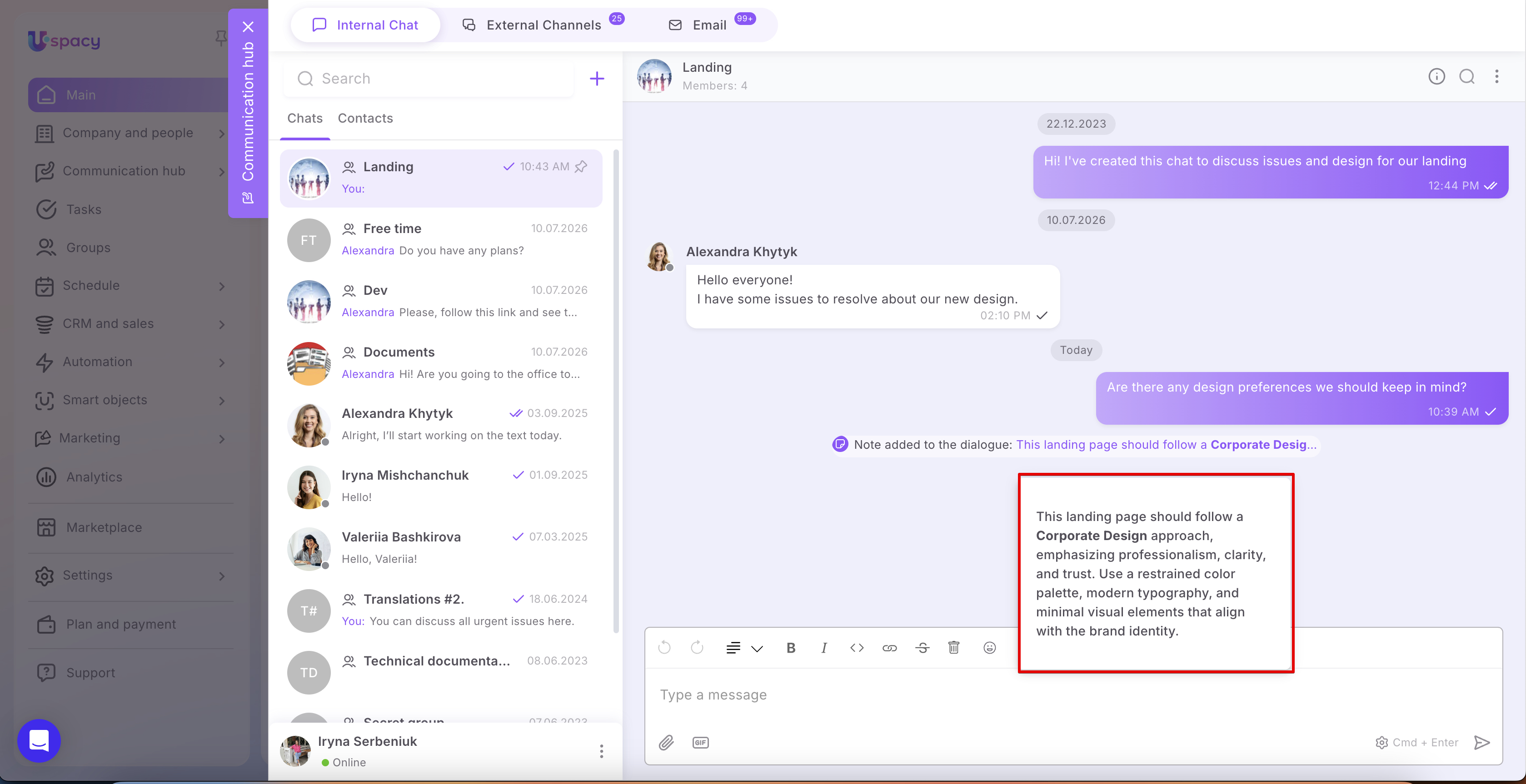
Members can also open the Detailed chat information panel and switch to the Notes tab. This tab contains every note added to the conversation, regardless of who created it.
If needed, any member can add their own note to provide additional context. To do this, click Add note, enter the text, and then click Create.
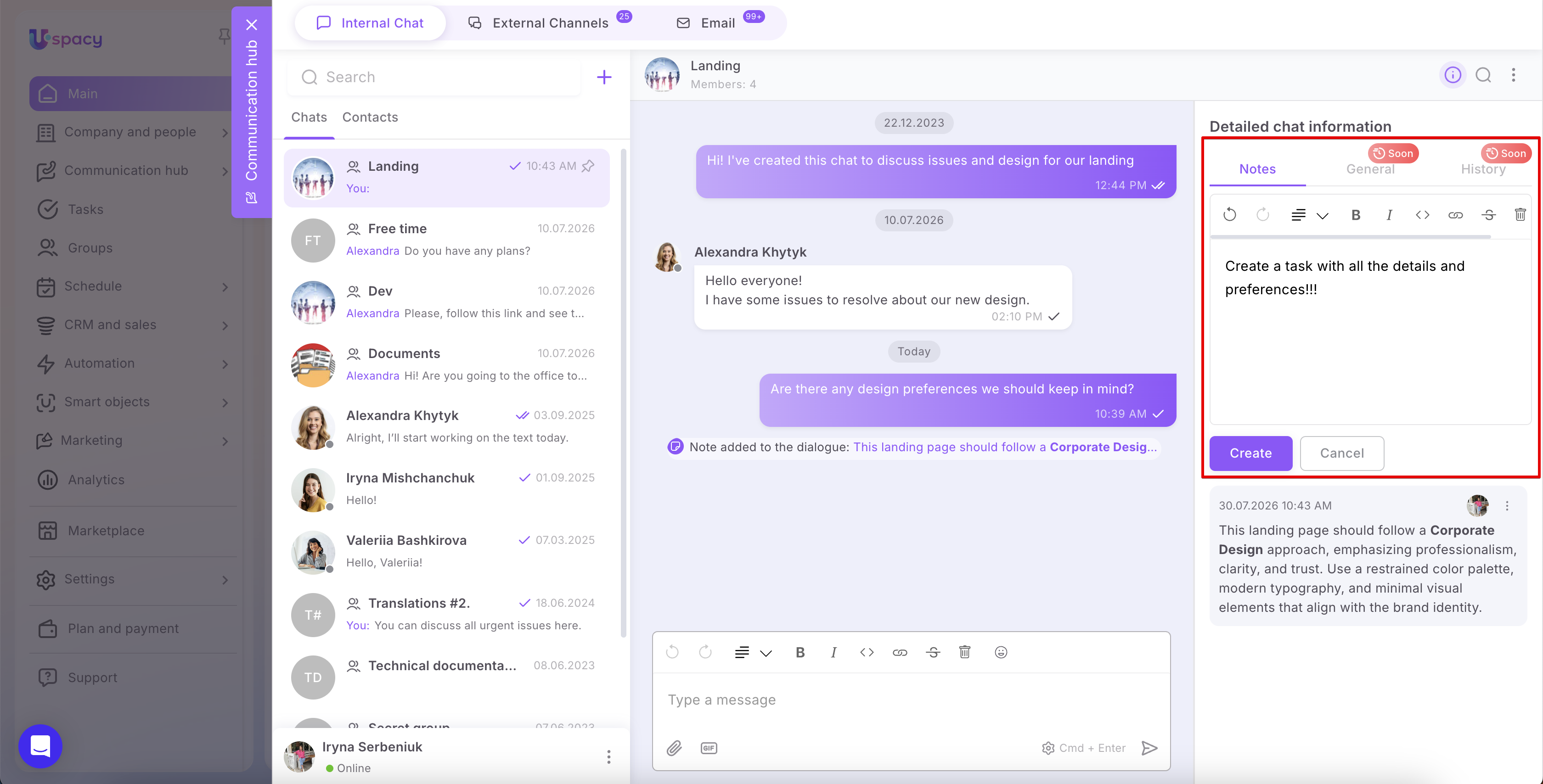
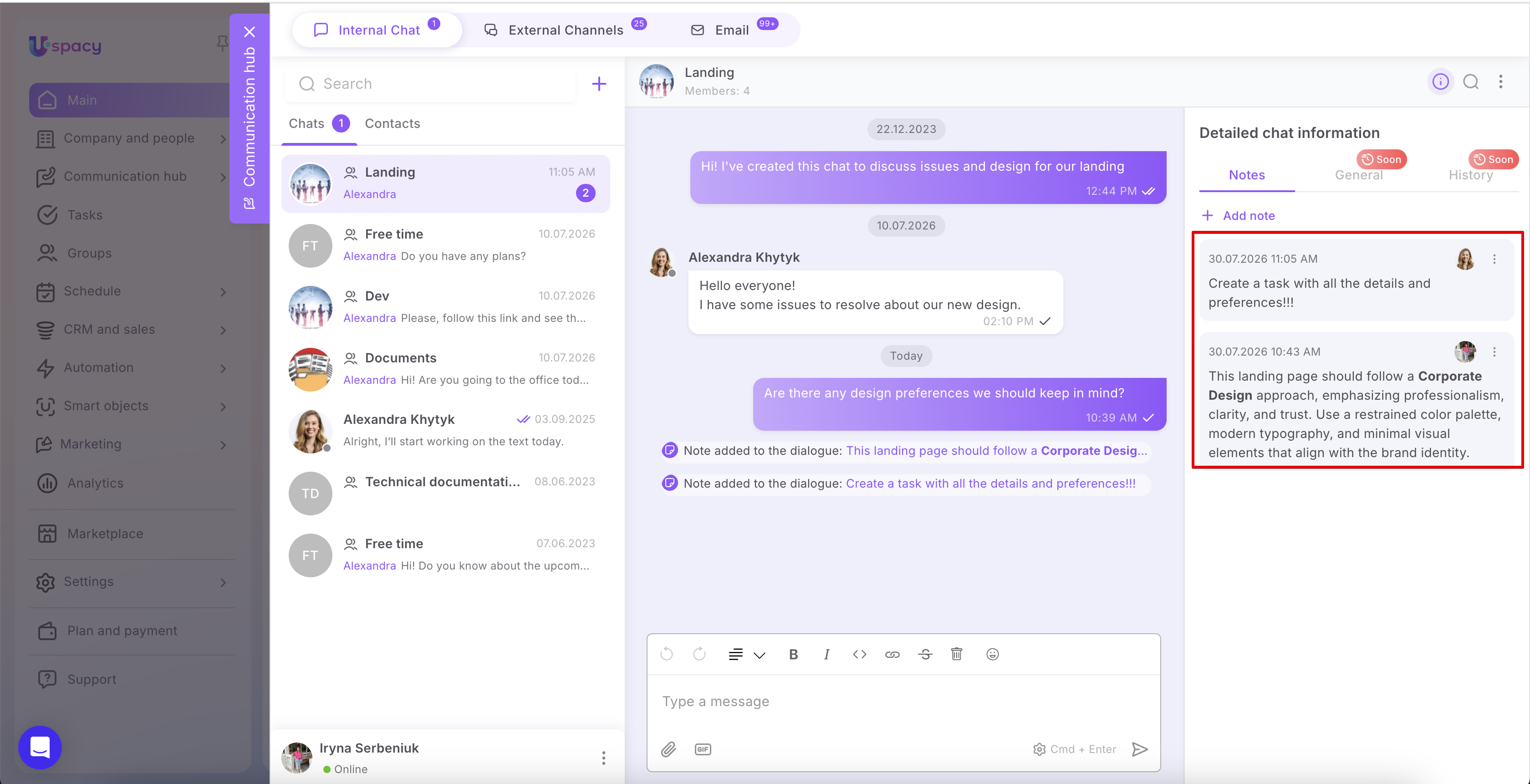
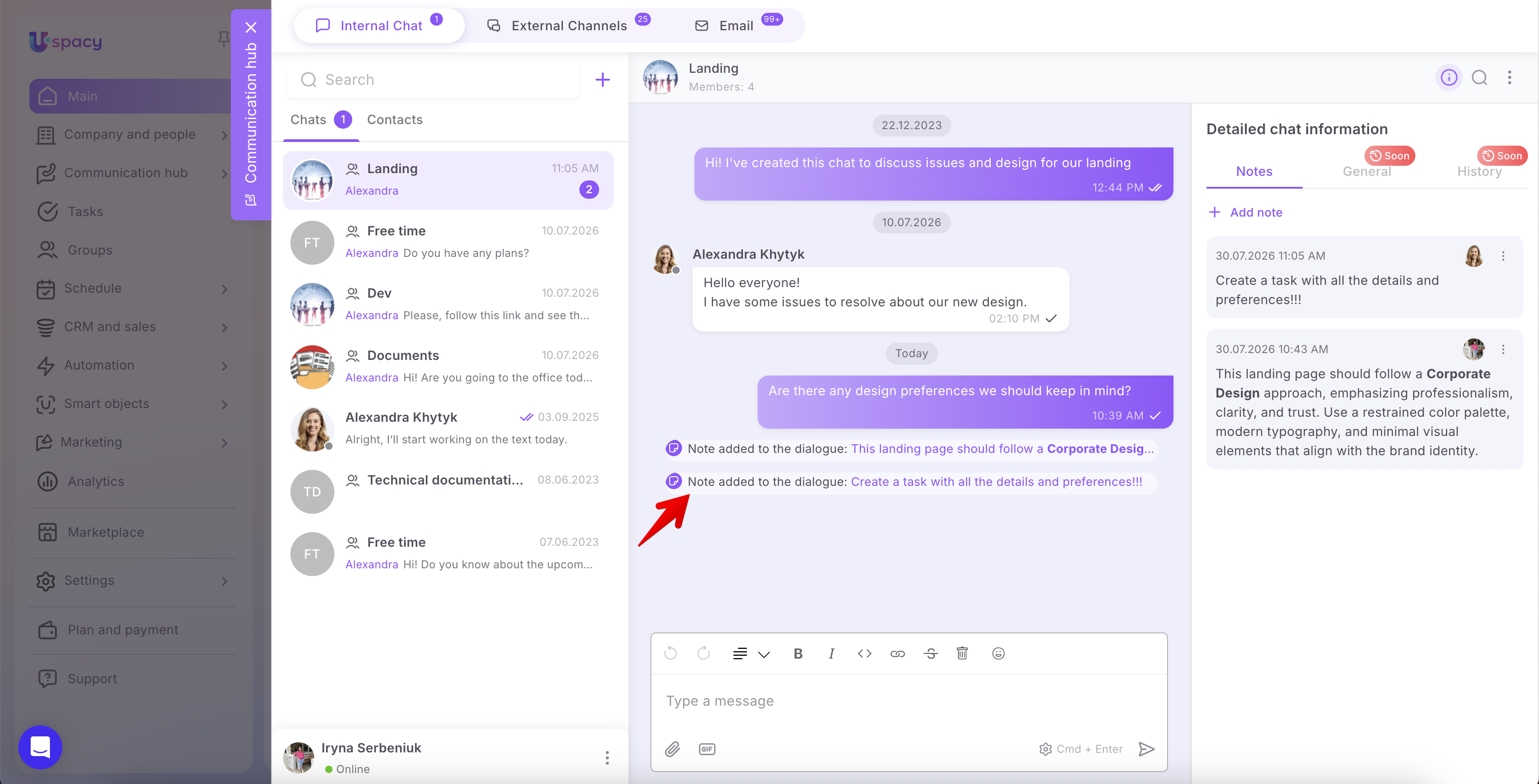
The new note will appear in the shared list of notes, and a corresponding system message will be posted in the conversation.
How to edit or delete a note
As mentioned earlier, all chat members can create and view notes. However, users can edit or delete only the notes they created.
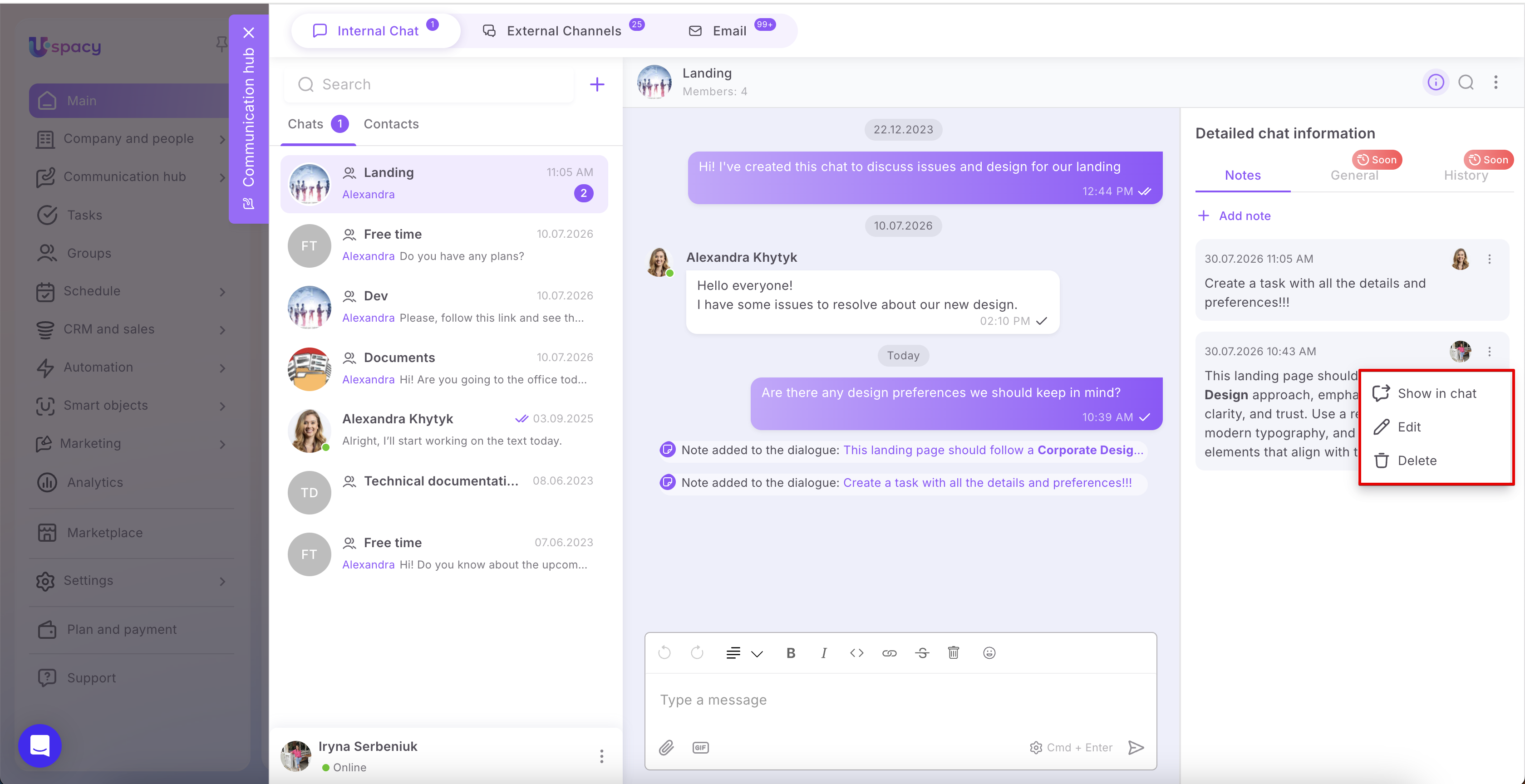
To manage one of your notes, open its menu by clicking the three-dot button. The following actions are available:
- Show in chat — Jump to the point in the conversation where the note was created.
- Edit — Modify the note's content.
- Delete — Remove the note from the chat.
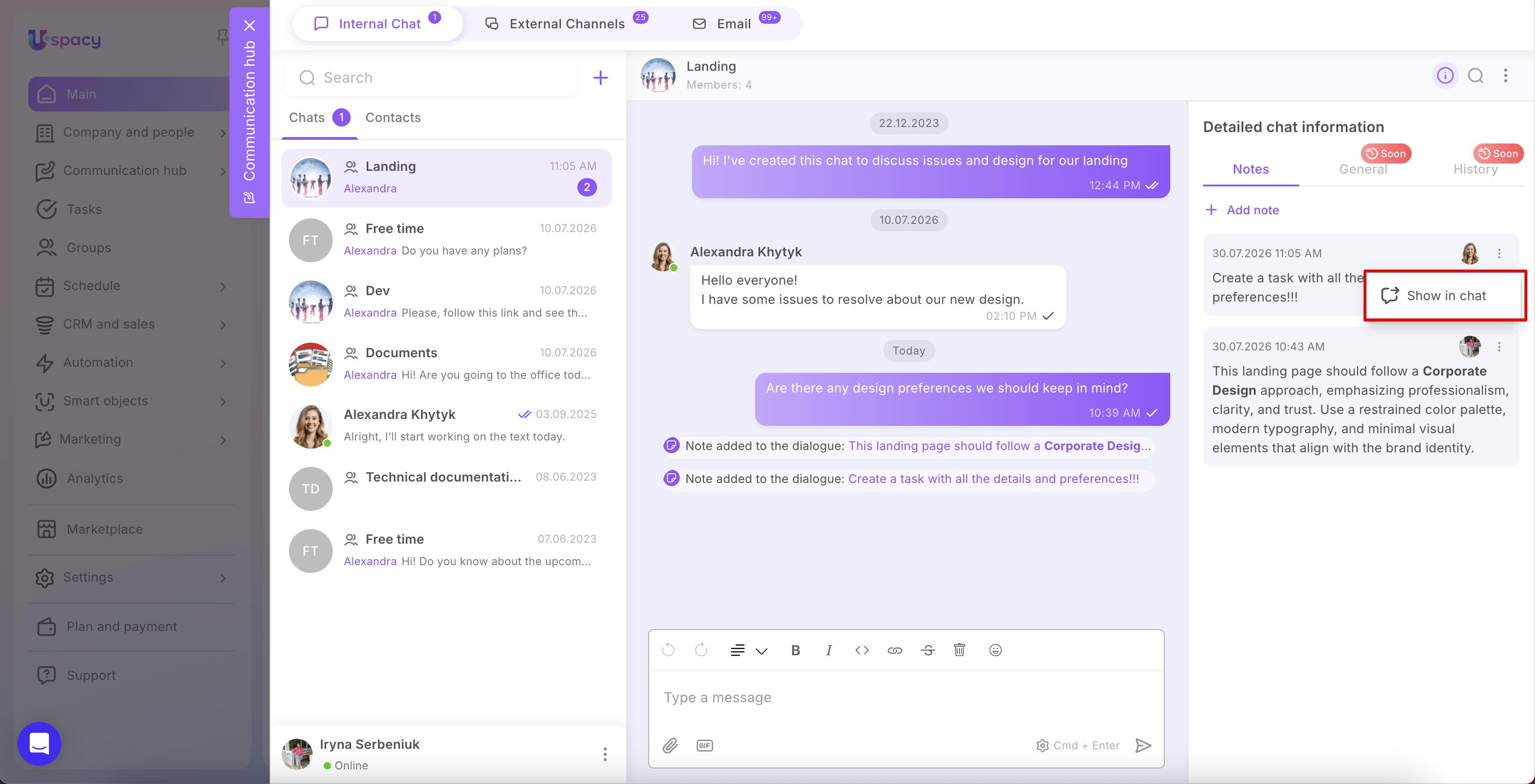
For notes created by other users, only the Show in chat option is available. You can read these notes, but you can't edit or delete them.
Notes help your team keep important information directly within the conversation. All members can view notes, contribute their own, and quickly return to key details without scrolling through the entire chat history.
If you have additional questions or you need to contact the support, send a request to this email [email protected]
Created: July 29, 2026 / Updated: September 3, 2026