Uspacy Knowledge Base
All materialsCRM and salesWork in CRM

Kanban board in CRM

Kanban board in CRM

We'll tell what a Kanban board is, how to configure it, what actions you can take with the elements here, and how filters and search work

Kanban board is one of the ways to work with leads and deals in CRM. It helps manage sales and interact with elements by dividing the process into stages.

AD_4nXdP5L42OTPhgsqO13ZTDfWUaQqCtbY1F7RRuodvv2LliJ9YqIIU96iOxoCw5eSq6wDTV-MktaiVSYTkRC9DbF0bi0VvmY4qdVl07zdCNWnLN7af1SSByotEjatNCmmd-Zt4qMxduw

Such a visual display helps to quickly navigate and plan your work with leads and deals.

💡The Kanban board is also available for contacts and companies. But the principle of work here is different. On the Kanban board, the elements are distributed by stages, which take into account the upcoming dates of activities scheduled for contacts or companies.

AD_4nXf9_8a142_3DaB1O73B86RZx-sJMRMC4AEizcEitvKE7T82hhfUhuzuzv_TpR5woMoXfBMq7KvoUvNmLpv6SzAoTJ0oZnAJqiILieDNvSk9fApPPNt_ONFF2KCTgQTZi7tckq_jiw

If you work with Smart Objects and have enabled the Support of directions option for them, you can also use the board mode.

AD_4nXd-BEeDXm63JqIKvGJmTMQvluiTGJG0CJG4WV2PypM5_bWf1_wJYnjR-hnf5HlGBInXpO7Regavmw8UpTIGxzQw07qBoHrCF_hcChI2cSrWvBs9Als3odWHJLiQt7_YxSMoWj9wtgAD_4nXcg_xKgVNQxNAkBOEmCkLgedV7m_44JTRK94AlKuWcJKRHE0lzXQTp7nLyCXyCdRRwhT9ZHMGPoUV03ymNU-yI69eQQax24O1-A4qr9AJiOlL0TMvj3uQL1VZJNl94zJEMMdu_E

🔍 You can learn more about Smart Objects, their features, and how to work with them in Uspacy in this section.

Appearance

The board is a virtual planner for working on leads and deals, which consists of certain stages that are created by users.

AD_4nXdE7sNwTUOj1-RQTw6Bi6OZ5toJrnA2dRpRy07__YovLRzIvMRPLfOLqEbm0XEeXI9jWEnrTNuE3rCqlfLjutCgeuExIfM7C81EjTQ86CBM92fn-7nugPw0_rarcBdb7_chcuop

🌟 In deals for each funnel, you can configure your own stages.

AD_4nXcgioF2uc6FbBKqGJqbUpwvVTQeQWVQoE8koaMUPyPW-HT4t8_ICE4ZcuatFa3SIg4Tl15r7gWLtJLf7rVcAry0bJzzZANjmnpsMDxRjR6-s-G0WbgeABFgdS7deDUzqcAzkaRkyw

🔍 You can read more on how to work with multifunnels in the following article.

Each stage is a separate column which contains a lead or a deal.

AD_4nXe2XdS80XfYnleVy97qtSNjICpzUQOQl3yFZKMpFlhM1RaXJUv0apEFkO-qhO2ldYV-hfElXRjtlynlxoj21s56Hl4FYdezXBnR1fFzEK_2iI102Bl1md7QHBMZtNN5lofst2Nn2w

You can also see how many elements each of the stages contains.

AD_4nXdSHBKMNp6AH-R73w6sF-odGadSwEk4A_7K_B2yIUxKrMjZhi-iY66UfvbGTlLnYjV_Iwa5QVA1C9kcIt5ejIx16P3kuLgep7Rx788fgTjEnOyXt7iD2Nt25Y6YYqtdiA

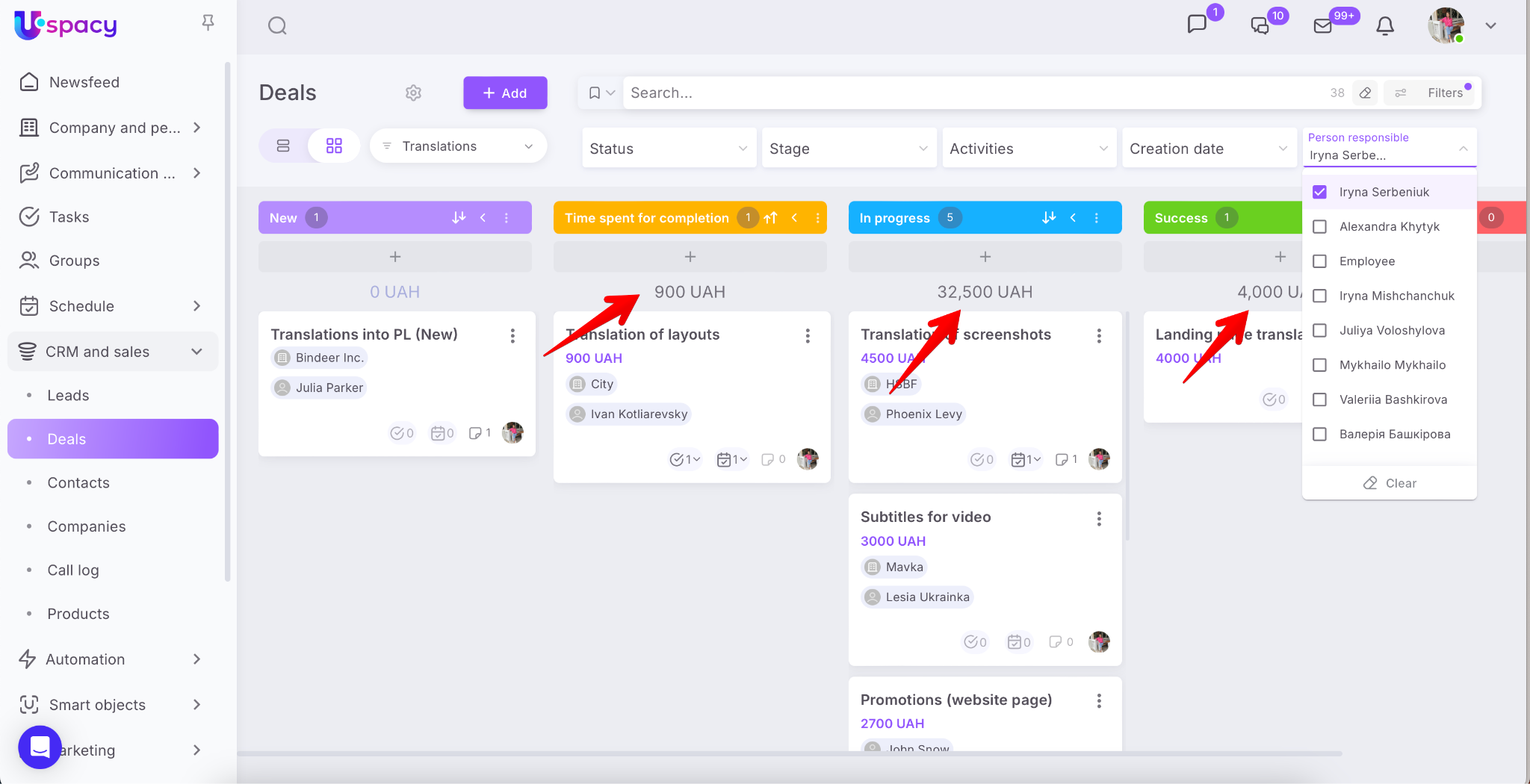
In addition, a useful option for deals is the display of the total cost.

What does this mean? The system calculates the total value of all deals located at each stage of the funnel.

AD_4nXdAyx0i6jJ8eBZE54RoiIFYM9kLTEOmzdTtIEDvg4SW1xQP81bZLbKk2YZ5lepUzNKeHcGearLid7RTnlLn9ciU6ZeHLvuz6cb0WwNFq-0c3DynMGzo4qTNj4bxv9L15-OxOPEYNQ

💡 Of course, this feature is also available for leads and Smart Objects. However, to ensure it works correctly, support of products must be enabled in their settings.
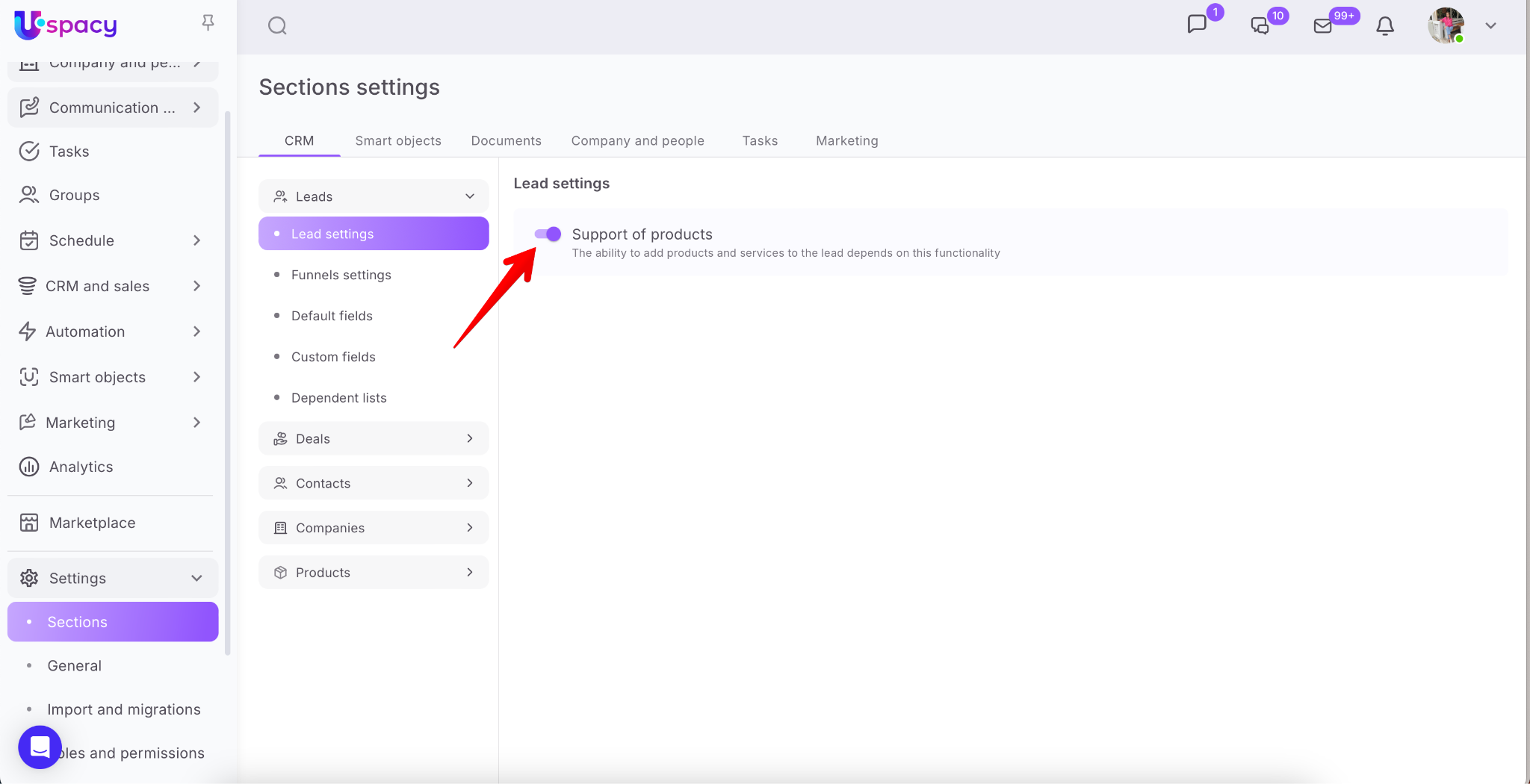
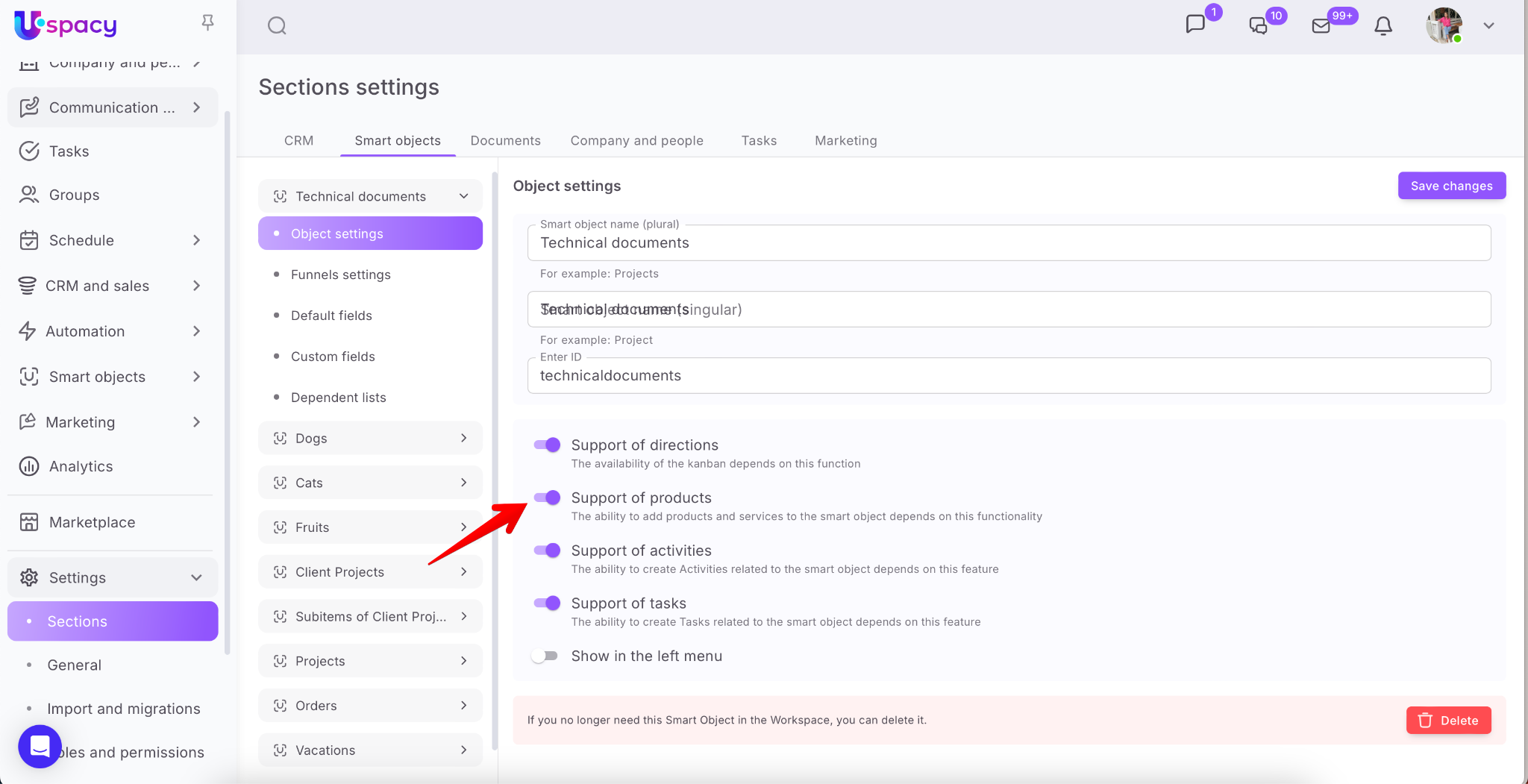
362ac106-1b79-4073-8142-65e33b8472a29e458aa4-1f5d-4da3-860a-9801d59c52a2

When you hover your cursor, the total cost will be displayed in the primary currency of the Space, as set in the settings. This amount will match the one shown directly above the stage.

AD_4nXe4egnyM8CB7eCtVZP-mOI_AyzWynbZ7CDP5Op4fpLl3vWnW-YUqXDeqEpGQNCzFExZryEYhw_ezkKhWynirRkAND4XkUQWz0LL1clSmhM3CslnA4BAumGo1sM1lLveSVb6yABV_w

In addition, if you're using other currencies for some deals (leads or Smart Objects), their totals are not included in the general amount but are displayed separately. The number of items using each currency is shown in parentheses.

Applying filters on the board causes the totals in each column to include only the deals (leads, POs) that meet the filter criteria.
2dc1e81a-cad9-4aac-a4d0-aab3d26d39bf

Deals (leads) can be easily moved between stages. To do this, just click and drag the element.

AD_4nXeB-r1hq-E5hZYnje-deoraPVviVy1A46nyelU5Q5Rw867k3ZH7kRjX3oss9iSBVWu1YUjGtA7XApK0RUMGJ0NZelS5AK2vQ2vXkEPky6gUYxvq3z9sZYTTnG0bWCF1ZdLKbCyZlg

You can also change the order of the stages themselves.

AD_4nXea7vmrQo4-S78fk8s1NLN82tnNXzx5if1a6MVJqh0ri7QkAnYkImffM47l9CiLZnZ8tgGig1sEG0FPfvaDs9VvAlqMyms_ra-G-LLCSAZokRWlCZEl86Jh8_5nHRwCM3tC26wB5w

Element card

Deals (leads or Smart Object elements) are individual block-style cards placed in the stage you need. Each card contains brief information about the element:

  1. Name
  2. Amount (always required for deals, and for leads if the support of products option is enabled)
  3. Related company (for deals) or Source (for leads)
  4. Related contact (for deals) or Creation date and time (for leads)
  5. Person responsible
  6. Related tasks
  7. Scheduled activities
  8. Notes

AD_4nXdtJgoPPJYxpfaCjaDJdV_p5G-MB8-mOTVHWyMdBn4nJMfjTYdR0olqTl6Hgn6TYTCBn8LZWXa8FwZmjcSa4npQ-Oz60sO9brN2q7o3kuSx6zOJah1kL_sVtOj2SZg9AMFz6UNeCgAD_4nXfputlLvXTzak0xSDIXd9iD2AHic9wVxHWKCpACCA3JogYyILx6l2tHKtxyp4h9UO6rLYVX6V42YhmuDYLmsMx89MhaedquGahJhQ6Zn1id6ebWleTEy-mO0UjsFs7rqezFNGTKXw

Most elements of the card are interactive, meaning you can interact with them. We discuss this in more detail in another part of the article.

Board sorting

Just like in a list view, the board view allows you to sort data—elements within each funnel stage—in either ascending or descending order.

🌟 This functionality is only available on commercial plans. You can find more details about the features of different pricing plans ➡️ on a separate page of our website.

Each stage has a special indicator—arrows that are responsible for sorting the content.

AD_4nXdaJWWna8H2uAaLLneoqHmO9b8kBBZmNUQ_G3mJJgZ9cEzAYvsMj7rVFUxoNB25Jwra8lkdBu98cvvECsn7Tqs5WpVHfM51QuSVAu0F7cj3kh1xQsyzp3fmkByyNn92g3J0oZnZ0Q

💡 By default, elements in columns are sorted by their number in descending order (i.e., from a larger value to a smaller one).

AD_4nXen6bThbuZoQk7LC2iSU4LZ_t6u8yKCwb3ggdXCd7ziX6l8VCGUzCHpnistoh66vYlcyzKHNdrCjpQChJk4bPfwtZt19DQVCzCxuSgZiBjiWBrvLopoo4rytVkMlrDeH-9nq3Gh

💡 Additionally, sorting elements on the board does NOT affect the sorting in the list view (and vice versa).

Clicking the arrow button will open a window where you can change the sorting conditions, specifically:

🟣 Field is the parameter by which the sorting directly occurs.

AD_4nXcg_oHqpA1QHCGvO6MfioOYpx8WE4XyhCrrOPh3MyPqhpmu1cQ07o-Frj_ybkWVbEUpZpny2GNCOMiVtsZqob-Xvky45gfLJTyToza7lyuTMHmW3U1vYZDG64P2wB1Kzz9YMVkJYA

🟣 Order determines the display sequence of elements: ascending or descending.

AD_4nXcVqUHuiYkZwQlhvZM-dCoqSVfCwfjAuo0gYmZmmBtupJ8z0njl7yni05NjUwVspkAt8HlMkCb1NSv0lhLZMmjn1UfeytDCymeDPdM8iqN7FrkcMQdJZnkyt7-I49x6exg14WJ5ug

🟣 Application method specifies whether the configured conditions will apply only to the selected stage or to all columns at once.

AD_4nXeMlf04P3k3Llv7bH5TyBgn8sFOvQns1veLXo0gB_bCqxzeyxSFcEmSkgJn0i6ou9xQ5YMHgxock_ounQ3Y2svhJ6AYX-3iWf2cSy2H4JZDxS8MqTQpq2mDev8lxgaxdDl496-OHw

Click Apply for the sorting condition changes to take effect with the new parameters.

AD_4nXcjStBLNsv3LcldtGW-Fr3VWDV0PPFfsMLD9uzjots2coRuo97S5dL2RWr89-4-hXBdlBpjX6cyvY0IdLH3DDV3x6y94d0IbodA0YEgJDxflkrXPlxTLEvT_InWVSK3V4pFpks-Ug

As a result, you will see the elements in the stage (or stages) exactly as it's convenient for you.

🪄 For example, in our case: We want to display deals in the "Time spent for completion" stage according to the ascending deal amount in each subsequent element (i.e., starting from the minimum to the maximum).

AD_4nXct0xOq--PMkMjZdbEZ9liBZ4AHbeScZYWpJIPpY2p_OqGdt8K94BQaMicFuCjAvWWNbW7n7g7DWmMeAZSMTOrFfsWuTO_D6UurT2AuoiIrAx0UyeGpoWSBO-ZG9xpfBpcoc35Glg

How to create a new stage?

To do this, click on the three-dot icon next to the stage where you want to create a new one. Then, in the menu, select Add stage to the right.

🌟 Only the administrator or the Space owner can create stages.

AD_4nXdHz5cQUA3iYxuxWGK4FEAwjQM4TPc14y4lrIIgdqKZTqNveb6_eAopHTtZJJnzVxnCj9IjrtoruJkrcxn9FrR-a5WHwPXODwKjD1PJOEUeghSnE5dKdYAHvxtzrhhraLdSehzDtQ

💡Only intermediate stages can be added. The initial and final ones can be configured.

AD_4nXec1YkbgEioeLTSiyTYXIUunSYXomz-dqYh-Pv7_wjepdWjAox3V5e84YFq44iEu7Dxg-cFGVUI8zplWBuNG3sw6hnHL8pGlsemaHfWfDkmx8H6jXEJIQJMvY6JQat73GbFyvLfTQ

Next, specify its name and select a color. The color can be selected from among the standard ones. Or customize your own using a palette or specifying a HEX code.

AD_4nXckQGvsSIiWZeioy-bYfzv9uLBJC_9j0aULcC-8xMRippzHkVLTgbFQJrMS9c4-mHhVN3orAJS_3kHgoeLg9OeYjy-xD_C7B-Eq0a4kr6SF2sJiEdrwOPowN-1rpxzR1CGyF_SlAD_4nXffITubRewFZy10Npz9Wyf7YryjsM7TpIGUuV84DJ1-zpopyLMM0HyzkmwrsJVgjgQPRvSOzit3JapPvKFO2Ybq31IJb-37A4luf4P2Vnwip6RCQTRr4DQAKq2fMv6-DsrETCY7

In order for the stage to be added to the Kanban board and saved, be sure to click on the check mark.

AD_4nXfIRL4IC-TUNuorQq3ut4FolmnnojcQwtvwtIgoz04jGMVEgA9nIVAzqnpxlP-xH6K6UZ2ia5tBok_mlV6uw1zys61xQ2B_E8S2XZfvpW12uRvG-2ZFQPNgzA5fjDsdHAPkviP3

The stage is now active and can be used for work on deals (leads or Smart Objects).

AD_4nXe9_BJbWQyHTLC8_14eakktYgYOhkK1uHPyXLWQA4E9moBh0NOBJbrhr_trtldQh7EK5z97DXC37JxyMT7Gq_i3YE1pV2fGX-wVKSdgGKdJQ67iIYMiBswm8hXj8sIz2OGXnvGSWg

How to hide (collapse) a stage?

To do this, click the arrow icon on the desired stage.

AD_4nXdreHWdcAnm73kR2SMk8PUVNFDcQcwdAITXEso9WoqiSwdpnabEcT3HZaJSgDKLhpKTZ7EvvW4IszidmlAgon5M9lws_r87dZR7pvhDiyDA_qfs1cO8t4Z523IblpiBdtdj5KZSmA

As a result, the stage will collapse and save space on your board.

AD_4nXf09K86Jn_6rXupvzt1hMeAU2AP8DmA4Vbgc1XQcsTNGDZw2j-yFMnMaEy_Efx_g8cqnnbiqBAsgW9zWSsuhxWsd3o5eTy5fy6Ao3ZiRAckw7f75Q-i9IwjzonHYqdor7oWd3w-Bg

Of course, you can return the stage to its original view at any time. Just click the arrow again.

AD_4nXcQqDxCVeap_xbKX8vCt1EzZvNlIXMhqLTTw4ga6dArsVvKTPH0Js-WxAN4lBsbnykmiKN-FD31eCn7KNsngYz_pcGs8rfvcN_X5G3yXWzP9GkVvY7BapA2AZVTTVeBYMeIEqZ-FQ

💡 You can collapse a stage whether it contains elements or not.

AD_4nXeYyZs7ey-XiTNQ8uo388qFfH5g0hfAM1wTG_AZFq1755EGPPopqLWkEz58ZA4s9W7ozI9H7aKJ_vhYd9NMgehPEXG-bcZhirlYOLwb24Sv4QtUVmXohB4-ymsGno9WcQuQpB5_

How to edit a stage?

To do this, click on the three-dot icon next to the stage you want to modify. Then, in the menu, select Edit.

🌟 Only the administrator or the Space owner can edit stages.

AD_4nXeWcKnNrywP4Hp9orEUEX214XFMaifu23P3ODlUz6nDTc6A7SvwFgGYLLsPyxdP1fxOmvFUdMELLgKsm4WlyumKPpMFA09T3-5SuyAvt0SSgYFwj9BzqGQNi-37JB66NXQtd5MEbg

Next, make the necessary changes to the stage name and/or color.

AD_4nXePhn5_SvVE0wVKEc2Go7R_nWggrOKZSOirbuhLrOWCJ7zt5eHBeeczDvse5ggX-M7p5_6XeqtR2wqt3eMGjnjZ-yFPDWvv3WbO_b8_gs6oNabrcLsra5tEv2OPPB8Gps34HBRGhA

Then click the checkmark to save.

AD_4nXczM0DndsXhGrWOorvrGSMSXo7W9OLwfJN2hpd7P2VZM1qca1QhAmLUkIw3R1Px59A0lvw2HWI5st7aF2ROdPsWm0t8wlEVBa4U2AFC0xny2fEaJHcTDiGGu1irb8ik2bvXkvRQHw

How to delete a stage?

To do this, click on the three-dot icon next to the stage you want to modify. Then, in the menu, select Delete.

🌟 Only the administrator or the Space owner can delete stages.

AD_4nXfnG81RLTW_Qu1txRWfkrhXNk9e6lXMwik1jezXNd5hPUcohKWcA2ceyFmRT0OEnHEGRUcDT6uL9xEybnanouK4N0R2-pXxWjGQIdKAs-WTM_Rc100T7e2JI29jLyCsmCKsdE_bpw

However, you won’t be able to delete a stage that still has at least one element assigned to it.

AD_4nXcQoEa4yATXhVl7yB9YRm6nvsQvEd5Ca0aCDW9T4kmbZVbeY57QPPd6YJWjeKkH-6DyNB_fzkoVXPEW6UXapbTVFiYs8D3smOkDQ1Cc8DTRydqnKf1LS4wAsd7bw6NTDYyi_uGVQg

So first, clear the stage of all deals (leads or Smart Objects), and only then proceed with deletion.

AD_4nXciz8RmdpgRF_xve1_eymXVasxwgN6VZlvsLa03poUQ4uCYsSmMPrCKcPcBy2TlV29fCIt7X55GbttY0y3xM39n6IJoeXi4XeWK9oJbgDiJ6dc1636OUtRNhuXBtfMqv57PJsy3kg

Once confirmed, the stage will be removed and will no longer appear on the board.

AD_4nXdnUDHecPnCSTB7qNTMaw7QK1wWeDi5t4d7YdgaRI4y6P9P3IRDRXfm6BOcERoPA7S5KWrfIR8uPNzZXYZFsYauqR6pD1lVXC-DvBGVsPPO3QCnHtE9EZJ0Bn3sztmH1H9rLTcmFw

❗️Important: Check your filters when deleting an empty stage to make sure no elements are actually assigned to it.

For example, you may want to delete a stage that seems empty at first glance—but it’s actually not.

AD_4nXdkZd2Kbq9Jpn9HfY0i-ECFbu9dvZUCnGI8yxMaCpTJYt8bFq7IWdB-e0IcRIc1R866p1heOdqYeGOf8qHwReLzmATy3BudNwziRond9nLqV7Cl2th6IYG2McRAjaXZqYeYwlYSxQ

It might initially look like the deletion worked. The system will even ask you to confirm your action, and the stage will appear to be deleted.

AD_4nXc6TS9RHLkNXNil-IsFXqjEtuP051GtYIjkAWgHX37SLfkIqGMRRyFeQc8mtysX8Ni0PMU9osei18v81Gp3_rzITvjrZWkyyfH6B7uR9BRE9qUMMoS2touRv_70YegBUqhWb6lTWwAD_4nXfqosXmEHZjGzHpNQn6fYt5UknNbRvuqVlssc_OV2OTW_1k0oo-2pLQ_-TE3ve5q7ltgArPMMKIttF8M4-AAaVXig_hdBZZbxcMIqPAoCDDnQrolBTvCQR8pIm5HQLWjb-l7mvMQA

However, after refreshing the page, you'll see that the stage is still there.

AD_4nXfqAVpoV3wT7GZY2-3_mHSK9oVMouaHyAj49x4rGiVE9COxXltLsSf7mLGCRZeOV0icl62W5pvBLJTLv-SPGamqICgRt9sn3PKN4ccZq8FAjWX-euP2C4EGgn5Rd29DZx_FI9rz_g

If you reset or adjust your filters, you'll find that the stage wasn’t truly empty after all.

AD_4nXd4F7JPIlvKVQHDlS1rwpwOC2mmjEIKj457IG3KSWqrzQrJYv7WtAgxLQE-KCZ086aMoPd4eRmWeCCsUadSqfrD7CAKdD_Yr0jpKravCAglyKA-LbWaXFYj_4Pp5Q2FOXJu6oxO

Actions with elements on the board

When you click on the three-dot icon, an interaction menu appears for the deal (lead or Smart Object). It includes the following options: Edit, Copy link, and Delete.

AD_4nXf9YuHd9KXfyS3K3vWc9kZayZdYJSaUdBQUUk3db0c9mpLSJolmHgdIX94Sg1aV3PhAYl94oCtQ4NSM4YD0-LVeLHoiGIEHrD9MDs17OJzBklYVA5uVsiWPcyKyc5cdviXIRrBzUg

Clicking Edit opens the element card in edit mode. You can make changes to the necessary fields. After that, click Save. The changes will be applied instantly.

AD_4nXeIFpbMxuva8weH6WQvOEpRI7_Y6H2pIX6Am-mBAZNehlvsFA-NMzWuEqb6U7l3G_MggtrJjTzztL__S8emW6KrmoH8396iWN1QED54QCszratNV1QzwpMDbDm6jI-UMfGS-DY4qw

Clicking the Copy link will trigger a system notification confirming the action was successful.

AD_4nXfd4Db9L2wyHAIE2_tYX5i8D1Ql_aYESt7n_y0yBUXci36LuQsA9cxgjcrcSWawXd06c0cuMJh2kOVBgldIuA-Zx3jCotuDlUrv3RJZ15Ef27ObYcwUsgIVi1X-ihETYCWLHKiUxQ

You can share this link with colleagues in chat or paste it into your browser's address bar to open the element in a new tab.

AD_4nXdJ5WIEuxpha5MKrk8Kh1Lgp9JvsmVJP7floqLkMjzbuEtJPSpTTlSzJnKknnVszXOWsD99qQmUFGQ-x_jhcWRdhMRTFjdl_Zct35VUDwwpm1vjNW77zmgciPQ2p88tEFpehKWN

Clicking Delete opens a confirmation window.

AD_4nXeey4FVh2bMuo29CKsaLzldYRDd-vO1TYL0Lc-p_DDPbmwxXS1ghti0PxFAh-p4Ni_8fogCMxB81ahc_y9zqRQXLPGCuiXxkb8PCh-XQGRdtupswduASewgtiNN6vB7X52LWSy3Bw

❗️Deleted elements and the data they contain cannot be restored.

Creating deals (leads) on the Kanban board

In the Kanban mode, you can use a typical and detailed way to add elements, which involves filling out all the necessary information in the CRM card at once. To do this, you need to click on the appropriate button.

AD_4nXdVAmbbdquorYkEEbnOs-722g1dHIniJsD98yj7swFp9Wd0ux5JqhDbNSfU15TH4AiYHdjrnmC1tgpvynLp7b5UIGIBPazvIU4Af-DIKlWKPUvXjNLJZhu3gOdDLgL5u-9cG_8UzA

A new element card will open. It is necessary to fill out all necessary data for work.

AD_4nXdkFlSJ9GimQDlJKM3BK1bSqAleNJ97agCJz9mNpiG4AdOxv9ox1k-uWwRcwB0Hj_X8jzhYSue79yOIKeaj7gAq6dntOafX6DUs7r4I_ZvhkYBUGGbxM06DAvjY1rZp4YPTD4MvFQ

Or you can use the quick creation form of elements, which is only available when working with the Kanban board. To do this, you need to click on the plus sign, which is located under the name of each of the stages.

AD_4nXfxQjebWAnAN85LrgDwrT319SI-STNMQj0fGsD7QCP7WnNLetGo5LEBLqaNCTLqMDHmgSDsLI-KKlF3fMsU_1R3232nSlOMtpS0qFl0Vla714ItdDyrHJu0hWpa8Sifaj_C1wiUDw

In this form, you need to enter basic data about the element.

AD_4nXcnWD15oyTSHT5x6y59iCLv9THRZQ9omaHxNcVEjp1rofMy6HumXpoM8IuuWGrHBASKN09nqdNaf5VVlOxH64eIyfLb-5R23i1Btcn_ykbnLjQ46GvGLvu5-MP7uLXvSoUorbUpAg

In the following articles you can find more information about:

🔍 Leads creating

🔍 Deals creating

As previously mentioned, deal cards (for leads or Smart Objects) on the board include a special indicator that shows whether the element has any related tasks.

AD_4nXe8F4I0MvlSMryjREZyE4TEwC7rySI9pknlFXXFGqT7WXvVPtfQW98hXBlZWcC1ehjQ-pXt7jriJfpPNXj1799ZHVnMBbbFy7kt-x8AfcN97eI0Erx9BcAoHRj7djEKAUqPdbRO

Clicking this indicator expands an additional tab containing a list of tasks.

AD_4nXdMsN10lWrz326glyfjDcUoQDKgItbQd1ymkrNTqZM5dgocTSQrcAV1pjzsfdQsTSwt_Sr3Twg78liXFa3ZpI34CraNX-te19JOalt2J_fi93y-PdsernwBPM72ADhGaPvbzvYe

Clicking on the name of a task opens its card, while clicking the priority icon allows you to quickly edit that parameter.

AD_4nXfCah3KEw0g_k2ZWf9p5Ck4WTuRPUeYPwW8-ndYnpa1Ih1c_-Cf8ZOgk2mIh4-Eton6SE9EAH_wfZRbGGfwEDEuUkCwUSzAITV0JRwj4VyOT7MlC5_sN8DQoVcYebngv1Jnmuo7mQ

Similarly, deal cards (for leads or Smart Objects) also include an indicator showing whether there are any scheduled activities linked to the element.

AD_4nXc-C-JF9V8GZvCqCOLBnwmX_7pJnR9n-B3SdjkVPn3KFJDM7AYBg0NJ4Mpgye4vXb-X1XCcxaIQd5dRZIS9YzYrYWKLD7n-aPHp92SLFU0xVJE5VJGfvS_sP2HTWh3IK_kmZMdT3Q

Clicking on the activity name opens its card, and clicking the priority icon lets you quickly edit it.

AD_4nXeYXXQARwYNZqCTcT21ZTkcCBRQw_Zq7dJTr9_ahcyu4FvrWIashOxt4XKNOl-4E3LSV8o_aI9hTGpnnFkzEuC44Nw4HkZuJIECG7W5cxTtiN9c-n8zwNLoO9gT6qf_ZS50oqjeOg

In addition, there’s a dedicated indicator showing the number of notes left in the deal (lead or Smart Object) card.

AD_4nXcyZqt5-1-612dHDOykhbkDKkPDqCwCNfcIepJqYelezbJtcT65fILaIXyBezxb8a3lKWEdPU3Vb_WV5w-2bgha1cXP1-_E45bUrTrwBx-yoflZn4iwBSCT29P_ftTtmw47Hs9k

Task search and filters

There is a search bar and filters above the Kanban board.

AD_4nXeY_fYw4PGZyQ2wHKMLxcET10GKflMuretom22xSIAN2vgggk5NCOvJond_oAgmp1SNwAjG9Z8ak6SAX1ePwSKy7HDiF9U9jVSaE7h1E2ius1i3mL4_FR1MtBjGIDa9om0lvrJF0Q

Filters help to find a certain group of elements that are united by common features. For example, you can configure the display of only those deals (leads) that have the status In progress.

AD_4nXc4Y5urvmgkv6okU5pJgJ8xTAV0u1D8ueo5XgCneRCF4ecY5aQ6idkLvUu5sHKs1tAwX9zJxhWjDXRshSAq3F-k8DV8y6YYkUvGRe_k60nBRToPldosk7K3VnGV0sJfcgrlCJGJUg

Or find all the elements you are responsible for that have activities scheduled for this week or that were scheduled earlier.

AD_4nXd9w4ZiCEJro564ws3g5Nu2q-OFBCSJp3dAPWwyMZxUxcBuxmlyLQTNGY6lwvvz6T6ZyERb_lWbAnlNW0LZZ0qqi_vFbH0DqdRRLyIPzZ2qL0iYuMnPGL2OMkxRyCYXB4cEuWZI

Using the search bar, you can find deals (leads or Smart Objects) by their name.

AD_4nXeGykfNmLeTLONgwbIDxYOkcCiRhop-Ox2A8cMNJlqnoPXr6TaYMH-H-VjVOWgugd5Ke6r2mXiYoUskDEcJ-Iwaca0VtF13U-NO3UM36m0_sn6Jzjx76AVEEhKeqCqhUPPHUEBBhg

❗️Please note that the search must take filter settings into account. The values specified in each of the filters will affect the search result.

AD_4nXerSSLzqzFqjuUOc-aMhO9ERogyZ14GH7c3xJxTec11UDRQf9k_vteedZhU_07IBb2DVE6MRHAuL1H8xlg7bra4GJ6dT13trRnQEpUQHTXzhk7oO1FdvmVHgwBGU1nbfrbHo4du

If you have additional questions or you need to contact the support, send a request to this email [email protected]

Created: November 9, 2023 / Updated: November 14, 2025