
High-quality phone communication remains one of the key components of sales and client service. That’s why the Uspacy integration with JustCall helps bring calls and CRM workflows together in one Space: client communication becomes more convenient, and all important information stays easily accessible to the team.
Key features
In Uspacy, telephony works through integrations with specialized services. The Marketplace section includes free apps that, once installed and configured, allow you to seamlessly make calls to clients and receive incoming calls from them.

💡 Please note that payment for telephony services is handled directly by the service provider.
Therefore, to successfully use JustCall telephony, you need to obtain certain credentials and complete initial setup steps both in the JustCall service itself and in Uspacy.
☝🏻 In addition, before proceeding with the step-by-step setup of the telephony service and Uspacy, you should complete several preparation steps first.
Multiple JustCall connections
Uspacy allows you to create multiple JustCall telephony connections at the same time. This is useful if your team uses multiple JustCall accounts or wants to keep telephony connections separate for different departments, teams, or business units.
To add a new connection, open the JustCall app and click Add a new connection.

A separate configuration section for the new connection will then appear in the settings. You can configure it independently of your existing connections.
Here they are ⬇️
Preparation steps
First, you need to install the free JustCall app for your Space. To do this, go to the Marketplace section and click the Get button.

Open the app settings to review which parameters are required for a successful integration.

JustCall settings
Uspacy settings
Work with telephony
☎️After that, you can start working with JustCall telephony directly in Uspacy - make and receive calls from clients.
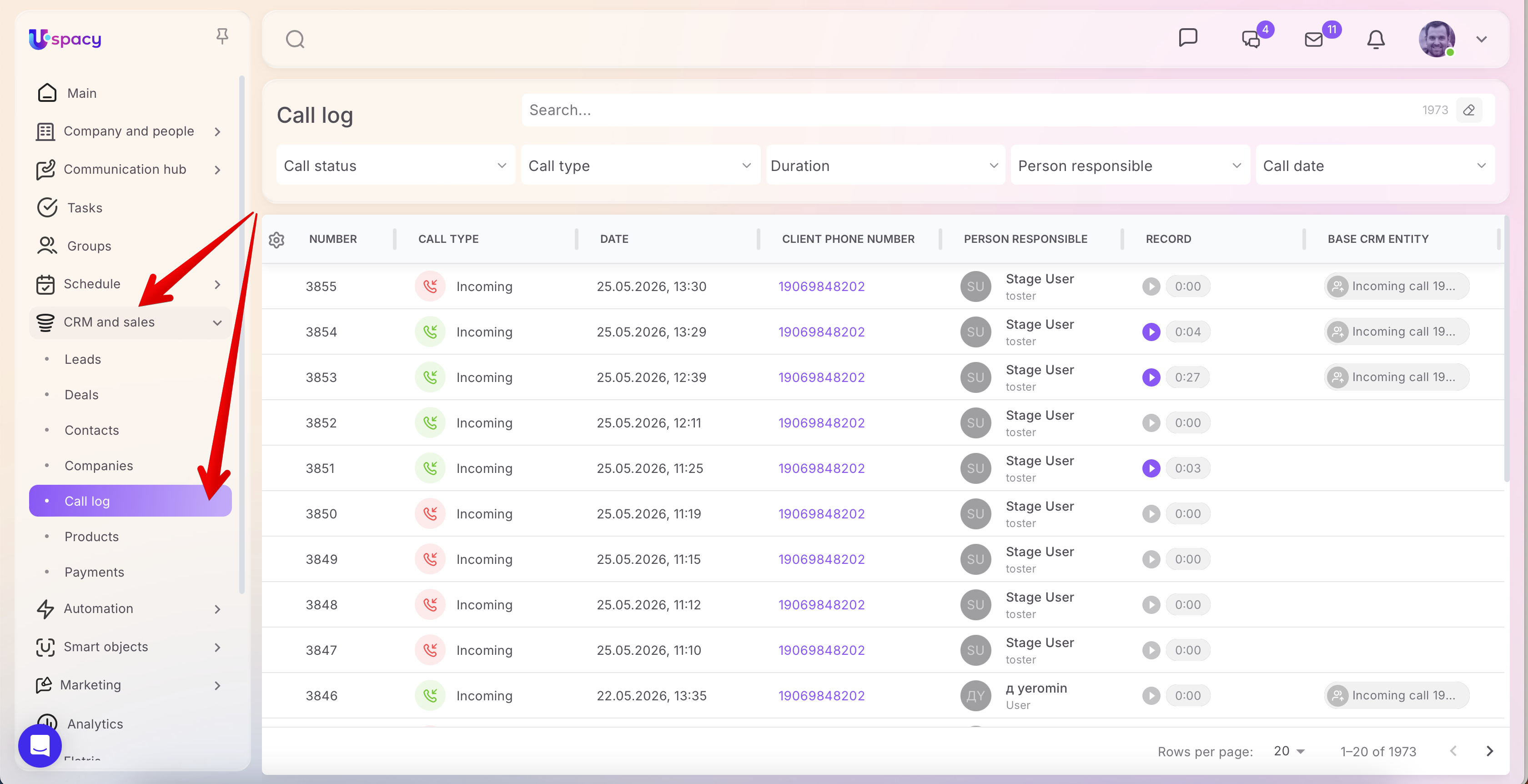
☎️ All calls (incoming, outgoing and missed) will be saved on the Call log page.
💡It is available only on commercial plans.
On the call log page, you can immediately process calls, for example, listen to the recordings of conversations or go to the card of the related CRM entity.
🙌🏻 Please note that conversation recordings are usually added with a delay of 10-15 minutes. If the call was long, the delay may be a little longer.
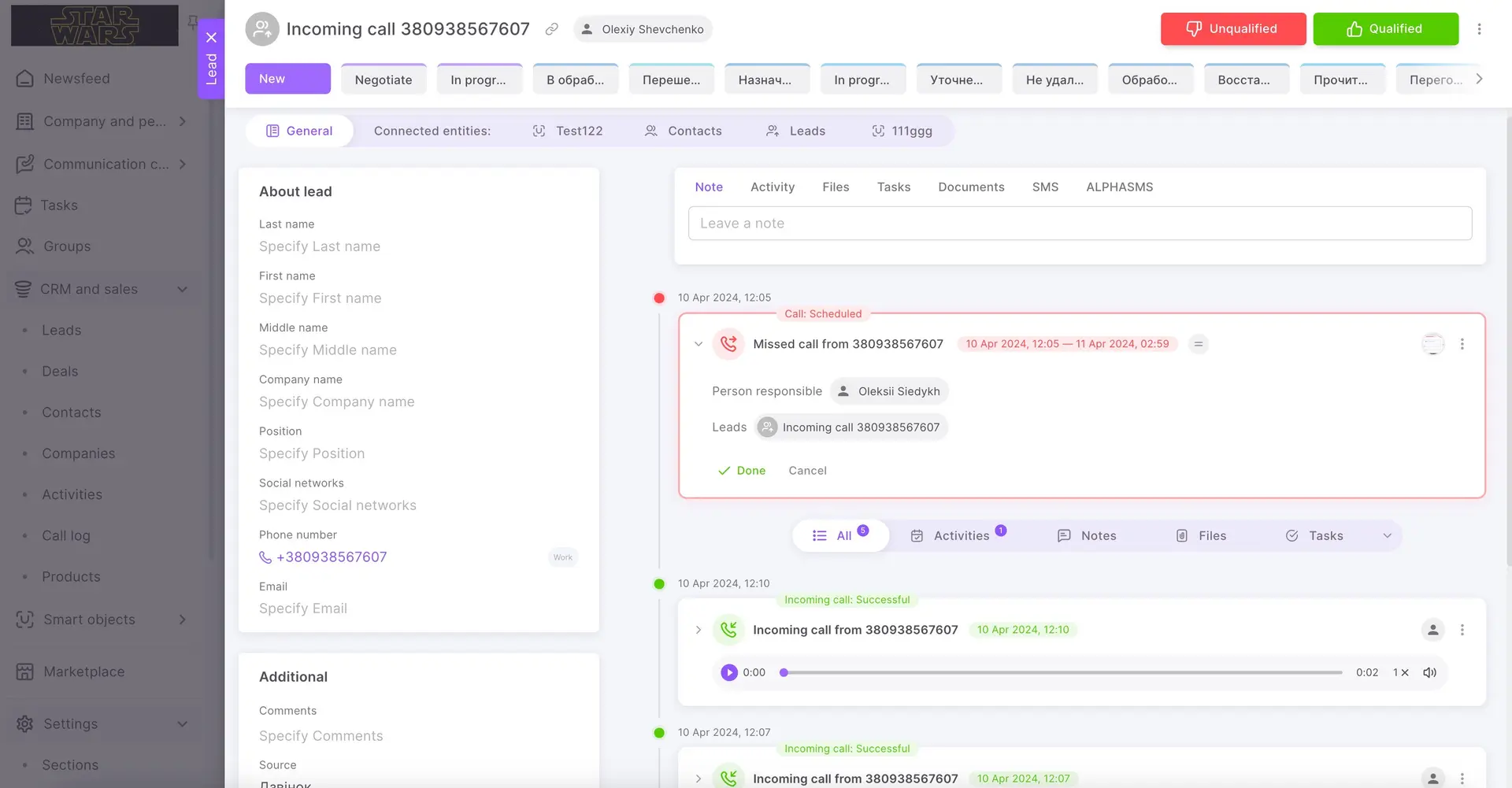
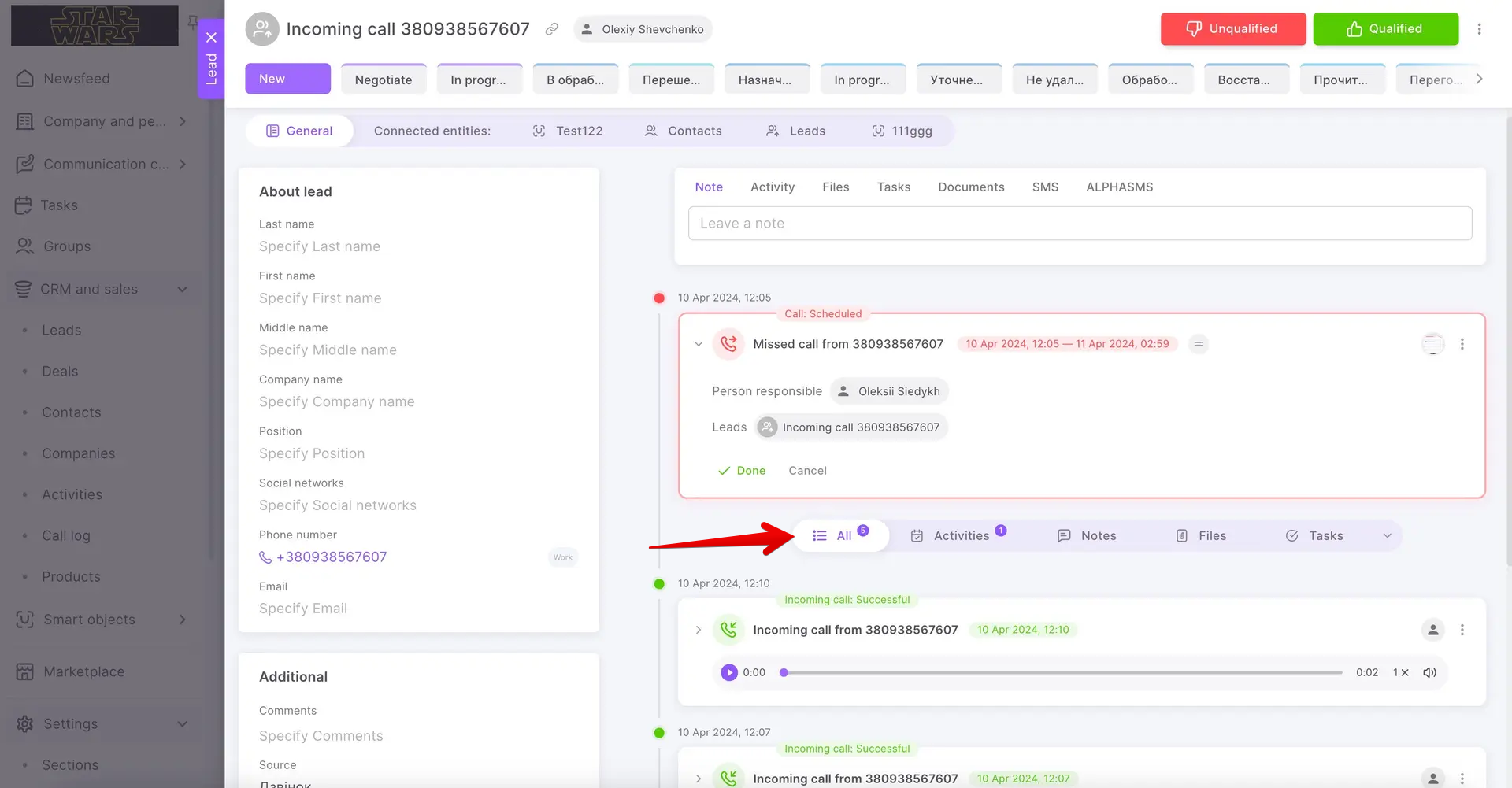
Conversation records will be contained in the CRM card as well, in its right part, under the activity filter, where the history of interaction with the element is displayed.
If you have additional questions or you need to contact the support, send a request to this email [email protected]
Created: May 26, 2026 / Updated: July 8, 2026