Activities are designed to plan work with leads, deals, contacts, companies and smart objects.
🔍 You can read more on how to create activities in the following article.
The ability to work with this tool is available in the separate section of your Space.

Or directly in the card of the entity ( either CRM or a custom one) for which the activity was created.

List of activities
It has the form of a table consisting of rows and columns. A row is an individual activity. And the column is a component that characterizes the activity, for example, its name, entity for which it was created, person responsible or status.

💡Please note that the Start date contains not only a specific date, but also a color marking:
green - the activity is scheduled, it will start no later than a month from now;
orange - the activity is scheduled, it will start on the current date;
gray - the activity is completed, canceled or it is scheduled for a date that will occur in 1 month or more.
red - the activity is expired, i.e. it has not been performed at all.

You can configure the display of these characteristics in the list. To do this, click on the gear and activate or deactivate the desired ones in the list.

❗️Only the Name is a required field, it is impossible to disable the display of the name. All other characteristics can be either hidden or, on the contrary, configured so that they are visible.
Additionally, there is the option to change the display order of columns in the list. To do this, hold down the left mouse button on the special icon (six dots).

Just drag it to the desired position.

As a result, the column will be placed where it's most convenient for you.

You can also adjust the width of the columns. To do this, hold down the left mouse button on the vertical divider.

Then drag it to the left or right.

With the help of these simple manipulations, you can quickly customize the list of activities to meet your convenience requirements.
🌟 The ability to customize columns for the activity list is available only on commercial plans. For more details about the features of the plans, go to this page of our website.
❗️ Please note that if you switch from the Standard or Professional plan to the Free plan, all settings in the activities table will be reset. Only the default columns will be available for use.
In the list, you can specify how many rows (activities) will be shown per page at once.
The minimum number is 5, and the maximum is 100. By default, the system displays 20 rows per page. You can also view the total number of activities in the list.

You can sort the data in each column of the table in ascending or descending order.
When you hover the cursor over the column header, a sorting arrow will appear.

On the first click, the data will be displayed in ascending order. On the second click, the sorting will switch to descending order. On the third click, the sorting will be reset for that column, and the list will return to its default view.
Interaction menu
When the cursor is placed on the name of the activity in the list, a button for calling the interaction menu appears.

Here you can Edit an activity, Copy its link or Delete it.

💡 If the activity has already been completed or canceled, then the Edit item will not be available.

In the entity card, the activity has an interaction menu as well. It contains Edit and Delete items.

💡 Just like in the list, if the activity has already been completed or canceled, then the Edit item will be missing.

Viewing details
To open the activity view window, click on its name.

All information about the activity will be displayed here.

💡 In the view card, you can find the contact data of the company and the contacts related to the activity.

In this window, you can either complete the activity or cancel it, edit it, duplicate it, copy its link, or delete it at once.

Editing
As we have already seen, there are several ways to go to this mode.
- The first is through the interaction menu in the list of activities.
- The second is through the activity interaction menu in the card of the connected CRM element.
- The third is through the interaction menu in the viewing mode.
Select any of these methods to make changes. The form for editing will look the same way.
After making changes, Save them.

Activity completion
In activity viewing mode, you can proceed to its completion. To do this, just click the Done button. If the activity is no longer relevant and you no longer need to deal with it, click Cancel.

Or you can do it directly in the card of the entity for which the activity is scheduled.

If the activity is completed successfully, it receives the status Done.


If for some reason it was not possible to complete the activity, then it receives the status Canceled.


Restoring
This option is available in view mode for Activities with the status Done or Canceled. In other words, by clicking the Restore button, you are returning the activity to active workflow.
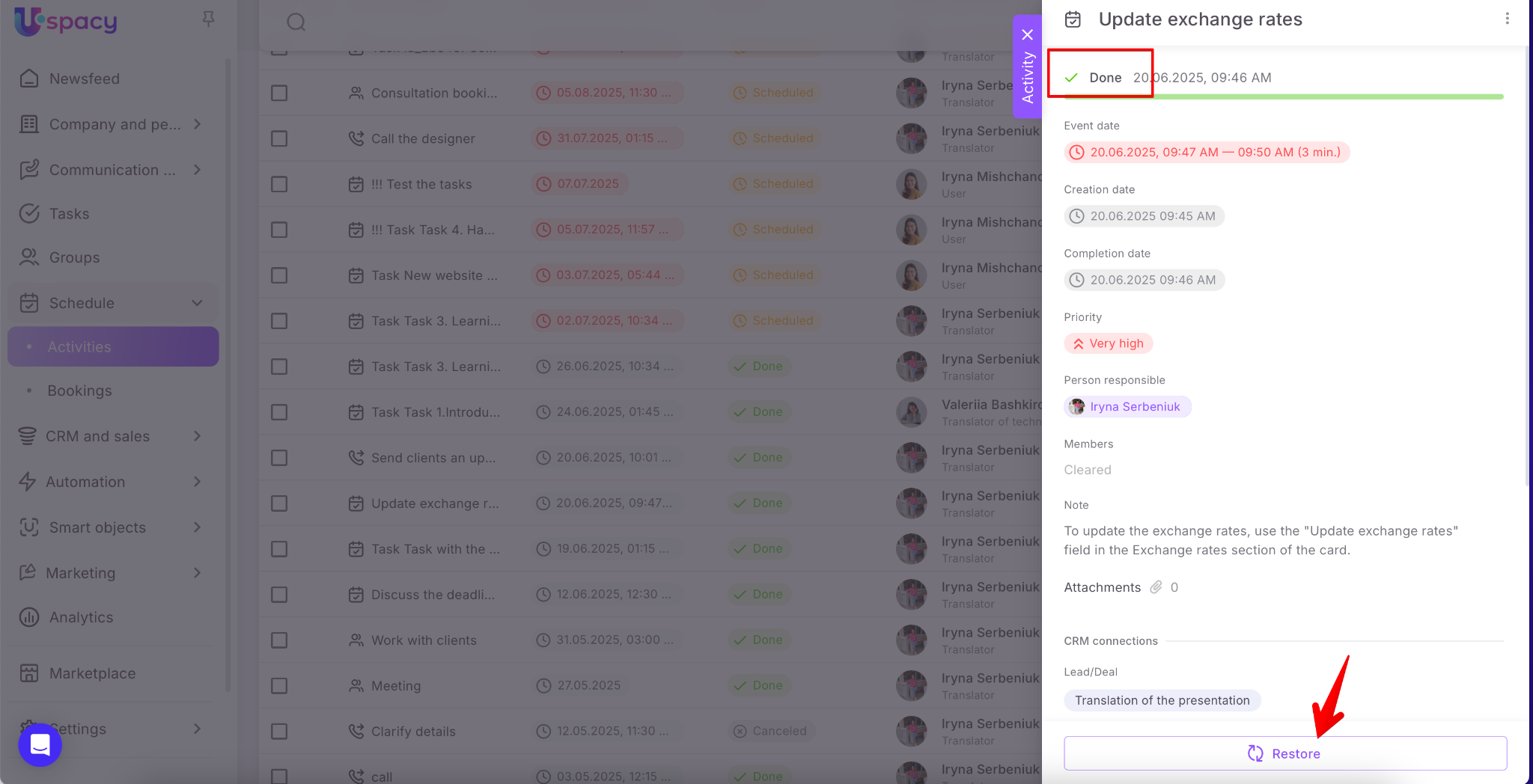
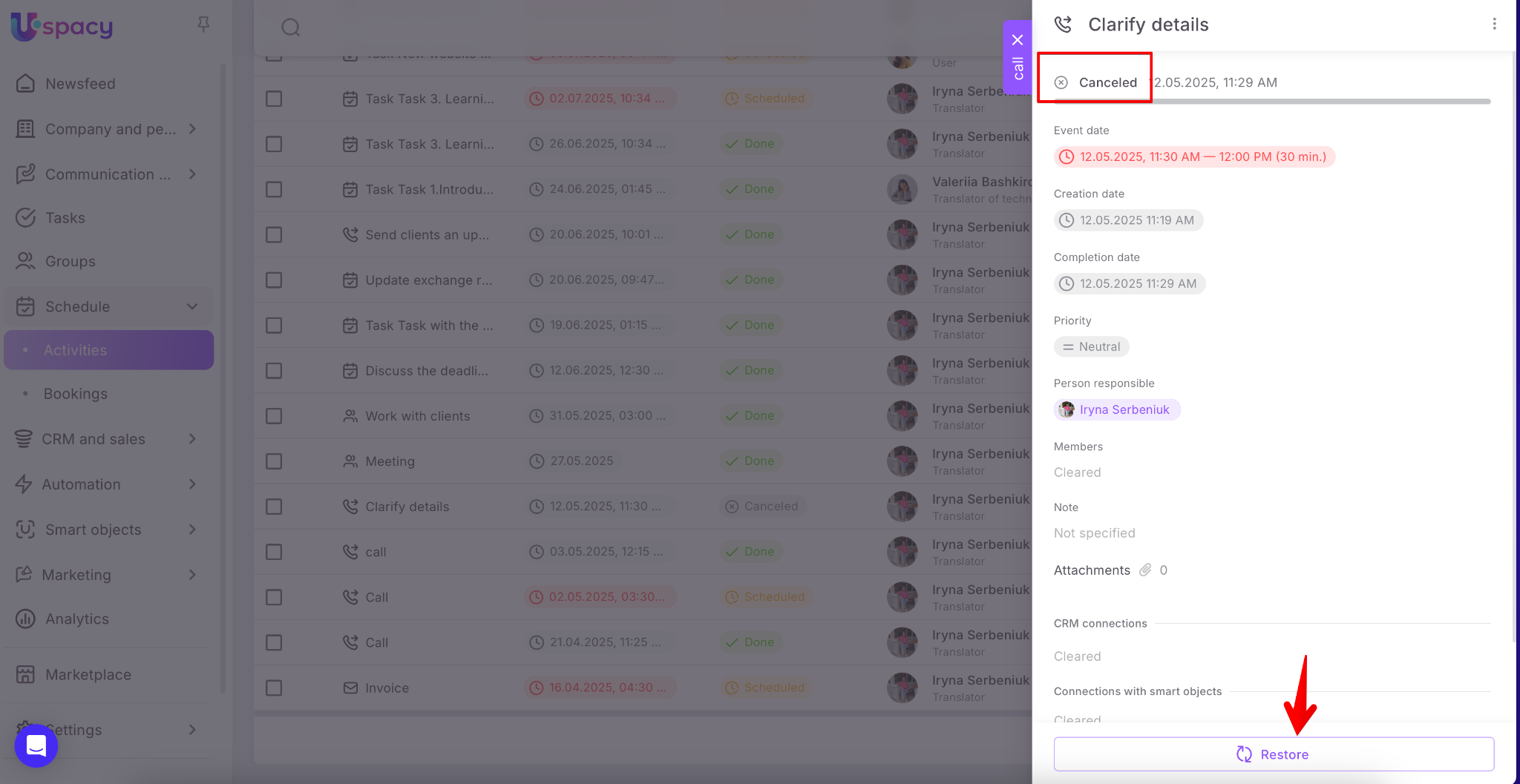
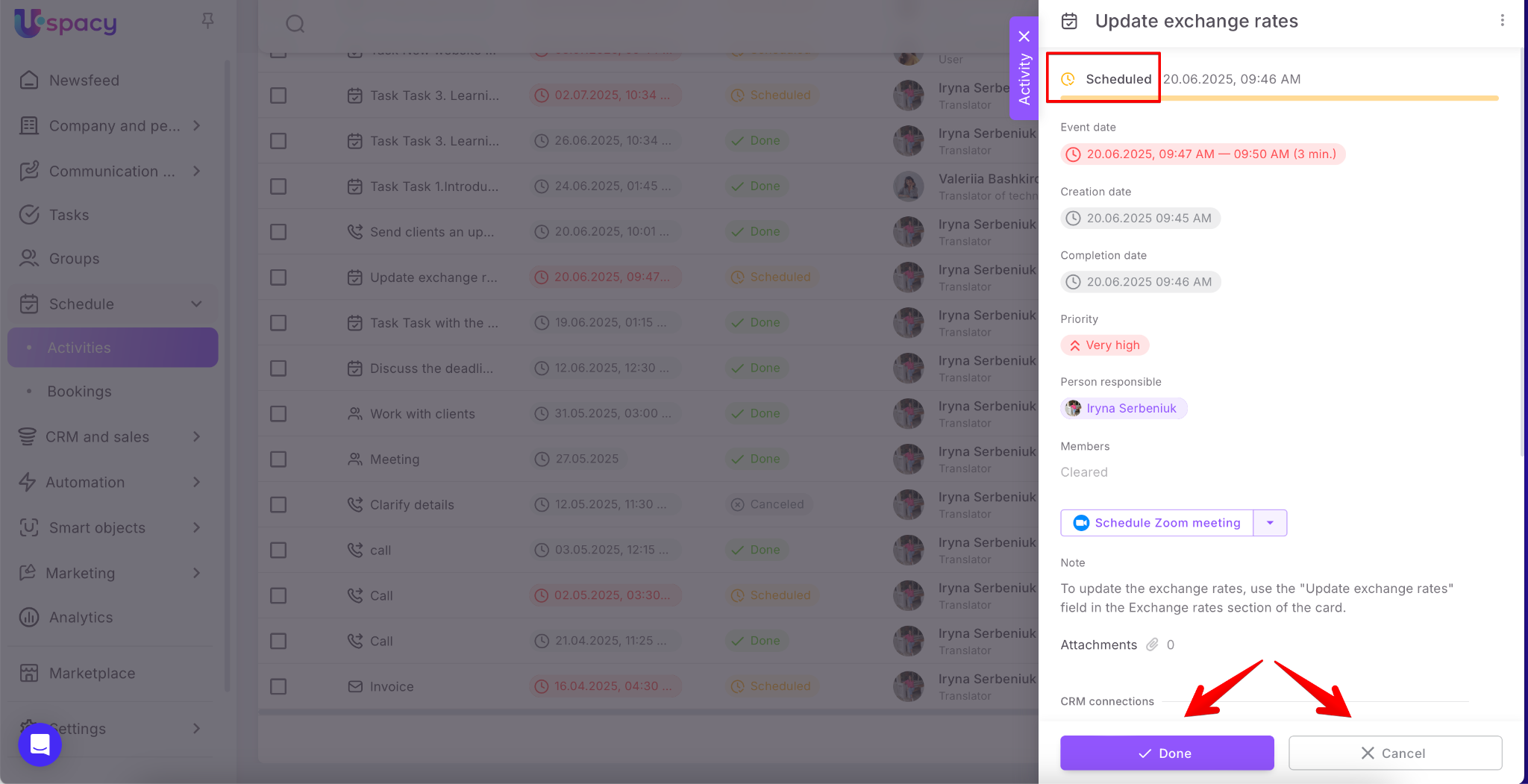
After that, such activities are moved back to the Scheduled status and appear as active in the activity list. Accordingly, they can once again be Done or Canceled.
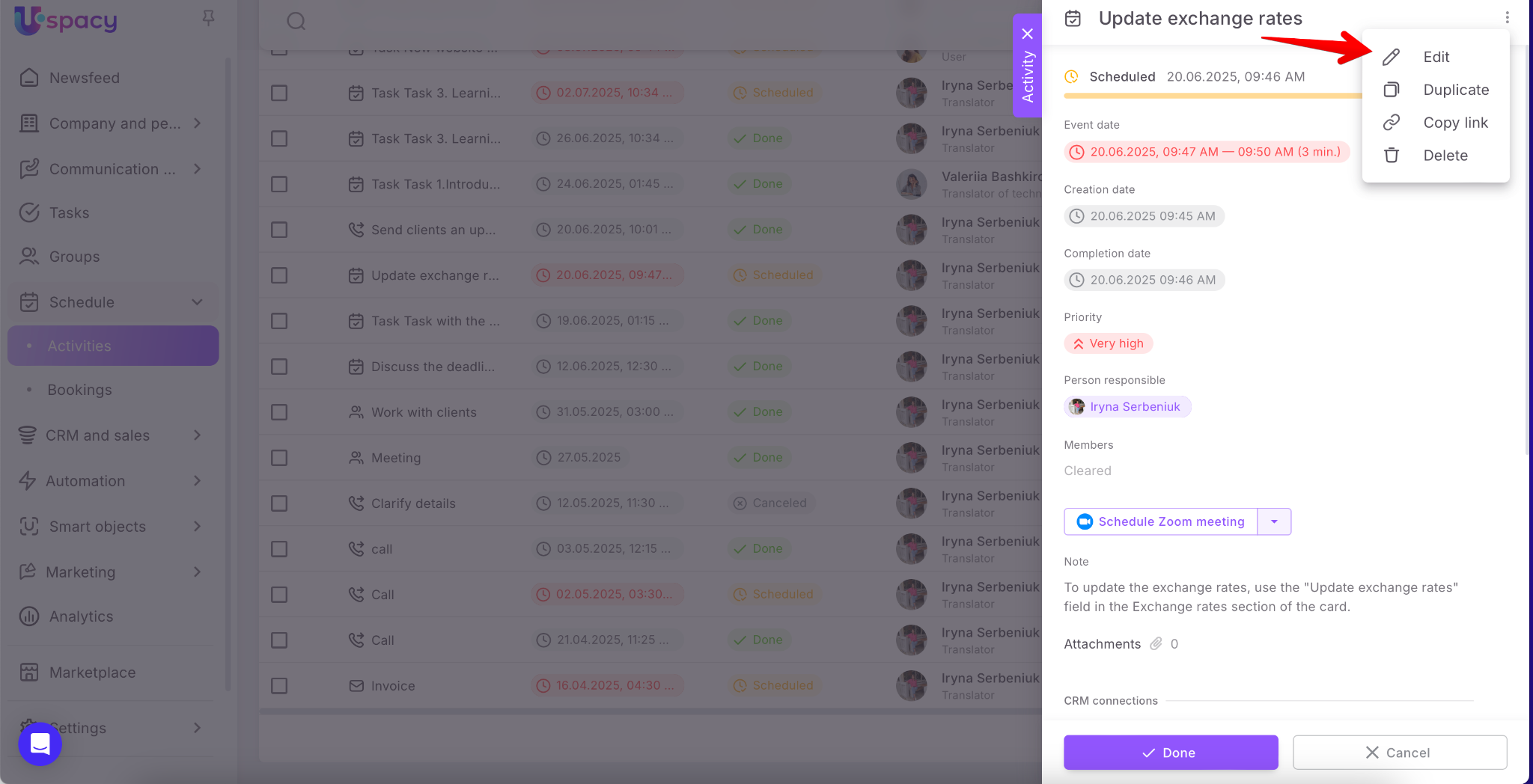
Additionally, in the activity view window and interaction menu, the standard Edit action becomes available again (it is not available for done or canceled activities).
Duplicate
This option is available in the activity interaction menu in activity viewing mode.

After clicking the Duplicate, the form for creating a new activity will open. But the fields will already be filled out with information. Of course, you can make the necessary changes and save them.

After that, the new duplicate activity will be available in the list.

Copy link
We remind you that you can do this:
- through the interaction menu with the activity in the list;
- through the menu of interaction with the activity in the viewing mode.

You can send the copied link to colleagues in chat or open it in a new tab.
Deletion
You can also do this in several ways:
- through the interaction menu with the activity in the list;
- through the menu of interaction with the activity in the viewing mode;
- through the activity interaction menu in the card of the entity related to it.
If you delete using the first two methods, you will need to confirm your actions.

As a result, you will receive a special notification from the system.

Mass actions
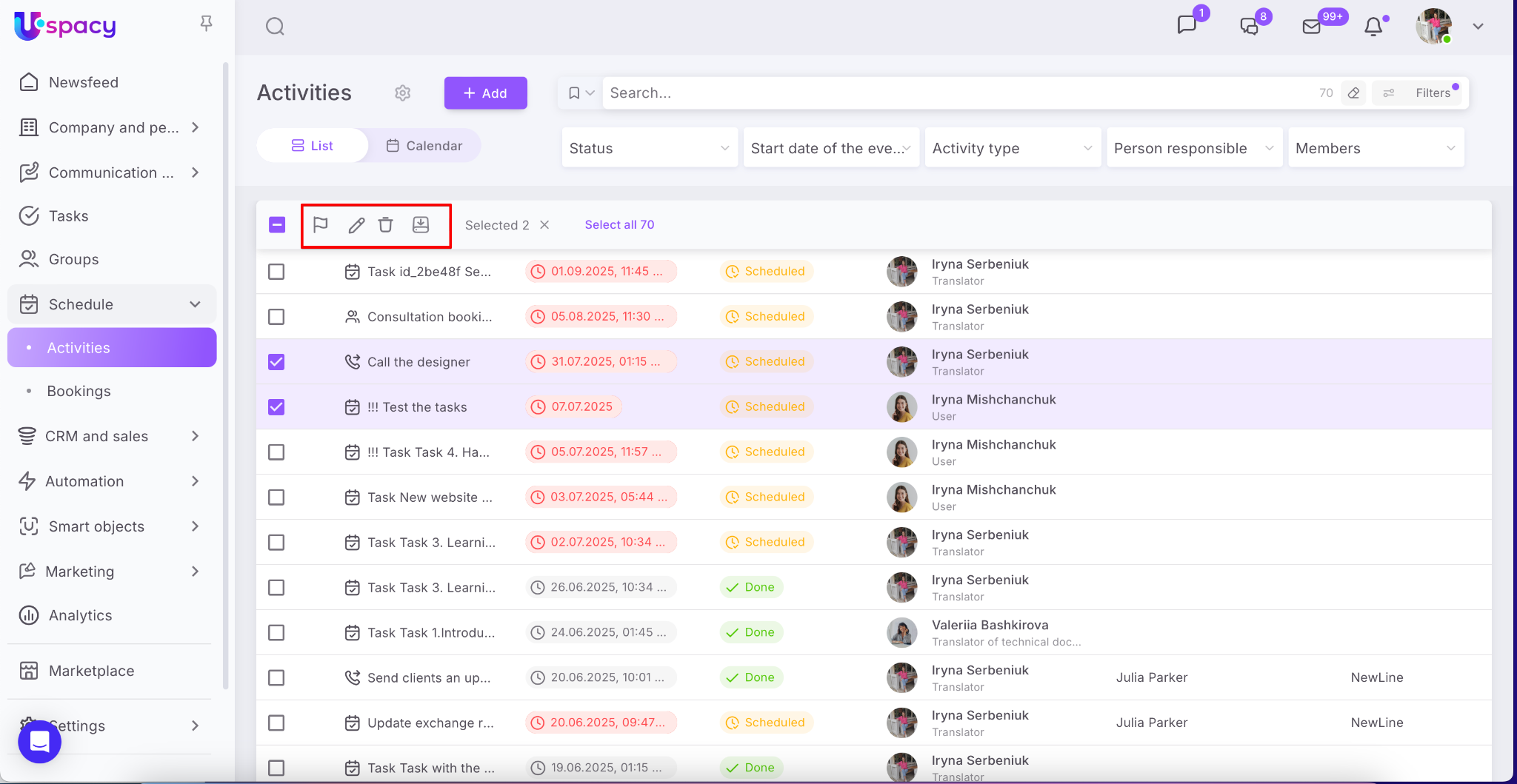
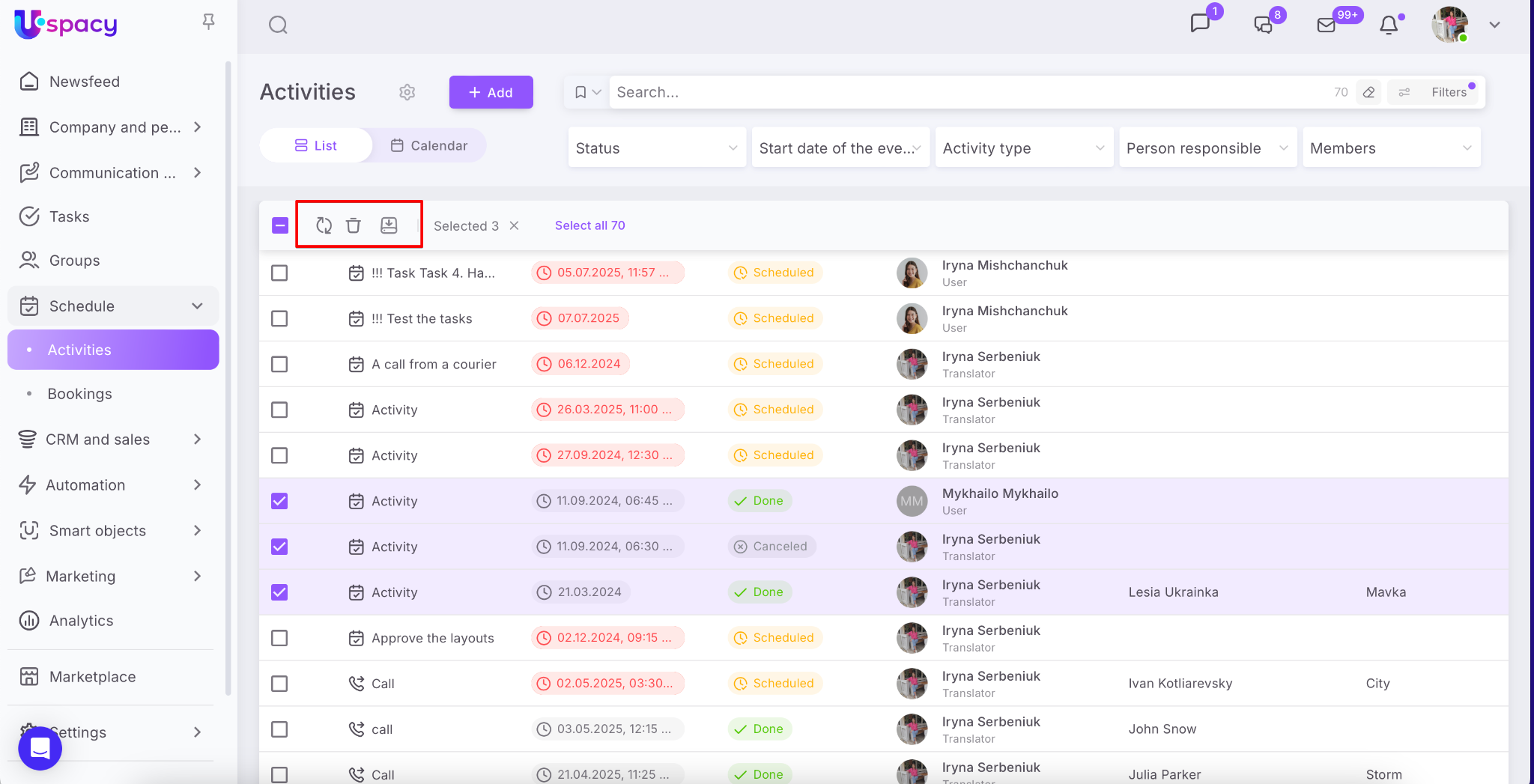
If you need to interact with multiple activities at once, mass actions will come in handy.
First, select the necessary activities, then choose the action you want to perform.
For active activities, the following actions are available: complete, edit, delete, and export.
For done or canceled activities, the available actions are: restore, delete, and export.
Features
🟣 If among the selected elements there are the ones where the user does not have the necessary permissions to delete activities (according to the permissions settings), this action WILL NOT be applied to those activities. The system will also notify you about this.
🟣 If the user has no permissions at all to delete activities (according to the permissions settings), the action will be completely blocked.

🟣 Export in Activities works the same way as Export in CRM.
Therefore, for more detailed information, we recommend reading the article 🔍➡️.
Filters and search
Above the list of activities there is a search bar and filters. They are designed to help easily find the required activity or a specific set of activities that are grouped by common characteristics.

You can just enter the keywords that are contained in the name.

Or you can use filters, both quick ones and those that require advanced settings.

The search takes into account both the parameters of the applied filters and the text query.

Filters in Activities work the same way as filters in CRM, so for more detailed information, we recommend reading the article 🔍➡️.
If you have additional questions or you need to contact the support, send a request to this email [email protected]
Created: April 28, 2023 / Updated: September 3, 2025