🪄 Pay attention that in the first release of our product, we named this tool Universal entities. But now you can see changes in its name in your spaces. From now on this tool will be known as Smart objects.
Smart objects are entities that are created by users independently and have a certain set of parameters. They can be used if the predefined, i.e., default CRM entities, do not fully meet the specifics of work and business needs.
After the required smart objects have been added to your Space, you can start working with them.
All of them are stored on a separate page in the list. Here you can configure and edit them.
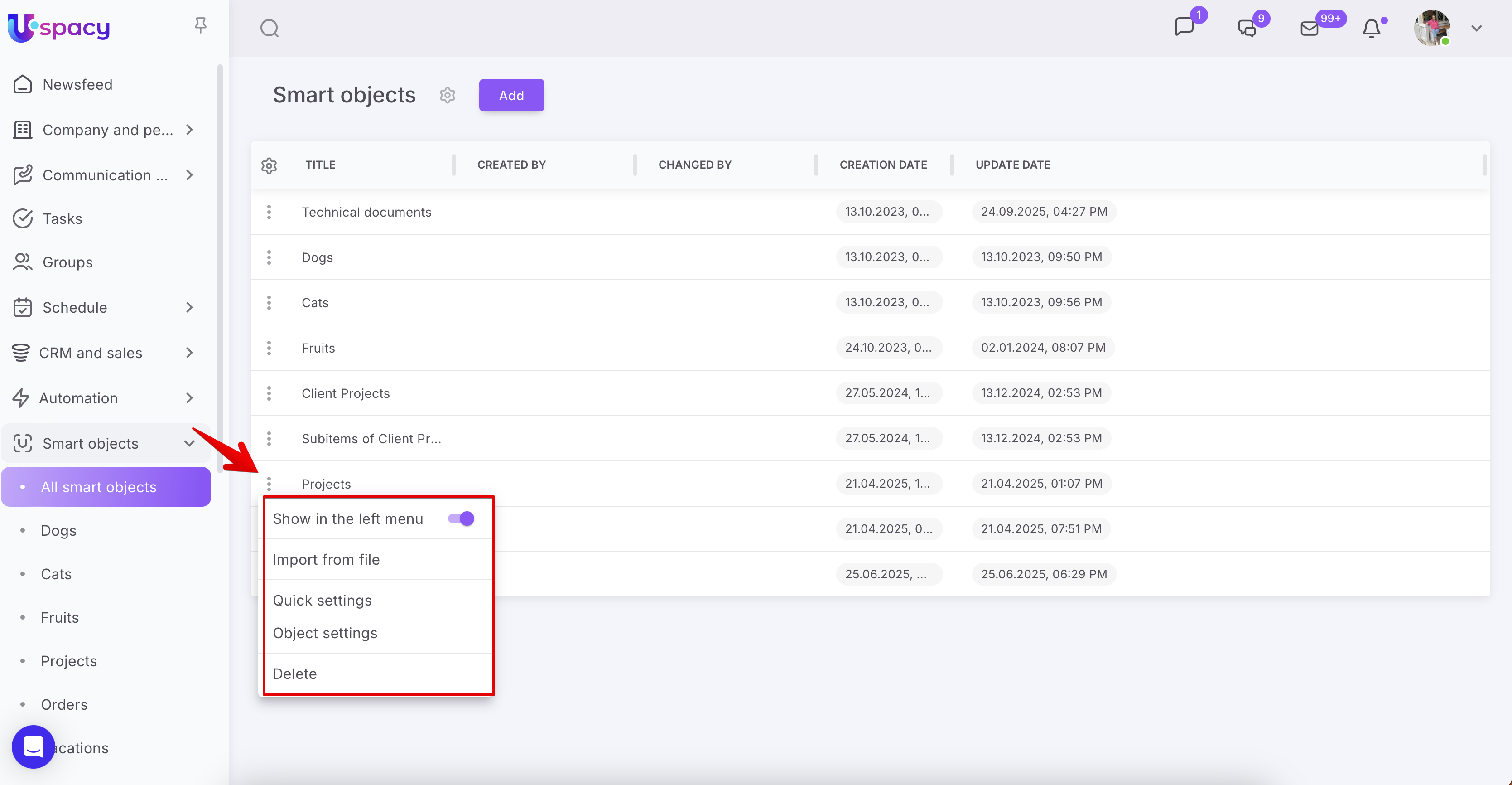
🔍 You can read more about the possibilities of interaction with smart objects in the following article.
In addition, each smart object has its own page. Here you can work with it. Namely, to add new elements of the smart object and fill their cards, create directions and stages in them, as well as schedule activities.

About everything below.
Creating elements of a smart object
It adds a new element to the base for further work with it.

After clicking on the corresponding button, the card for creating an element will open.

All required fields must be filled out and saved for the element to appear on the smart object page.

Card of a Smart object
This is an informational form that contains data about an element of a smart object and allows you to work and interact with it in your Space.

The card is divided into three parts:
- Upper - gives an understanding of what we are working with and at what stage this work is, and also contains interaction buttons.
- Left - combines all information fields.
- Right - allows to track and schedule all activities related to the element.

The upper part
It contains introductory information that lets us understand exactly which entity element we are working with as well as how we can interact with it.
This part contains the following data:
- Name
- Person responsible.
- Button to copy the link.
- Change of stages - you can transfer the element to the desired stage of working with it.
- Select or change the direction in which the element is located. In case that the option Support of directions is activated for the smart object and these directions are configured.
- Menu of interaction with the element.

7. *If the support for products is enabled in the smart object's settings, a special switch appears in the card. By default, when set to "General," the standard view of the element card is displayed, with fields on the left side and the entire activity history on the right side. However, with a single click, you can immediately switch to the products linked to the smart object. You can also add others from the catalog or even create new ones.

The left part
It has the form of blocks that contain a set of standard and custom fields.
The typical appearance of the card includes two sections: (1) General Information and (2) Additional.

There is also the option to modify the parameters of sections and fields (create new ones, change the order, hide unnecessary ones).
For this, at the bottom of the element card, there are two functional buttons (3). These buttons allow you to access all possible settings.
🔍 Since these settings are similar to those available for the CRM card, we recommend reading the article on this topic.
The right part
It takes up the most space in the card and is dynamic. Here you can:
- schedule activities;
- track them, that is, actually see the history of work with the element.

🔍 The right part of the smart object card works according to the same principle as in the CRM card. Therefore, we advise you to learn more about this in the following article.
Directions for a smart object
For each entity, you can activate the Support of directions option.

You will be able to work with the Kanban board.

And also to create separate directions, for example, to distribute work between different departments of the company or when the specifics of your entity (smart object) requires it.

🔍 The principle of work with directions in smart objects is similar to the principle of work with multifunnels in deals. Therefore, we advise you to read the following article on this topic.
If the option Support of directions is not activated, then you will not be able to work with the Kanban board.

Products for the Smart object
For a smart object, you can activate the Support of products option.

Once activated, a Products tab will appear in the cards. This tab allows you to link products or services from your catalog to specific elements of your entities.

By going to the tab, you can add products from the catalog or local ones, which will be used only for the specific smart object element.

🔍 Products in custom entities work similarly to products in CRM. Therefore, all information about this functionality can be found in a separate section of our Knowledge Base.
Additionally, in the element cards of the smart object, once product support is activated, an Amount field will automatically appear. This field cannot be deleted, only hidden. Even after deactivating the product support option, this field will remain in the cards.

However, the switch will disappear. As a result, you won't be able to work with products or establish links between them and the elements of your entity.

Products in Smart object documents
Once you have activated the product support option for a specific smart object and have accessed the corresponding tab in its element card at least once, the product field codes will appear among the fields in the document settings for that smart object.
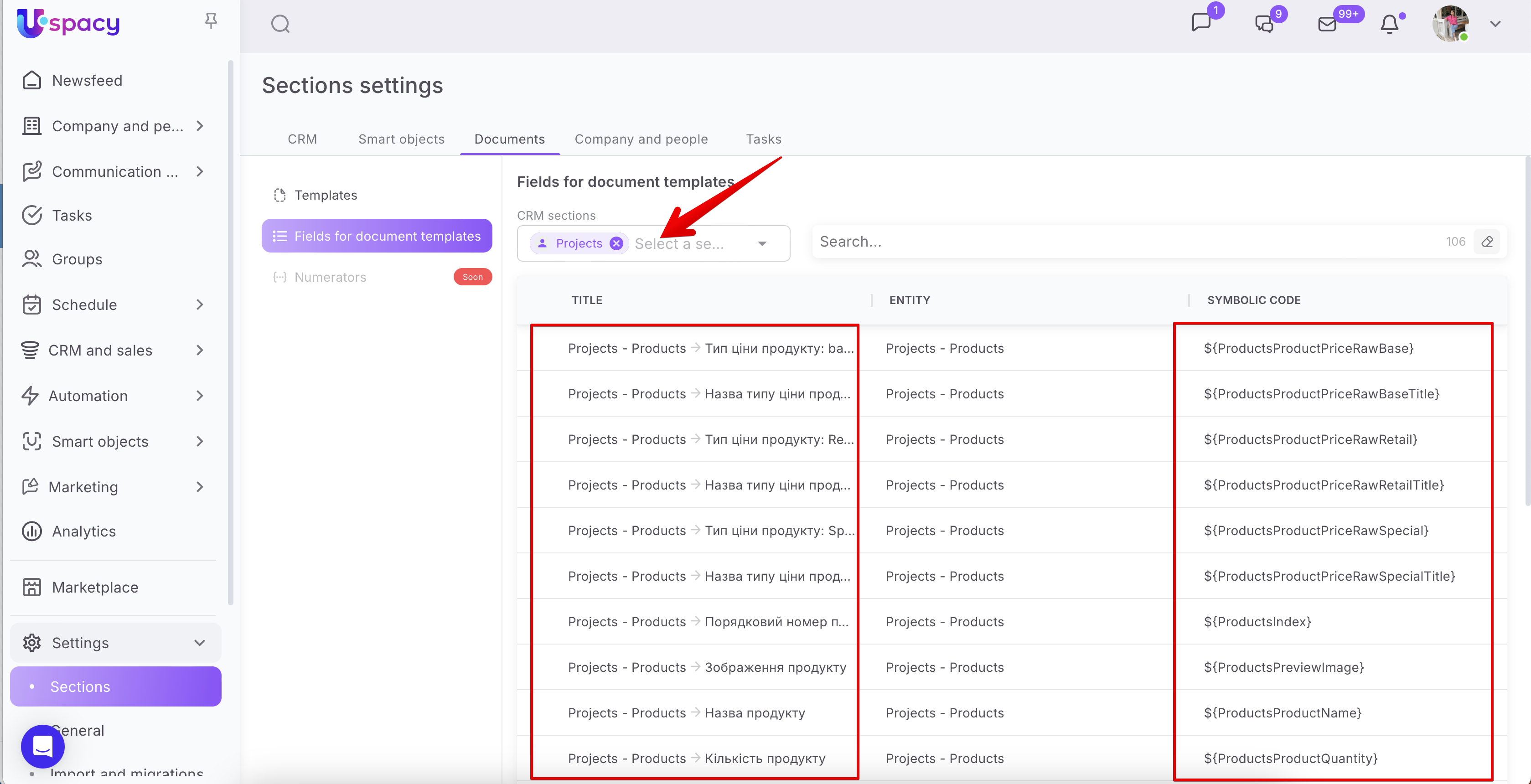
These codes are then used when generating documents, such as invoices or delivery notes.
🔍 For more details on how to use the symbolic field codes for products, you can refer to the following article.
🔍 The document generator for Smart objects works in the same way as for CRM. Therefore, all the necessary information can be found in a separate section.
Activities for the smart objects
You can also activate the Support of activities option for each of your own entity.

Then you can schedule activities in element cards.

Or to specify the binding between the element of the smart object and the activity when creating it.

🔍 Activity connections with smart objects work similarly to CRM connections. You can read more about how to work with activities in the following article.
If the Support of activities option is not activated, you will not be able to work with activities. The Activities item will be missing in the element card.

In the window for creating or editing an activity in the smart objects block (Universal entities), there will be no field for binding the elements of that smart object for which the option is not activated.

Tasks for a smart object
You can also activate the Support of tasks option for each custom entity.

Then, when working with an element of a smart object, it will be possible to immediately go from its card to the form of creating tasks.

A binding to this element will automatically be displayed in the corresponding block.

Or vice versa. When working on a task, for example when editing it, you can specify the binding between it and the required element of your custom entity.

🔍 You can read more about how to create tasks and their parameters in the following article.
If the Support of tasks option is not activated, then you will not be able to bind them to tasks. The Tasks item will be missing from the item card.

But in the form of creating or editing a task in the Smart objects block, there will be no field for binding the elements of that custom entity for which the option is not activated.

Work with elements of a smart object in a list
The list of elements has the form of a table consisting of rows and columns. A row is directly each individual element. And a column is a component that characterizes it, for example, the name, person responsible or date of creation.

You can configure the display of these characteristics in the list. To do this, you need to click on the gear and activate or deactivate the desired ones in the list.
Only the Title is required, it is not possible to disable the display of the title. Everything else can be either hidden or, on the contrary, configured so that it is visible.

💡 Not only standard characteristics for the smart object, but also custom fields are added to the table.
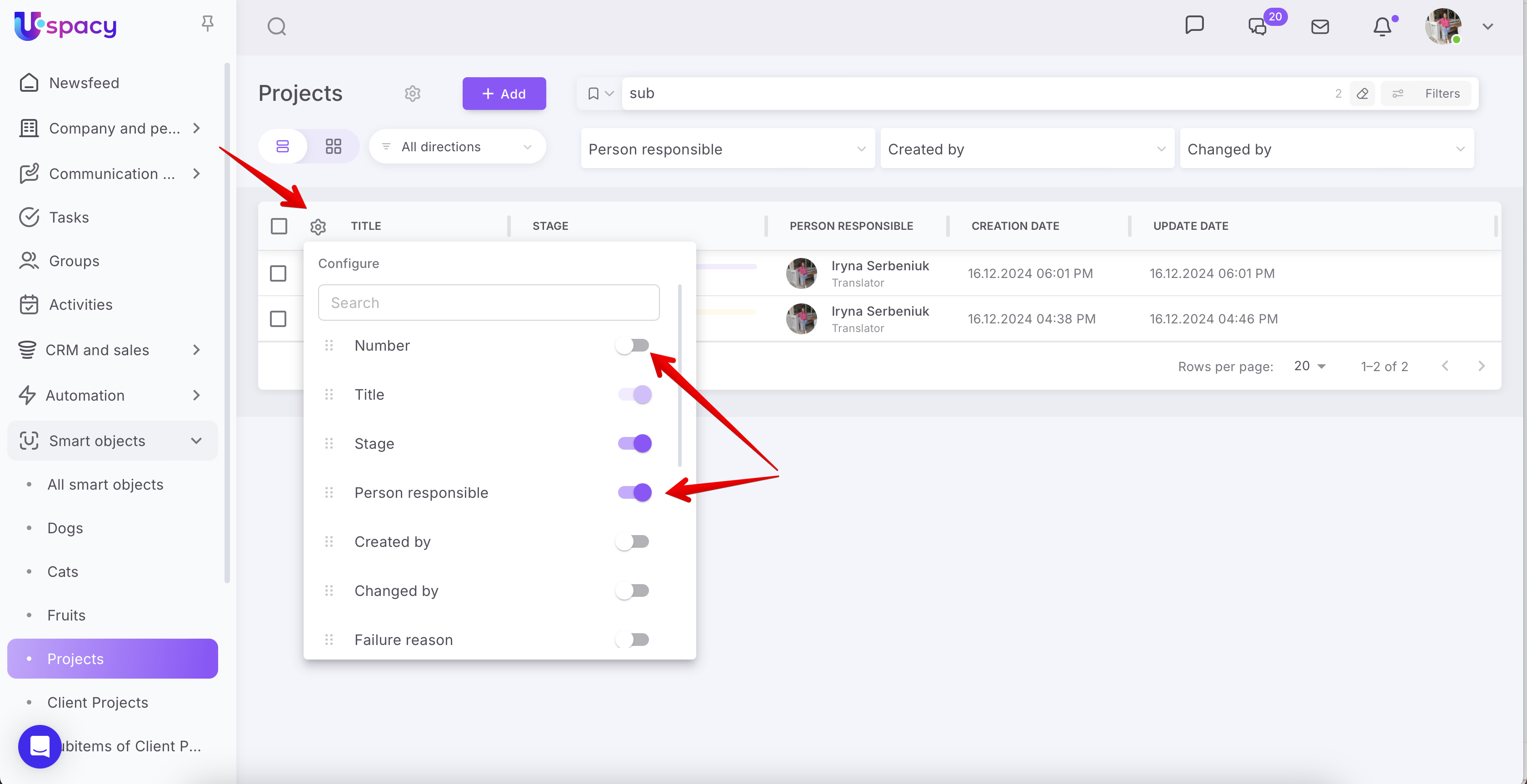
Additionally, it is possible to change the order of column display directly in the list. To do this, click and hold the special icon (six dots) with the left mouse button.

Then, just drag it to the desired position.

As a result, the column will be placed where it is most convenient for you.

You can also adjust the column width. To do this, click and hold the vertical divider with the left mouse button.

Then, drag it to the left or right.

☝🏻 The administrator or Space owner can also configure the optimal table layout and apply these settings for all users at once. This ensures a unified approach to working with Smart Objects across the team.
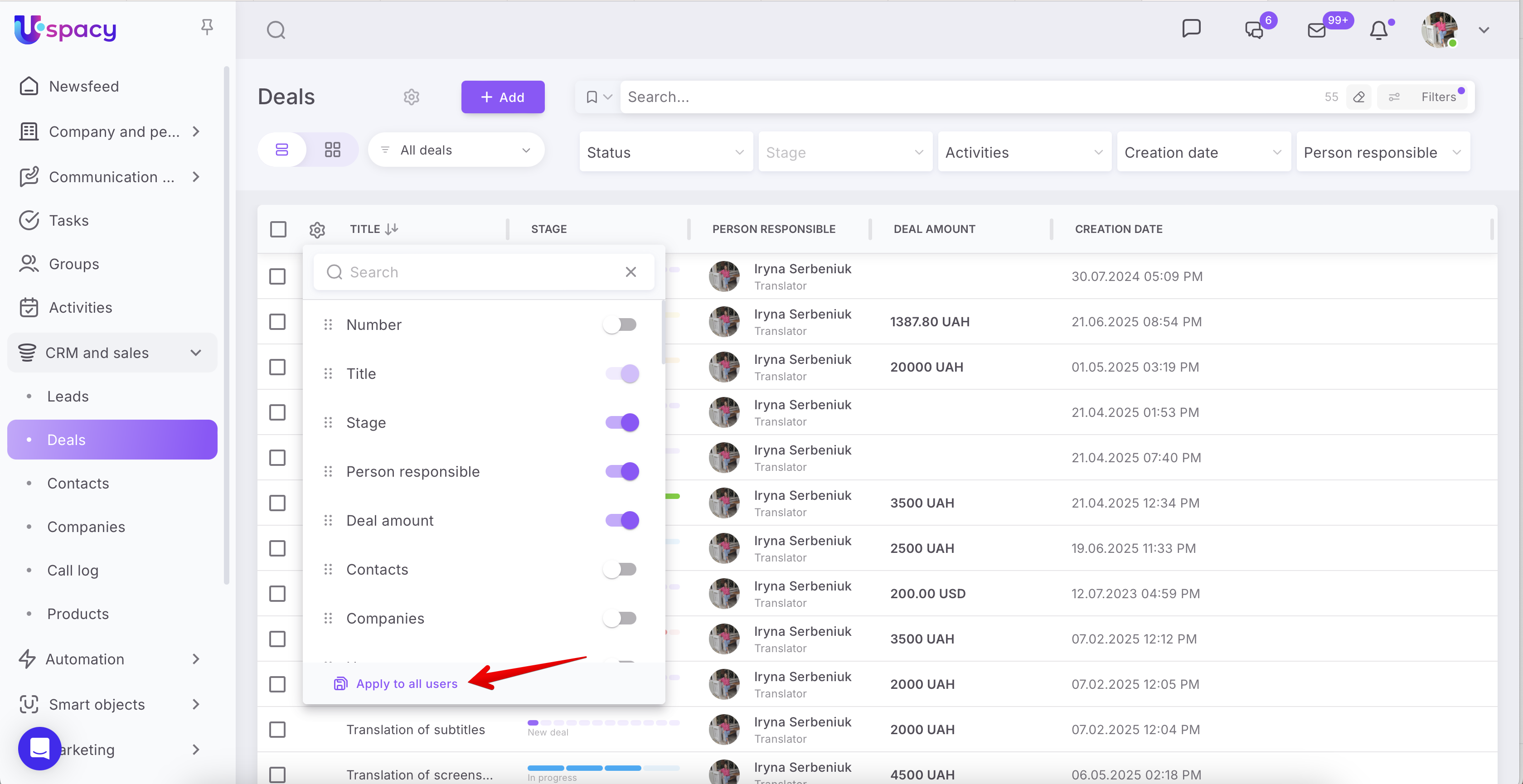
Thus, with these simple actions you can quickly customize the task list to meet your convenience requirements.
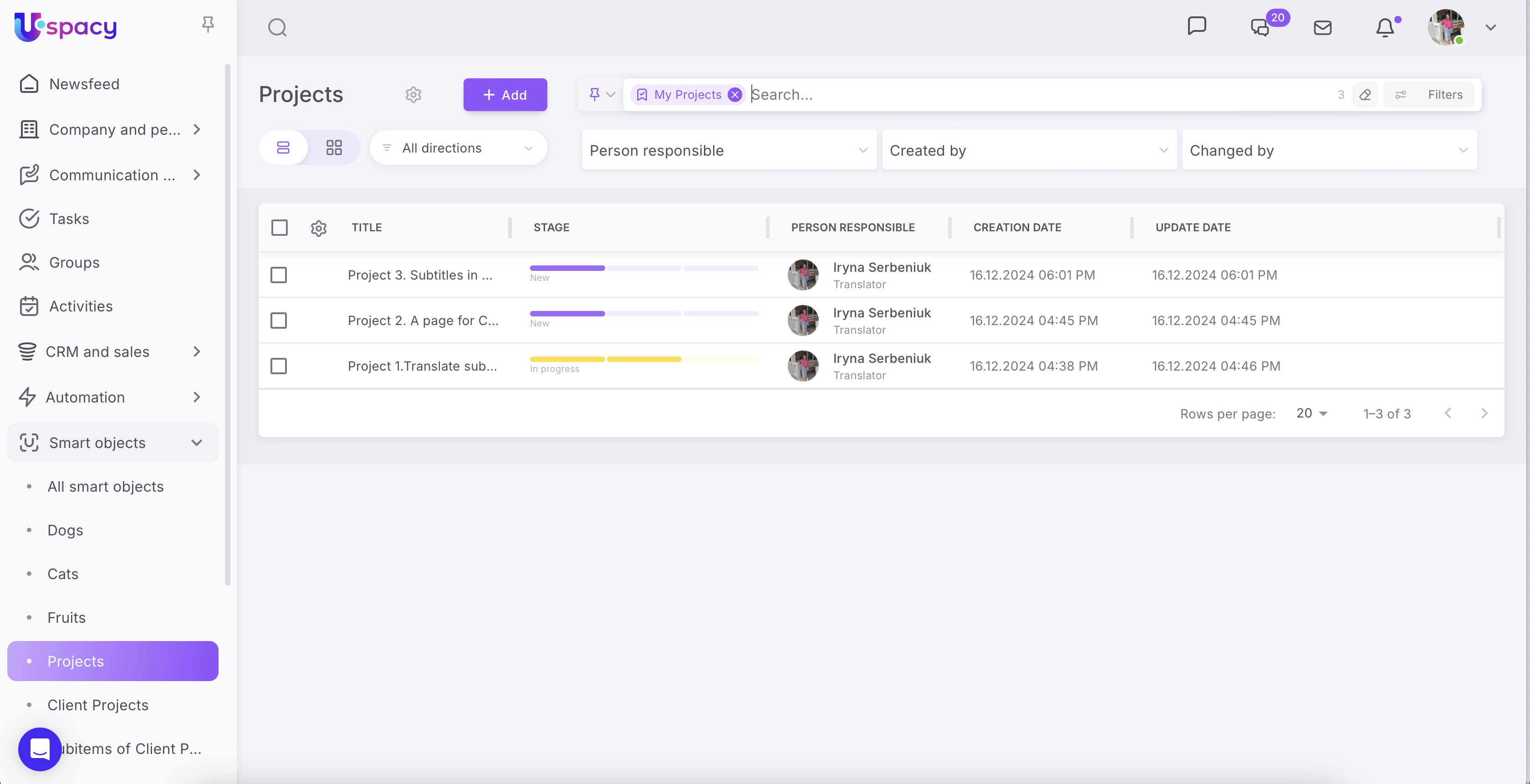
It is possible to sort the table data in each column in forward order (descending) or reverse (ascending).
When you move the cursor over the column name, a content sorting arrow appears.

In addition, in the list you can:
- specify the number of rows - how many entity elements can be displayed on the page at once;
- see which element is displayed on the page and their total number in this list;
- use the arrows to move between the list pages.

When the cursor is hovered on an element, a button for calling the interaction menu appears.

When you click on it, actions that can be applied to the element will be displayed. Namely:
- editing – opens the element card for making changes to it;
- copy link - copies the link to the item's card to the clipboard and provides the ability to forward it to colleagues in the chat or insert it into the browser line and open it in a new tab.
- delete - deletes the element and all data about it, is an irreversible action.

If you need to edit or delete multiple elements at once, use the mass actions (1). Additionally, for smart objects, you can use export (2). You can also merge duplicates (3) if you have any in your database.

🔍 You can read more about mass actions in smart objects and their features in the following article.
🔍 Export in smart objects works similarly to the export in CRM, so we recommend reading the article on this topic.
🔍 Merging duplicates in smart objects follows the same rules as merging duplicates in CRM, so we suggest checking out the article for more details.
Search and filters on the smart object page
Above the list of elements there is a search bar and filters. Filters help to find a certain group of elements that are united by common features.

You can just enter keywords that are contained in the title.

Alternatively, you can use filters, both quick ones and those that require advanced settings.

The search always takes into account both the parameters of the applied filters and the text query.

🔍 Filters in Smart Objects work the same way as filters in CRM, so for more detailed information, we recommend reading the article.
If you have additional questions or you need to contact the support, send a request to this email [email protected]
Created: October 13, 2023 / Updated: September 24, 2025