To properly fill out the data for importing into Uspacy, you can use our templates that we have created in advance. To do this, simply download them and open them on your own computer.

We have recommendations for you on how to open and work with import templates through various specialized programs.
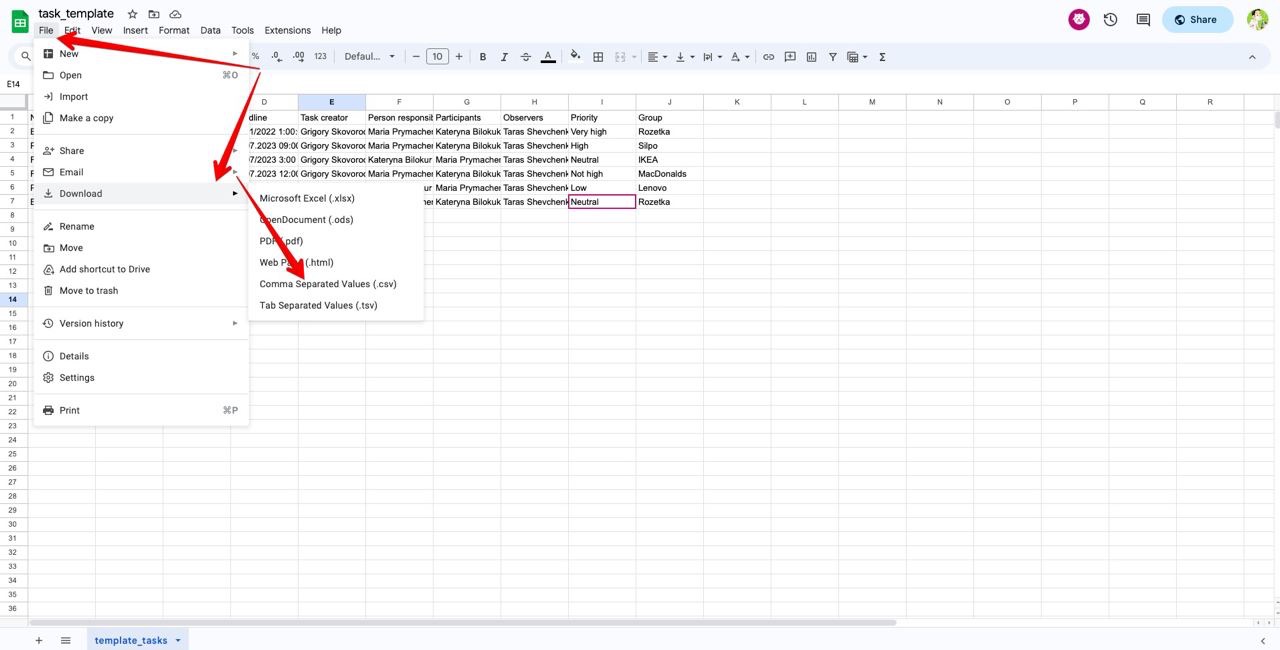
Google sheets
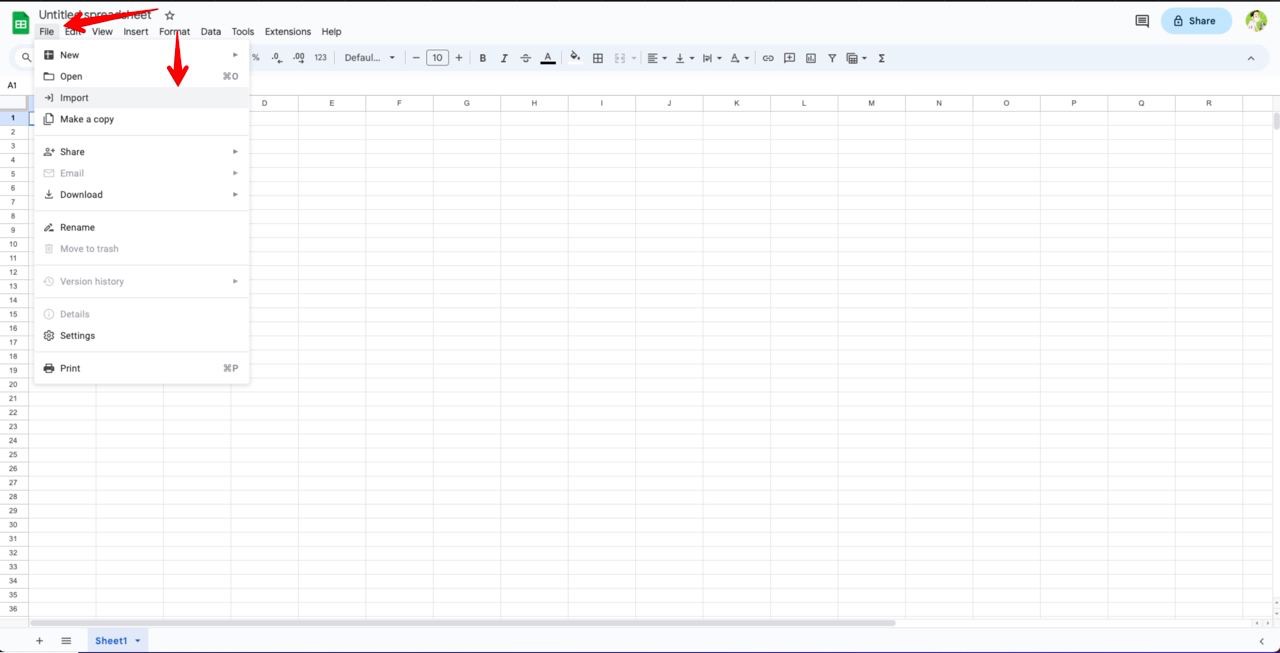
First, open a new spreadsheet. In the top menu, select File - Import.
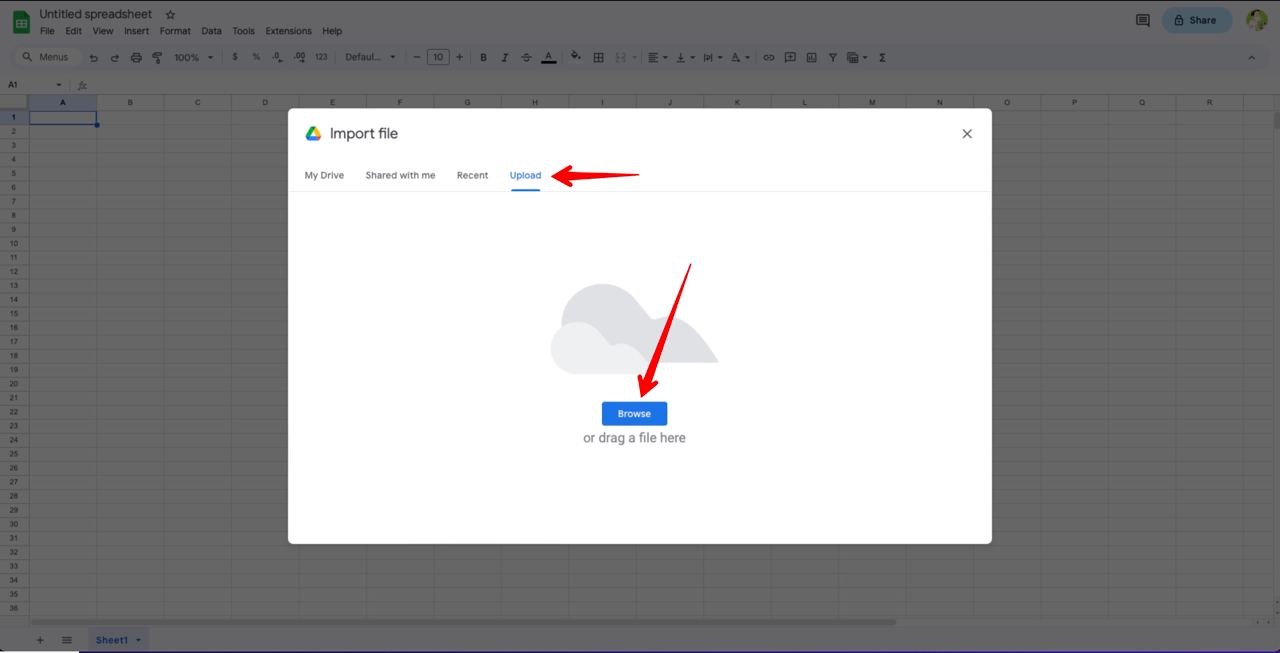
Next, upload the file from your computer.
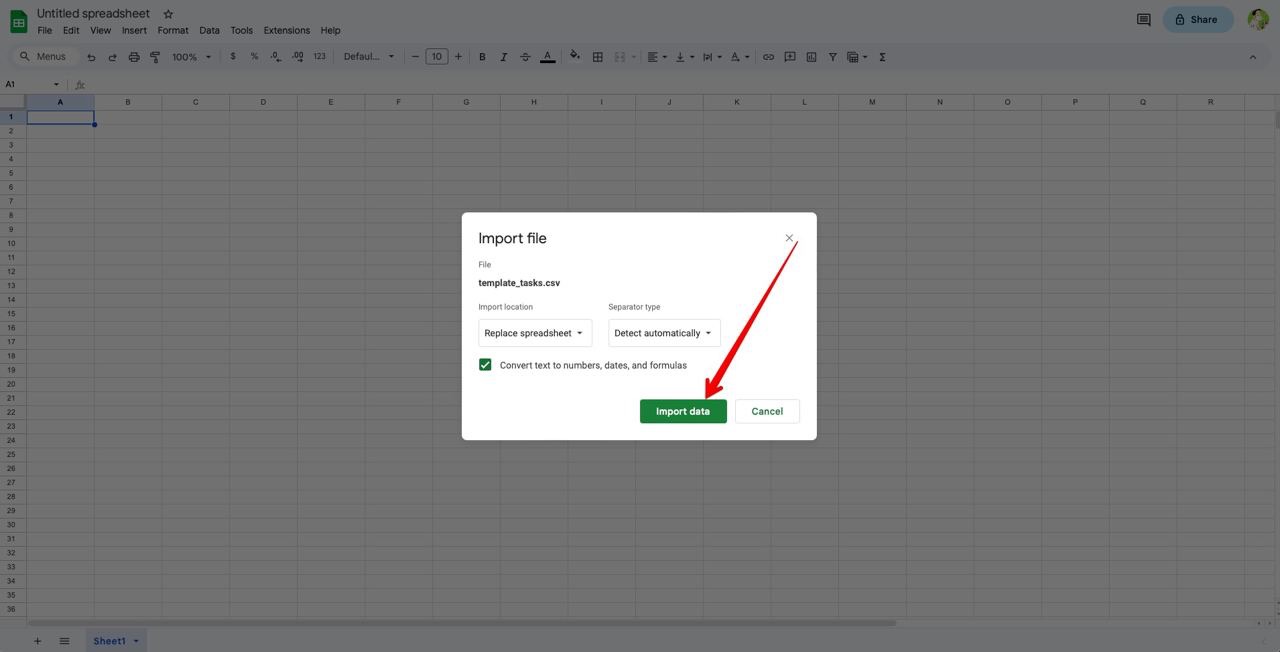
Configure the import parameters and click Import data.
The template file will open without any problems.
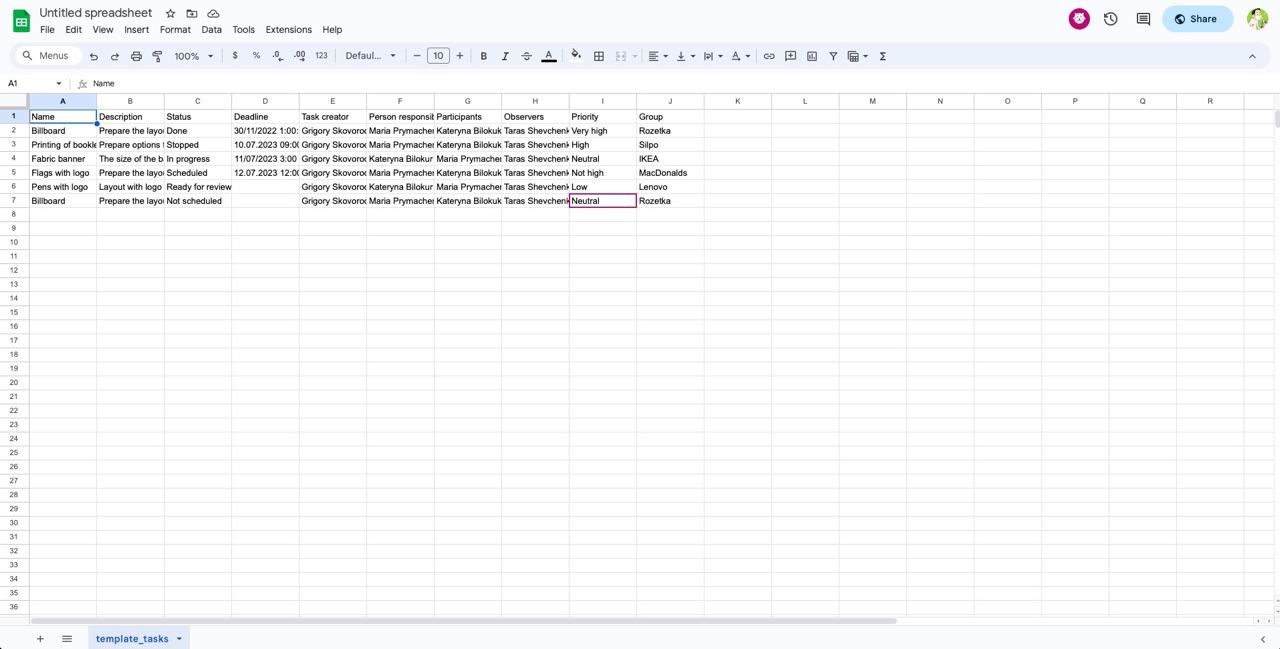
All you need is to enter your data and save it to your computer in order to upload this file later.
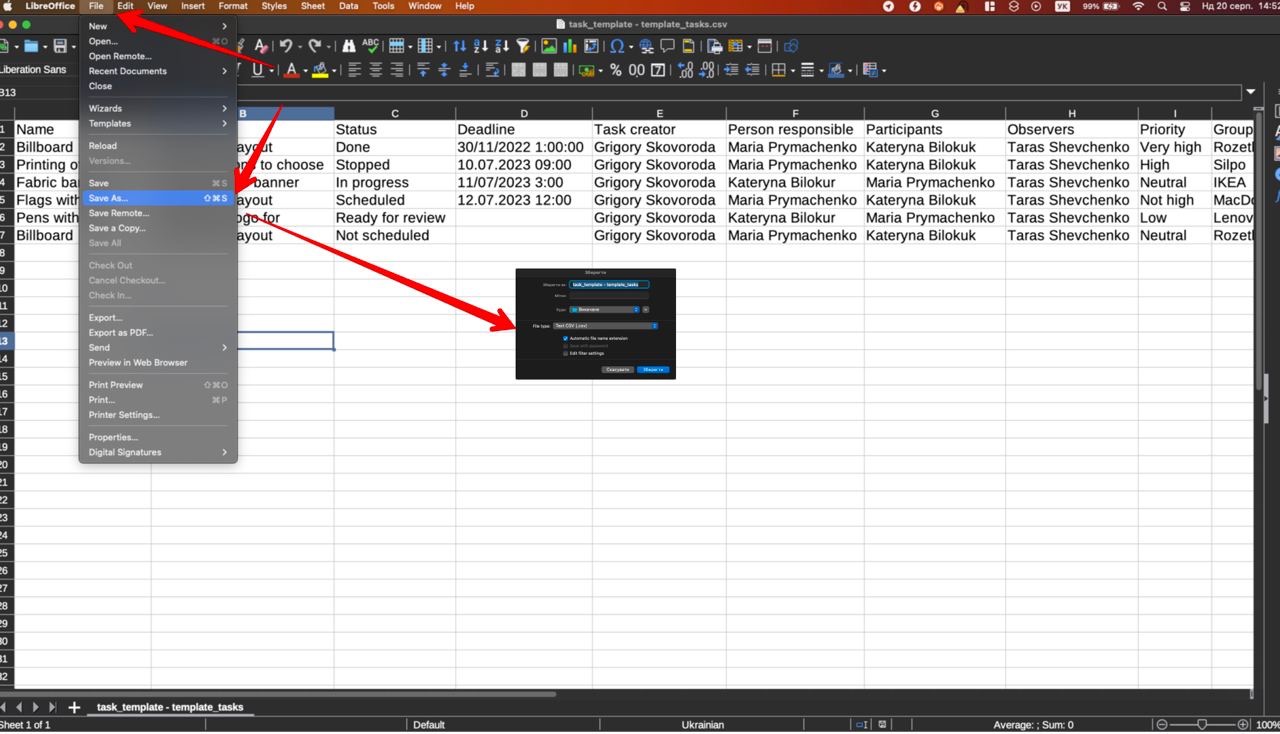
💡It is better to save the file in the format needed for import into Uspacy.
LibreOffice
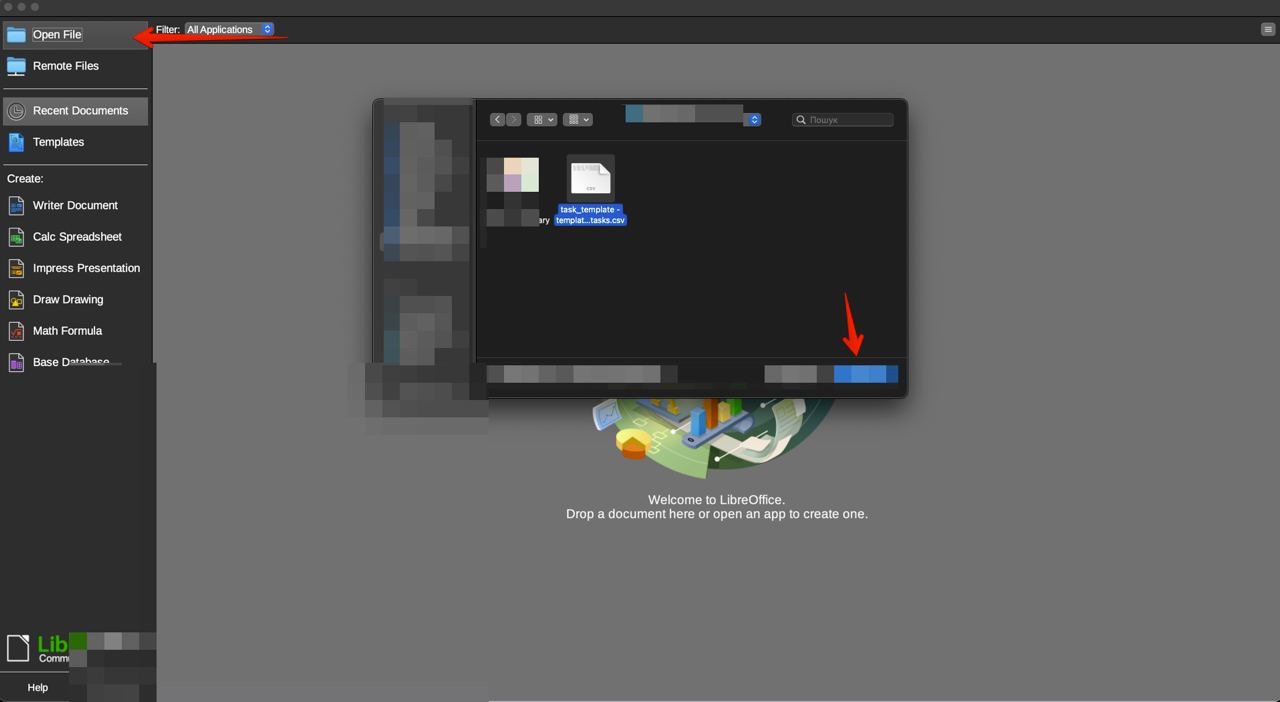
In the main working window, you need to click Open file and then select the downloaded template.
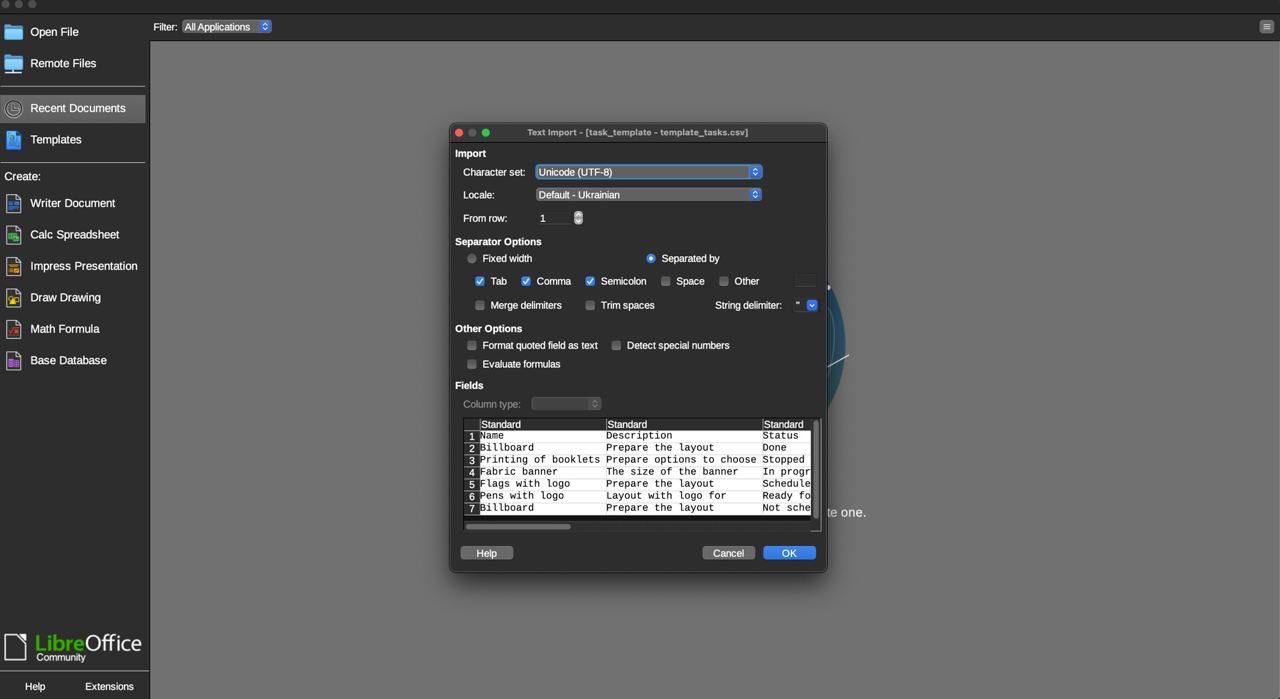
Configure the import parameters and click OK.
The template will open.
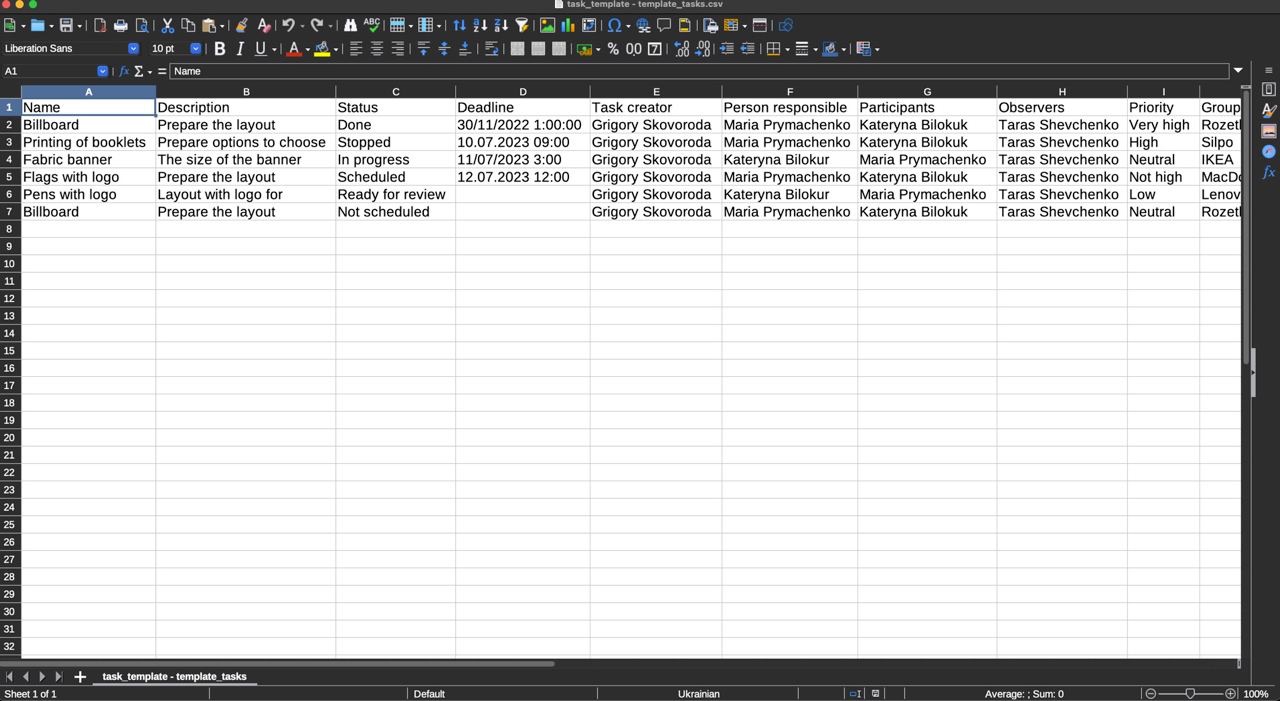
All you need is to create your own based on it, save it and use it for import.
💡It is better to save the file in the format needed for import into Uspacy.
Excel
Sometimes there are situations when, after downloading a template for import, it does not open correctly in the MS Excel program. What to do then?
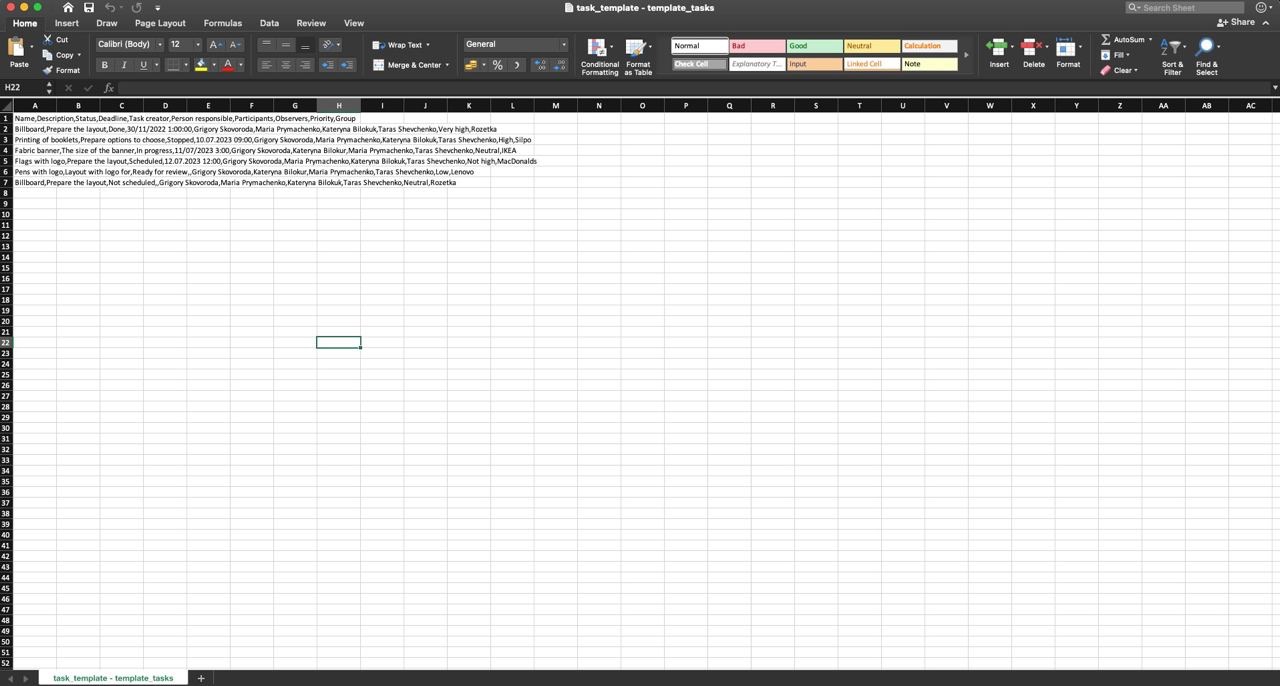
First, let's find out why this can happen. The most common reason for incorrect display is encoding (file format) and delimiter. Therefore, this is exactly what will need to be corrected.
So, after downloading the template, you opened it through MS Excel and got something like this ⬇️
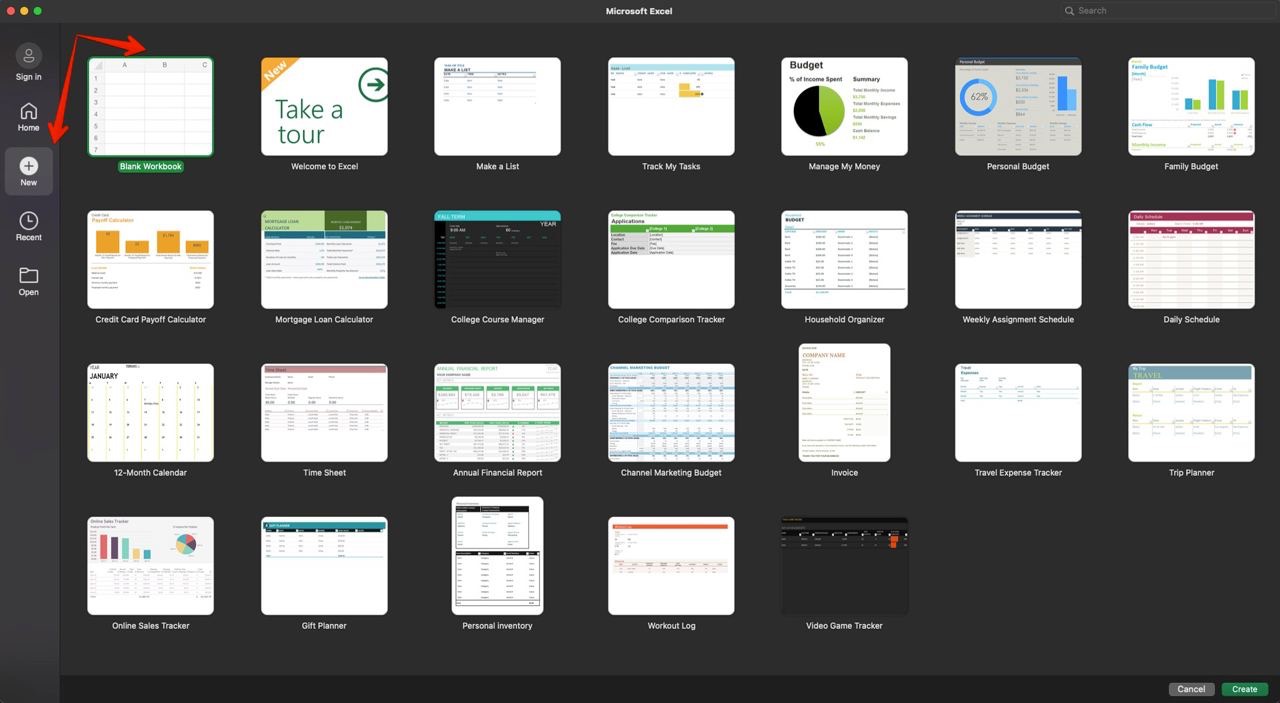
You need to create a new document. To do this, open MS Excel on the main page and click New – Blank workbook.
Next, go to the Data tab.

And in the Get External Data menu item, select the From Text option.

Next, upload the template and click Get Data.

In the window that opens, specify that you want to display the file with delimiters (Delimited) and configure the correct format (Unicode UTF-8). Click Next to continue.
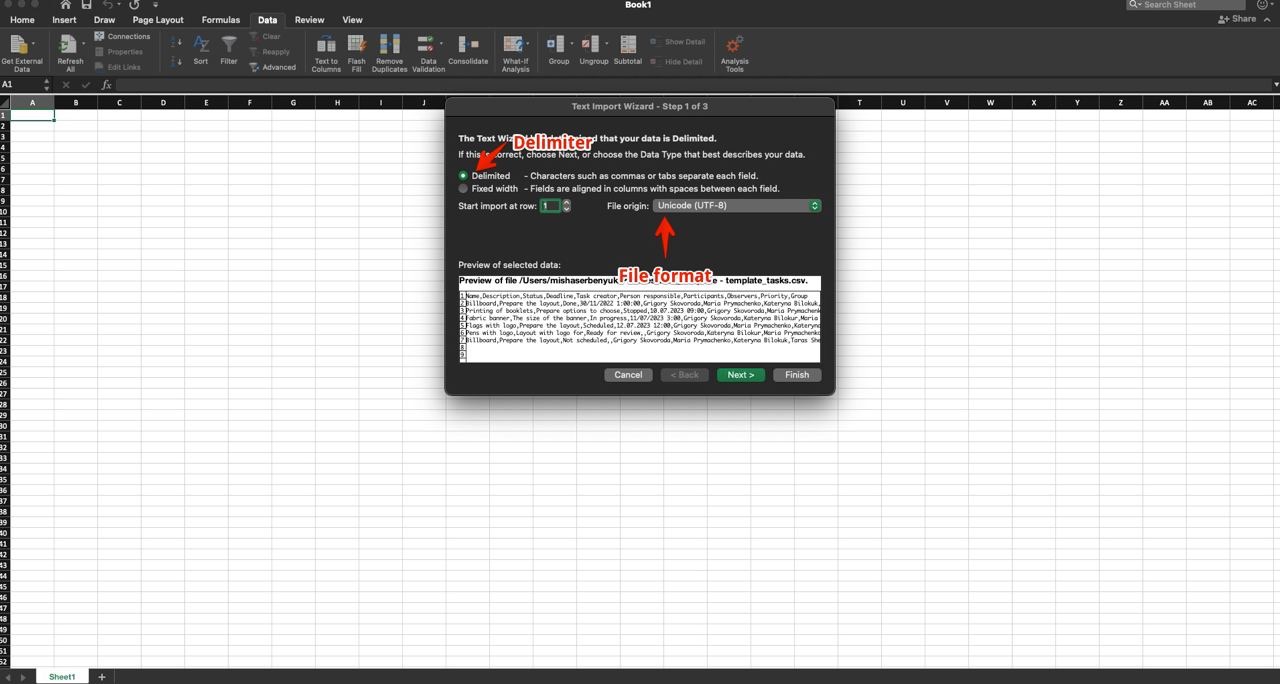
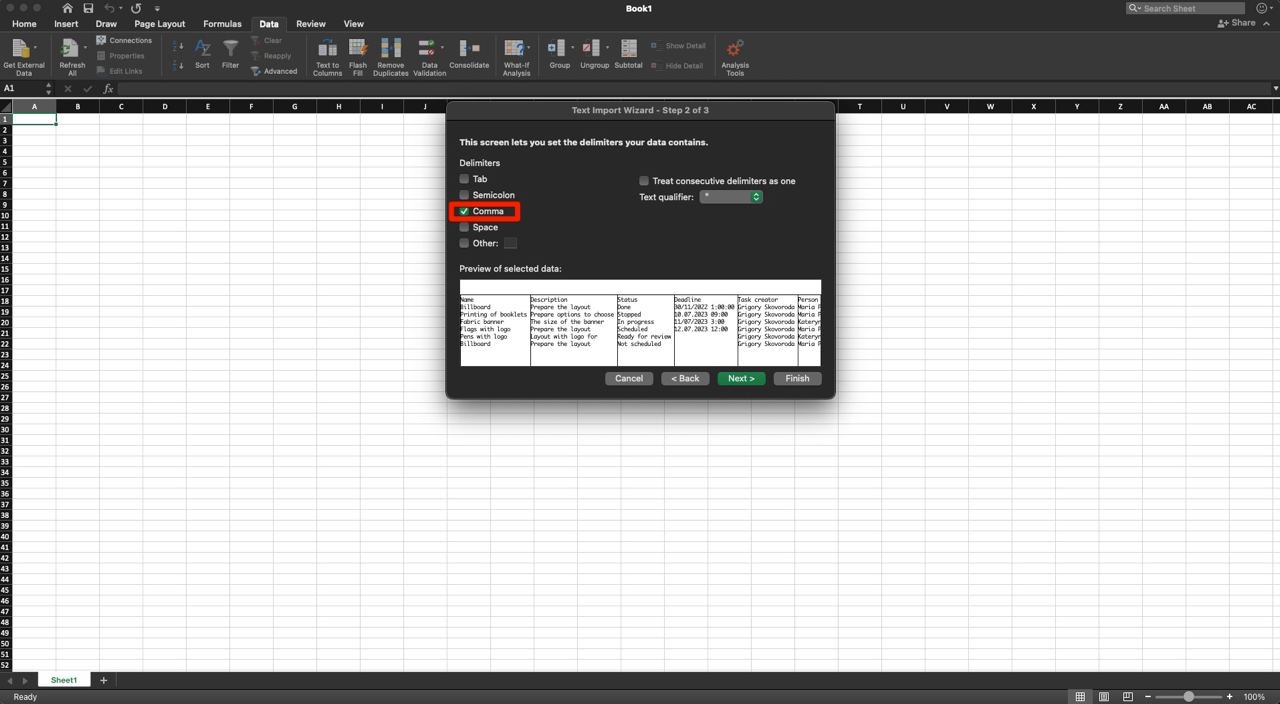
And as a delimiter, specify a comma - Comma. To continue, click Next again.
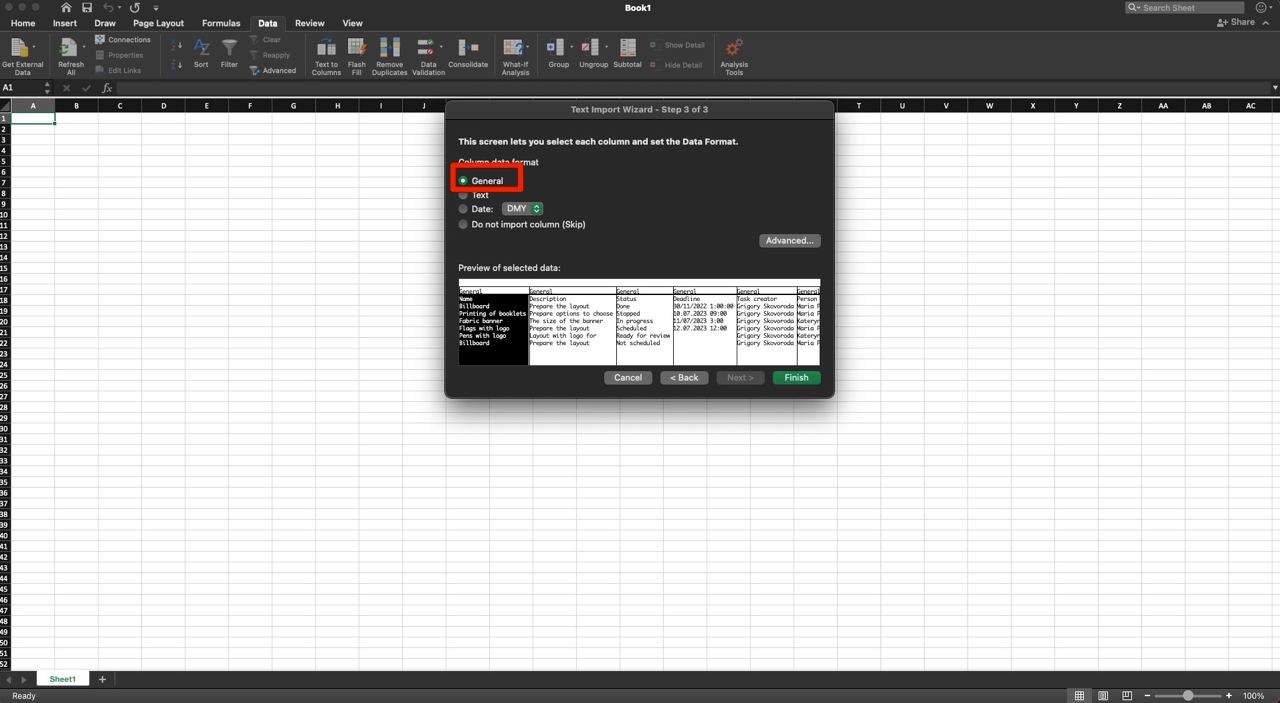
Select the data format for the columns. This should be the General option. Then, click Finish.
Finally, specify which sheet you want to insert the data on. Select the current one. In order to transfer the data to it, click Import.

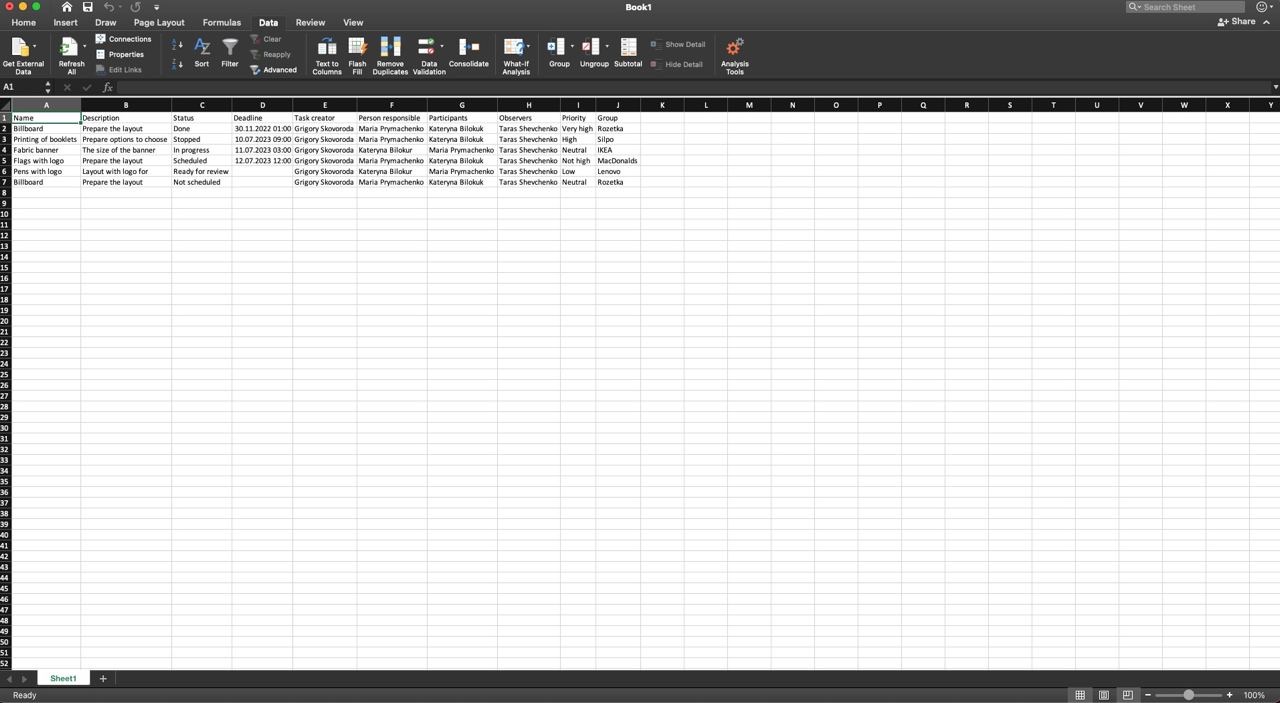
Now it is ready! The template has opened and is displayed correctly.
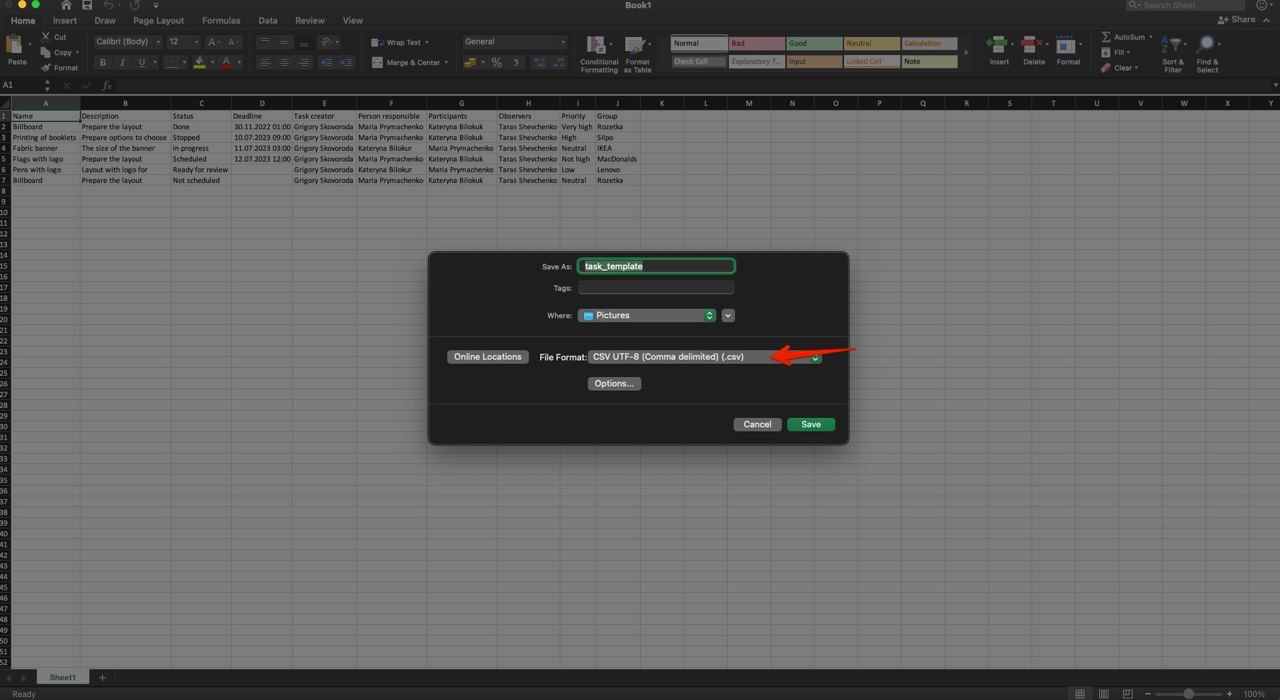
Now save it to create your own file based on it.
💡It is better to save the file in the format needed for import into Uspacy.
If you have additional questions or you need to contact the support, send a request to this email [email protected]
Created: August 14, 2023 / Updated: February 8, 2024