After creating a workspace, it's time to invite colleagues! They will accept the invitation and join you to work together.
🔍 You can read more about adding new users in the following article.
Invitation letter
To become part of the team in the created Uspacy Space, your colleagues need to follow the link contained in the invitation letter that is sent to their email addresses.
☝🏻 To registrate successfully, join and enter the Space, it is required that the email address to which the invitation will be sent has not been used when creating or joining another already existing Space.
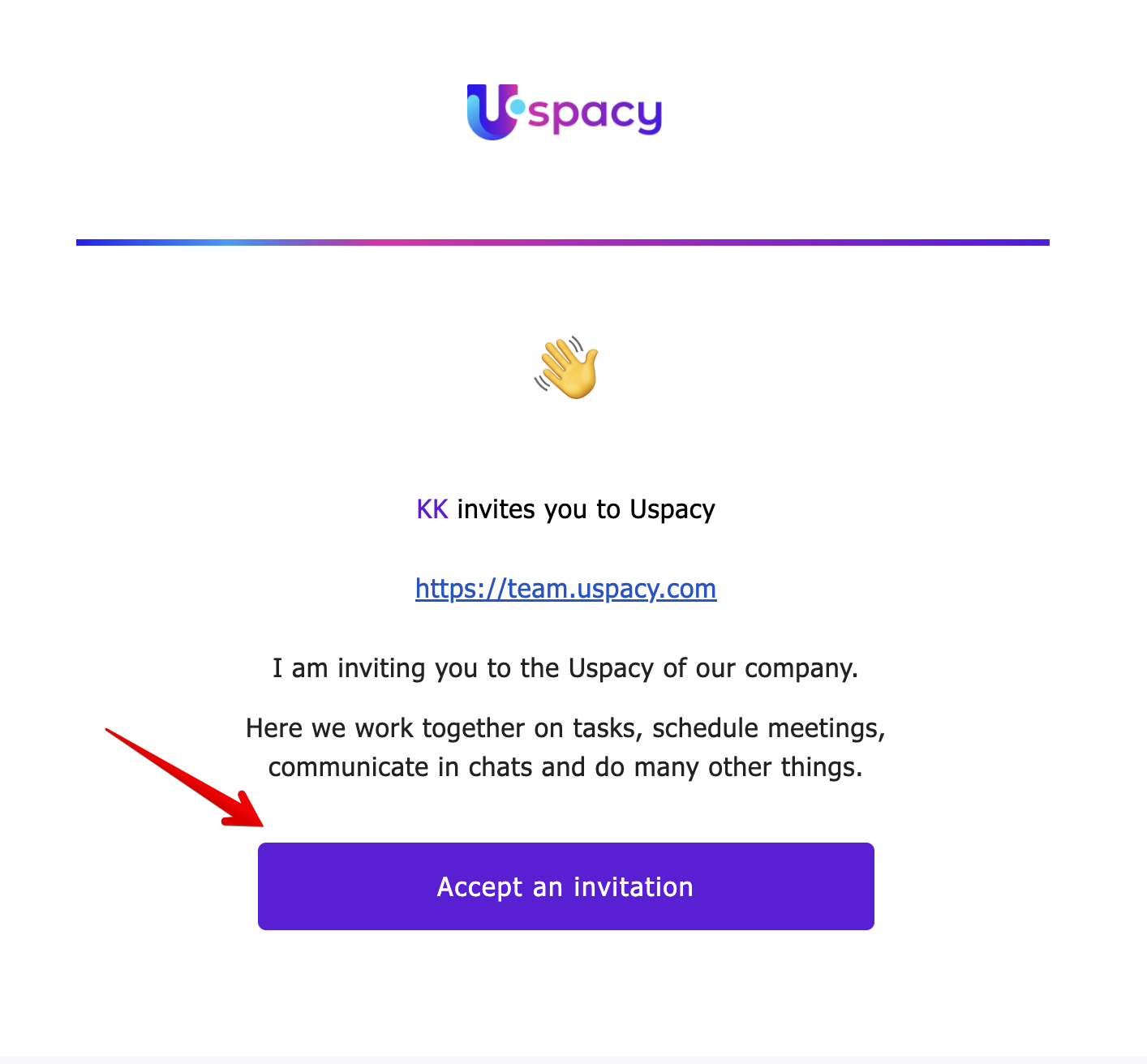
This link is active for 7 days. If during this time the invited colleagues do not follow it and do not go through all the steps of registration, then it will expire.
When trying to follow such an invalid link, the system will notify about it and the user will see a corresponding message. You will be offered to contact the person who invited you to join the Space.
The situation will be similar if the user follows a link from a canceled invitation. He will also see a message that this link is invalid.
❗️The only difference is that when you cancel the invitation, the system immediately blocks the link, no matter it has expired or not.
So, an active link in the invitation letter will redirect users to the registration form.
Its appearance will depend on whether the user has a Uspacy account linked to the email specified in the invitation or not.
Joining the Space by invitation and creating a new account
The first step is to create an account, and then join the Space.
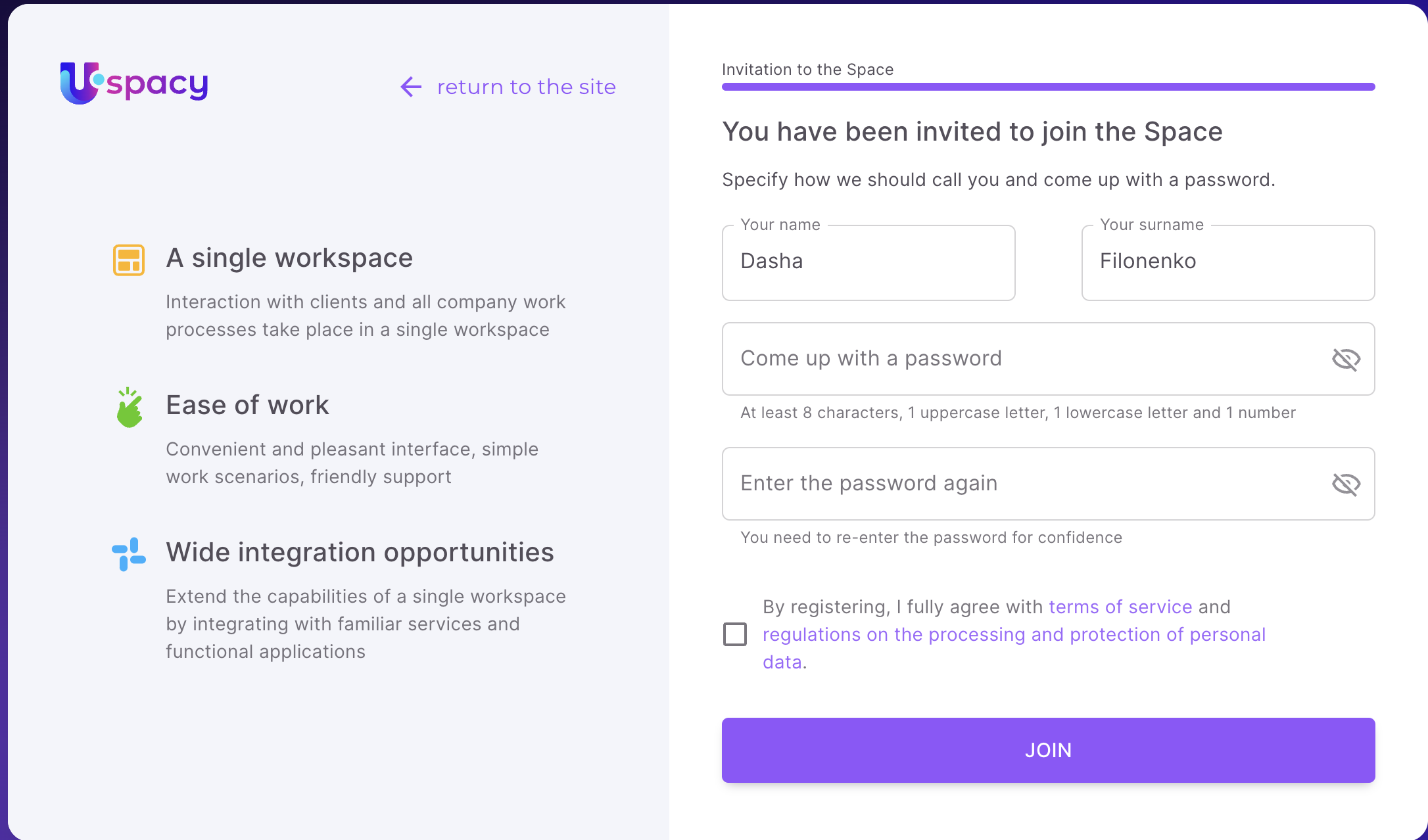
All fields in the registration form must be filled out. They are:
- First name.
Using the Invitation by email form allows the system to automatically pull the user's first and last name from the data entered there. But it can be changed if necessary.
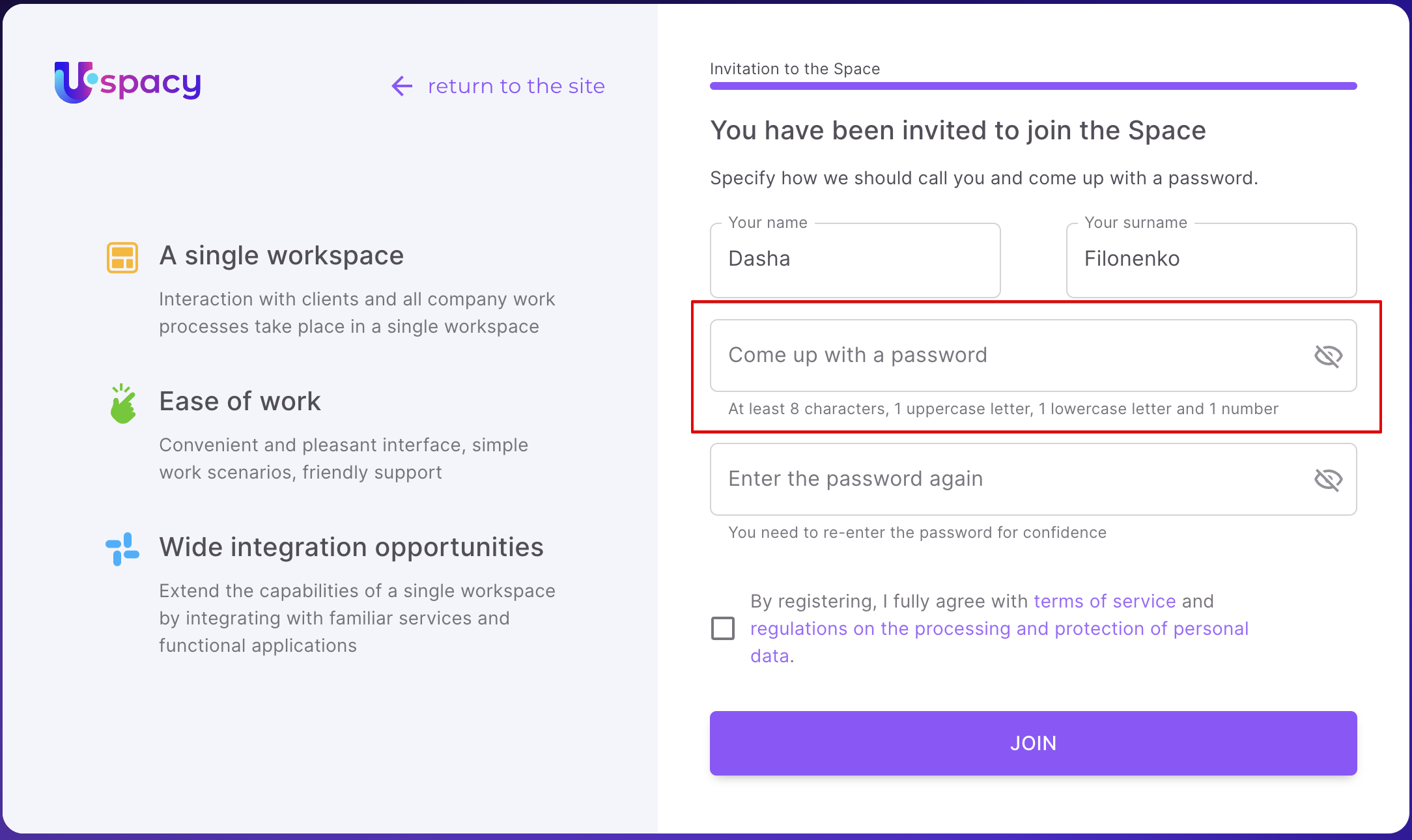
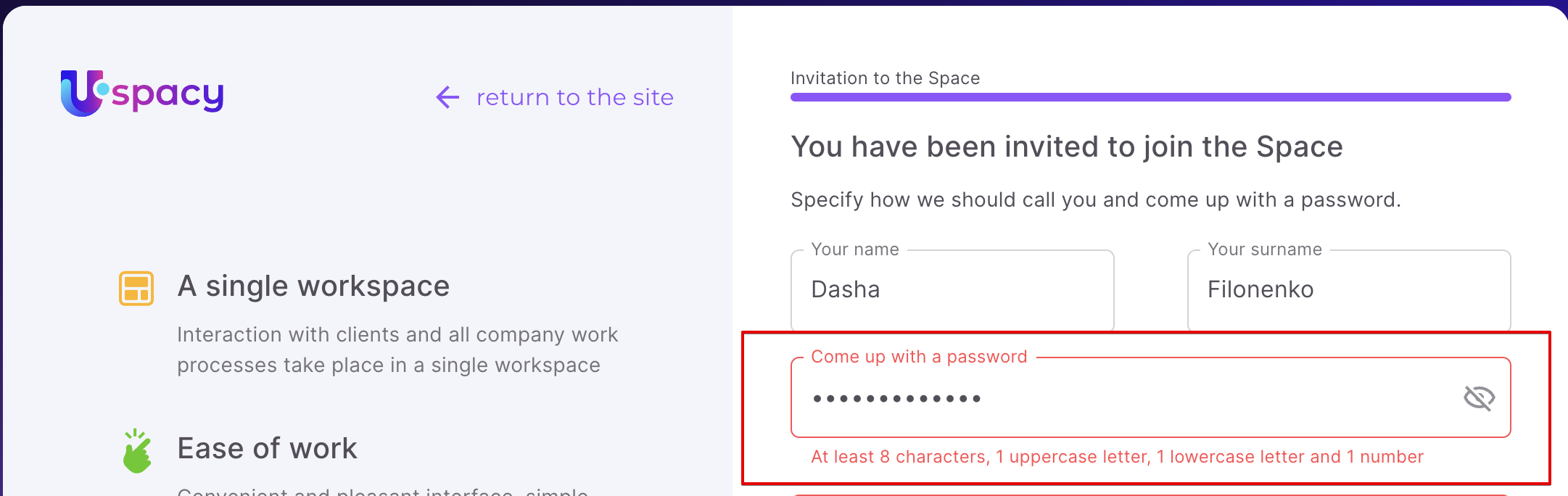
- Password. It must meet the specified safety requirements.
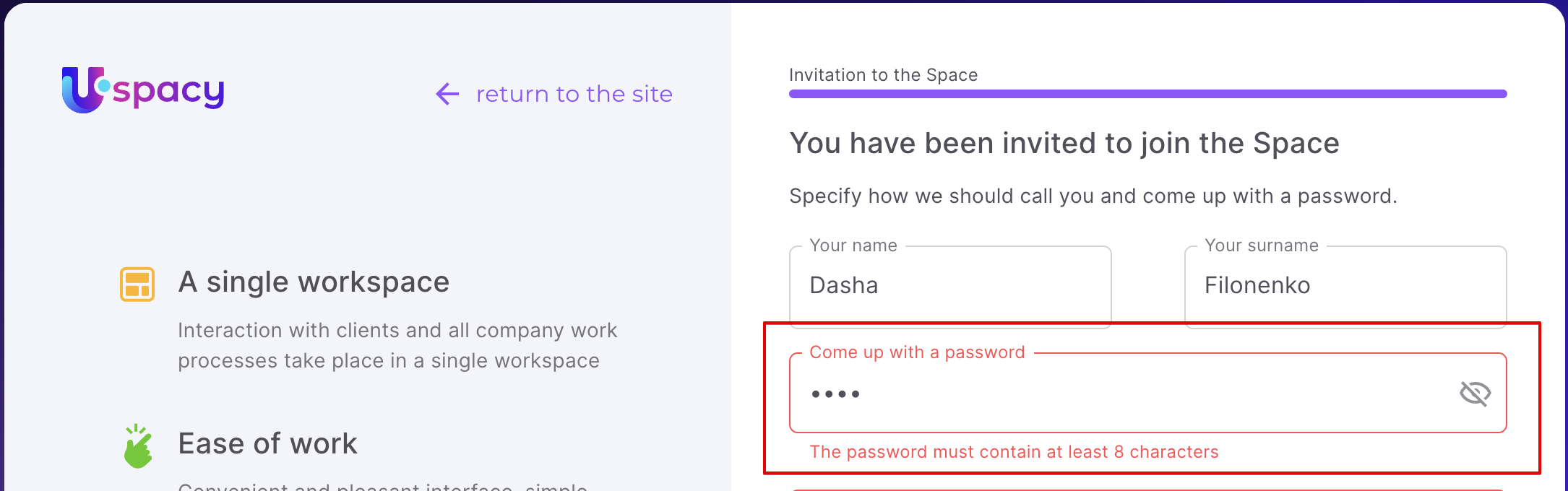
❗️ If the password does not correspond to the required format, the system will notify you and highlight the field in red.
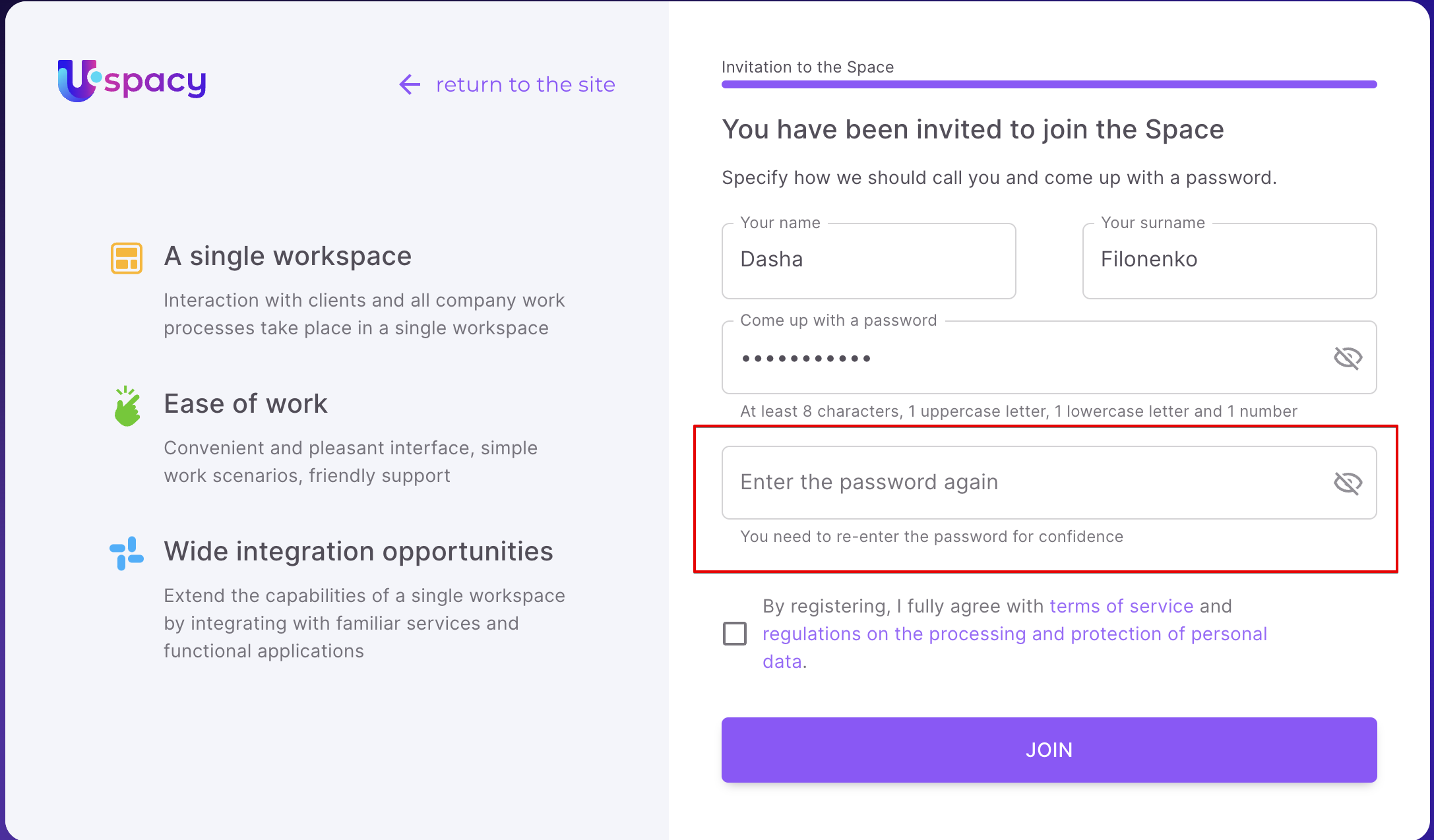
- Re-enter the password
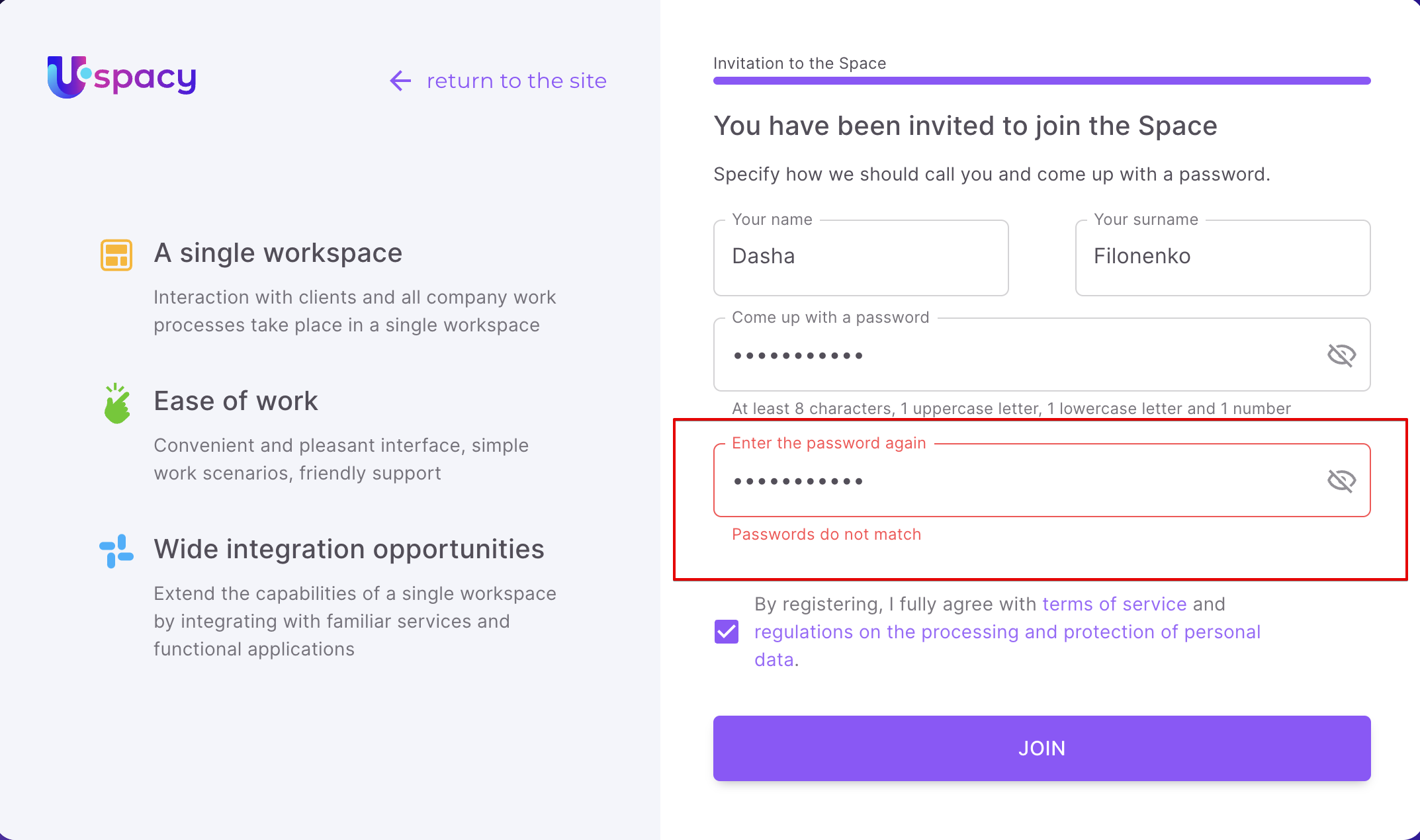
❗️If the passwords do not match, the system will notify you about it.
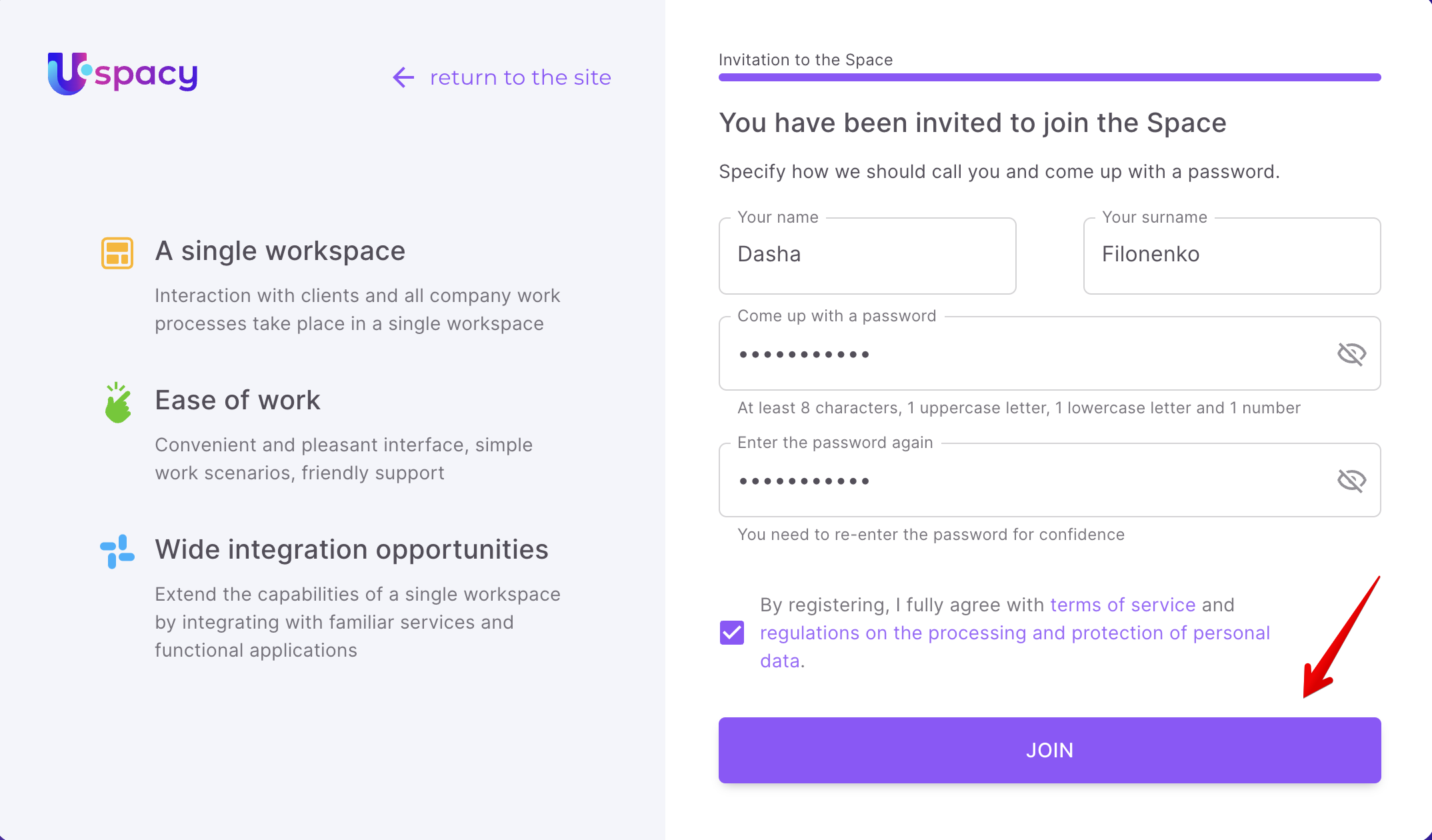
It is also necessary to add a checkbox to agree with the terms of service and provisions on the processing and protection of personal data.
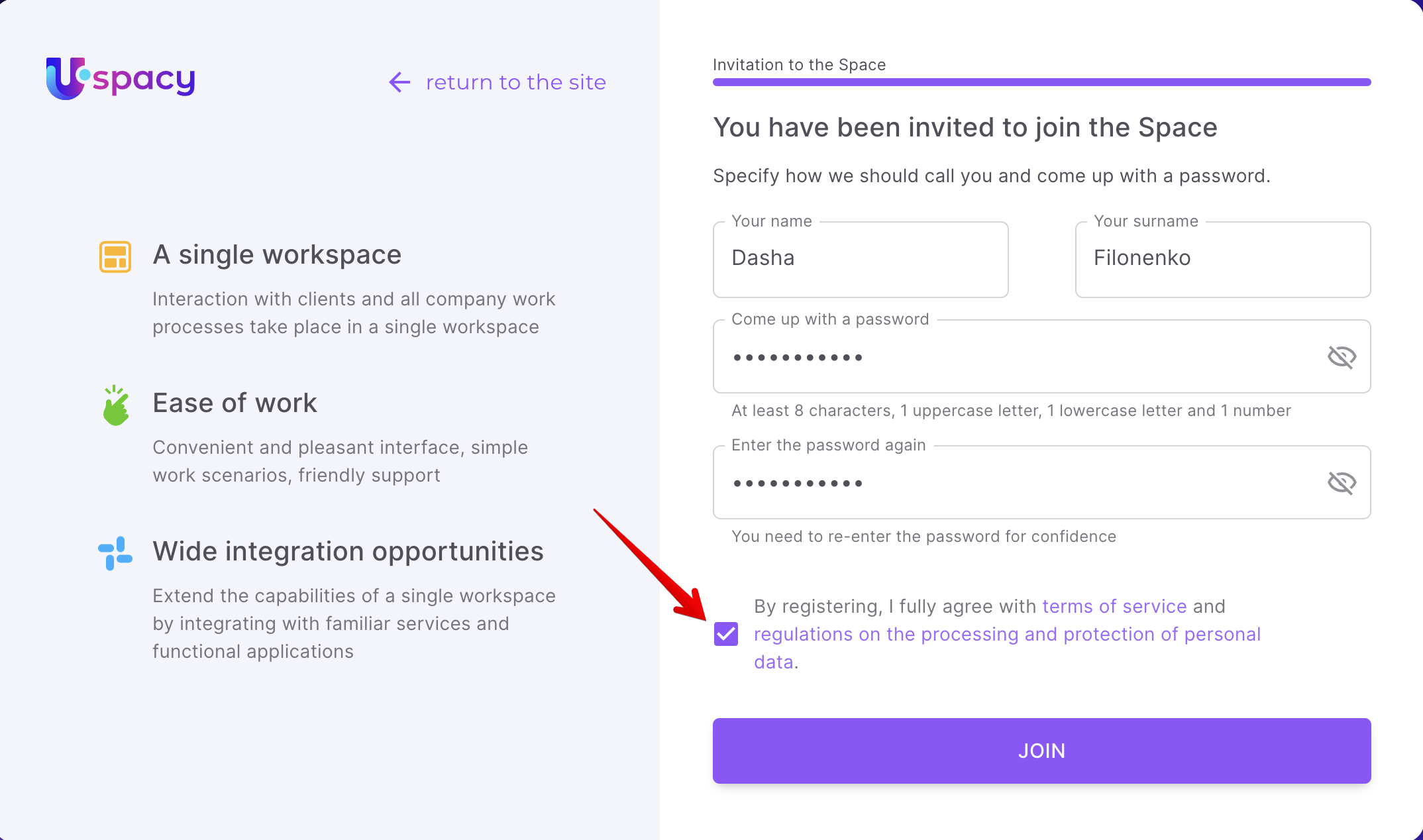
❗️If you do not agree, the system will not allow to successfully complete the registration.
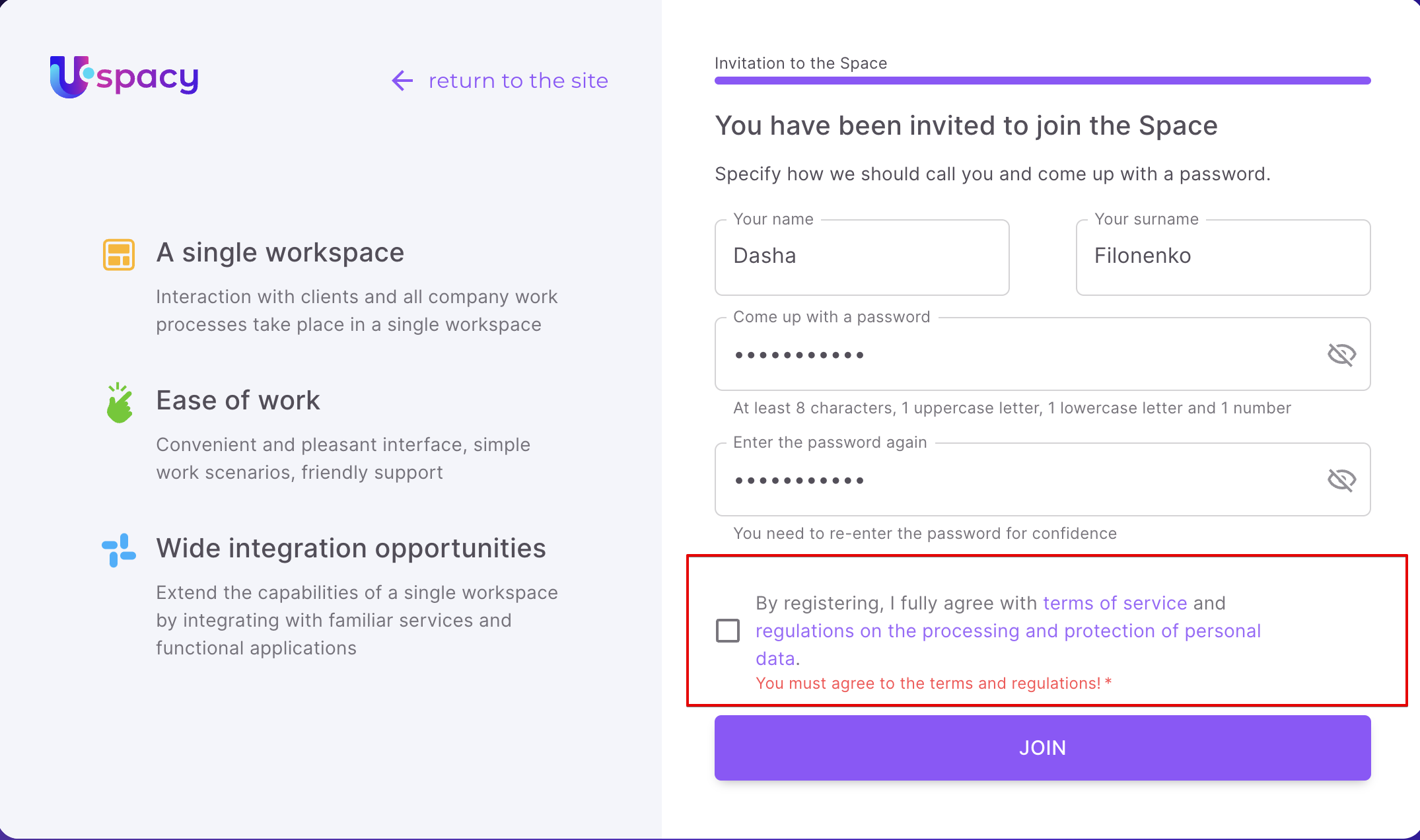
When all the fields are filled out correctly and the checkbox is added, you can Join the Space.
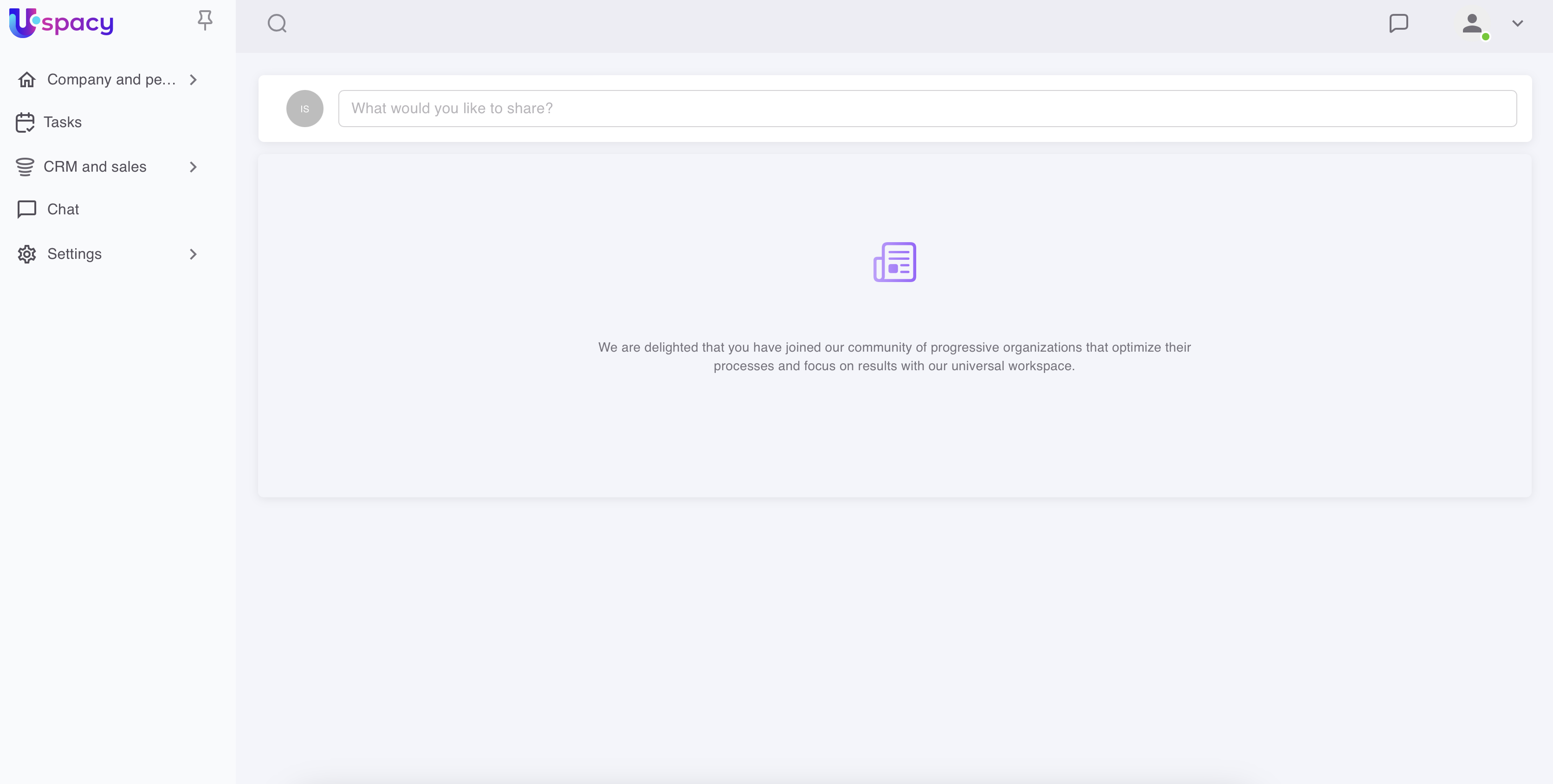
After that, the user goes to the Workspace and authorizes there.
If you have additional questions or you need to contact the support, send a request to this email [email protected]
Created: February 17, 2023 / Updated: February 8, 2024