
To evaluate your team’s performance, it’s important to know how closely actual results align with planned targets. For example, are managers achieving the required average deal value? Are operators responding to clients quickly enough?
Goals and plans in Uspacy Analytics help you compare actual metrics with specified target values. You can select what to track, set the evaluation frequency, and define the desired result. For some metrics, a higher value is better, such as average deal value. For others, a lower value is better, such as chat response time.
Below, we’ll look at how to create a goal and track its achievement using these two examples.
How to create and configure a goal?
The Goals and plans tab is now available in Analytics. Here, you can create goals for the metrics you need and track their achievement. All created goals and plans will be displayed on this tab.
💡 Goals and plans are available only on the Professional plan.

To add a new goal, click Create at the top of the page. If there are no goals in the Space yet, you can also click Create in the center of the screen.

A form will open where you can specify what to track, the period to track it for, and the expected result.

Settings
🟣 Name, section, and analytics dashboard. At the top of the form, enter the Goal name. It should clearly indicate what you plan to track. For example, “Average deal value” or “Client response time.”
On the right, select the section whose data will be used for the calculation. In the Display in field, you can select a custom analytics dashboard where the goal will be displayed.

🟣 Person responsible. In the Goal settings section, first select the Person responsible. You can specify a particular employee or select All employees.
This allows you to configure a goal for an individual employee or track the results of all employees.

🟣 Frequency. Next, specify the Frequency — the periods over which goal achievement should be evaluated. The following options are available:
- Every day of the week
- Monthly
- Every quarter
- Annually
For example, if you need to compare results with the plan for each month, select Monthly.

🟣 Date to include in the period. In the Date to include in the period field, select the date that determines which data will be included in the calculation:
- Creation date
- Update date
- Completion date
- Date of first completion
For example, if you select Creation date, the October results will include elements created in October. If you select Completion date, they will include elements completed during that month.
Select the date based on what you want to evaluate: the creation of new elements, their updates, or their completion.

🟣 Goal duration. In the Goal start date and End date fields, specify the time frame during which the goal will be active. You can select the dates using the calendar.
💡 Goal duration and frequency are separate settings. For example, a goal can be active from October 1 through December 31. If the frequency is set to Monthly, results will be evaluated separately for October, November, and December.

🟣 Metric and target value. In the Track field, select what you want to evaluate: Monetary metric or Number. For example, to set a target based on sales amount, select the Monetary metric. To set a target based on the number of leads, select Number.
💡 For Email, External Channels, and Calls reports, the Monetary metric option is not available. If you select one of these sections, only Number can be used in the Track field.


Next, configure the following three fields:
- Measure by — select which data to use for the calculation. For example, Amount means the calculation will be based on monetary amounts in cards, while Number means it will be based on the number of elements.
- Calculation method — select how the result should be calculated. For example, Amount calculates the total value for the period.
- Target value — enter the planned result that the actual metric should be compared against.


For example, to set a target of 100 leads per month, select Number in the Track field, select Number in Measure by, leave Amount as the calculation method, and enter 100 as the target value. Uspacy will then compare the total number of leads for the month with the target of 100 leads.
🟣 Separate goals for each period. If target values should vary by period, turn on the Set goals for each period separately toggle.
Fields for the periods within the goal duration will appear below. For example, if the frequency is monthly and the goal runs from October through December, you can specify a separate target for each month.
This allows you to plan a gradual increase in the number of leads: 100 in October, 120 in November, and 150 in December.
The Apply to all action next to the toggle lets you apply the same value to all periods.

🟣 Metric type. Select the Metric type to define which result is considered desirable:
- Positive — the higher the value, the better. This type is suitable for metrics such as the number of leads or average deal value. Goal achievement is shown in green.
- Negative — the lower the value, the better. This type is suitable for metrics such as client response time. Exceeding the target value is shown in red.
In other words, the metric type determines the evaluation logic. For example, exceeding the target for average deal value is a desirable result, while exceeding the acceptable response time requires attention.

Filters
In the Applied filters section, you can specify which data should be included in the calculation. To do this, click Add a condition and configure the required filter.
For example, for a deal-related goal, you can limit the calculation to data that meets specific sales criteria.
If you use All conditions at the same time, only elements that meet all specified conditions will be included in the calculation.
With At least one condition, elements that meet at least one of the specified conditions will be included in the calculation.

Results display
At the bottom of the form, select the Chart type by clicking the corresponding icon.
In the Group by field, you can configure how the results should be grouped. If grouping is not required, leave No grouping selected.
To view details on the chart, hover over the desired element. The tooltip displays the target value, actual value, completion percentage, and the difference between them.

After completing the form, click Create.
Next, we’ll look at the settings using two examples: average deal value — at least UAH 20,000 and average chat response time — no more than 5 minutes. These examples will help you understand how to work with positive and negative metrics and evaluate results.
Example 1. Average deal value — at least UAH 20,000
Suppose you want to evaluate whether a specific manager’s average deal value reaches UAH 20,000 each month. Let’s configure this goal for an individual employee.
Enter the goal name and select the Deals section. In the Goal settings section, specify:
- Person responsible — the required user.
- Frequency — Monthly.
- Date to include in the period — Creation date.
- Goal start date — December 31, 2025.
- End date — September 30, 2026.
With these settings, deals will be assigned to the corresponding month based on their creation date.
In the Track field, select the Monetary metric. In Measure by, select Deal amount, and set the Calculation method to Average. Enter 20,000 as the target value and select UAH as the currency.
In the screenshot, the Set goals for each period separately toggle is enabled. The same target of UAH 20,000 is set for each month. If needed, you can change these values for individual months.
Set the Metric type to Positive, because in this example, a higher average deal value represents a better result.
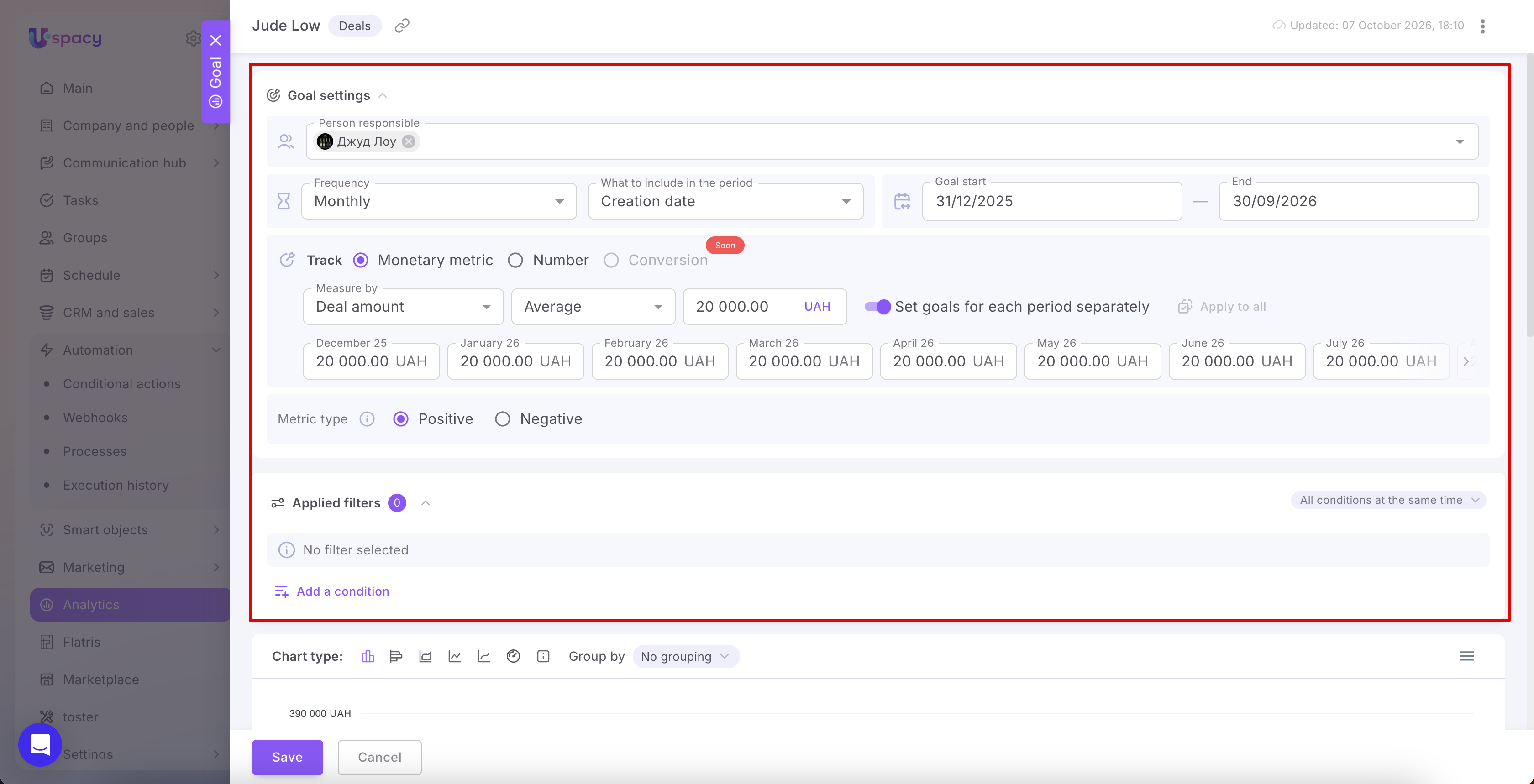
No additional filters are applied in this example. Therefore, the calculation is not limited to successful deals only.
For the results display, a column chart and No grouping are selected because the goal is configured for a single manager.
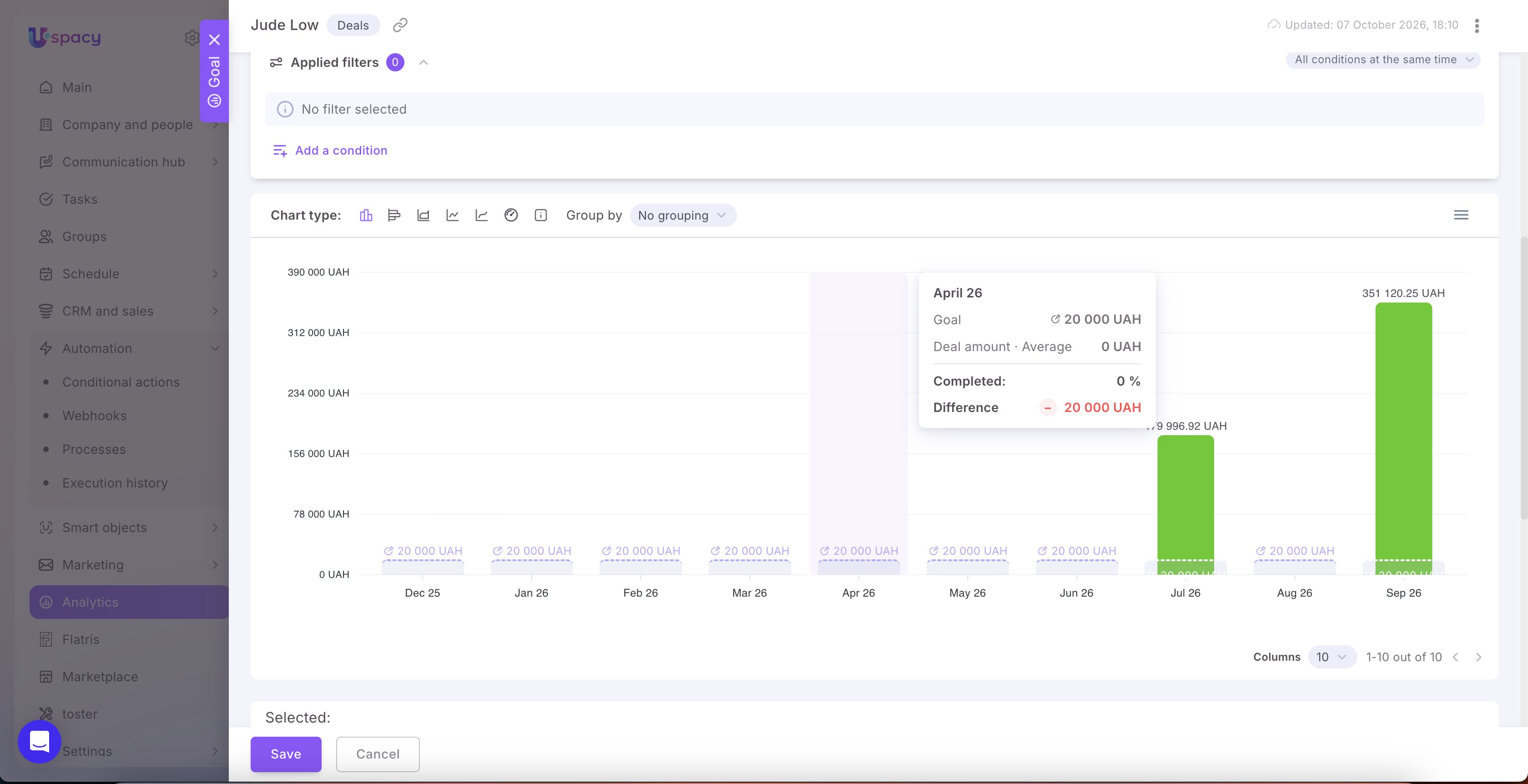
The chart lets you compare the average deal value with the target for each month. Hover over a month to view the target, actual result, completion percentage, and difference.
For example, in April 2026, the actual value is UAH 0, compared with the target of UAH 20,000. The tooltip shows 0% completion and a difference of −UAH 20,000.
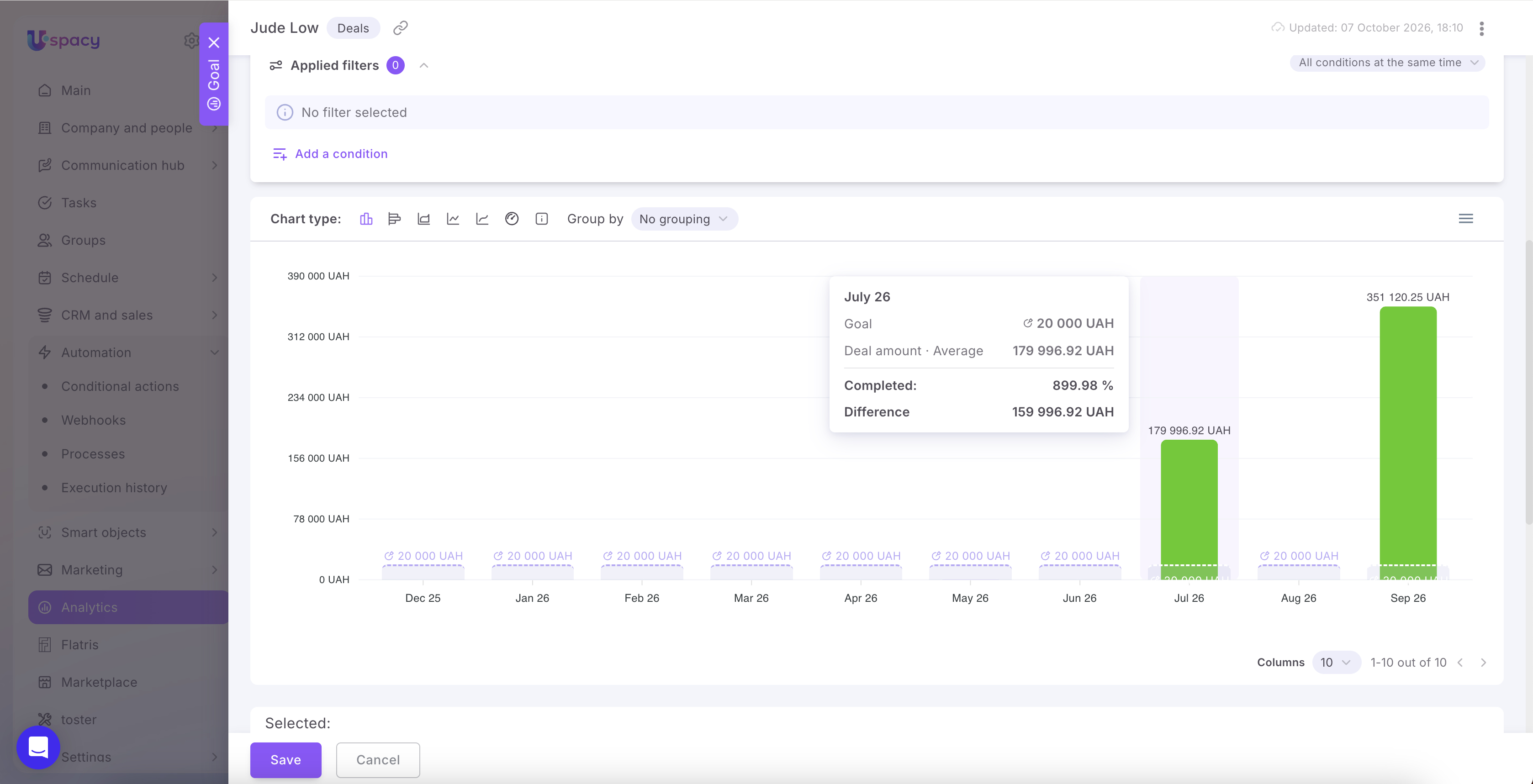
In July 2026, the average deal value was UAH 179,996.92. This is UAH 159,996.92 above the target. Completion is 899.98%, and the column is shown in green because the target was exceeded.
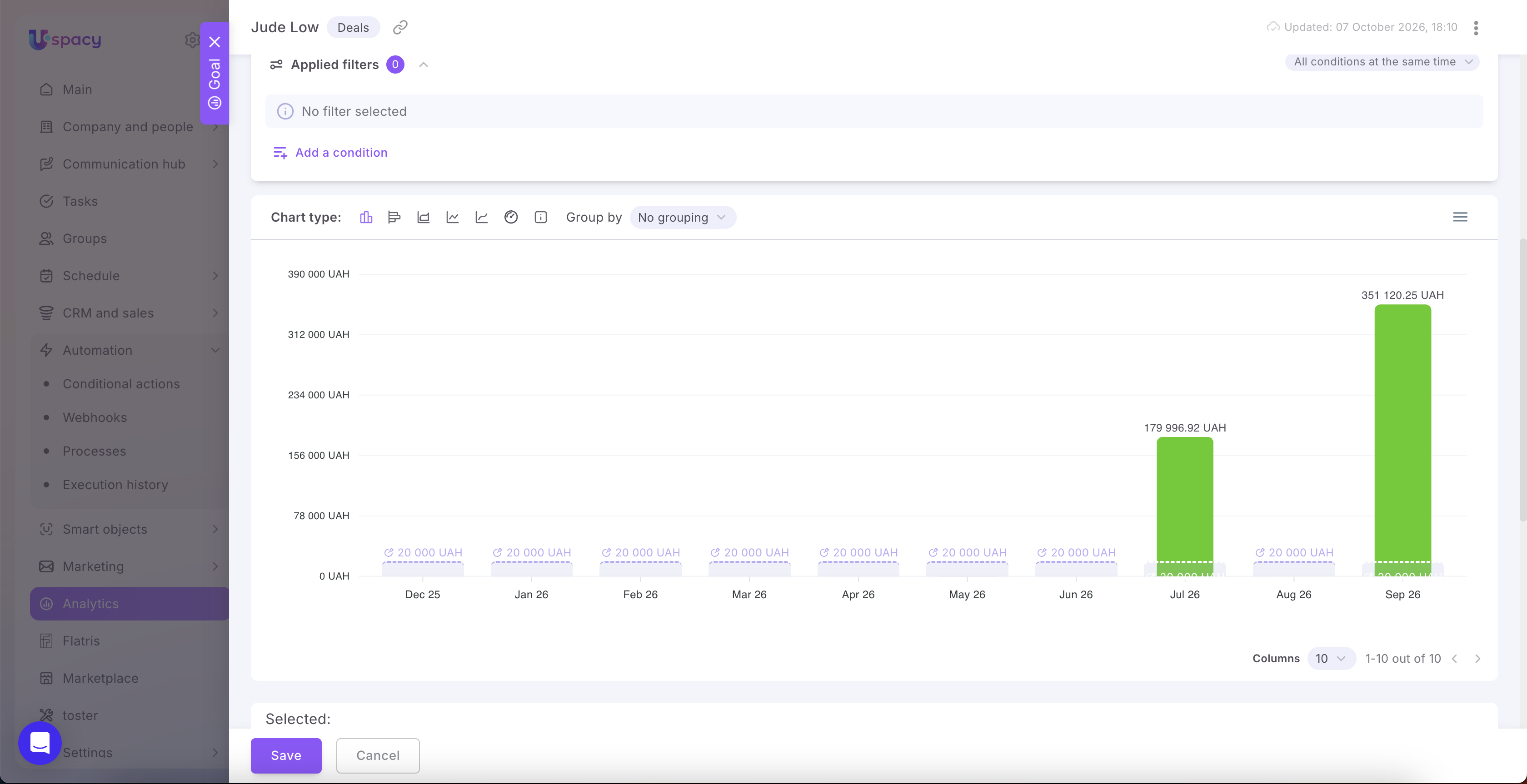
After saving the goal, you can view the results for the entire specified period. For example, the chart shows that the average deal value exceeded the target in July and September.
Example 2. Average first response time — no more than 5 minutes
Suppose you want to monitor how quickly employees send their first response to clients through external channels. Let’s set a goal where the average first response time per month should be no more than 5 minutes.
Enter the goal name Response time and select the External Channels section. In the Goal settings section, specify:
- Person responsible — the employees whose results you want to evaluate.
- Frequency — Monthly.
- Date to include in the period — Creation date.
- Goal start date — February 28, 2026.
- End date — October 31, 2026.
With these settings, chats will be assigned to the corresponding month based on their creation date.
In the Track field, select Number. The Monetary metric option is not available for External Channels, but you can track other metrics, including response time.
In Measure by, select First response time, and select Average in the adjacent field. Enter 0:05:00 as the target value, which represents 5 minutes.
In the screenshot, the Set goals for each period separately toggle is enabled. A value of 0:05:00 is set for each month from February through September, while the October field is still empty. To evaluate October using the same target, enter the value for that month as well.
Set the Metric type to Negative, because a shorter response time represents a better result, while exceeding 5 minutes requires attention.
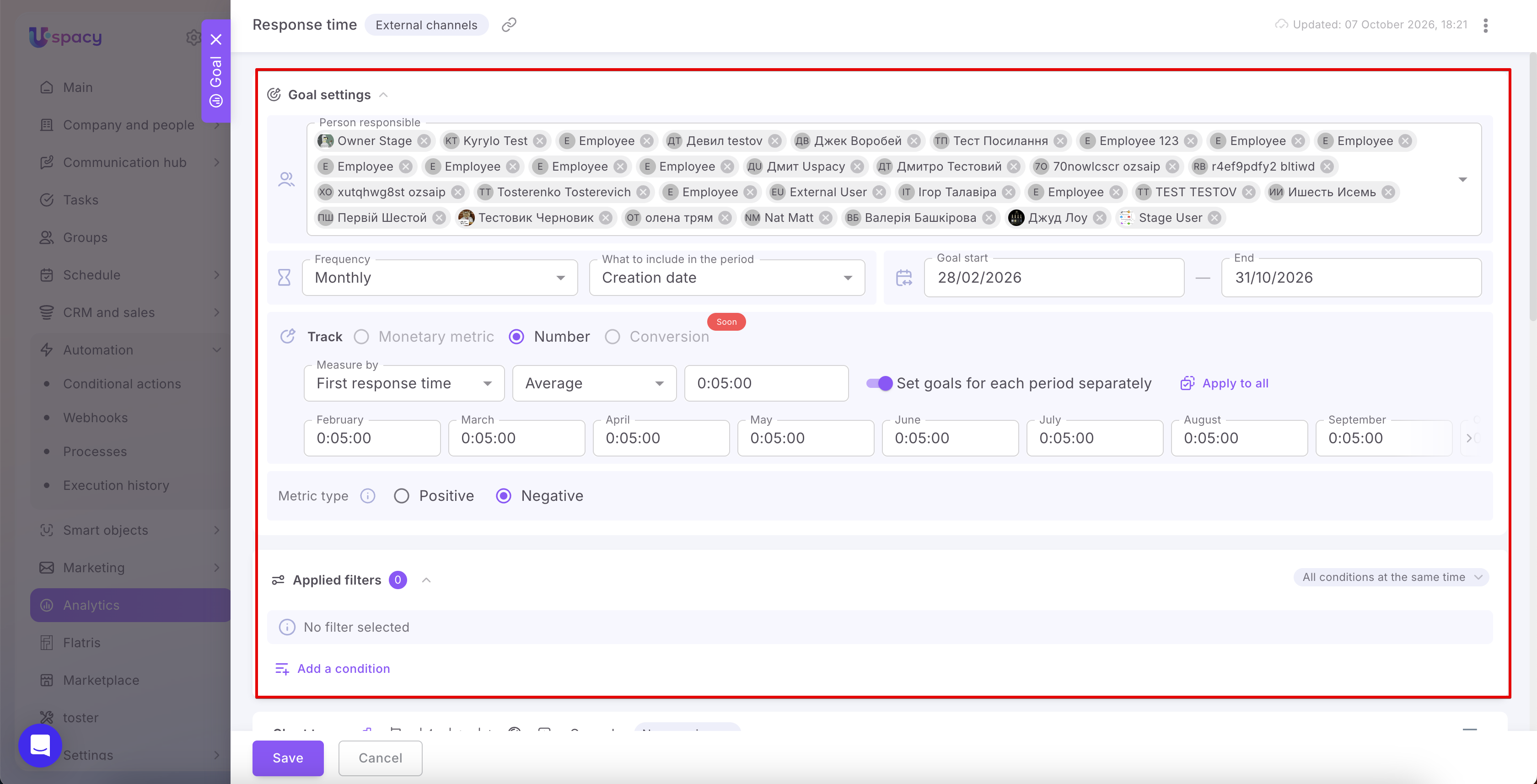
No additional filters are applied in this example. For the results display, a column chart and No grouping are selected. Therefore, the chart shows the combined result for the selected employees for each month.
Hover over a month to view the target and actual values, completion percentage, and the difference between them.
For example, in March, the average first response time is 16 seconds. This is 4 minutes and 44 seconds below the target, so the result meets the goal.
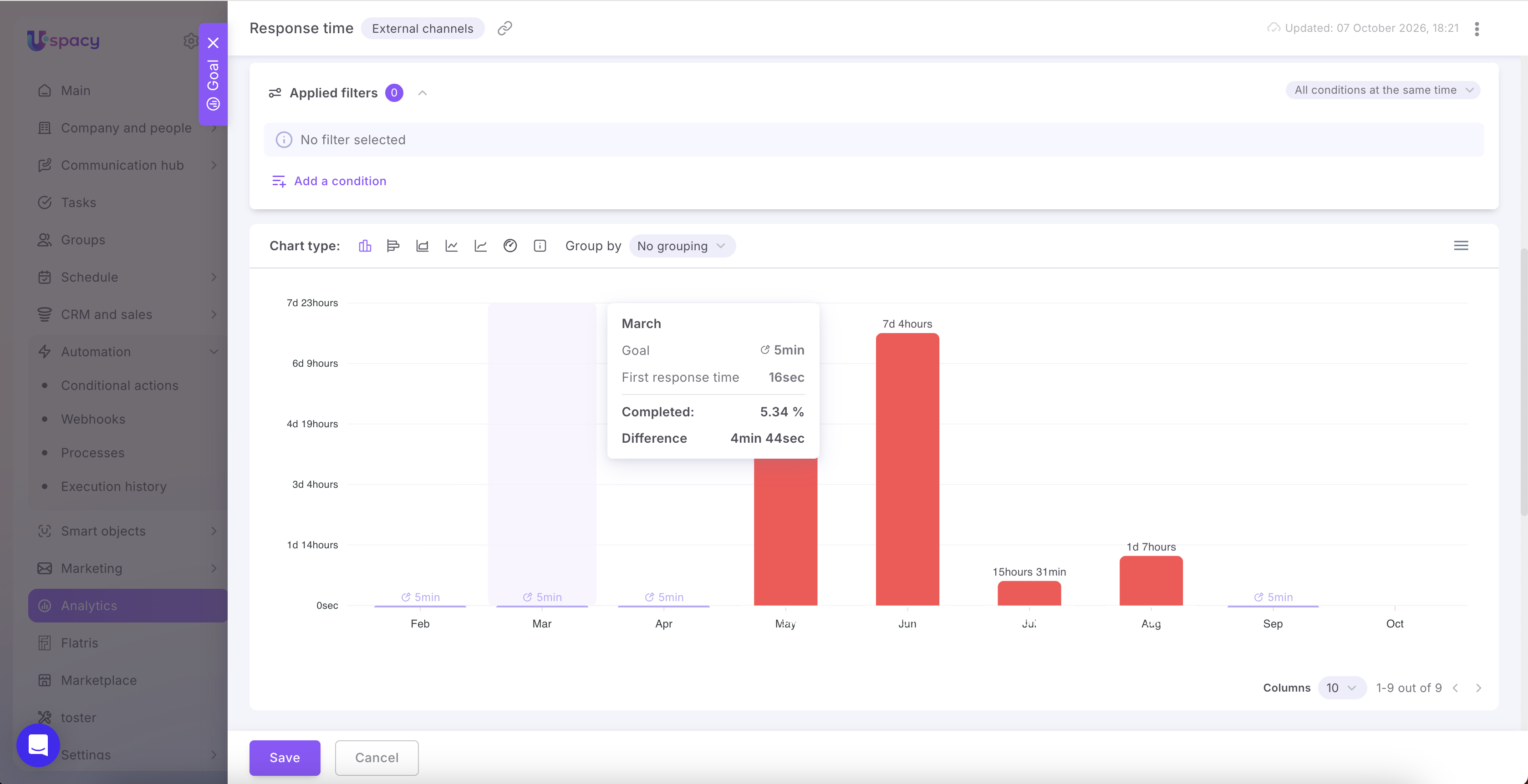
💡 For a negative metric, a higher value in the “Completed” field does not mean a better result. In this example, 5.34% represents the ratio of the actual response time to the target: the response was provided significantly faster than 5 minutes.
In August, the average first response time is approximately 1 day and 7 hours. This exceeds the target, so the column and the exceeded target value in the tooltip are shown in red.
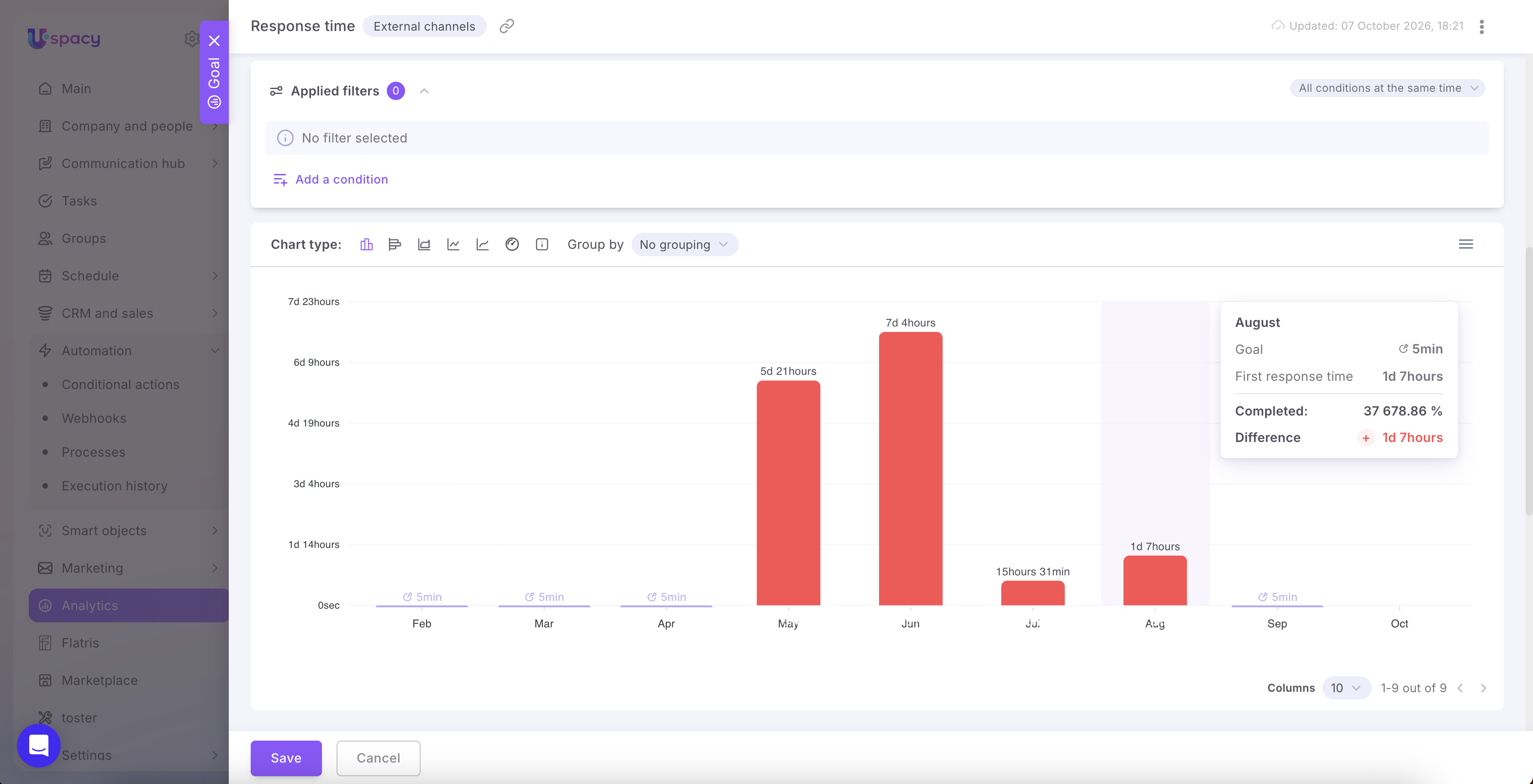
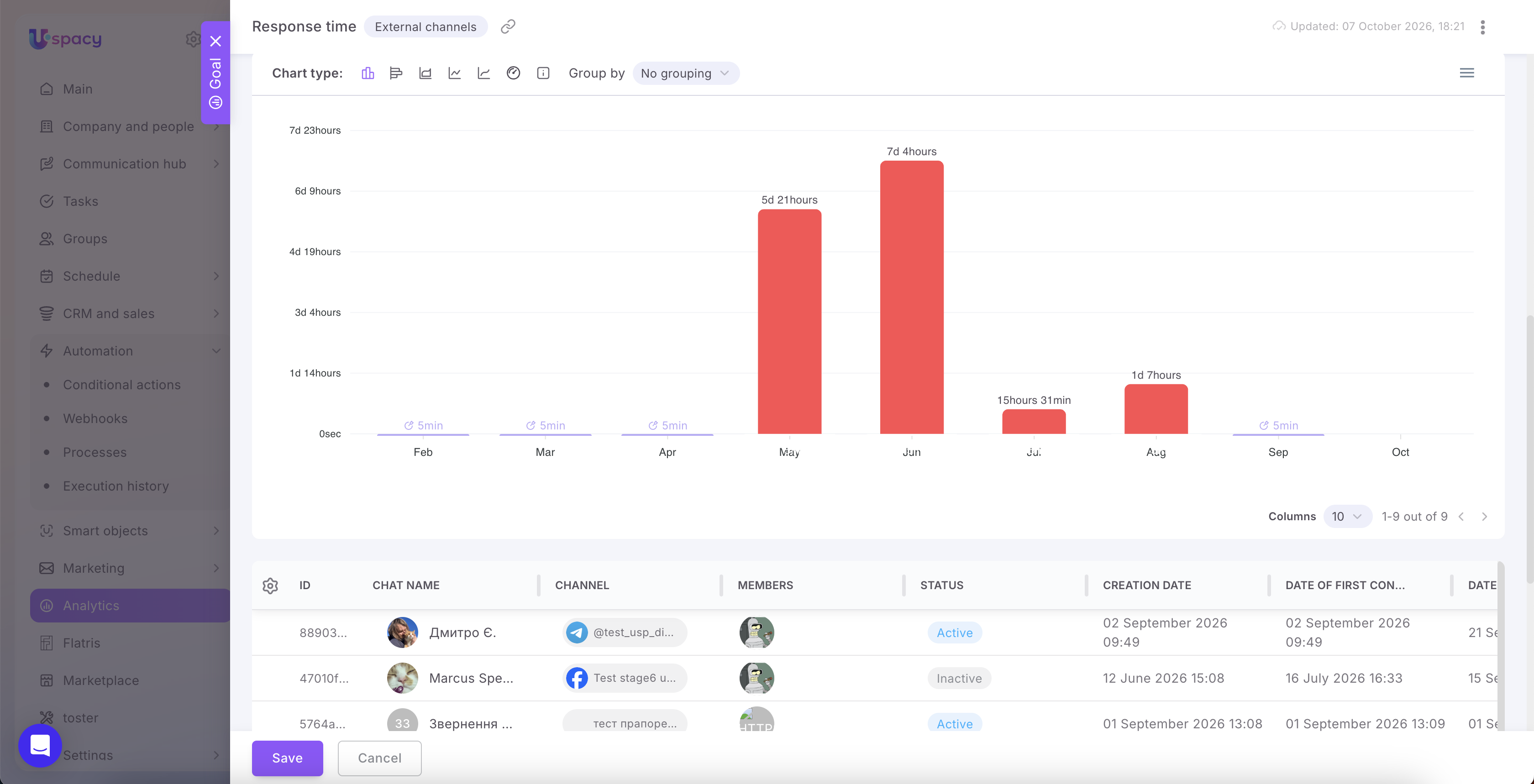
After saving the goal, you can view the results for the entire specified period. The chart highlights in red the months when the average first response time exceeded 5 minutes. A table below shows chats with information about the channel, participants, status, and dates.
Goals and plans in Uspacy Analytics help you compare actual results with planned targets. Select a metric, set the target value, specify the person responsible, and define the evaluation frequency. Keep the metric type in mind: for a positive metric, a higher value is better, while for a negative metric, a lower value is better.
The chart helps you see which periods met the goal and where there are deviations. This makes it easier to track sales performance, client response times, and other metrics and identify areas that require the team’s attention in a timely manner.
If you have additional questions or you need to contact the support, send a request to this email [email protected]
Created: October 7, 2026 / Updated: October 7, 2026