
During a conversation, a client may provide a new phone number, clarify their address, or share important preferences. To save this information in the CRM, managers typically have to enter it into the appropriate fields manually.
AI in Uspacy helps fill in record fields based on conversations. It analyzes the content and suggests values that you can compare with the existing data. Before saving, you decide what to add, update, or leave unchanged.
Let’s see how it works using a contact record as an example. ⬇️
How to start filling in fields?
Open a CRM record and find the relevant call with a recording in its history.
Open the AI actions menu next to the recording and select Fill fields.
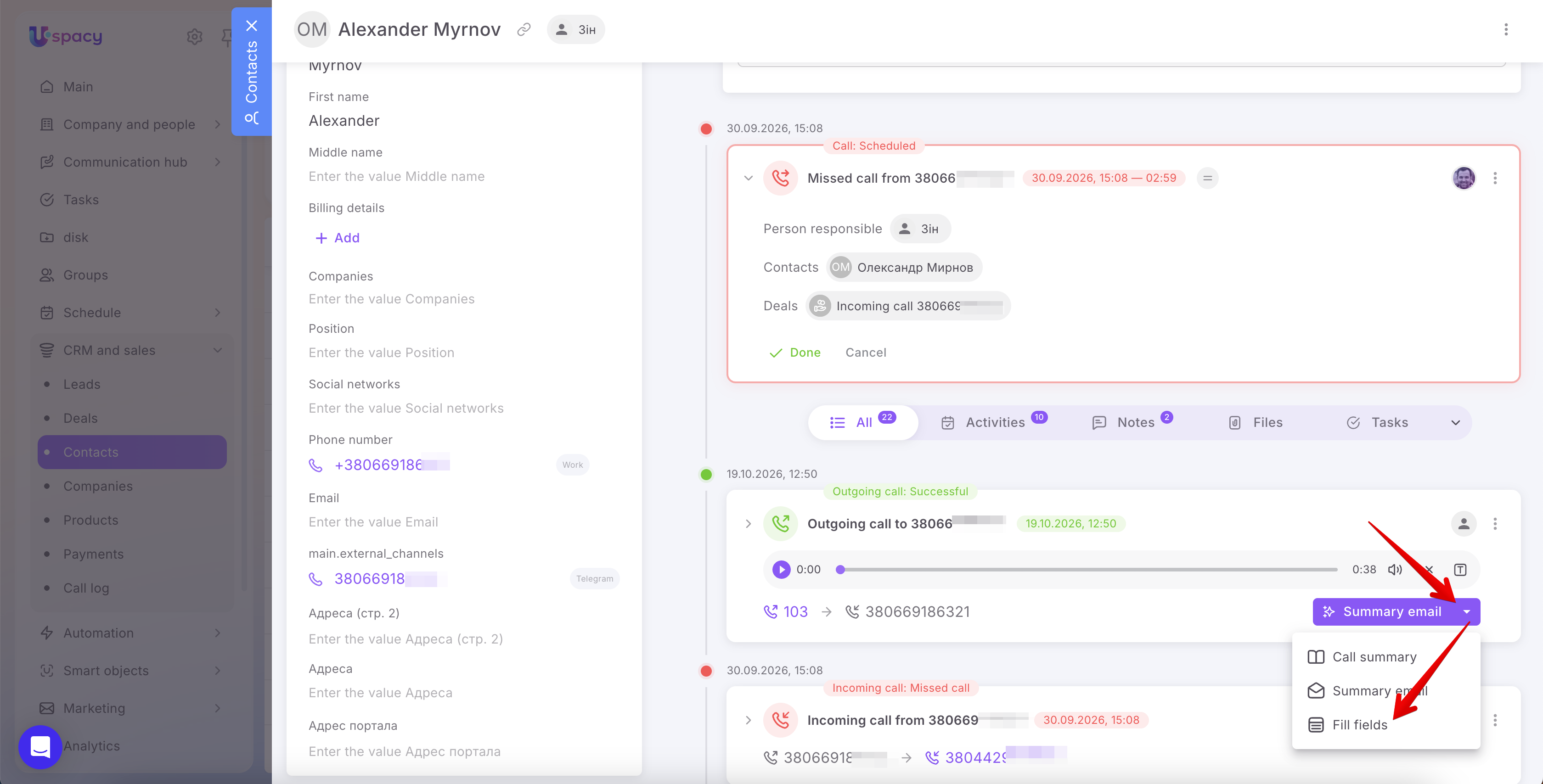
AI will analyze the conversation. Once the analysis is complete, the Fill fields window will open, allowing you to review the suggestions and select the data to save.
💡 If AI doesn’t find any information to fill in the record fields, the system will notify you.
How to review the analysis results?
The window contains three sections:
- Result — the final values that will be saved once you confirm your selection.
- AI suggestions — information AI has identified in the conversation.
- Existing data — values already stored in the record.
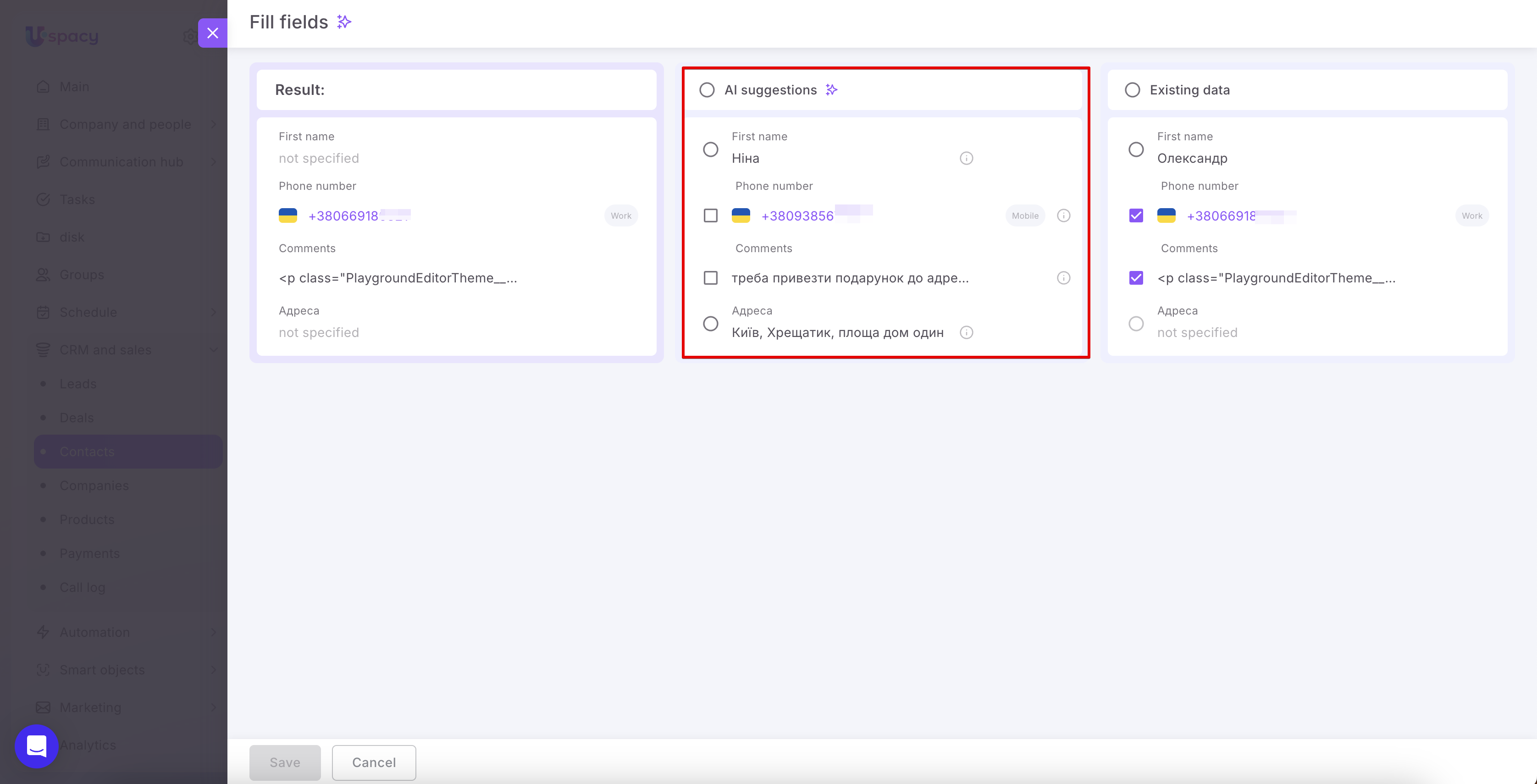
AI suggestions
This section displays the suggested values for the record fields. For example, AI may identify a name, phone number, address, and information to add to the Comments field.
Review the suggestions to make sure they accurately reflect the conversation and apply to the correct record.
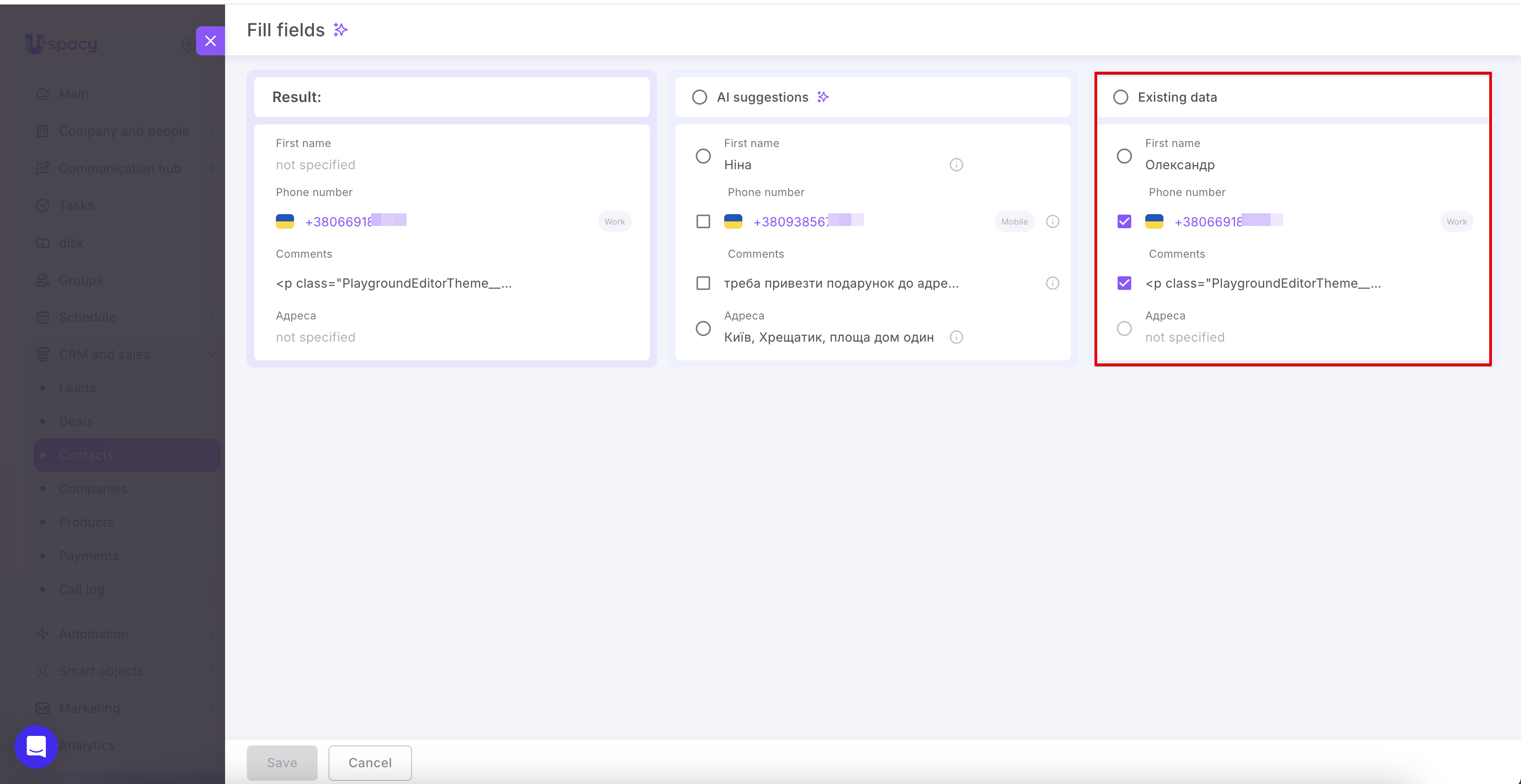
Existing data
The information already saved in the record appears on the right. Use it to compare the current values with the AI suggestions and decide which ones to keep.
For example, the record may already contain a work phone number, while the client provides an additional mobile number during the call. Or the Address field may be empty even though the client mentions their address during the conversation.
How to select values to save?
Select the values you need in the AI suggestions and Existing data sections. Your selections will immediately appear in the Result section on the left.
The selection method depends on the field. For some fields, you must select a single value. For others, you can keep the existing data and add information from the conversation.
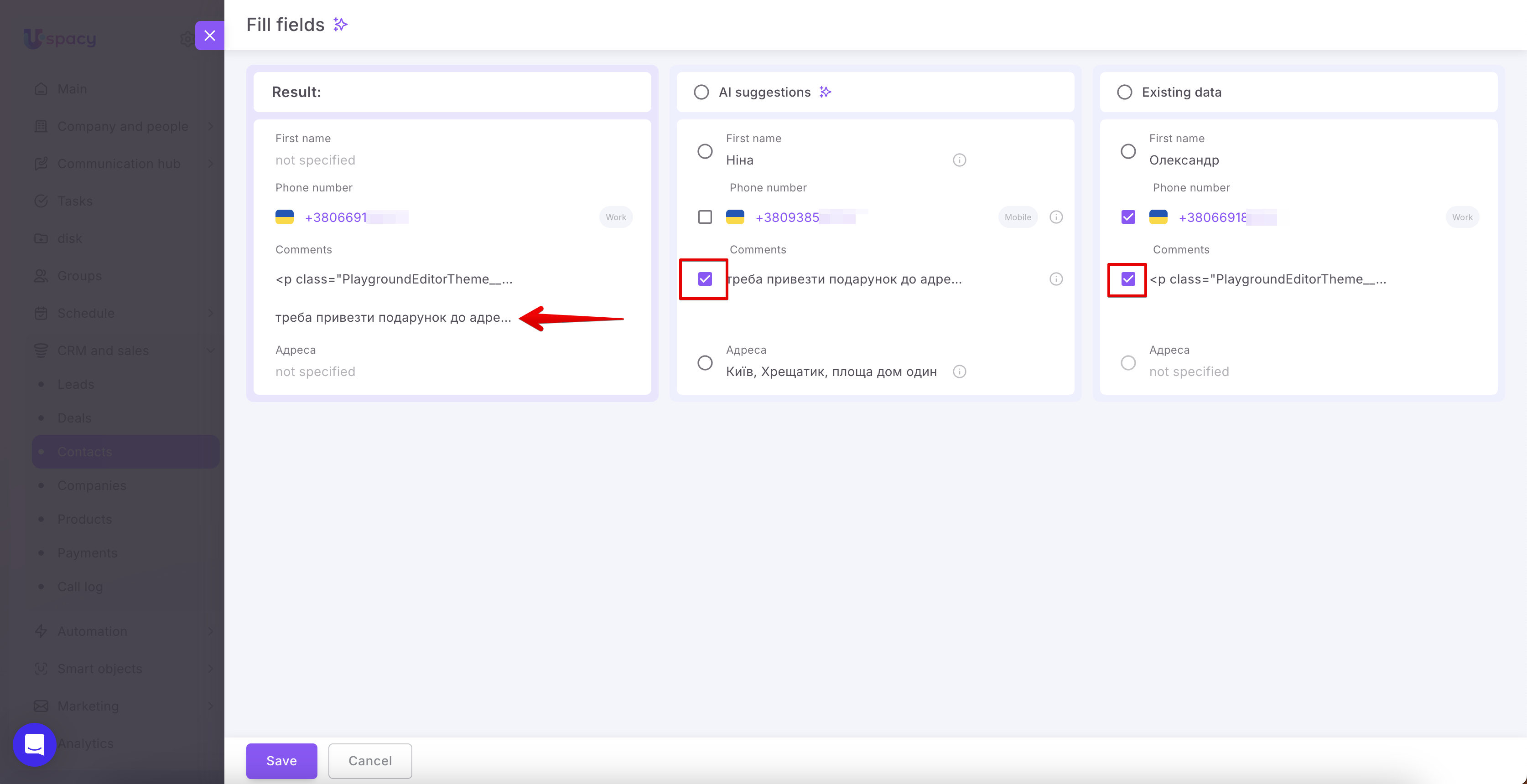
For values with square checkboxes, you can select the relevant information from both sections.
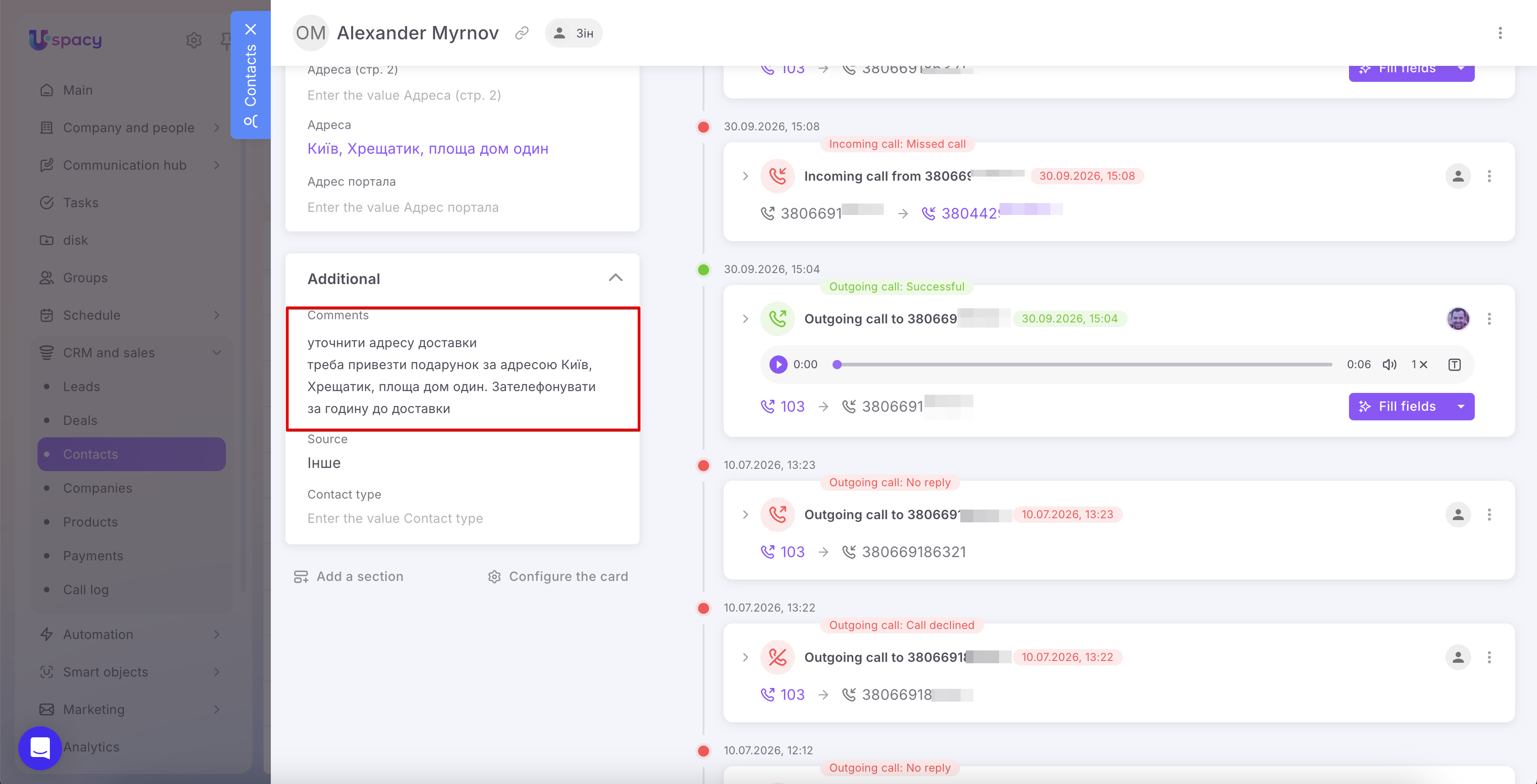
For example, to add information to the Comments field, keep the existing text selected and select the AI suggestion. Both text segments will appear in the Result section.
This allows you to preserve previous information while adding new agreements or details discussed with the client.
For fields with circular radio buttons, select one value: either the AI suggestion or the existing value in the record.
For example:
- To update a name, select the preferred option in the AI suggestions section.
- To fill in an empty Address field, select the address identified from the conversation.
- To keep the current value, select it in the Existing data section.
The selected values will appear in the Result section.
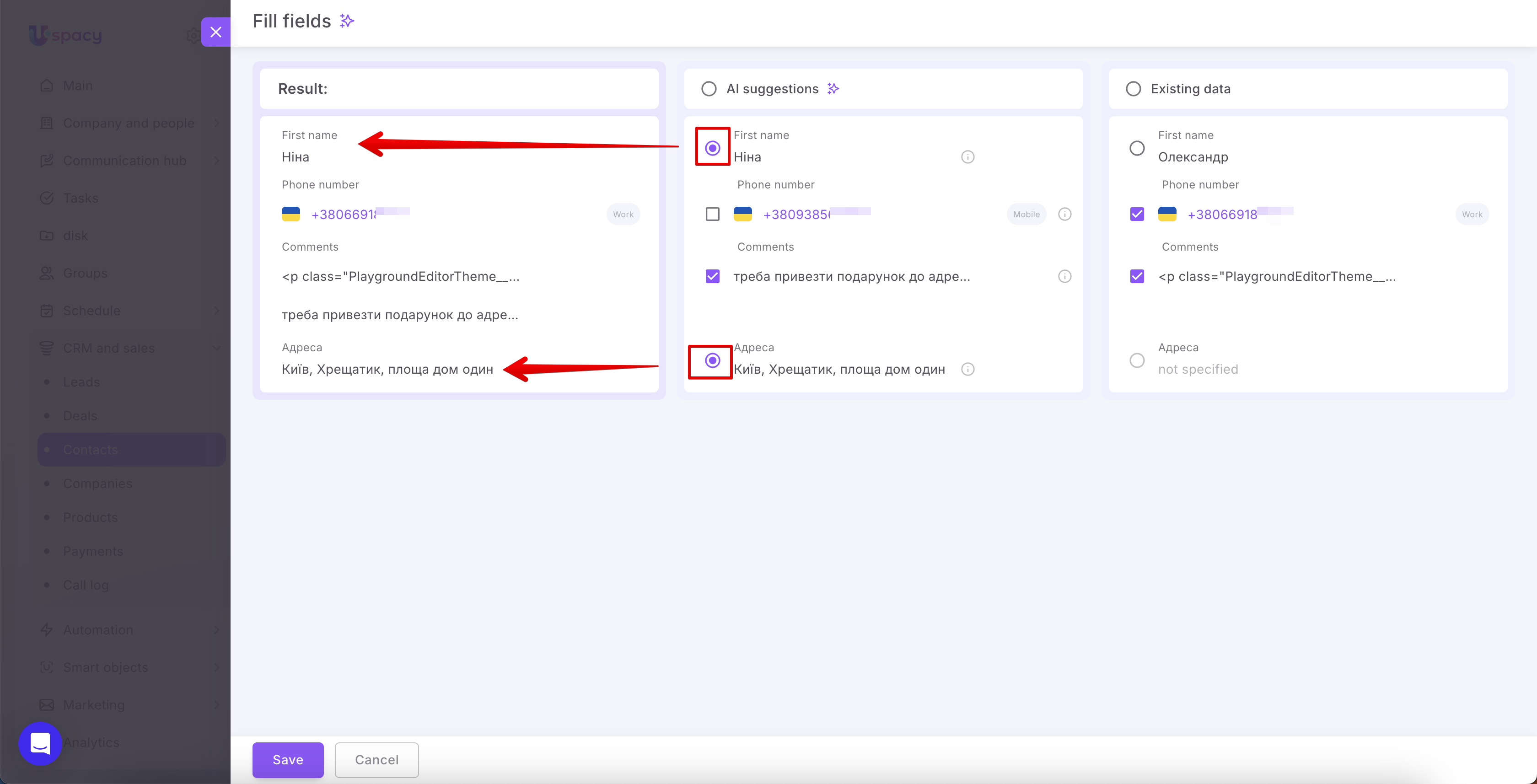
💡 Before saving, review the entire Result section. It shows exactly which data will be written to the record. If a field displays Not specified, check whether you’ve selected the value you need.
How to save data to a record?
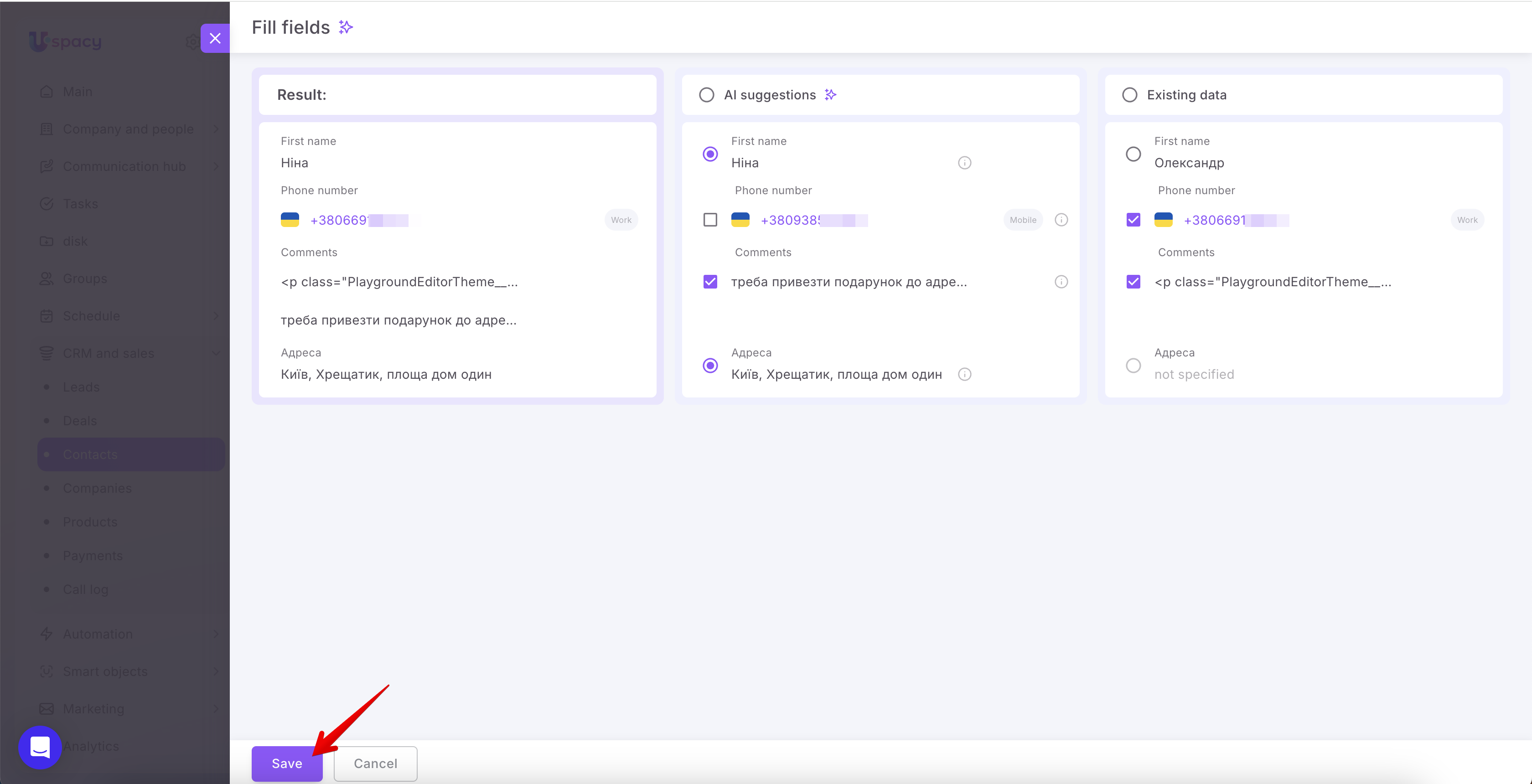
Once you’ve reviewed the results and selected all the values you want to save, click Save.
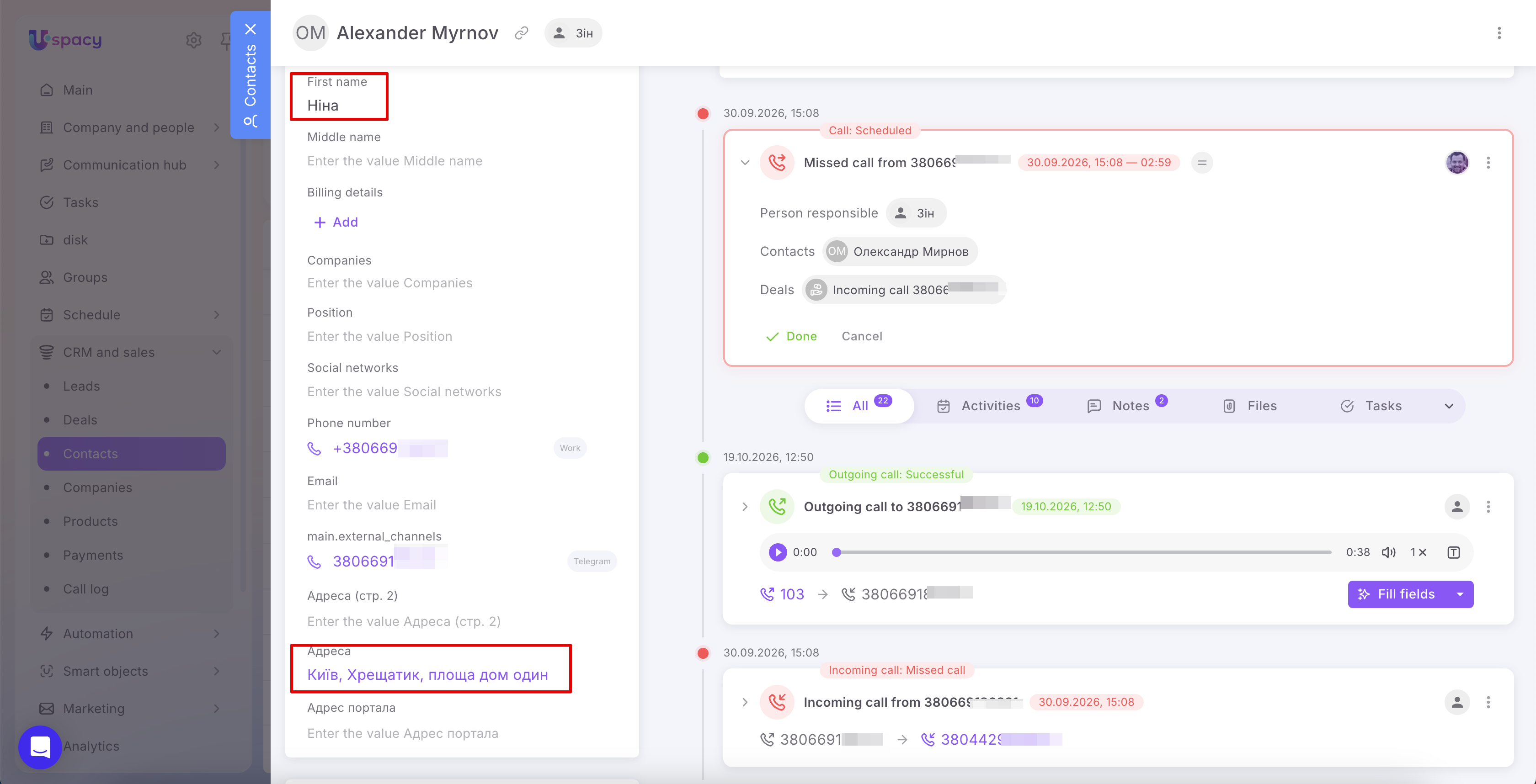
The selected data will be saved to the corresponding CRM record fields. For example, the contact record may display a new address, an updated name, and additional information from the conversation in the Comments field.
If you don’t want to apply the results, click Cancel.
Using AI to fill in fields reduces the amount of manual data entry required after a call. AI identifies relevant information in the conversation, while you review the suggestions and decide what to save. This helps ensure that new details and agreements become part of the CRM record and remain available for future client interactions.
If you have additional questions or you need to contact the support, send a request to this email [email protected]
Created: October 20, 2026 / Updated: October 21, 2026