With the help of External Lines, you can communicate with clients directly in your Uspacy while they write to you to third-party messengers, for example, in Telegram.

To do this, it is enough to connect and configure the integration, which will ensure that messages are sent to the Space.

Features of work
At Uspacy, the functionality of external lines is implemented through integrations with specialized services.
In the Marketplace section there is a free application for work with Telegram, which, after its installation and configuration, will allow you to work with client requests in the Uspacy chat.
💡Telegram is connected to your Space via a special Telegram bot.
If you already have one, you can easily configure it to work at your Uspacy using the Auth Token option.
If you have never worked with a Telegram bot before, then in order to work and connect to the external lines of Space, you will need to create it first.
About everything below ⬇️
Creating a new Telegram bot
To do this, go to the application and enter BotFather in the search bar.

Open this chat and click on the Start button.

To create a new bot, use the new bot command.

Next, specify its name. It is what clients will see when contacting you via Telegram. For example, JuniorWorld. Send the name in the chat.

Next, enter the user name. It should be unique, because by this name the clients will know you in Telegram.
💡The username must end with the word bot.
For example, JuniorWorld_bot.

After sending, your bot will be created, and you will receive the necessary parameter to connect to Uspacy - Auth Token.

Bot settings
This Telegram bot allows you to communicate with your clients not only in personal chats but also in group ones. To enable or disable the option to add it to Telegram groups, go to its settings. To do this, use the /mybots command and select the desired bot.
💡If you have only one of them, then only this one will be available for selection.

Next, click on the Bot Settings item to go to the settings.

Select Allow Groups?

Click Turn groups off. The bot will not be able to be added to group chats now.

The Turn groups on option, on the contrary, allows you to add it to group chats.

⬇️🔍 You can read more about the features of the bot in group chats below
To be recognized among clients, and just for the visual component, select a profile photo for your bot. To do this, use the /setuserpic command.

Select the bot for which you want to set a profile photo.
💡If you have only one of them, then only this one will be available for selection.

Send the photo you chose.

At this stage the creation and configuration of the bot is complete. Now you can use it and connect to your Uspacy.
Getting the Auth Token parameter of an existing bot
If you already have a bot and just want to use it to connect to Space, then you also need to use BotFather.

Just enter the command/token in the text input field and send it to the chat. Then select the bot that requires the Auth Token parameter.
💡If you have only one bot, then only this one will be available for selection.

As a result, BotFather will send you a token from the desired Telegram bot, which you need to use to connect to your Uspacy.

Token replacement (revocation)
If necessary, it is possible to reset the current token and replace it with a new one that will be generated automatically. This is an additional security measure.
To reset, use the /revoke command and send it to the chat. Then select the bot for which you want to replace the token.
💡If you have only one bot, then only this one will be available for selection.

As a result, the token of your Telegram bot will be replaced with a new one. It will need to be used to connect (or reconnect) to Space.

Connecting the Telegram bot to Space
First, you need to install a free app to integrate Telegram to your Space. To do this, go to the Marketplace section and click on the Get button.

When the application is installed, open its settings.

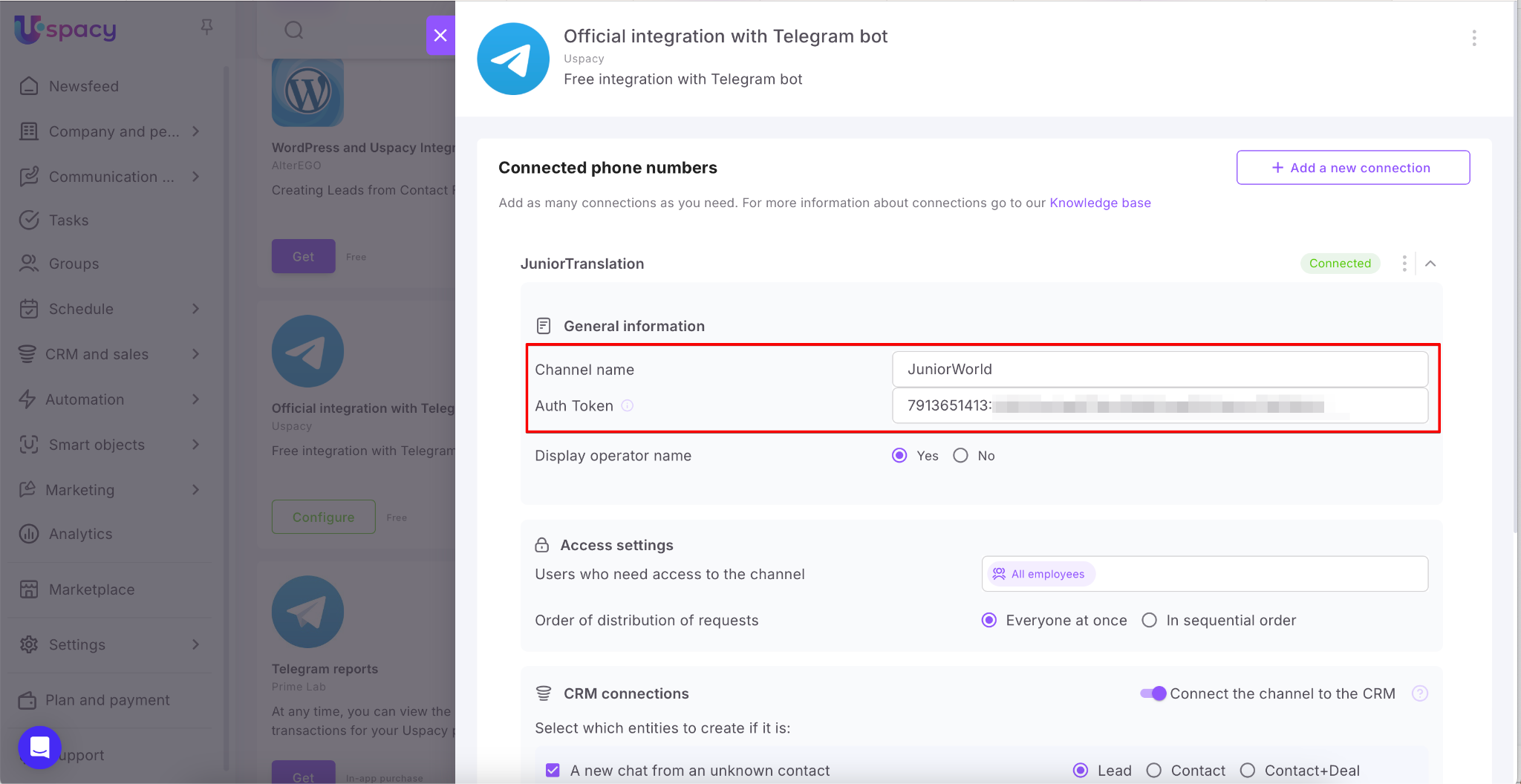
In order for everything to work correctly, all that remains is to fill out the fields with the necessary parameters:
- The name of the channel can be absolutely optional. For example, the same as the name of the bot that you specified when creating it.
- Auth Token – the token of your Telegram bot (new or existing).
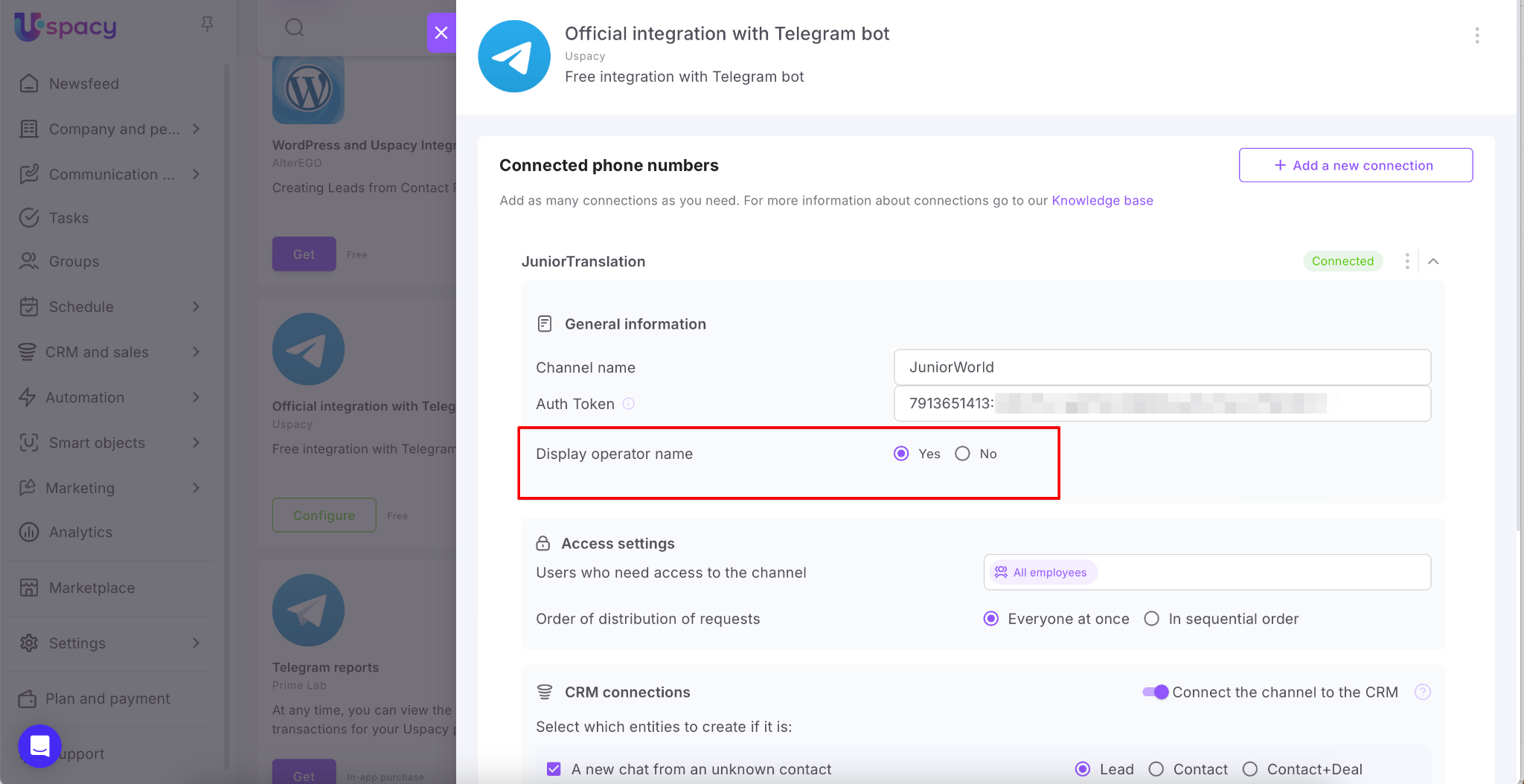
You can also enable the option to Display the operator's name. This way, clients will be able to see which manager is responding to them.
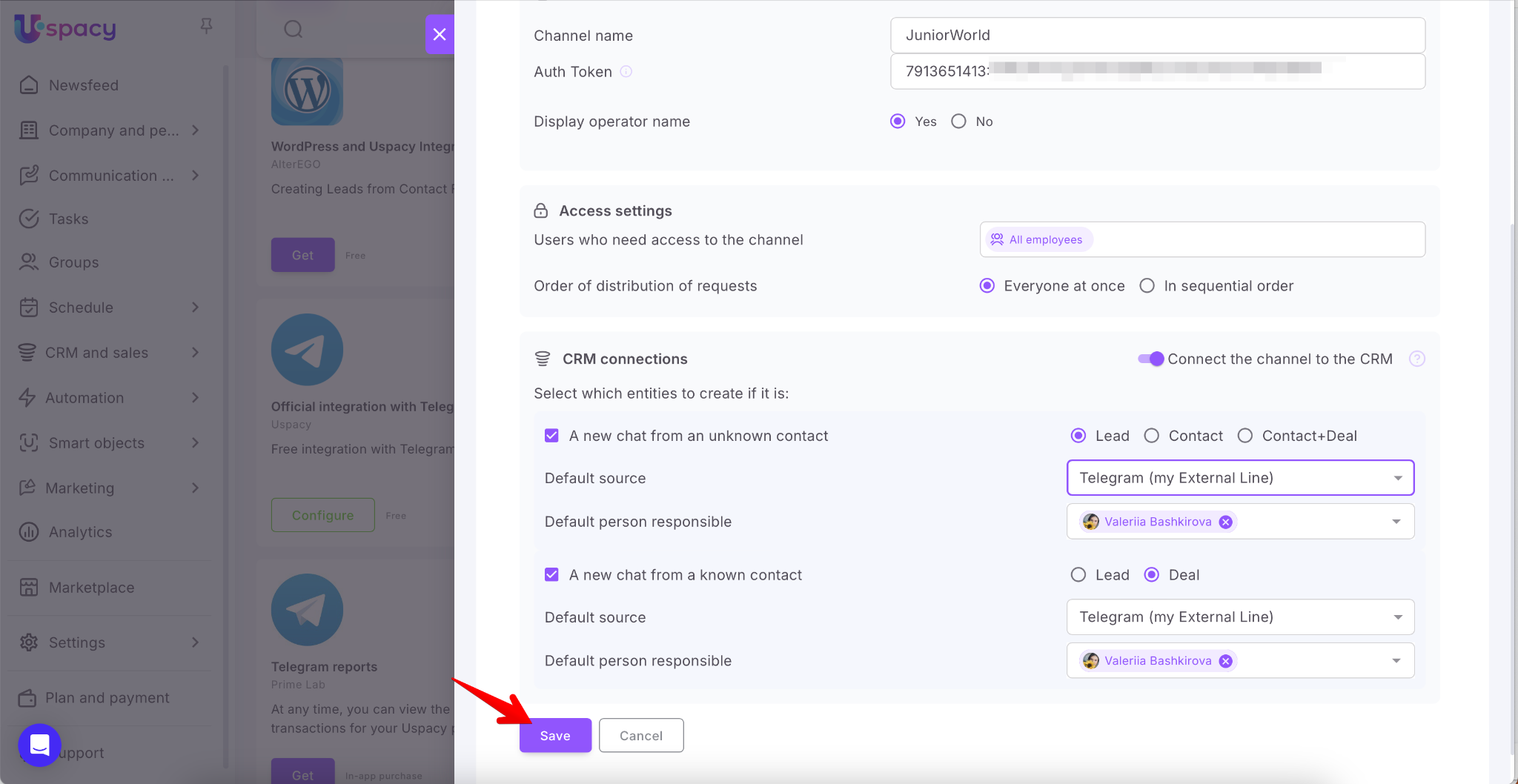
And click Save.
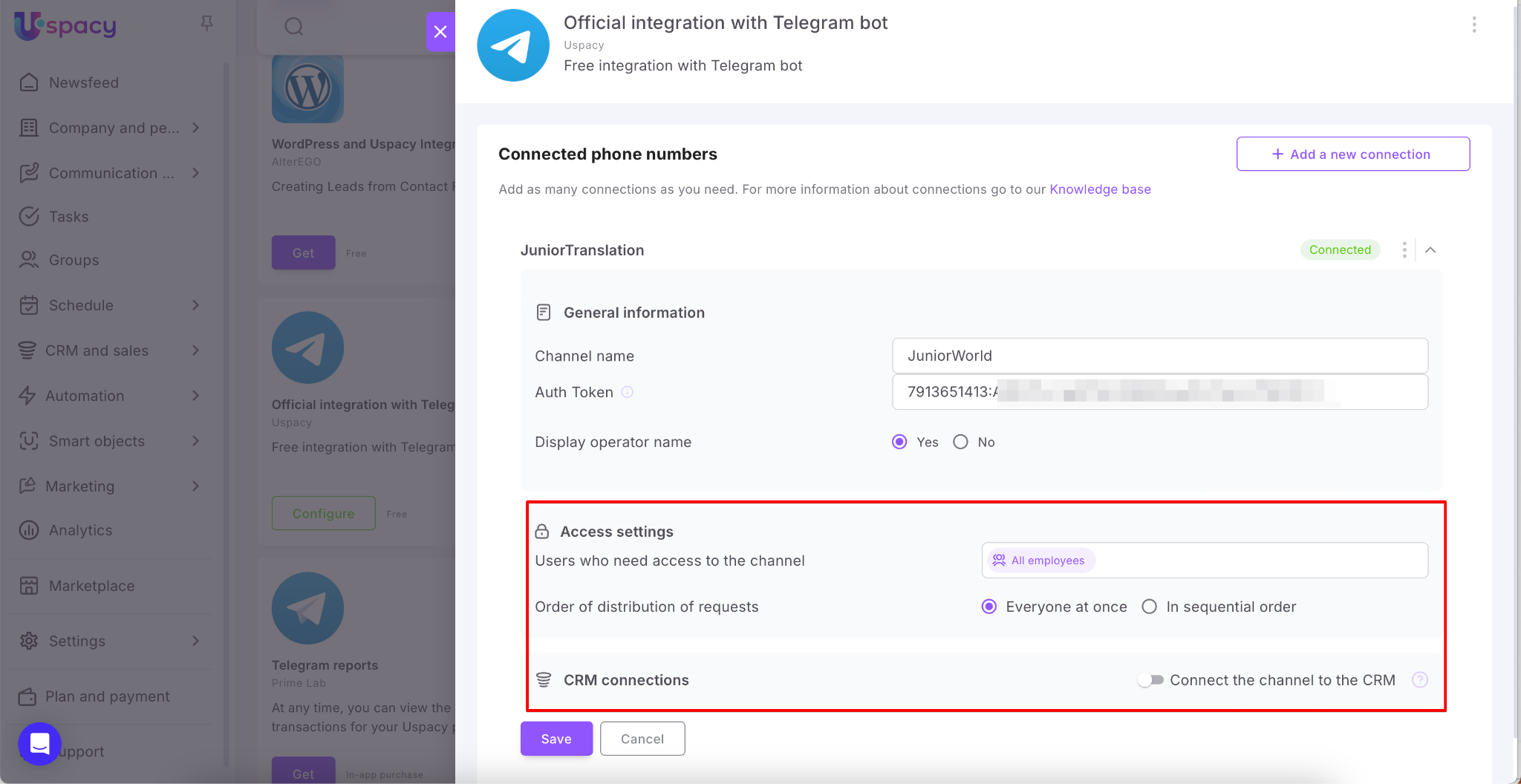
💡 Additional connection settings include Access settings and CRM connections.
If you don't need to specify which employees should handle chats from this channel or define how those chats are distributed, simply leave the fields in this section unchanged.
Similarly, if you don’t need to link incoming chats to CRM elements, just leave the CRM connections section inactive.
If you do need to configure these settings, you can find detailed instructions in the following articles:
If it was successful, it will be displayed in status at once.

If necessary, you can either Add a new connection or Delete a number/channel that has already been configured.

How does it work?
The client can find your Telegram bot when searching by name. Then open a chat and start writing.
🖇When chatting, you can also send images, gifs, videos and files in formats supported by Viber itself.

💡If the “Display operator name” option is enabled, the client will be able to see who from your company is communicating with them.
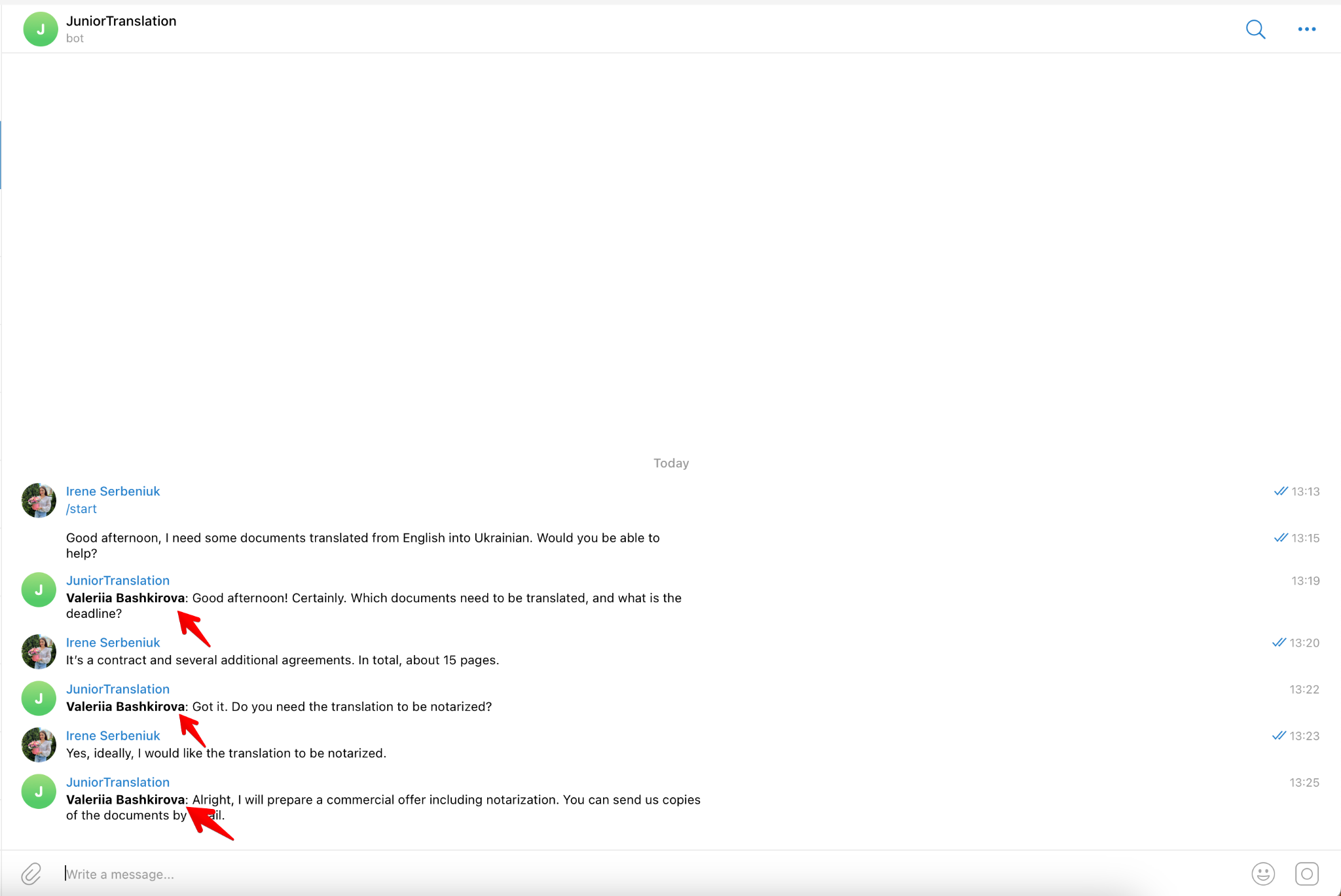
You will receive its message in the External Lines and you will be able to communicate with it directly in the chat of your Space.

🔍 You can read more about how to work with chats in external lines in the following article.
Features of working in group chats
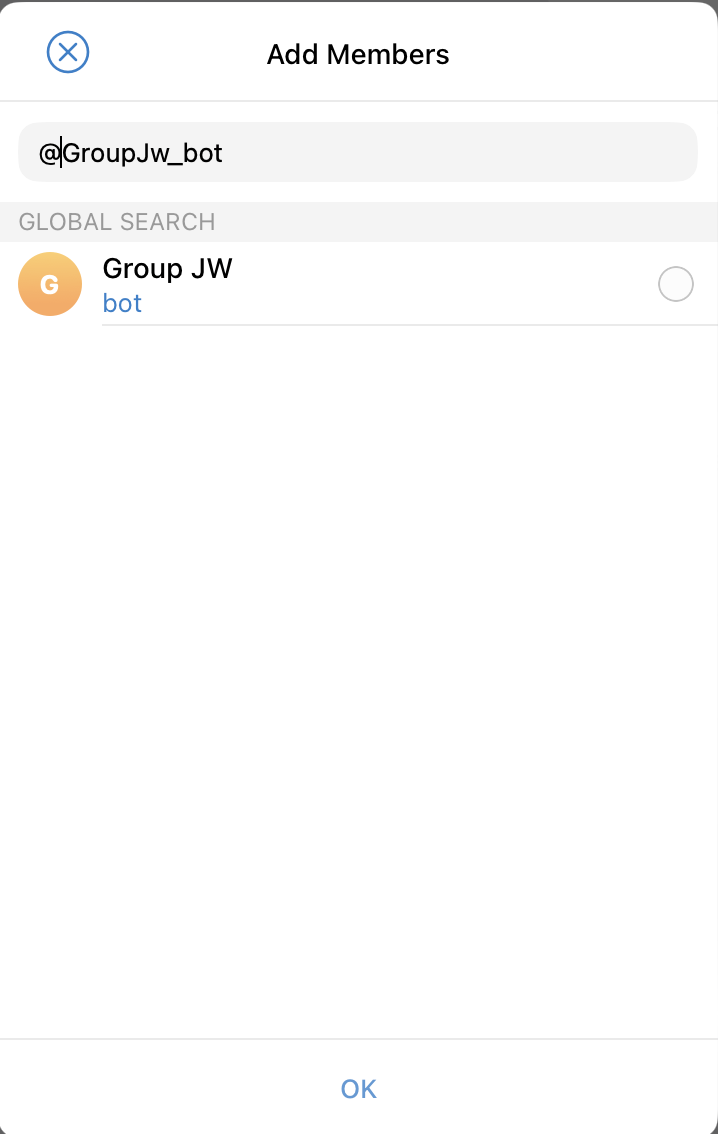
In order to be able to receive and reply to messages from a Telegram group chat in your Space, you must first add a bot to that chat.
💡In order for the bot to be found in search, check whether you have set up the possibility to use it in group chats.
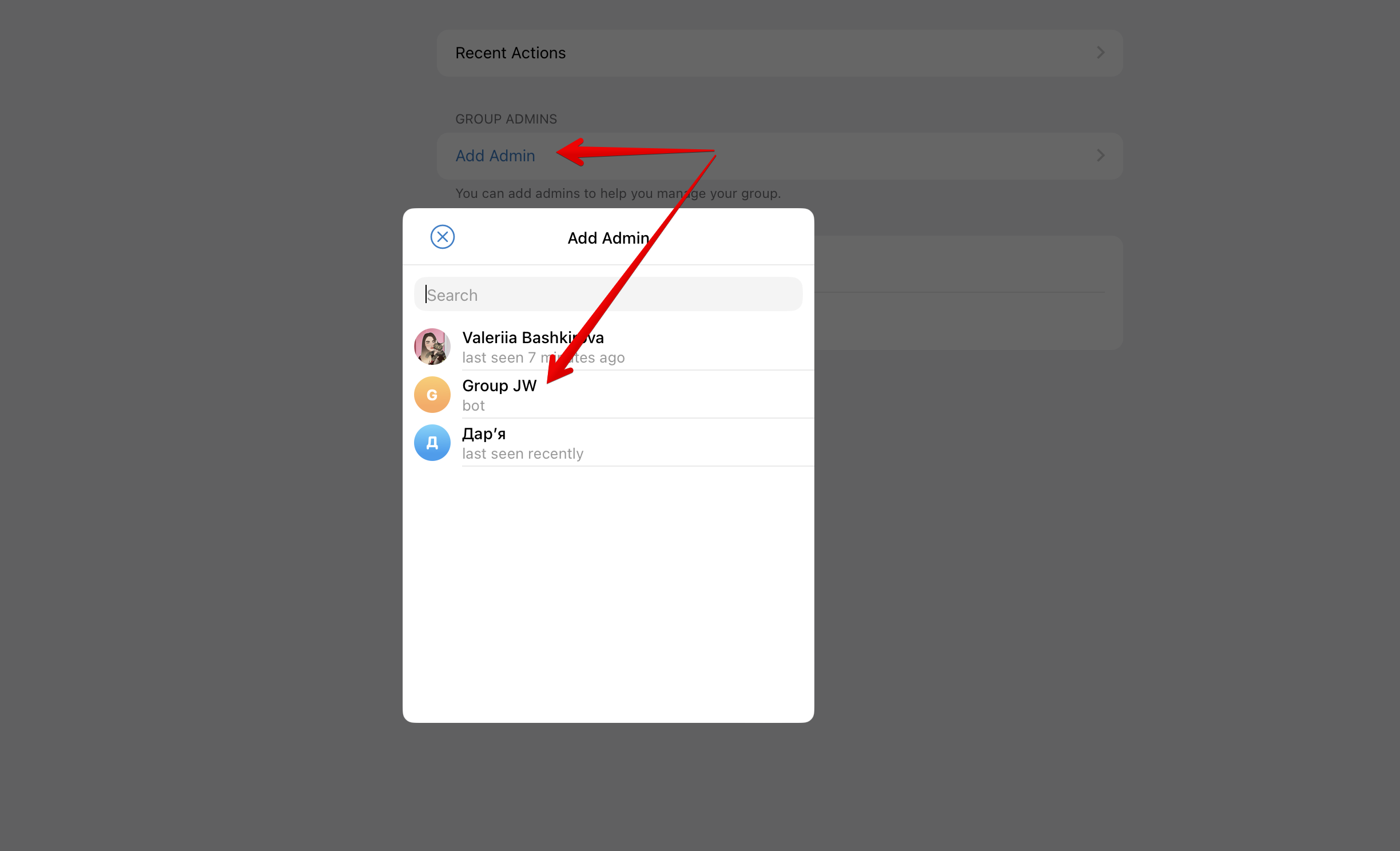
Next, assign it as administrator in this chat. This makes it possible to receive messages from Telegram to Space.
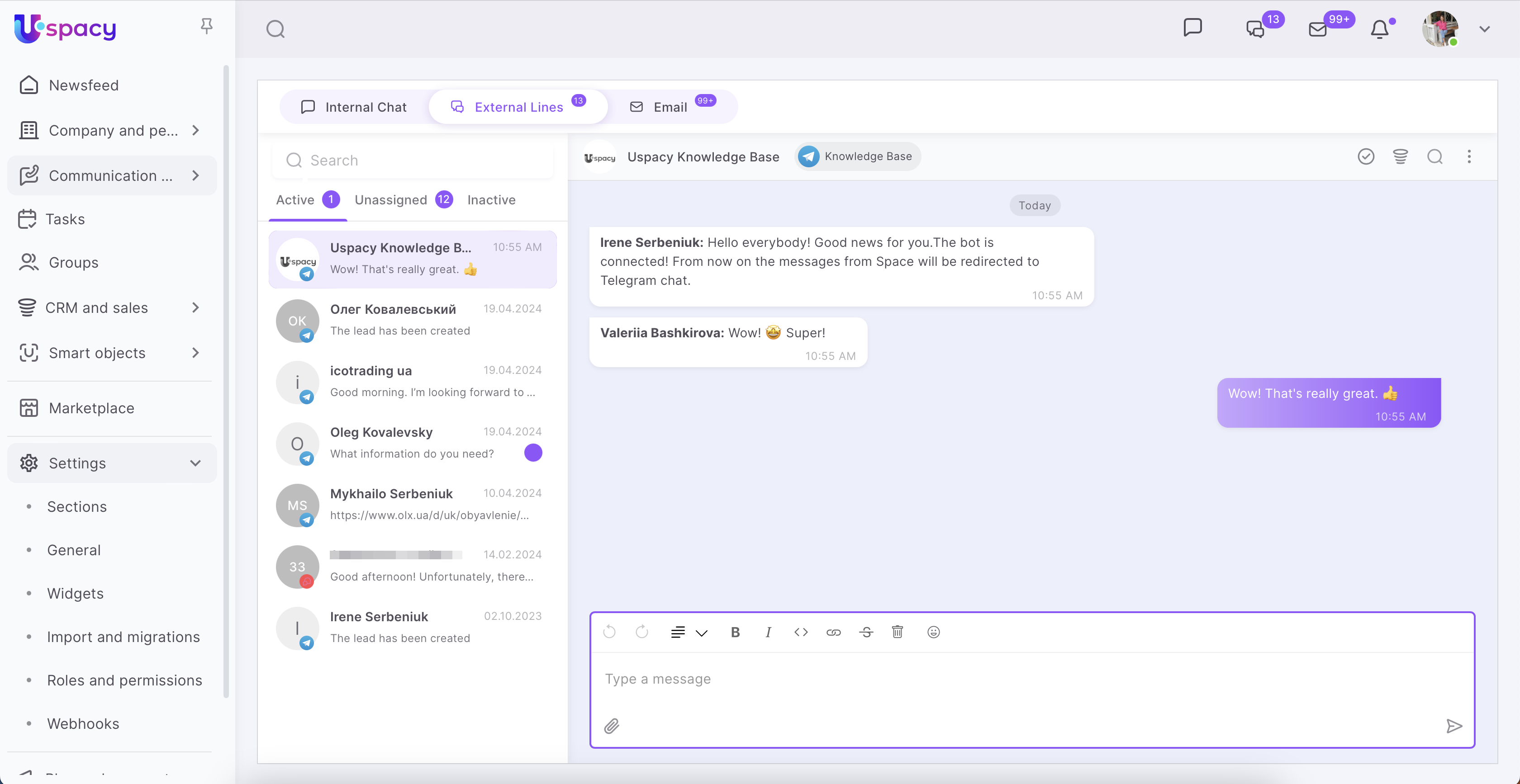
Done! A chat will be automatically created in your Uspacy at once.
💡Even if there are no messages after adding the bot, the chat will appear in the Space anyway.
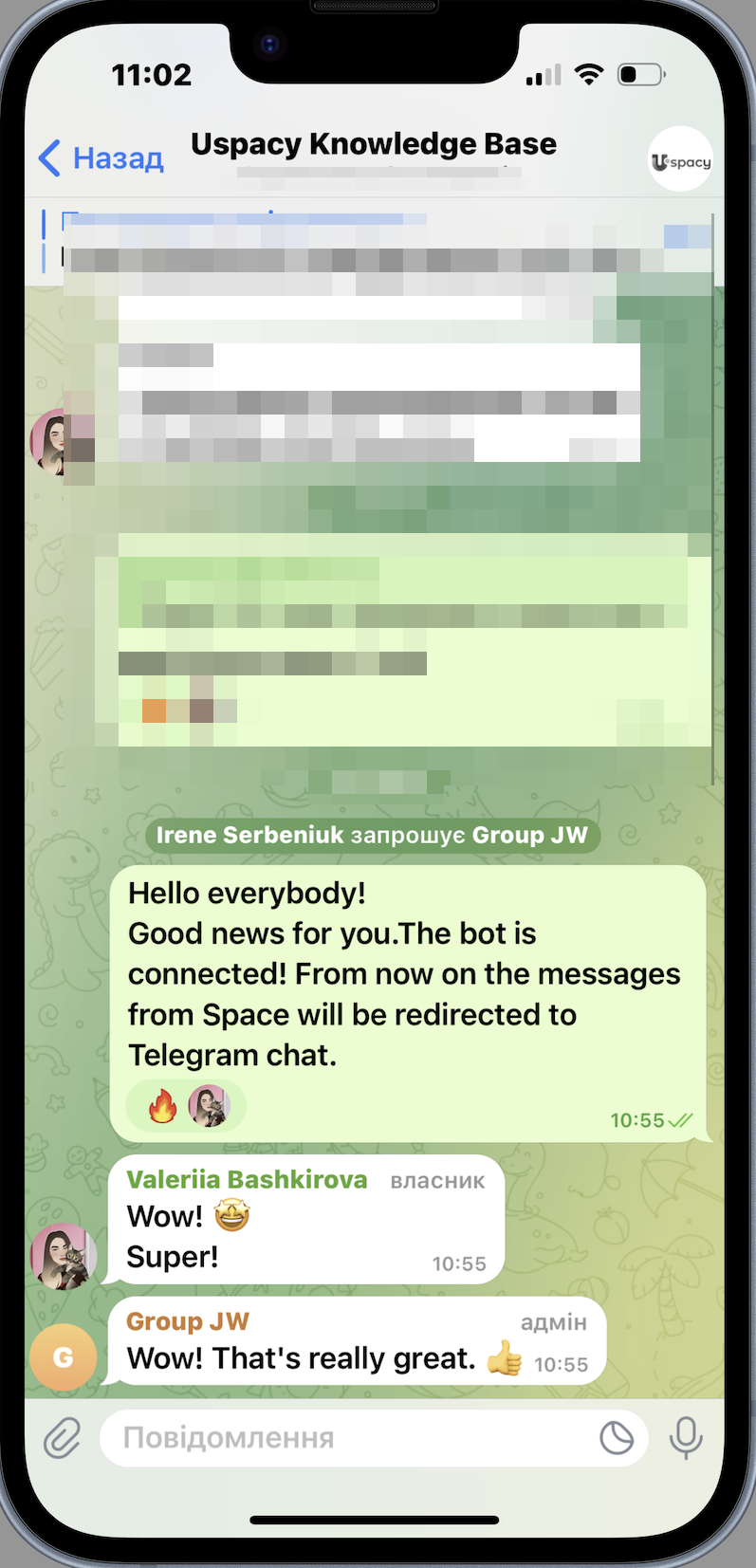
Now you can continue to communicate in the Telegram group chat. But now the messages will be redirected to Uspacy. And you can answer them without leaving your workspace.
🟣 Even if you add a bot to the chat, where there are messages, and give it access to view the last 100 messages, this correspondence will NOT get to Uspacy. That is, only new messages will be received after adding the bot and assigning it administrator rights.
🟣 Polls or video chats from Telegram will NOT be redirected to the workspace.
🟣 Important! Do not change the type of group (chat) in Telegram to Public for the FIRST time, when the bot has already been added to this group (and therefore the chat in Space has already been created). Because then its ID will change and this will create another same chat to appear at Uspacy. If the type changes not the first time, then there will be no duplicates.
If you have additional questions or you need to contact the support, send a request to this email [email protected]
Created: September 5, 2023 / Updated: September 2, 2025