The employee list looks like a table that contains a list of space users and some data about them.
The table consists of columns that display:
- Information about the user, his/her photo, first and last name, and status (active, fired or invited)
- Email.
- Phone.
- Position.
- Department.
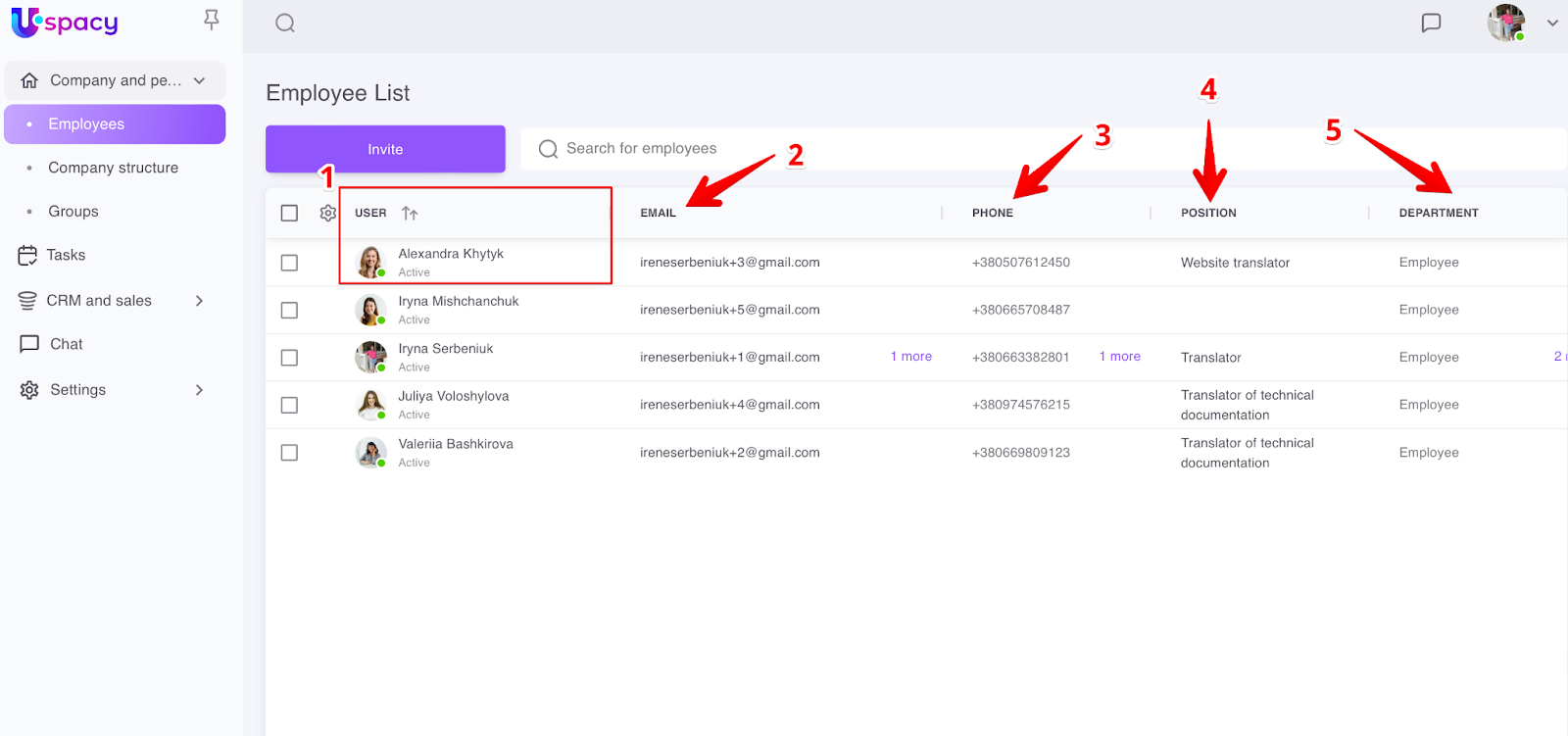
💡These information columns are displayed by default in the employee list.
How to configure list columns
With the help of a gear, you can configure the appearance in the way you like it the most by adding vertical fields to the table.
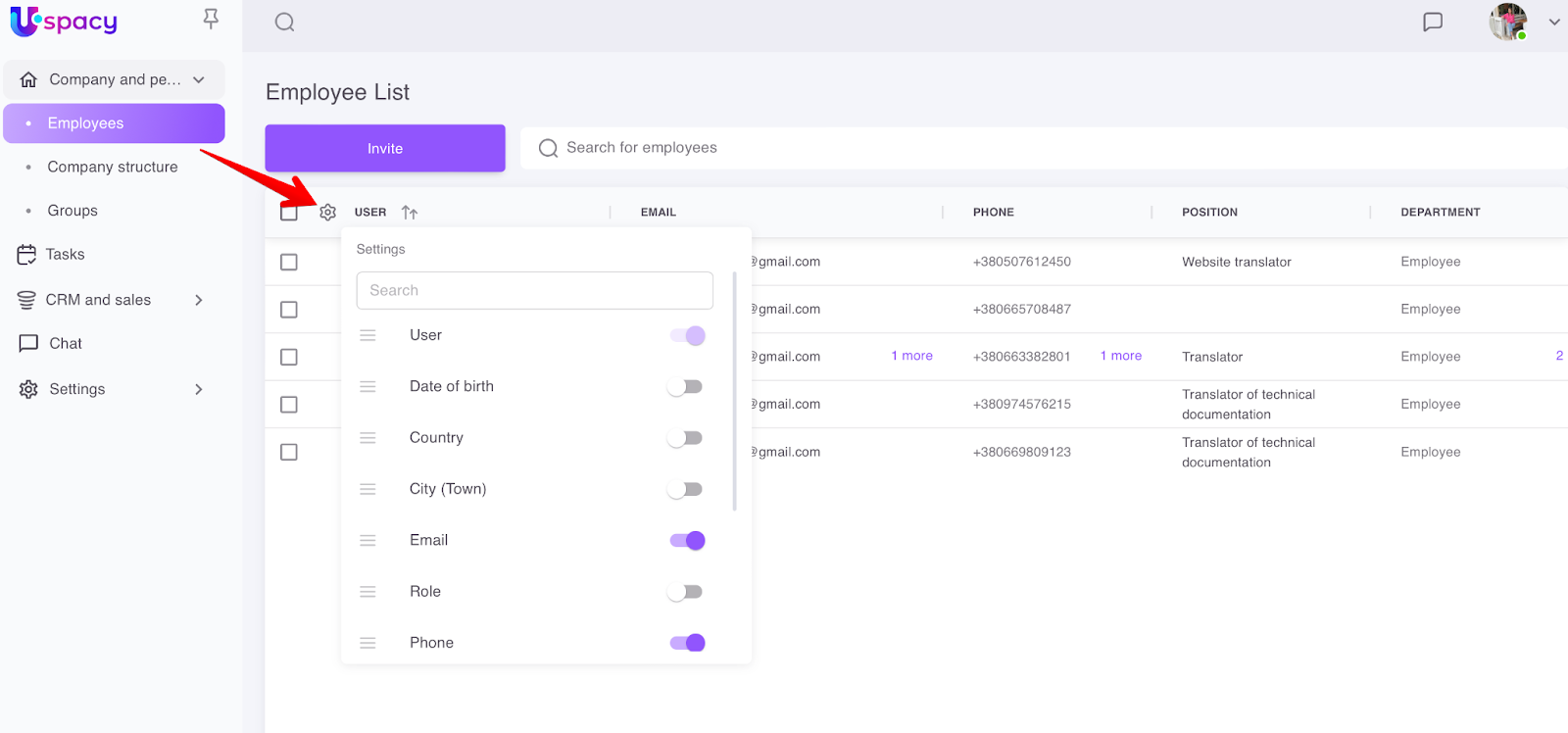
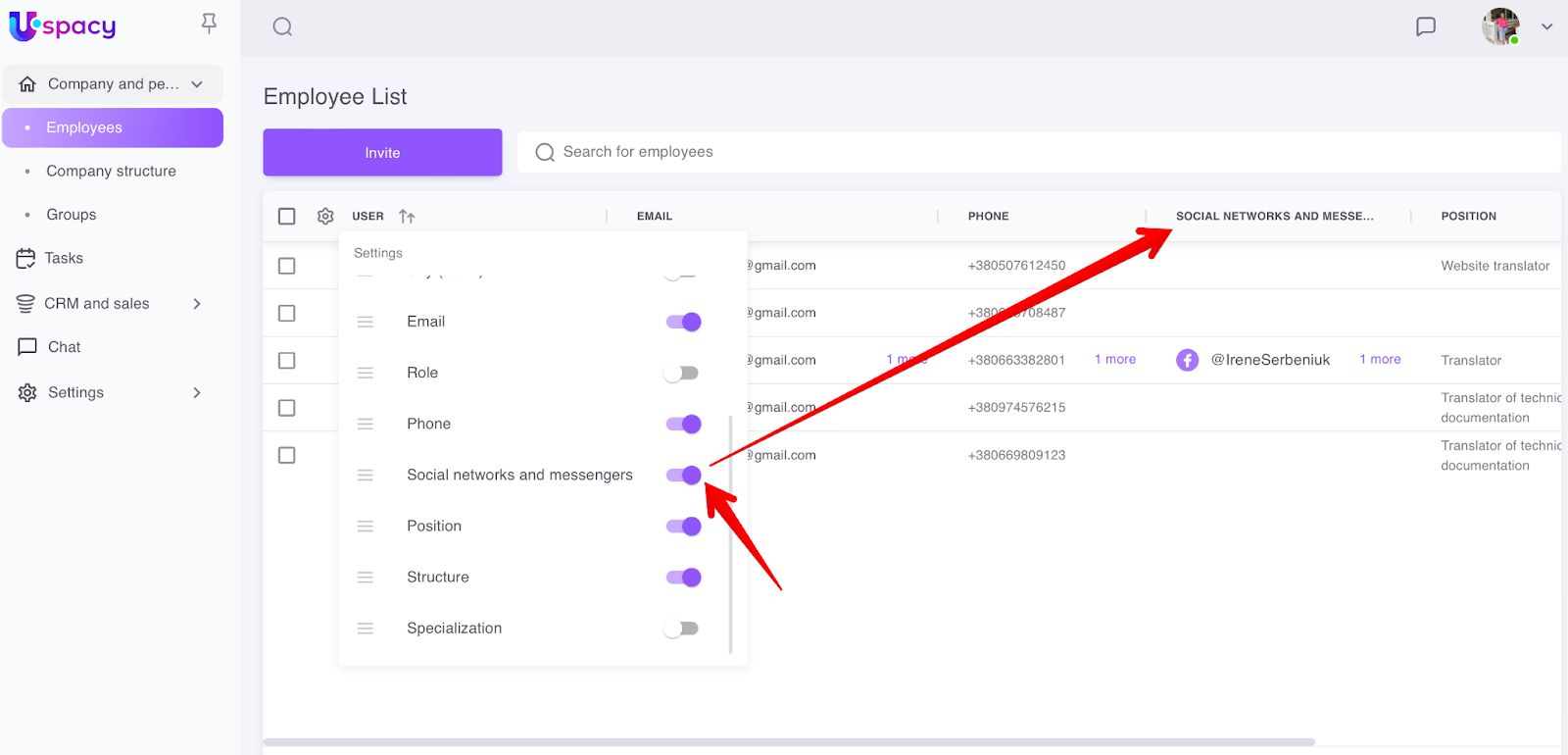
In order to display the desired field with information in the list, you need to switch the toggle button to active mode. For example, we want to see the social networks of colleagues.
How to configure list rows
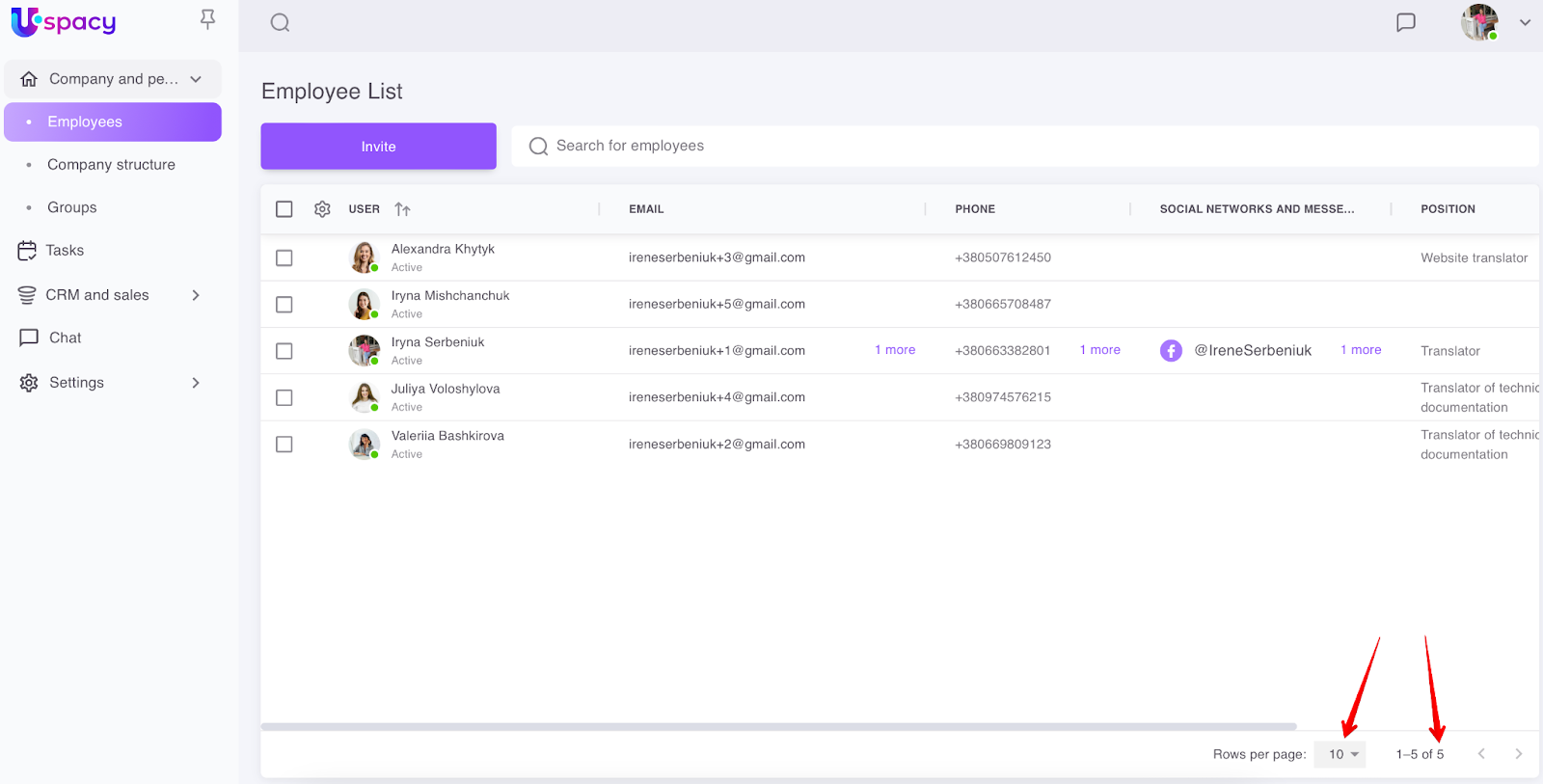
You can also specify how many rows of employees will be shown on the page.
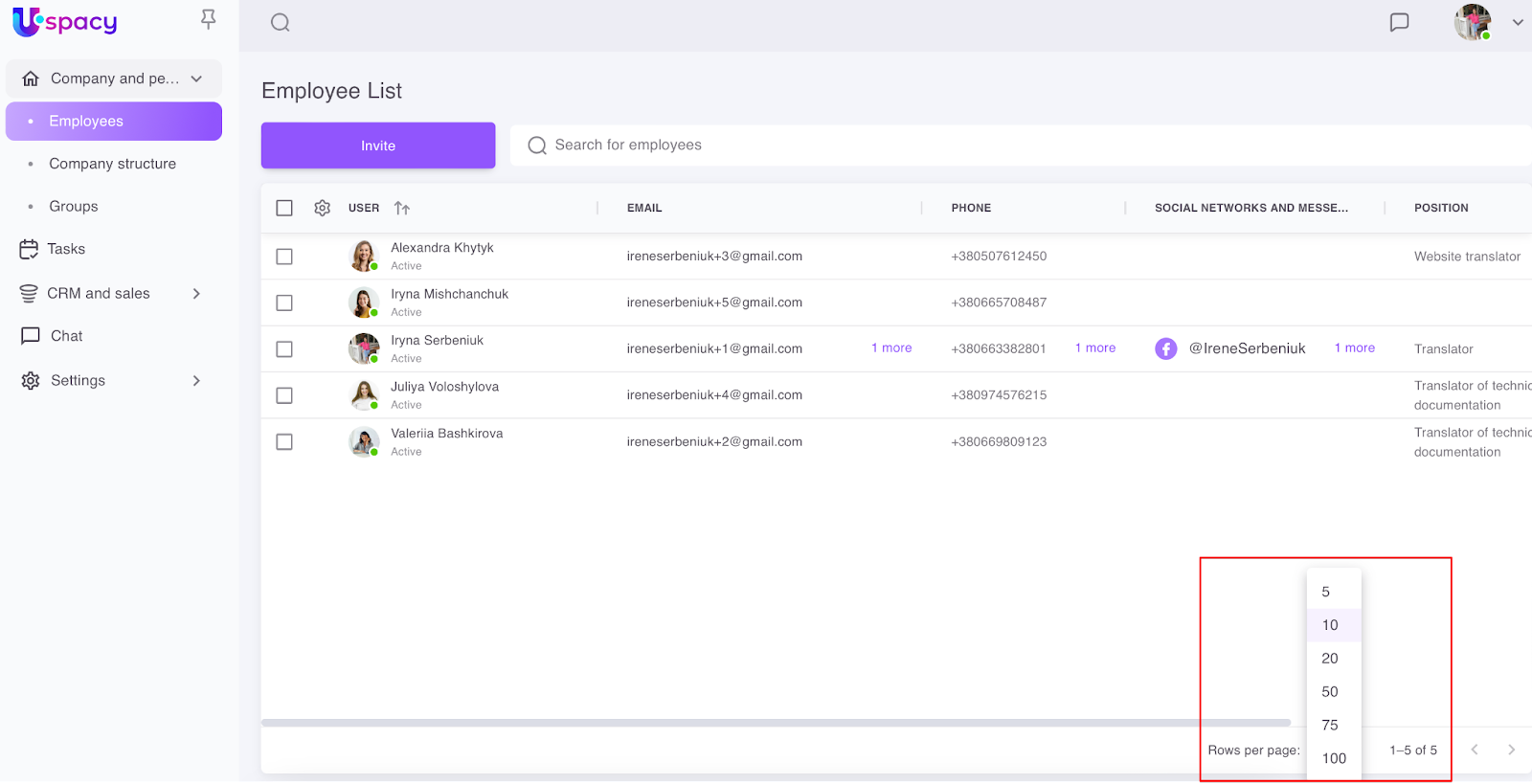
The minimum number of them is 5, and the maximum is 100. By default, 10 employees are displayed on the page.
And you can also see the total number of users in this list.
Sorting in list columns
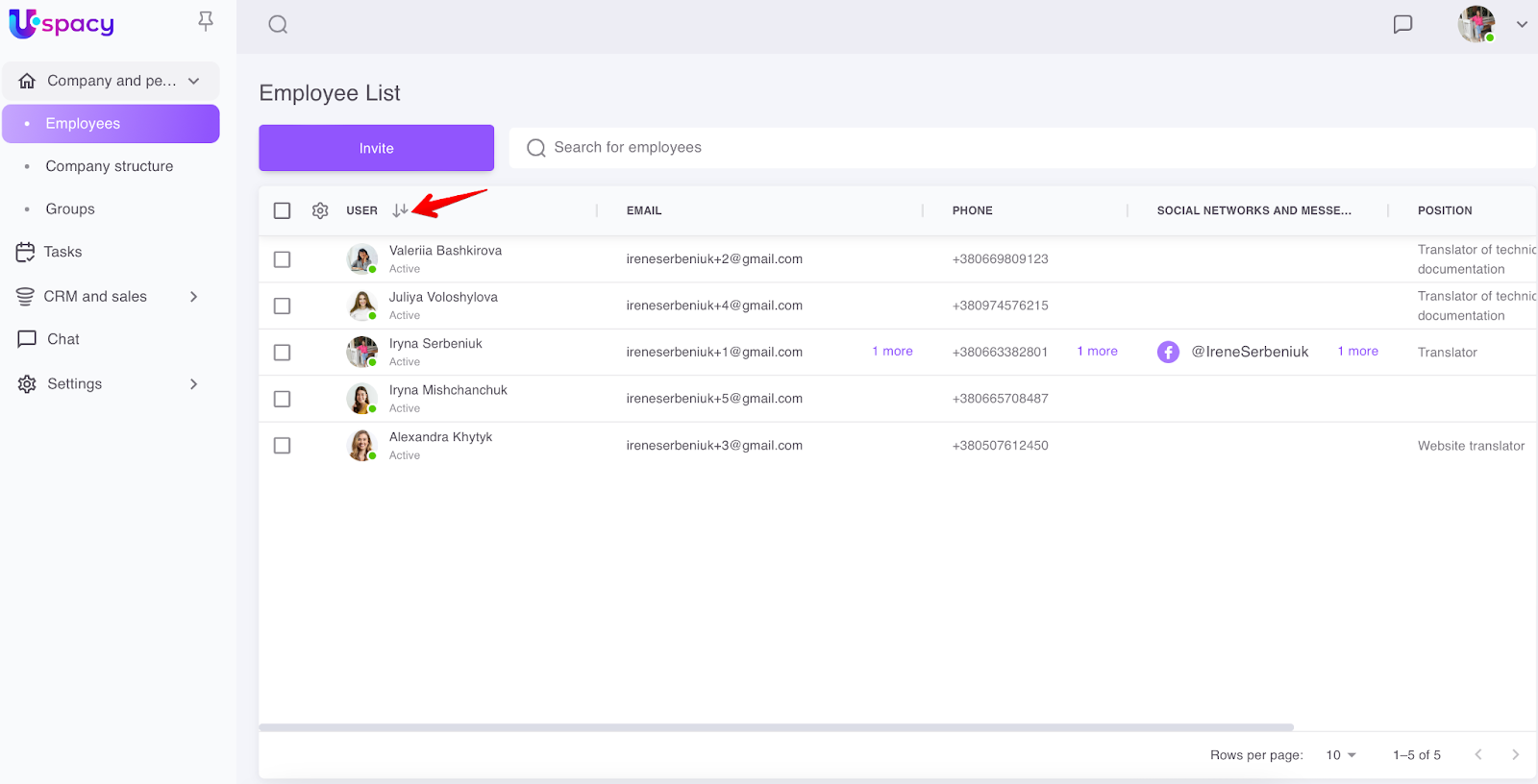
It is possible to sort the table data in each column in direct alphabetical order (descending) or reverse (ascending).
When you move the cursor over the column name, a sorting arrow appears.
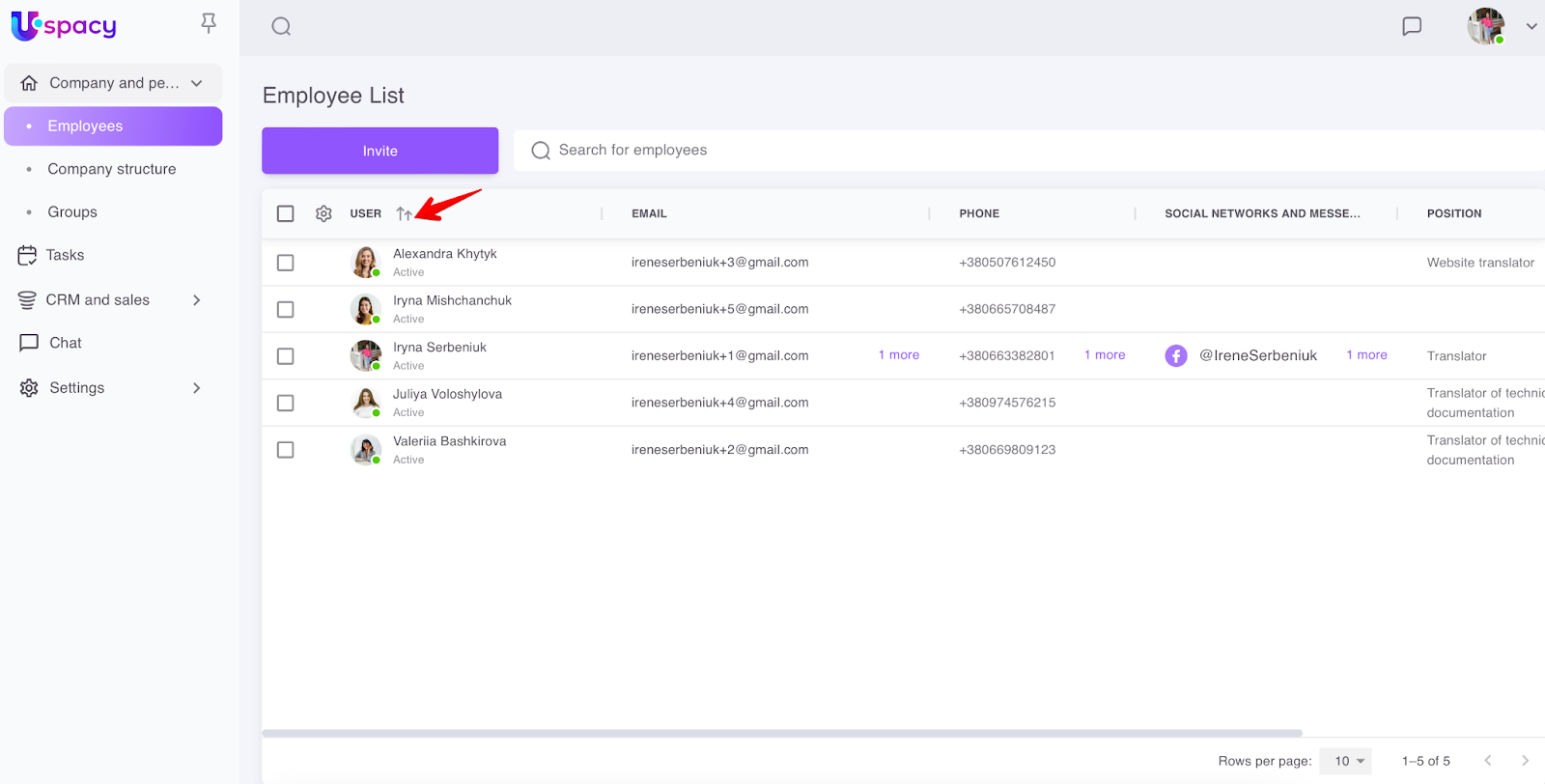
When it is first clicked, the data will be displayed in direct order.
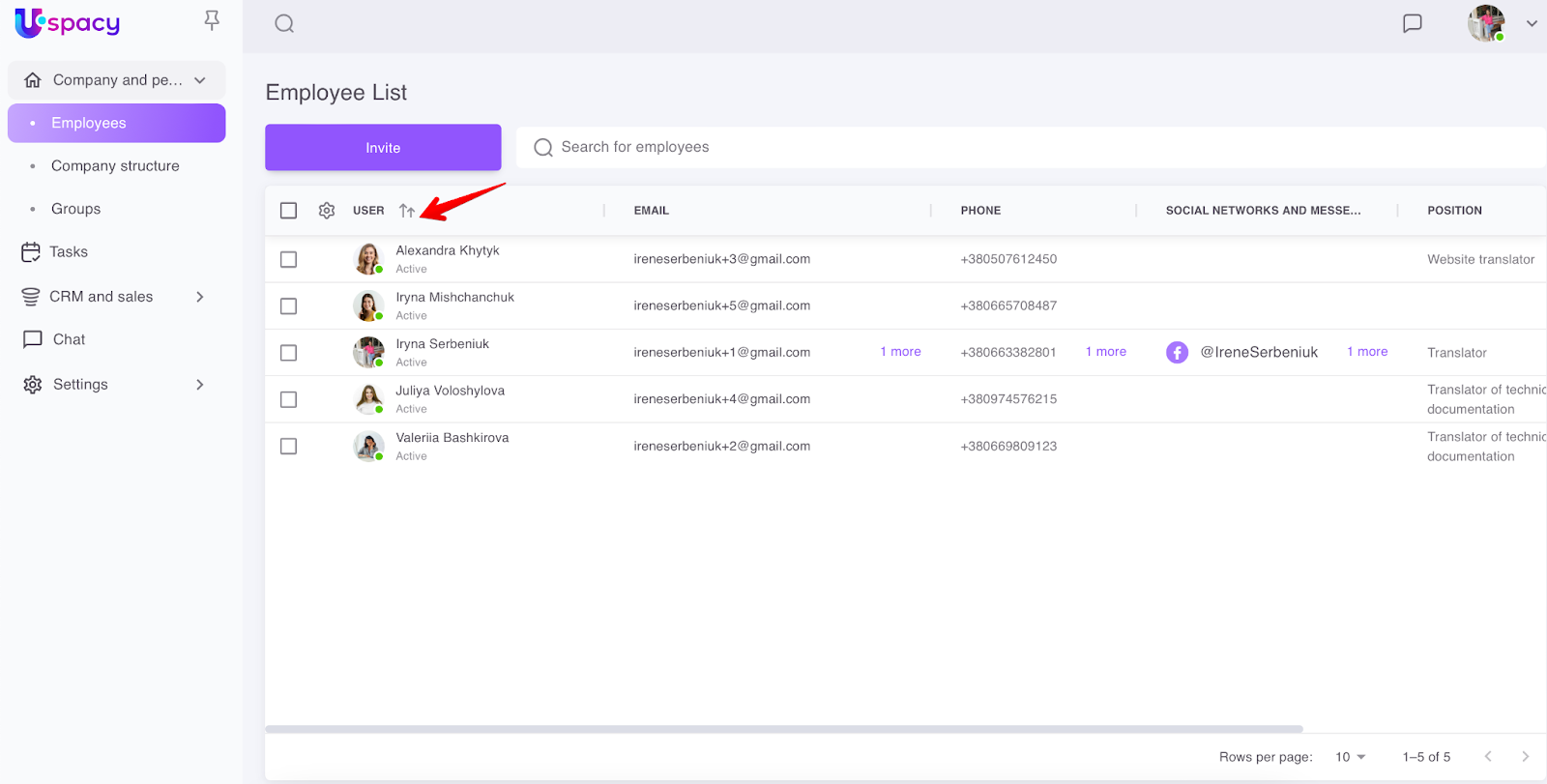
When it is clicked a second time, the sorting takes place in the reverse order.
Clicking a third time the sorting in the selected column resets and returns to the default list display.
Viewing additional data
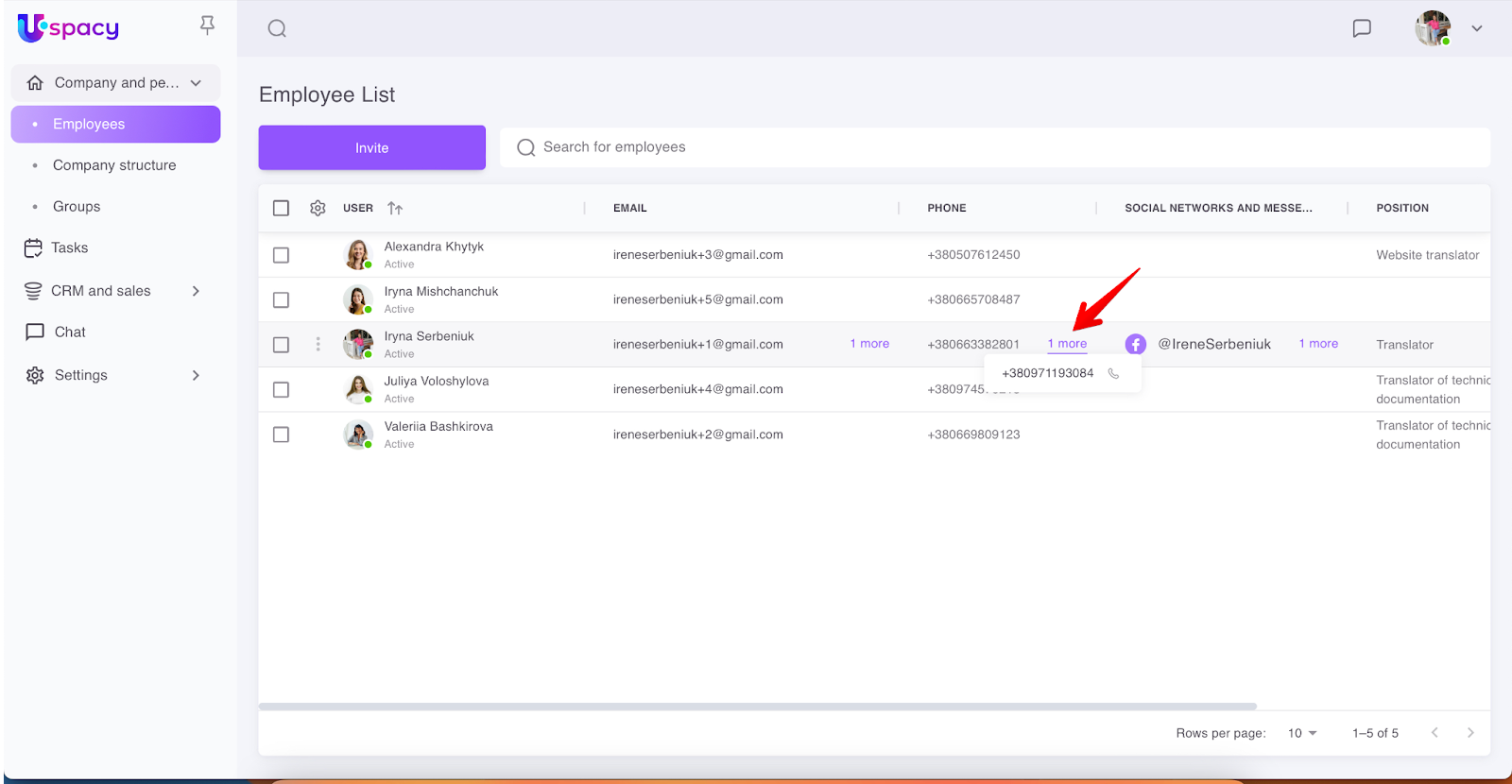
If the employee has more than one phone number specified in the profile, it will be possible to view all of them in the list, in the corresponding column. To do this, you need to move the cursor to the link more.
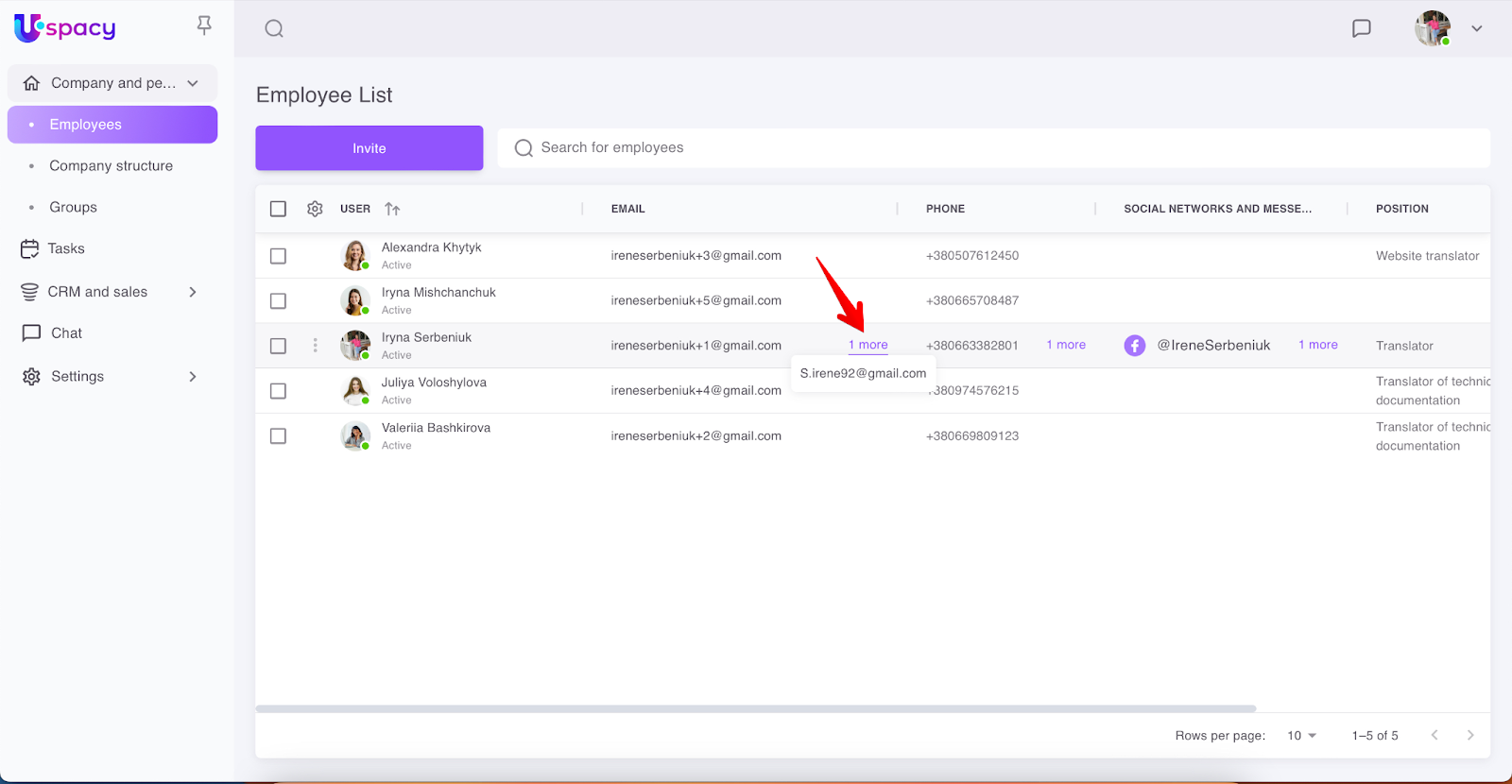
You can view email addresses in the same way.
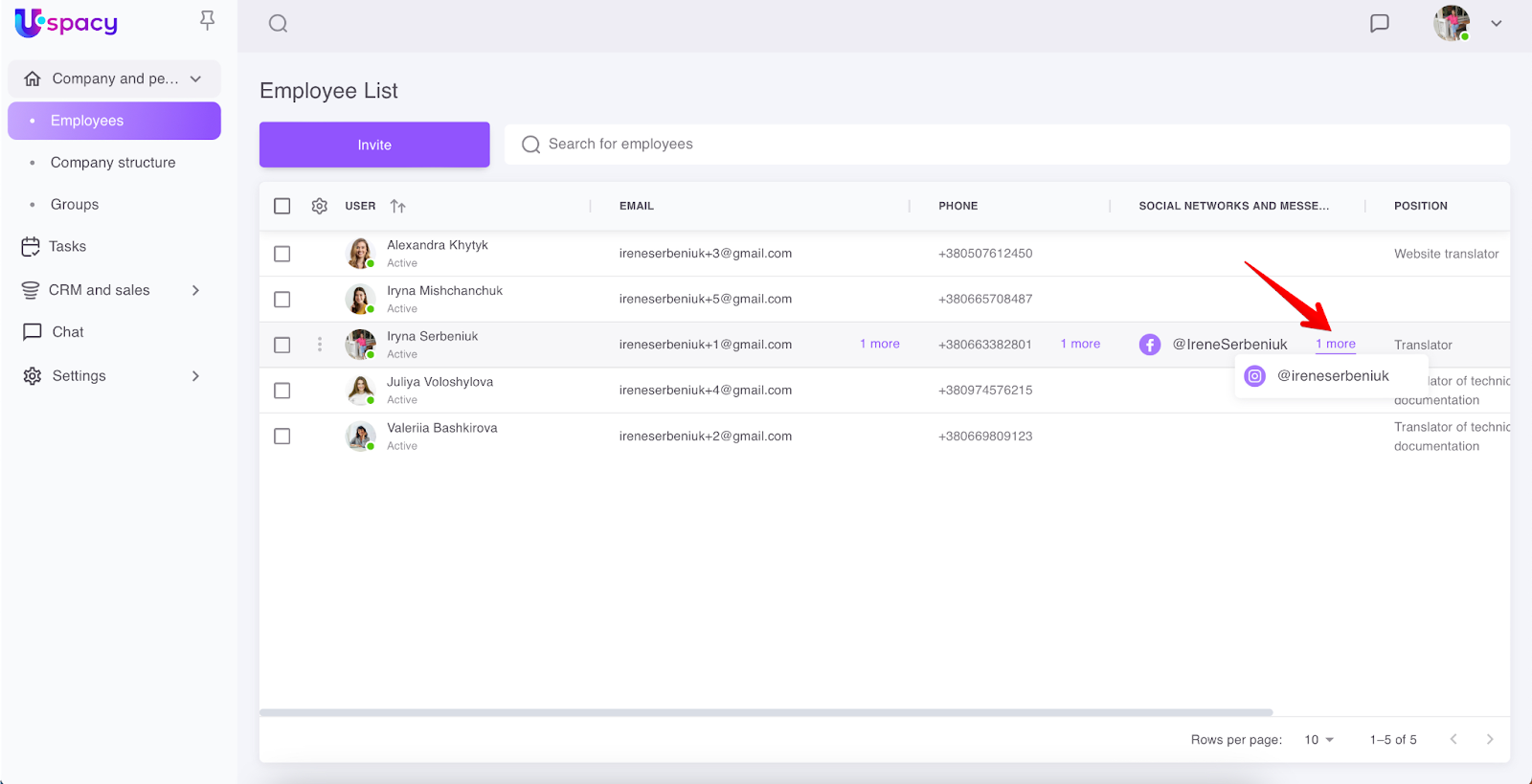
And social networks.
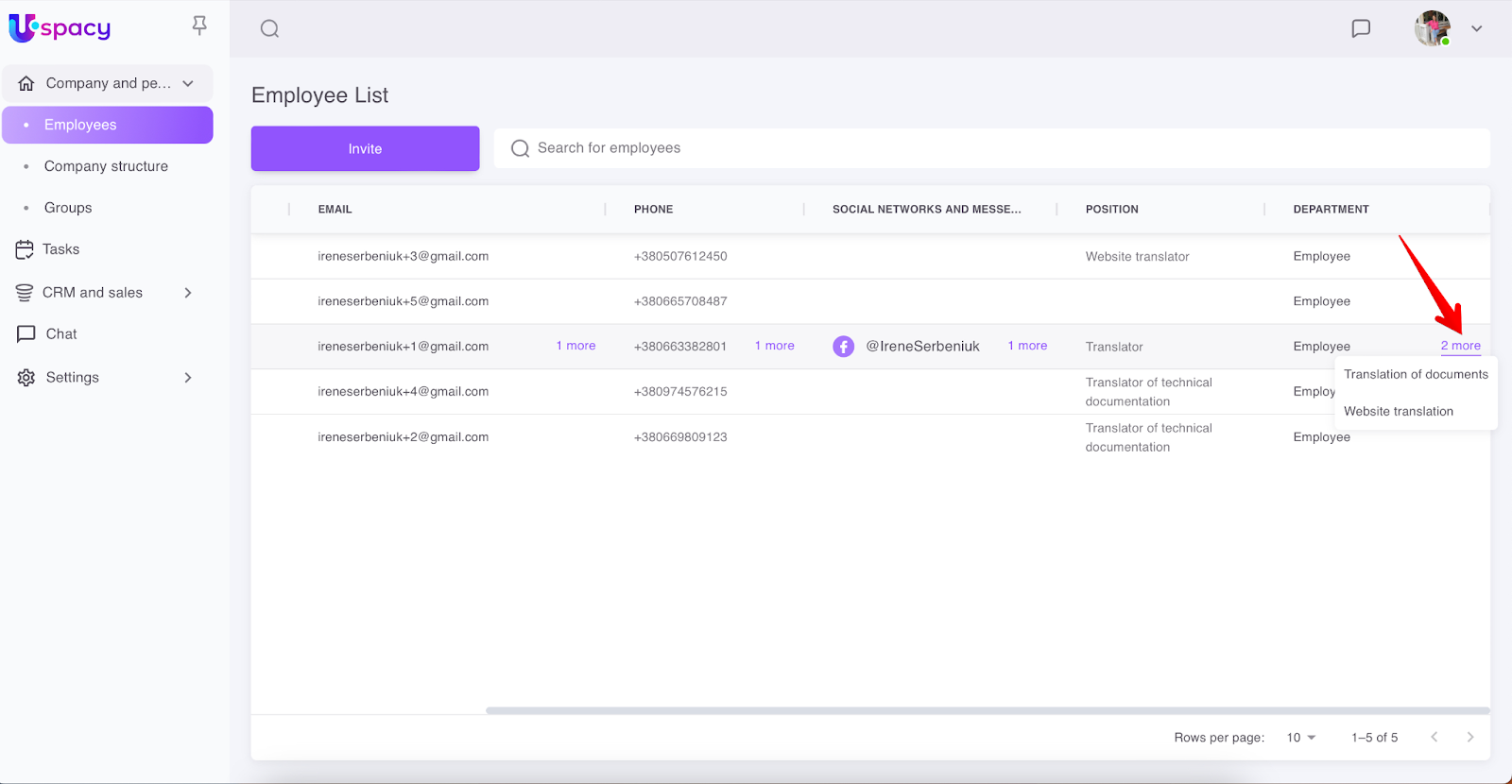
Also, you can view all the departments to which the employee is assigned.
💡 The appearance of the employee list for different users is determined by certain space settings and access rights.
🔍 You can read about this in the following article.
If you have additional questions or you need to contact the support, send a request to this email [email protected]
Created: February 21, 2023 / Updated: February 8, 2024