Dependent lists are an additional setting that establishes a relationship between fields. The logic is that the selection of options in one field depends on the selection in another. For example, the values in the first list (the parent field) automatically limit or define the available values in the second list (the child field).

In Uspacy, this feature is available for CRM and Smart Objects. This means that by having fields of type list or label in leads, contacts, companies, deals, or products, as well as in Smart Objects elements, you can establish relationships, or more specifically, dependencies between them within one of the previously mentioned entities.
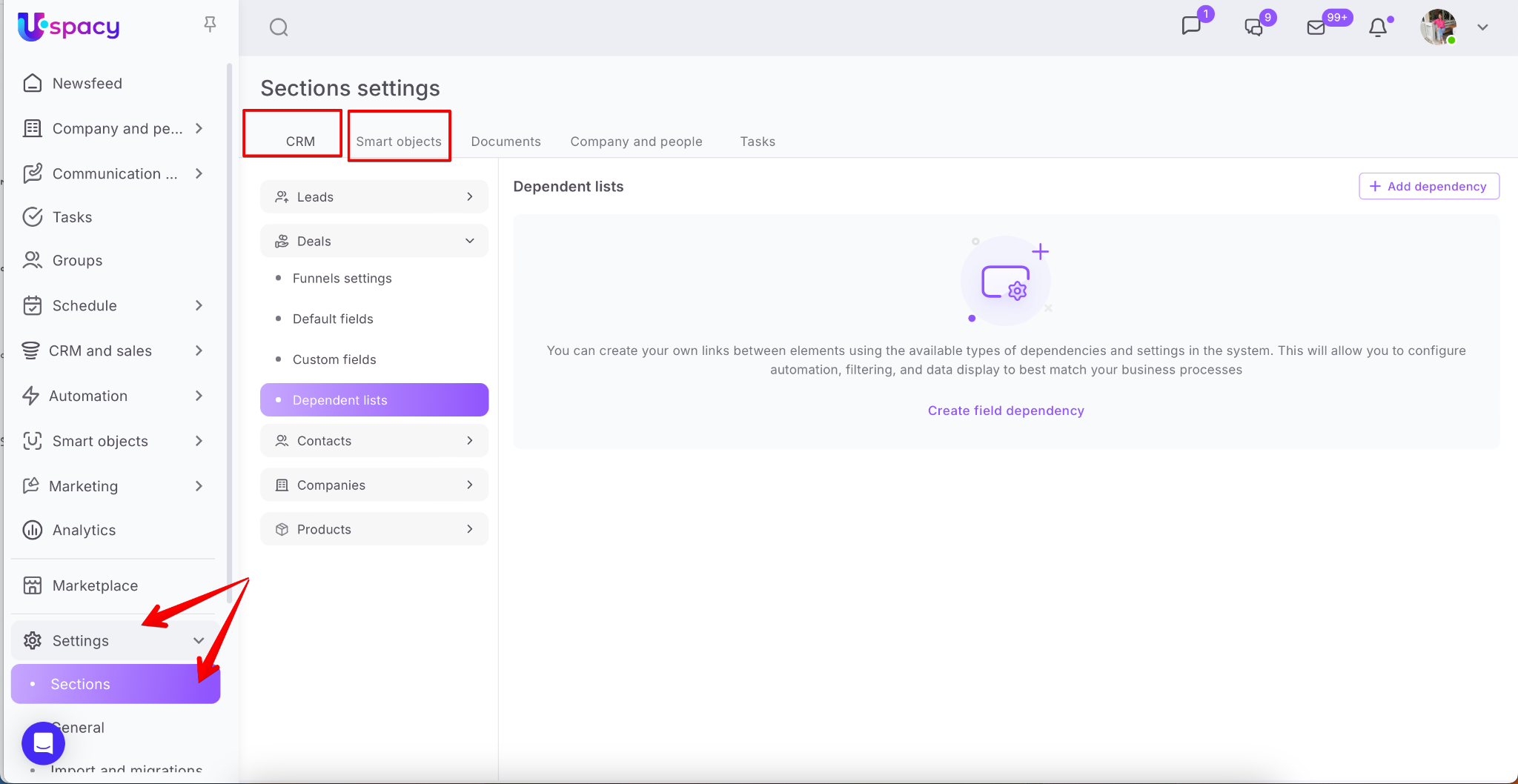
How to set a dependency between fields?
First, select the entity for which you want to create dependent lists. Then, go to the corresponding tab in the settings block. There, click the Add dependency button.
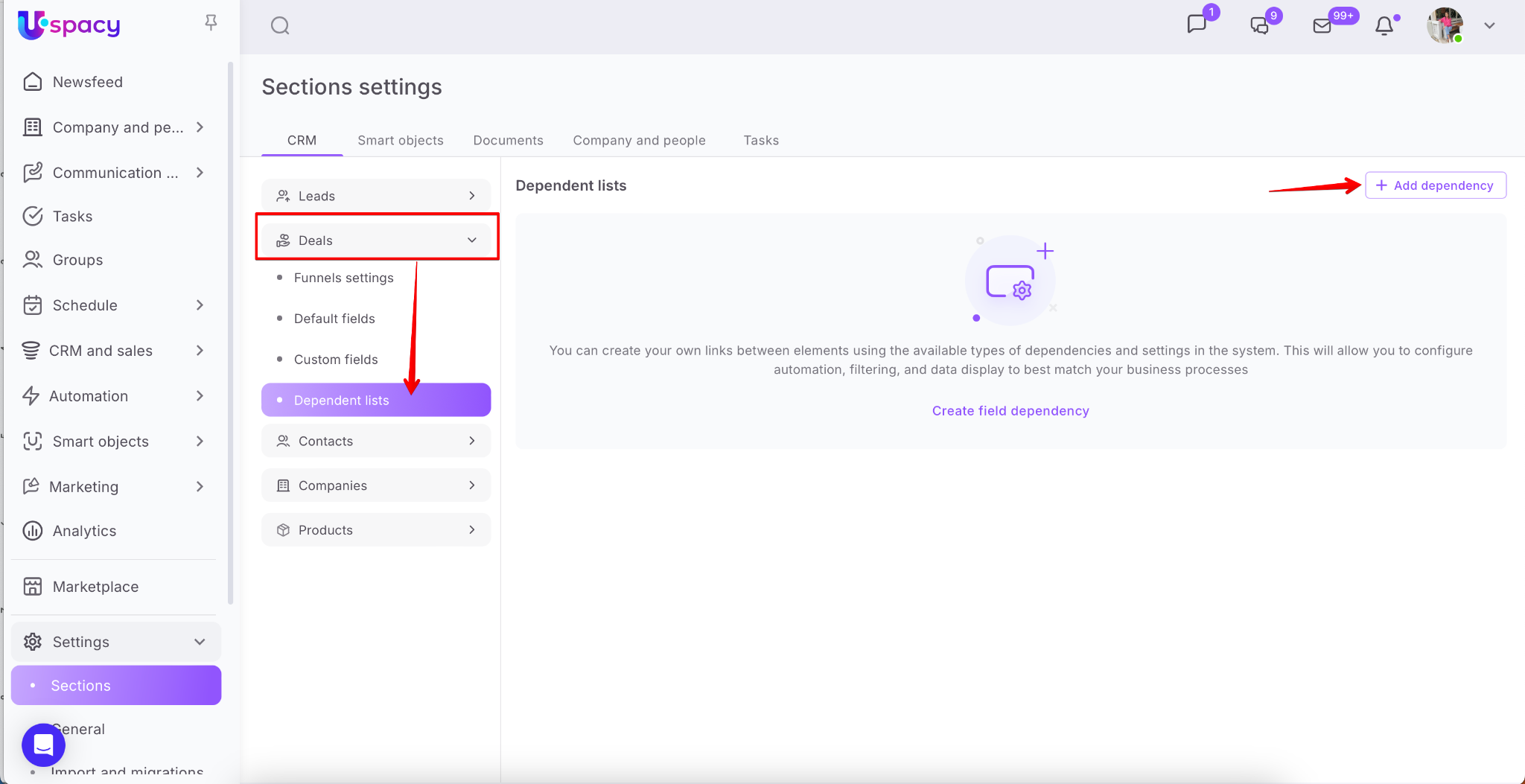
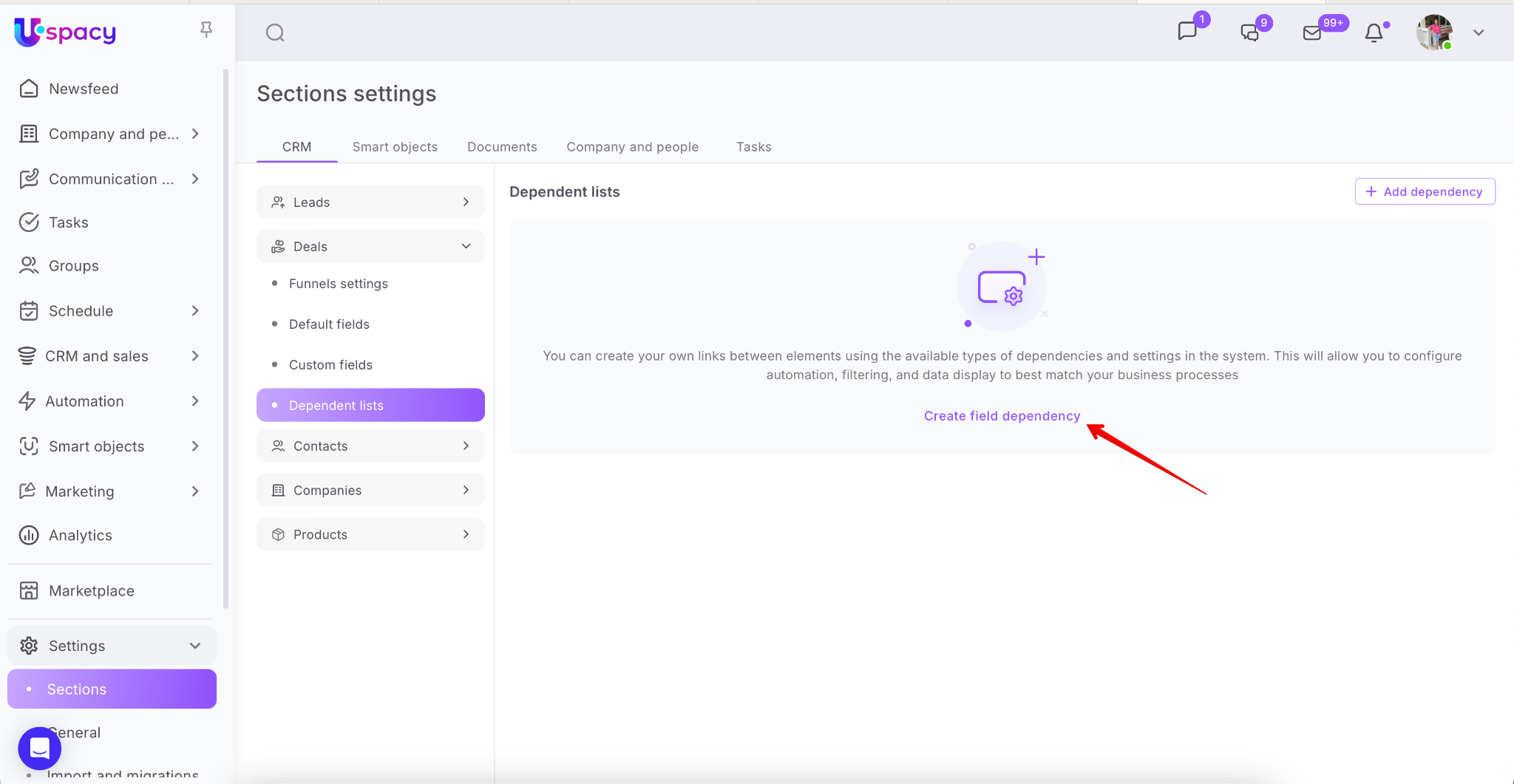
If this is your first field dependency for a specific entity, you can also create it using a button located a bit lower in the block.
Afterward, a form will open where you can configure the parameters of the new dependent list. First, enter a name.

Next, configure the dependency relationship by selecting the parent field, which will be the main one, and the selection in which will influence the available values in the other, subordinate field.

If necessary, you can also create a new field right away. To do this, use the special button in the selection window.

Alternatively, you can configure an existing field to add new or remove unnecessary values.

🔍 You can read more on how to create new custom fields HERE
🔍 For fields like List and Label ➡️ HERE
As a result, all the values of the field you selected as the parent will be displayed below in the form and will await mapping to the values of the child field.


The child field needs to be selected next. The child field is subordinate to the parent, and the set of available options in it changes based on the selection in the parent field.


Once everything is ready, you can map all the parent field values to the child field values.

Additional options
You should also pay attention to the options that affect the dependent fields when they are filled directly in the CRM card.

If you activate reverse dependency, it is not necessary to fill out the parent field first. You can start with the child field. After that, the available values in the parent field will be displayed according to the dependency settings.

However, if you activate the Restriction on displaying all options, you must first fill out the parent field. If not, it will be impossible to fill out the child field at all.

🟣 Reverse dependency and Restriction on displaying of all options are mutually exclusive options, so one will be blocked if the other is activated.
🟣 The Restriction on displaying of all options will be blocked when you create a dependency for the fields that is not your first, and you select a child field that is a parent in another dependency.

🟣 If neither of these options is activated, and you start by filling out the child field, all the value options in the parent field will be available and can be selected, regardless of the configured dependency settings. This way, you can get values in both fields that do not map the set dependency mappings.
But we will discuss how this works in practice in the next section.
You should also pay attention to the Exclude selected options. This one doesn't affect the process of filling out fields in the CRM card, but rather the mapping of the parent field values to the child field values in the dependency settings form.

That is, if it is activated, already used options will disappear from the list of available options when mapping the parent field values to the child field values.
If it is not activated, previously used options can be selected again to be mapped to another parent field value.

So, in order for the dependency to work, you need to map the parent field values to the child field values (one or more).

If you don’t do this, when saving the dependency, the system will notify you that certain child field values are not mapped to any parent field value.

There is also a button in the settings form that allows you to manage the dependency's activity. By default, it is enabled. If you disable it, the dependency will be saved as inactive, and the main (parent) and subordinate (child) fields will exist separately. There will be no dependency between them.


After all the settings are done, just click Save.

Now, the dependency you’ve created will work according to the parameters you’ve set.

How do dependent lists work?
It all depends on whether the options that affect the dependent fields when filling them directly in the CRM card are activated or not, as well as the order in which the fields are filled.

🟣 Filling fields in a logical direct order. First, fill out the parent field. It doesn't matter whether you’ve activated any additional options.

Then, fill out the child field. You will see that in the subordinate field, available value options are shown according to the dependency settings we defined.

You just need to select the appropriate value from the available options.

🟣 Filling fields in the reverse order. First, fill out the child field, then the parent field. The reverse dependency option is active.
In the child field, you will see all available values. Select the one you need.

Afterward, the parent field will only display the option(s) that match the mapping parameters defined in the dependency settings.
🟣 Filling fields in the reverse order. First, fill out the child field, then the parent field. But this time, the option that restricts the display of all options in the subordinate field if the parent field is not filled is active.
In this case, when trying to fill out the child field first, you will see that the system does not display any values.

However, once the parent field is no longer empty, options for selection will appear in the child field.

🟣 Filling fields in the reverse order. First, fill out the child field, then the parent field. None of the additional options are activated.
In the subordinate field, select the appropriate value.

Then, fill out the parent field. You will see that all options are available for selection. This means you can select any value, even one that doesn’t match the configured mappings.

As a result, the fields will be filled with values that do not correspond to the set dependency parameters.

However, if after this you clear the child field and try to fill it out again, only those values that are set in the settings will be displayed. This is because the logic now follows: first, the parent field is filled, then the subordinate field.


Actions with created dependencies
All created dependencies between fields can be found in the Dependent lists tab of the entity for which they were created. Here, you can edit the desired dependency by clicking on its name.
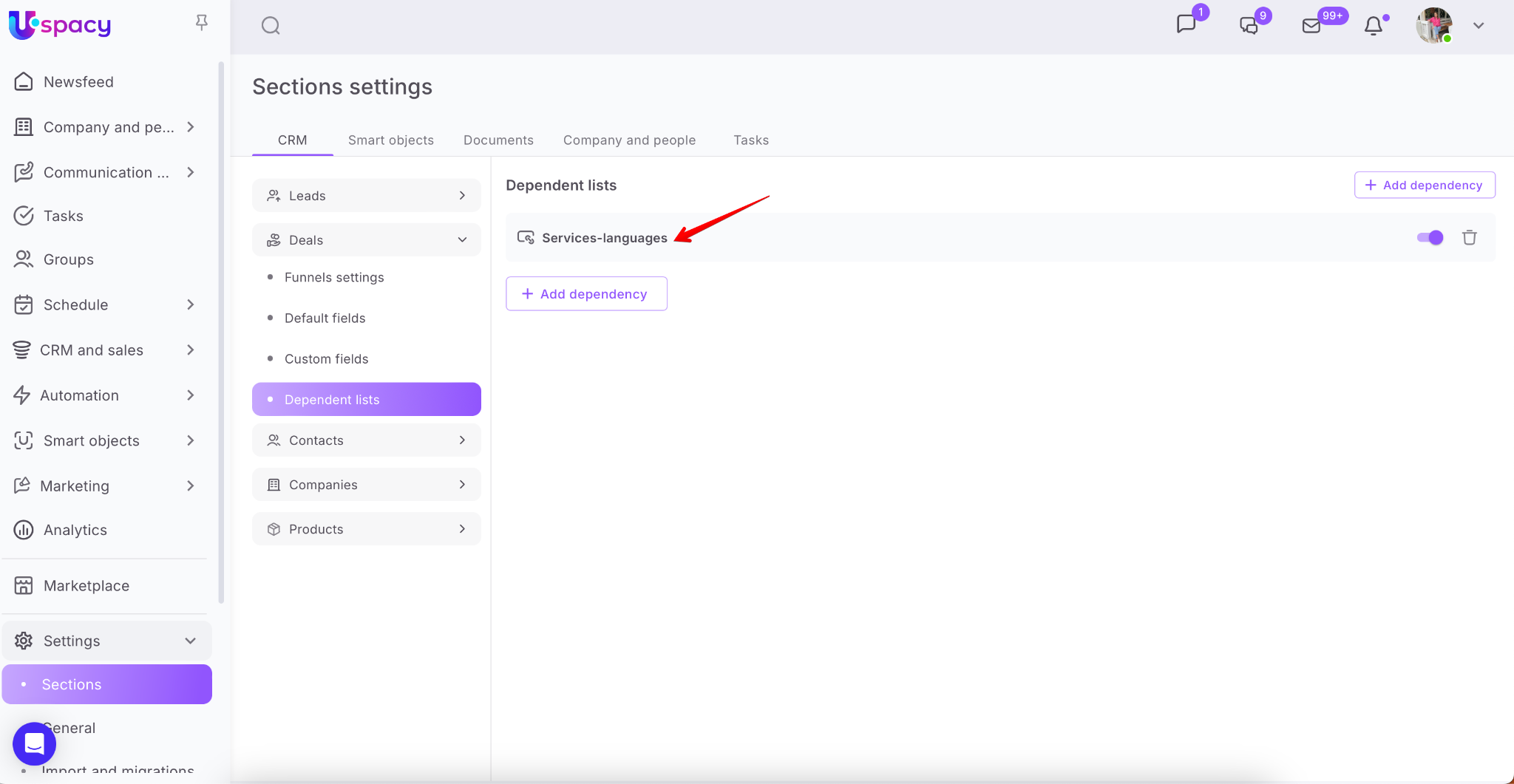
A familiar form will open, where you can proceed with editing.

After making any changes in the dependency settings, a Save button will appear. Once you click it, the new parameters will take effect.

Additionally, in the form, you can Activate (or Deactivate) the dependency, as well as Delete it.

These actions are also available directly in the list of created dependencies in the Dependent lists tab.
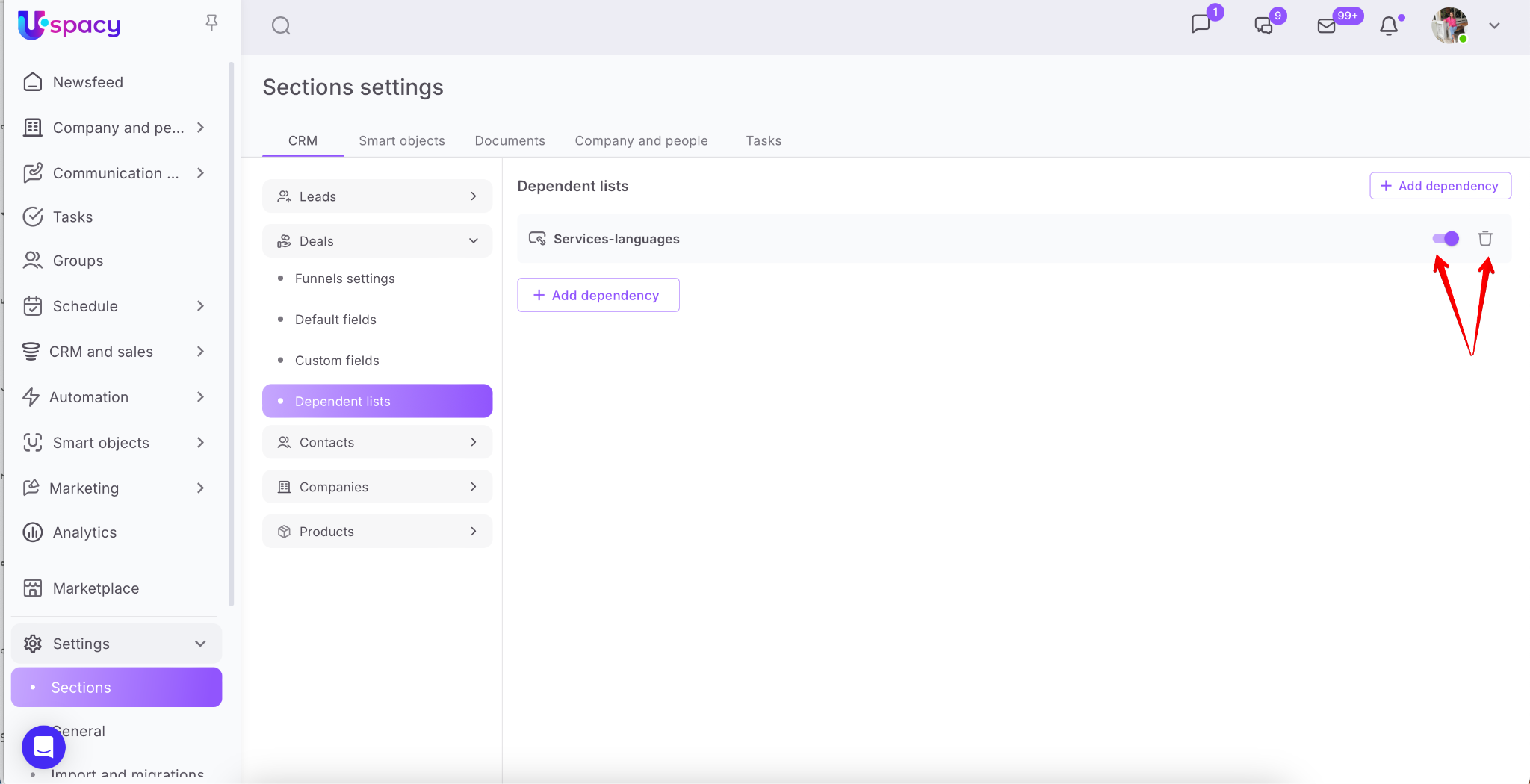
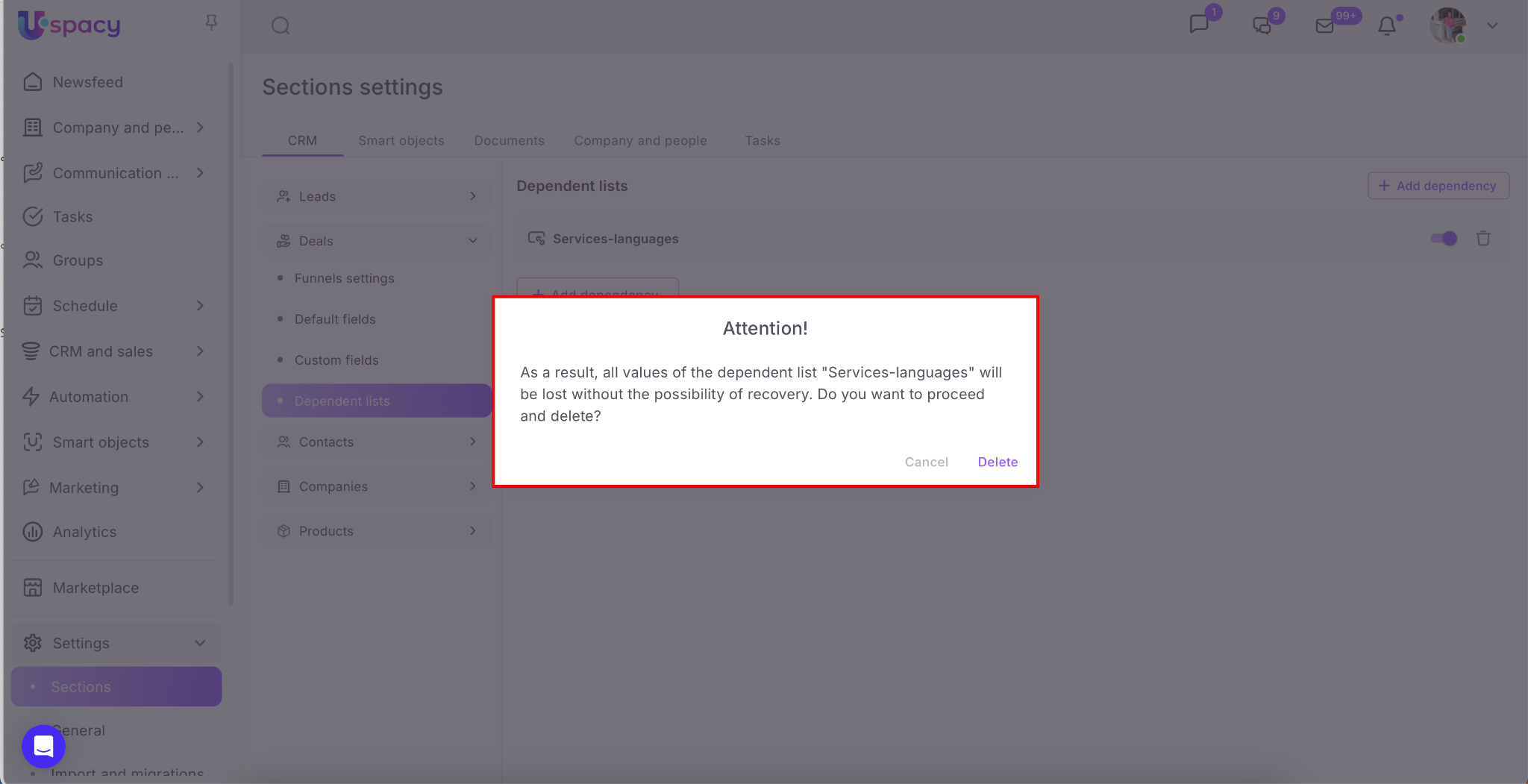
In case of deletion, a window will appear asking you to confirm your action.
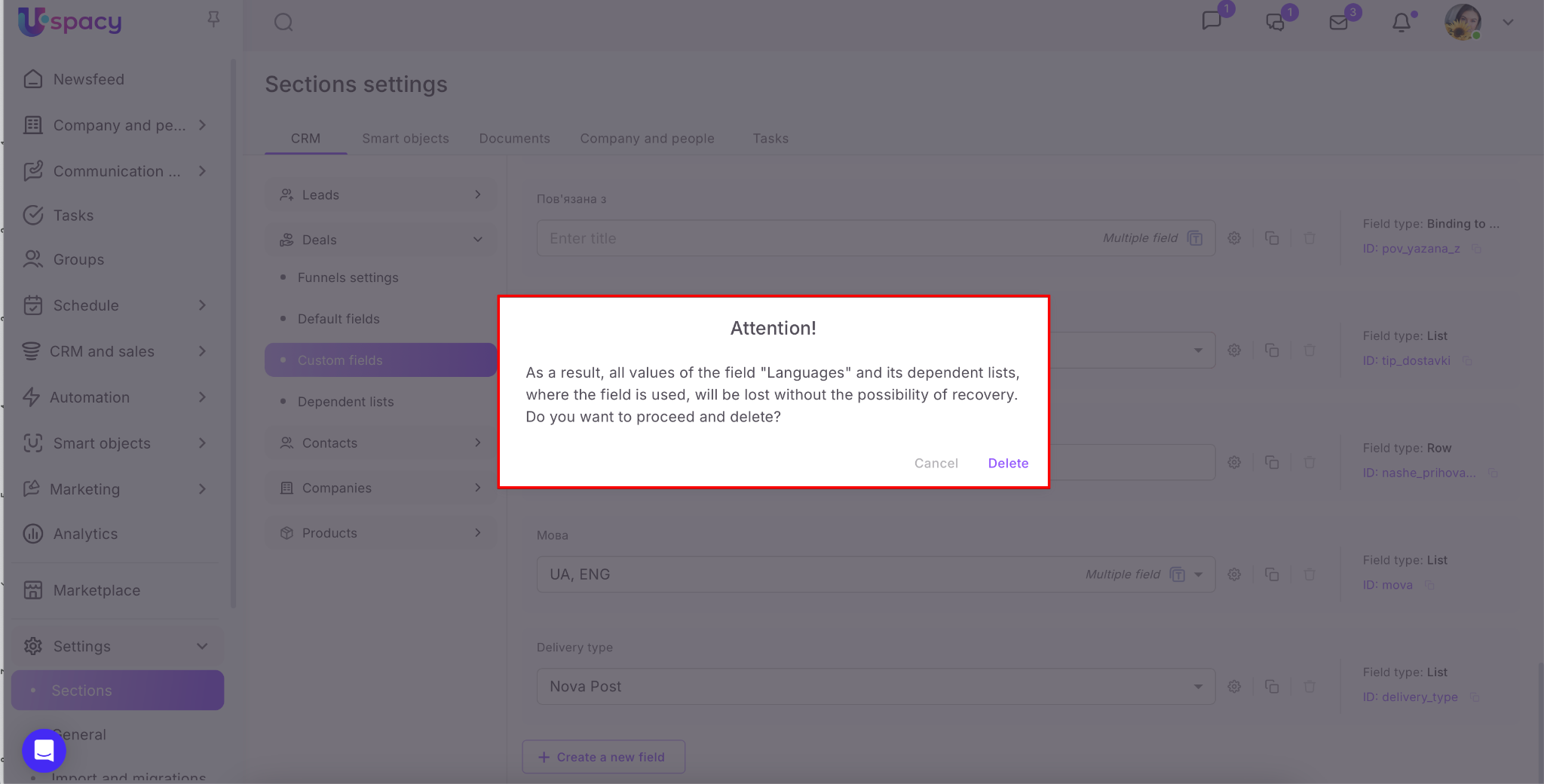
❗️ By the way, when a field (either parent or child) is deleted, the dependency in which this field is used will also be deleted.
If you have additional questions or you need to contact the support, send a request to this email [email protected]
Created: February 12, 2025 / Updated: September 19, 2025