A CRM card is an information form that contains data about an element (leads, deals, contacts, companies) and allows you to work and interact with it in your CRM database.

The card of any element is divided into three parts:
- Upper - gives an understanding of what we are working with and at what stage this work is, and also contains interaction buttons.
- Left - combines all information fields.
- Right - allows you to track and schedule all activities related to the element.

🔍 You can read about the features of the product card in the following article.
The upper part
It contains introductory information that lets us understand which CRM element we are working with. And also how we can interact with it.
Depending on whether it is a lead, a deal, a contact or a company, the appearance of this part of the card may differ. But they have in common:
1. Element type.
2. Name.
3. Separate buttons for switching to data editing mode right at the top of the card and copying the link.
4. Person responsible.
5.Interaction menu button.

The following additional actions are typical for leads:
1. lead processing - you can define the lead as qualified and select which elements to create on its basis, or as unqualified and determine failure reasons.
🔍 You can read more about converting leads in the following article.
2. changing stages - you can transfer the lead to the desired stage of working with it.

For deals, additional options are:
1. selecting or changing the funnel in which the deal is located.
🔍 You can read more about work with multifunnels in the following article.
2. completion of a deal with a certain result - Won or Lost. In case of loss, you can specify the reason for the loss at once.
3. stage changing - you can transfer the deal to the desired stage of work with it.

You can additionally create a deal in the company and contact cards.

The left part
It has the form of blocks that contain a set of fields specific to each of the CRM entities.
The first block - About the element (About the deal, About the lead, About the contact, About the company) is contact and key information.
The second block - Additional. It contains both default fields and those that were created for the entity.
🔍 For more Information on which standard fields are specific to these sections in each of the entities, go to the following articles:
What is a lead and how to create it?
What is a deal and how to create it?
For convenient work with the client base and sales at Uspacy, it is possible to configure the CRM card. Namely, make changes to the parameters of sections and fields in its left part.
🔍 You can read more about the settings of the CRM card in the following article.

The right part
It takes up the most space in the card and is dynamic. Here you can:
1. schedule activities;
2. track activities, that is, actually see the history of work with the element.

Create a note
If you need to quickly add some information about an element, you can Leave a note.

After saving, it will appear in the general list of activities (in the history).

You can delete or edit a note at any time.

Schedule an activity
At Uspacy, activities are a supporting entity in CRM. It helps to schedule all additional activities when working with leads, deals, contacts and companies.

After saving, it will appear in the list of scheduled activities.

If the action is Done or Canceled, then it will be moved to the history of work with the element.

🔍 You can read more on how to create an activity and work with it in the following article.
Attach files
If you want to add a specific file or image to an element, you can upload it directly to the element card.

After saving, it will be displayed in the activity history.

Create a task
You can bind a task to an entity element if needed. To do this in the CRM card, just click on the New task button and select the option you need.
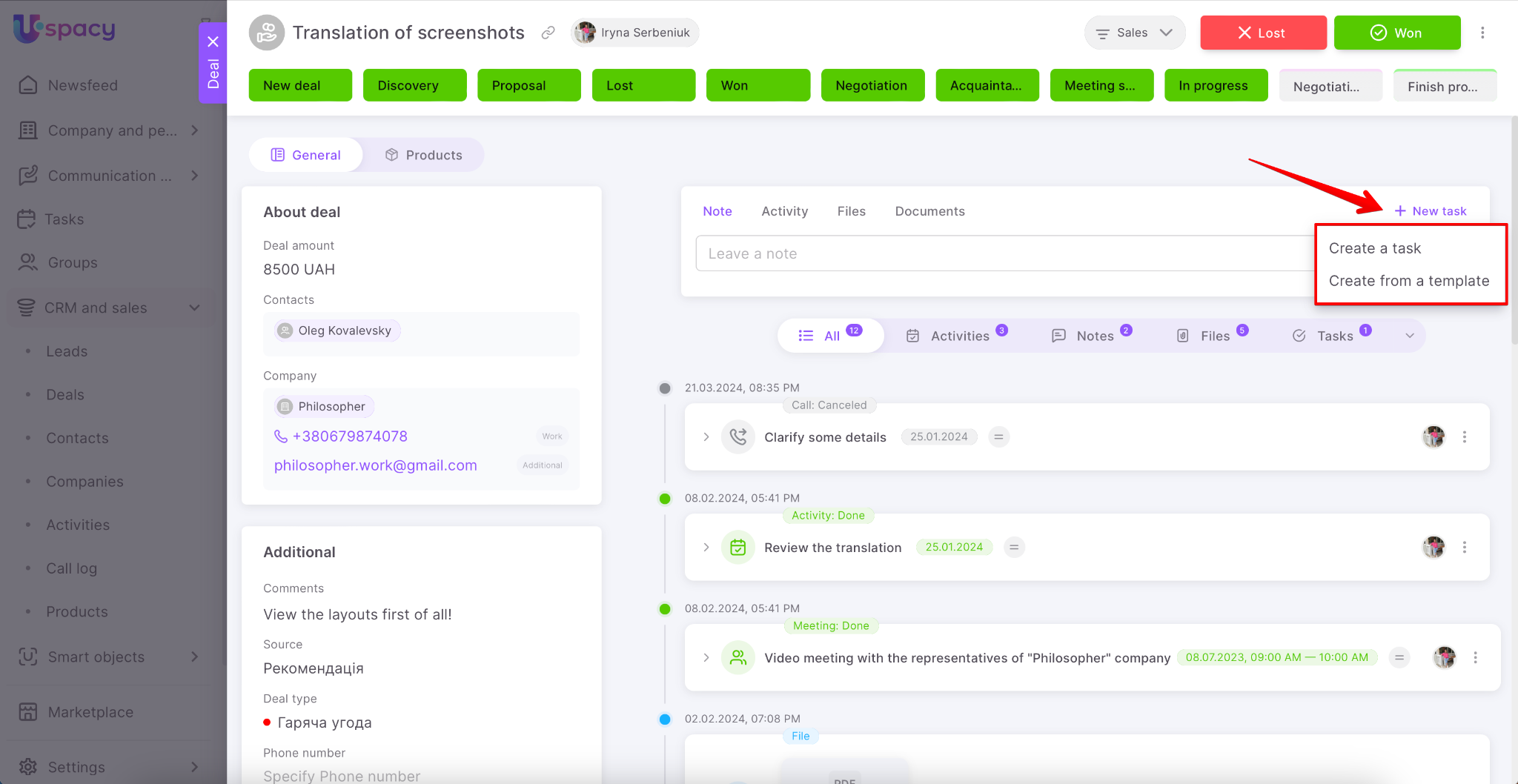
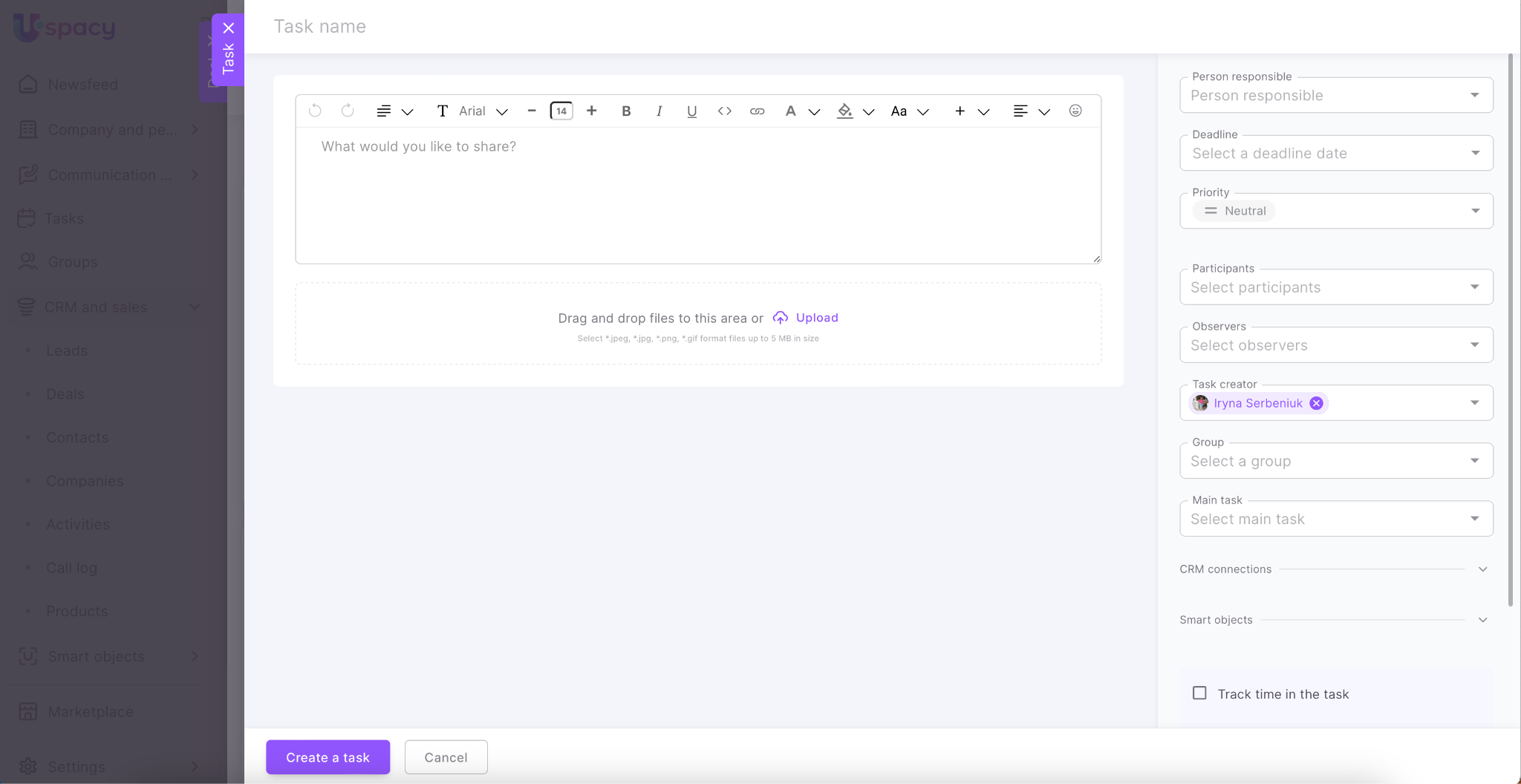
If you select the first item, the form for creating a task will open.
If it is the second one, you need to specify the template on the basis of which you want to create a task.
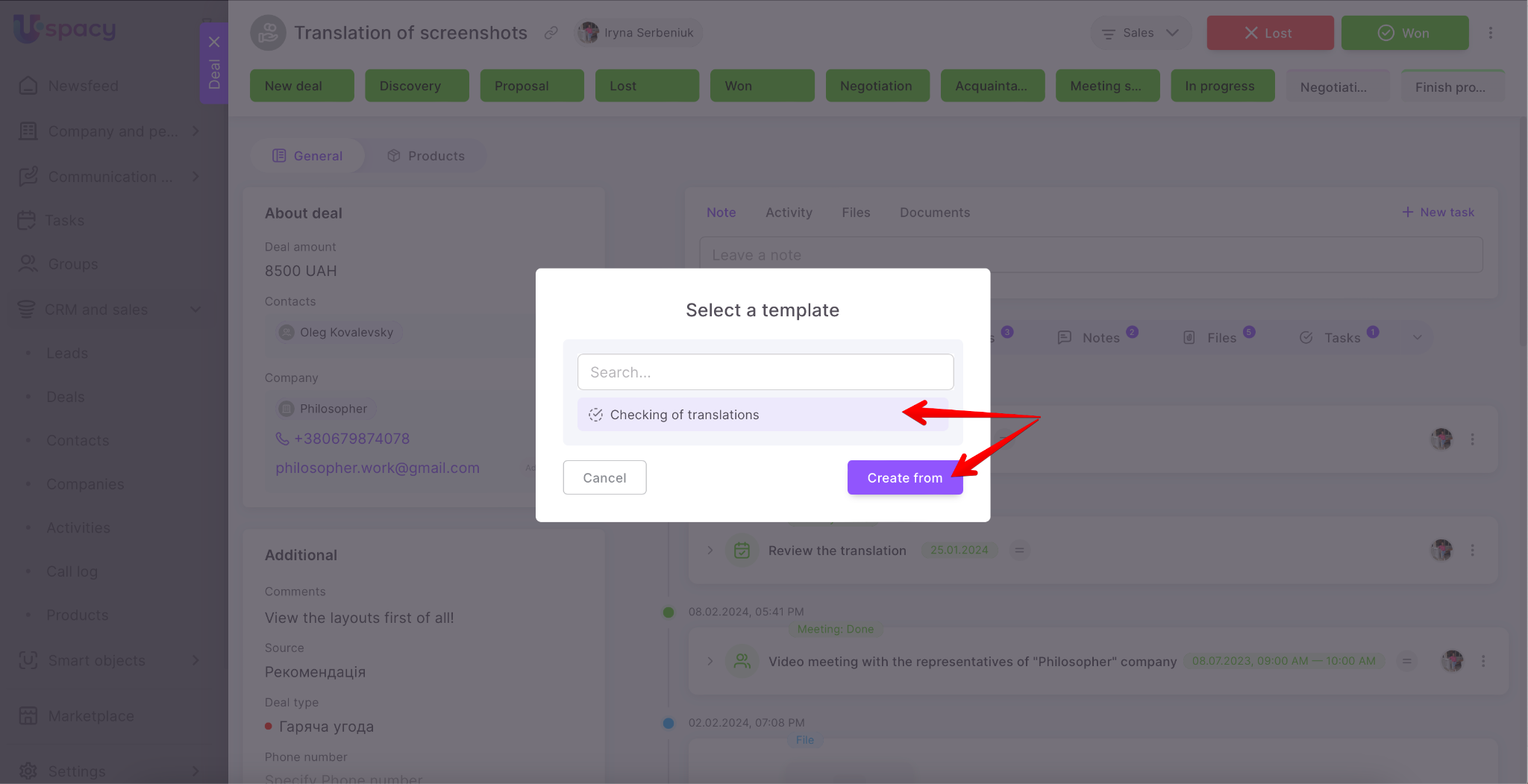
🔍 You can read more about task templates in the following article.

Information about all related CRM elements will be automatically pulled into the CRM connections block. Just fill out the required fields and save the task.
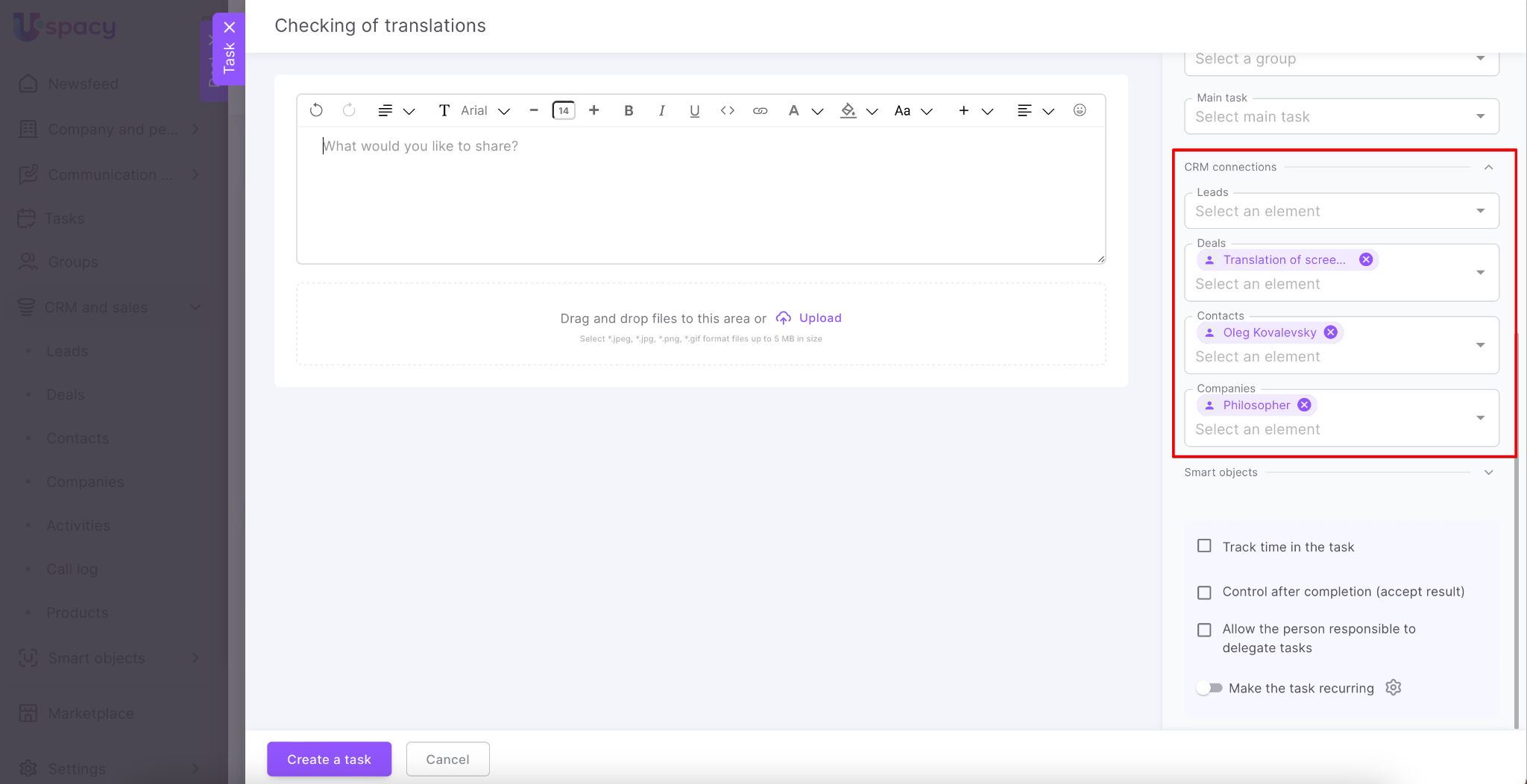
☝🏻For example, if you create a task from a deal card that contains both contact and company data, all bindings to these items will be displayed in the task. That is, binding to deal, contact and company.


❗️When creating a task based on a template, it will display those connections that will be pulled from the element card, and not those that are set in the template itself.
Once saved, the task will appear as a scheduled activity.
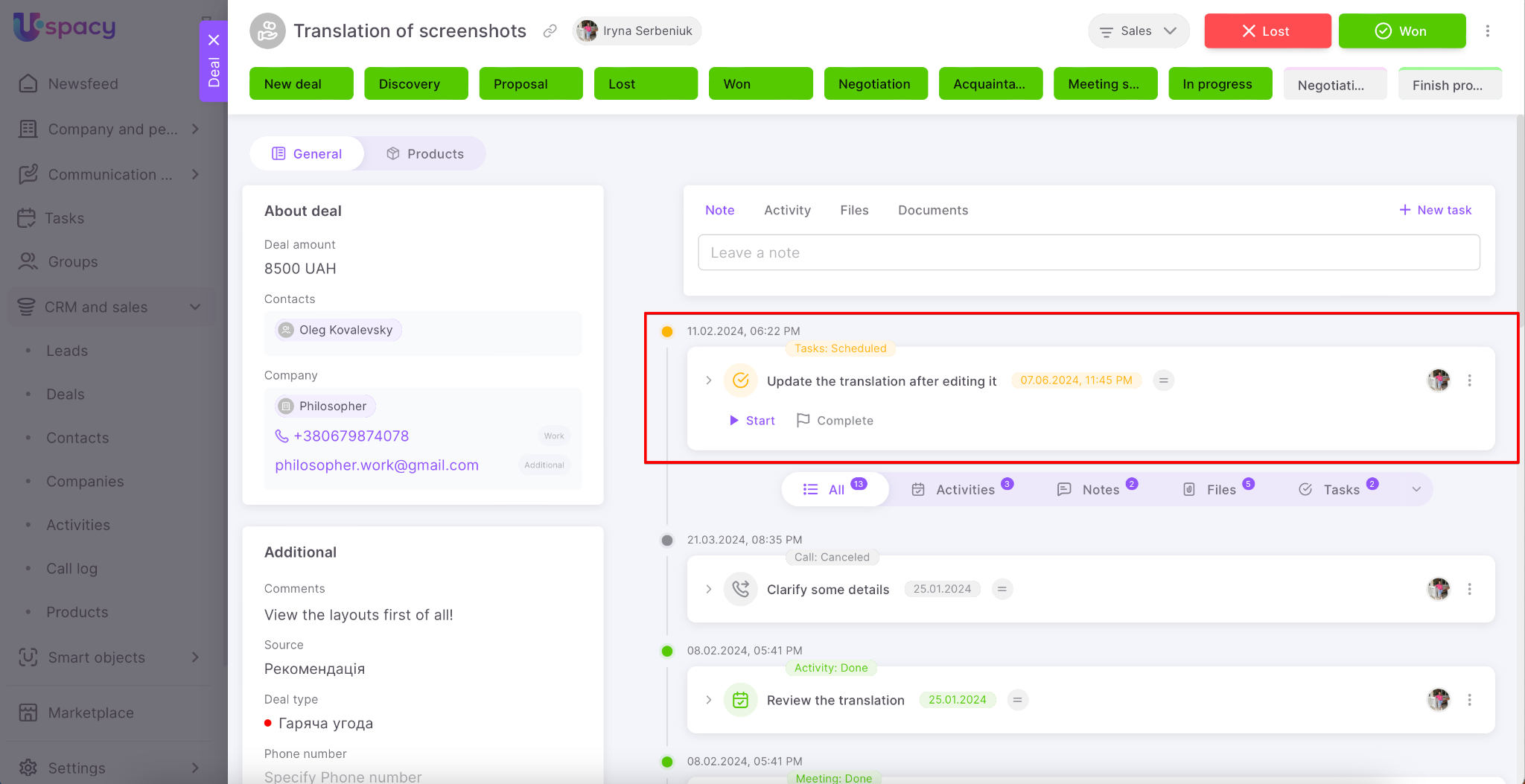
As long as it has the statuses Not scheduled, Scheduled, In progress, Stopped, Ready for review, it will remain active, that is, it has the location above the activity filter.
Only after completion, the task will move to the interaction history, that is, under the filter.
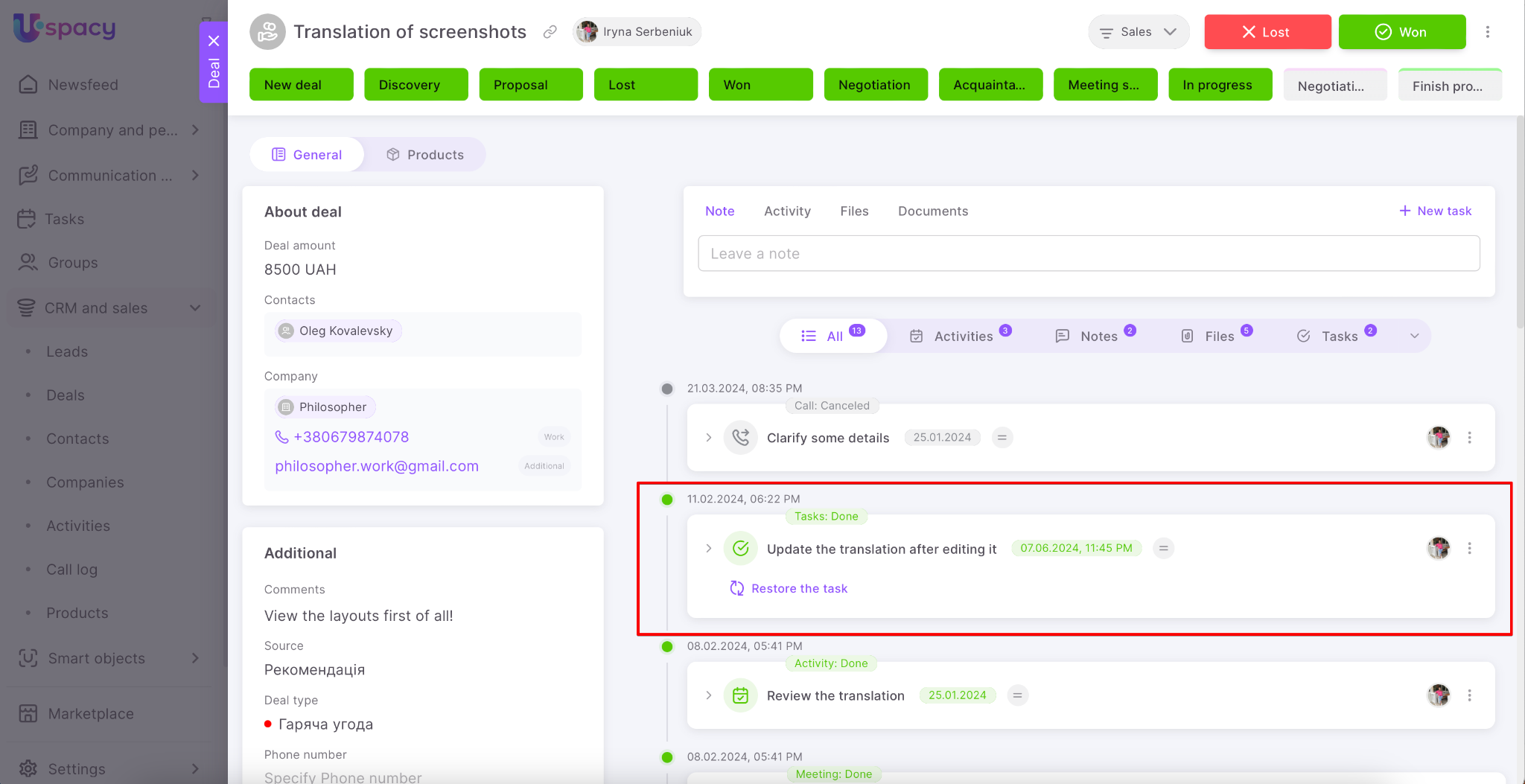
🔍 You can read more about connections between tasks and CRM in the following article.
Generate documents
When working with the CRM element, you can create the documents you need. They are generated automatically on the basis of templates that are loaded into the system.

Each generated document is always displayed in the activity history.

🔍 You can read more about how to generate a document and how to work with it in a CRM card in the following article.
Filter of activity history
For convenience, all activities in the history can be filtered by type in the card.

That is, to show only Activities, Notes, Files, Tasks or Documents.

All activities are displayed by default. They also include system messages about creating elements.

If you have telephony connected to Space, then information about all calls and conversation recordings will also be saved in the history of the lead, contact or company.
General appearance, connected entities and history of changes
In addition, there is a special switch in contact and company cards. By default, when set to General, the standard view of the element card with fields (left part) and the entire activity history (right part) is displayed.

But in one click you can go to the entities connected with the element. For contacts, these are deals and companies.

For companies – deals and contacts.

Such a switch can be found in the deal cards. But unlike the one that contacts and companies have, it provides the possibility to switch to products that are bound to a deal. With its help you can add other products from the catalog or even create new ones.

🔍 You can read more on work with products in deals in the following article.
Additionally, thanks to the development and improvement of the product, a new feature has appeared in the entity cards that allows you to view the entire interaction History with them. This is managed by a special tab.

🔍 For more details on History of changes in CRM, go to the following article.
If you have additional questions or you need to contact the support, send a request to this email [email protected]
Created: June 28, 2023 / Updated: February 6, 2025