
CRM access through custom fields allows you to involve employees other than the assigned owners in working with CRM items. You can specify other employees in User-type fields and configure their permissions to view, edit, or delete an element. You can also set access permissions separately for specific funnels and stages.
For example, both a sales manager and a project manager can access the same deal. The sales manager coordinates the terms with the client, while the project manager organizes order fulfillment. Both employees can access the information they need in the same record, without competing for the role of primary owner or having to grant colleagues access to all deals.
You can give the field any name that fits your workflow. In this article, we'll use a field called Observers as an example. We'll add employees whose roles normally restrict them to viewing only their own deals and grant them access to a specific deal owned by someone else.
How to configure an access field?
Go to Settings → Sections → CRM. Expand the section for the required CRM entity and open Custom fields. In our example, we'll work with Deals.
🌟 The option to configure field-level access permissions is available only on the Professional plan.
Click Create a new field and configure the following settings:
- Field title — enter any name you want.
- ID — specify a field identifier or keep the automatically generated one.
- Hint text — optionally, add an explanation, such as "Will have access to this record."
- Field type — select User.
Next, enable the Configure permissions toggle. This option allows you to grant access to the CRM element to employees specified in the field.

💡 Observers is the field name used in our example. You can select a name that matches your workflow, such as Project members or Involved employees.
💡 You can enable or disable the Configure permissions option not only when creating a User-type field but also when editing an existing one.
Selecting an access level
Specify which actions users added to the field will be able to perform. There are three available options:
- Viewing — users can view the element but cannot edit or delete it.

- Viewing and editing — users can view and edit the element but cannot delete it.

- Full access — users can view, edit, and delete the element.

Setting access for specific funnels and stages
If permissions should depend on the funnel and stage a deal is in, select the Configure separately for each funnel and stage checkbox.
In the Funnel and stage field, select the required funnel or its stages. Then, choose the appropriate permission level in the Permissions field.


Click Add to create another rule. This allows you to configure different permission levels for different parts of your workflow.
For example, you can allow translators to view and edit a deal while the translation is in progress and ready for review. Once the deal moves to the payment stage, they will no longer need access through this field.
Adding multiple users
To allow multiple employees to be added to the field, enable the Multiple option.

In our example, this allows us to add two translators to the Observers field when they are working on the same order.
Once you've finished configuring the field, click Save.

How to grant employees access to a deal?
Open the required deal and find the Observers field. If it isn't displayed in the deal record, add it using Configure the card.
Select the employees you want to grant access to. In our example, these are Juliya Voloshylova and Alexandra Khytyk.
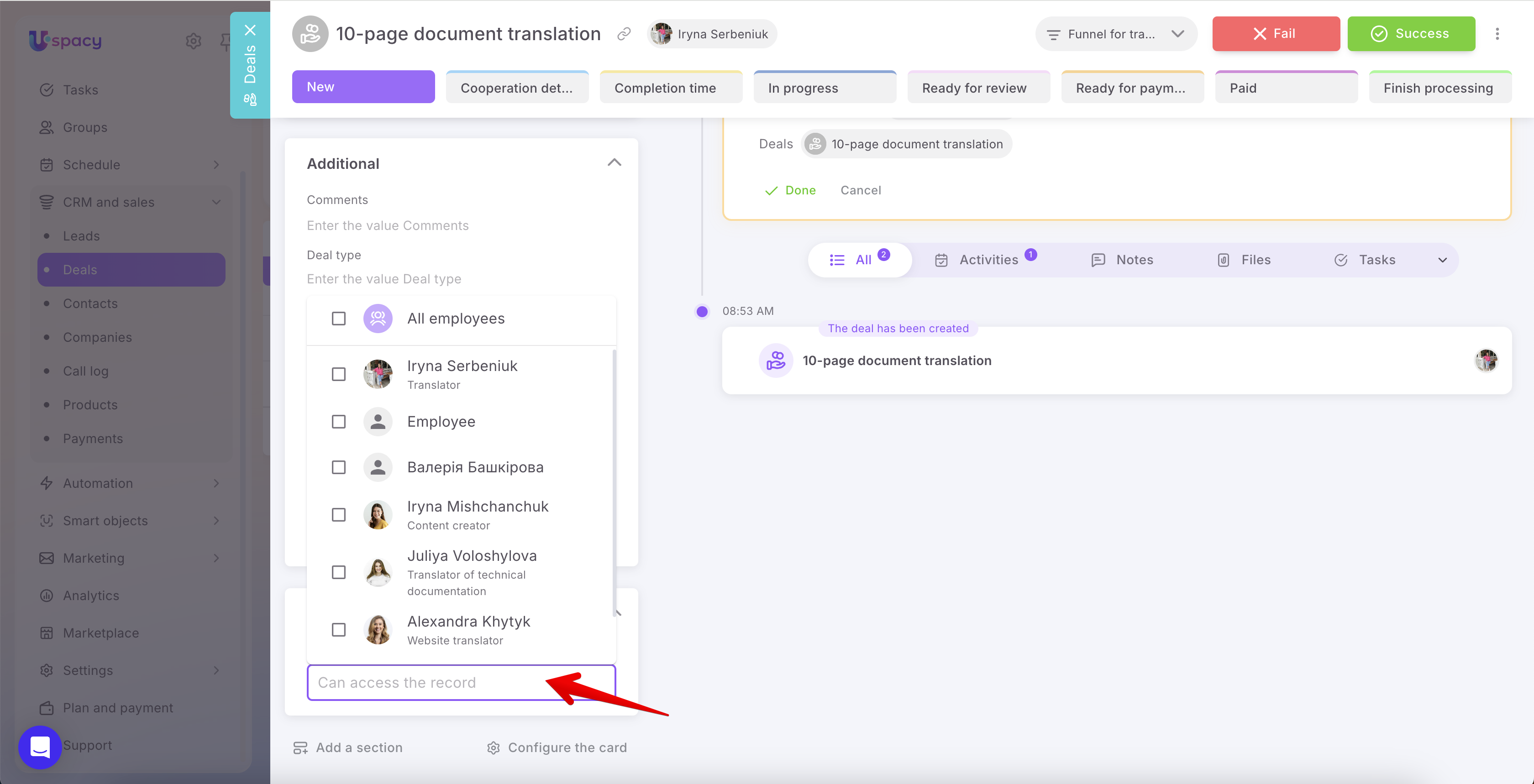
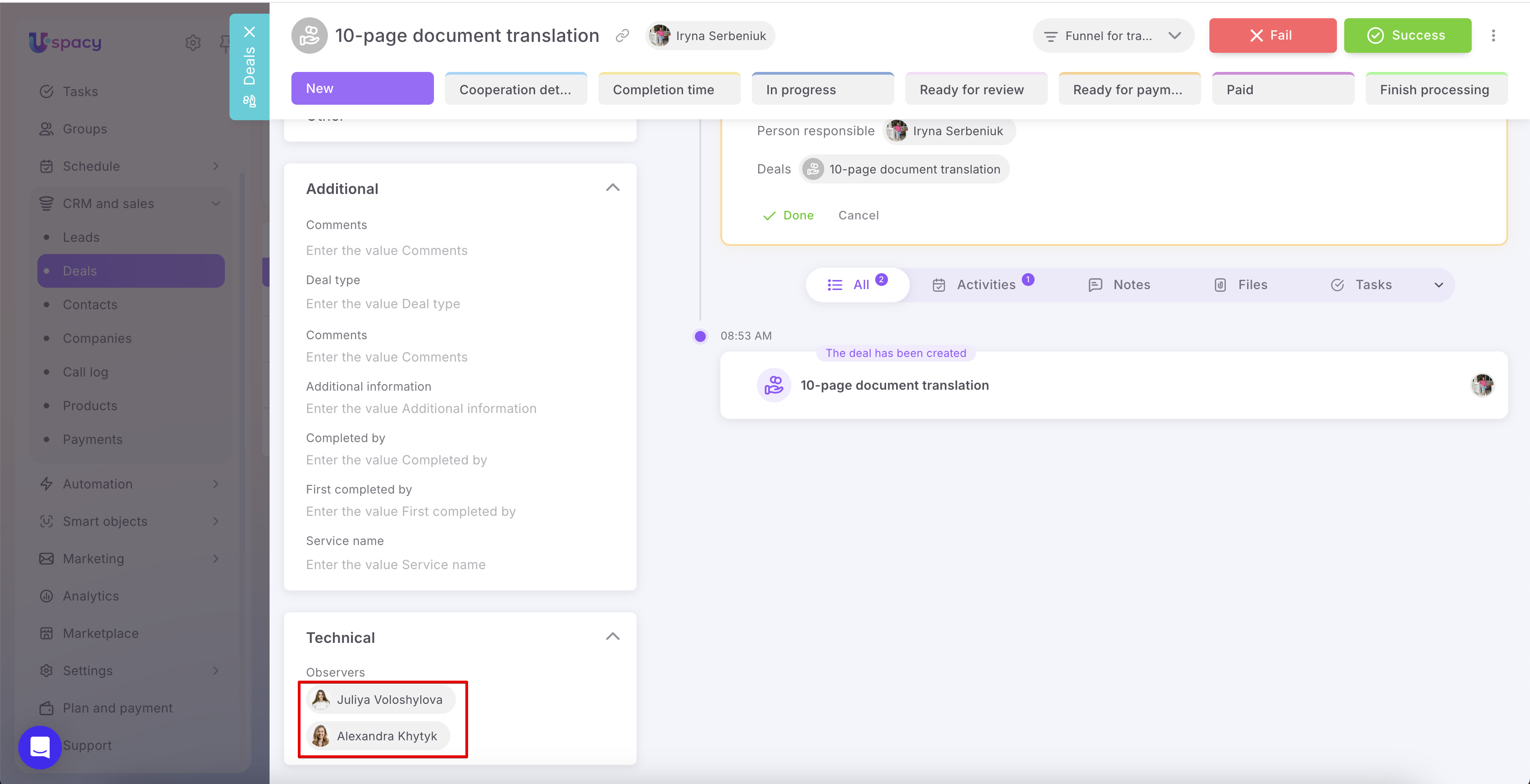
Once you save the field value, these users will receive access to the deal according to the configured permissions. Iryna Serbeniuk will remain its assigned owner.
💡 Simply adding an employee to a User-type field isn't enough. You must enable the Configure permissions option for that field and specify the appropriate permissions.
How does it work in practice?
Let's look at a deal called "10-page document translation." The assigned owner handles communication with the client, while Juliya Voloshylova and Alexandra Khytyk translate the document into Polish and German.
Under Roles and permissions, these employees are configured to view and edit only their own deals. Therefore, under normal circumstances, they cannot access a deal assigned to someone else.

To involve the translators in this deal, we add them to the Observers field, for which we've already configured the required access permissions.
Working with a linked task
A translation task has been created for the deal. Juliya Voloshylova is the responsible person, and Alexandra Khytyk is a participant. The corresponding deal is specified in the task's CRM connections section.
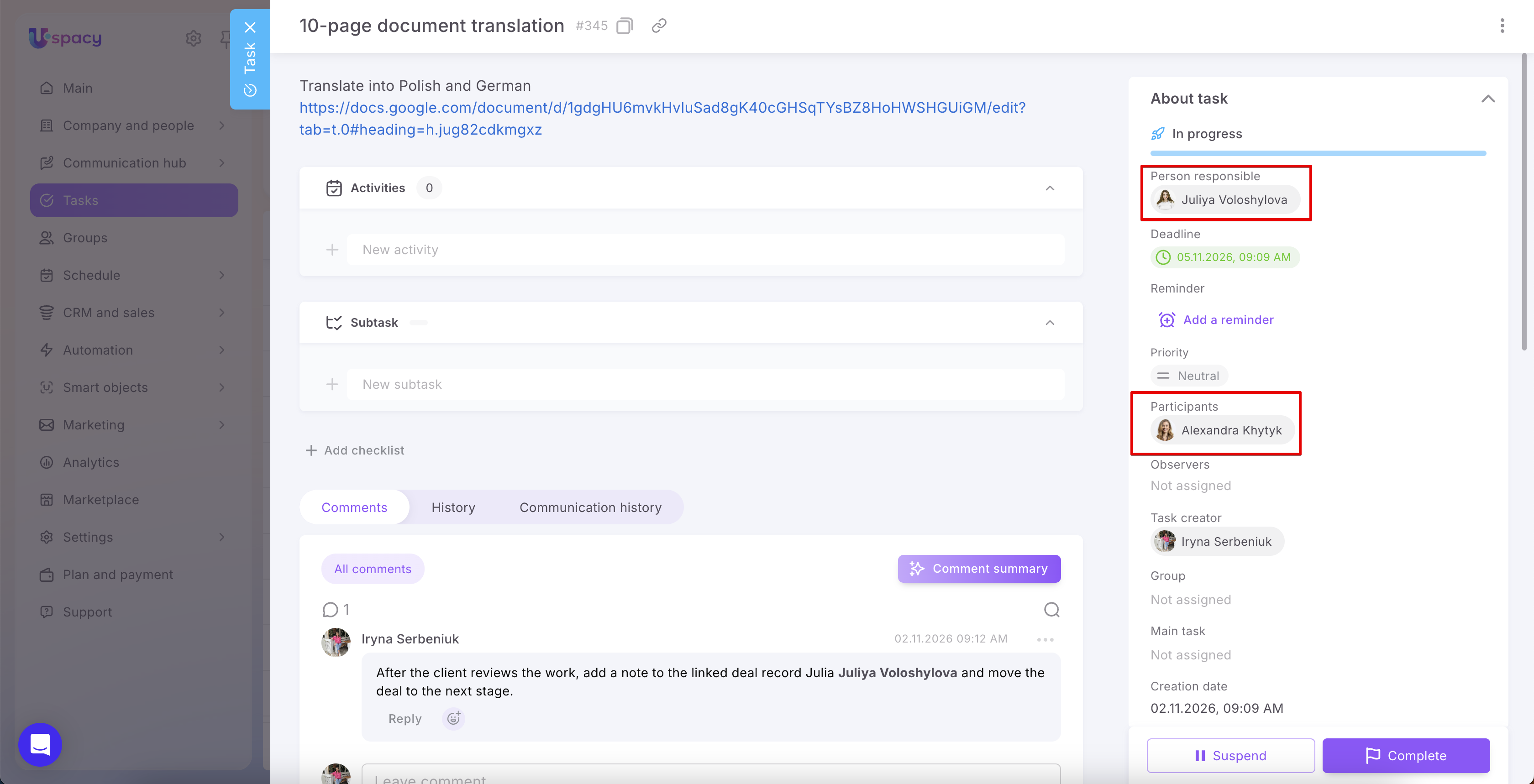
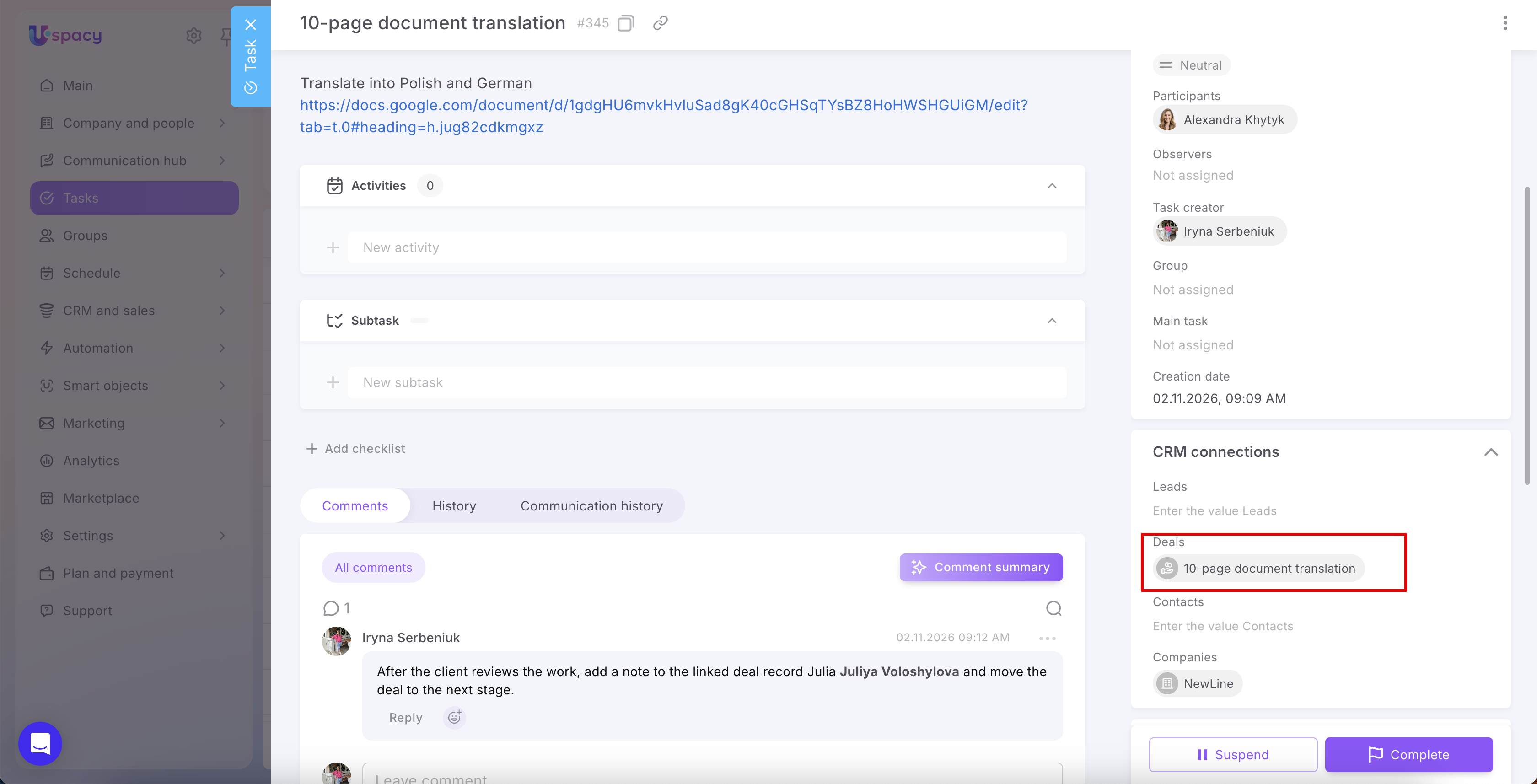
Thanks to the access granted through the Observers field, both translators can open the deal record and work with it within the limits of their assigned permissions.
For example, after the client approves the translation, Juliya Voloshylova adds a note to the deal with the results and moves it from Ready for review to Ready for payment.
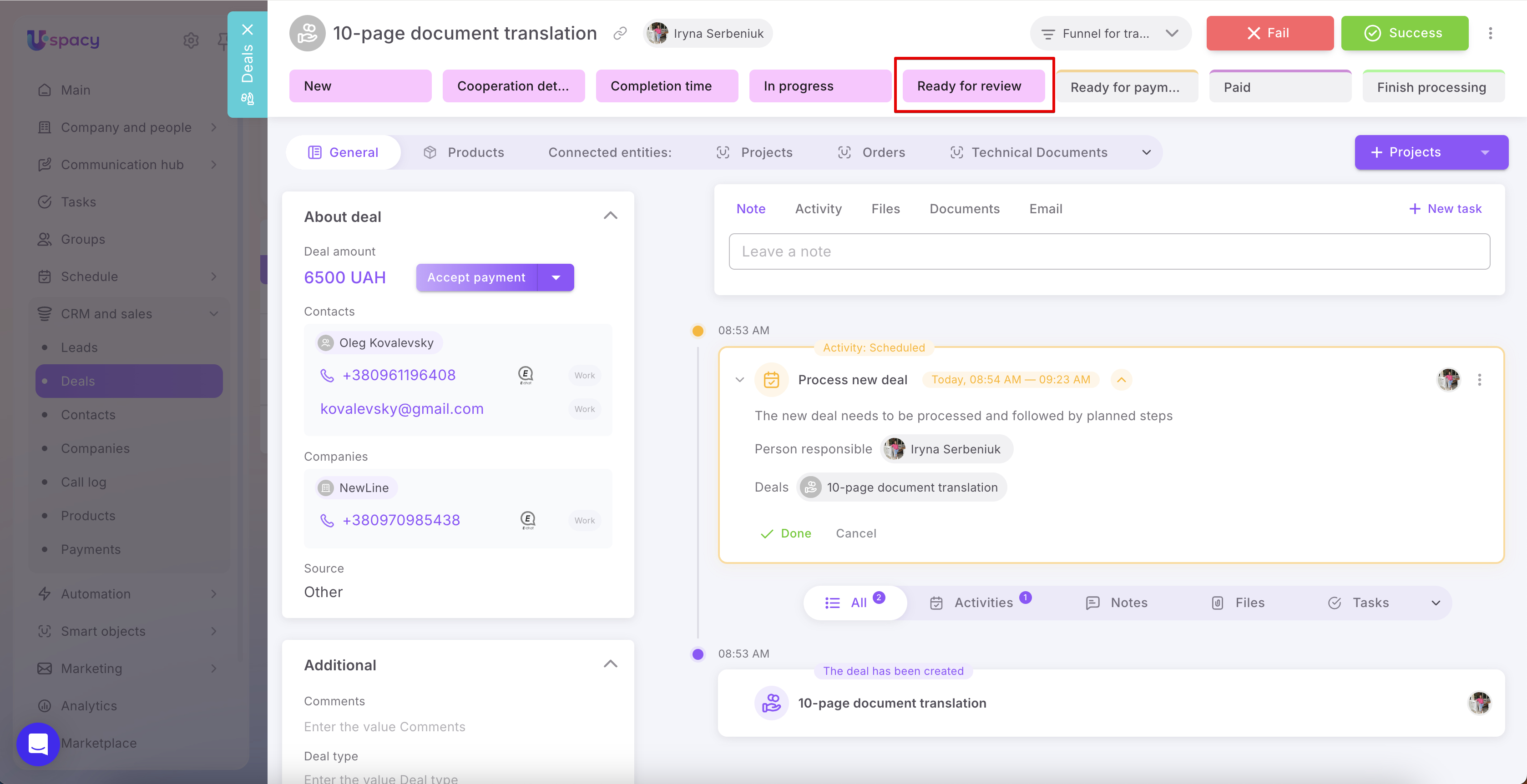
Finding deals where a user is an observer
For convenience, you can create and save a filter based on the corresponding User-type field. This makes it easier to find CRM elements that include a specific employee.
To do this, open Filters, add a condition based on this field, and select the required user. Save the filter criteria under a name such as “I'm an observer”.
By applying this filter, an employee can quickly find the deals they have access to and in which they are listed as an observer.
Revoking access at a specific stage
In our example, the translators' access is configured only for the stages during which they work on the order.
Once the deal moves to Ready for payment, a stage for which access through this field hasn't been configured, the translators will no longer be able to view the deal because their roles allow them to access only their own deals. Consequently, the deal will also disappear from the “I'm an observer” filter results.
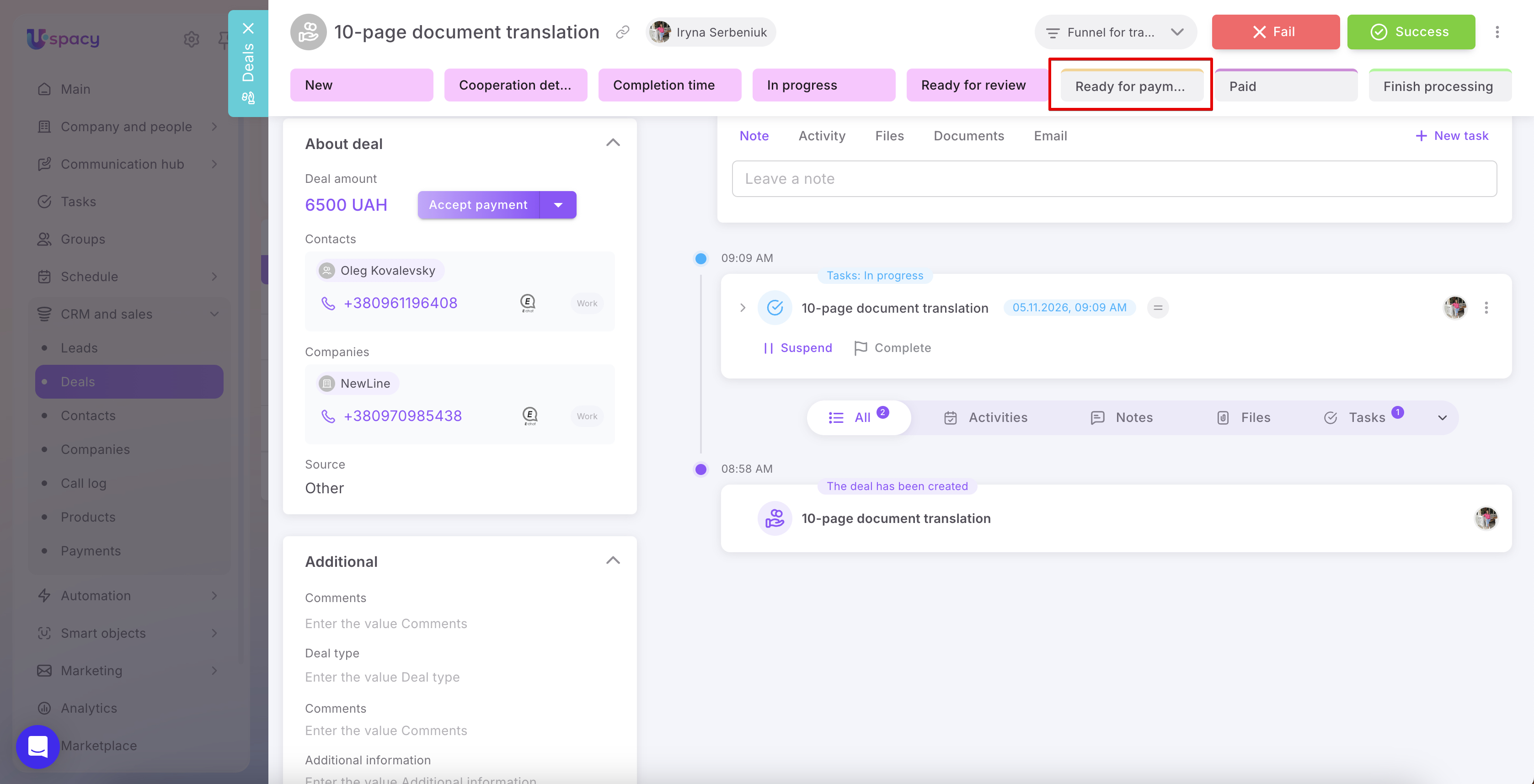
This means that specifying a user in a field grants access according to the rules configured for the deal's current funnel and stage.
What should you keep in mind?
🟣 Access to a deal does not automatically grant access to its related contacts and companies. If a user doesn't have permission to view them, the deal record will display the labels Contact hidden due to permissions and Company hidden due to permissions.
🟣 If your workflow involves deals linked to tasks, and task members need access to the corresponding deals, grant them access through a User-type custom field. To do this, configure the field's access permissions and add the required employees to it in the deal record. This gives them access to the specific deal without having to grant them access to all deals or other CRM elements.
🟣 Access through custom fields supplements the permissions assigned to a user through their role. This is useful when an employee has limited CRM access but needs to work with specific elements—for example, when they need access to an individual deal only at certain stages.
If a user already has broader permissions through their role, the field settings won't restrict those permissions. For example, if a user can edit all deals or all deals assigned to their department, they will retain those editing permissions even if the custom field grants them Viewing access only.
In short, granting CRM access through custom fields makes it easier to involve colleagues in specific deals and control which actions they can perform at each stage. Simply configure the field and add the required employees to the deal record—without changing the assigned owner or expanding their access to all deals.
If you have additional questions or you need to contact the support, send a request to this email [email protected]
Created: October 30, 2026 / Updated: November 2, 2026