
Uspacy lets you connect multiple accounts for any payment system that has an integration available in Workspace. This is useful if your company accepts payments through different sole proprietors or legal entities. When creating a payment, a sales representative can select the appropriate account.
We’ll use LiqPay as an example to explain how to connect multiple accounts and select one for a payment. The process is similar for other payment systems, although the configuration details depend on the specific service. Instructions for all available integrations can be found in the Payments section.
🌟 Connecting multiple accounts for the same payment system is available only on the Professional plan.
How to add multiple payment system accounts?
In the Marketplace, open the settings for the app associated with the payment system you want to configure. In our example, this is Payments via LiqPay.
The settings display all existing connections. For example, the screenshot below shows two LiqPay accounts already connected. Each account has a Connected status.

To add another account, click Add a new connection. A separate configuration section with the required fields will appear below.

💡 For detailed setup instructions, see the “Payments via LiqPay” article. For other payment systems, refer to the corresponding guide in the Payments section.
How to select an account to accept payments?
Open the record for the relevant CRM element or Smart Object (SO), then expand the menu next to the Accept payment button. Find the payment system you need and expand the list of its connections. Click the appropriate account to open the payment creation page with that connection selected.
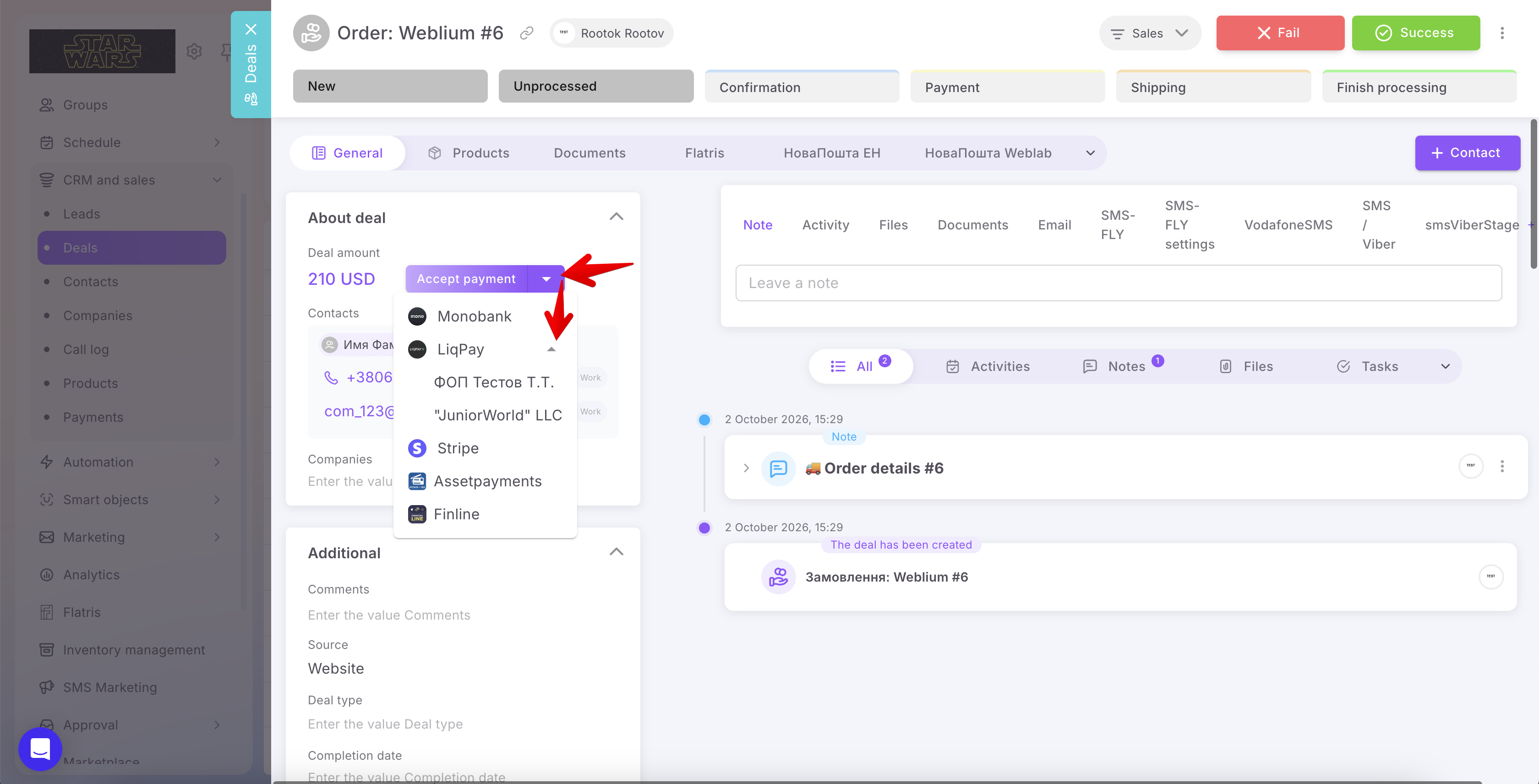
💡 Before creating a payment, make sure that at least one product has been added to the record and that payments are enabled for the relevant entity in the integration settings.
The payment creation page will display the selected connection. If necessary, you can change it: expand the list in the Connection selection field and choose another account.
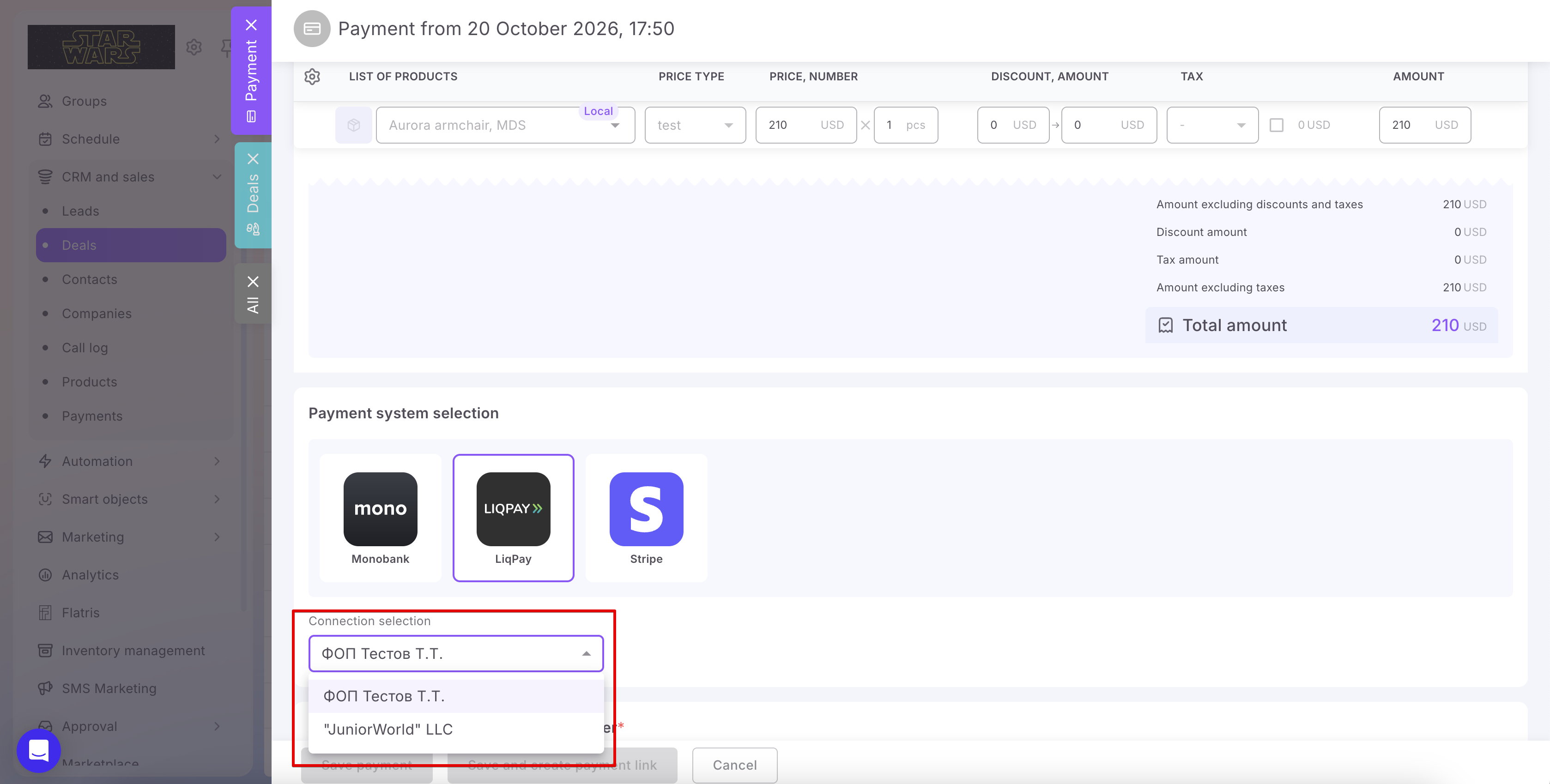
Review the details and click Save payment to create a draft, or Save and create payment link to generate a payment link for the client immediately.
Connecting multiple accounts allows you to accept payments through different sole proprietors or legal entities within a single Workspace. Configure the necessary accounts in the relevant payment system app, then select the connection through which each payment should be received.
If you have additional questions or you need to contact the support, send a request to this email [email protected]
Created: October 20, 2026 / Updated: October 21, 2026