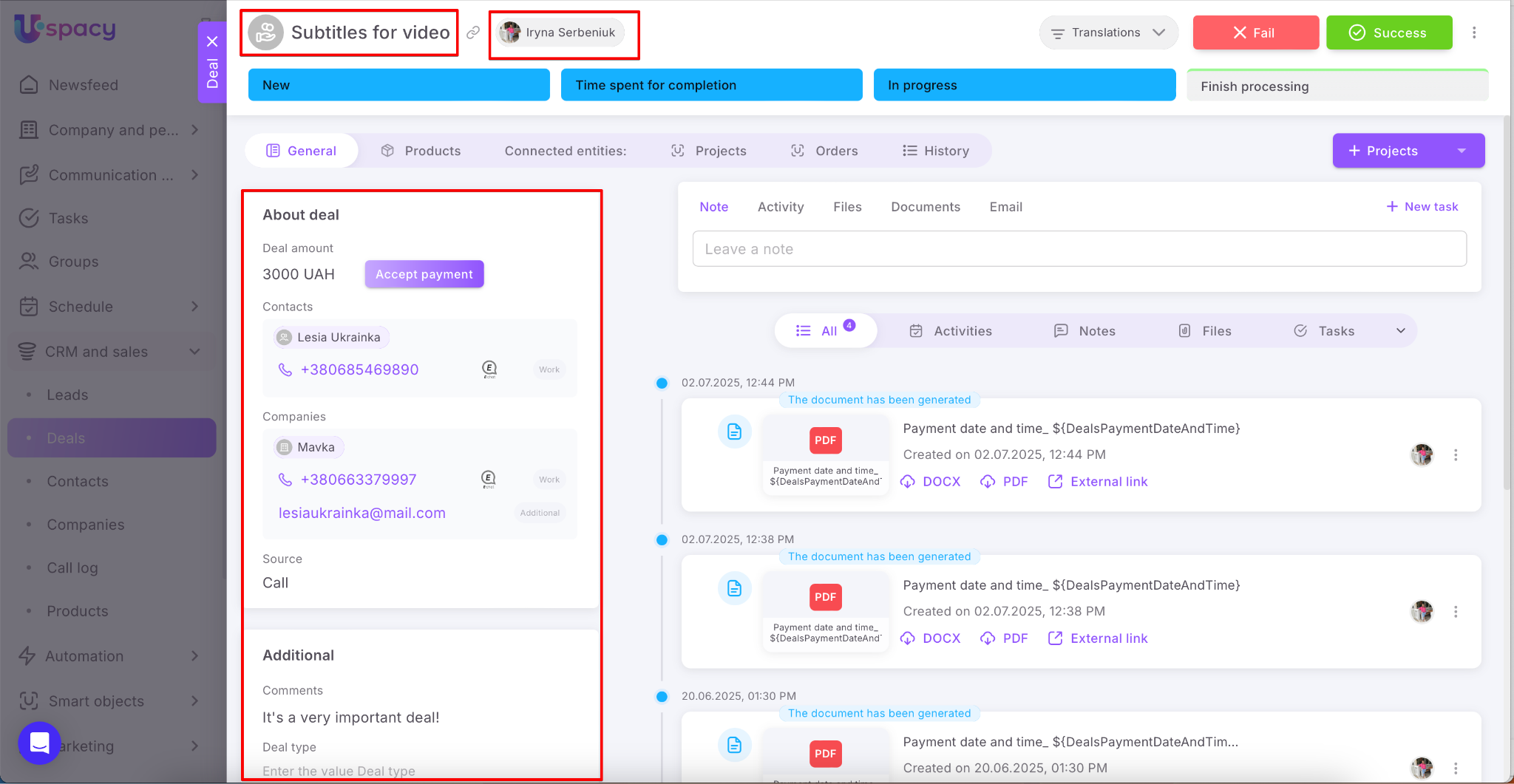
To organize the data and for ease of perception, all information about the CRM element is contained in its card in the appropriate fields. Their set differs depending on whether you are working with a deal, lead, company or contact.
Where to configure or create fields?
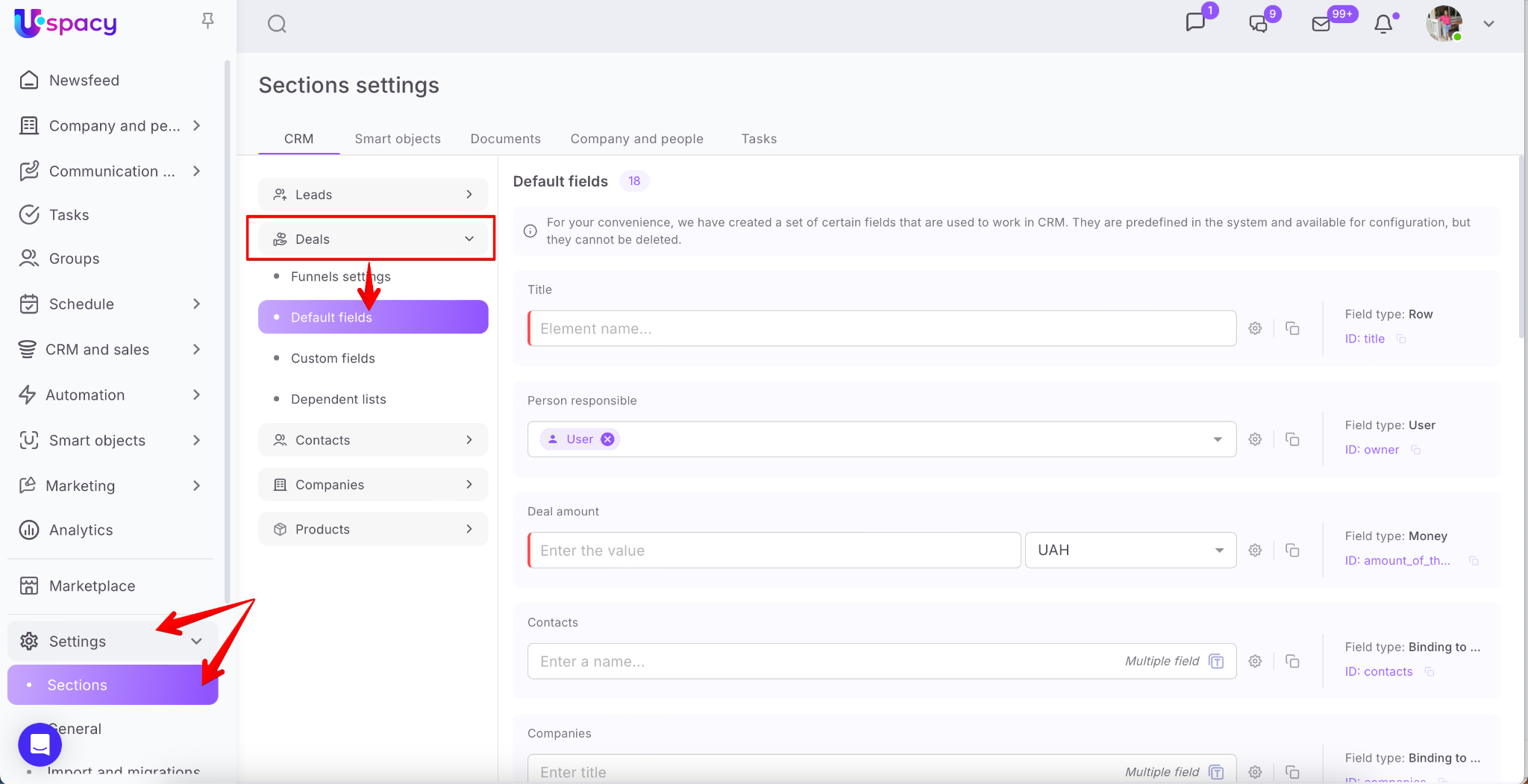
You can do this on the Settings - Sections - CRM page. Select the entity for which you want to configure default fields or create your own custom fields ( or make changes to existing ones).
🌟 Access to this section is given to the administrator and users with the appropriate set of permissions.
Default fields
Each entity has a certain set of fields. They are already predefined and used to work in CRM. Such fields are default.
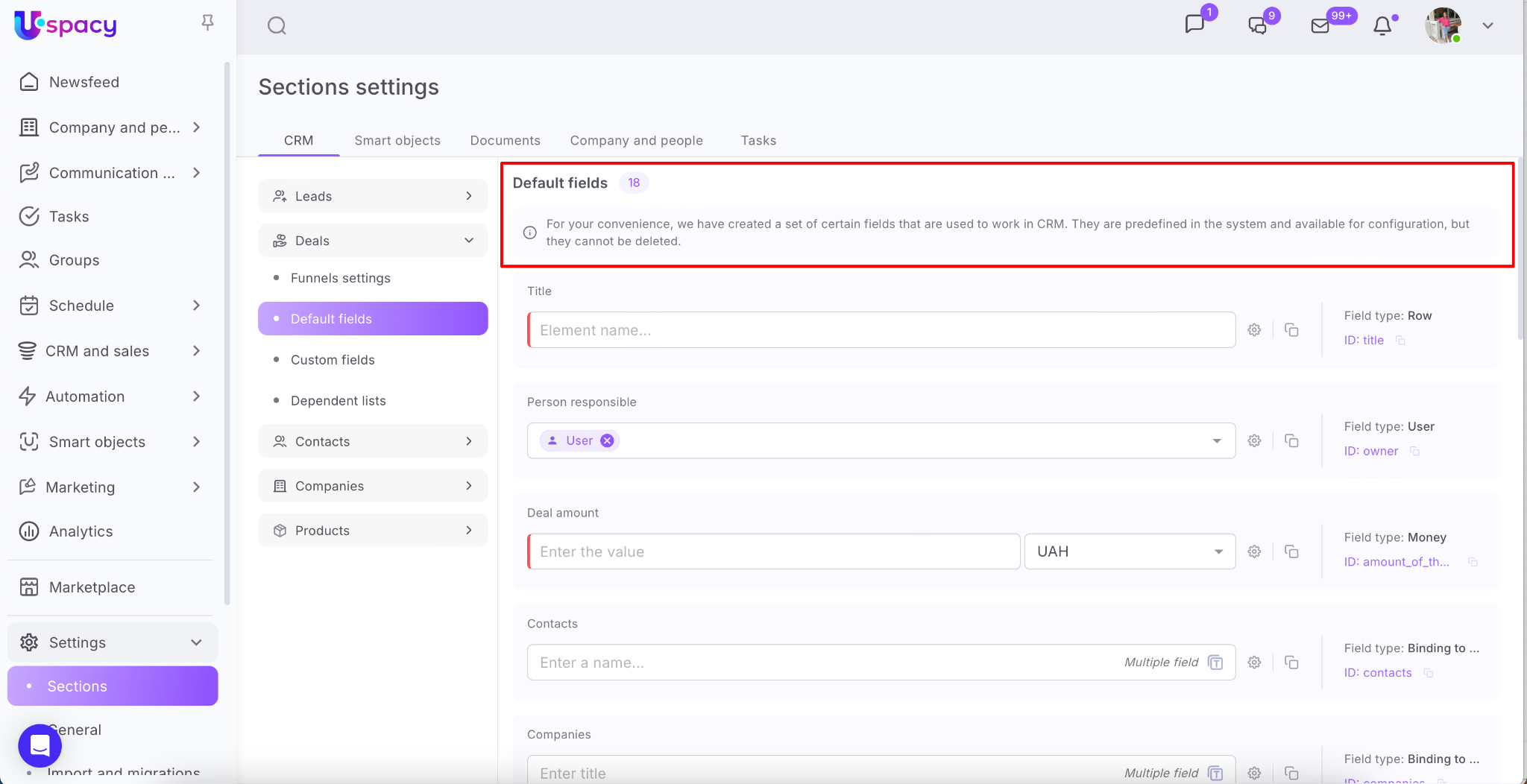
Such fields can be configured. To do this, click on the gear icon.
❗️Please note that you CANNOT delete default fields.
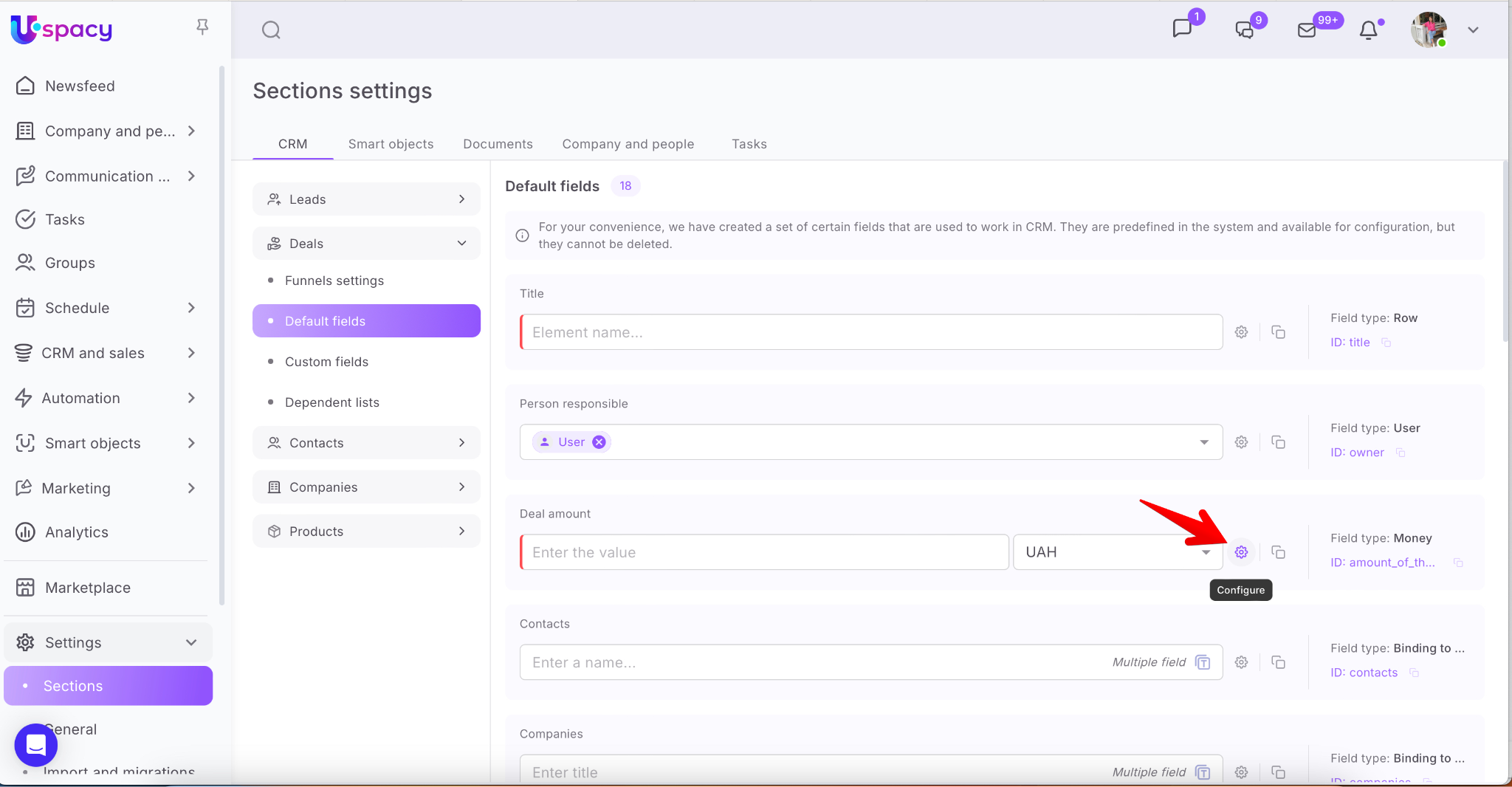
The settings form will open. Here you can make changes to the field parameters.
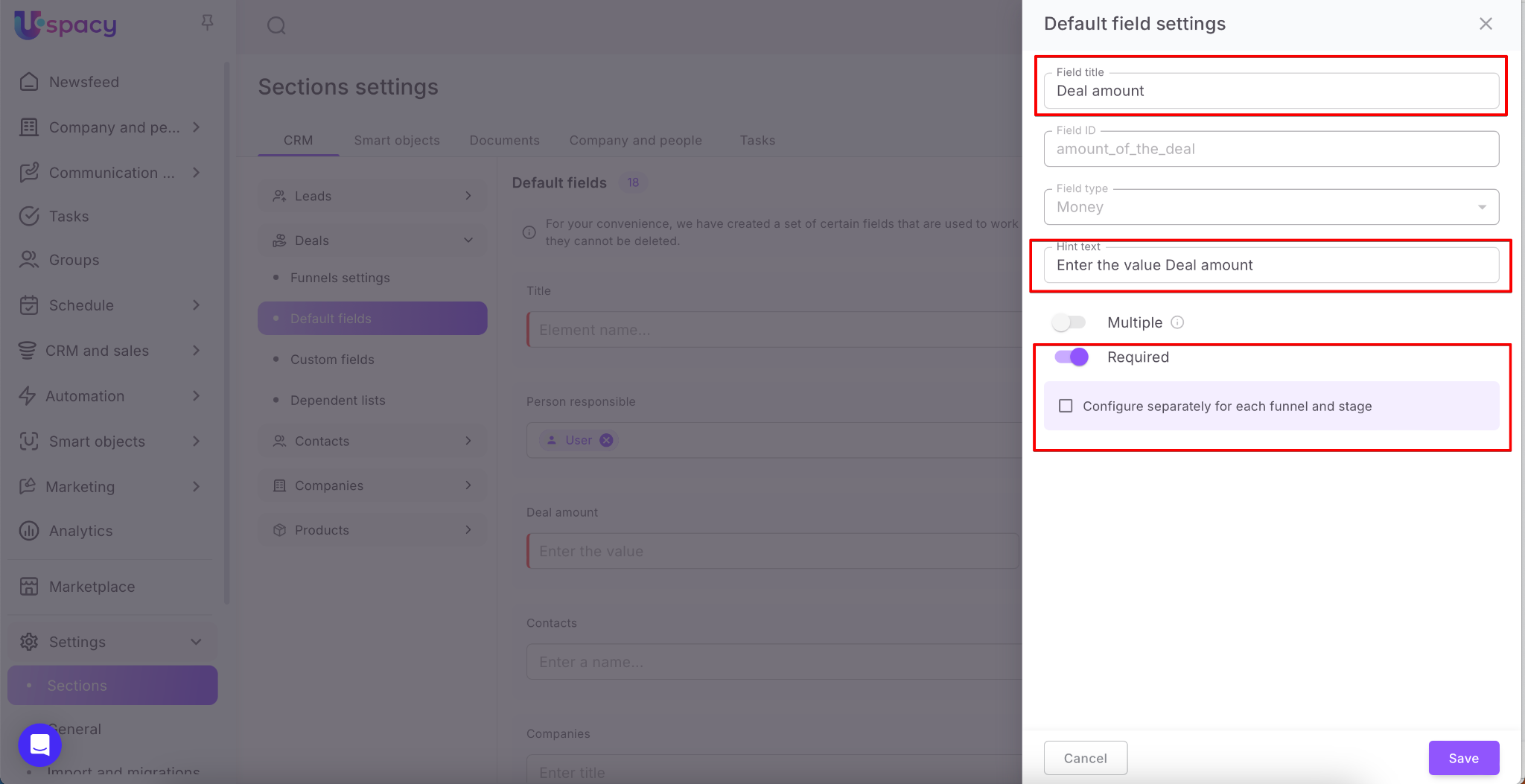
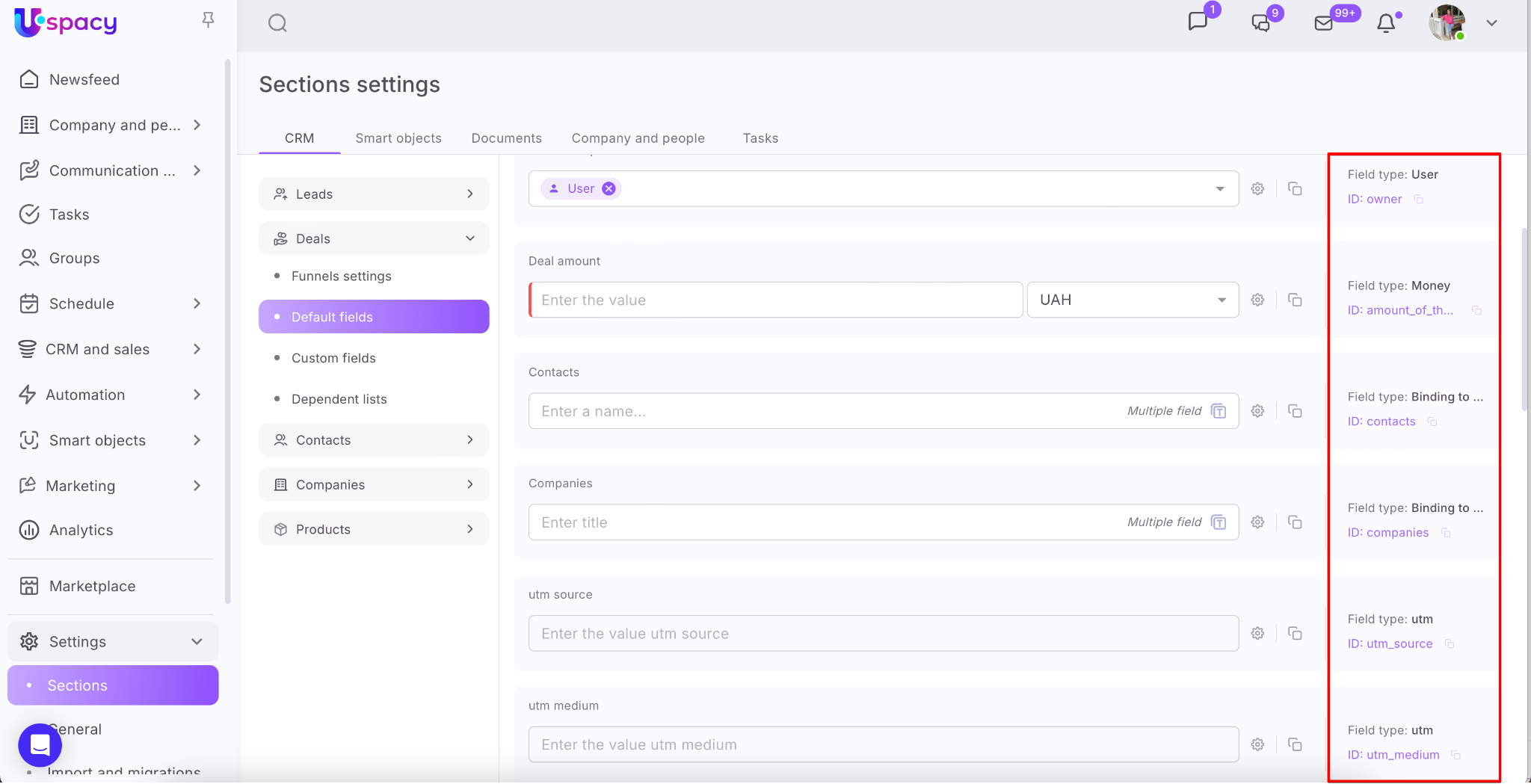
Which parameters can be configured depends on the field type, which is indicated on the right next to each field.
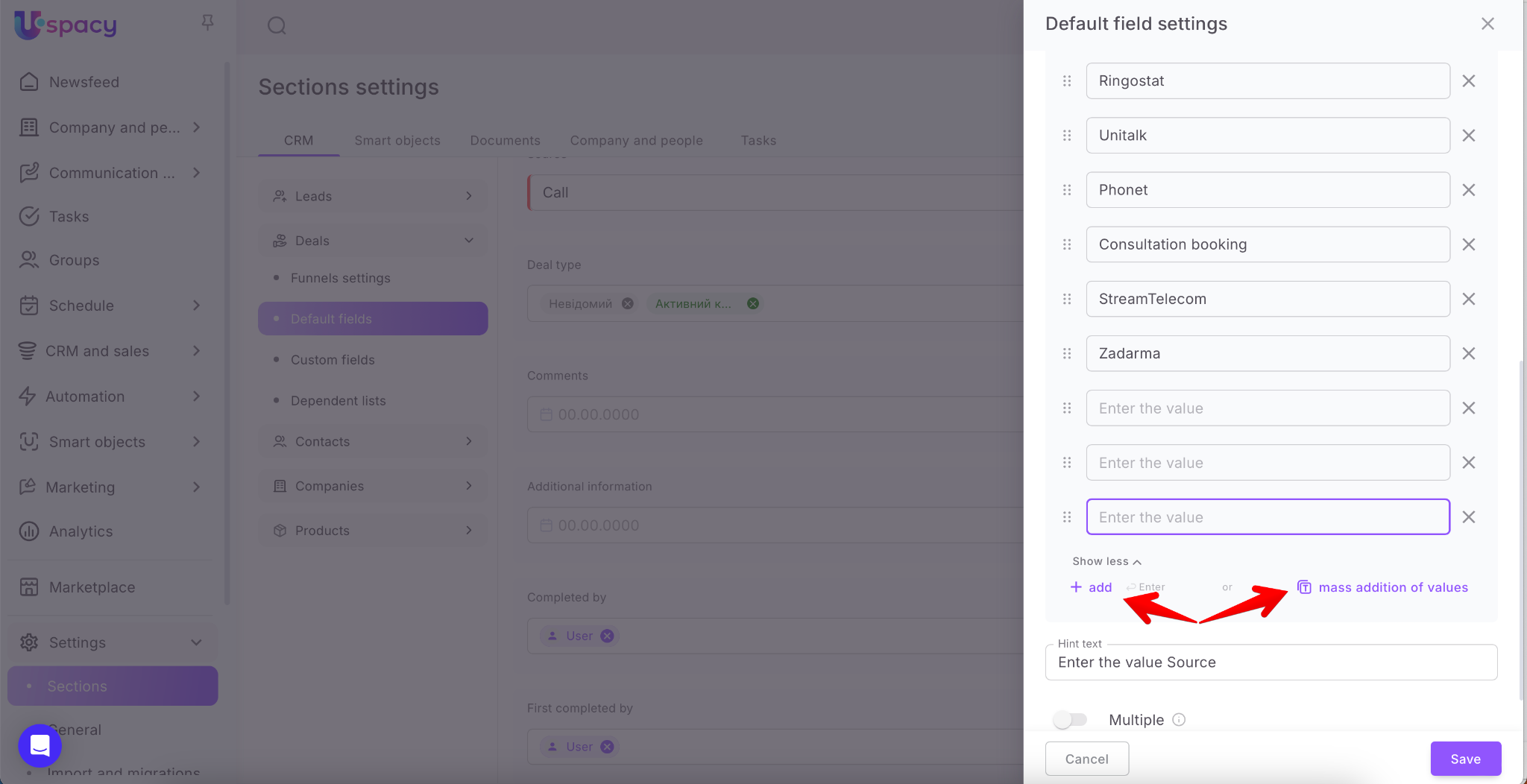
For example, for a field of type List, you can change not only the name, but also add options for selection.
Click Save to apply the changes.
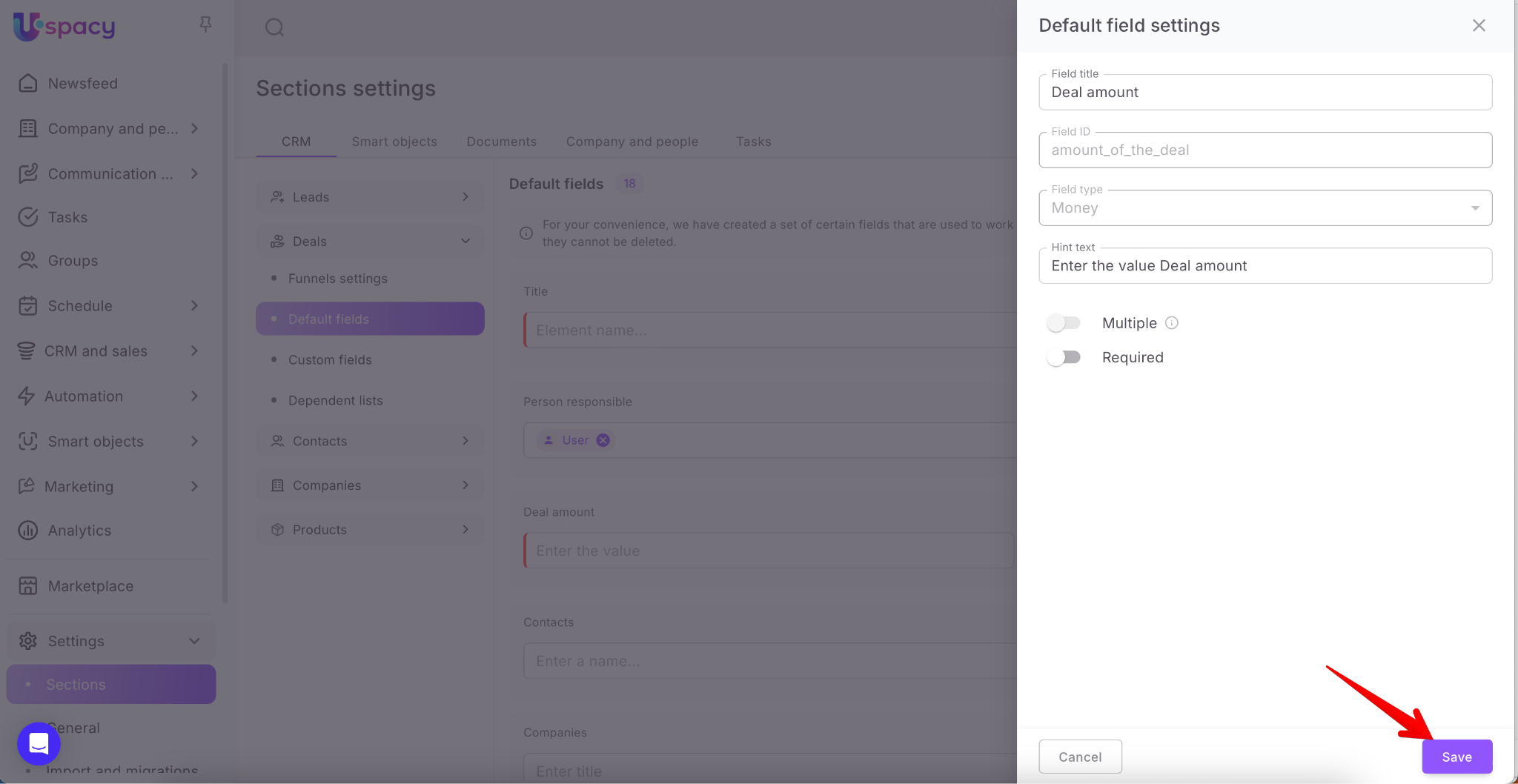
They will appear on the settings page at once.
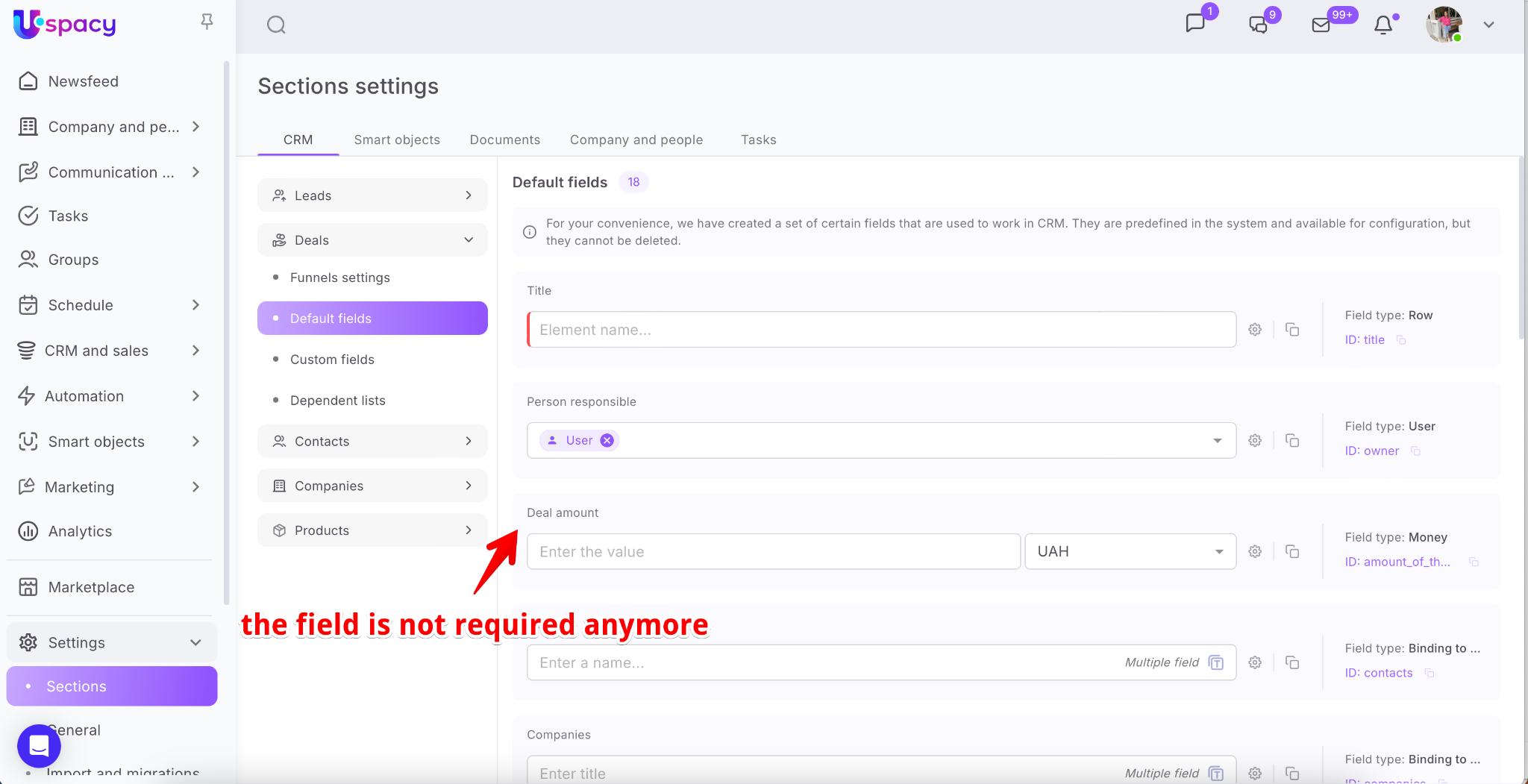
They will also appear in the element cards.
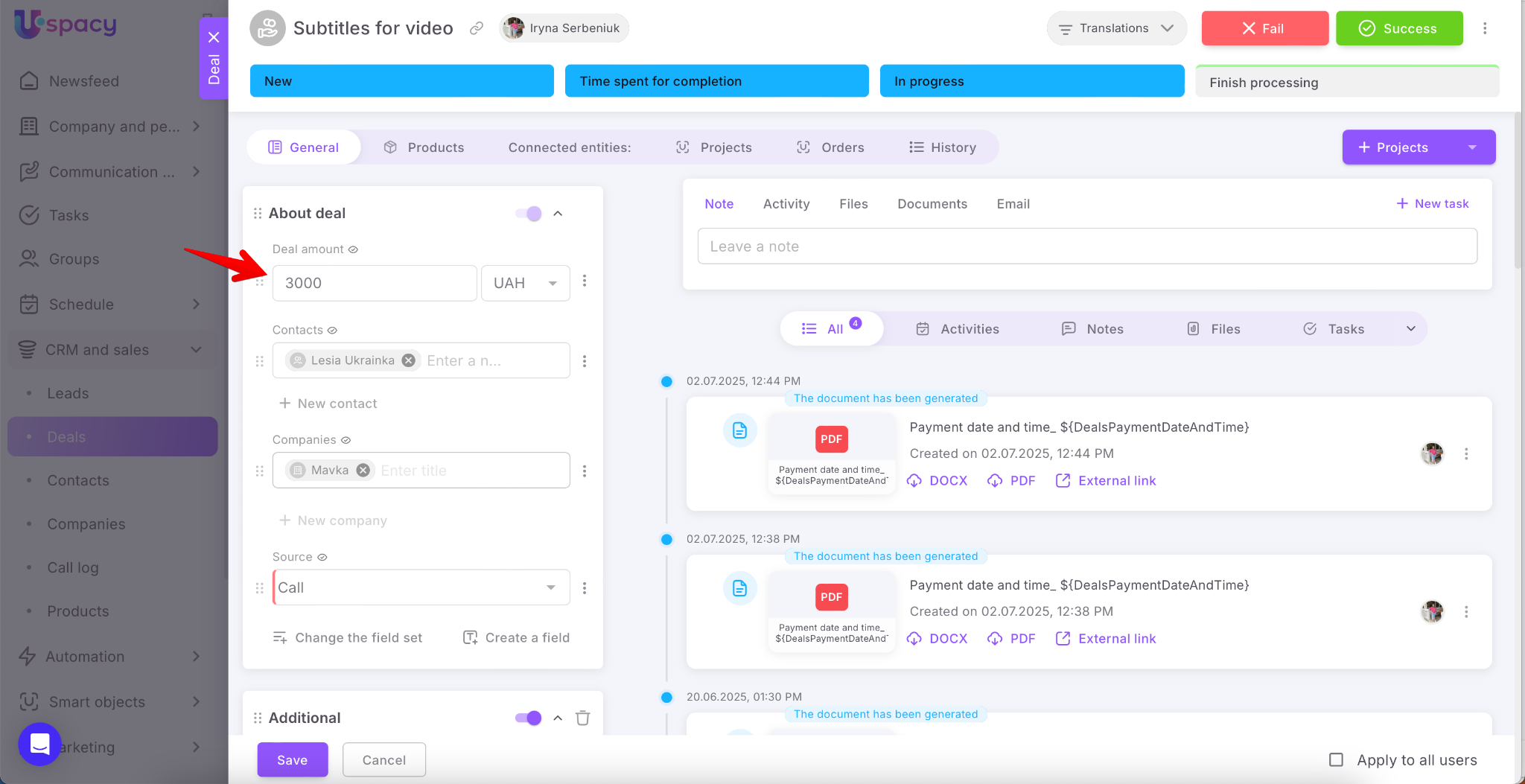
🔍 You can read more about required fields in the CRM in this article.
You can also duplicate any default field. To do this, you need to click on the corresponding icon.
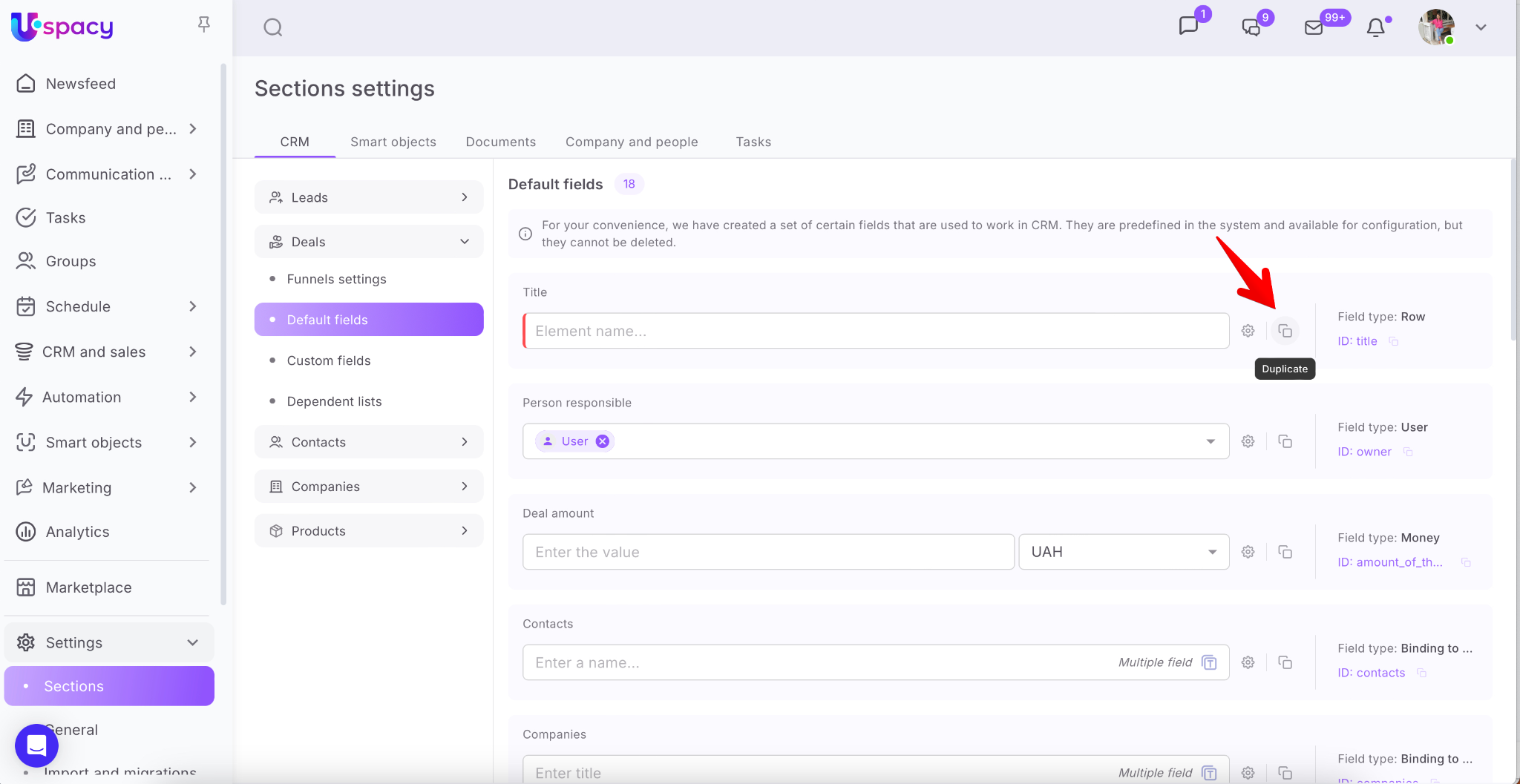
Such a copy will be created in custom fields.
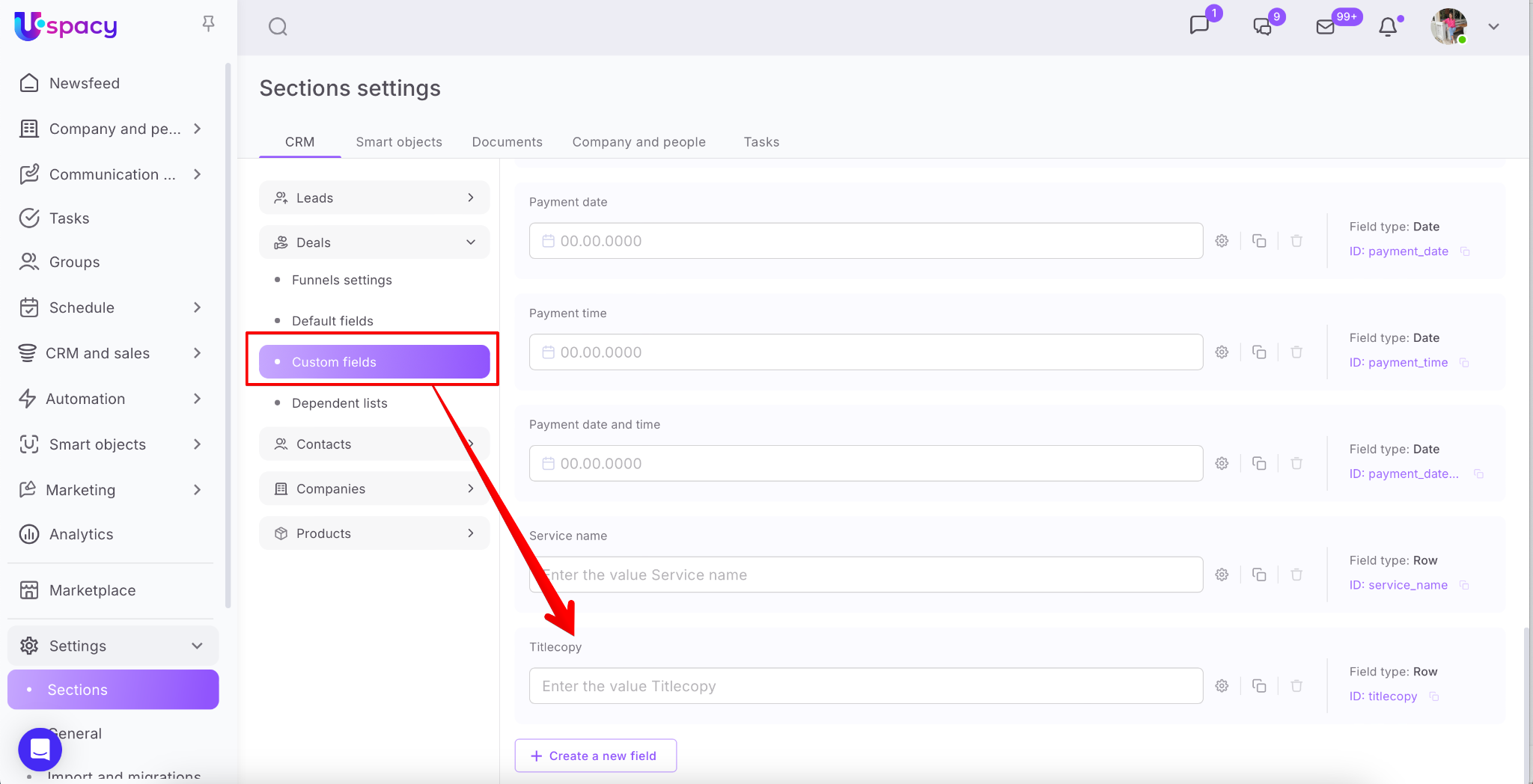
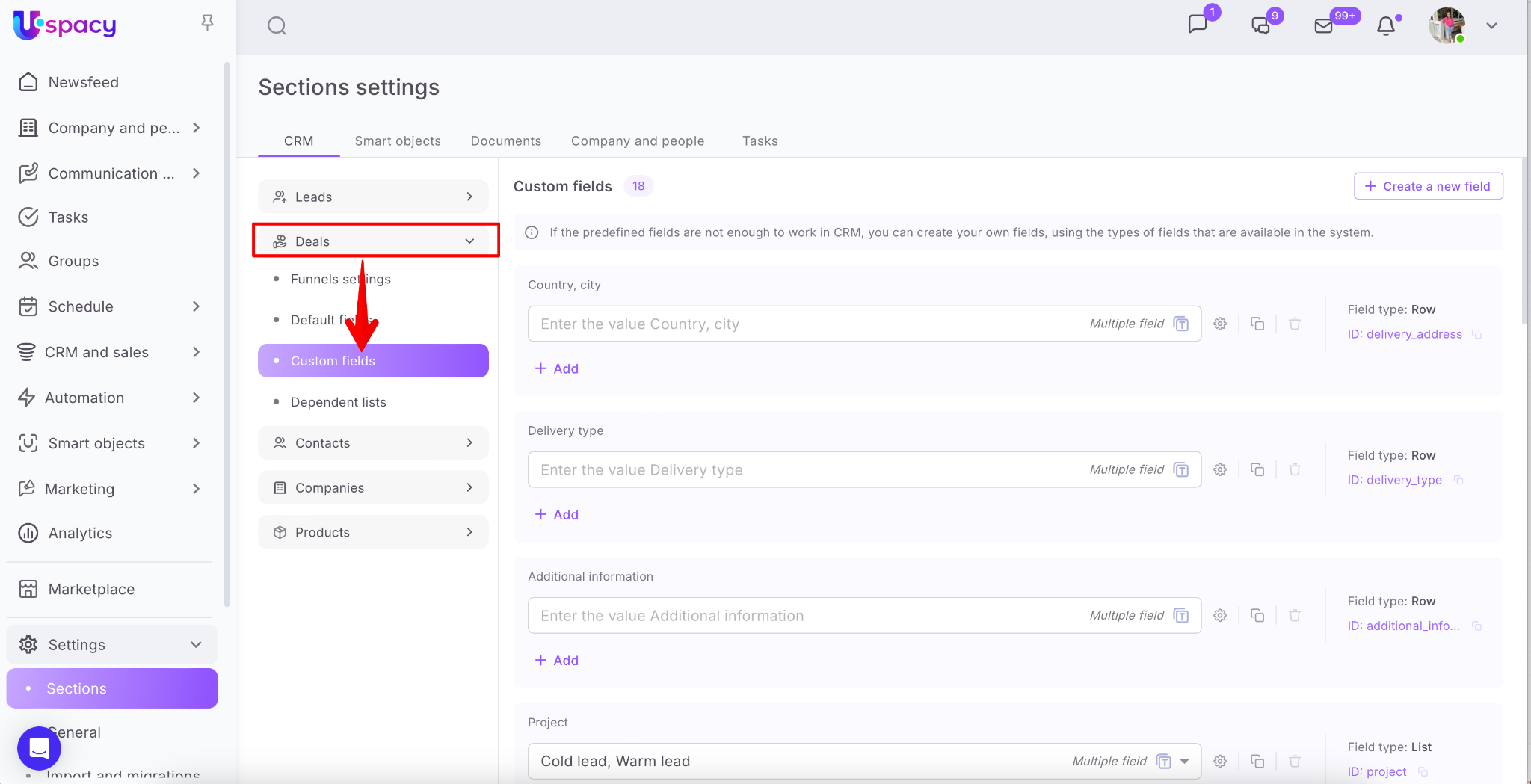
Custom fields
If there are not enough predefined fields to work in CRM, you can create your own. Such fields will be custom fields.
❗️You can work with custom fields using Standard and Professional plans. Learn more about plans and their options ➡️ HERE.
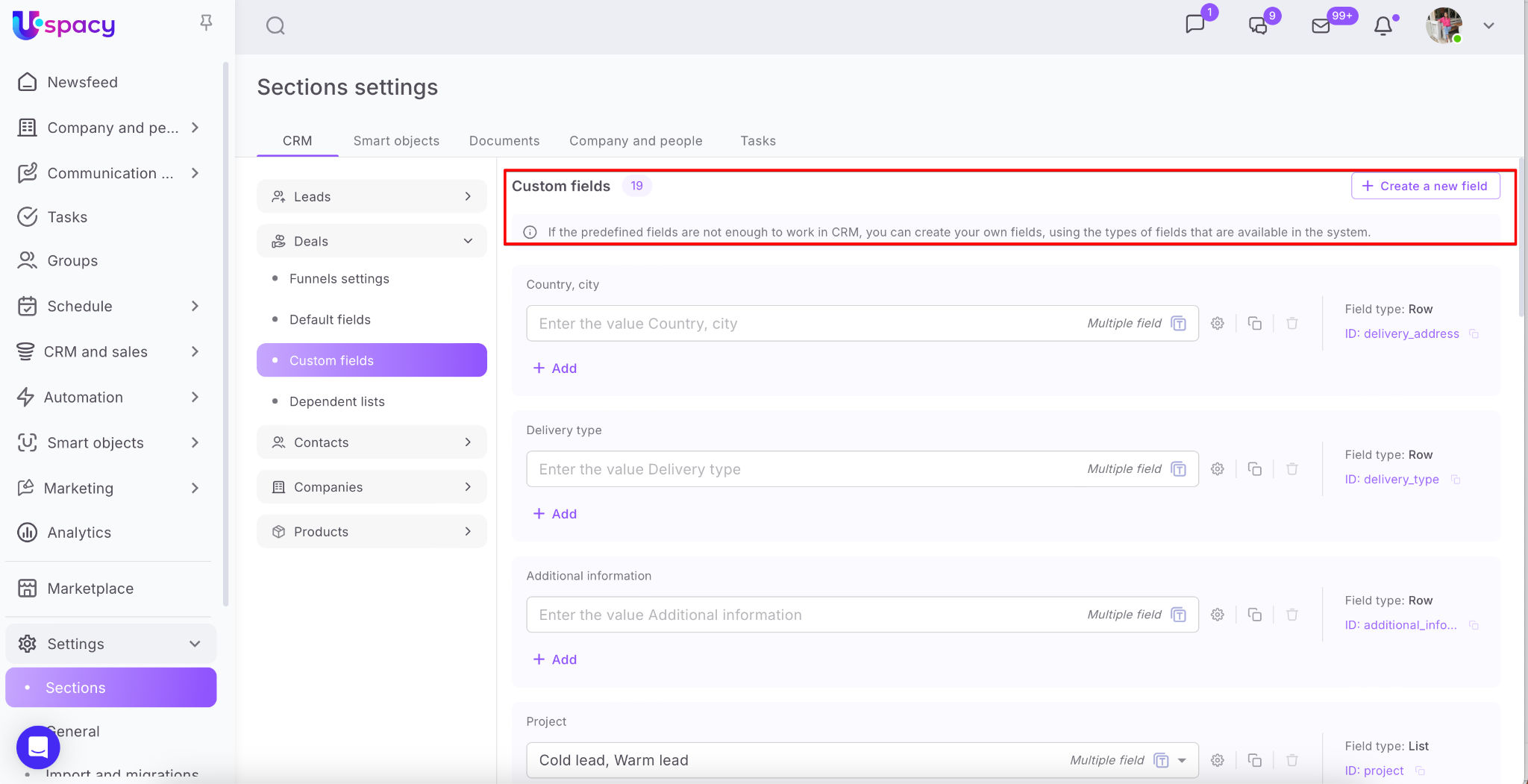
🔍 You can read more about custom fields in the following article.
If you have additional questions or you need to contact the support, send a request to this email [email protected]
Created: June 9, 2023 / Updated: September 18, 2025