How to live without communication? Probably we can’t. Because every day we receive and write a large number of messages, both personal and work.
At Uspacy, chat is not only a communication tool, but also a functionality that helps to quickly solve work tasks.
🔍 You can read more about chats, their appearance and functionality in the following article.
How to send a message?
To start chatting, go to the desired group or private chat.

And then you can start messaging with colleagues.
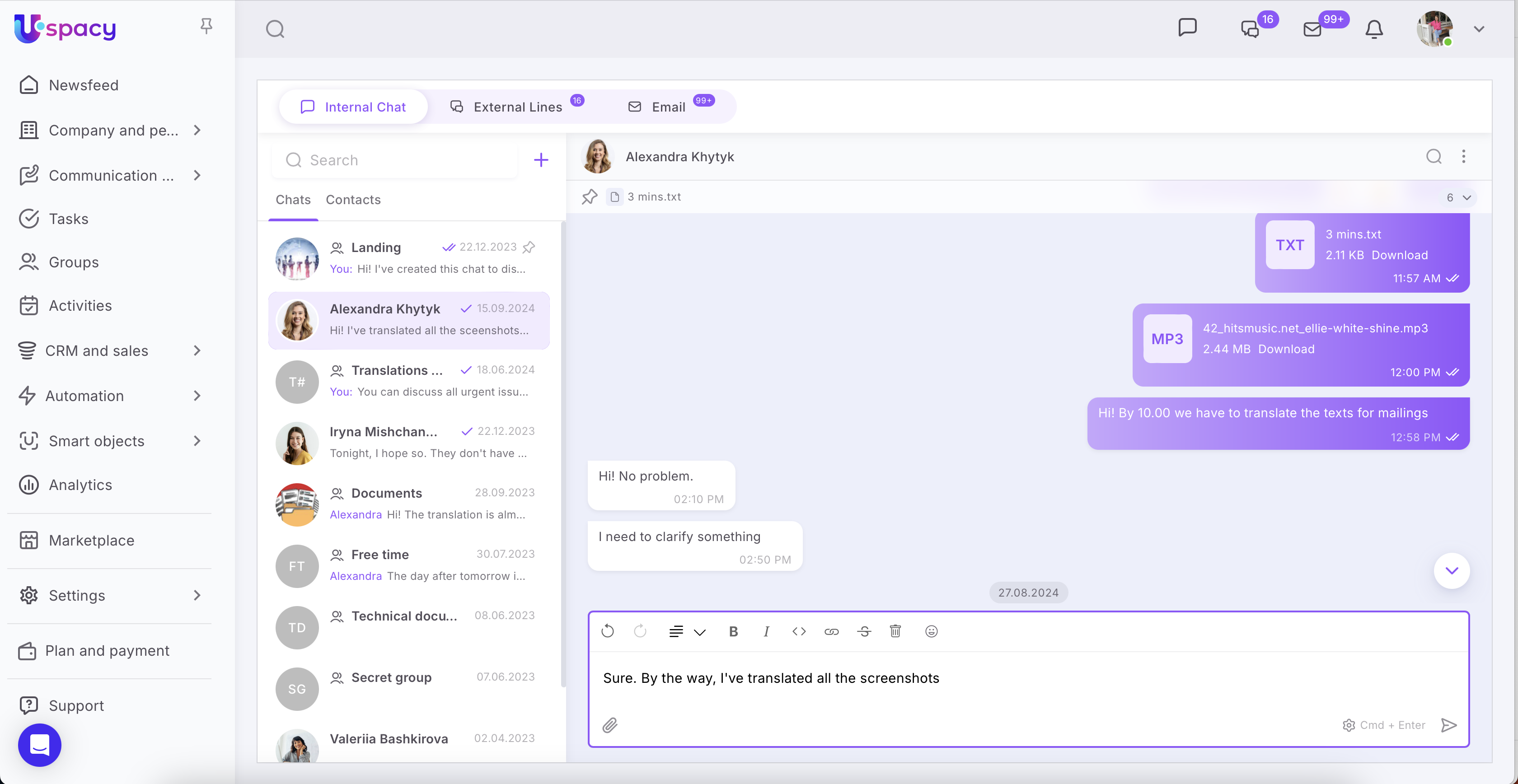
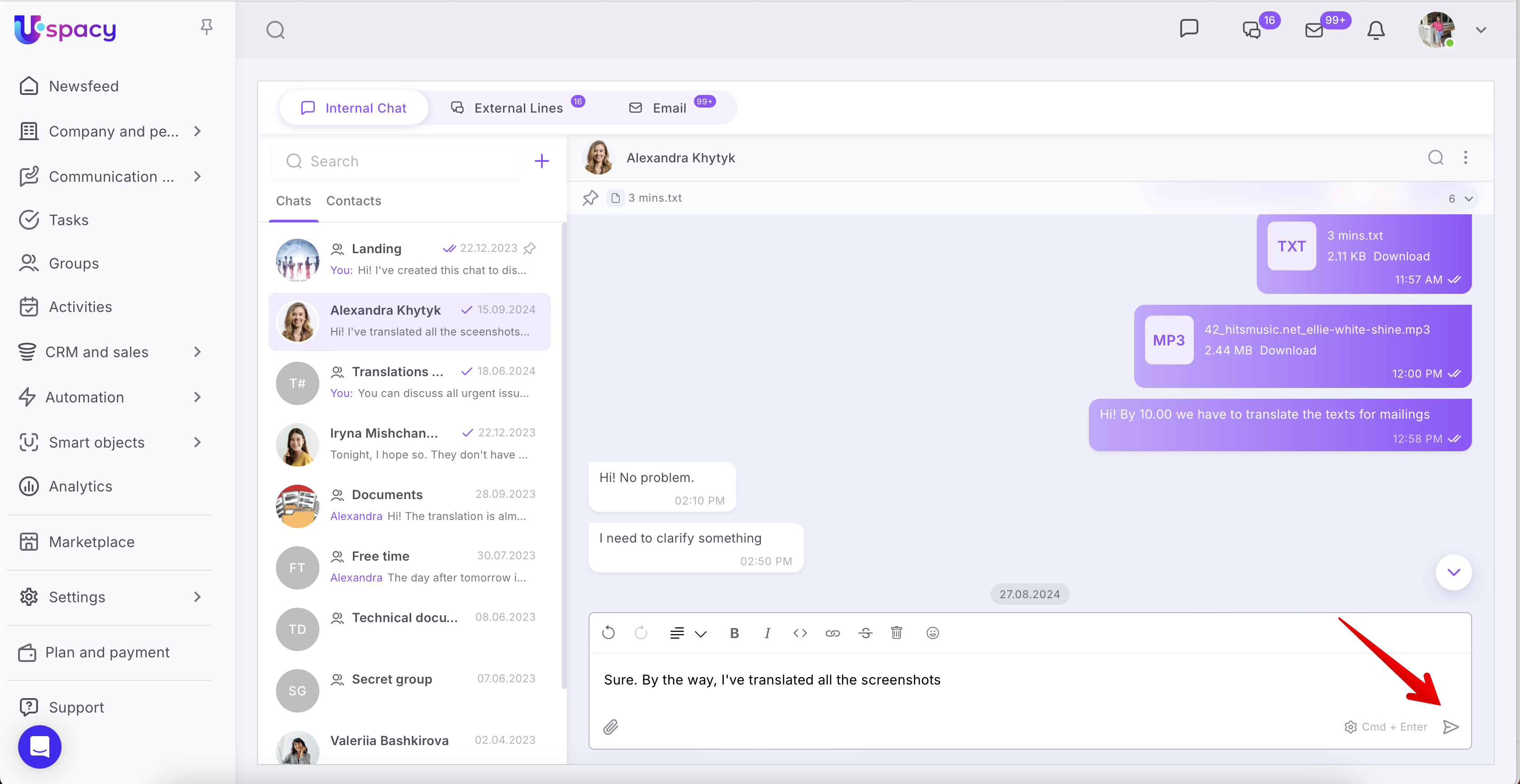
To send a new message, you can use a special button.
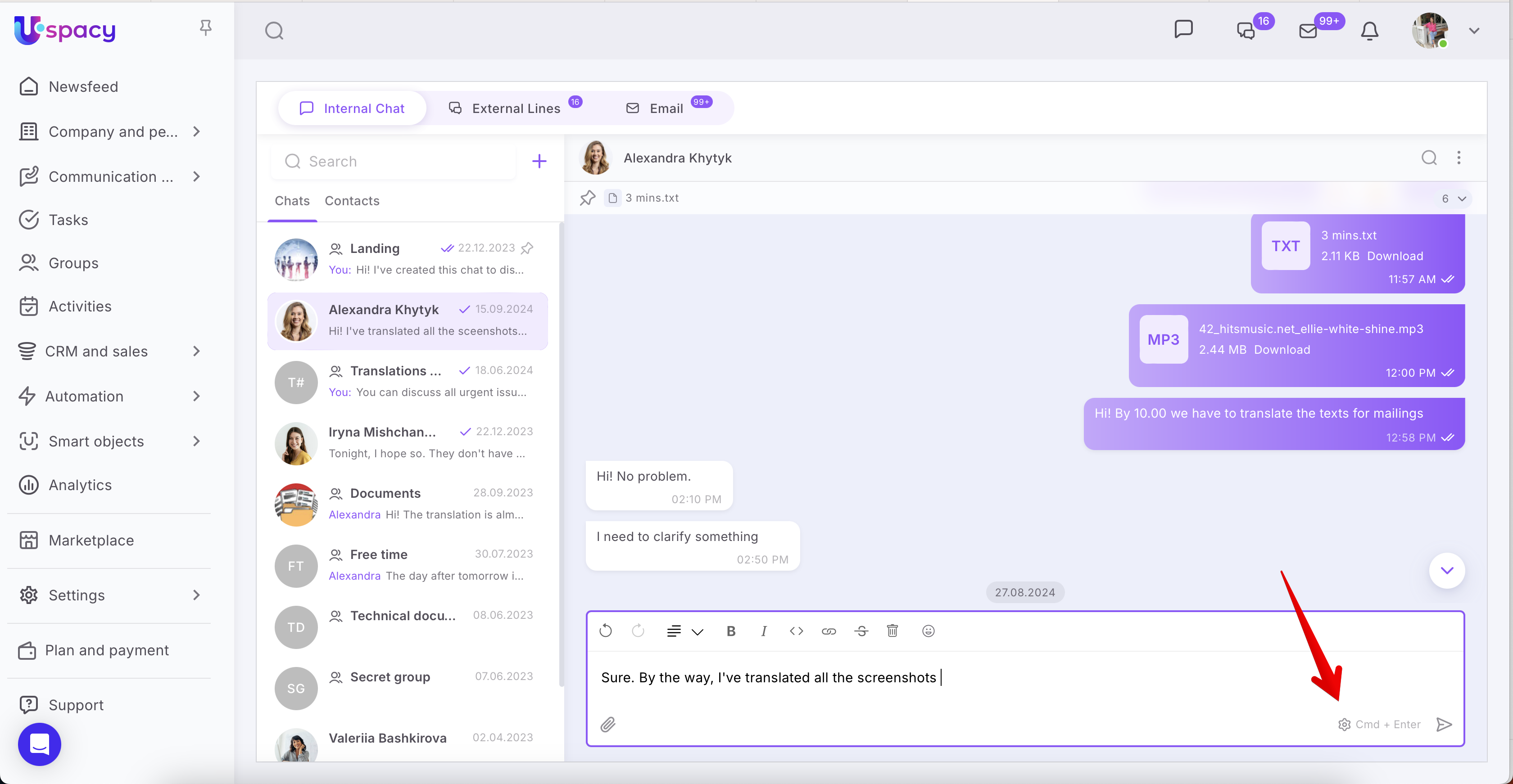
Or press the following keyboard shortcuts.
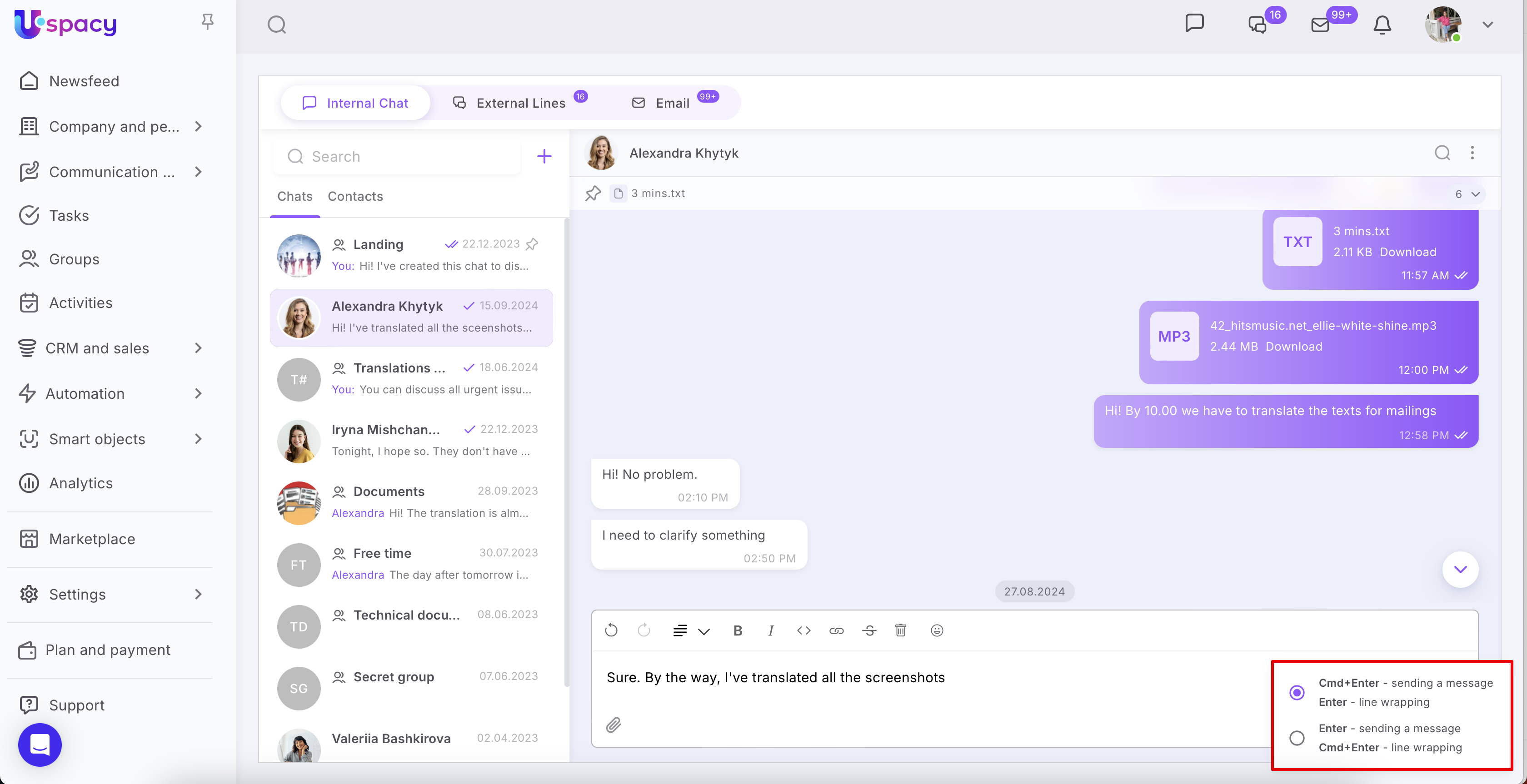
💡 Select the settings that are more convenient for you. You can send messages using Cmd (Ctrl) + Enter or by using just Enter
In addition to text, you can send emojis.
For doing this, use the built-in Characters viewer (macOS) or Emoji panel ( Windows).

They can be added to messages or sent separately.

In addition, it is possible to attach and send files. To do this, you need to use the button 📎. Select the desired file on your device, wait for it to upload, write a signature if needed and Send to the chat.

❗️Please note that the file and its signature are one message, although they are visually separated.

Files of the jpg, jpeg, gif, png, pdf, docx, txt, doc, ai, ppt, pptx, xls, xlsx, css, html, c, hpp, js formats can be viewed in the chat in full-screen mode.

Here you can also save the file to your computer. Or download by clicking on a special icon.

If the sent file is in a format that is not supported, the system will notify you. But you can save it and open it on your computer.

Message statuses
With the help of special marks, you can quickly find out whether the person has read the message you wrote to him/her. Everything is quite simple:
✔️✔️ - read
✔️ – unread

How to edit a message?
If a mistake was made in the text of the message that remained unnoticed, it can be corrected even after sending the message. To do this, you need to use the Edit message option in the interaction menu.

To call up the interaction menu, hover over the desired message and click on the three dots.

A form for making changes will open. After correcting mistakes or adding the necessary information, you need to click the send button or (Mac – Command + Return; Windows – Control + Enter).

❗️Only the user who created and sent the message can edit it.
How to reply to a message?
Sometimes in the chat we discuss not one issue, but several at once. And in order not to get confused in the conversation, you can use the option to reply to a specific message. This feature is especially useful when communicating in a group chat.
To reply to a message, you need to call up the interaction menu and select the appropriate item.

As a result, you can see the answer from above the text input line. All you need is to write a message and send it.

After that, the chat will show exactly which messages are related to the user's response.

Note that you can reply to all chat messages. That is, this possibility does not depend on who is their author. The item to reply is in the menu of interaction both with messages of colleagues and with your own.
How to forward a message?
You can forward an existing message from one chat to another. To do this, you need to call the interaction menu and select the Forward item.

Next, specify the recipient. It can be a specific employee or a group chat.

You can also add your own comment to the forwarded message.

As a result, everything will be displayed in the chat.

❗️You can forward both your own messages and messages from colleagues.
How to pin a message?
In order not to lose important messages in the chat, you can Pin it. To do this, you need to call the interaction menu and select the item of the same name.

After that, the block with the pinned message will be at the top of the chat for all its participants.


To go to the pinned message, just click on it. As a result, you will be transferred to the place of the chat, where it was left. Also, the message will light up to make it easier to see.

You can pin more than one message in the chat. The total number of such messages will be indicated in the counter on the right.

By clicking on it, you can expand the block with pinned messages. And select which one you need to go to.

To Unpin a message, you need to call up the interaction menu and click on the item of the same name.

❗You can pin and unpin both your own messages and those of other chat members.
How to use mass actions in chat?
To do this, you need to call up the interaction menu with one of the required messages and click on the Select item.

Now tick all the messages for which you plan to apply mass actions.

Specify what exactly needs to be done: forward or delete.

How to add a reaction to a message?
Emojis can be used not only in mesages😉 In chats, you can edit each message😎 To do this, click on the emoji icon. It appears when you hover over a message.

Next, select the desired emoticon or icon.

There can be several of them. They all will be attached to the message.

❗️You can respond to both your own messages and messages from colleagues.
How to delete a message?
You can completely delete unnecessary messages from the chat. To do this, you need to use the Delete message option in the interaction menu.

As a result, the message will disappear for everyone. The system will definitely inform about this and thus will require additional confirmation of these actions.

As a result, the chat will appear as if there was no deleted message. That is, there will be no marks in it.
❗️Deleting a message is only available to the person who created it. Another member of both a personal and a group chat can only reply to it or copy its text.
❗️ Exceptions are the owner or administrator of Space. The Delete item is available to them in the menu of interaction with the messages of any user.
How to summarize unread messages? (AI)
Sometimes, especially in group chats, a large number of messages from colleagues can accumulate.


In such cases, a very handy feature comes to the rescue — a summary of unread messages. It is powered by AI.

Above the unread message counter, there is a special icon. When you click on it, an overview is generated.

As a result, you receive a summary of the conversation that took place between your colleagues in the chat, including whether the issue was resolved and how.

How to get a new message notification?
In order not to miss anything, you need to enable sound notifications and push notifications.
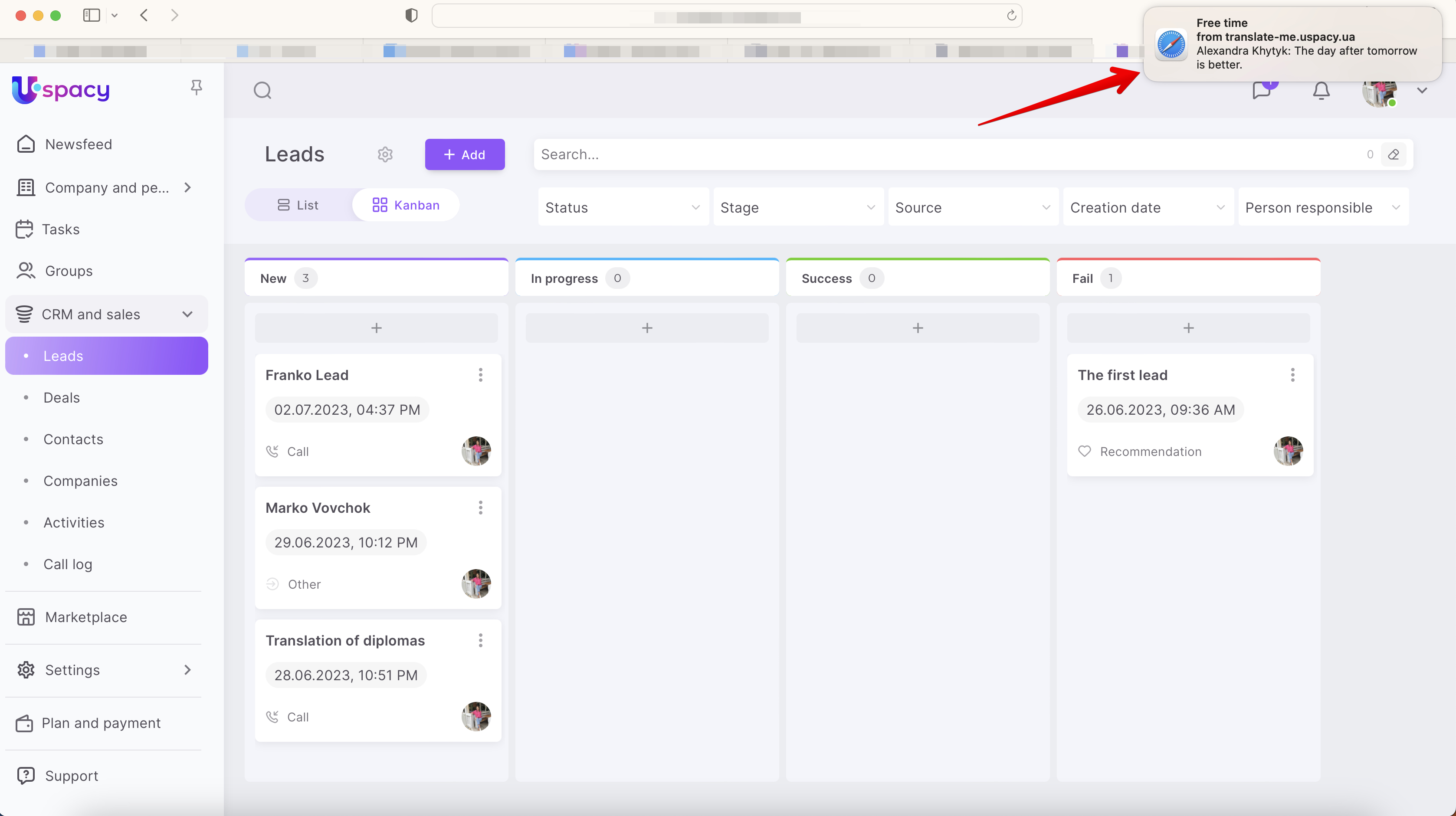
🔍 You can read more about what you need to do to receive notifications about new messages in chats in the following article.
If you have additional questions or you need to contact the support, send a request to this email [email protected]
Created: March 1, 2023 / Updated: February 9, 2026