Billing details are data that make it possible to accurately identify a legal entity, sole proprietor or individual entity and then use this data to create invoices, contracts and other documents. Payment details of clients are also important information for work.


In addition, it is quite convenient to store the billing details of your own company in the system in order to use them when working with clients and generating documents.


So, at Uspacy, billing details can be divided into two types: Billing details of your own company and Billing details of clients (companies/contacts). Now about the use and features of each of the types in more detail below ⬇️
Billing details of your own company
🔍 How to create and save them in Space, go to the following article.
Billing details can be automatically added to your generated documents.

💡To do this, you need to add the symbolic codes of the fields you need in the templates. For example, the name of your company or sole proprietor, address, signature or seal, SWIFT, etc.
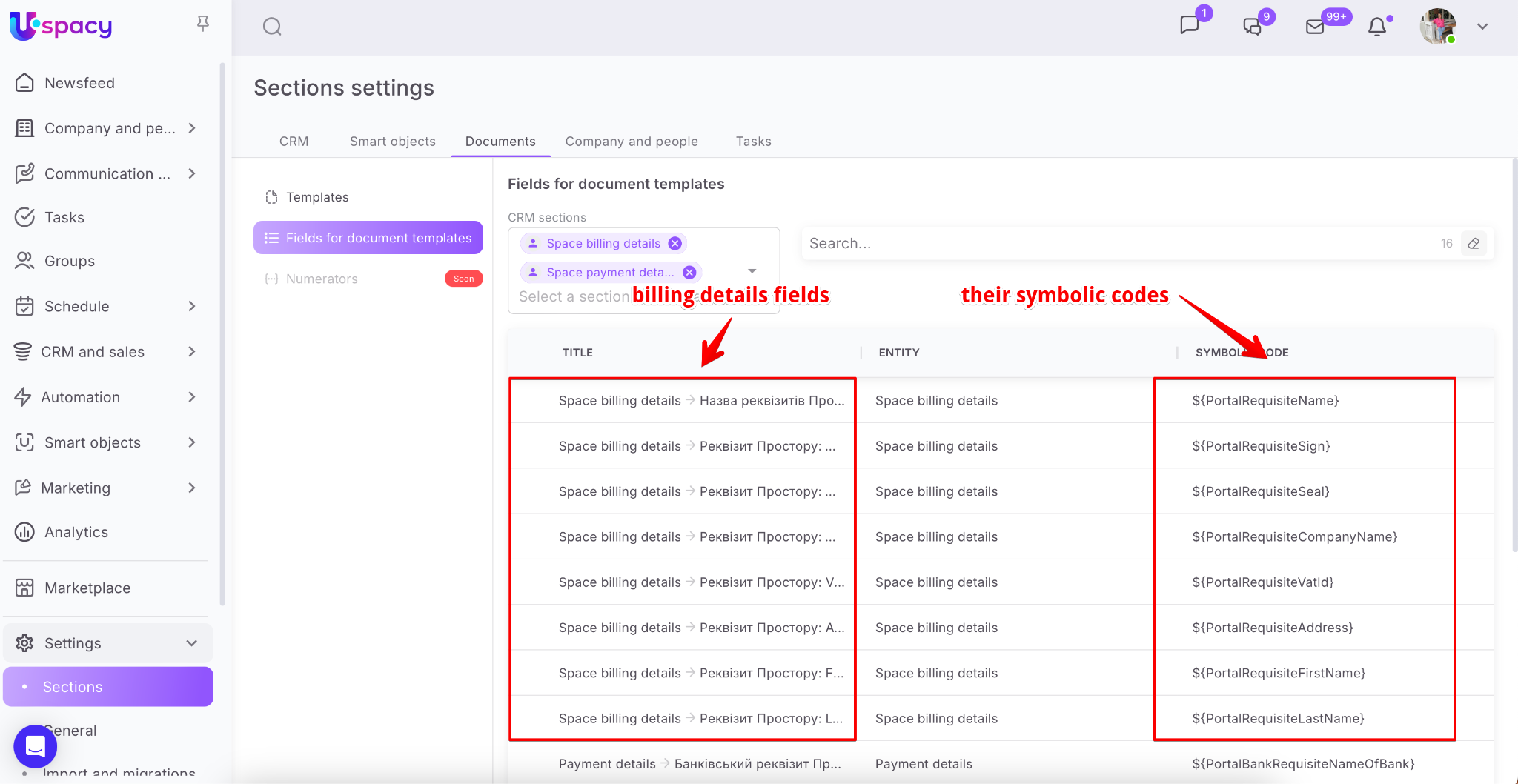
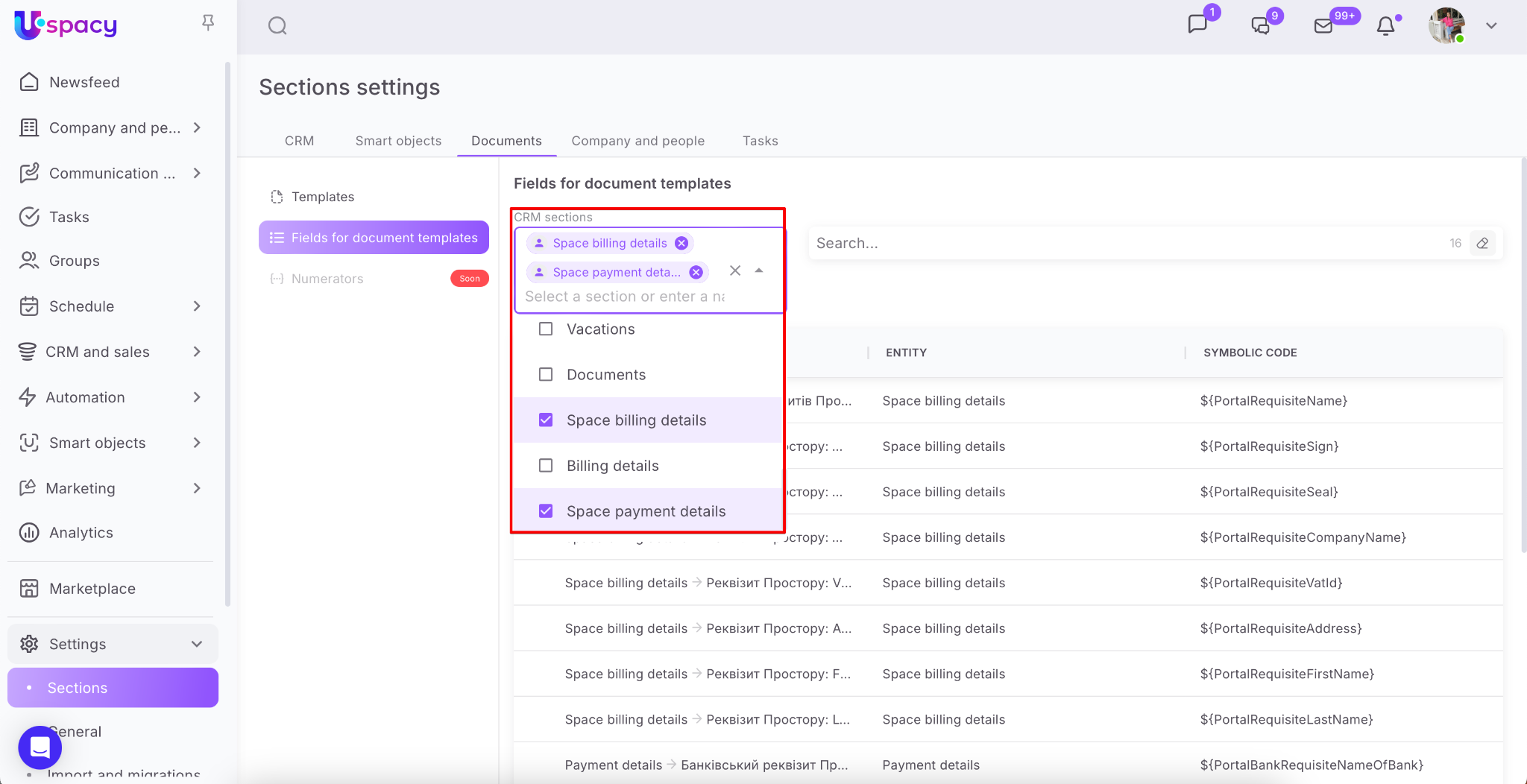
To quickly find the symbolic codes of the Space billing details fields and the Space payment details fields, use the CRM Sections filter.
You can store more than one set of billing details in the Space. But only one set can be the main one. In the general list, it is located at the top and will be highlighted in purple.
☝🏻You can find all the billing details of the Space and interact with them in the section Settings - General - Information about company block- My billing details tab. Only the administrator and Space owner has access to this section.

How to change the main billing details?
To change the billing details that will be used as the main ones, it is enough to check the corresponding item in the interaction menu.

💡When generating a document, the main billing details will be immediately added to it, if, of course, this is provided by the template.

However, it is possible to manage which billing details from the existing ones are applied to the current document.

How to edit billing details?
To do this, you need to call the interaction menu with the required set of billing details and select the Edit item.

In the form that opens, make the necessary changes to the data fields (or add new payment details or delete existing ones) and click Save.

💡To Edit payment details, first click on the interaction menu button and select the corresponding item.

The fields will become available for making changes. Edit the data and click on the Save button, which is located in the payment details block.

Then the changes will be saved.
How to delete billing details?
To remove unnecessary or irrelevant billing details from the system, it is necessary to call up the interaction menu with the required set of billing details and select the Delete item.

And be sure to confirm your actions.

After deletion, the billing details will disappear from the general list. If necessary, you will have to enter the information again.
💡To delete payment details, first go to editing mode of the required set of payment details. Then click on the menu of interaction with payment details and select Delete.

Billing details of clients (company/contact)
🔍 Information on how to create and save them in CRM entity cards can be found in the following article.
Company or contact billing details can be automatically pulled into the documents you generate.

💡To do this, you need to add the symbolic codes of the required fields of the entity in the card of which you are working in the templates. For example, the name of the company or sole proprietor, address, SWIFT, etc.
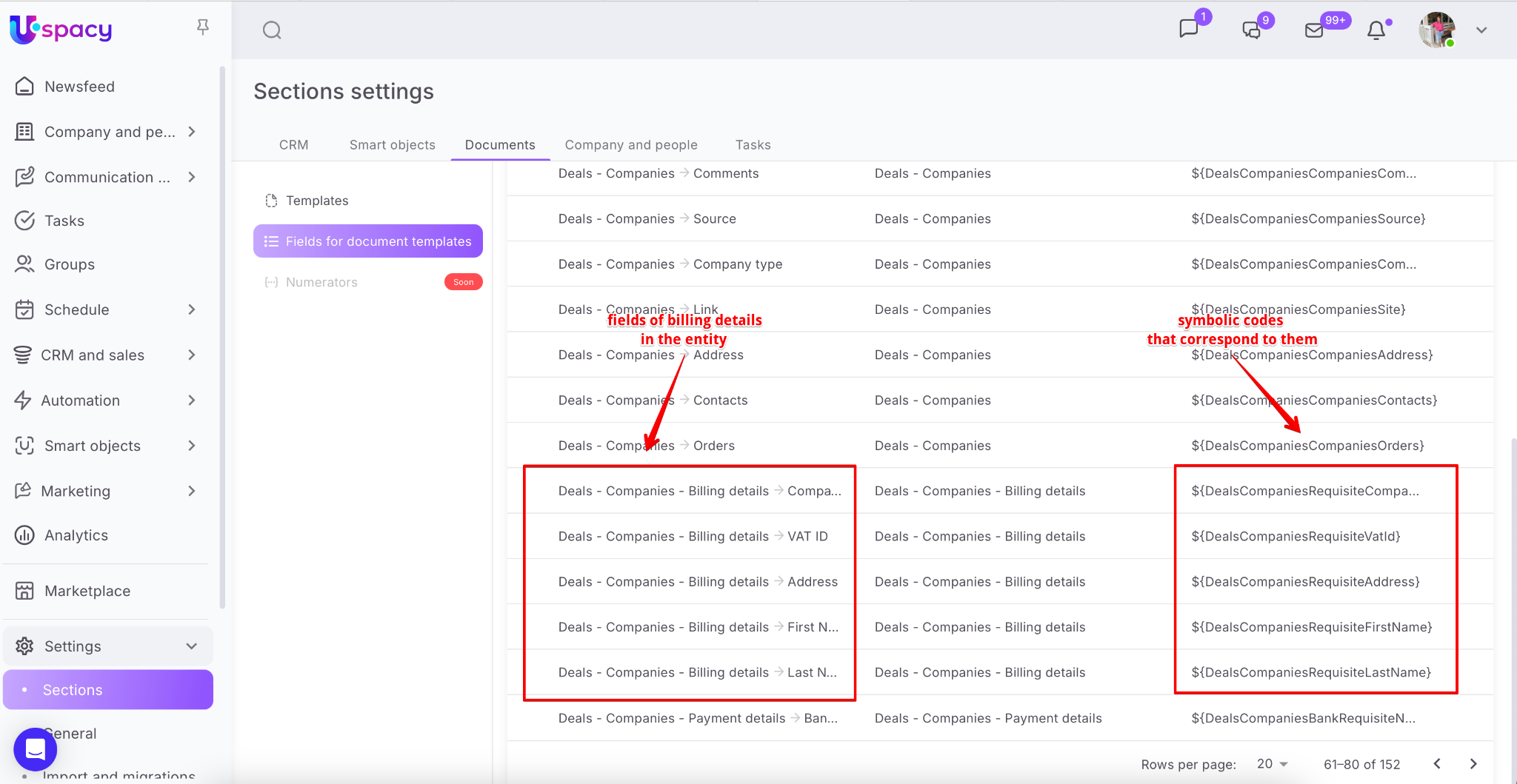
That is, for example, if you plan to generate a document in the DEAL card, then you should copy and paste the symbolic codes of the billing details fields, which are specific to the DEAL, into the template.
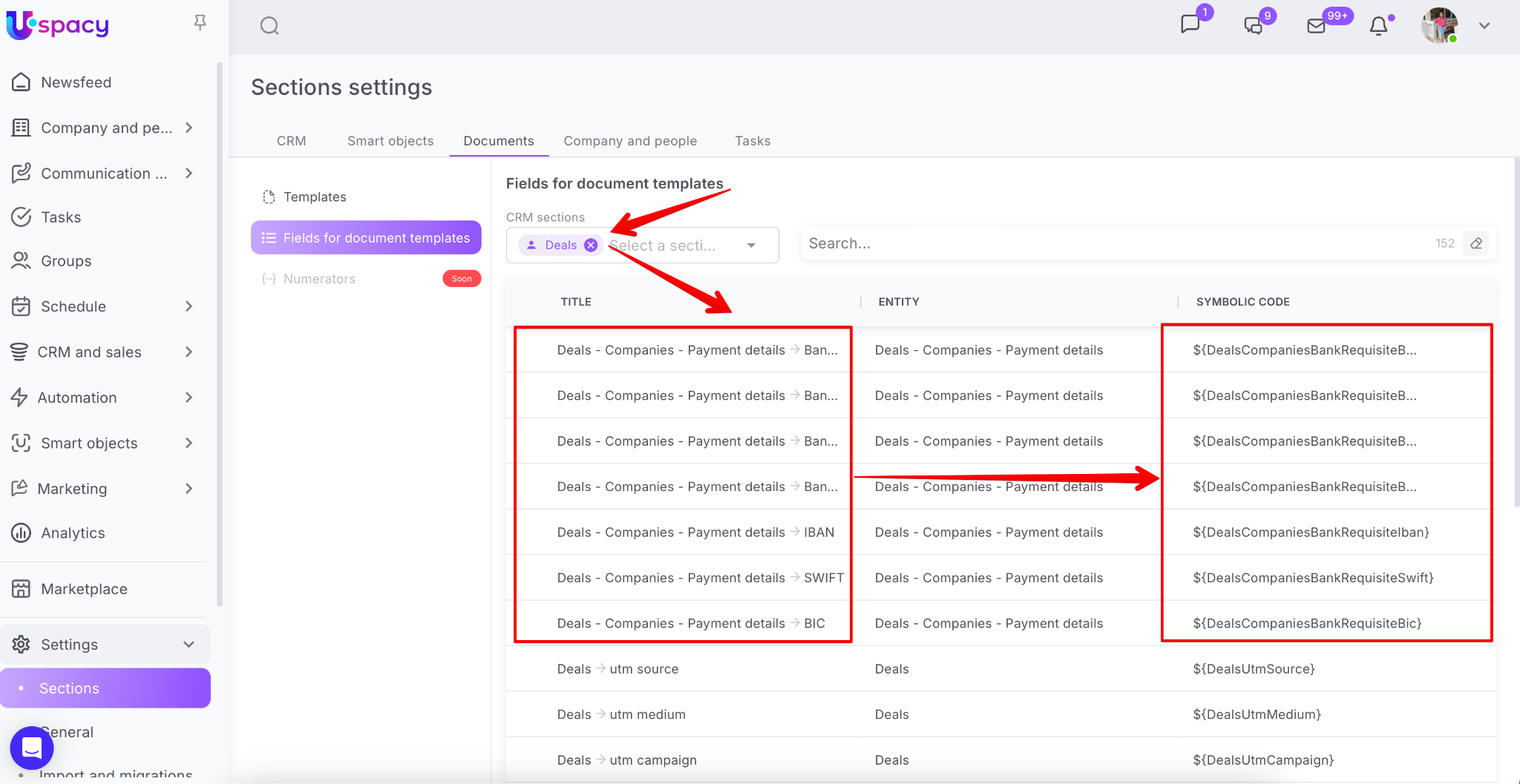
If you plan to generate a document in the company (contact) card and you want it to include both the billing details of the contact (company) itself and the billing details of the company (contact) bound to it, then the template must contain:
🟣 symbolic codes for fields from the Billing details and Payment details sections. This will ensure that the billing details of the company/contact from the CRM card in which the document is generated are uploaded to the document.
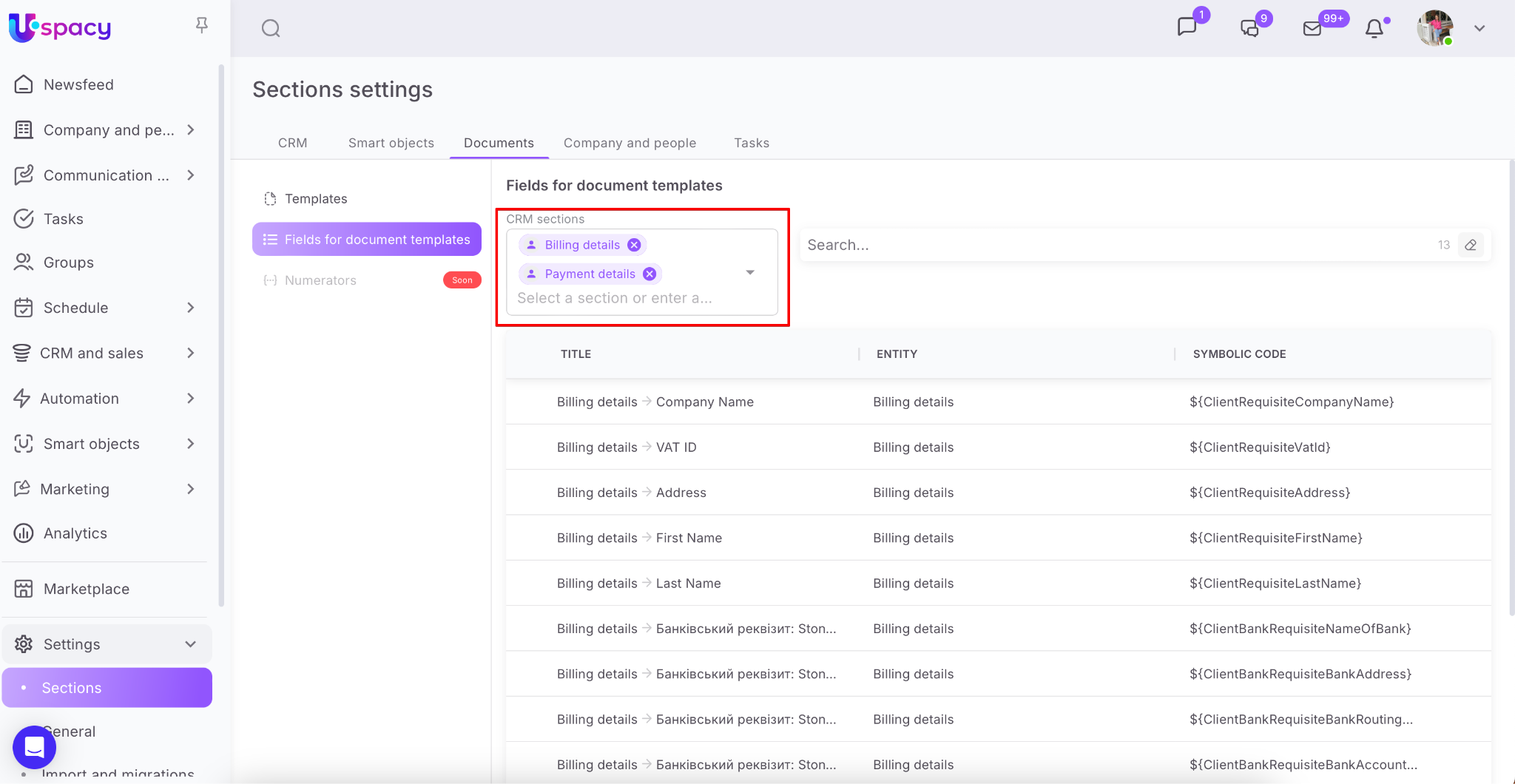
🟣 symbolic codes for fields from the Contacts section. This will ensure that the billing details of the companies bound to the contact (and vice versa of the contacts bound to the company) from the CRM card in which the document is generated are uploaded to the document.
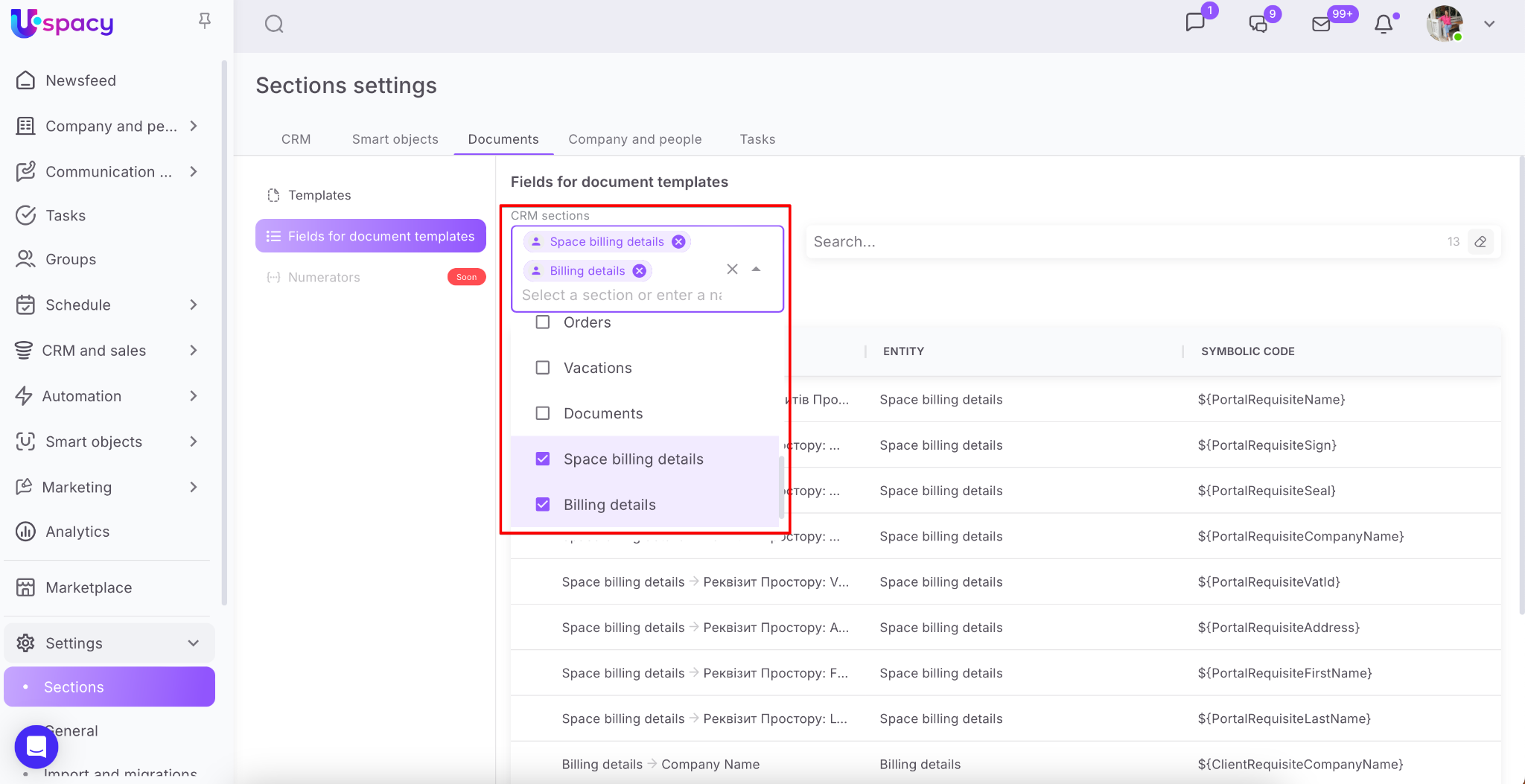
💡In addition:
🟣 as a result of generating a document from a deal card or a company to which several contacts are bound, the billing details will be taken from the first added contact.
If for the document you need the data of any other contact that is specified in the agreement, then you need to delete the redundant ones.
🟣 similarly for generating a document from a contact card to which several companies are bound. As a result, the billing details will be taken from the first added company.
How to replace the main billing details for a company/contact?
You can add a few sets of billing details for any company or contact. But only one set can be the main one. It will be immediately displayed when the element card is opened.

In order to replace the billing details that will be used as the main ones, it is enough to check the necessary ones with a check mark.
This action requires editing permissions to the entity you are working with (contact, company, deal).
🔍 You can read more about roles and permissions in CRM in the following article.

☝🏻But if you replace the main billing details for a company or contact in a deal card, it will be replaced only for that deal.


Directly in the contact or company card, everything will remain as it was.

As a result, this set will be displayed by default in the element card. And it will also be automatically added when generating documents.

💡The same applies to payment details.
How to edit billing details?
Click on the pencil icon to edit the required billing details.
This action requires editing permissions to the entity you are working with (contact, company, deal).
🔍 You can read more about roles and permissions in CRM in the following article.

In the form that opens, make the necessary changes to the data fields (or add new payment details or delete existing ones) and click Save.

💡To Edit payment details, first click on the interaction menu button and select the corresponding item.

The fields will become available for making changes. Edit the data and click on the Save button, which is located in the payment details block.

Then the changes will be saved.
How to delete company/contact billing details?
To delete unnecessary or irrelevant details, click on the trash can icon.
This action requires the permissions to delete the entity you are working with (contact, company, deal).
🔍 You can read more about roles and rights in CRM in the following article.

And be sure to confirm your actions.

After deletion, the billing details will disappear from the element card, it will not be possible to restore them. If necessary, you will need to enter all the information again.
💡To delete payment details, first go to editing mode (1) of all billing details in general. Then click on the interaction menu (2) with the required payment details and select Delete (3).

If you have additional questions or you need to contact the support, send a request to this email [email protected]
Created: December 29, 2023 / Updated: January 28, 2026