When a new related element appears during the sales process (for example, when you create a Smart Object such as a Project or another entity used to deliver work), it’s logical to move the associated Lead to the next stage. When this is done manually, it’s easy to miss a step—and the sales funnel no longer reflects the actual state of work.
That’s why Uspacy makes it convenient to configure these transitions using Conditional actions—automations that are triggered by specific events and conditions.
Let’s go step by step ⬇️
Setting up the Conditional action
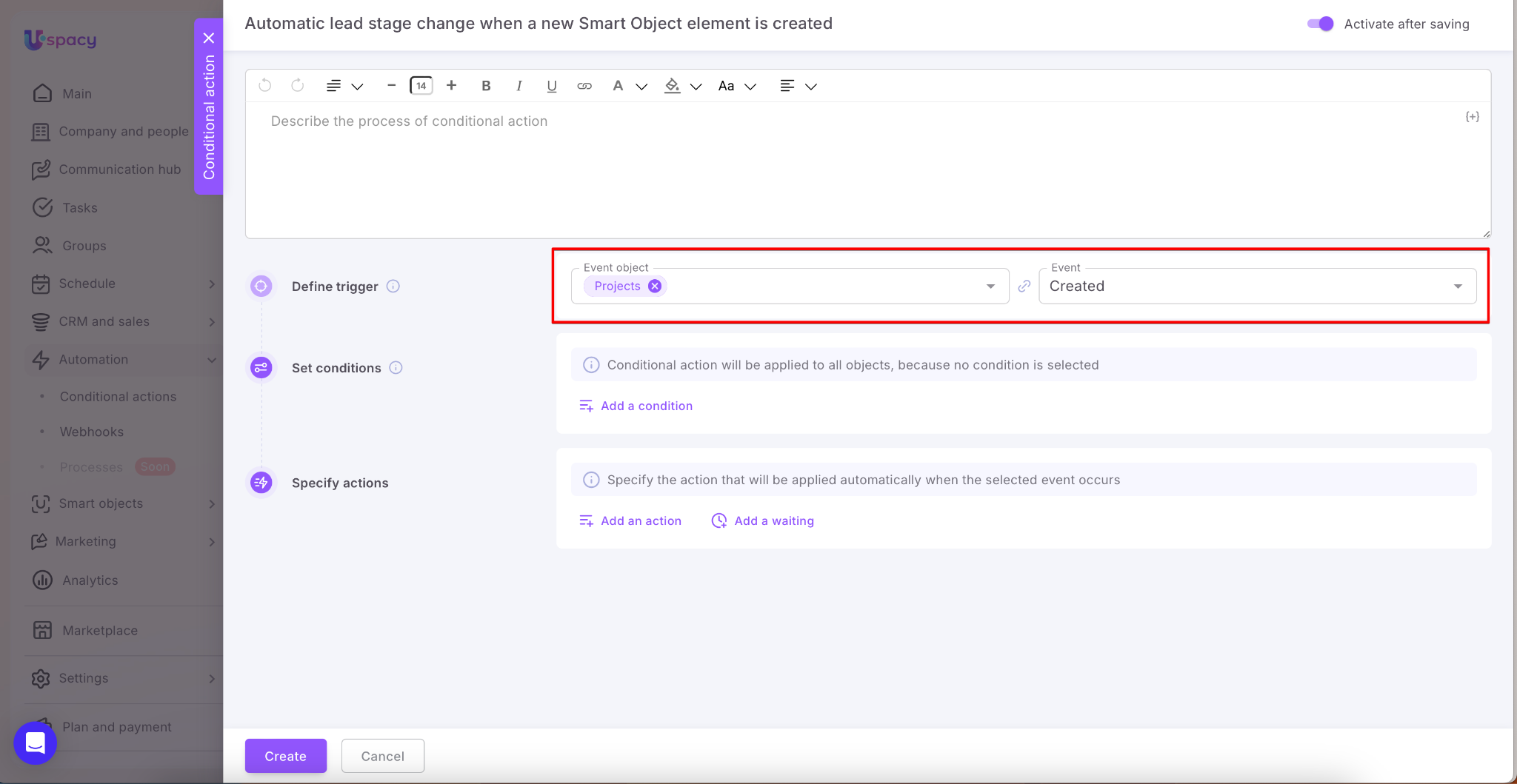
First, select the trigger. In our example, this is the creation of a new Smart Object element, specifically a new Project.
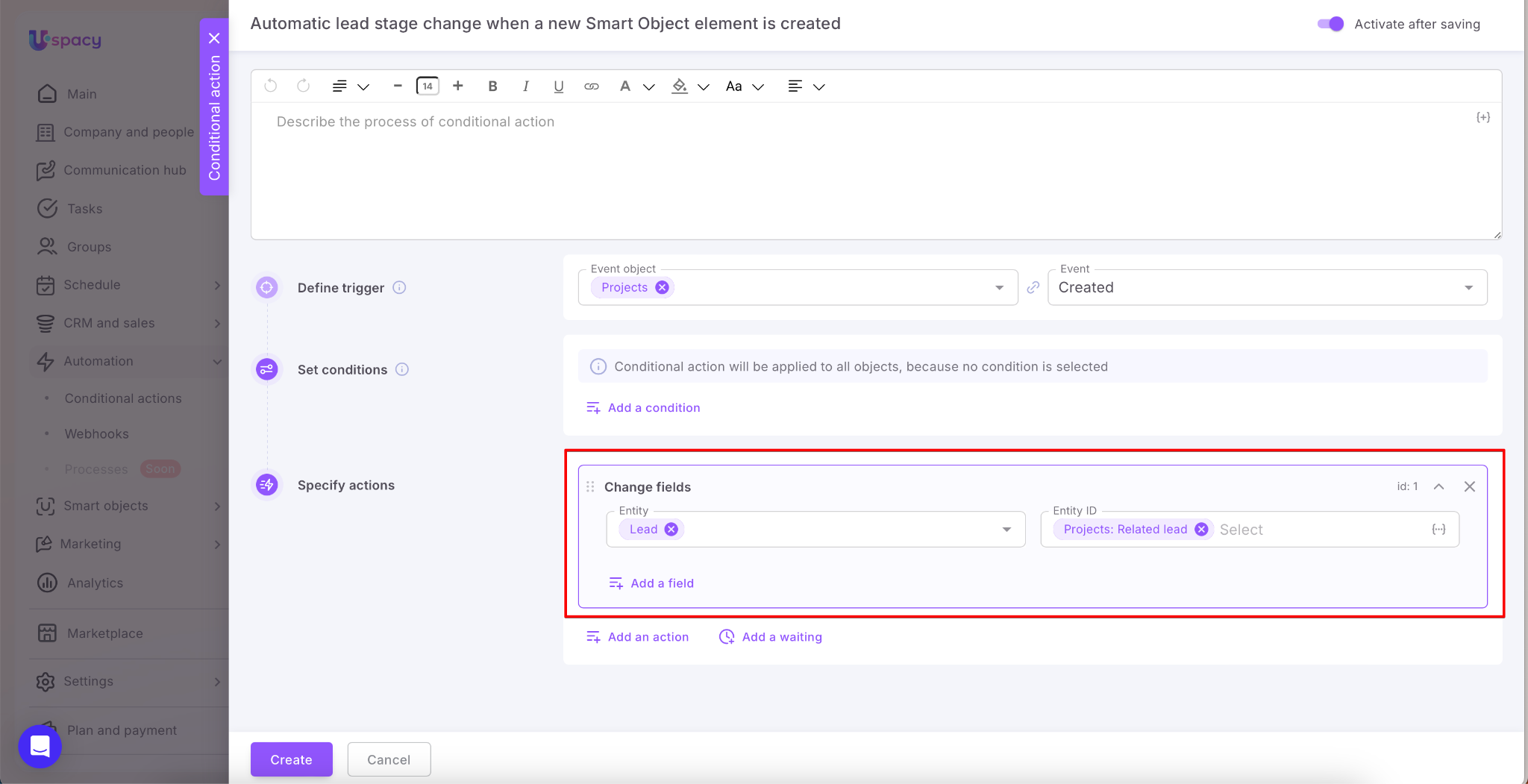
Next, set the action to Change fields. Select Lead as the entity to be updated. As the identifier, select the field value in the Project card that links the project to the lead.
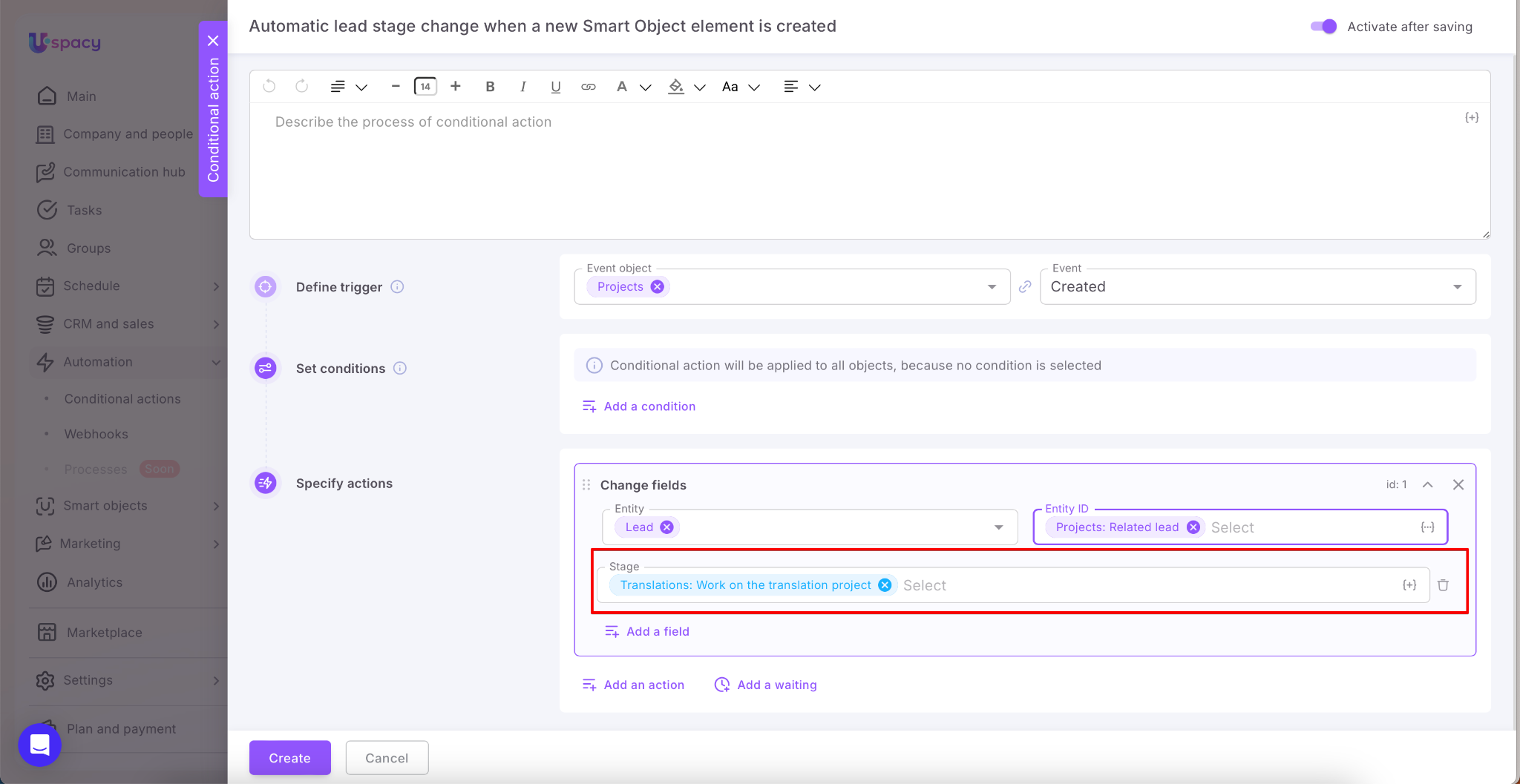
Then, specify the stage that the lead associated with the project should move to.
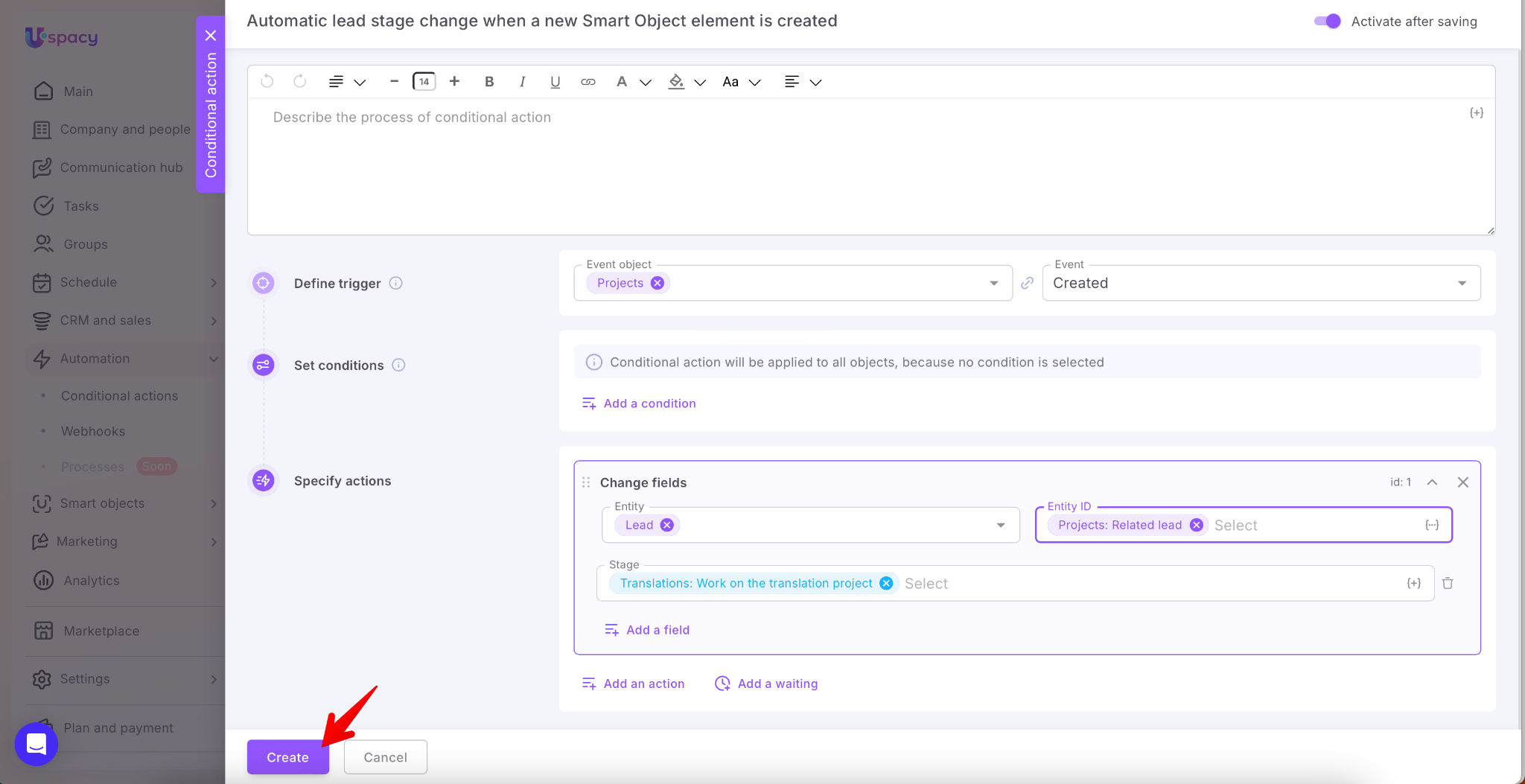
Once everything is set up, click Create.
Result
Create a new Smart Object — Project. Be sure to fill out the field that links it to the appropriate lead.
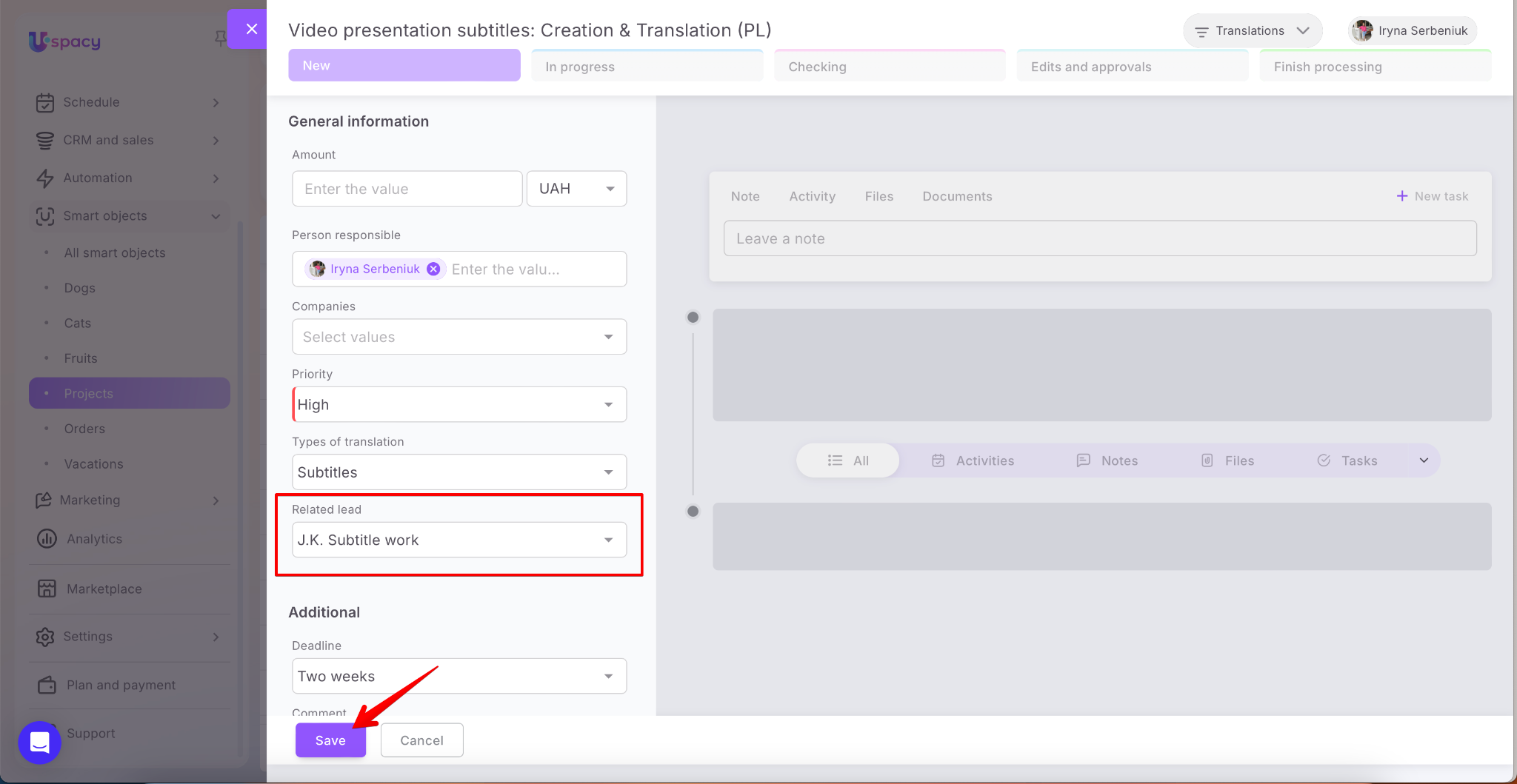
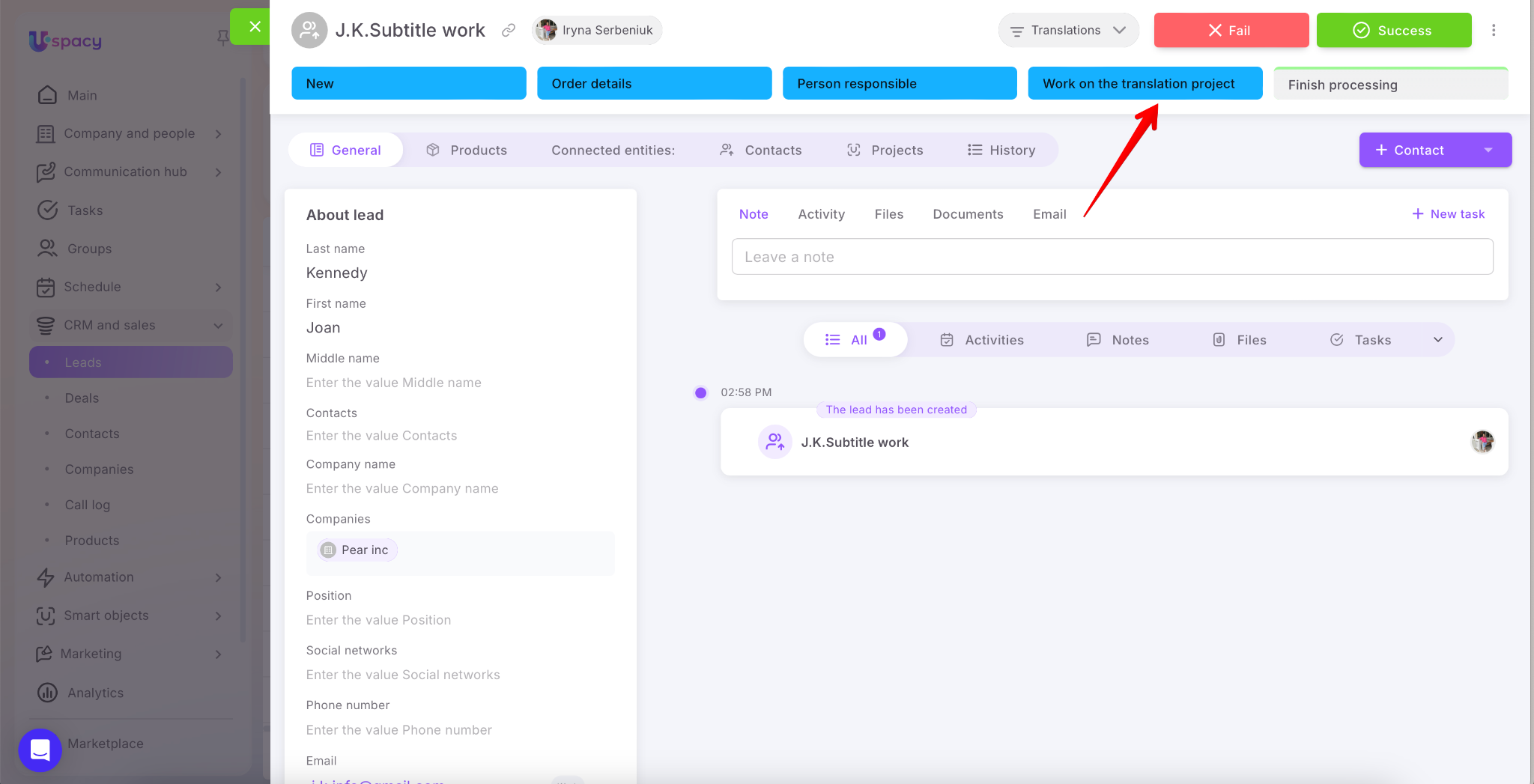
After saving, you’ll see that the lead has automatically moved to the stage specified in the Conditional action settings.
If you have additional questions or you need to contact the support, send a request to this email [email protected]
Created: January 16, 2026