
In CRM and Smart Objects, filters allow you to quickly find elements based on basic parameters. Often, however, more complex scenarios arise: for example, selecting only deals that meet multiple conditions or finding Smart Object elements based on a combination of fields.
The Advanced tab in the Filters window is designed for this. It lets you not only select a field but also configure a condition for it, specify the value, and combine multiple conditions using AND or OR logic.
This allows for highly precise filtering: you can filter elements by multiple parameters simultaneously, group conditions, and save sets of conditions for reuse.
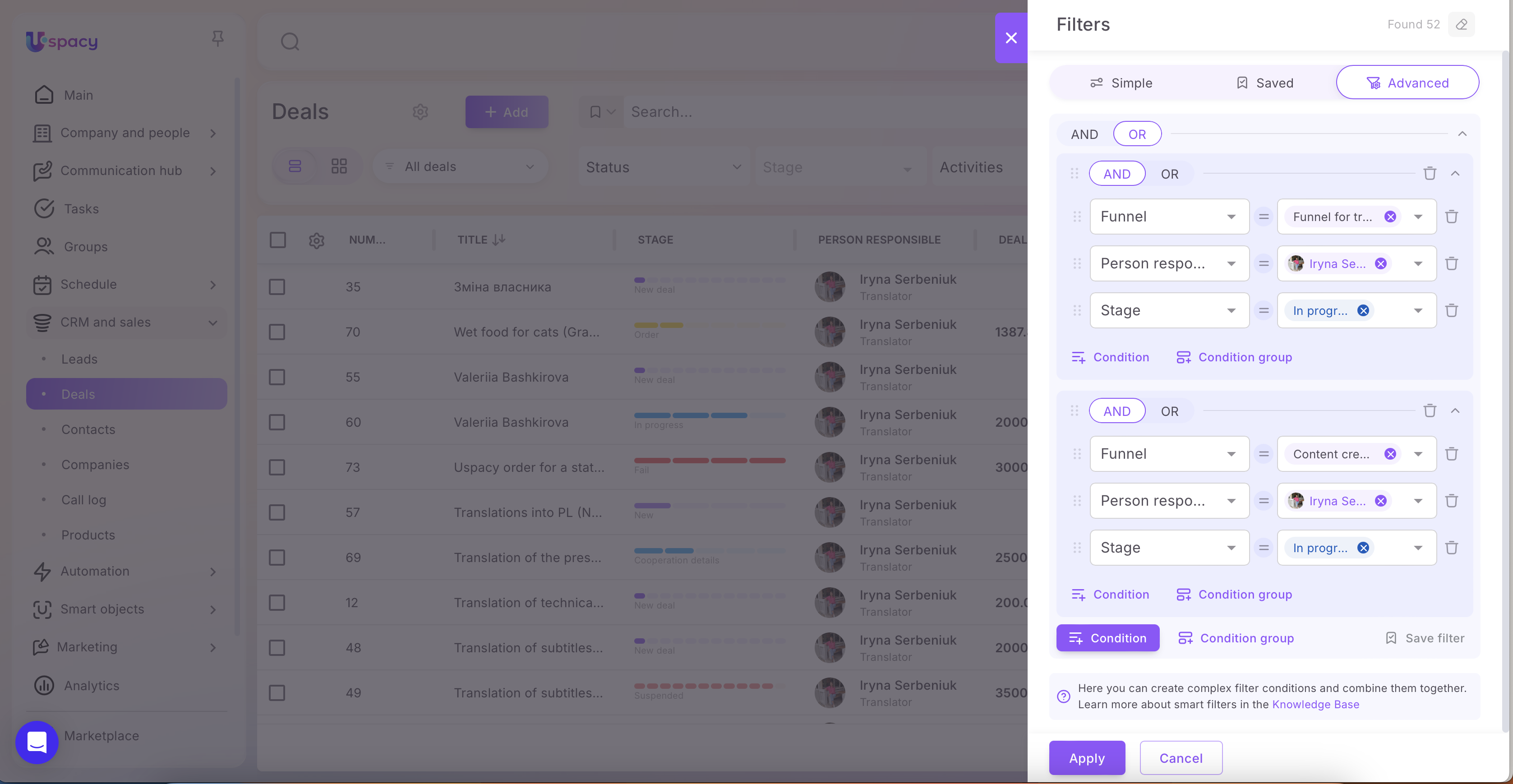
Components of advanced filters
Advanced filters are built from individual “blocks” — conditions and groups — which can be combined according to your desired logic.
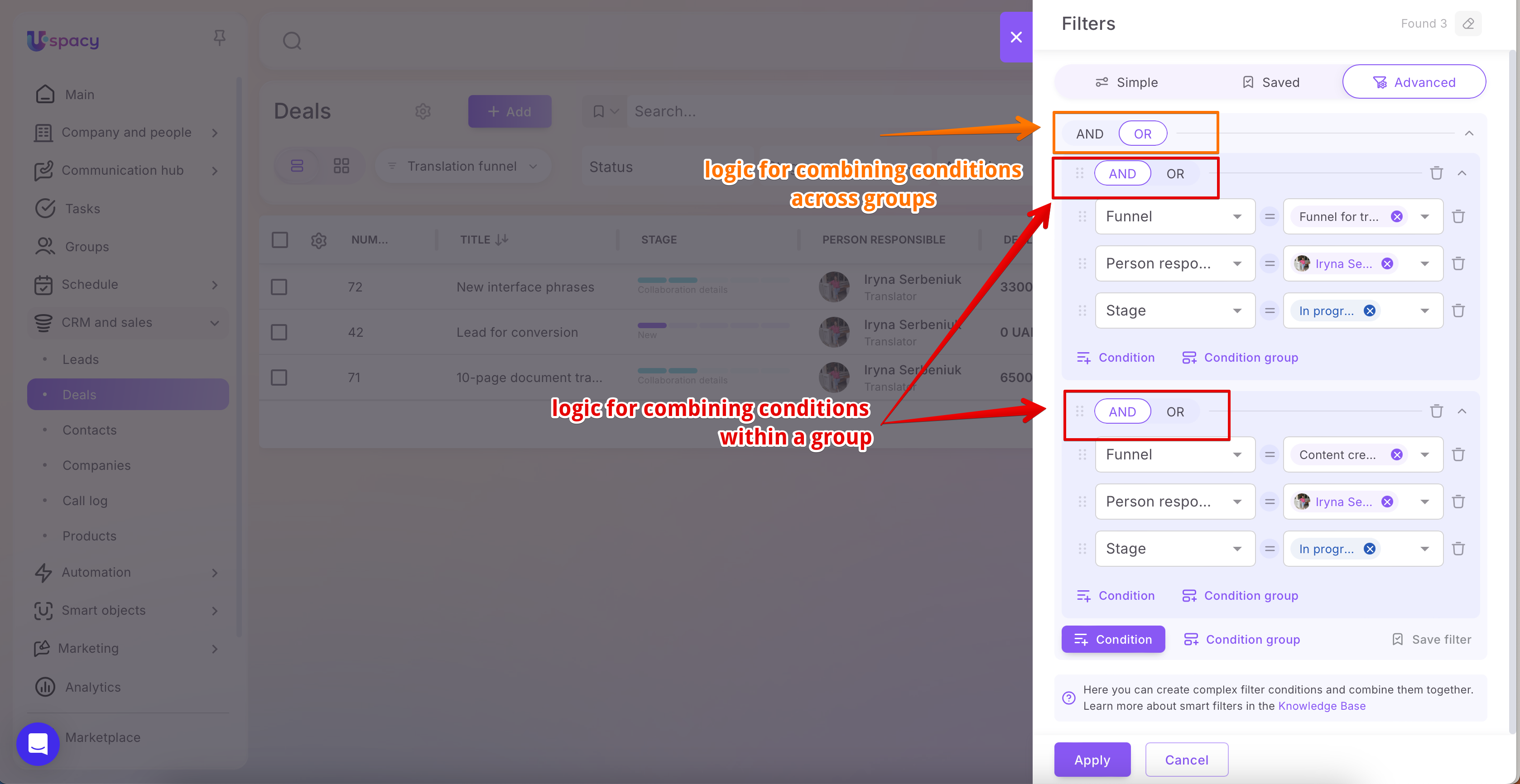
1. Logical operator: AND / OR
Logical operators AND and OR are applied at each level of the filter builder. The operator at a level determines how all elements at that level — individual conditions or groups — are combined.
Typically, three levels of nesting can be identified:
1. First level — overall (top level).
This is the logic of the entire filter. It determines how all elements at the top level are combined:
- individual conditions (fields) if they are added outside of a group;
- groups of conditions.
2. Second level — logic within a condition group.
When you add a Condition group, it gets its own AND/OR operator. This operator defines how the conditions and/or nested groups within that group are combined.
3. Third level — logic within a nested group.
If you create another Condition group within an existing group, it will have its own AND/OR operator and will combine the elements at its own (nested) level.
Example — how to interpret this:
➢ At the first level, the operator combines everything at the top level (this could be a list of fields, a list of groups, or a combination of both).
➢ At the second and third levels, the operators are set within the condition groups and determine how elements are combined within that specific group.
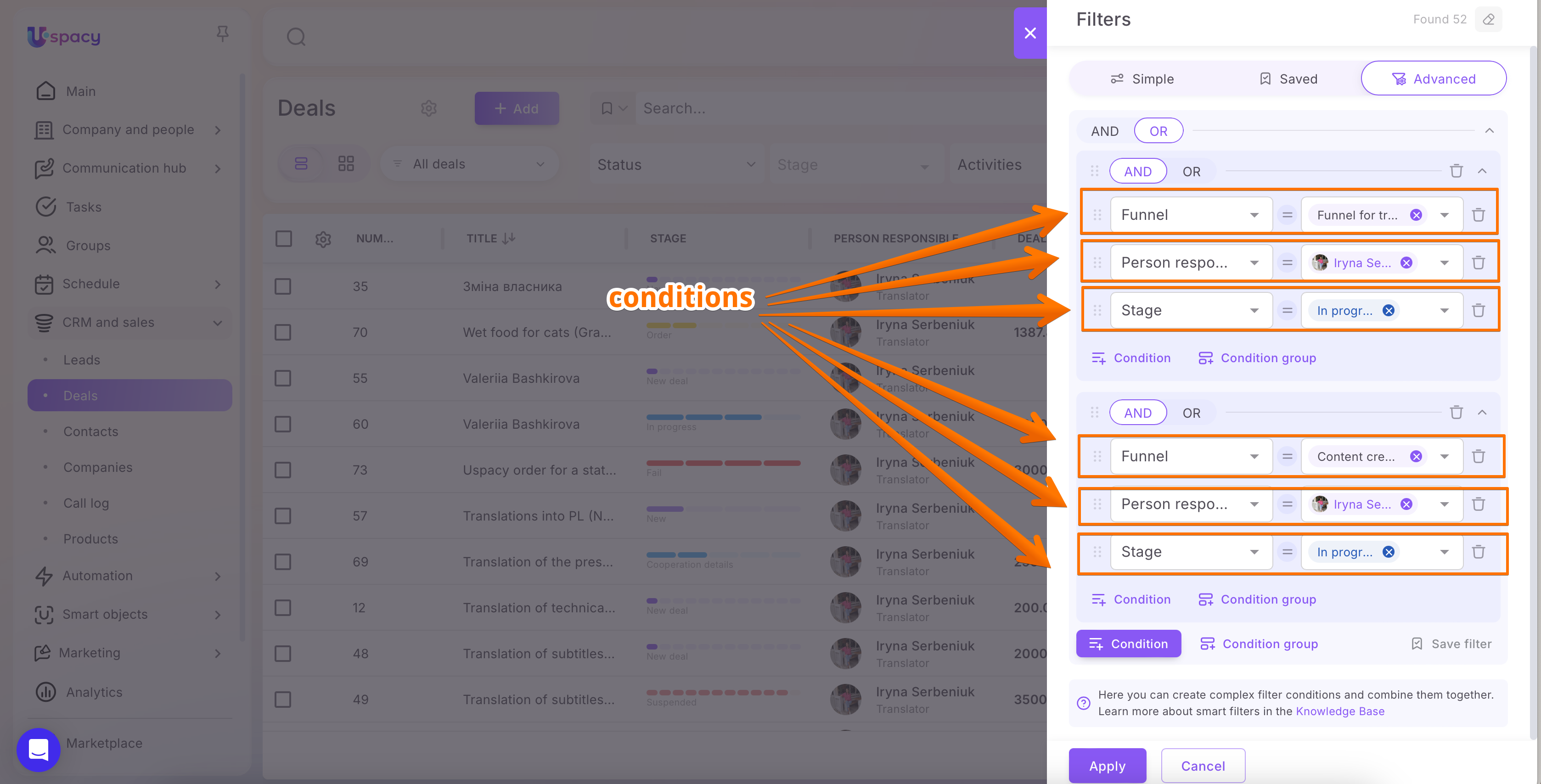
2. Condition, field, operator, and value
A condition is a single row in the filter, specifying a check for a particular field.
The basis of each condition is the field you want to filter, selected from the dropdown in the condition row. For example, in deals, this could be Person responsible, Funnel, Stage, or other parameters (including all default fields and any custom fields you’ve created).
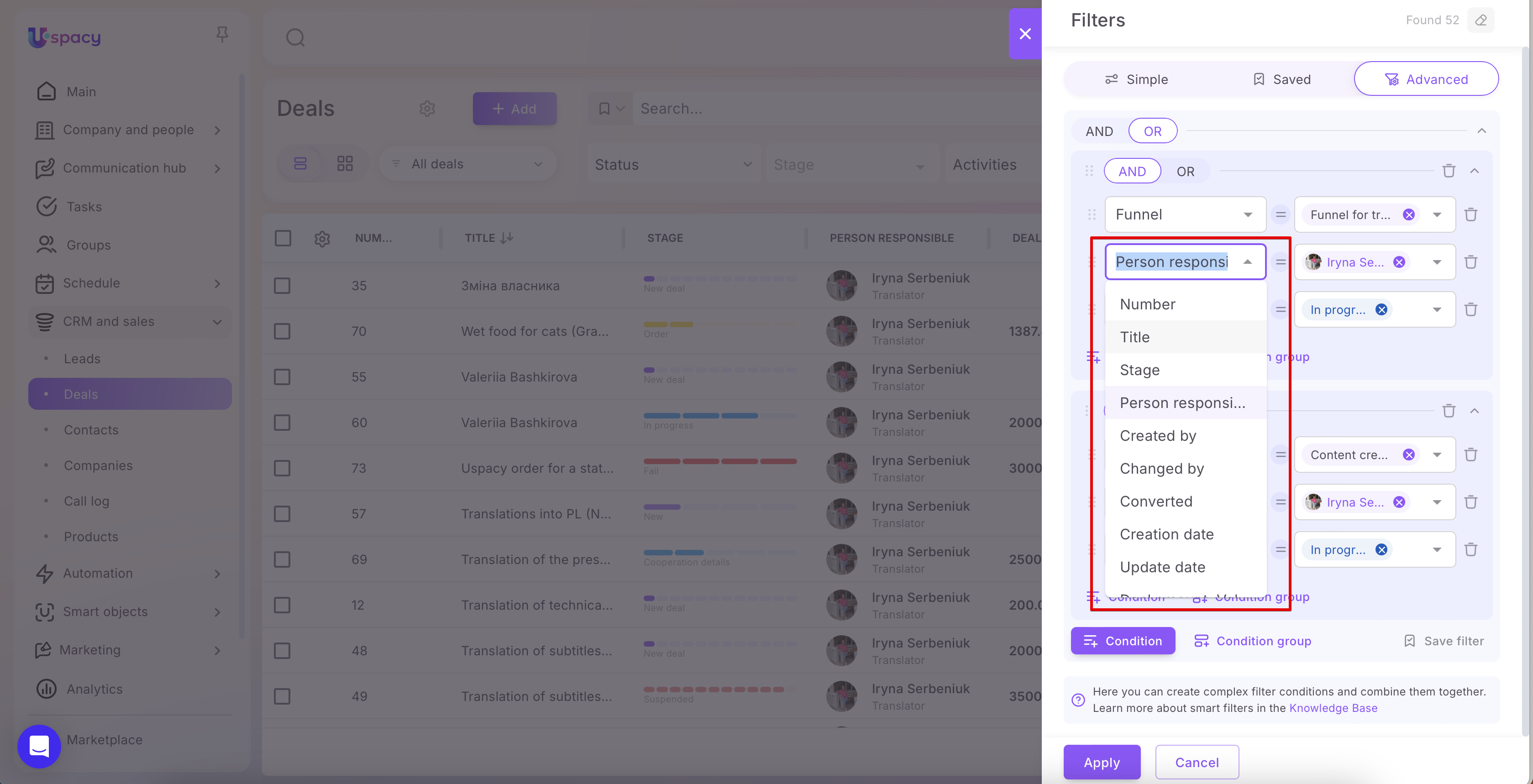
Inside each condition, there is a Condition operator — a dropdown menu that determines how the field will be evaluated. Examples include:
- Equals
- Not equal
- Contains any
- Contains none
- Filled out
- Not filled out
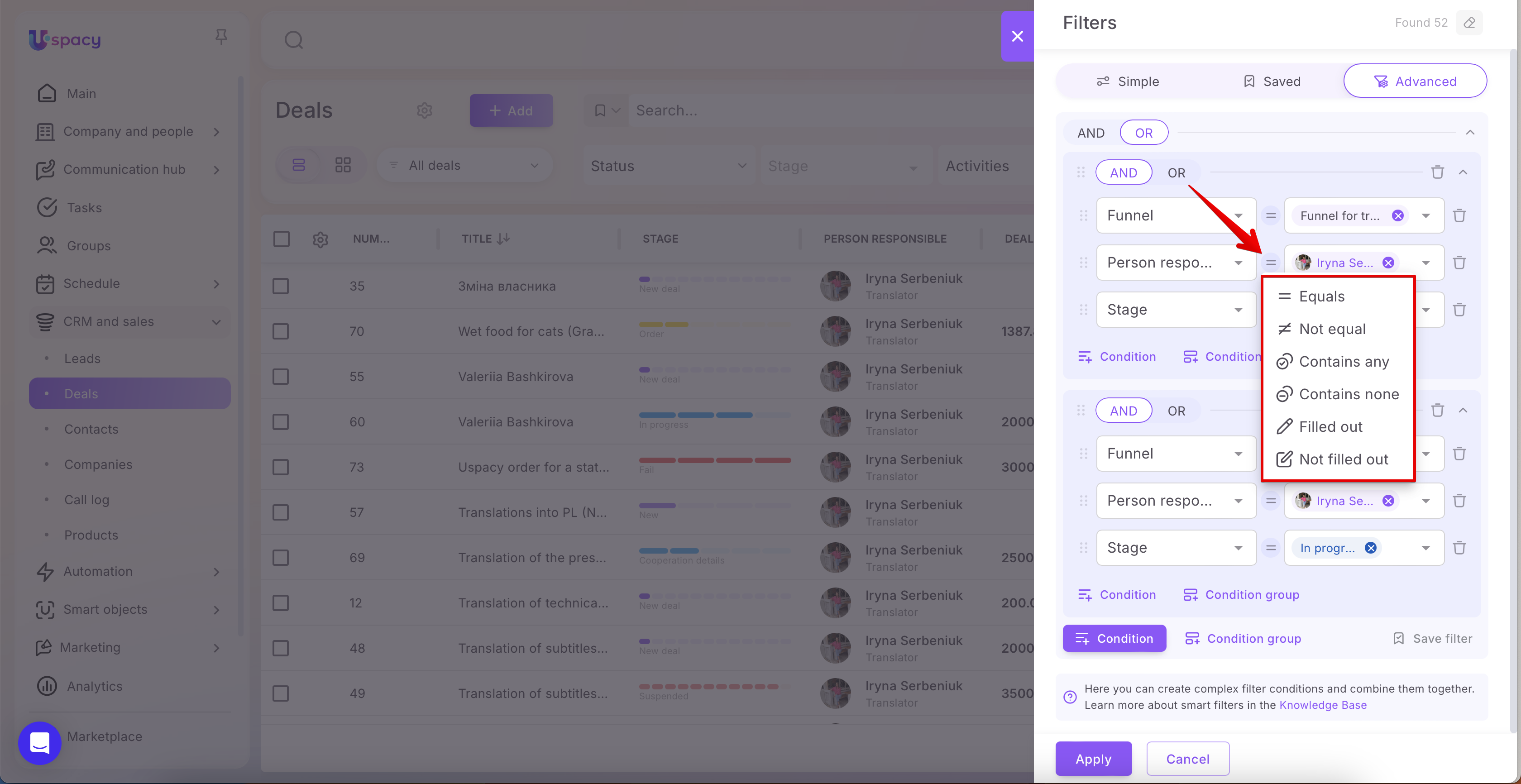
⚠️ The available condition operators depend on the field type being evaluated.
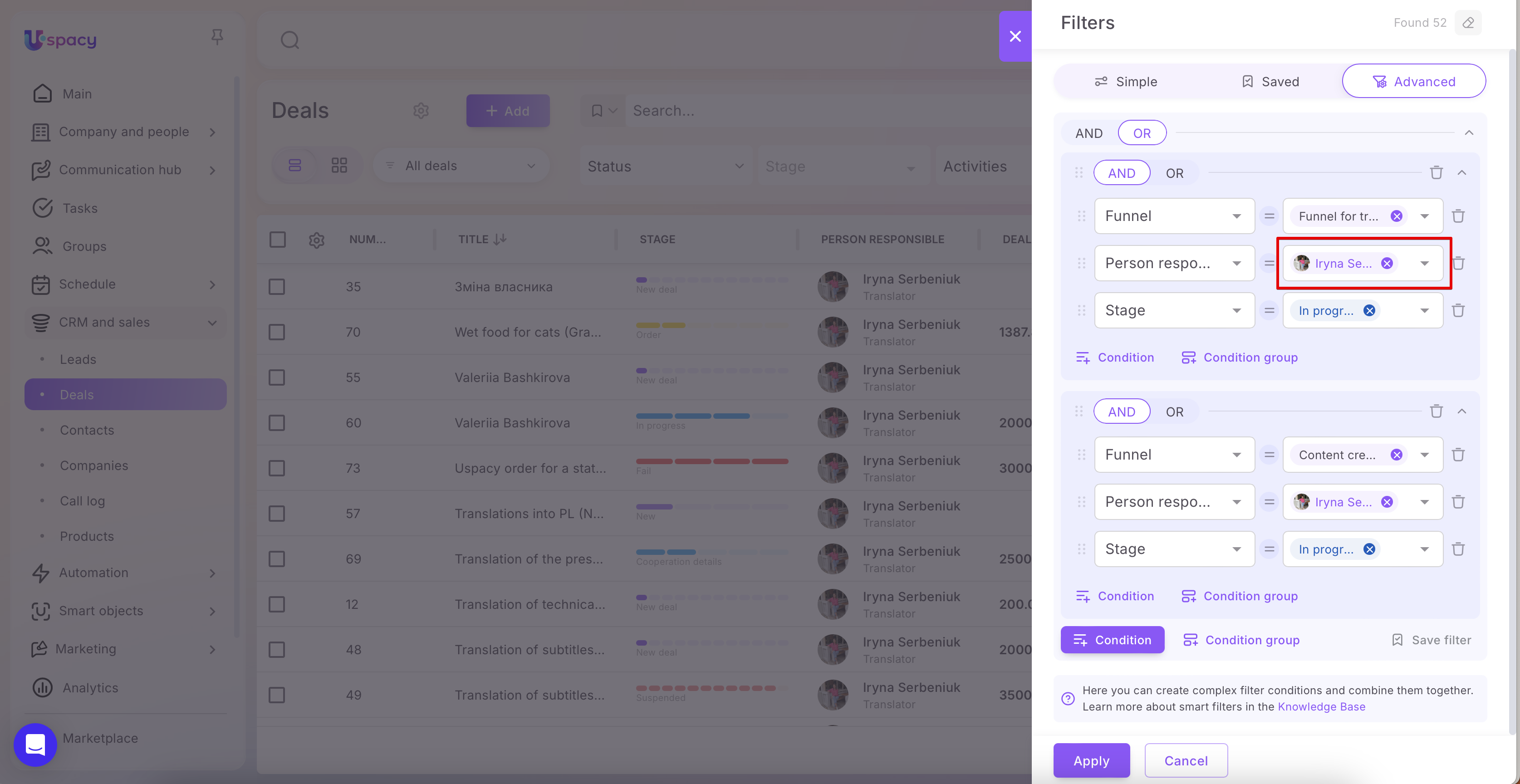
Value refers to the specific parameter you provide for the condition after selecting the operator, so the system knows what to compare the field against.
The options for entering a value depend on the chosen operator:
➢ If the operator requires a comparison (e.g., Equals, Not equal), you need to specify a Value (i.e., select or enter what the field should be compared against).
➢ If the operator only checks for the presence of data (e.g., Filled out, Not filled out), no value is required, as the system only verifies whether the field has been filled.
3. Condition group
A Condition group is a separate block in the Advanced tab where you can collect multiple Conditions (and, if needed, nested groups) to control logic not for a single row, but for an entire set of rules.
Why use a condition group:
- To combine multiple checks into a single “package” and apply a shared logic.
- To build complex filters with multiple levels (for example, when some conditions must all be met together, while others are optional).
What can be inside a group:
- Several Condition rows (each consisting of: field → condition operator → value/none).
- One or more nested groups (if more complex grouping is required).
Logic within a group:
Each Condition group has its own AND/OR toggle:
- AND — all conditions and/or nested groups in the group must be met.
- OR — only one condition or nested group in the group needs to be met.
Example:
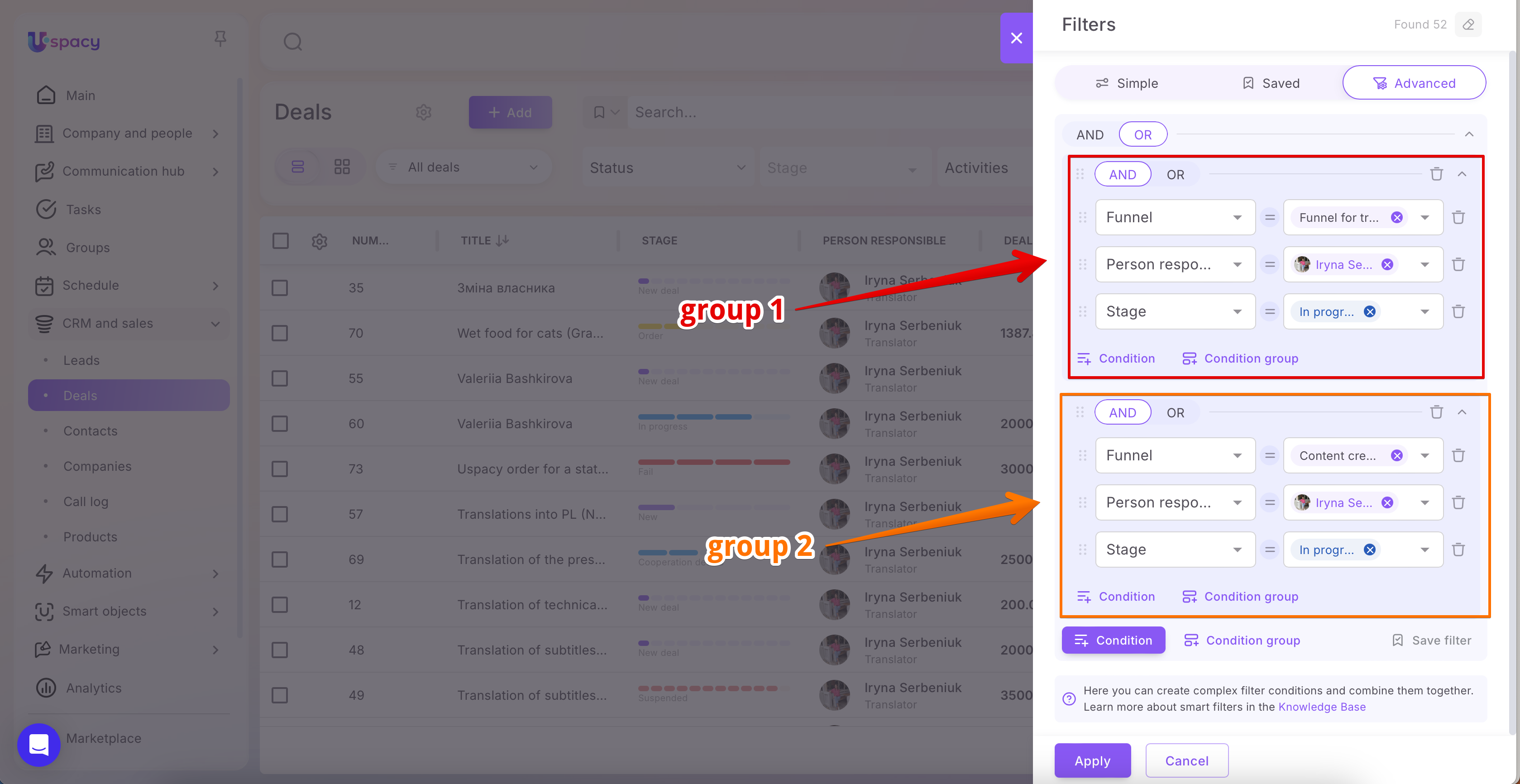
➢ Group 1 (AND): Funnel = “Funnel for translation” AND Person responsible = Iryna AND Stage = “In progress”
➢ Group 2 (AND): Funnel = “Content creation” AND Person responsible = Iryna AND Stage = “In progress”
➢ If the top-level logic between these two groups is set to OR, the results will include deals that match either Group 1 or Group 2.
4. Removing a condition or condition group from a filter
In the Advanced tab, you can remove unnecessary settings in two ways: by deleting a single condition or an entire condition group.
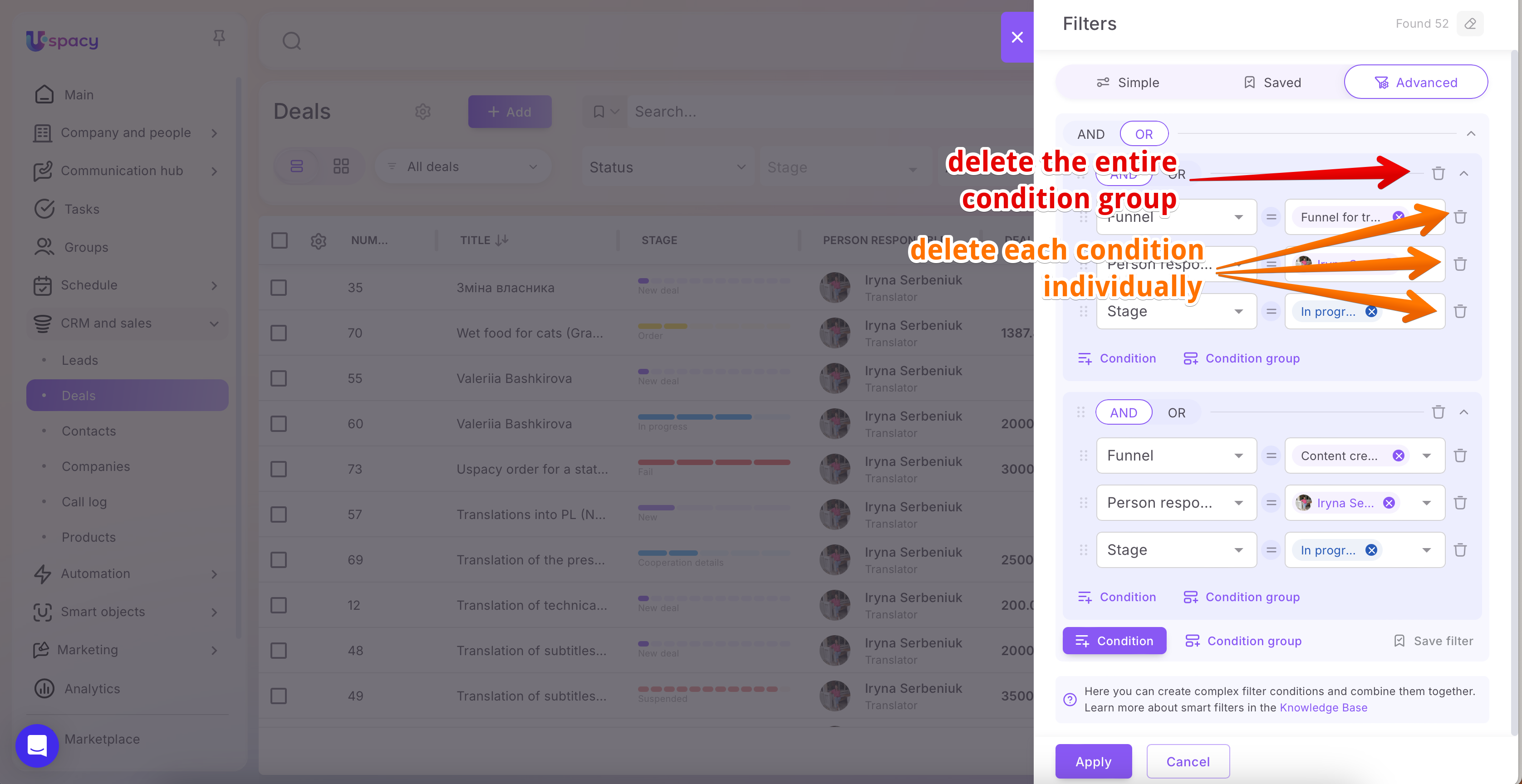
🟠 Delete a single condition
If you want to remove just one row from the filter (for example, a condition for the Person responsible field), click the trash icon on the right side of that row.
The condition will then be removed from the filter builder.
🔴 Delete an entire condition group
If you want to remove the whole block (the group along with all conditions inside it), click the trash icon in the upper-right corner of the group.
Specifics of сonfiguring сonditions by field type
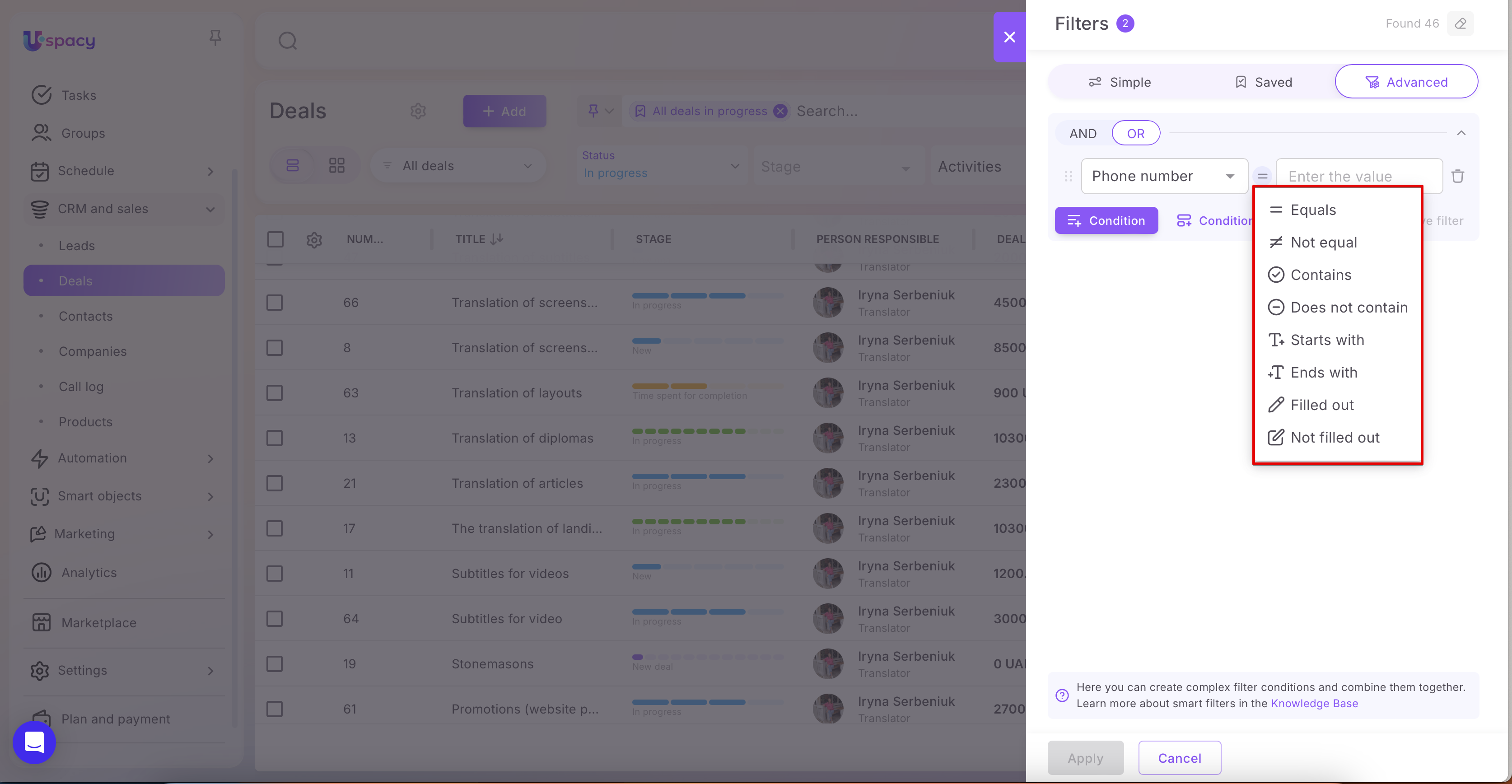
On the Advanced tab, the set of available condition operators and the way values are entered depend on the field type. For example, text fields support operators like contains, while number fields allow you to define a range.
💡 For the Filled out and Not filled out operators, no value is entered.
Row, Text, Link, Address
Operators:
- Equals — enter a value (exact match).
- No equal — enter a value (excludes an exact match).
- Contains — enter a value (checks whether the field contains the specified fragment).
- Does not contain — enter a value (checks that the specified fragment is not present).
- Starts with — enter a value (the field begins with the specified fragment).
- Ends with — enter a value (the field ends with the specified fragment).
- Filled out— no value is required.
- Not filled out — no value is required.
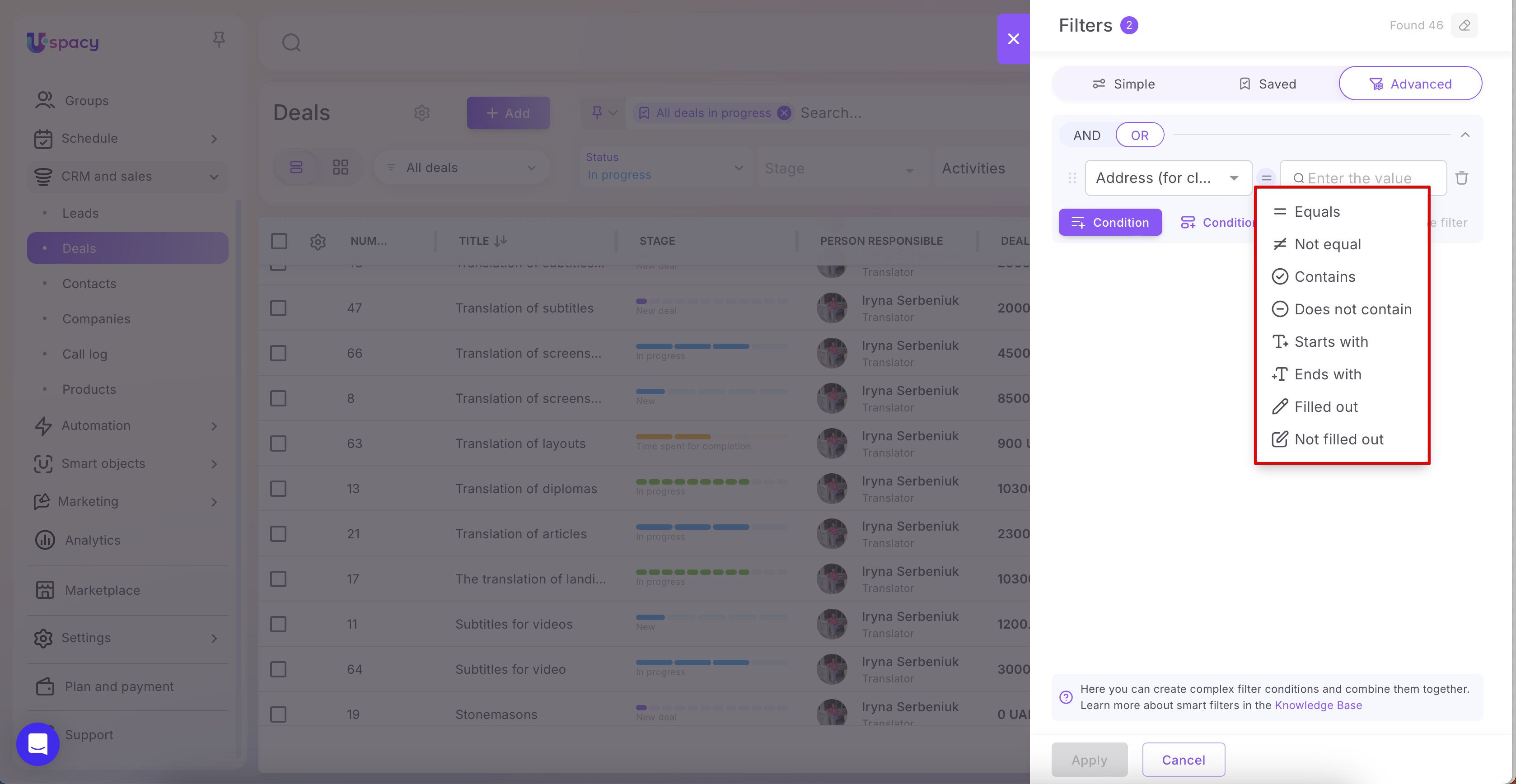
If the field allows multiple values, the condition is checked against all values in the field.
➢ Example:
If the filter is set to Address → Equals → New York, and the element’s Address field contains the values Chicago, Boston, New York, the element will be included in the results because at least one value matches the condition.
Integer, Number with fractional part
Operators:
- Equals — enter a number (the value must exactly match the entered number).
- Not equal — enter a number (the value must not match the entered number).
- Greater than — enter a number (the value must be strictly greater than the entered number).
- Less than — enter a number (the value must be strictly less than the entered number).
- Greater than or equal to — enter a number (the value must be greater than or equal to the entered number).
- Less than or equal to — enter a number (the value must be less than or equal to the entered number).
- Range from … to … — enter two numbers:
▪️ From — the value must be greater than or equal to the specified “from” value. ▪️ To — the value must be less than or equal to the specified “to” value.
- Filled out — no value is required.
- Not filled out — no value is required.
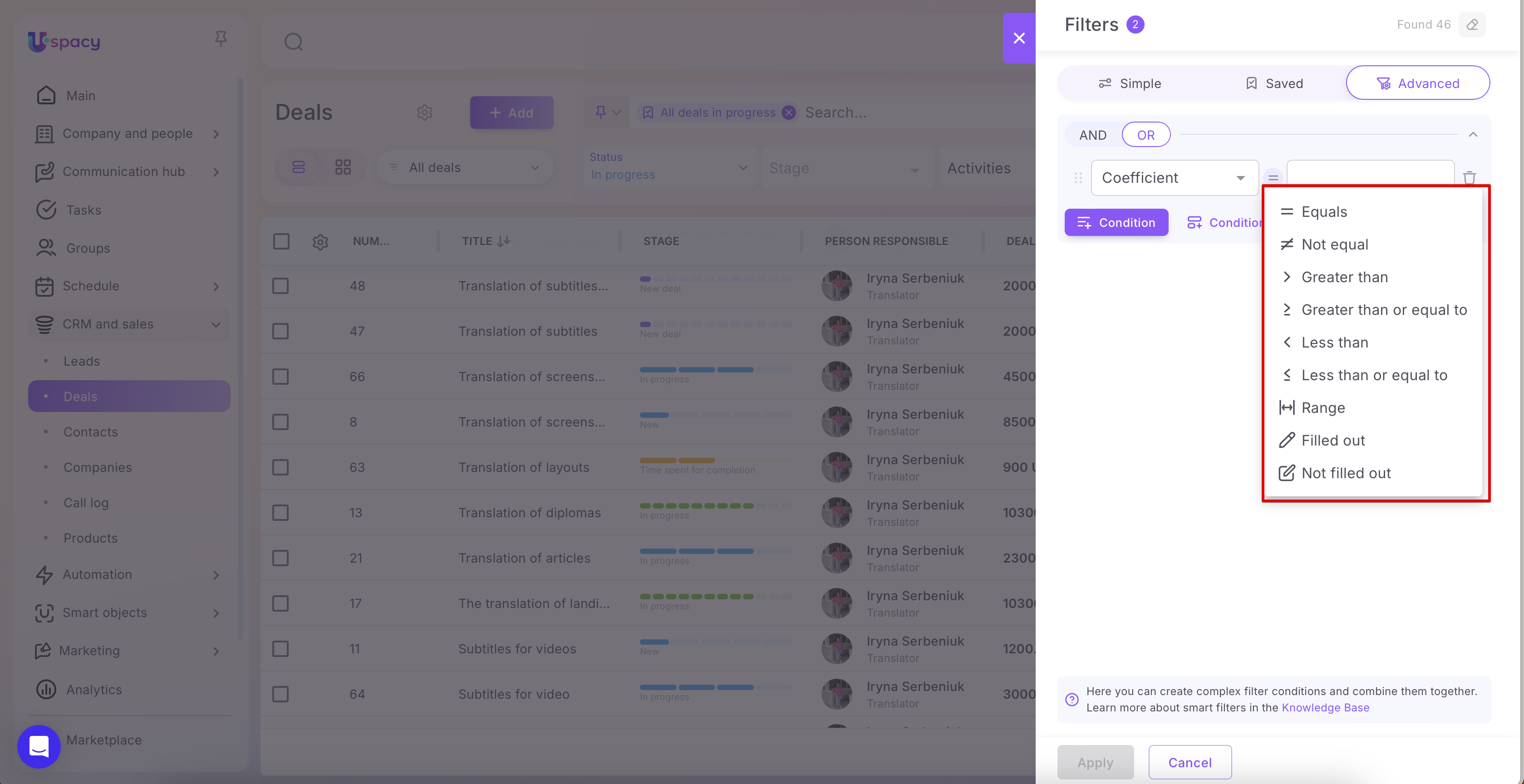
If the field allows multiple values, the condition is checked against all values in the field.
Example:
If the filter is set to Coefficient → Equals → 3, and the element’s Coefficient field contains the values 1, 3, 5.2, the element will be included in the results because one of the values equals 3.
List, Tag
Operators:
◉ Equals — select values from the list.
For a single-value field: Only one option can be selected. The match must be exact.
➢ If you set Translation type → Equals → “Written”, the results will include only elements where the field contains only “Written.”
For a multi-value field: Multiple options can be selected. An exact set match is applied—the field must contain the selected values, with no additional ones.
➢ If you set Translation type → Equals → “Written”, the results will include only elements where the field contains only “Written.”
➢ Elements where the field contains “Written” and “ will not be included.
➢ If you set Translation type → Equals → “Written” and “Oral”, the results will include only elements where the field contains exactly these two values and no others.
◉Not equal — select values from the list.
Works as the inverse of Equals, based on exact matching logic.
➢ If you set Translation type → Not equal → “Written”, the results will include elements with any value except an exact match to “Written.”
Example for a multi-value field:
➢ If you set Translation type → Not equal → “Written”, elements where the field contains only “Written” will be excluded.
➢ Elements where the field contains “Written” and “Oral” will be included, because the set of values is not an exact match to “Written.”
◉ Contains shows elements where the field contains all selected values. If multiple options are selected, they must all be present in the field at the same time (either alone or together with other values).
For a single-value field: This operator is not available.
For a multi-value field: Selecting multiple options returns results where all selected values are present.
Examples (multi-value field “Translation type”):
➢ If the filter is set to Contains → “Written”, the results will include elements where the field contains:
- only “Written”,
- or “Written” together with other values (for example, “Written” and “Oral”).
➢ If the filter is set to Contains → “Written” and “Oral”, the results will include elements where the field contains:
- “Written” and “Oral”,
- or “Written,” “Oral,” and additional values (for example, “Simultaneous”).
◉Does not contain is the inverse of Contains. Shows elements where the condition “contains all selected values” is not met.
For a single-value field: This operator is not available.
For a multi-value field: Results will include elements where none of the selected values are present, or only some of the selected values are present (but not all at the same time).
Example (multi-value field “Translation type”):
➢ If the filter is set to Not contain → “Written” and “Oral”, the results will include elements where both values are not present together (for example, only “Written”, only “Oral”, or neither of them).
◉ Contains any show elements where the field contains at least one of the selected values. When multiple options are selected, OR logic is applied.
For a single-value field: Selecting multiple options applies OR logic—elements with value option 1 or option 2, and so on, are included.
For a multi-value field: Selecting multiple options also applies OR logic—elements are included if they contain option 1, option 2, both, or any combination of them.
Examples (field “Translation type”):
➢ Single-value field: If you select Contains any → “Written”, “Oral”, the results will include elements where the field value is either “Written” or “Oral.”
➢ Multi-value field: If you select Contains any → “Written”, “Oral”, the results will include elements where the field contains “Written,” “Oral,” or both.
◉ Contains none is the inverse of Contains any. Shows elements where the field contains none of the selected values.
Example (field “Translation type”):
➢ If you select Contains none → “Written”, “Oral”, the results will include elements where the field contains neither “Written” nor “Oral.”
◉ Filled out — No value selection is required.
◉ Not filled out — No value selection is require.
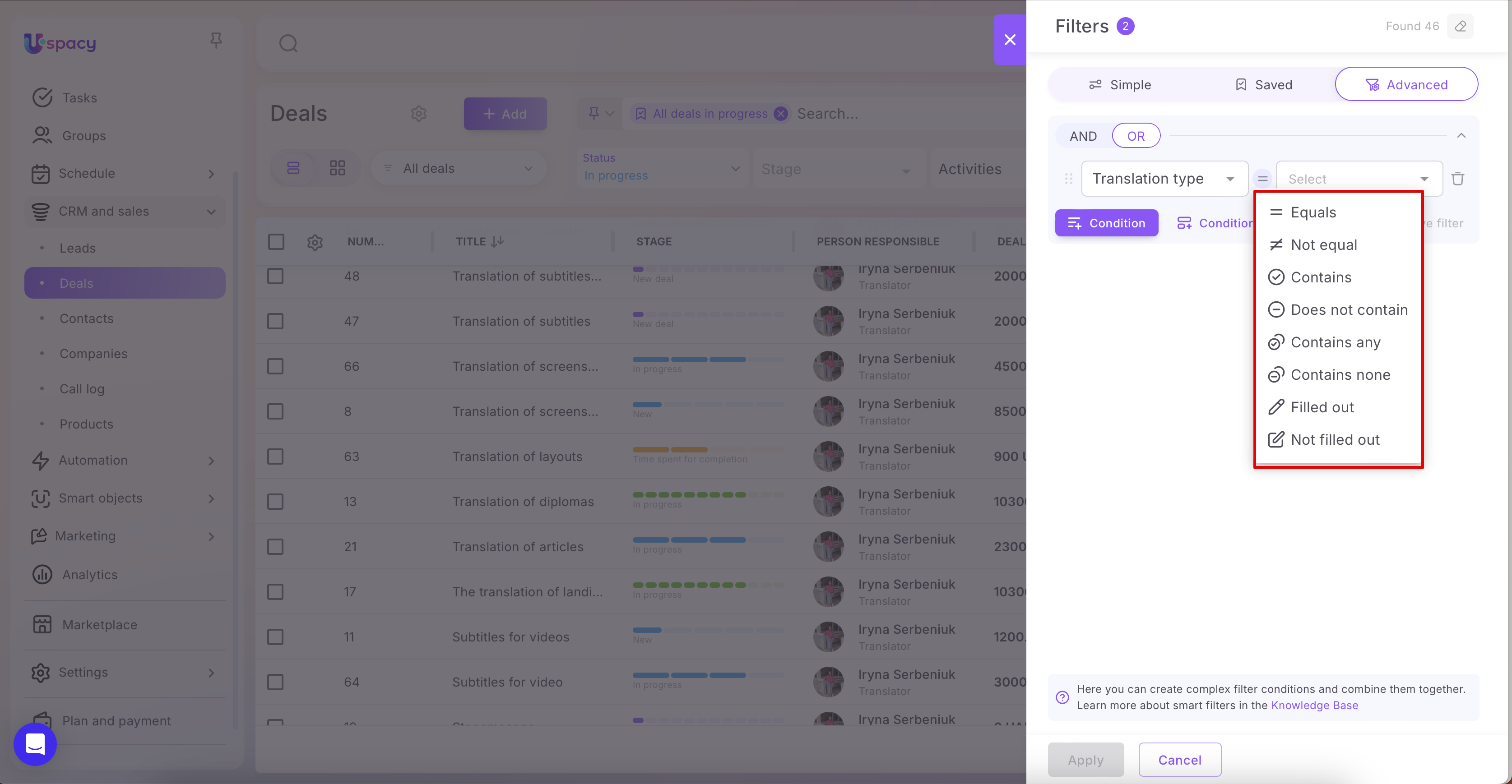
User
Operators:
◉ Equals — select a user.
For a single-value field: Select one user. An exact match is required.
➢ The results will include tasks where the Observers field contains only Shakespeare. Deals where the participants are Shakespeare and Dickens will not be included.
For a multi-value field: Select multiple users. An exact set match is applied—the field must contain only the selected users.
➢ If you set Observers → Equals → Shakespeare, the results will include records where the field contains only Shakespeare. Records with Shakespeare + Dickens will not be included. If you select Shakespeare and Dickens, the results will include only records where both users are present and no others.
◉ Not equal — select a user.
For multi-value fields, this operator works using OR logic: not equal User 1 OR not equal User 2, etc.)
➢ Deals where the Observers field contains only Shakespeare will be excluded. Deals where the Observers are Shakespeare and Dickens will be included, because this is no longer an exact match to "Shakespeare."
◉ Contains
Shows elements where the field contains all selected users. They must be present in the field at the same time (either alone or together with other users).
For a single-value field: This operator is not available.
For a multi-value field: Selecting multiple users returns results where all selected users are present.
Examples (multi-value field, such as “Observers”):
➢ If the filter is set to Contains → “Shakespeare”, the results will include elements where the field contains: only Shakespeare, or Shakespeare together with other users (for example, Shakespeare and Dickens).
➢ If the filter is set to Contains → “Shakespeare” and “Dickens”, the results will include elements where the field contains: Shakespeare and Dickens, Shakespeare, Dickens, and additional users.
◉ Does not contain is the inverse of Contains. Shows elements where the condition “contains all selected users” is not met.
For a single-value field: This operator is not available.
For a multi-value field: Results will include elements where none of the selected users are present, or only some of the selected users are present (but not all at the same time).
Example (multi-value field):
➢ If the filter is set to "Does not contain → “Shakespeare” and “Dickens”, the results will include elements where both users are not present together—for example, only Shakespeare (without Dickens), only Dickens, or neither of them.
◉ Contains any
Shows elements where the field contains at least one of the selected users. When multiple users are selected, OR logic is applied.
For a single-value field: Selecting multiple users applies OR logic—elements where the field value is Shakespeare or Dickens, and so on, are included.
For a multi-value field: Selecting multiple users also applies OR logic—elements are included if they contain Shakespeare, Dickens, or both.
Examples:
Single-value field (for example, Person responsible): Contains any → “Shakespeare”, “Dickens” — results include elements where the person responsible is either Shakespeare or Dickens.
Multi-value field (for example, Observers): Contains any → “Shakespeare”, “Dickens” — results include elements where the observers include Shakespeare, Dickens, or both.
◉ Contains none is the inverse of Contains any. Shows elements where the field contains none of the selected users.
Example (multi-value field): Contains none → “Shakespeare”, “Dickens” — the results will include elements where neither Shakespeare nor Dickens is present.
◉ Filled out — No value selection is required.
◉ Not filled out — No value selection is required.
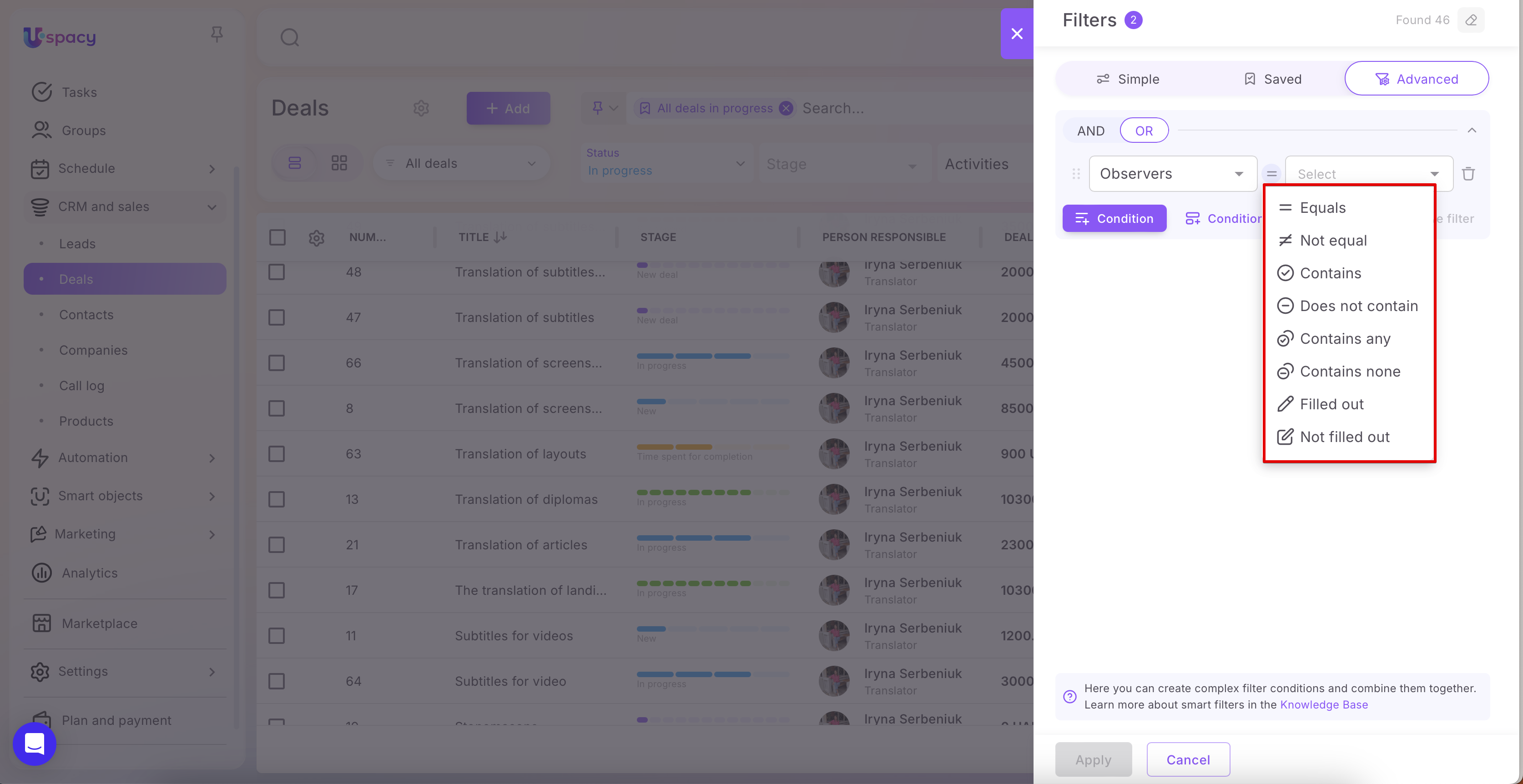
Date
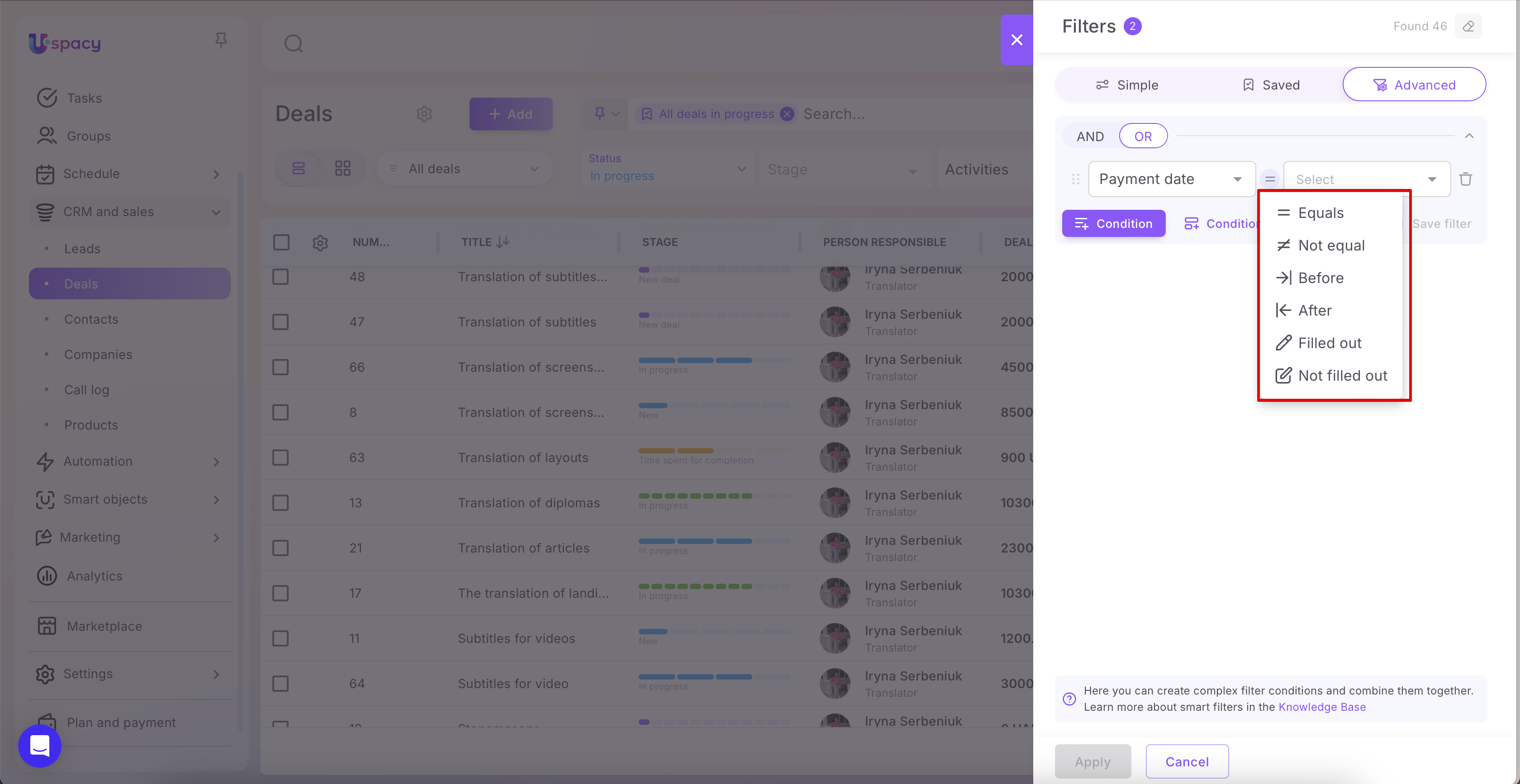
Operators:
◉ Equals — select a date and time. The filter will show elements where the field value exactly matches the chosen date and time. Example: Payment date → Equals → 12/31/2025 12:00 PM
◉ Not equal — select a date and time. The filter will show elements where the field value does not match the chosen date and time. Example: Payment date → Not equal → 12/31/2025 12:00 PM
◉ Before — select a date and time. The filter will show elements where the field value is earlier than the chosen date and time. Example: payment date → Before → 01/01/2026 12:00 AM (shows everything before this date).
◉ After — select a date and time. The filter will show elements where the field value is later than the chosen date and time. Example: Payment date → After → 01/01/2026 12:00 AM (shows everything after this date).
◉ Filled out — no value selection required. Shows elements where a date is present in the field.
◉ Not filled out— no value selection required. Shows elements where the date field is empty.
Quick date options
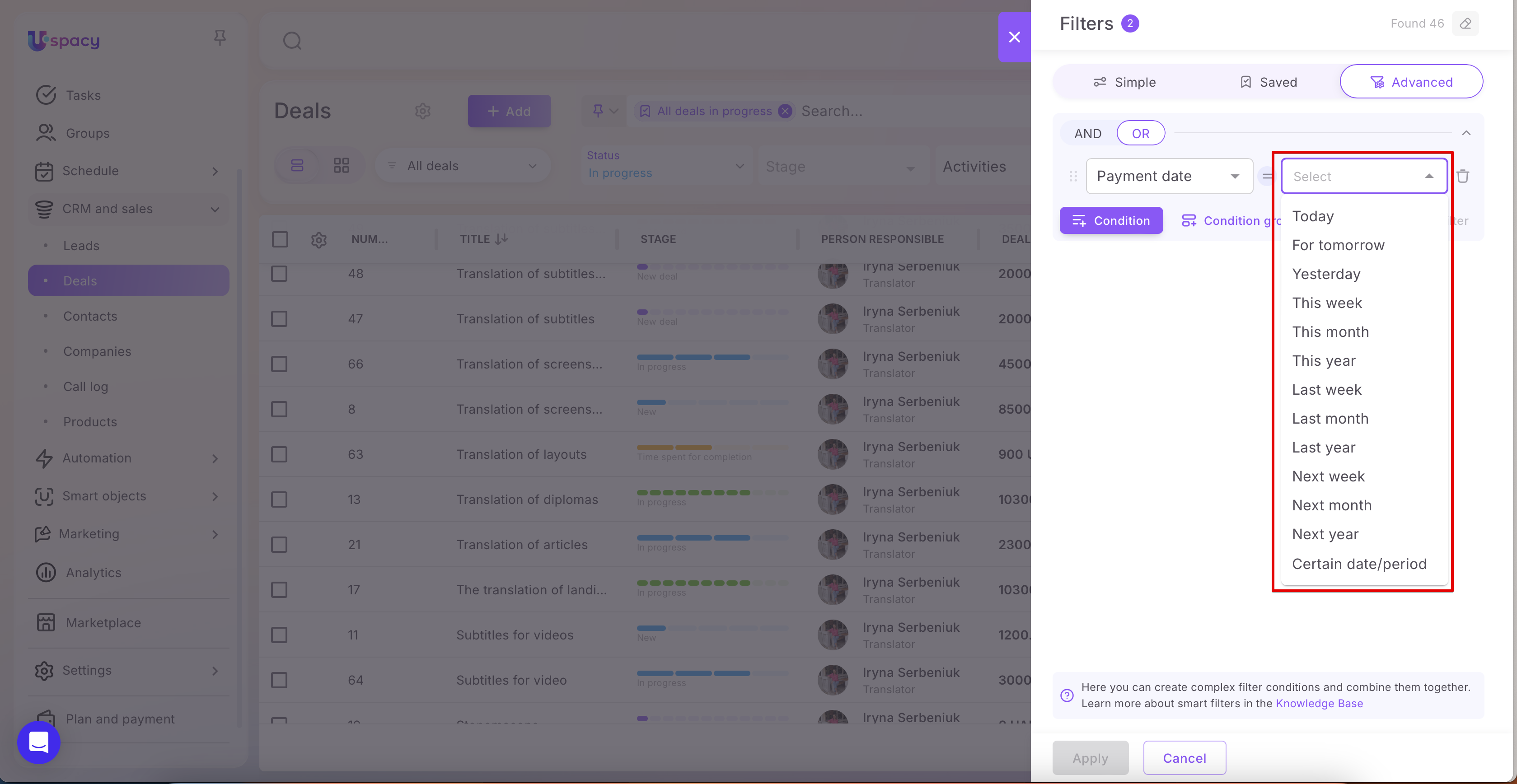
When selecting a date in the condition, you can use quick options instead of manually picking a day from the calendar:
Today / Tomorrow / Yesterday
- Today — inserts the current date.
- Tomorrow — inserts the next day.
- Yesterday — inserts the previous day.
This week / This month / This year
- This week — current calendar week.
- This month — current calendar month.
- This year — current calendar year.
Last week / Last month / Last year
- Last week — previous calendar week.
- Last month — previous calendar month.
- Last year — previous calendar year.
Next week / Next month / Next year
- Next week — next calendar week.
- Next month — next calendar month.
- Next year — next calendar year.
Range
Allows you to define a date interval. Select a from date and a to date, and the filter will show elements whose date falls within this range.
Money
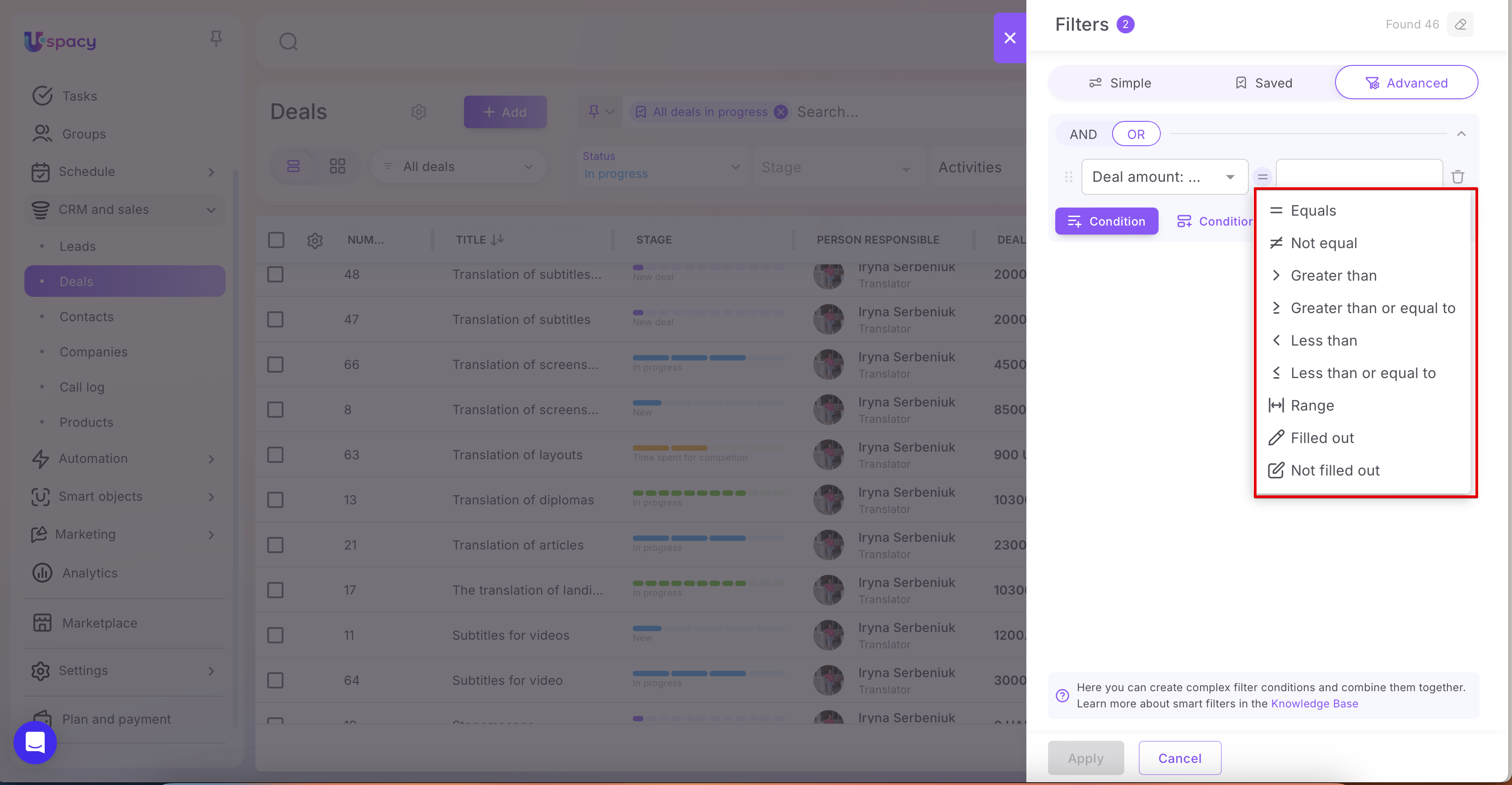
The Money field consists of two parts, and filtering works separately for each:
◉ Value— filtering works the same as a Number field.
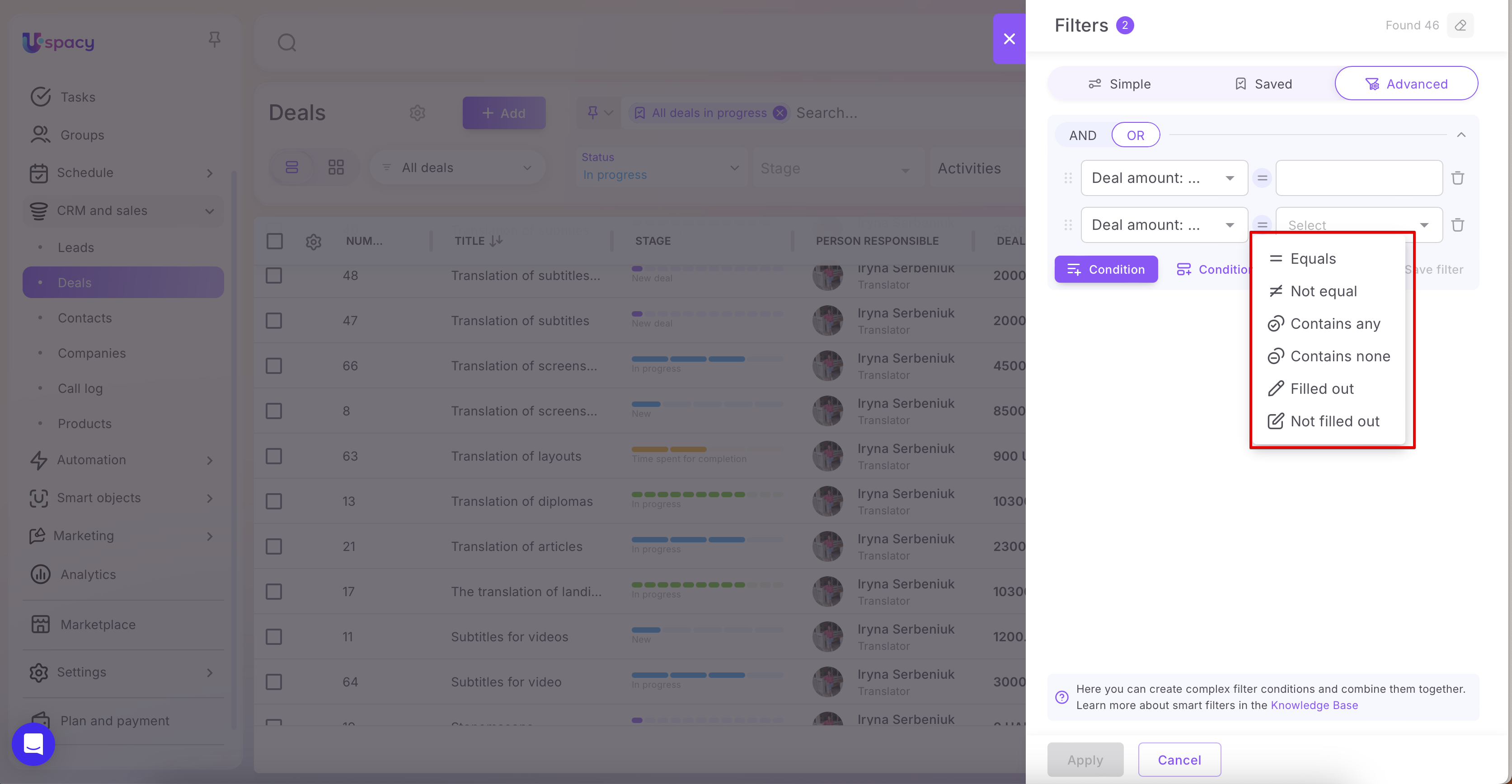
◉ Currency — filtering works the same as a List field.
Checkbox
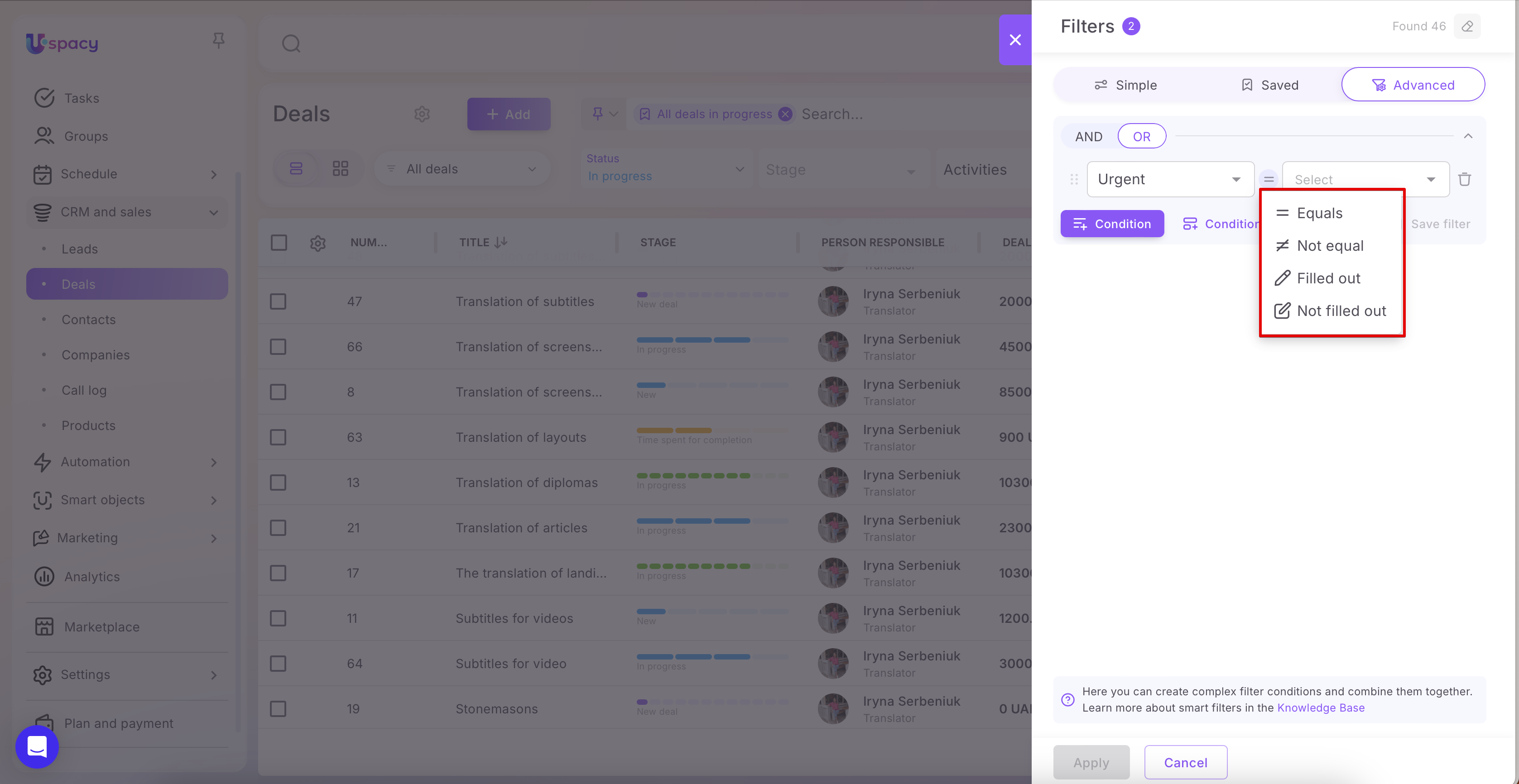
A Checkbox is a field where you can either check or uncheck the box. In filters, it is treated as a value: Yes → checked, No → unchecked.
Operators:
◉ Equals — shows elements where the checkbox matches the selected state.
Equals → Yes → shows elements with the checkbox checked.
Equals → No → shows elements with the checkbox unchecked.
Examples:
➢ Urgent → Equals → Yes — shows all urgent tasks.
➢ Needs review → Equals → No — shows tasks that do not require review.
◉ Not equal — shows elements where the checkbox does not match the selected state.
Not equal → Yes → shows elements where the checkbox is not checked (i.e., No)
Not equal → No → shows elements where the checkbox is checked (i.e., Yes)
Examples:
➢ Urgent → Not equal → Yes — shows tasks that are not marked urgent.
➢ Needs review → Not equal → No — shows tasks marked as requiring review.
◉ Filled out — the field has a value (Yes or No).
◉ Not filled out — the field has no value.
Image, File
💡 At the moment, filtering for Image and File field types is not available on the Advanced tab.
Binding to entity
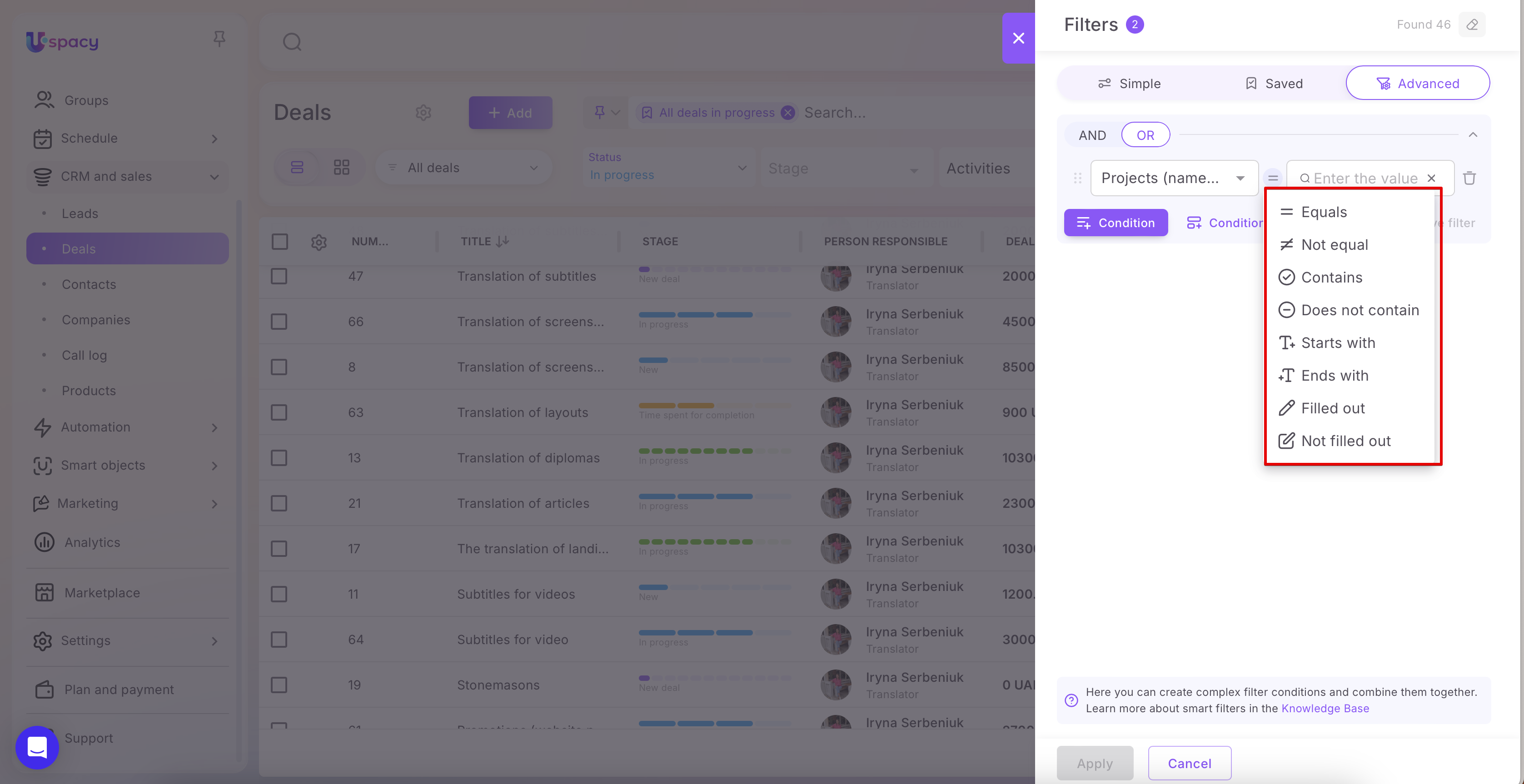
For fields of the Binding to entity type, the same operators are available as for Row, Text, Link, and Address fields. In this case, filtering is based on the name of the linked CRM or Smart Object element.
Default fields for deals and leads: Funnel and Stage
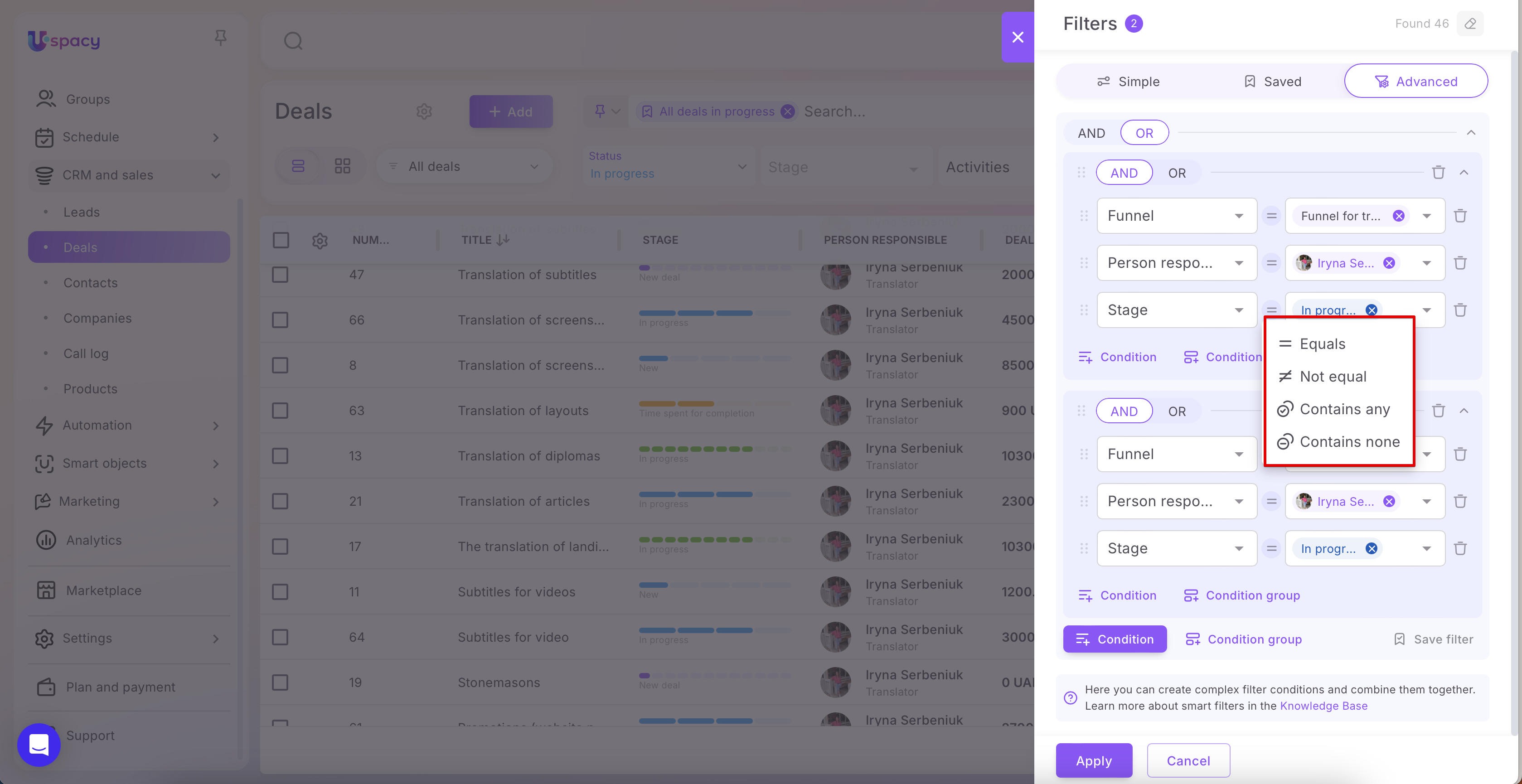
The standard Funnel and Stage fields use the same set of operators. For convenience, we will review them using the Stage field as an example.
◉ Equals — shows elements where a specific stage is selected.
➢ Example: If you set the filter to Stage → Equals → In progress, the results will include only the elements that are currently at the In progress stage.
◉ Not equal — shows elements where any stage other than the specified one is selected.
➢ Example: If you set the filter to Stage → Not equal → In progress, the results will include all elements except those at the In progress stage.
◉ Contains any — shows elements where the field value matches at least one of the selected stages. If multiple stages are selected, OR logic is applied between them.
➢ Example: If you set the filter to Stage → Contains any → In progress and Ready for review, the results will include elements that are either at the In progress stage or at the Ready for review stage.
◉ Contains none — the opposite of Contains any. It shows elements where the field value does not match any of the selected stages.
➢ Example: If you set the filter to Stage → Contains none → In progress and Discussing details, the results will include elements that are neither at the In progress stage nor at the Discussing details stage.
Working with advanced filters
Advanced filters work the same way as Simple filters. They provide more flexibility for building conditions, while the overall interaction principles remain the same as in standard (basic) filters. That means you can still:
- apply a configured filter and get a filtered list;
- cancel changes or reset filtering;
- save a set of conditions as a separate filter and later find it on the Saved tab;
- apply, pin, or delete saved filters via the filter actions menu, as well as select them from the filter bar on the CRM or Smart Objects entity page.
🔍 To better understand the basic scenarios for working with filters and search (applying, saving, pinning, deleting), we recommend reading the article Filters and search in CRM.
If you have additional questions or you need to contact the support, send a request to this email [email protected]
Created: March 11, 2026