
The Schedule view for contacts and companies displays cards based on the upcoming dates of scheduled Activities. Columns represent specific timeframes, such as Today, Tomorrow, This week, This month, and More than a month. Additionally, there are system columns for Expired (activities past their due date).

If a contact or company has multiple activities scheduled for different days, the same card may appear in multiple columns simultaneously. Furthermore, dragging and dropping a card between columns does more than just change its position—it accurately updates the dates of the associated activities based on a clear set of rules.
Let’s break down how it works step-by-step ⬇️
Key features
🟣 A single card can appear in multiple columns.
For example, if a contact (or company) has an activity scheduled for Today and another for Tomorrow, their card will appear in both columns.

💡 Please note: The total element count in the List view may differ from the count on the Schedule board.
For instance, a search in the List view might show 3 contacts.

However, switching to the Schedule view might display 2 cards. This is the expected system behavior.

In the Schedule view, the same contact (or company) card can appear in multiple columns simultaneously if they have multiple activities scheduled for different periods (e.g., one Today and another Tomorrow).
Therefore, the counter reflects the actual number of visible cards (representing a "contact + activity period" relationship) rather than the number of unique contacts shown in the List view.
🟣 Dragging and dropping updates activity dates for that specific period.
When you drag a card to a different column, the system modifies the start and end dates of the associated activities specifically for the period from which you are moving the card.
🟣 Activity duration is preserved.
When a card is moved, the time interval between the activity's start and end times remains unchanged (the overall duration is preserved).
🟣 Special rule for the Tomorrow column.
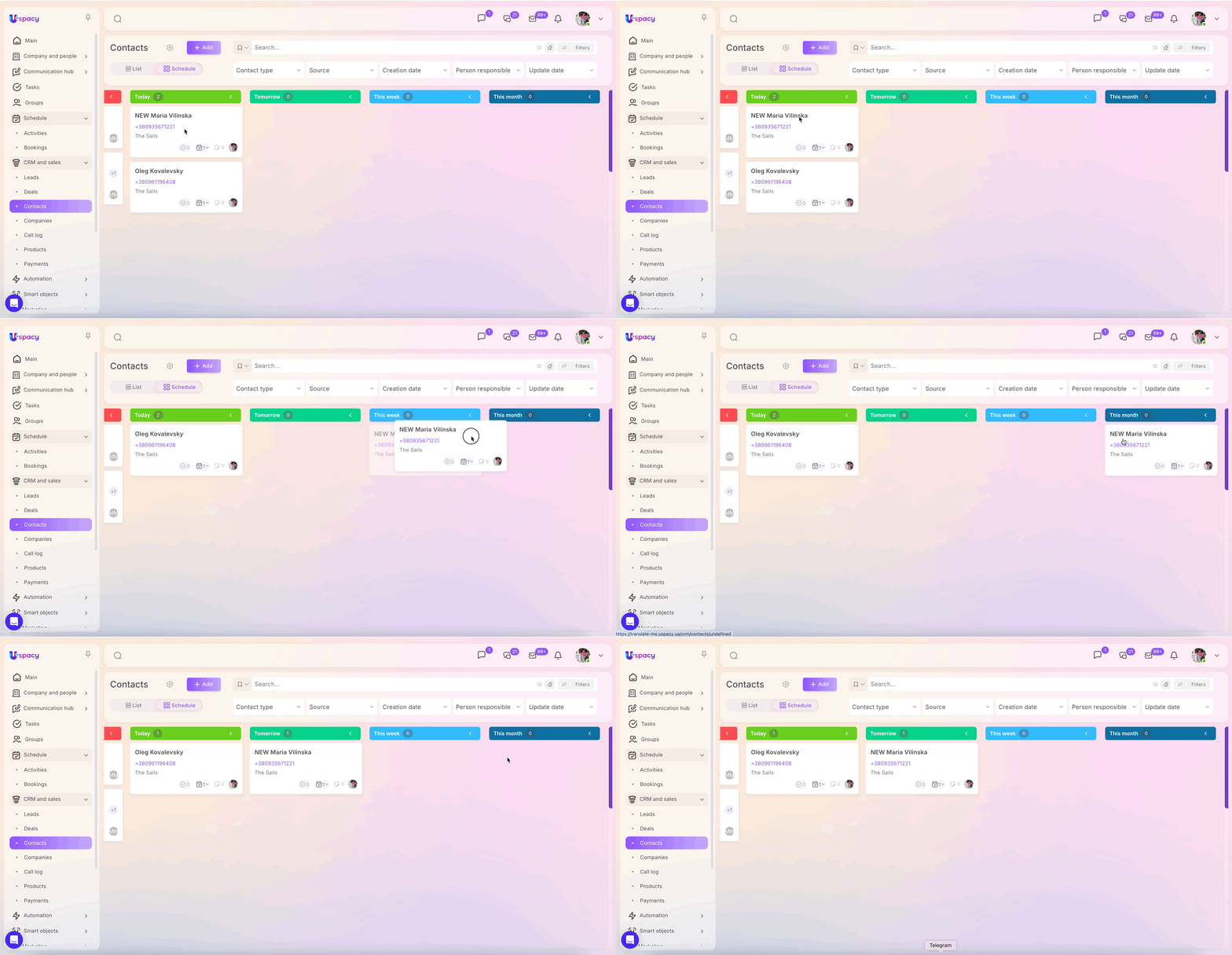
If you drag a contact (or company) card from Today to the Tomorrow column:

The associated activity will be rescheduled for the next calendar day. The start time for the event will automatically be set to 07:00 PM (the end of the business day).


🟣 Special rule for the This week column.
For example, if you drag a card from Today to This Week ⬇️

The activity's start date will be updated to the last day of the current week. The end date will shift proportionally to preserve the original duration. The start time for the event will be set to 07:00 PM (the end of the business day).


🟣 Special rule for the This month column. Dragging a card into this column sets the start date of the corresponding activities to the last day of the current month. The end date shifts accordingly to preserve the activity's duration.
However, please note that if the last day of the month falls within a closer timeframe (such as Tomorrow or This week), the card will automatically move into that respective column instead.
Example: On October 30, 2025, the last day of the month is October 31. Since that date is Tomorrow, dragging a card to the This month column will cause it to "jump" directly into the Tomorrow column.
🟣 Special rule for the More than a month column. Dragging a card into this column sets the start date of the corresponding activities to the first day of the following month. The end date shifts proportionally to ensure the activity's duration remains unchanged.
If the calculated date (the first day of the next month) actually falls within a closer timeframe, the card will automatically move into that respective column instead.
Example: If November 1 falls within This week, dragging a card to the More than a month column will cause it to automatically appear in This week, since November 1 is part of the current week.
🟣 System columns and drag-and-drop restrictions.
- Expired: A card is displayed here if it has at least one activity past its due date. Cards CANNOT be dragged into this column.
🟣 Shared activities across multiple contacts (or companies).
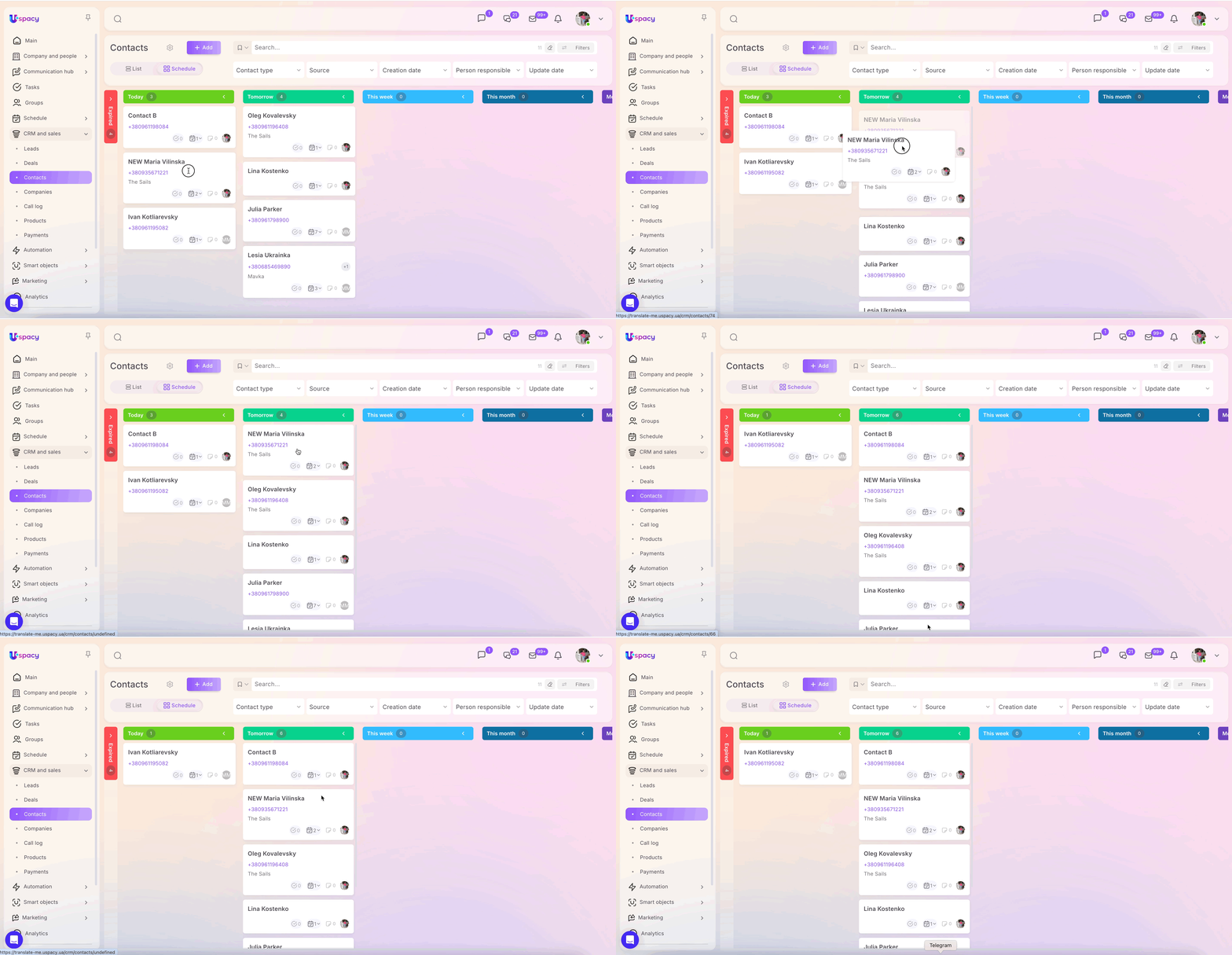
If you drag a card for a contact (or company) that shares an activity with another contact (or company), that other contact's card will also move to the new column. This happens because the date of the shared activity has now been updated to a new timeframe.
For example, if you move a contact's card with an activity that is also linked to Contact B from the Today column to Tomorrow, Contact B's card will move as well.

🟣 Mass changes within a single period.
If a contact has multiple activities scheduled within a specific timeframe (e.g., Today) and you drag the card to another column (e.g., This week), the start dates for all activities within that initial timeframe will update according to the rules of the destination column.


Activities outside of the initial timeframe (e.g., those scheduled for Tomorrow) will remain unchanged.


Permissions
🟣 Card visibility in columns depends on Activity view permissions.
If your permissions for Activities are restricted to "View own only," contact (or company) cards will only appear in columns where you have your own scheduled activities.


If your permissions are set to "View all," you will see contact (or company) cards that have activities assigned to other owners.

🟣 The ability to move cards depends specifically on your permissions for the scheduled Activities.
To drag and drop a card, you must have edit permissions for its activities.

Permissions control is strictly separated between Contacts/Companies and Activities.
For example, even if you have permissions to view and edit all Contacts/Companies, but your Activity permissions are set to "View all and edit own only":

Attempting to drag a contact card that contains an activity assigned to someone else will result in an error, and the card will "snap back" to its original position.
🟣 Multiple activities with different owners for a single contact (or company).
Dragging a card from one period to another will update all activities within that period (even those with different owners) only if you have permissions to edit ALL activities.

If your Activity permissions are restricted to "Edit own only," and a contact has activities assigned to two different owners.

Moving the card will only update the start and end dates for your activity. The activity belonging to the other owner will remain unchanged. As a result, the card will now appear in two different columns simultaneously.
🟣 System columns – no exceptions.
Drag-and-drop restrictions for Expired apply regardless of user permissions: You cannot drag cards into Expired.
Card view on the Board
When working in Schedule view, you can customize the appearance of CRM cards. This works the same way as on the Deals, Leads, or Smart Objects boards: you can select which fields to display, hide unnecessary information, and rearrange the order of fields on the card.
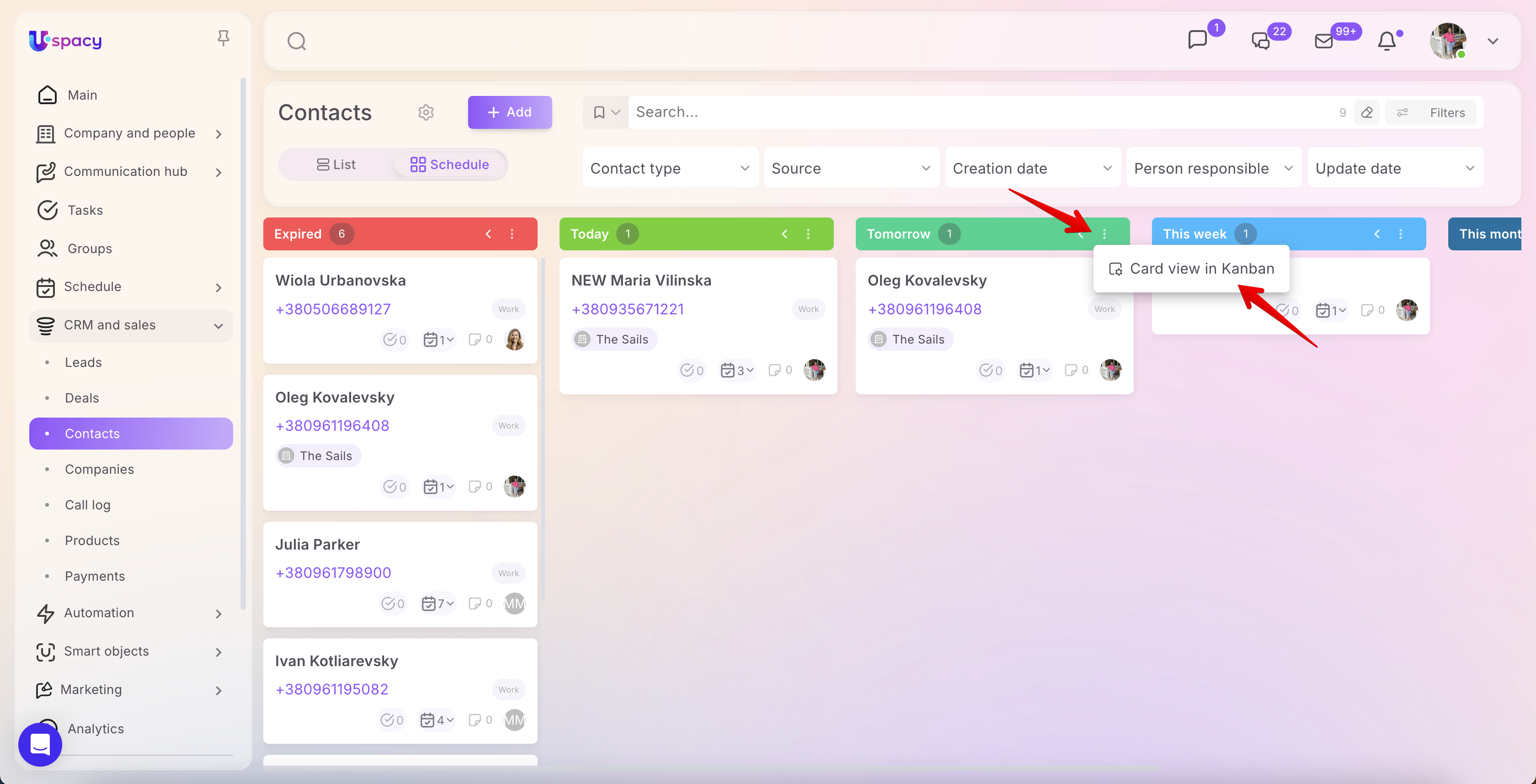
The only difference is that for contacts and companies, there is no need to select a funnel. In Schedule view, columns are organized based on the time periods of scheduled activities associated with contacts or companies.

🔍 For more details, see the article "CRM card view settings on the Kanban board."
The Schedule view for contacts and companies is a fast, efficient way to stay focused on upcoming Activities. A single card can appear in multiple columns, and dragging a card updates the dates for that specific period—preserving activity duration and mass-updating all activities within that timeframe.
The special This week, This month, and More than a month columns automatically apply deadline dates and "jump" to a closer, relevant period (such as Tomorrow) to keep your view accurate and up to date.
Shared activities are synchronized across all linked records, and the system column Expired restricts drag-and-drop actions to prevent errors and keep your scheduling neatly organized.
If you have additional questions or you need to contact the support, send a request to this email [email protected]
Created: June 1, 2026 / Updated: July 10, 2026